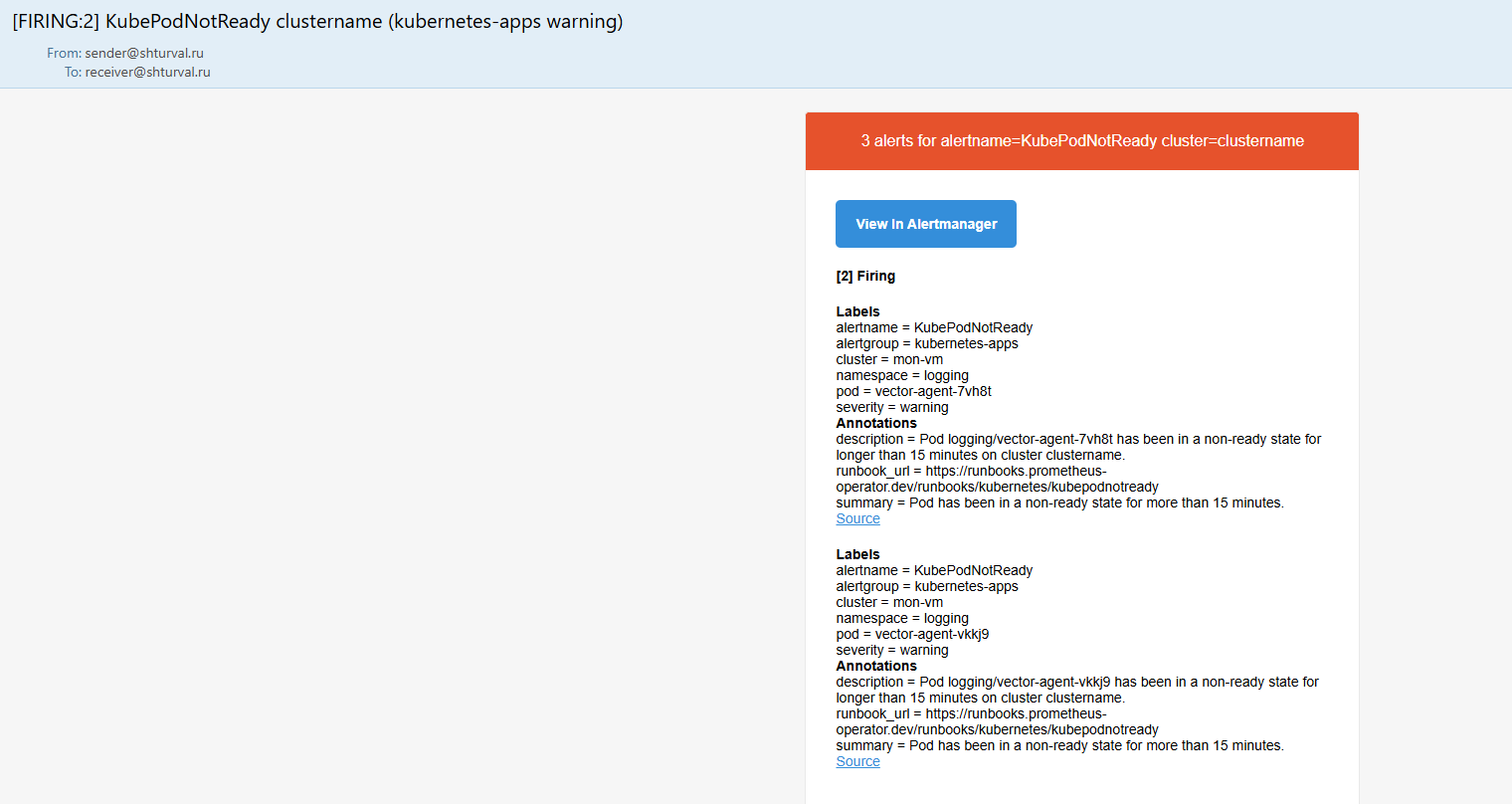
How to set up notification recipients
Webhook, Email and Telegram - section “Alerts” → “Recipients”.
Recipients are configured in the GUI: Notifications → Recipients. For recipient types, routes, and setup procedures, see Configuring alerting.
After creating a recipient, choose which alerts to send on that channel: Alerts → Routes (see Routes).
Webhook
Webhook is used to send messages to notification aggregation services, service-desk, task-manager.
| Parameter | Description |
|---|---|
| Username | Used for authorization paired with a password. Not required when using a Bearer token. |
| Password | Used for authorization paired with a username. Not required when using a Bearer token. |
| Bearer token | Used for authorization. Not required when using a username and password. |
| URL Proxy | |
| Submit resolved | Triggers sending a message indicating that the alert is no longer relevant. Default: yes. |
| Maximum number of alerts sent in one webhook message | Maximum alerts per webhook message. If the value is 0, all alerts are included. |
| URL | Endpoint for sending HTTP requests. |
| Use TLS | The default is no. If you need to set up a secure connection, you must additionally enter: Server name, CA certificate file, Client certificate file, Client key file |
| Server name | |
| CA certificate file | CAFile. Certificate authority (CA) certificate file in base64 format. |
| Client Certificate File | Client certificate file in base64 format. |
| Client Key File | Client key file in base64 format. |
| Disable certificate verification | Default: no. |
----BEGIN CERTIFICATE---- and ----END CERTIFICATE----
Webhook configuration example
Step 1. Download demo-webhook
Load the manifests of the Deployment, Service, VMRule objects into the management cluster using manifest import.
Deployment
apiVersion: apps/v1
kind: Deployment
metadata:
  name: demo-webhook
  namespace: monitoring
  labels:
    app: demo-webhook
spec:
  replicas: 1
  selector:
    matchLabels:
      app: demo-webhook
  template:
    metadata:
      creationTimestamp:null
      labels:
        app: demo-webhook
    spec:
      terminationGracePeriodSeconds: 30
      automountServiceAccountToken: false
      containers:
      - name: demo-webhook
        image: quay.io/mgoerens/demo-webhook-receiver-alertmanager:0.0.1
        imagePullPolicy: IfNotPresent
        env:
        - name: PORT
          value: "8080"
        livenessProbe:
          httpGet:
            path: /healthz
            port: 8080
        readinessProbe:
          httpGet:
            path: /healthz
            port: 8080
        resources:
          limits:
            cpu: 10m
            memory: 30Mi
          requests:
            cpu: 10m
            memory: 30Mi
        securityContext:
          capabilities:
            drop:
              - ALL
          allowPrivilegeEscalation: false
Service — illustration
apiVersion: v1
kind: Service
metadata:
  name: demo-webhook
  namespace: monitoring
  labels:
    app: demo-webhook
spec:
  ports:
  - port: 80
    targetPort: 8080
    protocol: TCP
    name: http
  selector:
    app: demo-webhook
VMRule — illustration
apiVersion: operator.victoriametrics.com/v1beta1
kind: VMRule
metadata:
  labels:
    app: demo-webhook
    role: user
  name: example-alert
  namespace: victoria-metrics
spec:
  groups:
    - concurrency: 1
      interval: 1m
      labels:
        app: demo-webhook
        ruletype: alert
      name: example
      rules:
        - alert: ExampleAlert
          expr: vector(1)
      type: prometheus
Step 2: Create a webhook recipient
In the cluster for which you need to configure alerting, go to Cluster → Alerts →Recipients, create a recipient with type webhook. In the URL field, enter the value: http://demo-webhook.monitoring.svc/webhook. Enter demo-webhook as the recipient name. Leave the remaining fields blank. Save your changes.
Step 3. Set up a route
In the Cluster → Alerts → Routes section, configure sending alerts via this channel. If necessary, select notification labels that will serve as a filter for sending through a given channel.
Step 4. Check the logs
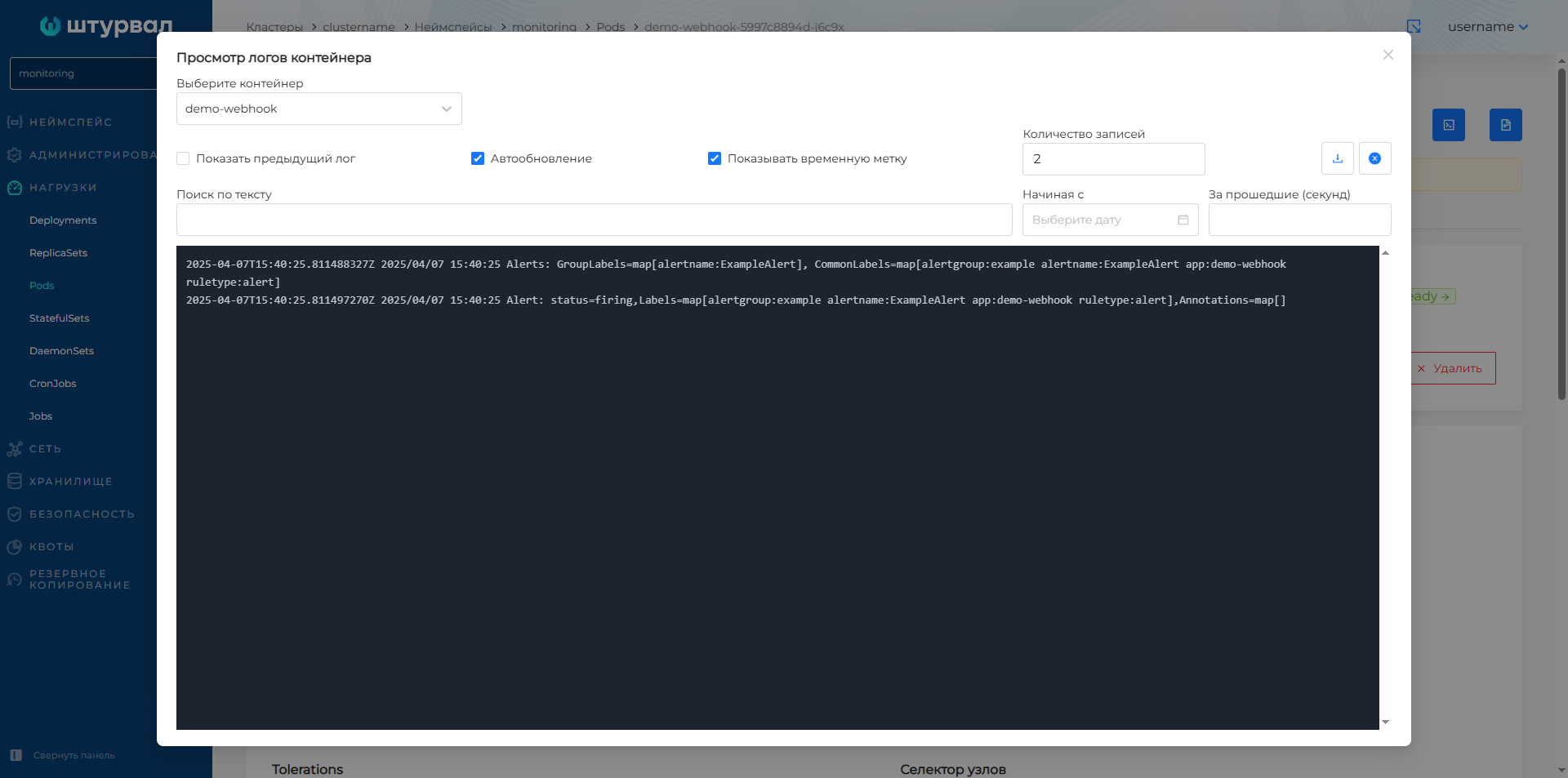
In the namespace monitoring of the management cluster, go to view the pod named demo-webhook. Open the container log viewer. If configured correctly, the logs will contain messages from triggered alerts in the cluster.
Screenshot

Telegram
Step 1. Prepare the bot and recipient
To set up sending alerts to telegram you need to:
- Create a telegram bot.
- Determine the recipient: this can be sent to a user or to a chat group of users.
Step 2. Configure the recipient in the GUI
Once the bot and recipients are defined, in the GUI, configure the recipient:
| Parameter | Description |
|---|---|
| Telegram API URL | Has a default value and is not required to be filled in. |
| Message Format | Markdown, Markdownv2, HTML. Default is HTML. |
| Bot token | On whose behalf the notification will be sent. |
| Chat ID | Individual or group. You can find out the ID by starting a dialogue in the bot from the required chat: https://t.me/userinfobot |
| Submit resolved | Triggers sending a message indicating that the alert is no longer relevant. Default: yes. |
| Turn off notifications | Messages will arrive without sound notification. The default is no. |
| Notification template in text format | If the template is not filled in, a message will be sent using the standard operator template, for example: |
An example of an alert without setting up a template
Alerts Firing: Labels:
- alertname = example
- alertgroup = warning
- cluster = clustername
- ruletype = alert
- severity = warning Annotations:
- description =demo
- summary = demo Source: http://vmalert-vmalert-503055269-6467fdc88f-5srrs:8080/vmalert/alert?group_id=13440678846293985821&alert_id=946083850580454XXX
Additionally, you can customize the template in the Notification template in text format field. For example, to show trigger time, severity, and description:
Template setup example
{{ define "telegram.message" }}
{{ if eq .Status "firing" }}🔥{{ else }}✅{{ end }} *[{{ .Status | toUpper }}] {{ .CommonLabels.alertname }}*

{{ range .Alerts }}
*Severity:* {{ .Labels.severity | title }}
*Summary:* {{ .Annotations.summary }}
*Time:* {{ .StartsAt.Format "2006-01-02 15:04:05 UTC" }}

{{ if .Annotations.description }}*Description:* {{ .Annotations.description }}
{{ end -}}
{{ if .Annotations.runbook }}[Runbook]({{ .Annotations.runbook }})
{{ end -}}
{{ end }}
{{ template "telegram.message" . }}
Then the notification will look like:
Example of an alert using the template from the example above
🔥 [FIRING] TargetDown
Severity: Warning Summary: One or more targets are unreachable. Time: 2025-06-20 03:20:30 UTC
Description: 50% of the vector/ targets in logging namespace are down.
| Parameter | Description |
|---|---|
| Use TLS | Not really. The default is no. |
Send credentials (OPTIONAL): Username/Password pair or Bearer token.
| Parameter | Description |
|---|---|
| Username | Used for authorization paired with a password. Not required when using a Bearer token. |
| Password | Used for authorization paired with a username. Not required when using a Bearer token. |
| Bearer token | Used for authorization. Not required when using a username and password. |
If you need to set up a secure connection, you must additionally enter:
| Parameter | Description |
|---|---|
| Server name | |
| CA certificate file | CAFile. Certificate authority (CA) certificate file in base64 format. |
| Client Certificate File | Client certificate file in base64 format. |
| Client Key File | Client key file in base64 format. |
| Disable certificate verification | Default: no. |
Once you’ve completed setting up a recipient, you need to configure what alerts will be sent on that channel. To do this, in the Cluster section → Alerts → Routes, configure the sending of alerts via this channel. If necessary, select notification labels that will serve as a filter for sending through a given channel.
Depending on your email provider, you will need to fill out information to set up an email alert. For example, Gmail requires authorization data.
| Parameter | Description |
|---|---|
| Authorization ID | Required for SMTP authorization using PLAIN. |
| Username | Required for SMTP authorization using CRAM-MD5, LOGIN or PLAIN. If authorization is not used, leave the field blank. |
| Password | Required for SMTP authorization using CRAM-MD5, LOGIN or PLAIN. If authorization is not used, leave the field blank. |
| Authorization secret | Required for SMTP authorization using CRAM-MD5. If authorization with CRAM-MD5 is not used, leave the field blank. |
| Recipient’s email | Target email address to receive alerts. |
| Service headers | Consisting of a header name and a header body. |
| Hostname to identify the SMTP server | Optional. |
| HTML Notification Template | |
| Submit resolved | Triggers sending a message indicating that the alert is no longer relevant. Default: yes. |
| SMTP server | Required field. |
- on the server side, ports 25 and/or 587 for SMTP, 465 for SMTPS must be open;
- when alerting in the cluster (client, management) of the “Shturval” platform, there are no restrictions on output on the listed ports.
Example of setting up sending to maildev
Step 1: Prepare maildev configuration
Prepare the maildev configuration file:
maildev configuration file manifest
image:
  registry: mirror.gcr.io
  repository: maildev/maildev
  pullPolicy: IfNotPresent
# tag: "2.2.1"

resources:
  limits:
    cpu: 200m
    memory: 256Mi
  requests:
    cpu: 100m
    memory: 128Mi

ingress:
  annotations:
    cert-manager.io/cluster-issuer: <your parameter value>
  enabled: true
  className: "nginx"

  hosts:
    - host: <your parameter value>
      paths:
        - path: /
          pathType: ImplementationSpecific
  tls:
    - secretName: maildev-ingress-tls
      hosts:
        - <your parameter value>
| Parameter | Description | Data type | Default |
|---|---|---|---|
cert-manager.io/cluster-issuer | Cluster management cluster name Clusterissuer | string | corp-acme |
host | Future maildev host. It is formed according to the principle maildev.cluster-management-name.<base_domain>. | string | maildev.clustername.ip-XX-XX-XXX-XXX.shturval.link |
Step 2. Install maildev
Install maildev with the resulting configuration file in the namespace monitoring of the management cluster.
Command to install maildev
Don’t forget at the end of the command, instead of CONFIGURATION-FILE-NAME, enter the name with which you saved the configuration file!
helm upgrade --install -n monitoring maildev https://github.com/christianknell/helm-charts/releases/download/maildev-1.3.4/maildev-1.3.4.tgz -f CONFIGURATION-FILE-NAME
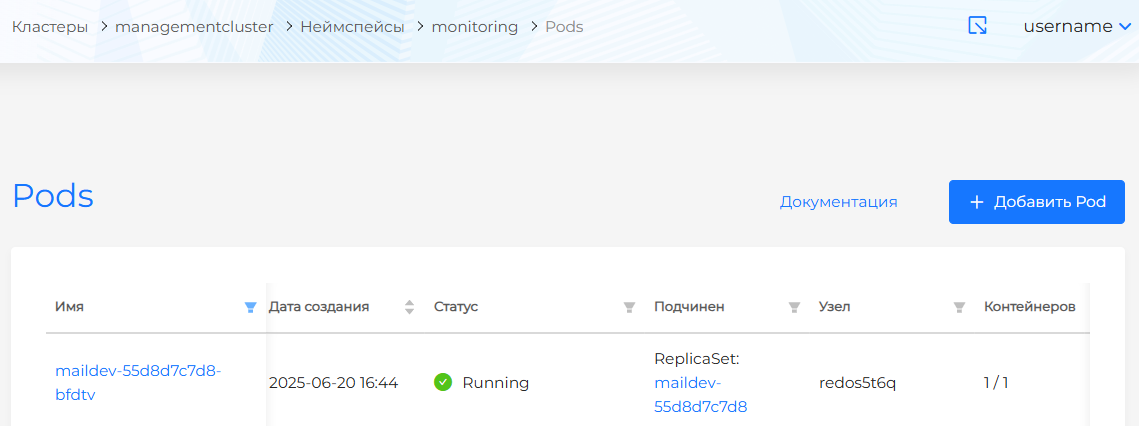
If the setting is correct, a Pod with the maildev prefix will appear in the monitoring namespace of the management cluster.
Screenshot
Step 3. Create an email recipient
In the cluster for which you want to configure sending an alert to email, in the Cluster → Alerts → Recipients section, create a recipient with the “email” type.
Fill in the sender, recipient. Enter the SMTP server: maildev-smtp.monitoring.svc:1025.
If the setting is correct, then maildev will be available at the address specified as the host in the configuration file (https://maildev.management-cluster-name.<base_domain>/#/).
Step 4. Configure the route and check
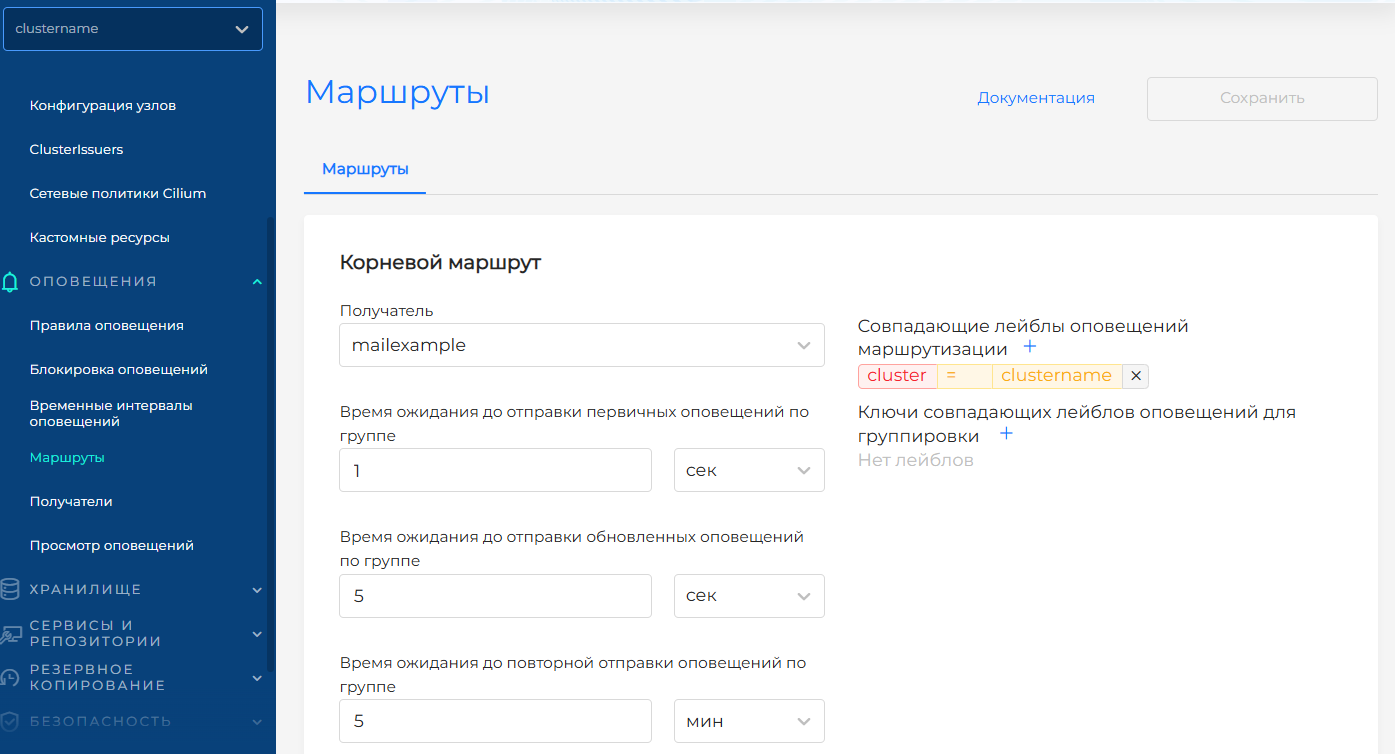
In the Cluster → Alerts → Routes section, configure sending alerts via this channel. If necessary, select notification labels that will serve as a filter for sending through a given channel.
Screenshot
If the setting turned out to be correct, then you will see a notification in maildev that looks like this:
Screenshot