How to add a certificate to a cluster
In a deployed Shturval cluster you can:
- replace the certificate installed during cluster setup with an intermediate or corporate certificate, manually or via
ClusterConfig; - install an ACME (Automatic Certificate Management Environment) certificate.
You can obtain the cluster ClusterConfig:
- in the GUI: management cluster → Administration → Custom Resources → API group cluster.shturval.tech → ClusterConfig;
- in the CLI:
kubectl -n ENTER-CLUSTER-NAME get clusterconfig ENTER-CLUSTER-NAMEin the management cluster.
Replacement scenarios by certificate type follow.
Intermediate certificate
The intermediate certificate can be added manually or via the ClusterConfig configuration. If you already have an intermediate CA certificate signed by an enterprise CA, use it and proceed to your chosen method of adding to the cluster.
Prepare a backup
In the cluster, go to the “Backup and Restore” section. Make sure you have S3 storage connected or connect it.
In the backup, include resources related to issuing certificates and system services that use the certificate.
Non-namespace resources:
shturvalserviceconfigs.
Namespaces:
For any cluster type:
shturval-cd, if Argo CD is used;cert-manager.
For the management cluster:
shturval-backend;shturval-dashboardsif Grafana is used.
Namespace resources:
secrets;clusterissuers.
Step 1. Prepare the certificate
To generate an intermediate certificate for an existing infrastructure, it is suggested to use Step. Step introduces a Certificate Authority (CA) for automated management of X.509 certificates.
- Create a certificate signing request (CSR) and generate an intermediate certificate key:
step certificate create "Intermediate CA Name" intermediate-ca.csr intermediate-ca.key --csr
- Send
intermediate-ca.csrto the administrator of the Certificate Authority (CA) for signature. - Obtain the signed intermediate certificate
intermediate-ca.crtin PEM format. - Create a certificate chain in PEM format, for example
intermediate-ca-chain.crt:
cat intermediate-ca.crt root-ca.crt >intermediate-ca-chain.crt
Where intermediate-ca.crt is the intermediate certificate, root-ca.crt is the corporate root CA certificate.
To add to the cluster you will need:
- chain
intermediate-ca-chain.crt; - private key
intermediate-ca.key; - corporate root CA certificate.
Step 2. Add to cluster
ClusterConfig settings configuration if you have access to the management cluster and rights to edit the resource.Replace certificate manually
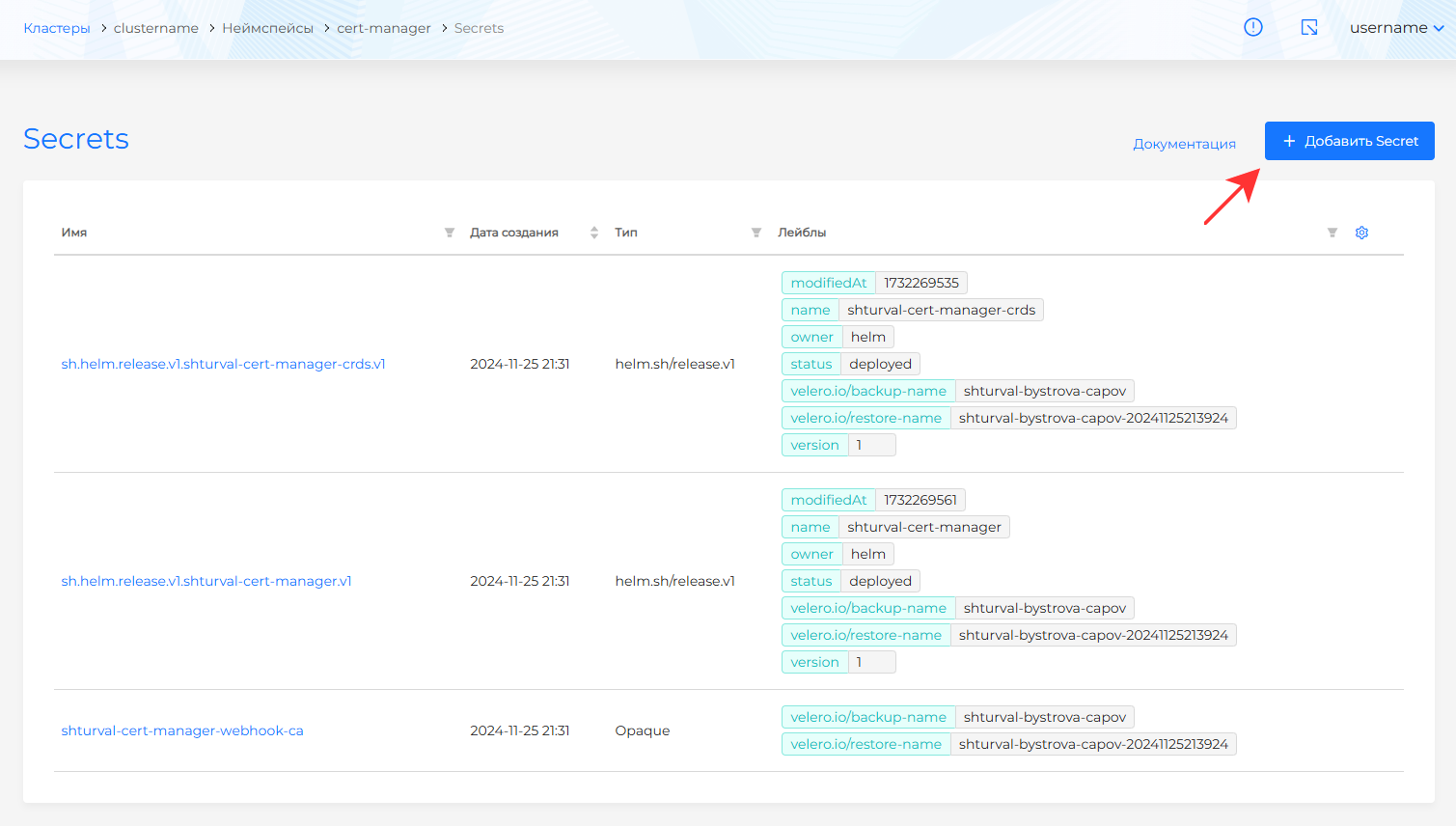
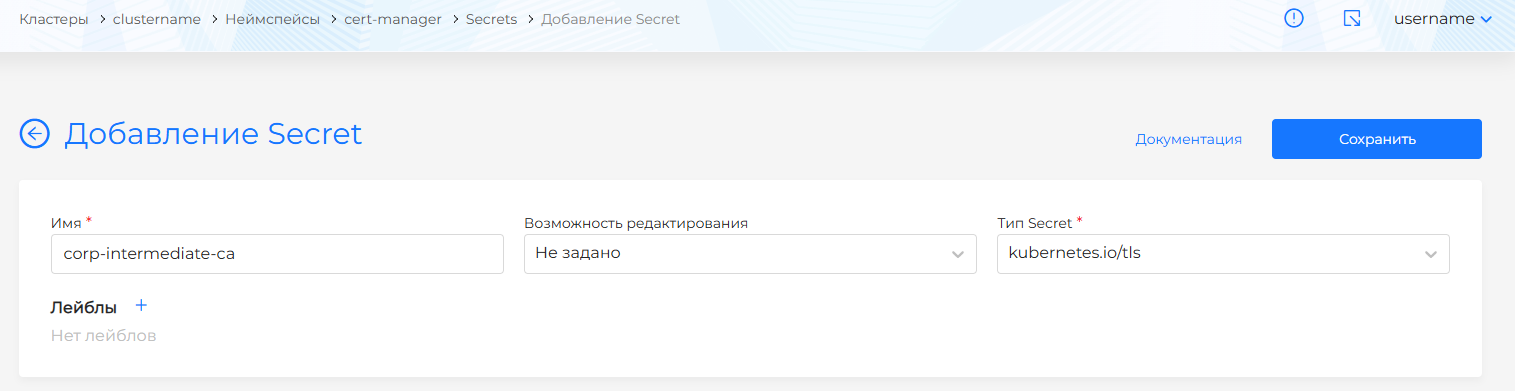
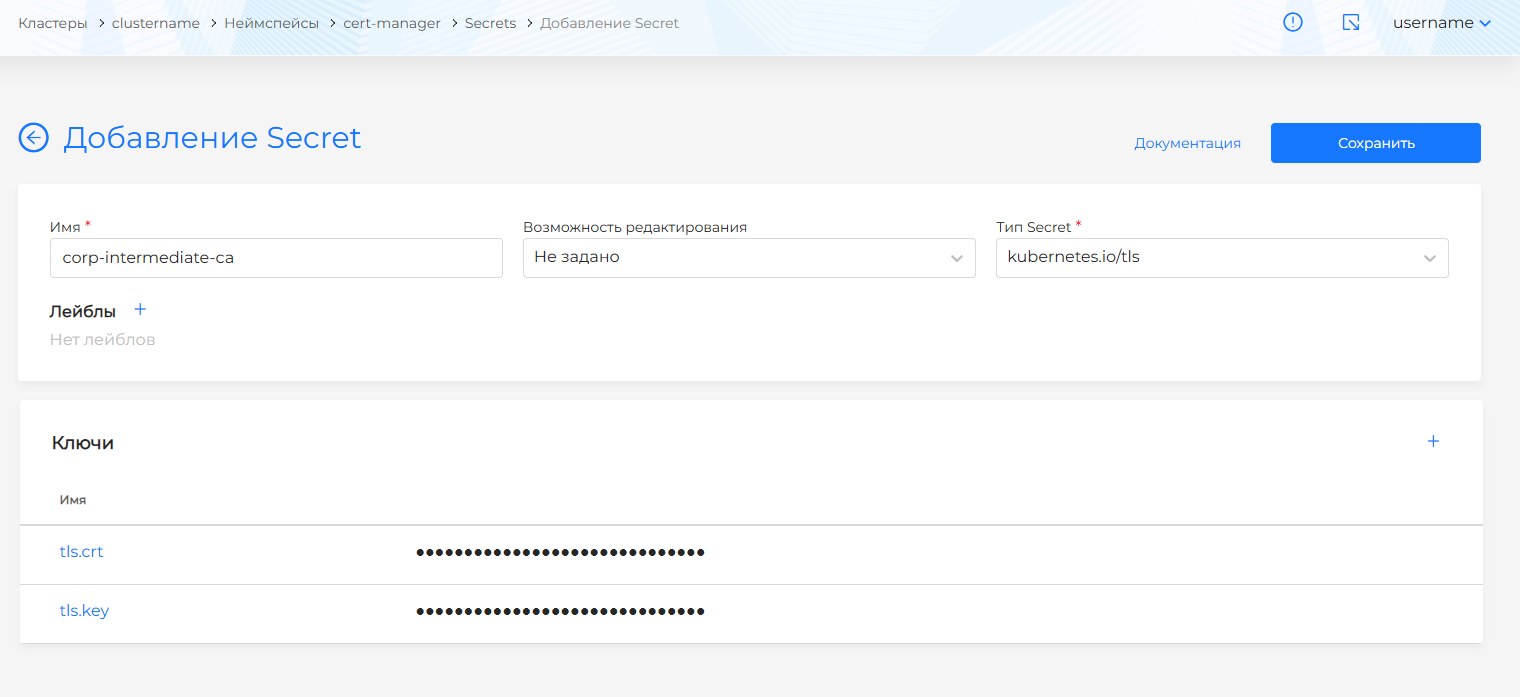
- In the cluster, go to namespace
cert-manager, open the Secrets page of the Storage section and create a secret:
- name:
corp-intermediate-ca; - type:
kubernetes.io/tls.
Screenshots of the creation of Secret corp-intermediate-ca
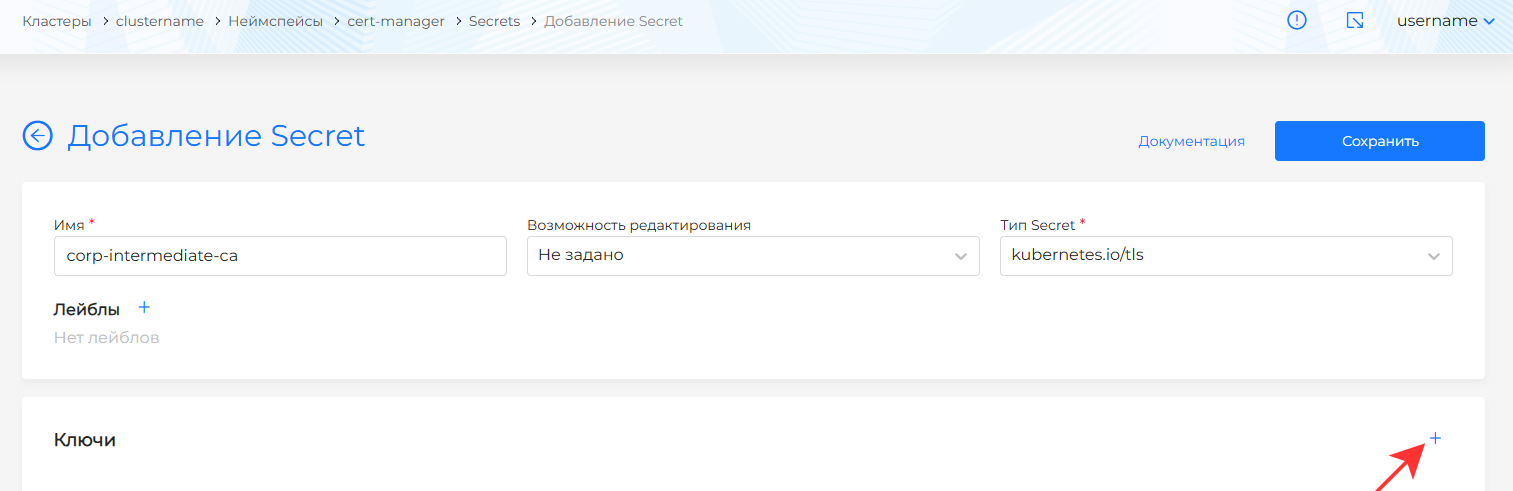
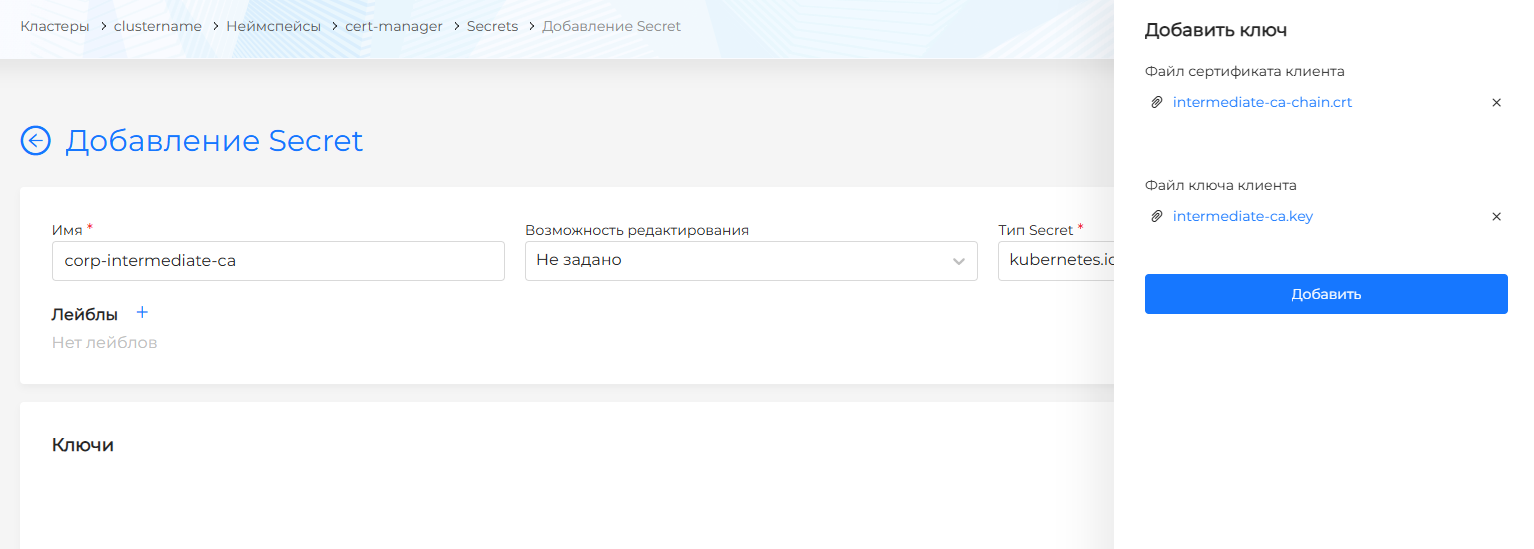
- Add keys with data
intermediate-ca-chain.crtandintermediate-ca.keyto Secretcorp-intermediate-ca.
Screenshots of adding a certificate and key to Secret corp-intermediate-ca
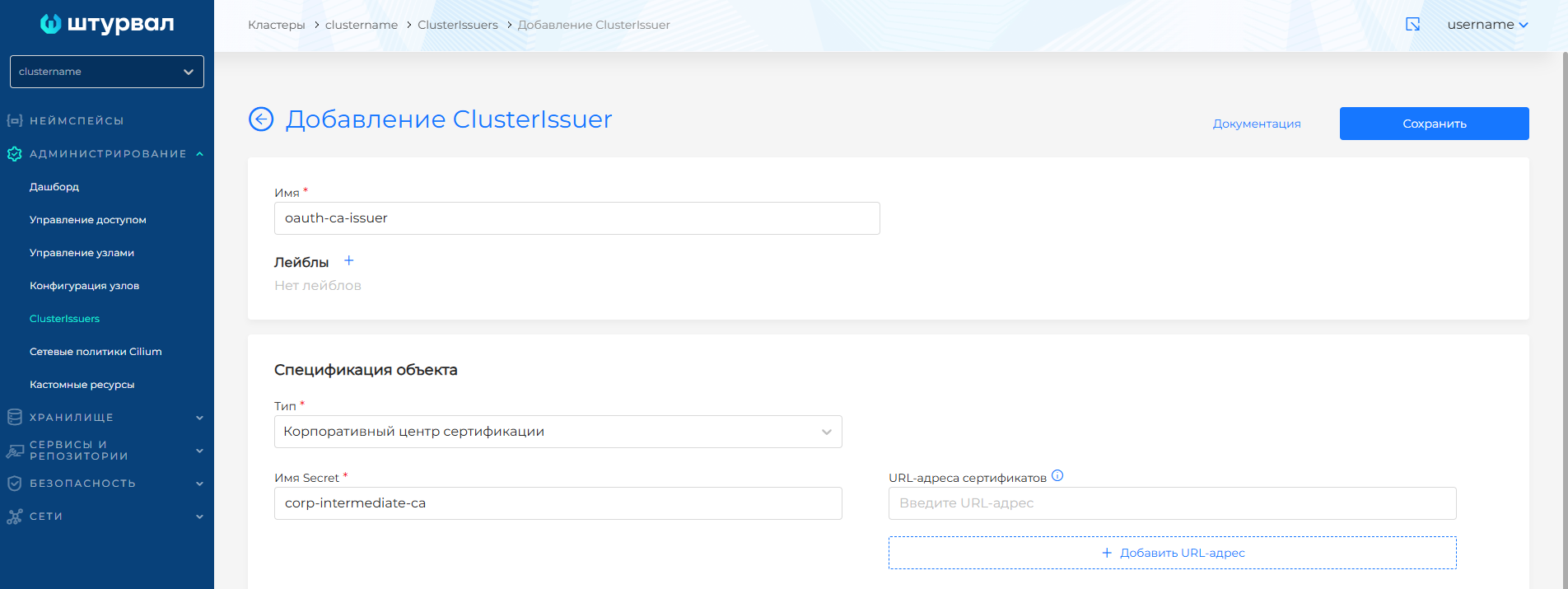
- In the Administration section, open the ClusterIssuers page and create an object specifying the enterprise certificate type and the secret name
corp-intermediate-ca.
Screenshot of ClusterIssuer for intermediate certificate
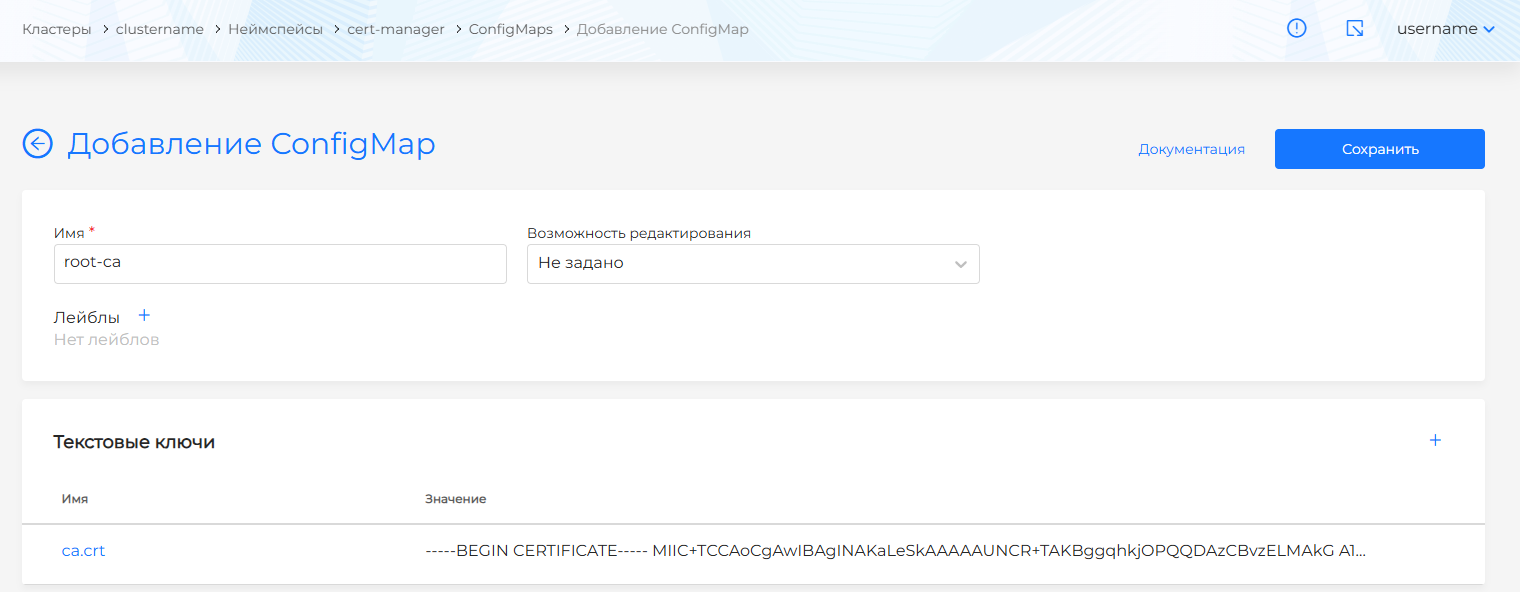
- In namespace
cert-manageropen ConfigMaps and findroot-ca:
- if ConfigMap
root-caexists, open it and replace the key valueca.crtwith the CA root certificate data; - if there is no ConfigMap
root-ca, create it, add theca.crtkey and specify the CA root certificate data in the value.
Screenshot of ConfigMap root-ca
Step 3. Configure system services
If the cluster runs Grafana or Argo CD system services, configure them with ShturvalServicePatch (shturvalserviceconfigs) so authorization works when opening services from the cluster.
For the management cluster
For the management cluster, update:
- Platform software control module (
shturval-backend); - Platform UI control module (
shturval-frontend); - Authentication management module (
shturval-auth).
Backend, Frontend, Auth
Prepare ShturvalServicePatch resource manifests to apply to the shturval-backend, shturval-frontend, and shturval-auth specifications. Add parameters to the customvalues block, as in the examples below.
Example ShturvalServicePatch for backend
apiVersion: ops.shturval.tech/v1beta2
kind: ShturvalServicePatch
metadata:
  name: <resource name>
spec:
  shturvalServiceConfigName: shturval-backend
  customvalues:
    global:
      tls:
        enabled: true
        backend_tls_secretname: <your parameter value>
        cluster_issuer_name: <your parameter value>
| Parameter | Description | Data type | Example |
|---|---|---|---|
metadata.name | Name of the created ShturvalServicePatch | string | shturval-backend-cert |
backend_tls_secretname | Secret name for establishing a TLS connection | string | shturval-tls |
cluster_issuer_name | Name of the created ClusterIssuer | string | corp-acme |
Example ShturvalServicePatch for frontend
apiVersion: ops.shturval.tech/v1beta2
kind: ShturvalServicePatch
metadata:
  name: <resource name>
spec:
  shturvalServiceConfigName: shturval-frontend
  customvalues:
    tls:
      enabled: true
      front_tls_secretname: <your parameter value>
      docs_tls_secretname: <your parameter value>
      cluster_issuer_name: <your parameter value>
| Parameter | Description | Data type | Example |
|---|---|---|---|
metadata.name | Name of the created ShturvalServicePatch | string | shturval-frontend-cert |
front_tls_secretname | Secret name for establishing a TLS connection | string | shturval-tls |
docs_tls_secretname | Secret name for docs | string | docs-tls |
cluster_issuer_name | Name of the created ClusterIssuer | string | corp-acme |
Example ShturvalServicePatch for auth
apiVersion: ops.shturval.tech/v1beta2
kind: ShturvalServicePatch
metadata:
  name: <resource name>
spec:
  shturvalServiceConfigName: shturval-auth
  customvalues:
    tls:
      enabled: true
      auth_tls_secretname: <your parameter value>
      cluster_issuer_name: <your parameter value>
| Parameter | Description | Data type | Example |
|---|---|---|---|
metadata.name | Name of the created ShturvalServicePatch | string | shturval-auth-cert |
auth_tls_secretname | Secret name for establishing a TLS connection | string | shturval-tls |
cluster_issuer_name | Name of the created ClusterIssuer | string | corp-acme |
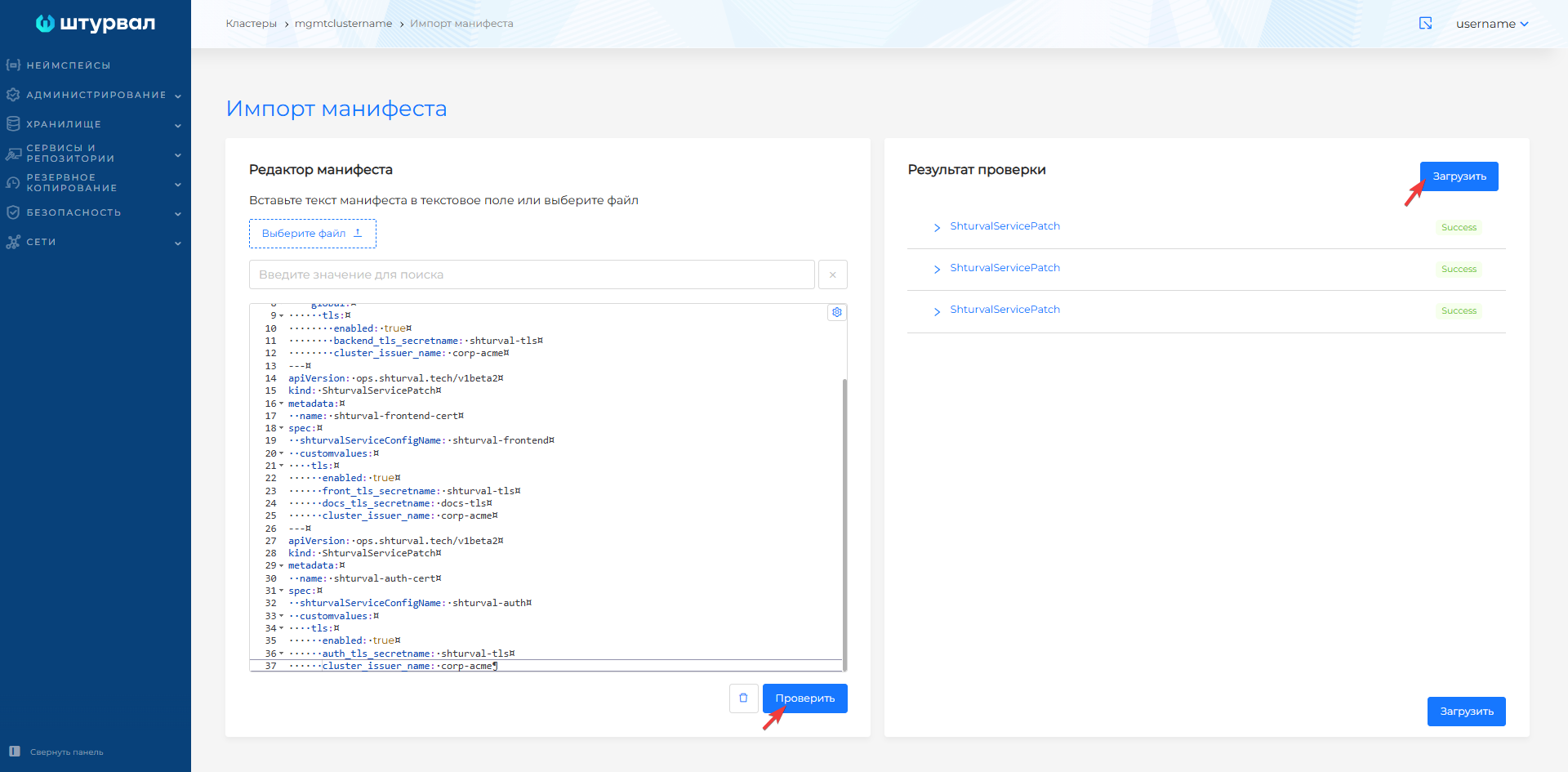
Import the prepared ShturvalServicePatch via import manifests. Click on the import manifests icon to the left of the user name, upload files or drag manifests into the window that opens. Verify, then click Import.
Screenshots of importing manifests for backend, frontend and auth

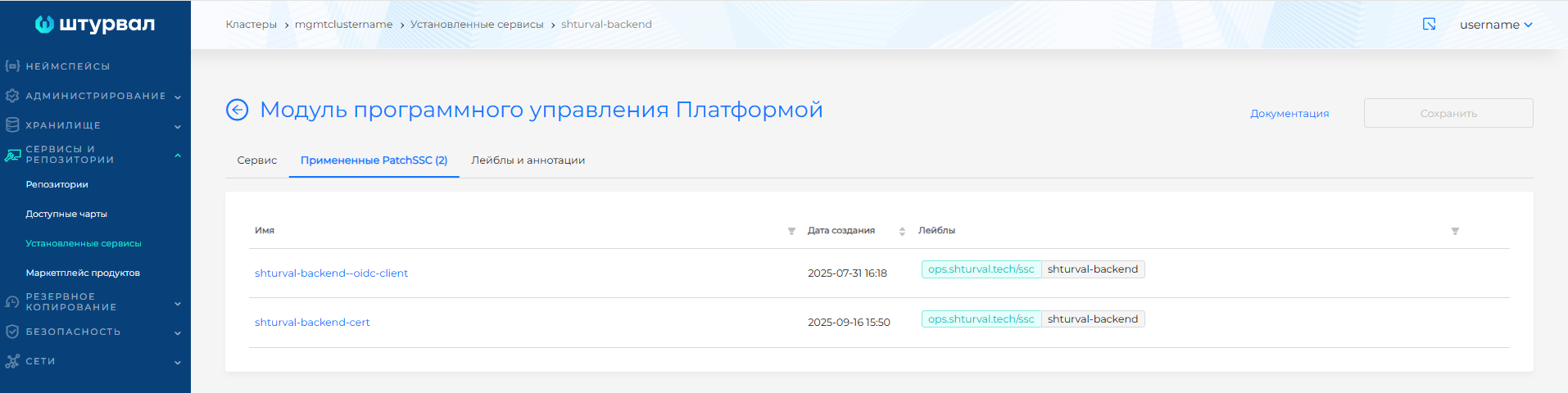
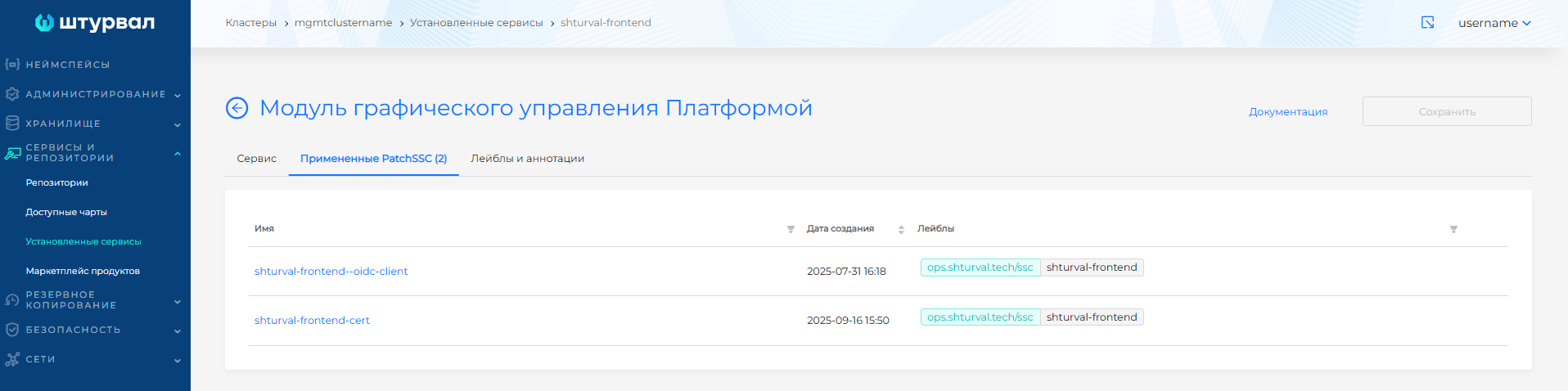
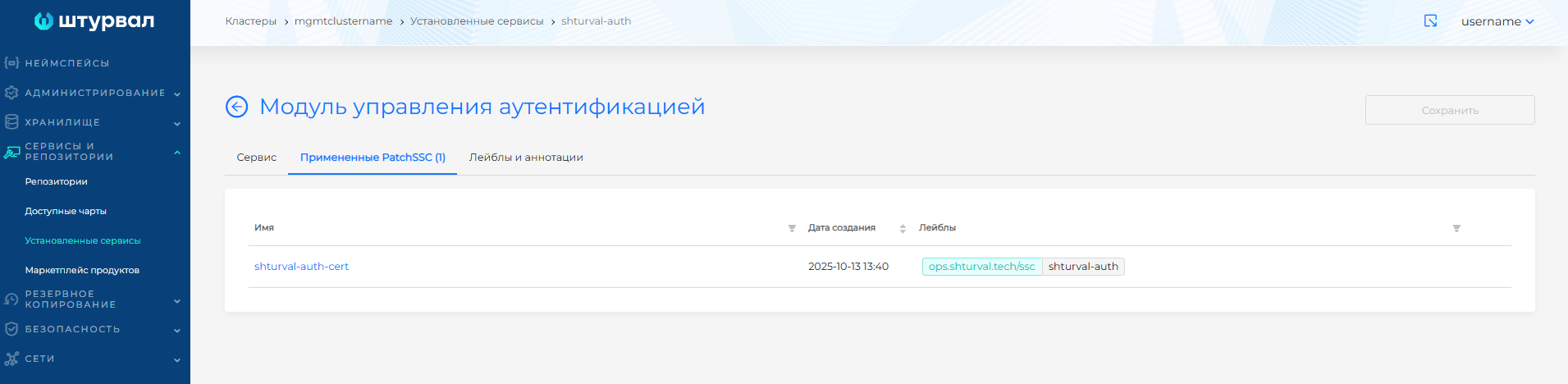
To check the application of manifests, go to the Services and repositories section, open the Installed services page and go to manage the desired service:
- Platform software control module (
shturval-backend); - Platform UI control module (
shturval-frontend); - Authentication management module (
shturval-auth).
The Applied ShturvalServicePatch tab will display the loaded ShturvalServicePatch.
Screenshots of applied ShturvalServicePatch for backend, frontend and auth
Grafana
If Grafana is used, prepare a ShturvalServicePatch manifest to apply to the Metrics visualization module (Grafana) (shturval-dashboards) specification. Add parameters to the customvalues block, as in the example below.
Example ShturvalServicePatch for shturval-dashboards
apiVersion: ops.shturval.tech/v1beta2
kind: ShturvalServicePatch
metadata:
  name: <resource name>
spec:
  shturvalServiceConfigName: shturval-dashboards
  customvalues:
    grafana.ini:
      security:
        cookie_secure: true
      auth.generic_oauth:
        tls_skip_verify_insecure: true
    ingress:
      annotations:
        cert-manager.io/cluster-issuer: <your parameter value>
      enabled: true
      tls:
      - hosts:
        - <your parameter value>
        secretName: <your parameter value>
| Parameter | Description | Data type | Example |
|---|---|---|---|
metadata.name | Name of the created ShturvalServicePatch | string | shturval-dashboards-cert |
grafana.ini.security.cookie_secure | Configuring Grafana authentication file transfer over HTTPS connection | boolean | true |
grafana.ini.auth.generic_oauth.tls_skip_verify_insecure | Configuring disabling SSL/TLS certificate verification on the authentication service | boolean | true |
annotations.cert-manager.io/cluster-issuer | Annotation with the name of the created ClusterIssuer | string | corp-acme |
tls.hosts | List of hosts for which a TLS connection is established | array | dashboards.clustername.ip-10-11-11-13.shturval.link |
tls.secretName | Secret name for establishing a TLS connection in which the certificate for Grafana will be stored | string | dashboards-ingress-tls |
Import the prepared ShturvalServicePatch via import manifests.
Screenshots of manifest import for Grafana
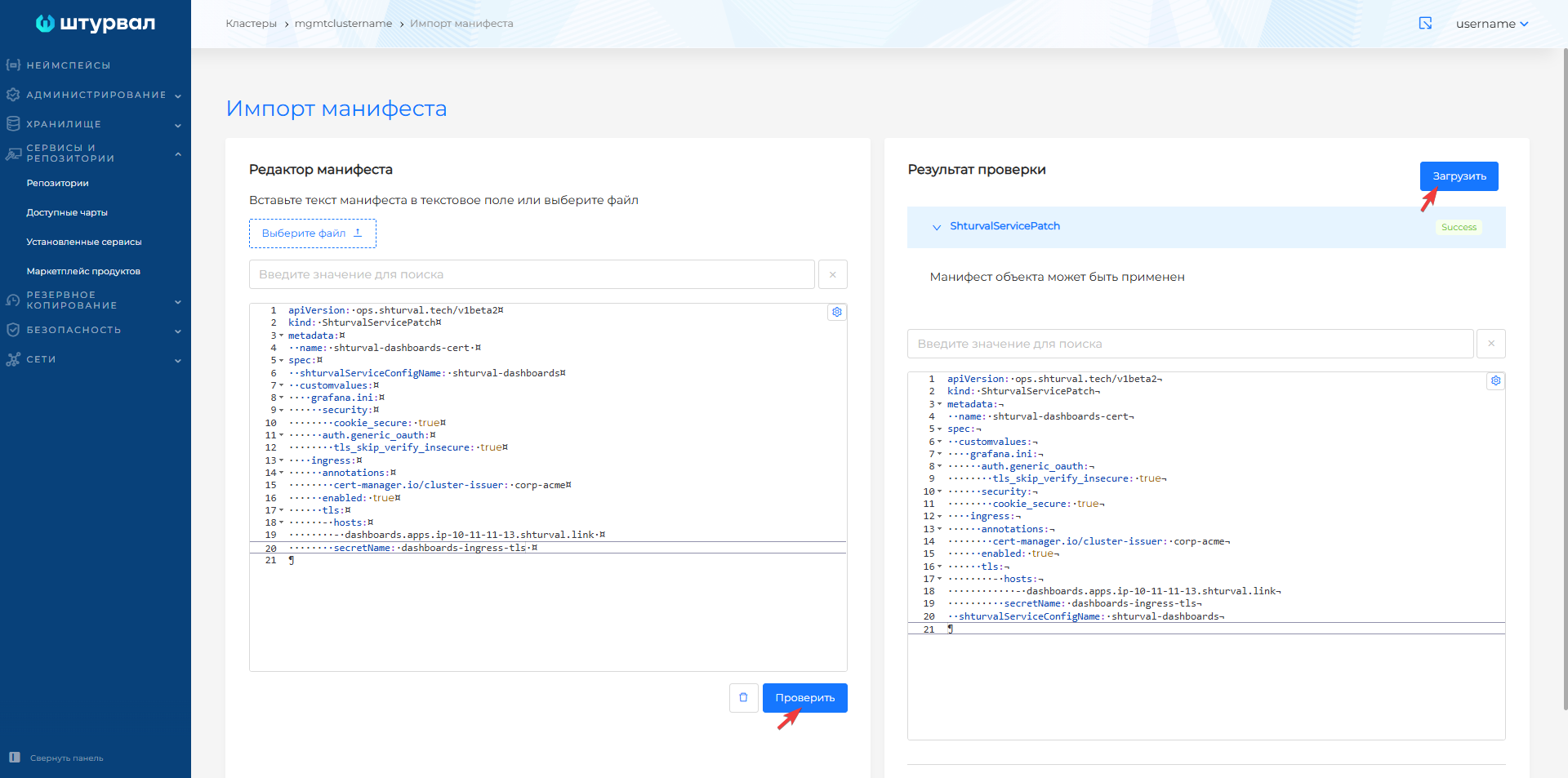
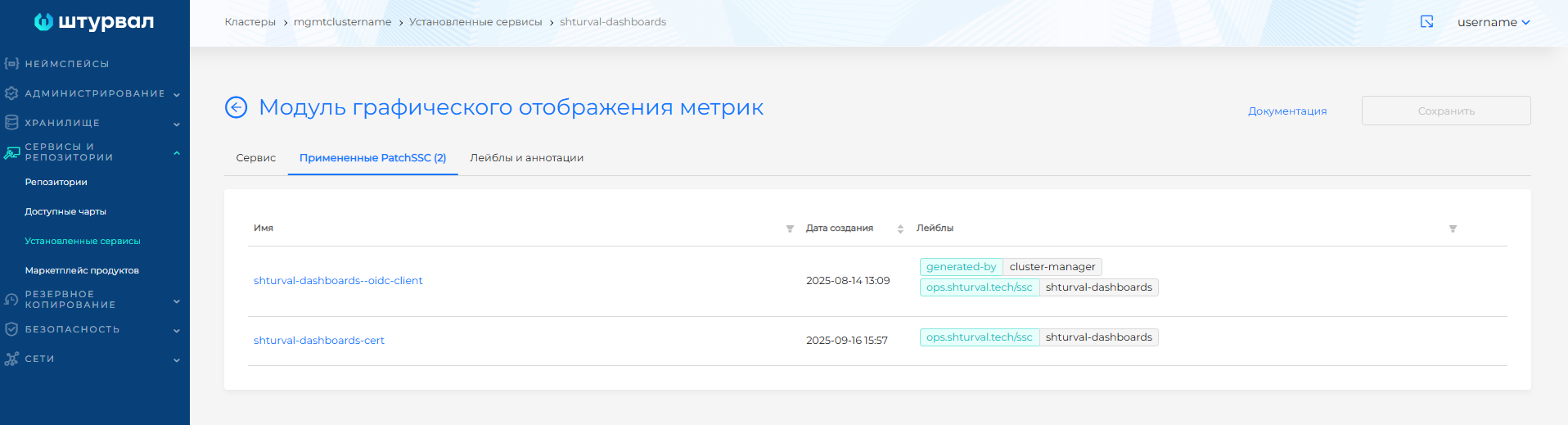
After importing the manifest from the Services and Repositories section, open the Installed Services page, find the Metrics visualization module (Grafana) (shturval-dashboards) and go to management. The Applied ShturvalServicePatch tab will display the loaded ShturvalServicePatch.
Screenshot of applied ShturvalServicePatch for Grafana
For any type of cluster
Argo CD
If Argo CD is used, prepare a ShturvalServicePatch manifest to apply to the Continuous application delivery (Argo CD) (shturval-cd) specification. Add parameters to the customvalues block, as in the example below.
Example ShturvalServicePatch for shturval-cd
apiVersion: ops.shturval.tech/v1beta2
kind: ShturvalServicePatch
metadata:
  name: <resource name>
spec:
  shturvalServiceConfigName: shturval-cd
  customvalues:
    server:
      ingress:
        annotations:
          cert-manager.io/cluster-issuer: <your parameter value>
        enabled: true
        hostname: <your parameter value>
        path: /
        pathType: Prefix
        tls: true
| Parameter | Description | Data type | Example |
|---|---|---|---|
metadata.name | Name of the created ShturvalServicePatch | string | shturval-cd-cert |
annotations.cert-manager.io/cluster-issuer | Annotation with the name of the created ClusterIssuer | string | corp-acme |
ingress.hostname | Argo CD Server Hostname | string | argocd.clustername.ip-10-11-11-13.shturval.link |
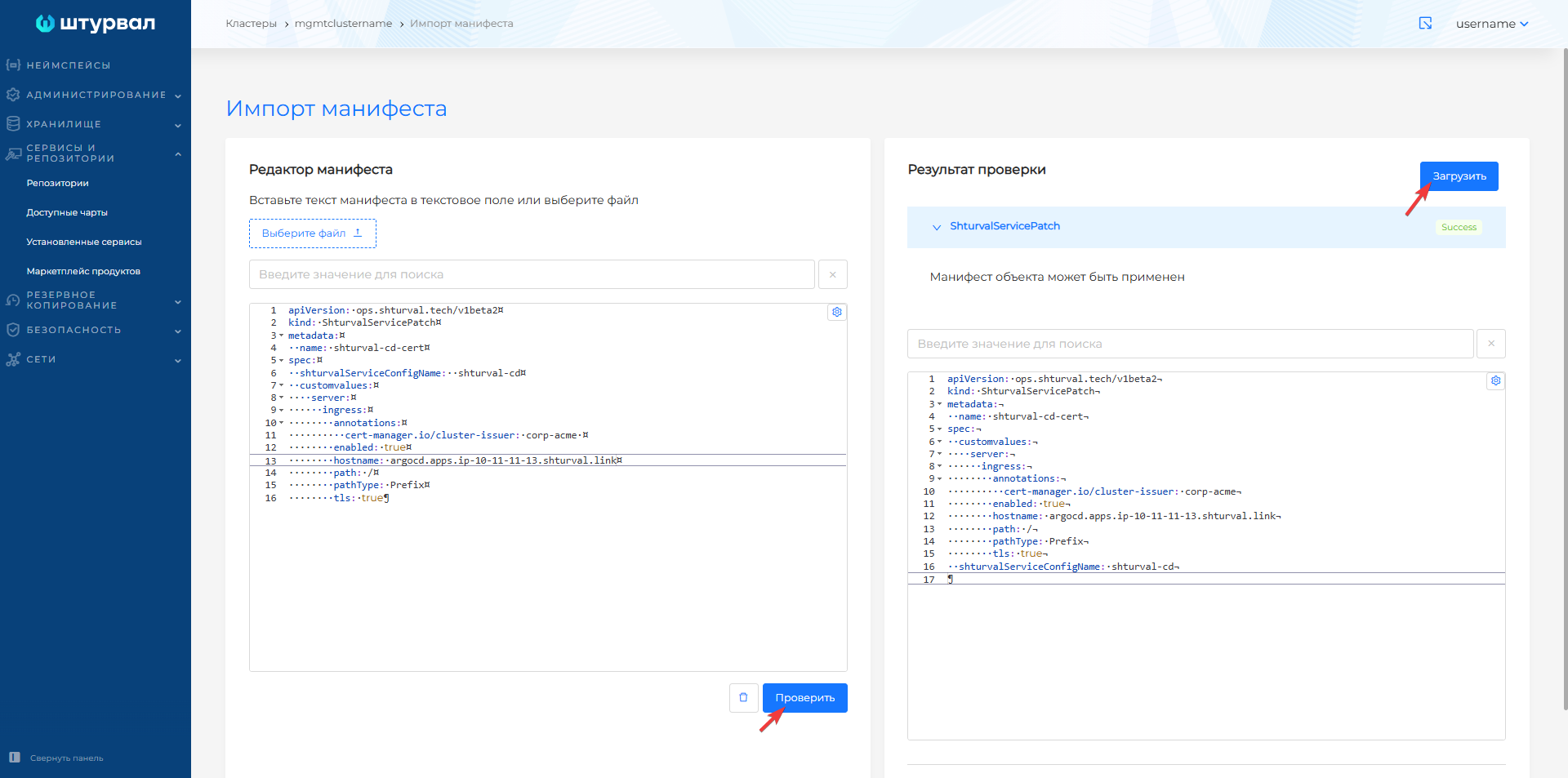
Import the prepared ShturvalServicePatch via import manifests.
Screenshots of manifest import for Argo CD
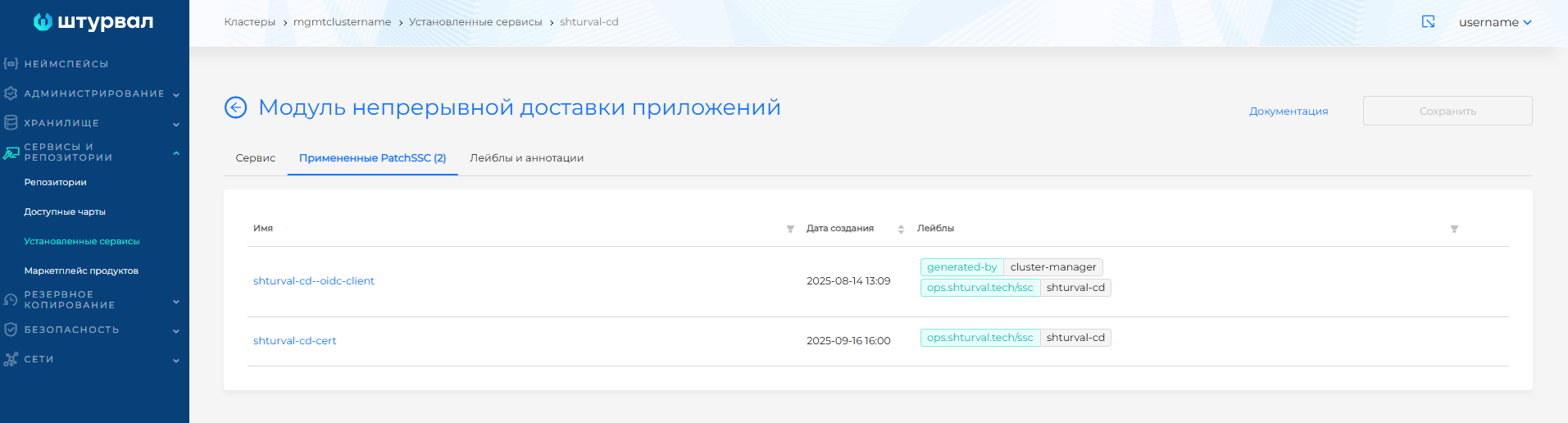
After importing the manifest from the Services and Repositories section, open the Installed Services page, find Continuous application delivery (Argo CD) (shturval-cd) and go to management. The Applied ShturvalServicePatch tab will display the loaded ShturvalServicePatch.
Screenshot of the applied ShturvalServicePatch for Argo CD
Replace certificate via ClusterConfig
Step 1. Prepare values
To update via ClusterConfig, prepare values in base64 format:
- certificate chain
intermediate-ca-chain.crt; - private key of the intermediate certificate
intermediate-ca.key; - CA root certificate, if you need to specify it explicitly.
base64 -w0 intermediate-ca-chain.crt
base64 -w0 intermediate-ca.key
base64 -w0 root-ca.crt
Step 2: Update ClusterConfig
- Save the original configuration so that if an error occurs you can roll back the changes:
export CLUSTER_NAMESPACE=<cluster_namespace>
export CLUSTER_NAME=<cluster_name>
kubectl -n "$CLUSTER_NAMESPACE" get clusterconfig "$CLUSTER_NAME" -o yaml > "clusterconfig-$CLUSTER_NAME-backup.yaml"
- Open
ClusterConfigfor editing:
kubectl -n "$CLUSTER_NAMESPACE" edit clusterconfig "$CLUSTER_NAME"
- In
spec.systemServicesConfig.ingressspecify the blockintermediateCA:
apiVersion: cluster.shturval.tech/v1beta1
kind: ClusterConfig
metadata:
  name: <cluster_name>
  namespace: <cluster_namespace>
spec:
  clusterName: <cluster_name>
  systemServicesConfig:
    ingress:
      intermediateCA:
        cert: <certificate chain>
        key: <private_key_of_intermediate_certificate>
        rootca: <root_certificate>
| Parameter | Required | Description |
|---|---|---|
cert | Yes | Certificate chain (intermediate CA -> root CA) in PEM format, base64 encoded |
key | Yes | Base64 encoded intermediate certificate key |
rootca | No | Base64 encoded CA root certificate |
Once saved, ClusterConfig cluster-manager will update the associated certificate resources. There is no additional need to update system services.
ACME
ACME Certificate automates the receipt of SSL certificates through the ACME server. To configure automatic issuance of certificates through the ACME server, you need to obtain the root CA certificate that the ACME server uses, encode its data and add the certificate to the cluster manually or through ClusterConfig.
Prepare a backup
In the backup, include resources associated with the ACME server, cert-manager and system services for which certificates will be issued.
Non-namespace resources:
shturvalserviceconfigs.
Namespaces:
For any cluster type:
shturval-cd, if Argo CD is used;cert-manager.
For the management cluster:
shturval-backend;shturval-dashboardsif Grafana is used.
Namespace resources:
secrets;clusterissuers.
Step 1: Prepare ACME
If your organization already has an ACME server, request the root CA certificate for that server from your administrator.
If there is no ACME server, you can install step-ca and obtain a root CA certificate. Using a certificate from step-ca in the root CA platform will ensure trust in all certificates that will be issued by a certificate from step-ca.
step-ca can be set in several ways. Below is an example of installation via a Docker container. If necessary, select a different installation method from step-ca official documentation.
- Create a directory for configuration and certificates:
mkdir data
chown 1000:1000 data
- Create a file
docker-compose.yaml:
services:
  step-ca:
    container_name: step-ca
    image: smallstep/step-ca:0.27.2
    restart: always
    ports:
        - "9443:9000"
    environment:
       DOCKER_STEPCA_INIT_DNS_NAMES: issuer.ip-XX-XX-XXX-XX.shturval.link # the hostname(s) or IPs that the CA will accept requests on
       DOCKER_STEPCA_INIT_NAME: shturval # the name of your CA - this will be the issuer of your CA certificates
       DOCKER_STEPCA_INIT_REMOTE_MANAGEMENT: true # enable remote provisioner management
       DOCKER_STEPCA_INIT_ACME: true # also create an initial ACME provisioner for the CA
       # DOCKER_STEPCA_INIT_PROVISIONER_NAME: admin # a label for the initial admin (JWK) provisioner.
       # DOCKER_STEPCA_INIT_SSH: "" # set this to a non-empty value to enable SSH certificate support
       # DOCKER_STEPCA_INIT_PASSWORD_FILE: "" # the location of a password file to be used for both private keys and the default CA provisioner.
       # DOCKER_STEPCA_INIT_PASSWORD: shturval # Normally, CA passwords will be generated for you. With this option, you can specify a password for the encrypted CA keys and the default CA provisioner.
    volumes:
        - ./data:/home/step # 1000:1000
    logging:
      driver: "json-file"
      options:
        max-size: "200m"
In the DOCKER_STEPCA_INIT_DNS_NAMES parameter, specify the DNS name by which the server responds.
- Run
step-ca:
# Start step-ca server
docker compose up -d
# Startup check
docker compose ps
If the container is in UP state, the server is ready to issue certificates.
- Obtain the root CA certificate of the server
step-ca:
cat data/certs/root_ca.crt
Sample answer:
-----BEGIN CERTIFICATE-----
MIIBoDCCAUagAwIBAgIRAJV9+1S0q+d9+V/UmBXhR+4wCgYIKoZIzj0EAwIwLjER
MA8GA1UEChMIc2h0dXJ2YWwxGTAXBgNVBAMTEHNodHVydmFsIFJvb3QgQ0EwHhcN
MjQxMTIyMTUyMzQ5WhcNMzQxMTIwMTUyMzQ5WjAuMREwDwYDVQQKEwhzaHR1cnZh
bDEZMBcGA1UEAxMQc2h0dXJ2YWwgUm9vdCBDQTBZMBMGByqGSM49AgEGCCqGSM49
AwEHA0IABNhNCtkBTfs+HXA6h1Ty8Qlg+zKQNu
-----END CERTIFICATE-----
Step 2. Add to cluster
ClusterConfig settings configuration if you have access to the management cluster and rights to edit the resource.Replace certificate manually
- In the cluster, open the ClusterIssuers page of the Administration section and create a ClusterIssuer, for example
corp-acme.
Screenshots of ClusterIssuer creation
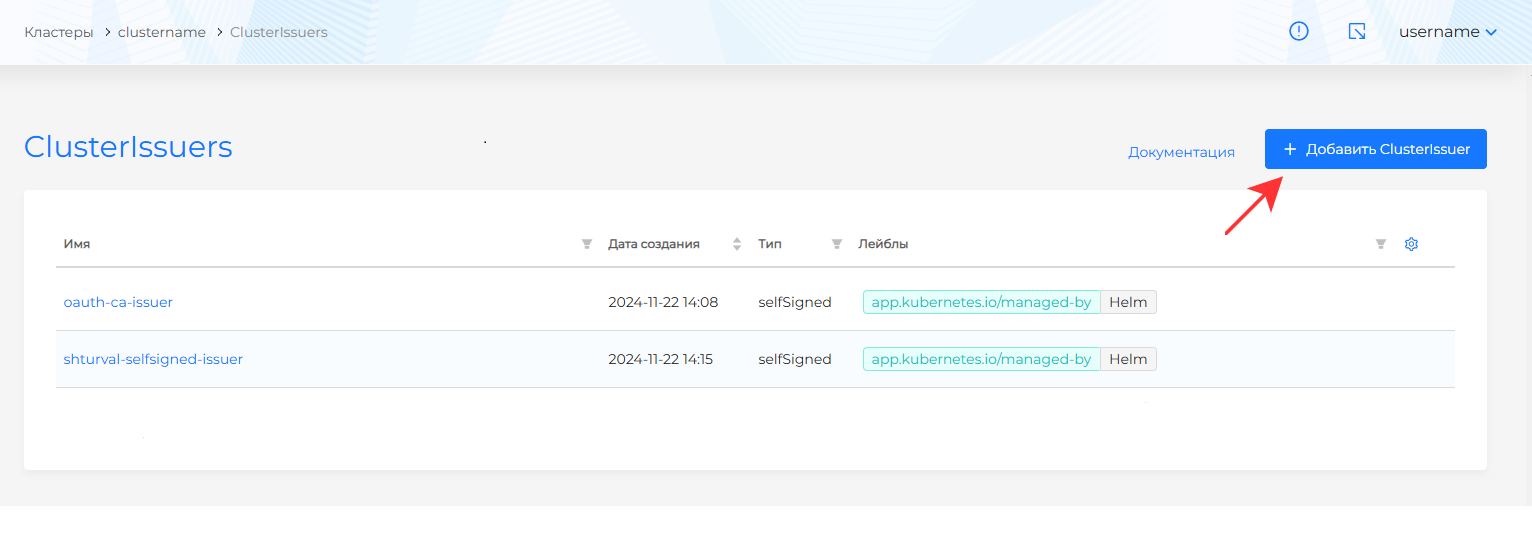
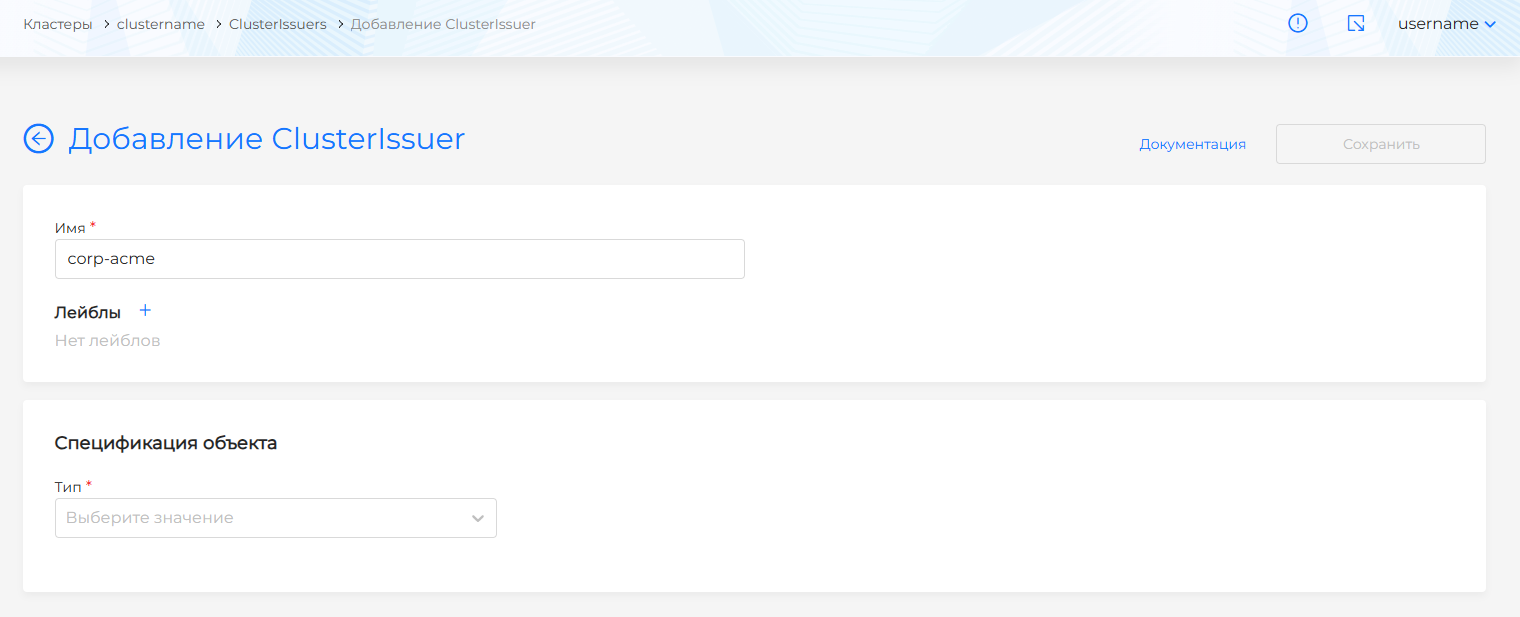
- In the Object specification block:
- select ACME type;
- fill in the ACME server address;
- upload the root CA certificate of the ACME server to the CA Bundle;
- in the Account Key block, specify the name of the secret in which the automatically generated key will be saved;
- add solver with type
http01and valuenginxtoClassIngress.
Example ClusterIssuer:
apiVersion: cert-manager.io/v1
kind:ClusterIssuer
metadata:
  name: corp-acme
spec:
  acme:
    caBundle: <root_CA_certificate_ACME_server_base64>
    email: cluster@shturval.tech
    privateKeySecretRef:
      name: corp-acme
    server: https://issuer.ip-XX-XX-XX-XX.shturval.link:9443/acme/acme/directory
    solvers:
    - http01:
        ingress:
          class:nginx
Screenshot of ClusterIssuer corp-acme
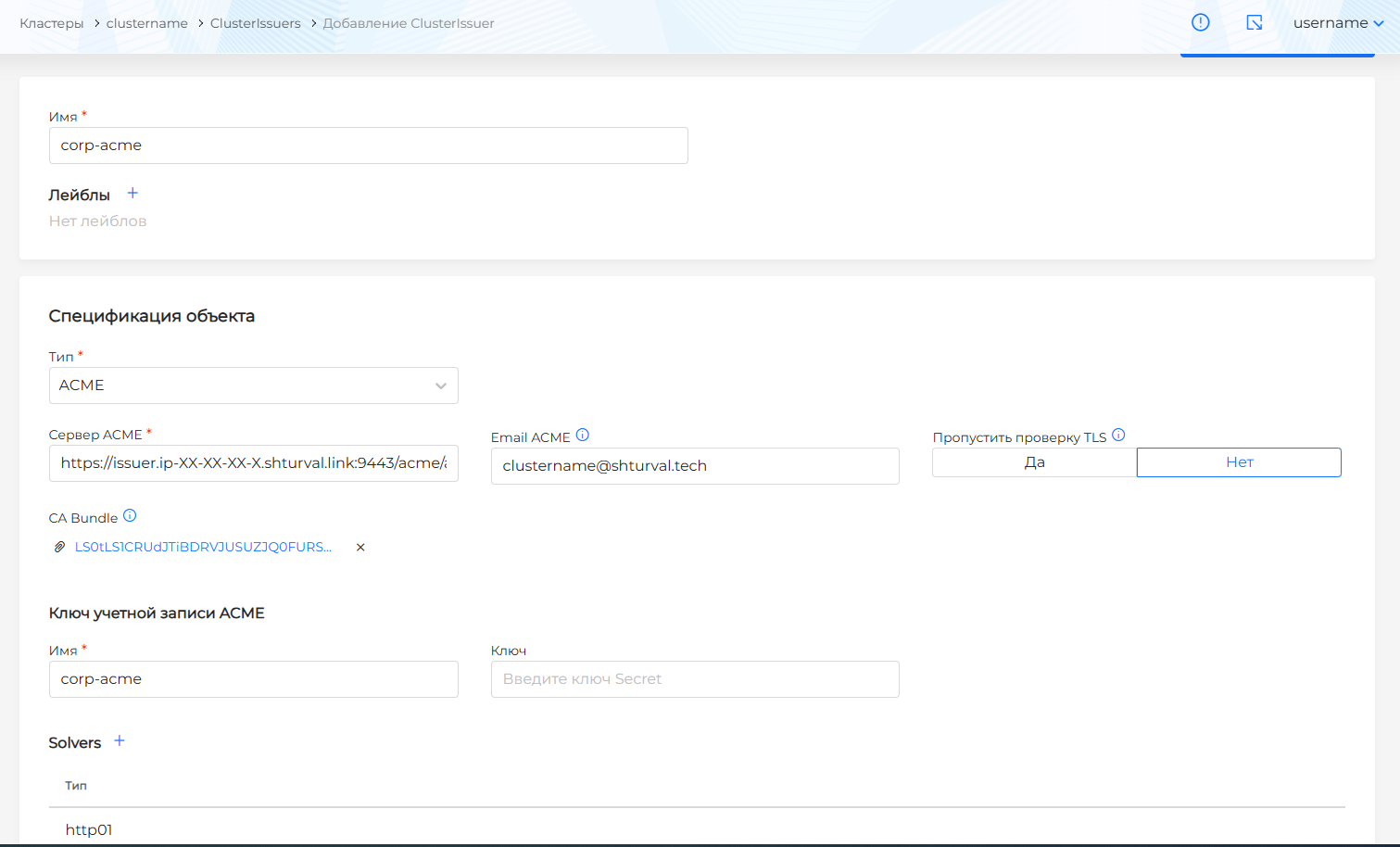
- In the namespace
cert-manageropen ConfigMaps and findroot-ca:
- if ConfigMap
root-cais present, open it and replace the key valueca.crtwith the data of the root CA certificate from ACME; - if ConfigMap
root-cais not there, create it, add the keyca.crtand specify the value of the root CA certificate from ACME.
Screenshot of ConfigMap root-ca
Step 3. Configure system services
If the cluster runs Grafana or Argo CD system services, configure them with ShturvalServicePatch (shturvalserviceconfigs) so authorization works when opening services from the cluster.
For the management cluster
For the management cluster, update:
- Platform software control module (
shturval-backend); - Platform UI control module (
shturval-frontend); - Authentication management module (
shturval-auth).
Backend, Frontend, Auth
Prepare ShturvalServicePatch resource manifests to apply to the shturval-backend, shturval-frontend, and shturval-auth specifications. Add parameters to the customvalues block, as in the examples below.
Example ShturvalServicePatch for backend
apiVersion: ops.shturval.tech/v1beta2
kind: ShturvalServicePatch
metadata:
  name: <resource name>
spec:
  shturvalServiceConfigName: shturval-backend
  customvalues:
    global:
      tls:
        enabled: true
        backend_tls_secretname: <your parameter value>
        cluster_issuer_name: <your parameter value>
| Parameter | Description | Data type | Example |
|---|---|---|---|
metadata.name | Name of the created ShturvalServicePatch | string | shturval-backend-cert |
backend_tls_secretname | Secret name for establishing a TLS connectiontion | string | shturval-tls |
cluster_issuer_name | Name of the created ClusterIssuer | string | corp-acme |
Example ShturvalServicePatch for frontend
apiVersion: ops.shturval.tech/v1beta2
kind: ShturvalServicePatch
metadata:
  name: <resource name>
spec:
  shturvalServiceConfigName: shturval-frontend
  customvalues:
    tls:
      enabled: true
      front_tls_secretname: <your parameter value>
      docs_tls_secretname: <your parameter value>
      cluster_issuer_name: <your parameter value>
| Parameter | Description | Data type | Example |
|---|---|---|---|
metadata.name | Name of the created ShturvalServicePatch | string | shturval-frontend-cert |
front_tls_secretname | Secret name for establishing a TLS connection | string | shturval-tls |
docs_tls_secretname | Secret name for docs | string | docs-tls |
cluster_issuer_name | Name of the created ClusterIssuer | string | corp-acme |
Example ShturvalServicePatch for auth
apiVersion: ops.shturval.tech/v1beta2
kind: ShturvalServicePatch
metadata:
  name: <resource name>
spec:
  shturvalServiceConfigName: shturval-auth
  customvalues:
    tls:
      enabled: true
      auth_tls_secretname: <your parameter value>
      cluster_issuer_name: <your parameter value>
| Parameter | Description | Data type | Example |
|---|---|---|---|
metadata.name | Name of the created ShturvalServicePatch | string | shturval-auth-cert |
auth_tls_secretname | Secret name for establishing a TLS connection | string | shturval-tls |
cluster_issuer_name | Name of the created ClusterIssuer | string | corp-acme |
Import the prepared ShturvalServicePatch via import manifests. Click on the import manifests icon to the left of the user name, upload files or drag manifests into the window that opens. Verify, then click Import.
Screenshots of importing manifests for backend, frontend and auth
To check the application of manifests, go to the Services and repositories section, open the Installed services page and go to manage the desired service:
- Platform software control module (
shturval-backend); - Platform UI control module (
shturval-frontend); - Authentication management module (
shturval-auth).
The Applied ShturvalServicePatch tab will display the loaded ShturvalServicePatch.
Screenshots of applied ShturvalServicePatch for backend, frontend and auth
Grafana
If Grafana is used, prepare a ShturvalServicePatch manifest to apply to the Metrics visualization module (Grafana) (shturval-dashboards) specification. Add parameters to the customvalues block, as in the example below.
Example ShturvalServicePatch for shturval-dashboards
apiVersion: ops.shturval.tech/v1beta2
kind: ShturvalServicePatch
metadata:
  name: <resource name>
spec:
  shturvalServiceConfigName: shturval-dashboards
  customvalues:
    grafana.ini:
      security:
        cookie_secure: true
      auth.generic_oauth:
        tls_skip_verify_insecure: true
    ingress:
      annotations:
        cert-manager.io/cluster-issuer: <your parameter value>
      enabled: true
      tls:
      - hosts:
        - <your parameter value>
        secretName: <your parameter value>
| Parameter | Description | Data type | Example |
|---|---|---|---|
metadata.name | Namecreated by ShturvalServicePatch | string | shturval-dashboards-cert |
grafana.ini.security.cookie_secure | Configuring Grafana authentication file transfer over HTTPS connection | boolean | true |
grafana.ini.auth.generic_oauth.tls_skip_verify_insecure | Configuring disabling SSL/TLS certificate verification on the authentication service | boolean | true |
annotations.cert-manager.io/cluster-issuer | Annotation with the name of the created ClusterIssuer | string | corp-acme |
tls.hosts | List of hosts for which a TLS connection is established | array | dashboards.clustername.ip-10-11-11-13.shturval.link |
tls.secretName | Secret name for establishing a TLS connection in which the certificate for Grafana will be stored | string | dashboards-ingress-tls |
Import the prepared ShturvalServicePatch via import manifests.
Screenshots of manifest import for Grafana
After importing the manifest from the Services and Repositories section, open the Installed Services page, find the Metrics visualization module (Grafana) (shturval-dashboards) and go to management. The Applied ShturvalServicePatch tab will display the loaded ShturvalServicePatch.
Screenshot of applied ShturvalServicePatch for Grafana
For any type of cluster
Argo CD
If Argo CD is used, prepare a ShturvalServicePatch manifest to apply to the Continuous application delivery (Argo CD) (shturval-cd) specification. Add parameters to the customvalues block, as in the example below.
Example ShturvalServicePatch for shturval-cd
apiVersion: ops.shturval.tech/v1beta2
kind: ShturvalServicePatch
metadata:
  name: <resource name>
spec:
  shturvalServiceConfigName: shturval-cd
  customvalues:
    server:
      ingress:
        annotations:
          cert-manager.io/cluster-issuer: <your parameter value>
        enabled: true
        hostname: <your parameter value>
        path: /
        pathType: Prefix
        tls: true
| Parameter | Description | Data type | Example |
|---|---|---|---|
metadata.name | Name of the created ShturvalServicePatch | string | shturval-cd-cert |
annotations.cert-manager.io/cluster-issuer | Annotation with the name of the created ClusterIssuer | string | corp-acme |
ingress.hostname | Argo CD Server Hostname | string | argocd.clustername.ip-10-11-11-13.shturval.link |
Import the prepared ShturvalServicePatch via import manifests.
Screenshots of manifest import for Argo CD
After importing the manifest from the Services and Repositories section, open the Installed Services page, find Continuous application delivery (Argo CD) (shturval-cd) and go to management. The Applied ShturvalServicePatch tab will display the loaded ShturvalServicePatch.
Screenshot of the applied ShturvalServicePatch for Argo CD
Replace certificate via ClusterConfig
Step 1. Prepare values
Prepare:
- CA bundle for checking the TLS connection with the ACME server;
- ACME server address;
- root CA certificate, if it needs to be specified explicitly;
- email for registration with ACME, if used.
Please indicate the certificates in base64:
base64 -w0 acme-ca-bundle.crt
base64 -w0 acme-root-ca.crt
Step 2: Update ClusterConfig
- Save the original configuration so that if an error occurs you can roll back the changes:
export CLUSTER_NAMESPACE=<cluster_namespace>
export CLUSTER_NAME=<cluster_name>
kubectl -n "$CLUSTER_NAMESPACE" get clusterconfig "$CLUSTER_NAME" -o yaml > "clusterconfig-$CLUSTER_NAME-backup.yaml"
- Open
ClusterConfigfor editing:
kubectl -n "$CLUSTER_NAMESPACE" edit clusterconfig "$CLUSTER_NAME"
- In
spec.systemServicesConfig.ingress.acmeConfigspecify the ACME server parameters:
apiVersion: cluster.shturval.tech/v1beta1
kind: ClusterConfig
metadata:
  name: <cluster_name>
  namespace: <cluster_namespace>
spec:
  clusterName: <cluster_name>
  systemServicesConfig:
    ingress:
      acmeConfig:
        acmerootcabundle: <CA_bundle_base64>
        acmeserverurl: https://issuer.ip-XX-XX-XX-XX.shturval.link:9443/acme/acme/directory
        acmerootca: <root_CA_certificate_base64>
        email: cluster@shturval.tech
| Parameter | Required | Description |
|---|---|---|
acmerootcabundle | Yes | CA bundle for checking TLS connection to ACME serverrom encoded in base64. May contain a chain of public CA certificates. It is passed to cert-manager as spec.acme.caBundle and is needed so that cert-manager trusts the TLS certificate of the corporate ACME server |
acmeserverurl | Yes | ACME server address |
acmerootca | No | Root CA certificate encoded in base64. If not specified, the root CA will be populated automatically. Specify acmerootca manually if you need to explicitly override a previously specified root CA certificate |
email | No | Email for registration with ACME |
Once saved, ClusterConfig cluster-manager will update the associated certificate resources. There is no additional need to update system services.
Let’s Encrypt
To create certificates using Let’s Encrypt, the ingress controller must be accessible from the Internet. At least one condition must be met:
- the external balancer has a white (public) IP address;
- for
IngressVIPa white (public) IP address is specified.
Prepare a backup
In the backup, include resources associated with cert-manager and system services for which Let’s Encrypt will issue certificates.
Non-namespace resources:
shturvalserviceconfigs.
Namespaces:
For any cluster type:
shturval-cd, if Argo CD is used;cert-manager.
For the management cluster:
shturval-backend;shturval-dashboardsif Grafana is used.
Namespace resources:
secrets;clusterissuers.
ClusterConfig settings configuration if you have access to the management cluster and rights to edit the resource.Replace certificate manually
Step 1: Create a ClusterIssuer
Create a YAML file acme-issuer.yaml with a manifest for the ClusterIssuer object:
apiVersion: cert-manager.io/v1
kind:ClusterIssuer
metadata:
  name: <resource name>
  namespace: cert-manager
spec:
  acme:
    server: <Let's Encrypt server URL>
    email: <Let's Encrypt account email>
    privateKeySecretRef:
      name: <secret name for account key>
    solvers:
    - http01:
        ingress:
          class:nginx
| Parameter | Description | Data type | Example |
|---|---|---|---|
metadata.name | The name of the created ClusterIssuer | string | letsencrypt |
acme.server | Let’s Encrypt server URL | string | https://acme-v02.api.letsencrypt.org/directory |
acme.email | Let’s Encrypt account email | string | name@example.com |
acme.privateKeySecretRef.name | The name of the secret in which the automatically generated account key will be saved | string | letsencrypt |
Step 2: Apply manifest
Apply the generated manifest ClusterIssuer:
kubectl apply -f acme-issuer.yaml
Step 3. Configure system services
If the cluster runs Grafana or Argo CD system services, configure them with ShturvalServicePatch (shturvalserviceconfigs) so authorization works when opening services from the cluster.
For the management cluster
For the management cluster, update:
- Platform software control module (
shturval-backend); - Platform UI control module (
shturval-frontend); - Authentication management module (
shturval-auth).
Backend, Frontend, Auth
Prepare ShturvalServicePatch resource manifests to apply to the shturval-backend, shturval-frontend, and shturval-auth specifications. Add parameters to the customvalues block, as in the examples below.
Example ShturvalServicePatch for backend
apiVersion: ops.shturval.tech/v1beta2
kind: ShturvalServicePatch
metadata:
  name: <resource name>
spec:
  shturvalServiceConfigName: shturval-backend
  customvalues:
    global:
      tls:
        enabled: true
        backend_tls_secretname: <your parameter value>
        cluster_issuer_name: <your parameter value>
| Parameter | Description | Data type | Example |
|---|---|---|---|
metadata.name | Name of the created ShturvalServicePatch | string | shturval-backend-cert |
backend_tls_secretname | Secret name for establishing a TLS connection | string | shturval-tls |
cluster_issuer_name | ThemI created ClusterIssuer | string | letsencrypt |
Example ShturvalServicePatch for frontend
apiVersion: ops.shturval.tech/v1beta2
kind: ShturvalServicePatch
metadata:
  name: <resource name>
spec:
  shturvalServiceConfigName: shturval-frontend
  customvalues:
    tls:
      enabled: true
      front_tls_secretname: <your parameter value>
      docs_tls_secretname: <your parameter value>
      cluster_issuer_name: <your parameter value>
| Parameter | Description | Data type | Example |
|---|---|---|---|
metadata.name | Name of the created ShturvalServicePatch | string | shturval-frontend-cert |
front_tls_secretname | Secret name for establishing a TLS connection | string | shturval-tls |
docs_tls_secretname | Secret name for docs | string | docs-tls |
cluster_issuer_name | Name of the created ClusterIssuer | string | letsencrypt |
Example ShturvalServicePatch for auth
apiVersion: ops.shturval.tech/v1beta2
kind: ShturvalServicePatch
metadata:
  name: <resource name>
spec:
  shturvalServiceConfigName: shturval-auth
  customvalues:
    tls:
      enabled: true
      auth_tls_secretname: <your parameter value>
      cluster_issuer_name: <your parameter value>
| Parameter | Description | Data type | Example |
|---|---|---|---|
metadata.name | Name of the created ShturvalServicePatch | string | shturval-auth-cert |
auth_tls_secretname | Secret name for establishing a TLS connection | string | shturval-tls |
cluster_issuer_name | Name of the created ClusterIssuer | string | letsencrypt |
Import the prepared ShturvalServicePatch via import manifests. Click on the import manifests icon to the left of the user name, upload files or drag manifests into the window that opens. Verify, then click Import.
Screenshots of importing manifests for backend, frontend and auth
To check the application of manifests, go to the Services and repositories section, open the Installed services page and go to manage the desired service:
- Platform software control module (
shturval-backend); - Platform UI control module (
shturval-frontend); - Authentication management module (
shturval-auth).
The Applied ShturvalServicePatch tab will display the loaded ShturvalServicePatch.
Screenshots of applied ShturvalServicePatch for backend, frontend and auth
Grafana
If Grafana is used, prepare a ShturvalServicePatch manifest to apply to the Metrics visualization module (Grafana) (shturval-dashboards) specification. Add parameters to the customvalues block, as in the example below.
Example ShturvalServicePatch for shturval-dashboards
apiVersion: ops.shturval.tech/v1beta2
kind: ShturvalServicePatch
metadata:
  name: <resource name>
spec:
  shturvalServiceConfigName: shturval-dashboards
  customvalues:
    grafana.ini:
      security:
        cookie_secure: true
      auth.generic_oauth:
        tls_skip_verify_insecure: true
    ingress:
      annotations:
        cert-manager.io/cluster-issuer: <your parameter value>
      enabled: true
      tls:
      - hosts:
        - <your parameter value>
        secretName: <your parameter value>
| Parameter | Description | Data type | Example |
|---|---|---|---|
metadata.name | Name of the created ShturvalServicePatch | string | shturval-dashboards-cert |
grafana.ini.security.cookie_secure | Configuring Grafana authentication file transfer over HTTPS connection | boolean | true |
grafana.ini.auth.generic_oauth.tls_skip_verify_insecure | Configuring disabling SSL/TLS certificate verification on the authentication service | boolean | true |
annotations.cert-manager.io/cluster-issuer | Annotation with the name of the created ClusterIssuer | string | letsencrypt |
tls.hosts | List of hosts for which a TLS connection is established | array | dashboards.clustername.ip-10-11-11-13.shturval.link |
tls.secretName | Secret name for establishing a TLS connection in which the certificate for Grafana will be stored | string | dashboards-ingress-tls |
Import the prepared ShturvalServicePatch via import manifests.
Screenshots of manifest import for Grafana
After importing the manifest from the Services and Repositories section, open the Installed Services page, find the Metrics visualization module (Grafana) (shturval-dashboards) and go to management. The Applied ShturvalServicePatch tab will display the loaded ShturvalServicePatch.
Screenshot of applied ShturvalServicePatch for Grafana
For any cluster type
Argo CD
If Argo CD is used, prepare a ShturvalServicePatch manifest to apply to the Continuous application delivery (Argo CD) (shturval-cd) specification. Add parameters to the customvalues block, as in the example below.
Example ShturvalServicePatch for shturval-cd
apiVersion: ops.shturval.tech/v1beta2
kind: ShturvalServicePatch
metadata:
  name: <resource name>
spec:
  shturvalServiceConfigName: shturval-cd
  customvalues:
    server:
      ingress:
        annotations:
          cert-manager.io/cluster-issuer: <your parameter value>
        enabled: true
        hostname: <your parameter value>
        path: /
        pathType: Prefix
        tls: true
| Parameter | Description | Data type | Example |
|---|---|---|---|
metadata.name | Name of the created ShturvalServicePatch | string | shturval-cd-cert |
annotations.cert-manager.io/cluster-issuer | Annotation with the name of the created ClusterIssuer | string | letsencrypt |
ingress.hostname | Argo CD Server Hostname | string | argocd.clustername.ip-10-11-11-13.shturval.link |
Import the prepared ShturvalServicePatch via import manifests.
Screenshots of manifest import for Argo CD
After importing the manifest from the Services and Repositories section, open the Installed Services page, find Continuous application delivery (Argo CD) (shturval-cd) and go to management. The Applied ShturvalServicePatch tab will display the loaded ShturvalServicePatch.
Screenshot of the applied ShturvalServicePatch for Argo CD
Replace certificate via ClusterConfig
Step 1. Prepare values
Prepare the Let’s Encrypt server URL and account email:
https://acme-v02.api.letsencrypt.org/directory
Step 2: Update ClusterConfig
- Save the original configuration:
export CLUSTER_NAMESPACE=<cluster_namespace>
export CLUSTER_NAME=<cluster_name>
kubectl -n "$CLUSTER_NAMESPACE" get clusterconfig "$CLUSTER_NAME" -o yaml > "clusterconfig-$CLUSTER_NAME-backup.yaml"
- Open
ClusterConfig:
kubectl -n "$CLUSTER_NAMESPACE" edit clusterconfig "$CLUSTER_NAME"
- In
spec.systemServicesConfig.ingress.acmeConfigspecify the Let’s Encrypt parameters:
apiVersion: cluster.shturval.tech/v1beta1
kind: ClusterConfig
metadata:
  name: <cluster_name>
  namespace: <cluster_namespace>
spec:
  clusterName: <cluster_name>
  systemServicesConfig:
    ingress:
      acmeConfig:
        acmerootcabundle: <CA_base64>
        acmeserverurl: https://acme-v02.api.letsencrypt.org/directory
        email: name@example.com
| Parameter | Required | Description | Data type |
|---|---|---|---|
acmeserverurl | Yes | Let’s Encrypt server URL | string |
email | No | Let’s Encrypt account email | string |
acmerootcabundle | Yes | Certificate for verifying TLS connection to the server, encoded in base64. May contain a chain of public CA certificates. It is passed to cert-manager as spec.acme.caBundle and is needed for cert-manager to trust the TLS certificate of the corporate ACME server. For Let’s Encrypt get CA wget https://letsencrypt.org/certs/isrgrootx1.pem | string |
Once saved, ClusterConfig cluster-manager will update the associated certificate resources. There is no additional need to update system services.
Corporate certificate
A corporate certificate is a ready-made end-entity certificate that the company CA has already issued.
How you add it to the cluster in step 2 depends on the certificate:
- A wildcard (the name contains
*, for example*.clustername.corp.domain) can be added manually or viaClusterConfig. - A certificate for an explicit list of names (no
*) can be added only manually: a Secret andShturvalServicePatch. ViaClusterConfig,cluster-managerwrites the certificate fromspec.systemServicesConfig.ingress.wildcardCert, and that field is for a wildcard certificate.
Prepare a backup copy
In the backup, include the resources associated with the Ingress enterprise certificate.
Non-namespace resources:
shturvalserviceconfigs.
Namespaces:
For any cluster type:
ingress;cert-manager.
Namespace resources:
secrets;configmaps.
Step 1. Prepare the certificate
- Create a configuration file
openssl-san.cnf. In thealt_namesblock, specify the Ingress domain name:
cat > openssl-san.cnf <<EOF
[req]
default_bits = 2048
prompt = no
default_md = sha256
req_extensions = req_ext
distinguished_name = dn

[ dn ]
C=RU
ST=Moscow
L=Moscow
O=My Company
OU=Department
emailAddress=admin@example.com
CN = example.com

[ req_ext ]
subjectAltName = @alt_names

[ alt_names ]
DNS.1 = *.clustername.corp.domain

[ v3_ext ]
authorityKeyIdentifier=keyid,issuer:always
basicConstraints=CA:FALSE
keyUsage=keyEncipherment,dataEncipherment
extendedKeyUsage=serverAuth,clientAuth
subjectAltName=@alt_names
EOF
Where corp.domain is the Ingress domain the platform uses. The example above is a wildcard: you can add it manually or via ClusterConfig.
If you need a certificate for a list of names, list them explicitly in alt_names, without *. Then use only the Manually tab.
[ alt_names ]
DNS.1 = ingress.clustername.corp.domain
DNS.2 = dashboards.clustername.corp.domain
- Create a certificate request (CSR):
openssl req -newkey rsa:2048 -sha256 -days 365 -nodes -keyout tls.key -out tls.csr -extensions req_ext -config openssl-san.cnf
- Send
tls.csrto your Certificate Authority (CA) for signature. - Obtain the signed certificate in PEM format and rename it to
tls.crt.
To add a corporate certificate to the cluster you will need:
tls.crt— the corporate certificate in PEM format: the end-entity certificate, intermediate CA certificates, and the root CA. The certificate must be issued by a certificate authority or be self-signed for the Ingress domain name. This is the certificate data in Secretcorp-tls;tls.key— the private key of the corporate Ingress certificate;- the root certificate of your certificate authority, or the chain up to it. The administrator of that authority issues it together with the signed certificate. Save the PEM you received under a name such as
root-ca.crt.
Check the certificate files before loading them into the cluster: Check the files before loading into the cluster.
The check of an Ingress that is already running is in Verify the certificate.
Check the files before loading into the cluster
Before loading into the cluster, check:
- The Ingress certificate is signed by your certificate authority: from the certificate in
tls.crt, through the intermediates, to the root certificate.
openssl verify -show_chain -CAfile root-ca.crt -untrusted tls.crt tls.crt
| Parameter | Description |
|---|---|
tls.crt at the end of the command | The certificate being checked. OpenSSL reads only the first block in the file. In tls.crt the Ingress certificate is written first, and that is the certificate the command checks. |
untrusted tls.crt | Intermediate CA certificates. |
root-ca.crt | The CA root certificate. The check succeeds when the chain reaches the root certificate of your certificate authority in this file. |
If you put the root certificate as the last block of tls.crt and have no separate root-ca.crt, copy that last block into root-ca.crt and keep it in -CAfile. Without -CAfile the command does not confirm the certificate. OpenSSL uses the intermediates in tls.crt only as steps and does not treat them as trusted.
The output must contain the line tls.crt: OK. OpenSSL prints the chain from top to bottom: the Ingress certificate, then the intermediates, and at the end the root certificate from root-ca.crt. If the line says error instead of OK: the root certificate is a different one, or tls.crt does not contain the intermediate that signed the Ingress certificate.
- Which certificates are in the file, who issued (signed) the certificate, and to whom it was issued.
openssl crl2pkcs7 -nocrl -certfile tls.crt \
  | openssl pkcs7 -print_certs -noout
In the output, each certificate has two lines: subject is whose name it is, issuer is who signed it.
The Ingress certificate has the intermediate’s name in issuer. That intermediate has the same name in subject. Each pair works the same way: the issuer of the current certificate matches the subject of the next one. The issuer of the last certificate in the list matches the subject of the root certificate in root-ca.crt. If the root certificate is also written at the end of tls.crt, that last entry has the same subject and issuer: the certificate authority signed the certificate itself.
- Certificate validity periods:
openssl x509 -in root-ca.crt -noout -subject -issuer -dates
In the output, notBefore is the date from which the certificate is valid, notAfter is the date until which it is valid. Today’s date must fall inside this range.
openssl x509 -in tls.crt -noout -subject -issuer -dates
Only the first certificate in tls.crt. notAfter must be later than today. If that date has already passed, you need a new certificate from the certificate authority before loading it into the cluster.
Step 2. Add to cluster
ClusterConfig if you have access to the management cluster and permission to edit the resource. Renew a certificate for a list of names only manually.Replace certificate manually
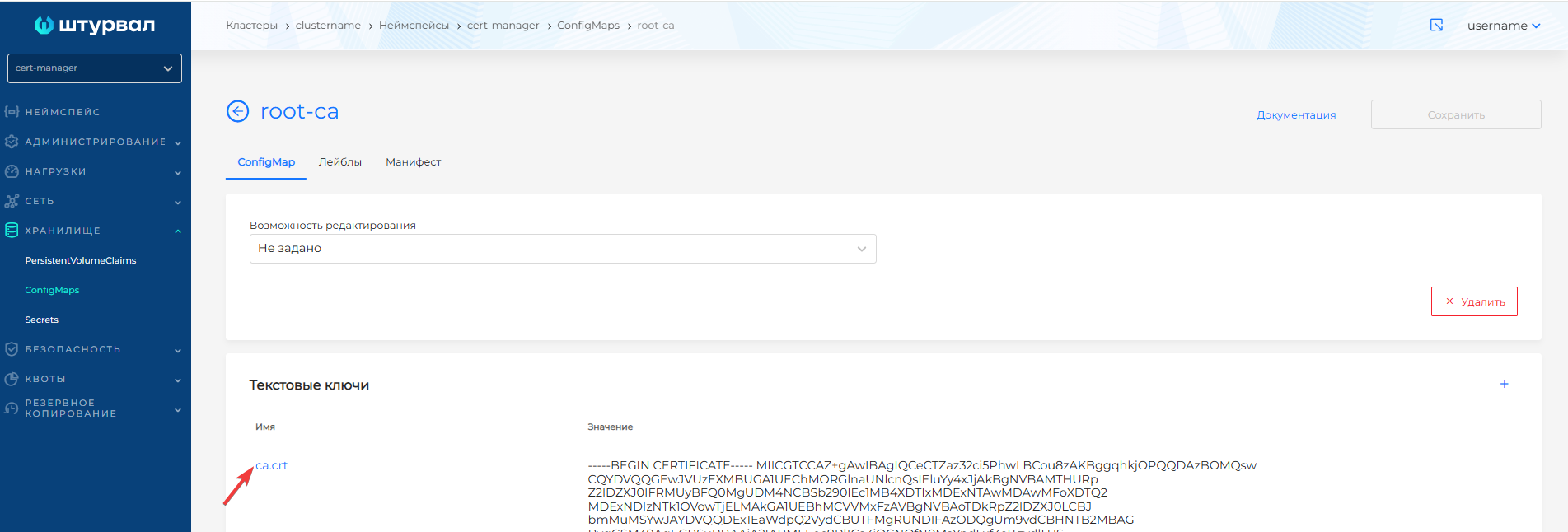
- In the
cert-managernamespace, open ConfigMaps, findroot-caand change the value of theca.crtkey. The value must be the certificate or chain fromroot-ca.crt: it is what verifies the certificate in Secretcorp-tls.
Screenshots of the ConfigMap root-ca change
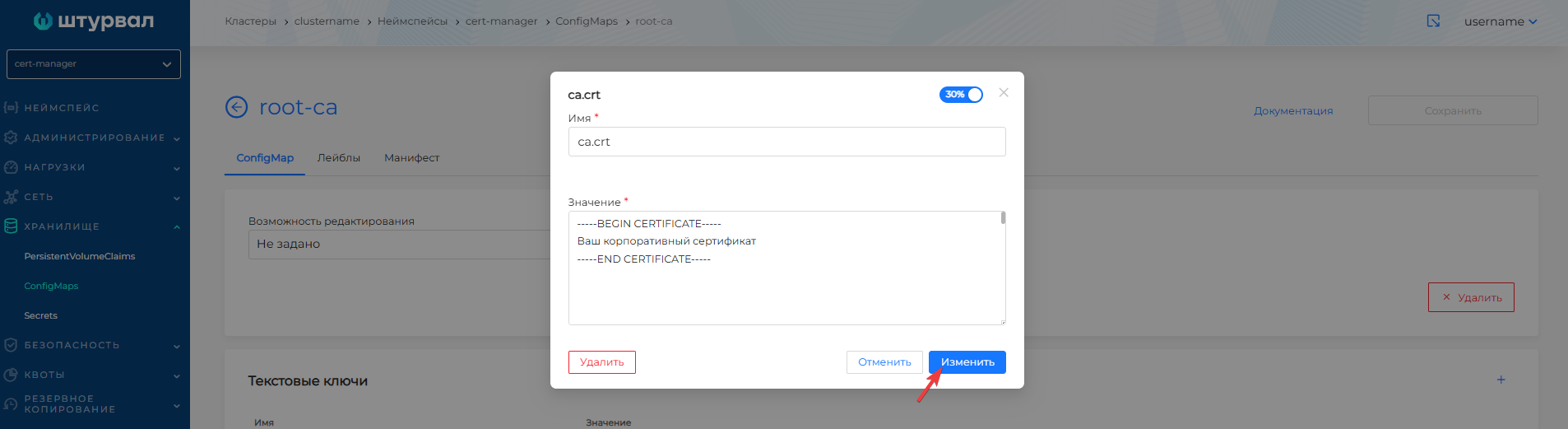
- Save changes to ConfigMap
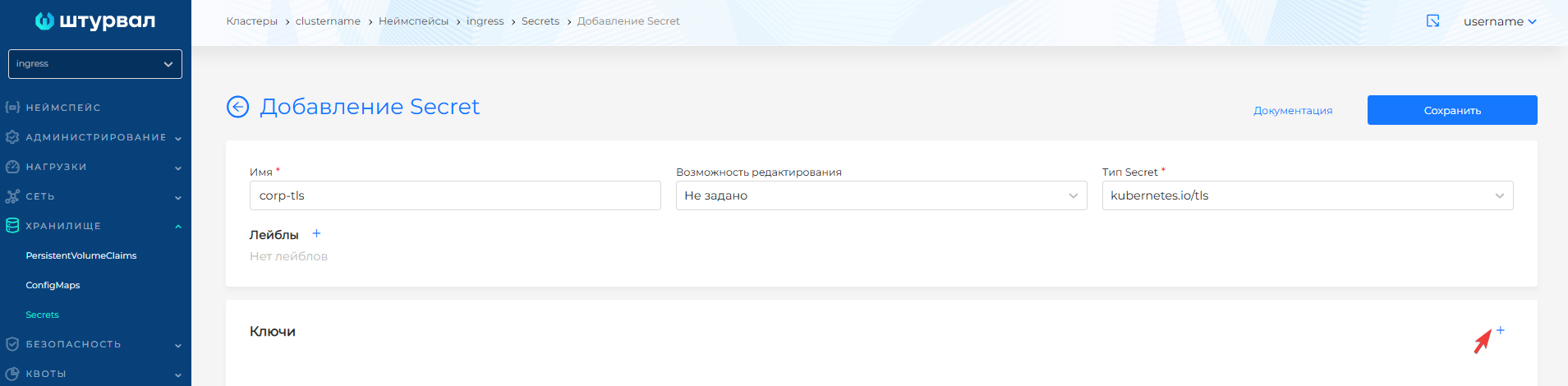
root-ca. - In the namespace
ingress, open the Secrets page of the Storage section and create a secret:
- name:
corp-tls; - type:
kubernetes.io/tls.
Screenshots of the creation of Secret corp-tls

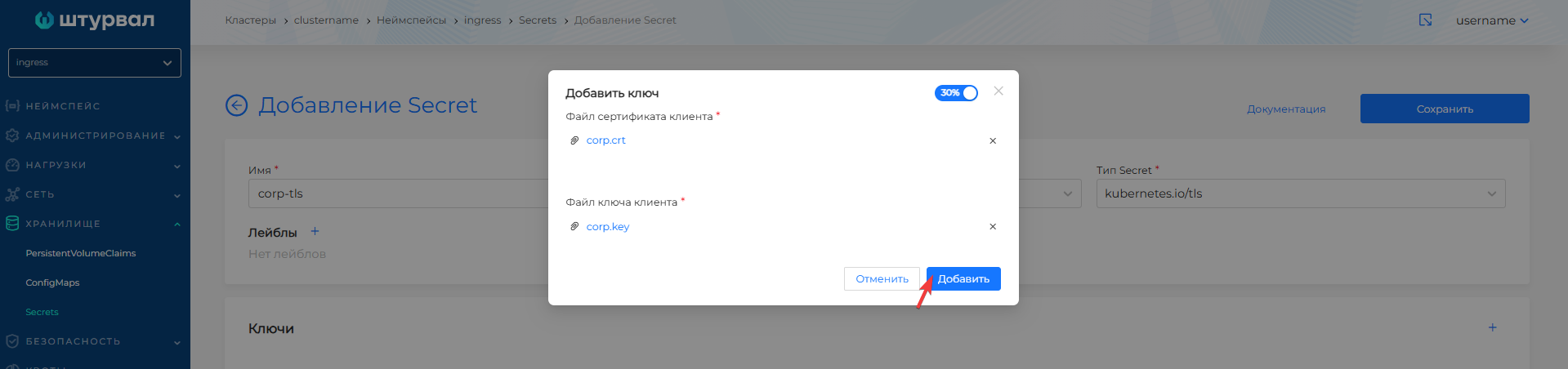
- Add the corporate end certificate and its key to Secret
corp-tls.
Screenshots of adding a certificate and key to Secret corp-tls
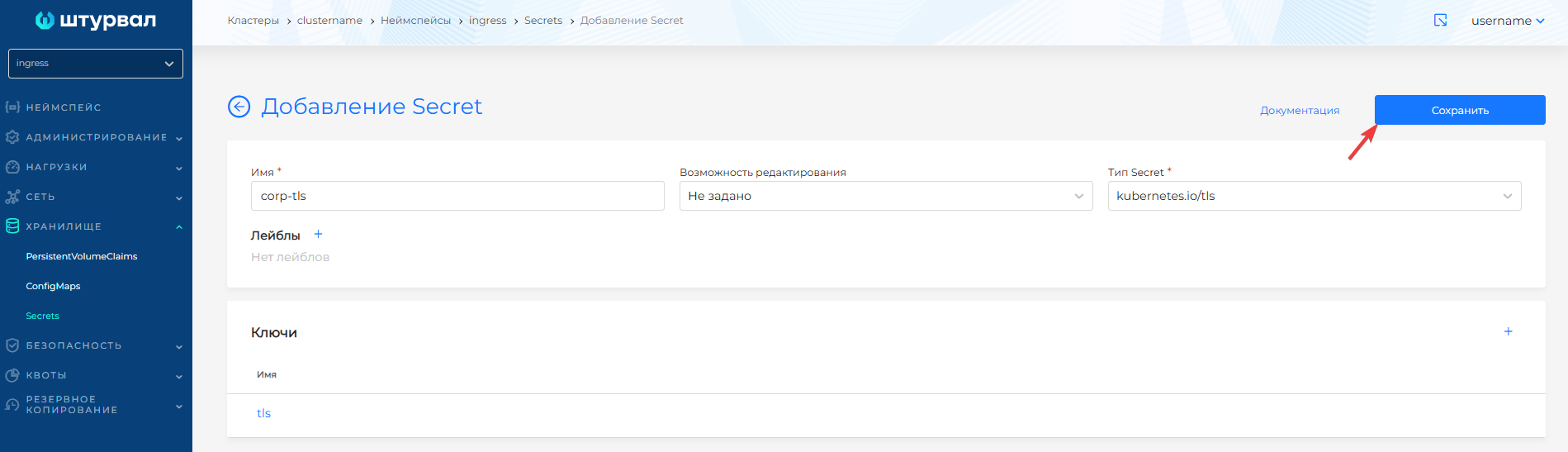
- Save Secret
corp-tls.
Configure ingress-controller
To make changes to customvalues External Connection Control Module (shturval-ingress-controller), prepare ShturvalServicePatch:
apiVersion: ops.shturval.tech/v1beta2
kind: ShturvalServicePatch
metadata:
  name: <resource name>
spec:
  shturvalServiceConfigName: shturval-ingress-controller
  customvalues:
    controller:
      extraArgs:
        default-ssl-certificate: "ingress/corp-tls"
| Parameter | Description | Data type | Example |
|---|---|---|---|
metadata.name | The name of the created ShturvalServicePatch | string | shturval-ingress-controller-cert |
Upload the manifest via import manifests in the GUI. Click on the manifest import icon to the left of the user name, upload the file with the prepared manifest ShturvalServicePatch for shturval-ingress-controller or drag the manifest into the window that opens. Verify, then click Import.
Screenshots of ShturvalServicePatch import for ingress-controller
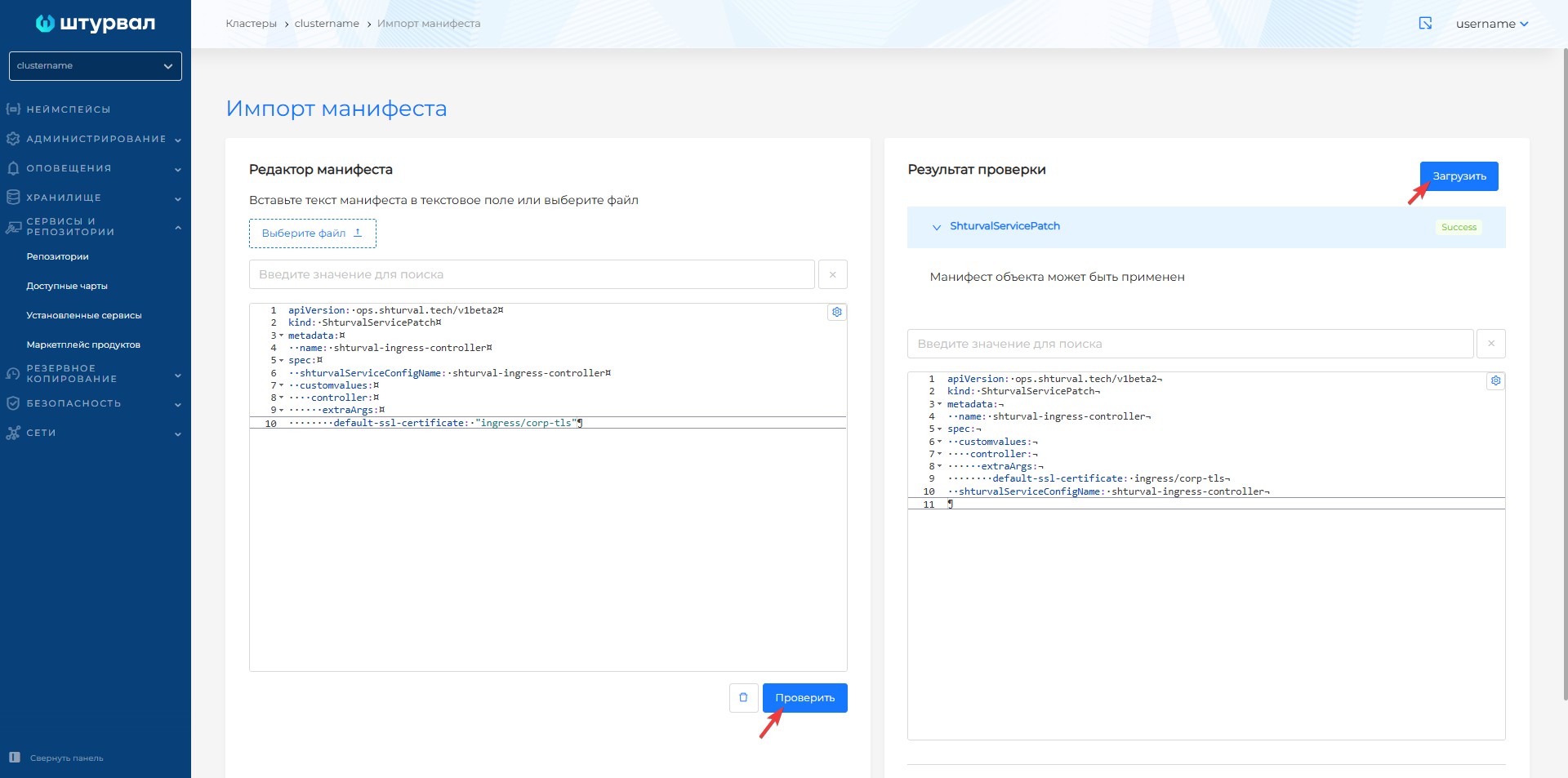
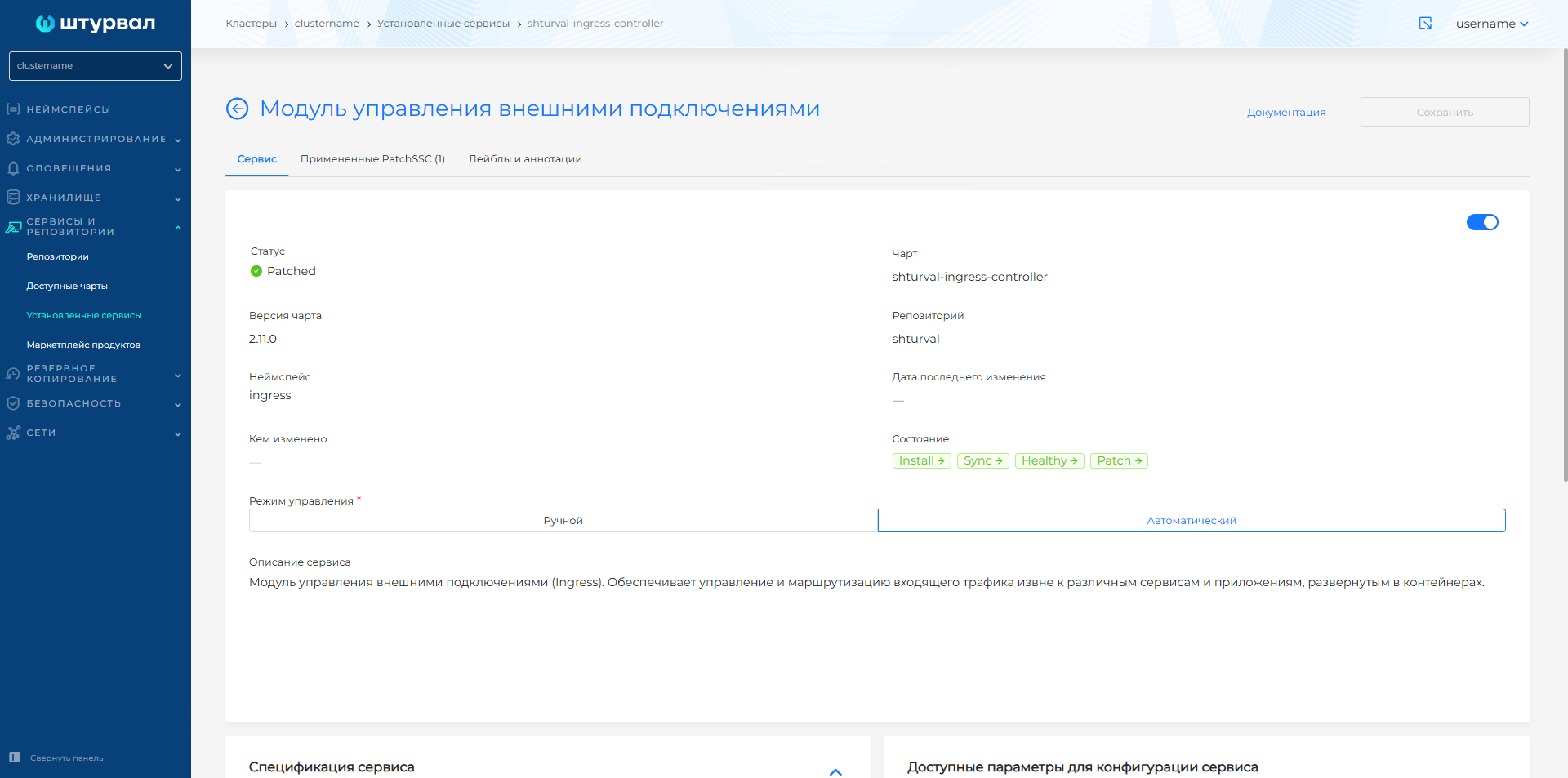
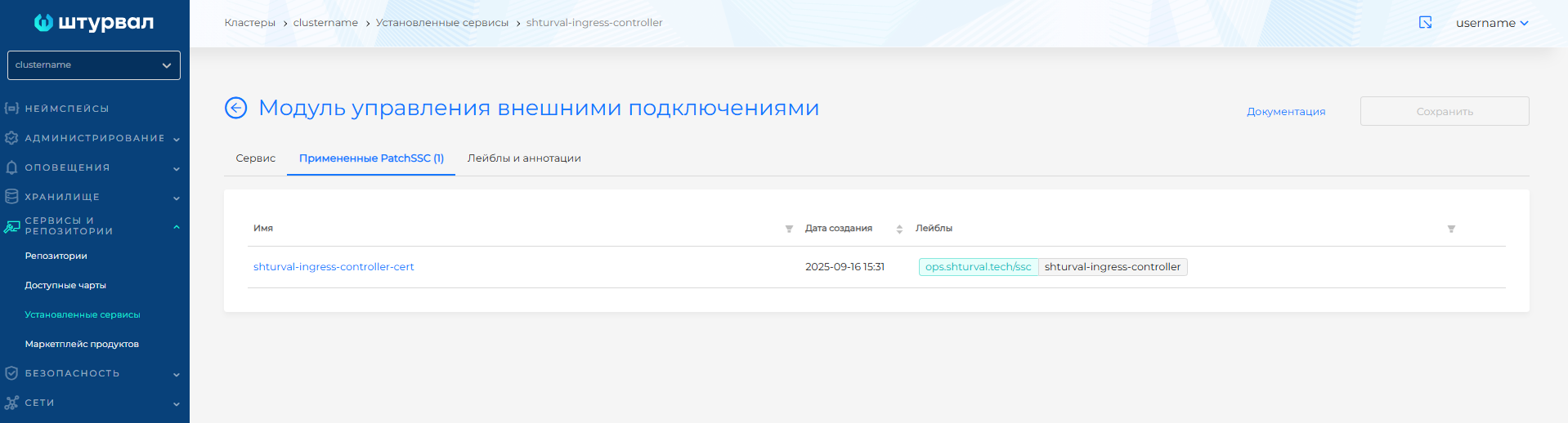
After application, on the Installed Services page, open the External Connection Management Module (shturval-ingress-controller) and check:
- on the Applied ShturvalServicePatch tab the loaded
ShturvalServicePatchis displayed; - on the Service tab the status has changed to Patched.
Screenshots of the applied ShturvalServicePatch for ingress-controller
Replace certificate via ClusterConfig
Use this method only for a wildcard certificate. Set a certificate for a list of names on the Manually tab.
Step 1. Prepare values
Prepare values in base64 format:
- the Ingress corporate certificate (
tls.crt); - the private key of the Ingress corporate certificate (
tls.key); - the certificate or chain that verifies the certificate in Secret
corp-tls(root-ca.crt).
base64 -w0 tls.crt
base64 -w0 tls.key
base64 -w0 root-ca.crt
Step 2: Update ClusterConfig
- Save the original configuration:
export CLUSTER_NAMESPACE=<cluster_namespace>
export CLUSTER_NAME=<cluster_name>
kubectl -n "$CLUSTER_NAMESPACE" get clusterconfig "$CLUSTER_NAME" -o yaml > "clusterconfig-$CLUSTER_NAME-backup.yaml"
- Open
ClusterConfig:
kubectl -n "$CLUSTER_NAMESPACE" edit clusterconfig "$CLUSTER_NAME"
- In
spec.systemServicesConfig.ingress.wildcardCertspecify the corporate certificate:
apiVersion: cluster.shturval.tech/v1beta1
kind: ClusterConfig
metadata:
  name: <cluster_name>
  namespace: <cluster_namespace>
spec:
  clusterName: <cluster_name>
  systemServicesConfig:
    ingress:
      wildcardCert:
        ingresscert: <corporate_ingress_certificate>
        ingresskey: <private_key_of_corporate_certificate_ingress>
        rootingresscert: <root_ingress_certificate>
| Parameter | Required | Description | When using the manual method, indicate |
|---|---|---|---|
ingresscert | No | Ingress corporate certificate. The meaning of shouldbut be encoded in base64 | In namespace ingress in Secret corp-tls, certificate data |
ingresskey | No | The private key of the Ingress corporate certificate. The value must be base64 encoded | In namespace ingressin Secret corp-tls, key data |
rootingresscert | No | Certificate or chain that verifies the certificate in Secret corp-tls. The value must be base64 encoded | In namespace cert-manager in ConfigMap root-ca, key ca.crt |
After changing the corporate certificate via ClusterConfig, cluster-manager will update:
- root certificate in namespace
cert-manager; - secret in namespace
ingresswith certificate; ShturvalServiceConfigshturval-ingress-controller.
Verify the certificate
Run the check after step 2, when Ingress is already using the certificate from Secret corp-tls.
Run the command on a machine that can reach Ingress. It opens the site and checks that root-ca.crt validates the site certificate. The file is the certificate or chain from ConfigMap root-ca, if you added the certificate manually, or from rootingresscert, if you set it via ClusterConfig.
openssl s_client -connect <ingress-host>:443 \
  -servername <ingress-host> \
  -CAfile root-ca.crt \
  -no-CApath \
  -no-CAstore \
  -verify_return_error \
  -brief </dev/null
| Parameter | Description |
|---|---|
<ingress-host> | A concrete name from the certificate. The name must resolve to the Ingress address. Do not pass the * pattern. |
Wildcard *.clustername.corp.domain | A single-level name, for example ingress.clustername.corp.domain. |
| Certificate for a list of names | One of the names in that list. |
| Service with its own Secret | Check that service’s name. Keep the same root-ca.crt file in -CAfile. |
| Command output | The output should contain Verification: OK. If it does not, root-ca.crt does not validate the certificate Ingress presents. The file must contain the root CA. If the server does not send intermediate certificates, add them to this file. |
On the management cluster, after the certificate for shturval-auth is replaced, check that the authentication client received the same certificate. Synchronization can take several minutes.
kubectl get authoidcclients.auth.shturval.tech -n shturval-backend backend -o jsonpath='{.status.clientInfo.caFileBase64}' | base64 -d
The output must match the data in tls.crt. If it does not, wait a few minutes and run the command again.