ETCD Backup and Restore
In the Shturval platform, you can back up etcd with an NCI object. Backups may be required for cluster recovery. Run them during low cluster load.
Create a backup copy of ETCD
- Prepare a backup script, for example, named
etcdbackup.sh.
Example script etcdbackup.sh
#!/bin/sh

# Check for running as root
if [[ $EUID -ne 0 ]]; then
  echo "This script must run as root"
  exit 1
fi

# Verify that etcdctl is installed to perform backups
if which etcdctl > /dev/null; then
  echo etcdctl found
else
  echo etcdctl not found
  exit 1
fi

function usage {
  echo 'Path to backup dir required: ./cluster-backup.sh <path-to-backup-dir>'
  exit 1
}

# If the first argument is missing, or it is an existing file, then print usage and exit
if [ -z "$1" ] || [ -f "$1" ]; then
  usage
fi

# Checking if manifests exist
function checkManifests {
  echo 'No manifests found in /etc/kubernetes/manifests'
  exit 1
}

if [ -z "$(ls /etc/kubernetes/manifests/)" ];then
  checkManifests
fi

function checkStatus() {
  status=$?
  if test $status -eq 0
  then
    echo "passed $1"
  else
    echo "failed $1"
    exit 1
  fi
}

# Declaring variables
archive="$(hostname)-$(date '+%F_%H%M%S').tar.gz" # ETCD backup name
backupdate="$1/backup/" # ETCD backup location
mkdir -p $backupdate/manifests # Directory for backing up ETCD manifests
mkdir -p $backupdate/etcd # Directory for ETCD backup

# Obtaining connection data and creating a backup copy (snapshot)
ETCDCTL_API=3\
ETCDCTL_CACERT='/etc/kubernetes/pki/etcd/ca.crt' \
ETCDCTL_CERT='/etc/kubernetes/pki/etcd/server.crt' \
ETCDCTL_KEY='/etc/kubernetes/pki/etcd/server.key' \
ETCDCTL_ENDPOINTS='https://XX.XX.XX.XX:2379' \
/usr/local/bin/etcdctl snapshot save $backupdate/etcd/etcd.snapshot ;

checkStatus "etcd backup"

cp -r /etc/kubernetes/manifests/* $backupdate/manifests/
checkStatus "Create copies of static manifests"

echo "Manifests saved at $backupdate/manifests"
# Backing up secrets_encryption.yaml is necessary for clusters with advanced security settings (secure=true)
cp /etc/kubernetes/secrets_encryption.yaml $backupdate/etcd/ >/dev/null 2>&1
echo "Create copies of secrets_encryption.yaml"

echo "Archiving backup...."
tar -zcf $1/$archive $backupdate 2> /dev/null
checkStatus "archiving file"
echo "Backup archiving finished"
chmod 666 $1/$archive

echo "Backup archive is located in $1/archive"

# Deleting archives with backups older than 3 days
find /tmp/ -name "*.tar.gz" -mtime +3 -delete
checkStatus "removing old backups"

echo Backup finished
exit 0
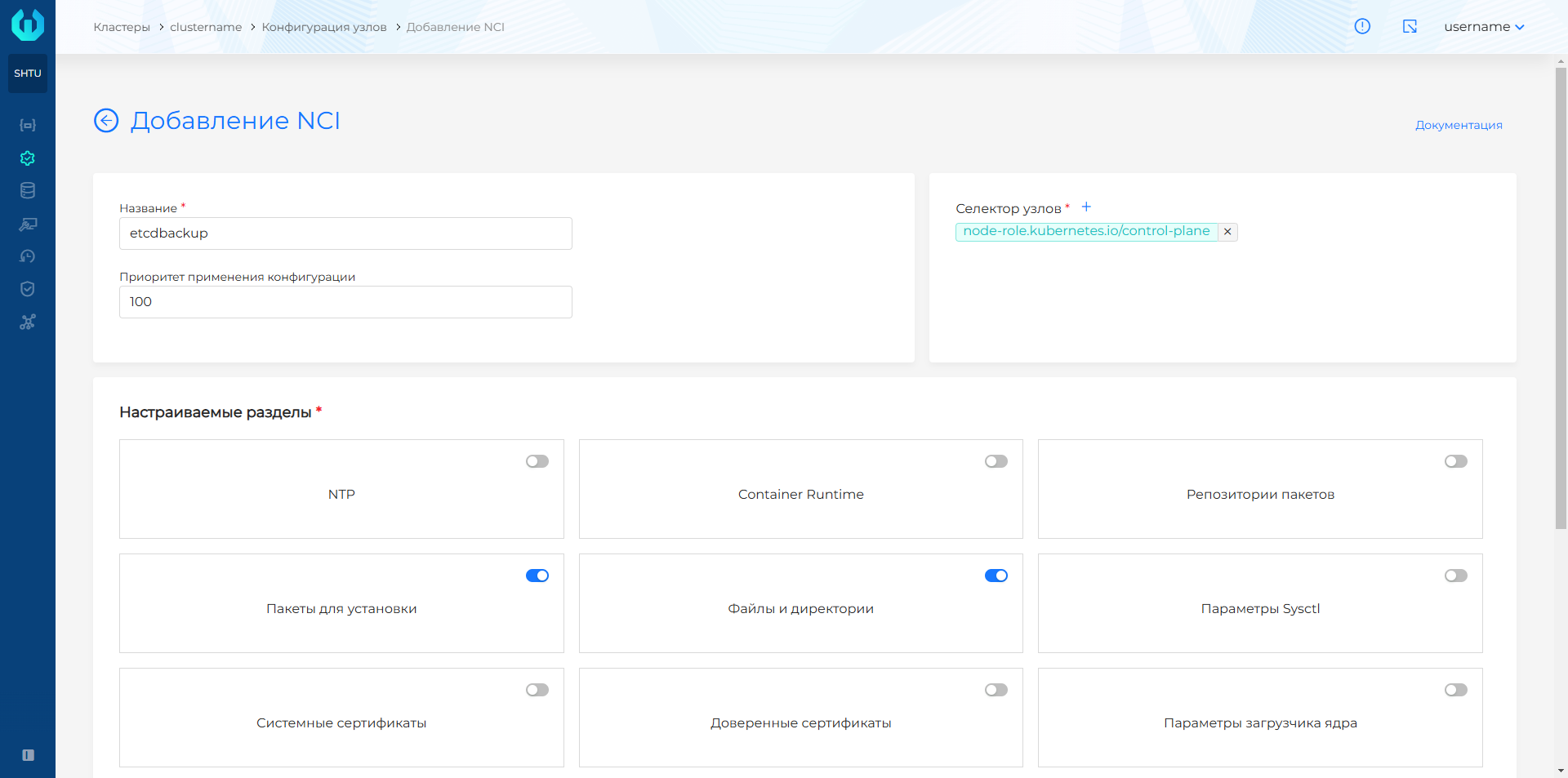
- In the cluster GUI, open Administration → Node Configuration, click + Add NCI. On the add page:
- Set a name, for example, etcdbackup and in the node selector from the drop-down list, select the label key node-role.kubernetes.io/Control Plane. Do not set a value for the label.
- In the Custom sections block, select Files and directories and Packages for installation, click Continue.
Screenshot
- In the window that opens, at the configuration step of the Packages for installation section, click + and specify the package
etcdhelper, select the target state of the package Present.
Screenshot
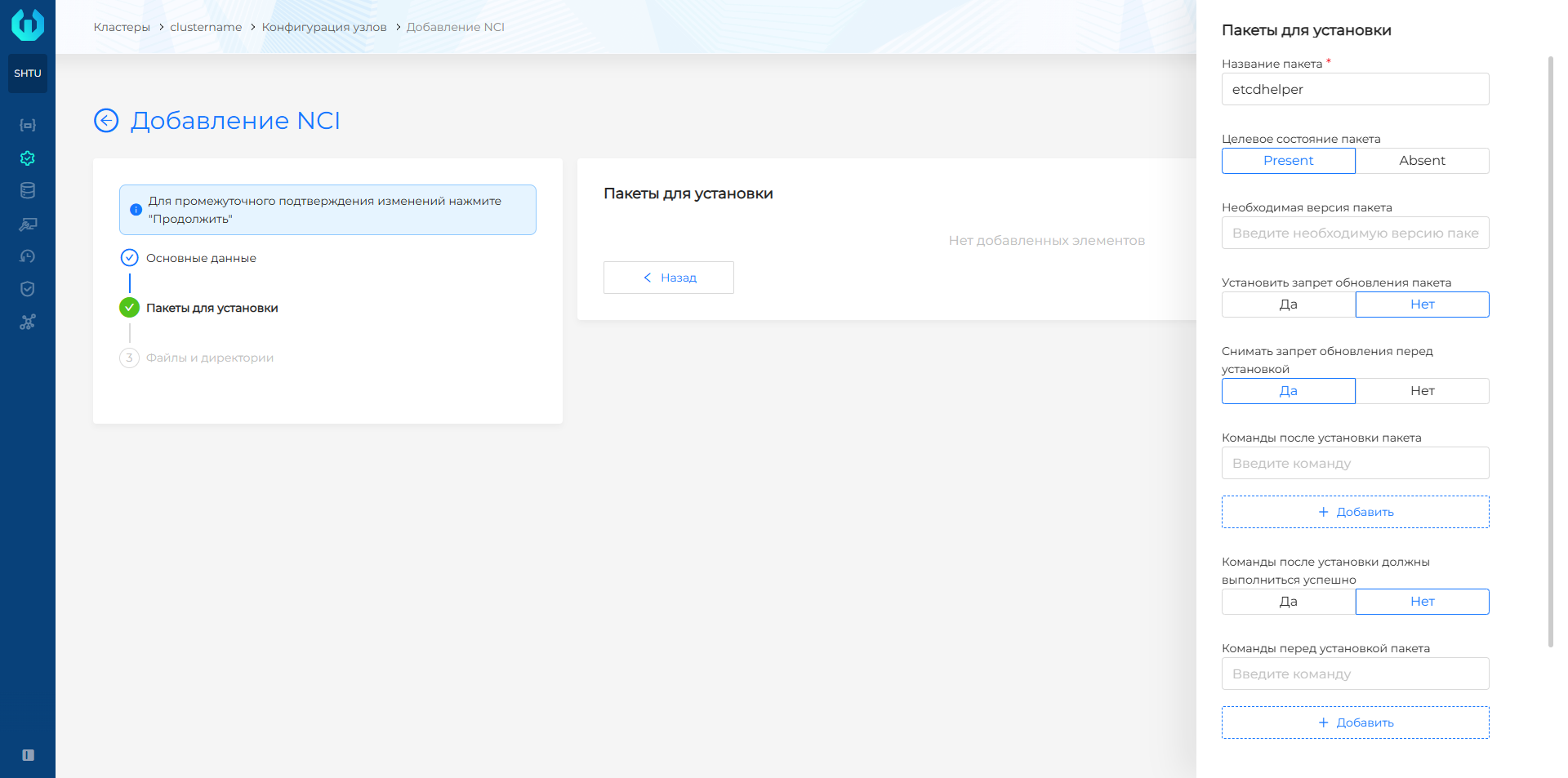
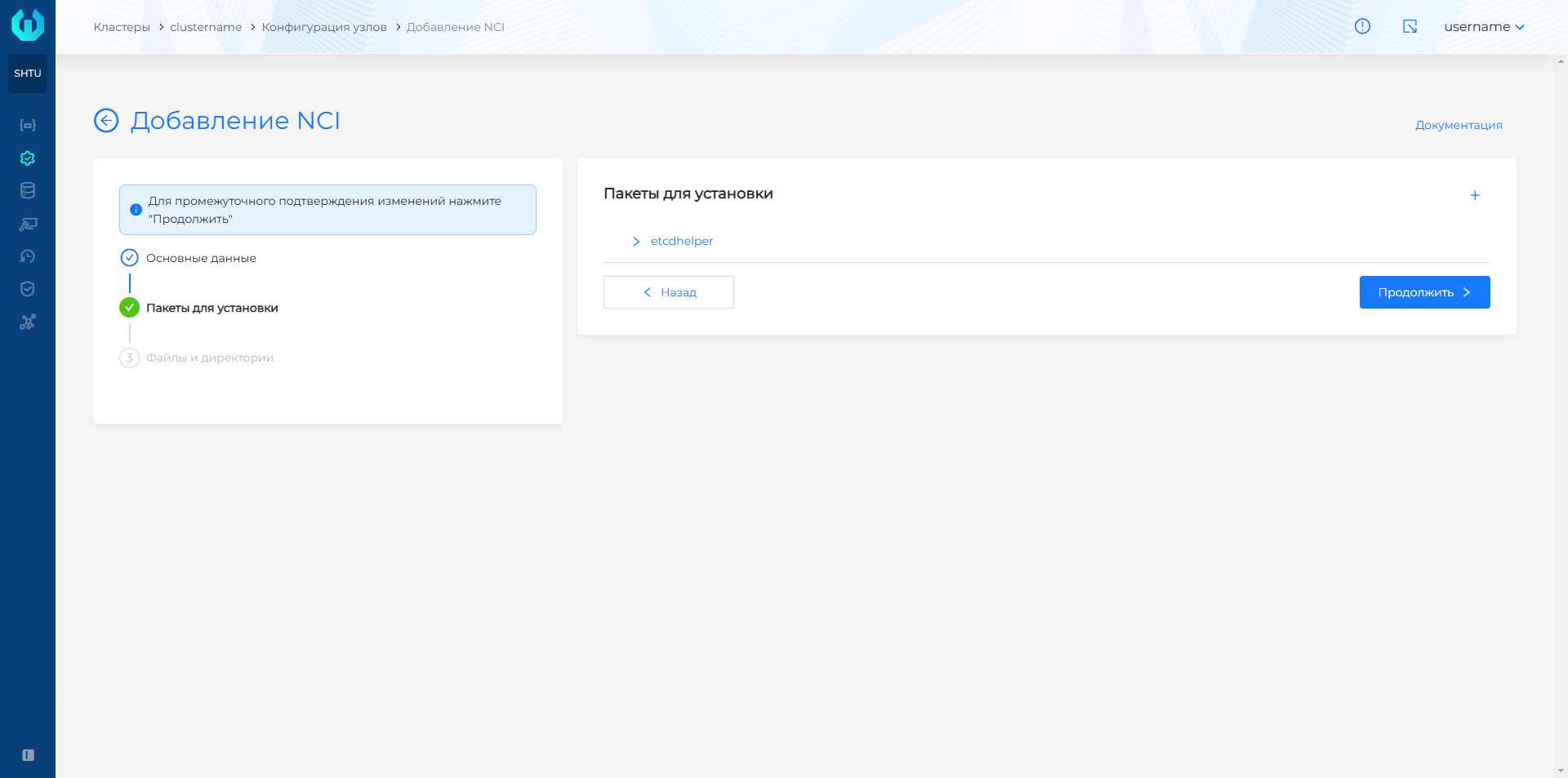
- Click Add and then Continue to go to the Files and Directories section.
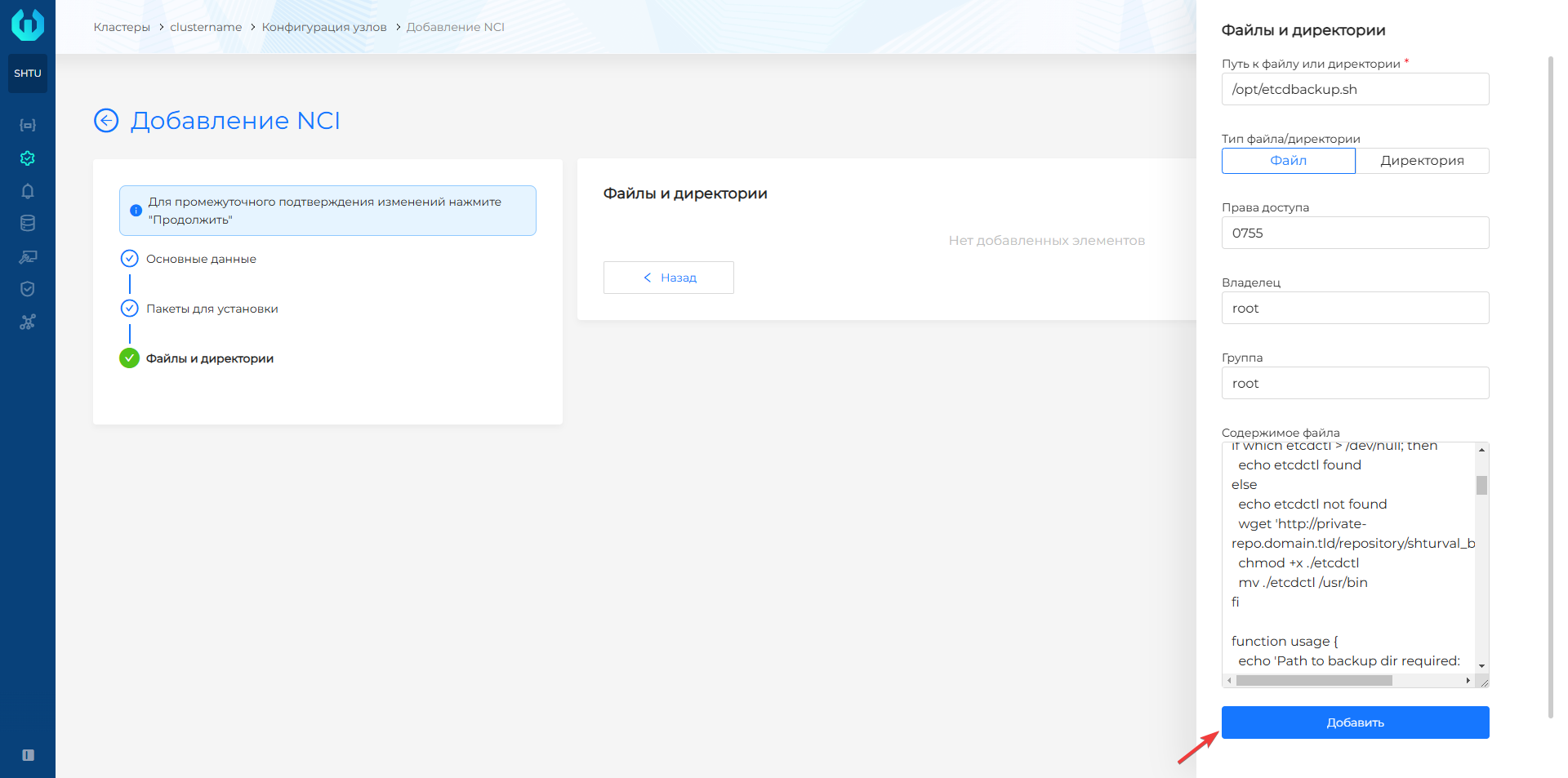
- At the Files and directories step, click + and in the Path to file or directory field, write the path to the file to be created with the backup script. File must be selected in the file/directory type.
- In the access rights field, specify the necessary rights, for example, 0755, which will provide the owner with full access to the file, the owner’s group and other users with read and execute access. The owner and group must be root.
- In the File Contents field, paste the contents of the prepared script from the
etcdbackup.shfile, click Add.
Screenshot
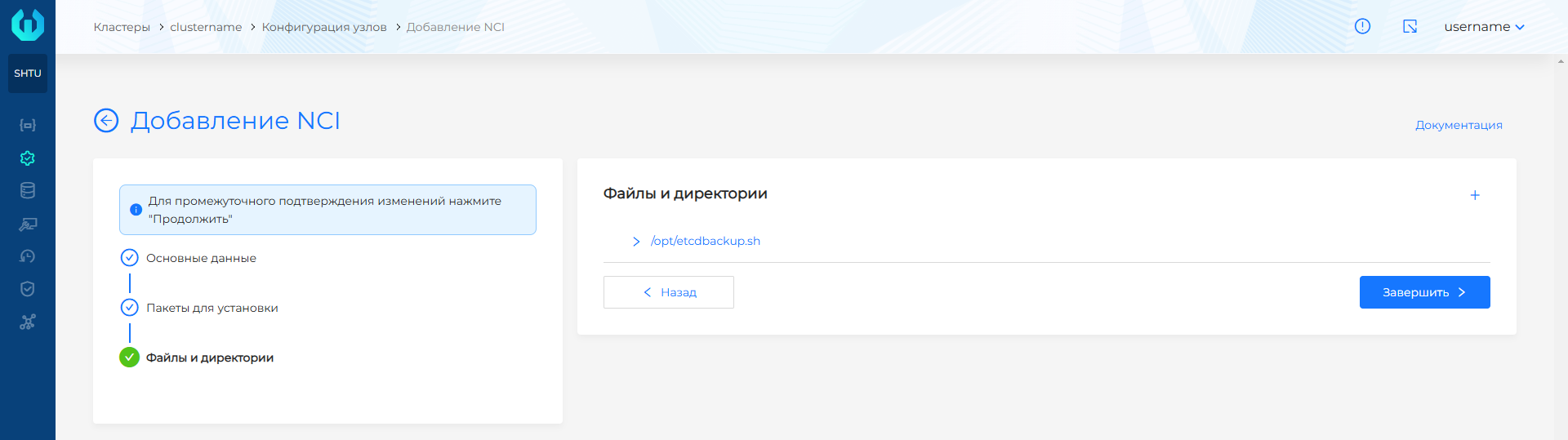
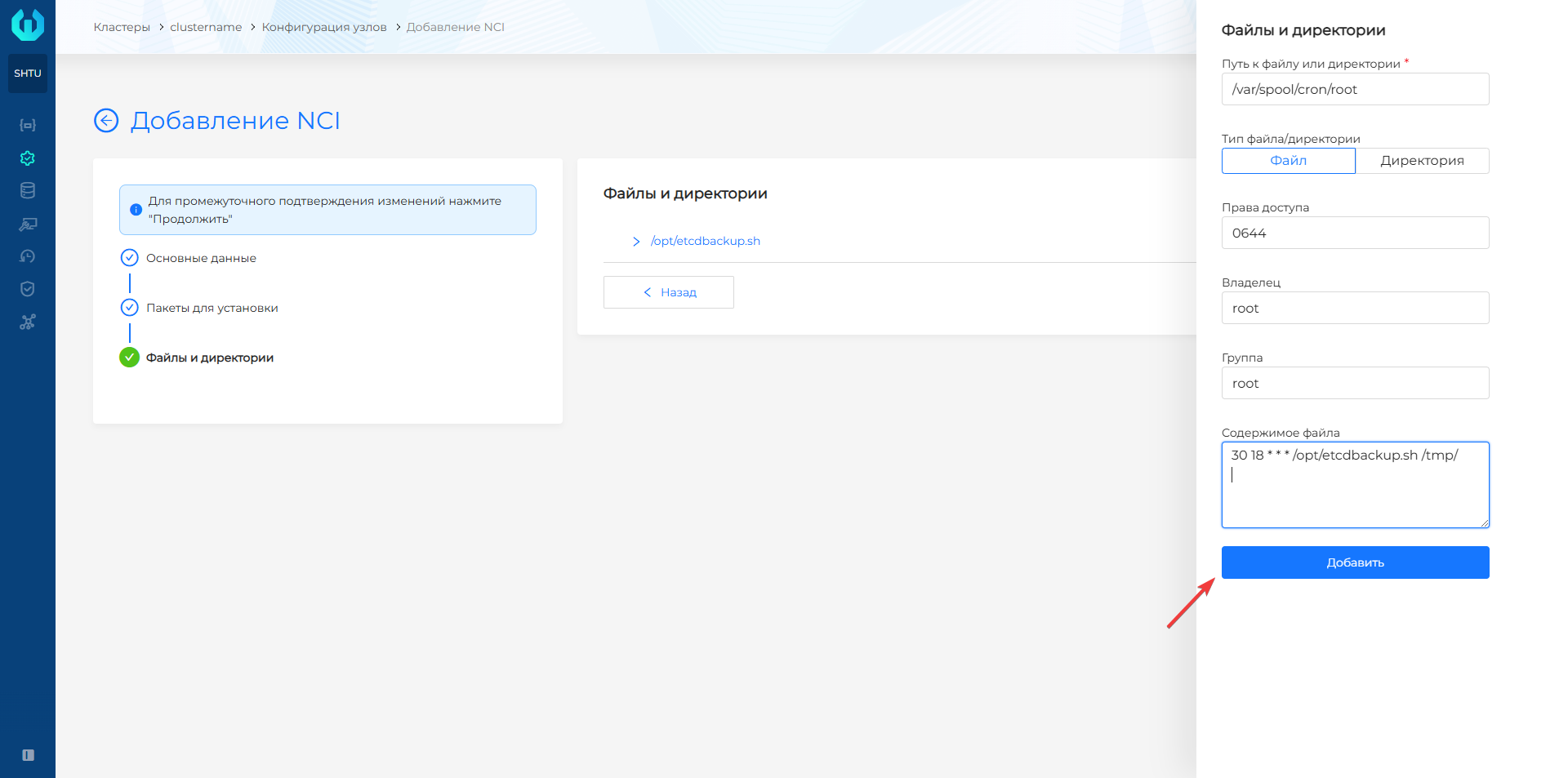
- Click + and in the Path to file or directory field, enter the path to the file with the backup schedule.
- In the access rights field, specify the necessary rights, for example, 0600, which will ensure that only the owner of the file has read and write rights. The owner and group must be root.
- In the File content field, enter the cron schedule (for example,
30 18 * * * /opt/etcdbackup.sh /tmp/). Add a line break after the schedule line. - Click Add.
Example launch configuration
30 18 * * * /opt/etcdbackup.sh /tmp/
Screenshot
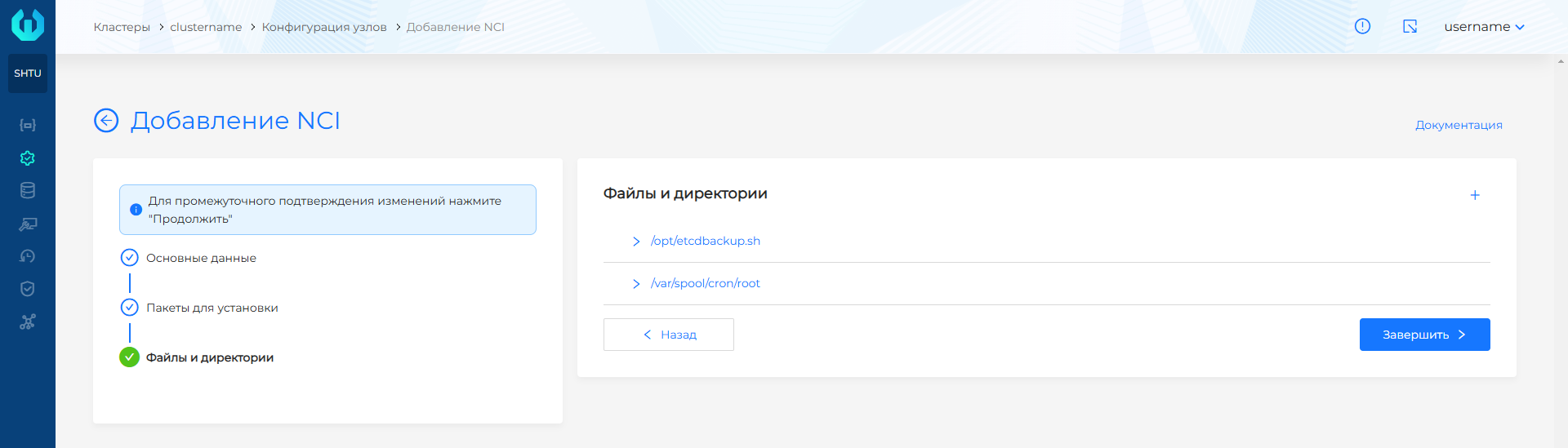
- Click Finish.
NCI Example
apiVersion: node.shturval.tech/v1beta2
kind: NodeConfigItem
metadata:
  annotations:
    shturval.tech/name: etcdbackup
  finalizers:
  - node.shturval.tech/finalizer
  name: etcdbackup
spec:
  packages:
    - name: etcdhelper
      state: present
  files:
  - content: |
#!/bin/sh

if [[ $EUID -ne 0 ]]; then
  echo "This script must be run as root"
  exit 1
fi

if which etcdctl > /dev/null; then
  echo etcdctl found
else
  echo etcdctl not found
fi

function usage {
  echo 'Path to backup dir required: ./cluster-backup.sh <path-to-backup-dir>'
  exit 1
}

# If the first argument is missing, or it is an existing file, then print usage and exit
if [ -z "$1" ] || [ -f "$1" ]; then
  usage
fi

function checkManifests {
  echo 'No manifests found in /etc/kubernetes/manifests'
  exit 1
}

if [ -z "$(ls /etc/kubernetes/manifests/)" ];then
  checkManifests
fi

function checkStatus () {
  status=$?
  if test $status -eq 0
  then
    echo "passed $1"
  else
    echo "failed $1"
    exit 1
  fi
}

archive="$(hostname)-$(date '+%F_%H%M%S').tar.gz"
backupdate="$1/backup/"
mkdir -p $backupdate/manifests
mkdir -p $backupdate/etcd

ETCDCTL_API=3 \
ETCDCTL_CACERT='/etc/kubernetes/pki/etcd/ca.crt' \
ETCDCTL_CERT='/etc/kubernetes/pki/etcd/server.crt' \
ETCDCTL_KEY='/etc/kubernetes/pki/etcd/server.key' \
ETCDCTL_ENDPOINTS='https://XX.XX.XX.XX:2379' \
/usr/local/bin/etcdctl snapshot save $backupdate/etcd/etcd.snapshot ;

checkStatus "etcd backup"

cp -r /etc/kubernetes/manifests/* $backupdate/manifests/
checkStatus "Create copies of static manifests"

echo "Manifests saved at $backupdate/manifests"

cp /etc/kubernetes/secrets_encryption.yaml $backupdate/etcd/ >/dev/null 2>&1
echo "Create copies of secrets_encryption.yaml"

echo "Archiving backup...."
tar -zcf $1/$archive $backupdate 2> /dev/null
checkStatus "archiving file"
echo "Backup archiving finished"
chmod 666 $1/$archive

echo "Backup archive is located in $1/archive"

find /tmp/ -name "*.tar.gz" -mtime +3 -delete
checkStatus "removing old backups"

echo Backup finished
exit 0
    group: root
    mode: "0755"
    owner: root
    path: /opt/etcdbackup.sh
    type: file
  - content: "30 18 * * * /opt/etcdbackup.sh /tmp/"
    group: root
    mode: "0600"
    owner: root
    path: /var/spool/cron/root
    type: file
  nodeconfigselector:
    node-role.kubernetes.io/control-plane: ""
  priority: 100
As a result, the scheduled script creates an etcd backup on each control plane node.
Restore from etcd backup
Restore etcd on each control plane node.
- On the control plane node, move
kube-apiserver.yamlfrom/etc/kubernetes/manifests/to another directory (for example,/root/) to stop the API server. Wait until the pod is terminated.
# Move the pod to the /root/ folder
mv /etc/kubernetes/manifests/kube-apiserver.yaml /root/
# Getting information about the API server pod
crictl ps | grep api
Screenshot

- Restore from the etcd snapshot.
export ETCDCTL_API=3
/usr/local/bin/etcdctl --data-dir /var/lib/etcd snapshot restore /tmp/backup/etcd/etcd.snapshot
Replace /var/lib/etcd with the data directory created during restore, and /tmp/backup/etcd/etcd.snapshot with the path to your snapshot.
Screenshot

cp status/backup/etcd/secrets_encryption.yaml /etc/kubernetes/
Replace status/backup/etcd/secrets_encryption.yaml with the path to the saved secrets_encryption.yaml file.
- Restart the API server by moving
kube-apiserver.yamlback to/etc/kubernetes/manifests/.
mv /root/kube-apiserver.yaml /etc/kubernetes/manifests/
# Getting information about the API server pod
crictl ps | grep api
Screenshot

Recommended:
- Restart
kube-scheduler,kube-controller-manageron Control Plane nodes. One by one, move the manifest files to the root folder. Check that the pod has been deleted, then return the manifest back to/etc/kubernetes/manifests/.
# Move the pod to the /root/ folder
mv /etc/kubernetes/manifests/kube-scheduler.yaml /root/
# Get information about the kube-scheduler pod. Wait for the pod to be removed
crictl ps | grep scheduler
# Return of the kube-scheduler pod
mv /root/kube-scheduler.yaml /etc/kubernetes/manifests/
# Move the pod to the /root/ folder
mv /etc/kubernetes/manifests/kube-controller-manager.yaml /root/
# Get information about the kube-controller-manager pod. Wait for the pod to be removed
crictl ps | grep controller
# Returning the kube-controller-manager pod
mv /root/kube-controller-manager.yaml /etc/kubernetes/manifests/
- Restart
kubelet.
sudo systemctl restart kubelet
sudo systemctl status kubelet
Installing the etcd-helper module
Restoring the etcd cluster with the etcd-helper module is only supported in HA clusters:
To start working with the module:
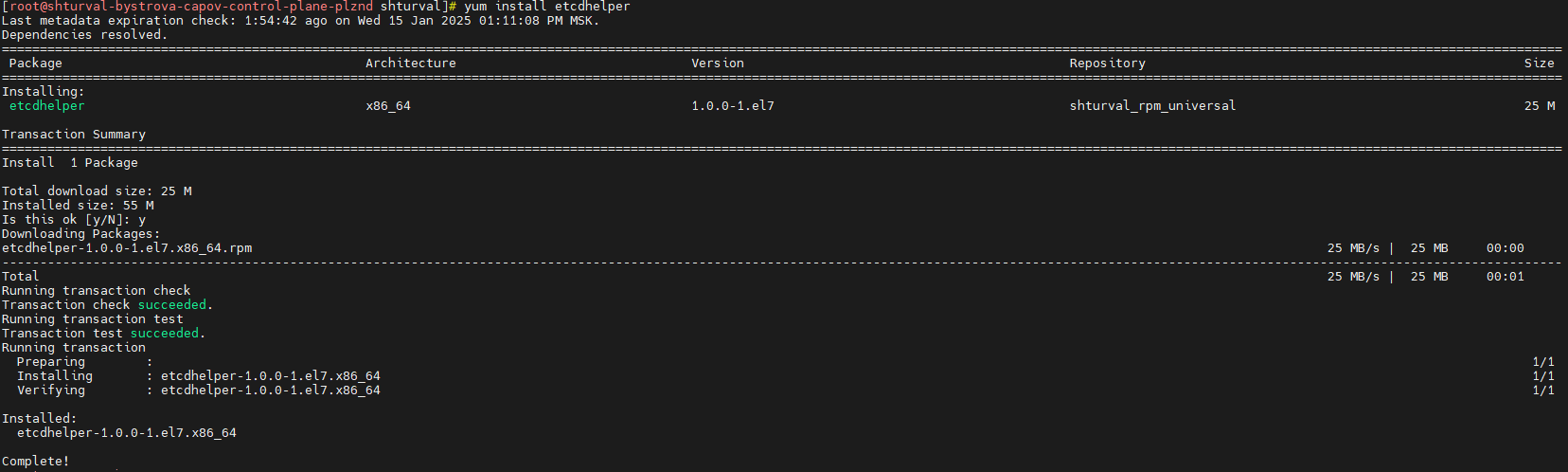
- Install the
etcd-helperpackage containing theetcdctl,etcdutl,etcdhelperutilities.
yum install etcdhelper
The etcd-helper module will be loaded into /usr/local/bin.
Screenshot
- To query the ETCD cluster, run
etcdctlwith the required parameters using theetcdhelper execcommand. The required parameters will be obtained from/etc/kubernetes/manifests/etcd.yaml.
/usr/local/bin/etcdhelper exec -- member list -w table
Where the -- parameter is necessary for the correct transfer of keys in the script.
Screenshot

Recovering an unavailable etcd member
If the API server IP and name are unchanged but control plane node data is corrupted, recreate the etcd member with etcdhelper rejoin:
/usr/local/bin/etcdhelper rejoin
Screenshot

The command will:
- Remove the failed member from the etcd cluster.
- Stop kubelet.
- Remove the etcd container.
- Rename the etcd data directory.
- Add a new member to the etcd cluster.
- Start kubelet.
Recovery when a control plane node IP changes
If one control plane node IP changes, run:
/usr/local/bin/etcdhelper ip --nodeip=ENTER-NEW-NODE-IP-ADDRESS
Screenshot
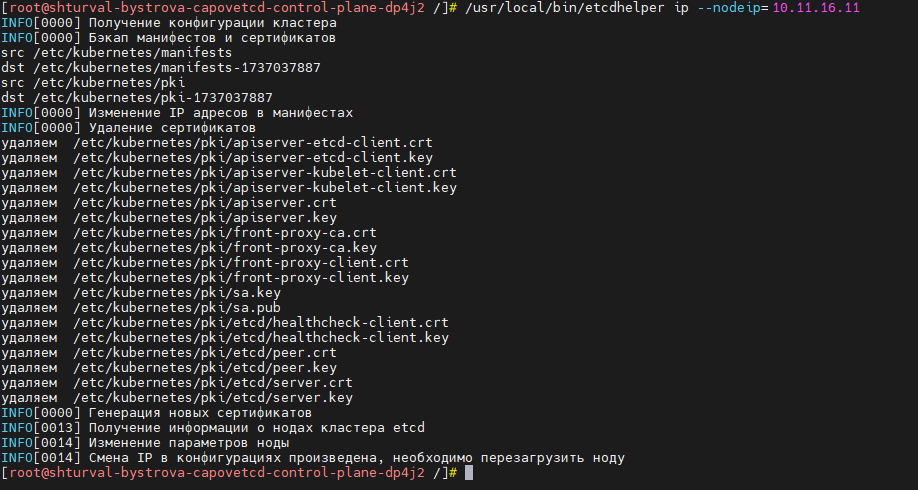
The command will:
- Back up manifests and certificates.
- Update the host IP in manifests.
- Remove etcd certificates except the CA certificate.
- Regenerate certificates, including for the API server.
- Update the node IP in the etcd cluster.
Recovery when all control plane node IPs change
To restore etcd when all control plane node IPs change:
- On the first control plane node, run:
/usr/local/bin/etcdhelper prepare --nodeip=ENTER-NEW-NODE-IP-ADDRESS
Add the
--force-new-clusteroption to the/etc/kubernetes/manifests/etcd.yamlmanifest.Reboot the first Control Plane node.
Edit the etcd member entry:
# View node ID
/usr/local/bin/etcdhelper exec -- member list -w table
# Update node entry
/usr/local/bin/etcdhelper exec -- member update ENTER NODE-ID --peer-urls=https://ENTER-NEW-NODE-IP-ADDRESS:2380
Remove the
--force-new-clusteroption from the/etc/kubernetes/manifests/etcd.yamlmanifest.Reboot the first node.
Verify that the kubernetes cluster is running.
When restoring the management cluster, make sure that all pods in namespace
shturval-backendare running. Ifshturval-backend-redisorshturval-backend-valkeyis not running, force delete to restart.When restoring a cluster (client, management) with the Shturval v2 provider, prepare new hosts and add them to the provider instance.
In the cluster GUI, open Administration → Node Management, open Control Plane group configuration. On the Cluster API configuration tab, set Replicas requested to
1.
# Change the number of replicas in KubeadmControlPlane
kubectl edit kubeadmcontrolplane -n CLUSTER-NAME CLUSTER-NAME-control-plane
In spec KubeadmControlPlane, set replicas to 1.
- Return to the Manage Nodes page and copy the names of the nodes in the
NotReadystatus.
# Get cluster node names
kubectl get node
- Get the list of Machines and delete the Machines corresponding to the Control Plane nodes in the
NotReadystatus.
# Get all Machines of the cluster
kubectl get machines -n CLUSTER-NAME
# Delete one by one the Machines corresponding to the Control Plane nodes in the `NotReady` status
kubectl delete machines -n CLUSTER-NAME MACHINE-NAME
Removal takes some time. As a result, Machines, nodes and VMs will be deleted if the cluster is deployed with a provider other than Shturval v2.
- Edit the Machine resource to be deleted by removing the finalizer.
- Remove the node from the cluster and the VM in the virtualization platform.
- After all Machines are deleted, in the cluster GUI open Administration → Node Management, open Control Plane group configuration. On the Cluster API configuration tab, set Replicas requested to
3.
# Change the number of replicas in KubeadmControlPlane
kubectl edit kubeadmcontrolplane -n CLUSTER-NAME CLUSTER-NAME-control-plane
In spec KubeadmControlPlane, set replicas to 3.