Node scaling
In the Shturval platform GUI, you can manage the number of nodes in previously created clusters (client clusters and the management cluster).
The instructions are applicable for clusters with providers:
- Basis Dynamix;
- oVirt (zVirt, HostVM, ED Virtualization, ROSA Virtualization);
- VMware vSphere;
- OpenStack (VK Cloud, Selectel);
- Yandex Cloud;
- vCloud Director.
To change the number of nodes in a cluster with the Shturval v2 provider, use the instructions Add hosts and Reduce number of nodes in group.
Management is available in the host group configuration. You can scale (increase or decrease) Control Plane nodes and Worker nodes.
Selecting the scaling type
Two modes are available for groups of Worker nodes: manual and automatic scaling. The choice depends on workload predictability, availability requirements, and operational controls.
When manual scaling is preferable
- Stable or predictable load - resource requirements are known and rarely change.
- Strict budget or license restrictions - you need to accurately control the number of nodes and prevent unexpected growth.
- Latency-critical or isolation-critical loads - adding and removing nodes must be planned manually.
- Compliance with regulations - any change in infrastructure must be approved.
- Small number of groups or nodes - manually changing “Replicas Requested” does not create an operational load.
When Automatic Scaling is Preferred
- Variable or unpredictable load - traffic, events, or task volume fluctuates greatly.
- Optimization of costs when idle - during periods of low load the cluster can decrease, during peak periods it can increase without manual intervention.
- Several groups of Worker nodes with different purposes - convenient to set min/max replicas by group.
- High availability requirements - automatic addition of nodes when there is a lack of resources reduces the risk of Pending Pods.
When autoscaling, set Minimum Replicas and Maximum Replicas so you do not exceed the license limits and cloud or virtualization quotas.
Horizontal and vertical scaling
Scaling nodes in a cluster (adding or removing nodes) is horizontal scaling at the infrastructure level. Vertical - changing resources (CPU, RAM) of existing nodes or pods.
When is horizontal scaling preferable?
- Stateless and distributed applications - it is better to distribute the load across new nodes and servers.
- High availability and fault tolerance - more nodes reduce the impact of a single node failure.
- Growth is based on the number of pods, not the size of a single pod - applications scale across replicas (HPA), and additional nodes are needed.
- Limitations on the size of one machine - it is easier to add nodes of a standard size than to change the instance type.
It is recommended to combine horizontal pod scaling (HPA) with node scaling: pods are scaled first, and nodes are added if there are not enough nodes.
When is vertical scaling preferable?
- Resource-intensive tasks on one node - heavy computing, ML, data processing.
- Stateful workloads - databases, queues with state; increasing replicas is more difficult than increasing resources.
- Strong memory or CPU requirements per process - the application does not scale horizontally without rework.
- Limit on the number of nodes - license or cloud limits make it profitable to increase the size of nodes instead of adding new ones.
In the Shturval platform, changing the size of nodes (vertical scaling at the machine level) may require actions in the node group or provider configuration, such as changing the instance type or InfraMachineTemplate parameters). Scaling of pod resources (CPU/Memory requests/limits) is performed in workload manifests or through VPA, if enabled.
Scaling nodes in a cluster
Follow these steps to change the number of nodes in a cluster:
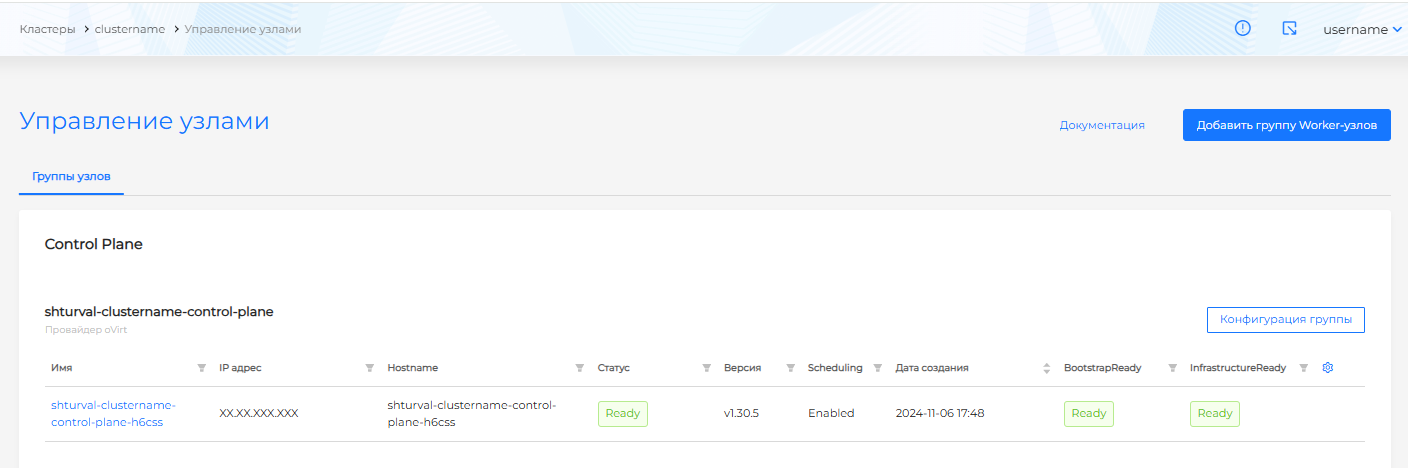
- Go to the Node Management page of the Administration section.
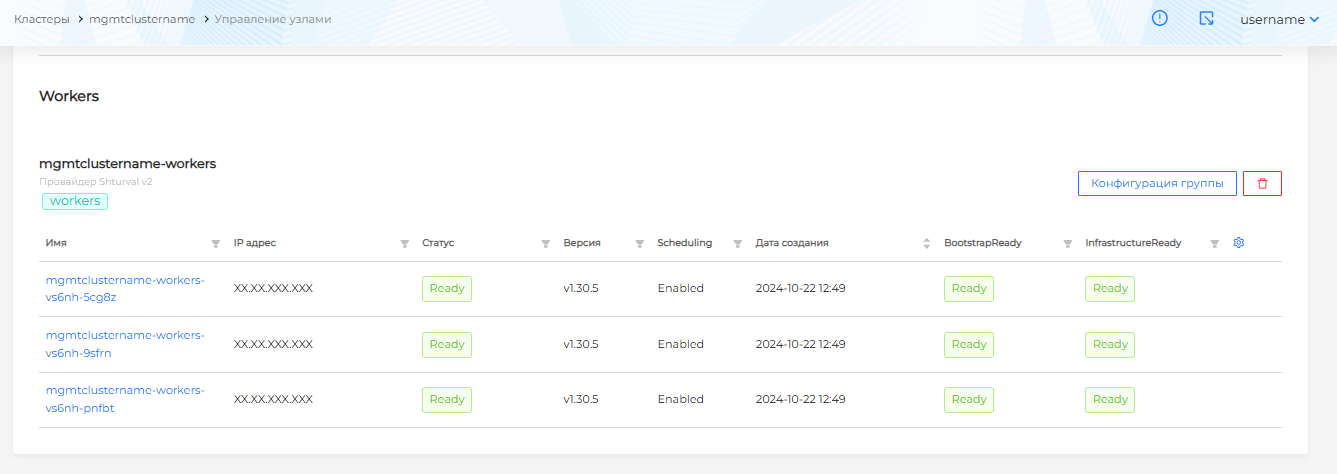
- Define the group in which you want to scale the nodes:
- group of Control Plane nodes;
- a group of Worker nodes. In client clusters, you can manage the number of nodes for each Worker group: Default, Infra or custom.
Screenshot: Control Plane
Screenshot: Worker nodes in the management cluster
Screenshot: Worker nodes in the client cluster
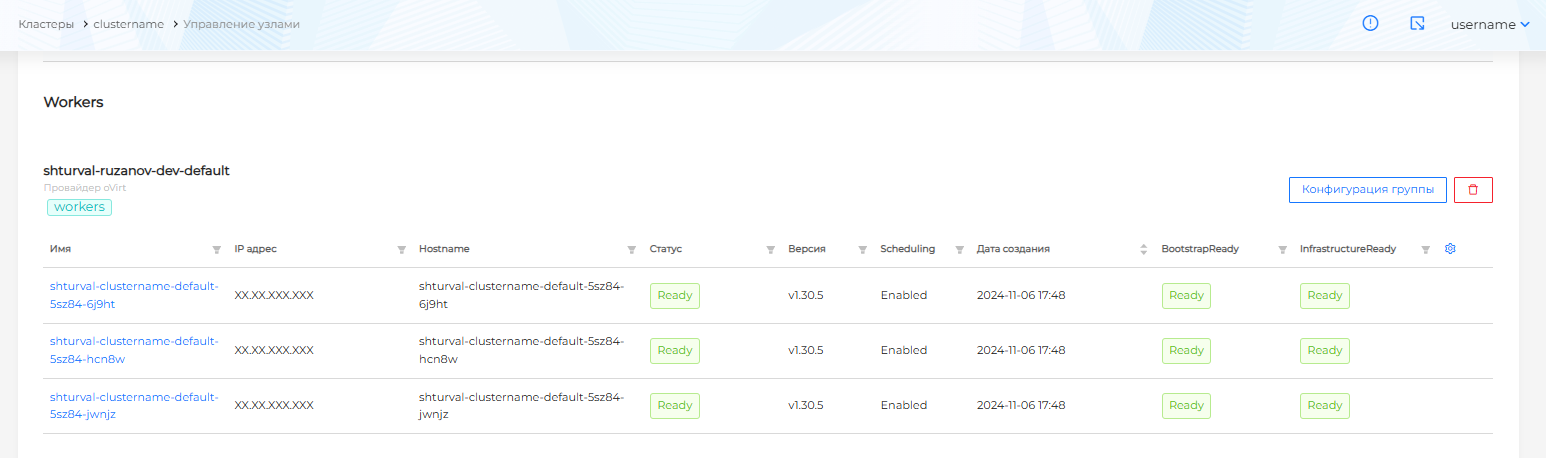
- Go to the node group configuration by clicking Group Configuration.
Control Plane node group
On the Configuration Cluster API tab of the Control Plane nodes group, manual scaling is available. Specify the desired number of nodes in the Replicas Requested field.
Screenshot: configuration of a group of Control Plane nodes
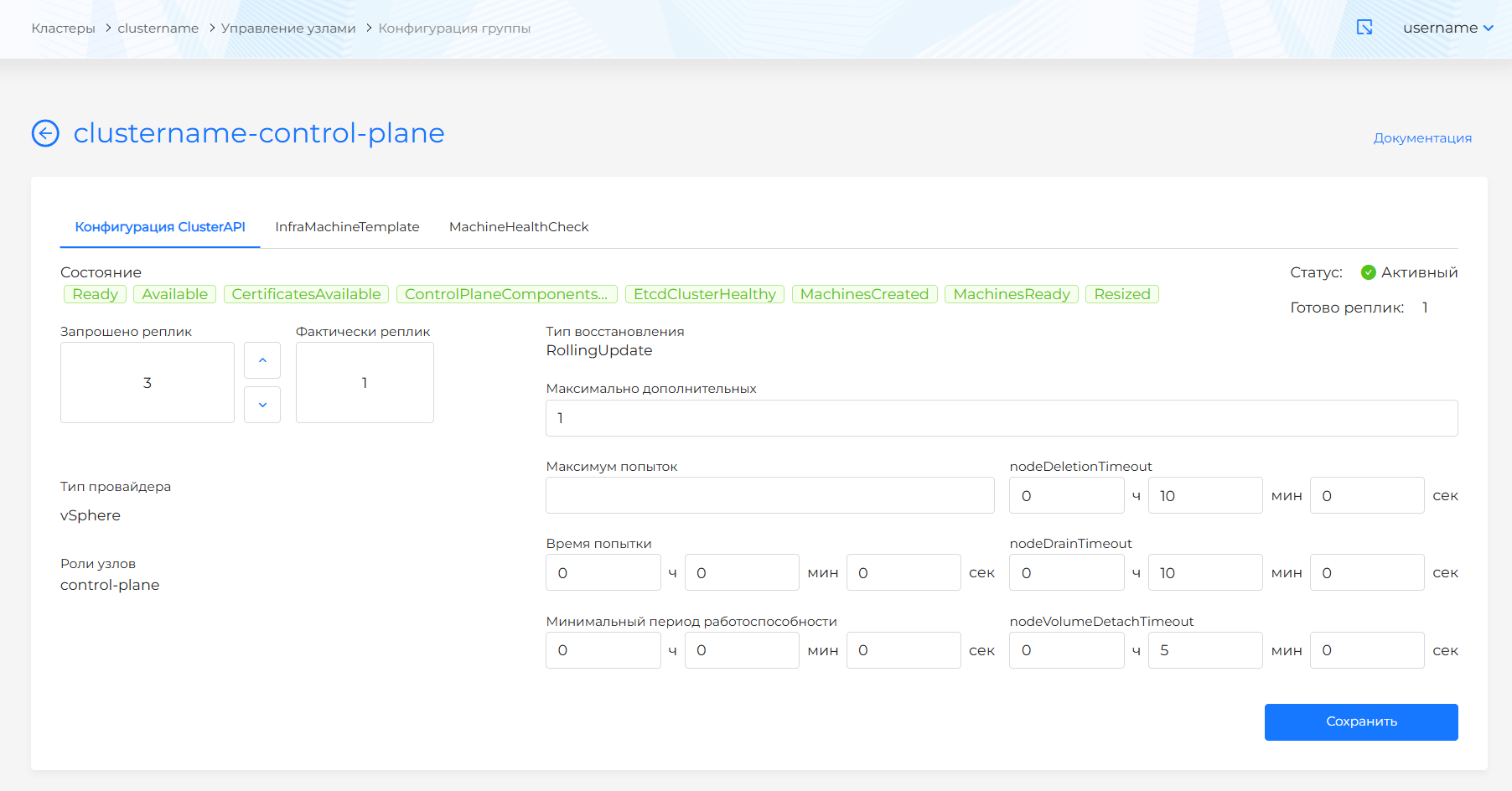
Save your changes. On the Manage Nodes page you can track the scaling process.
Worker node group
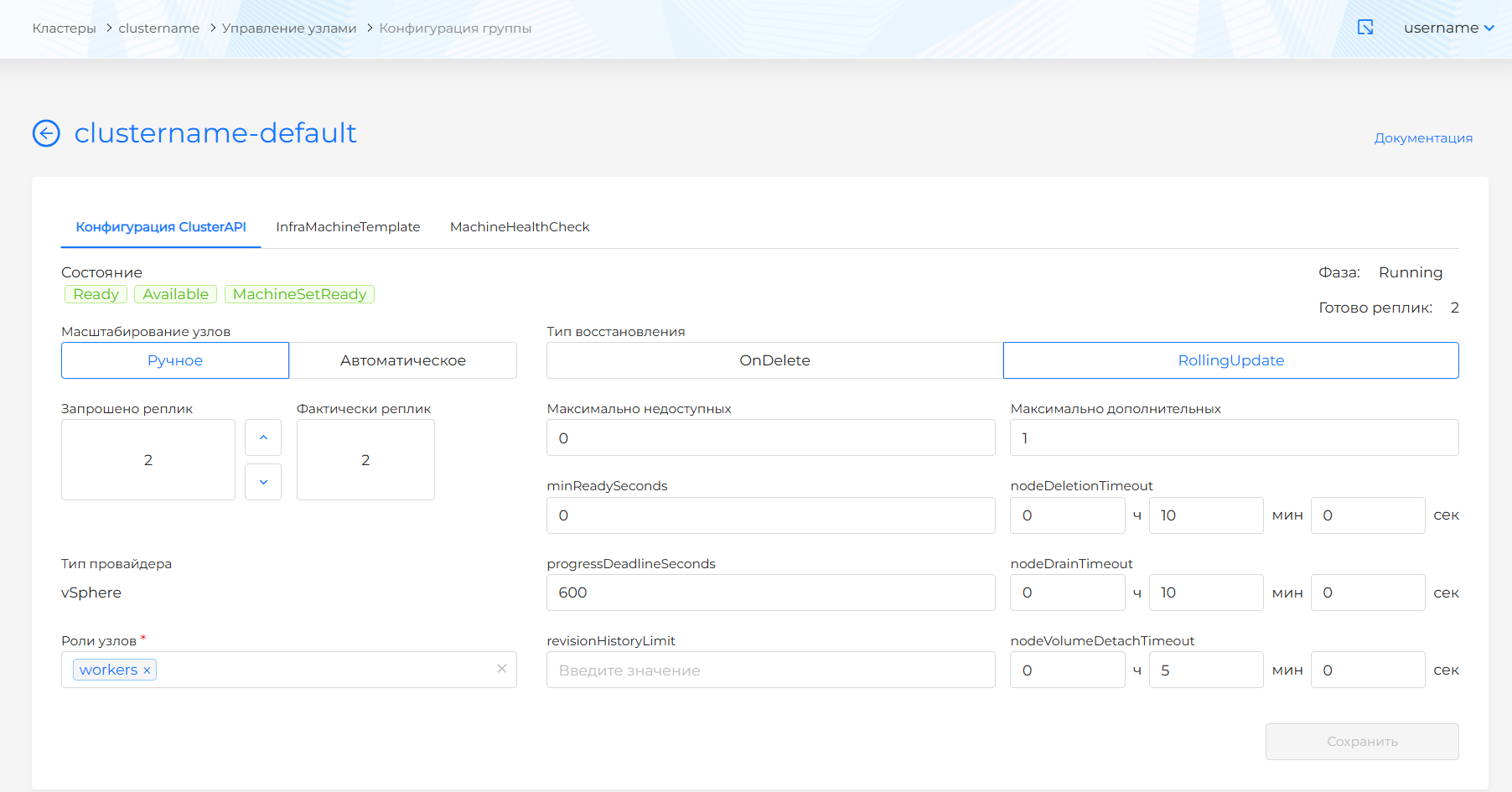
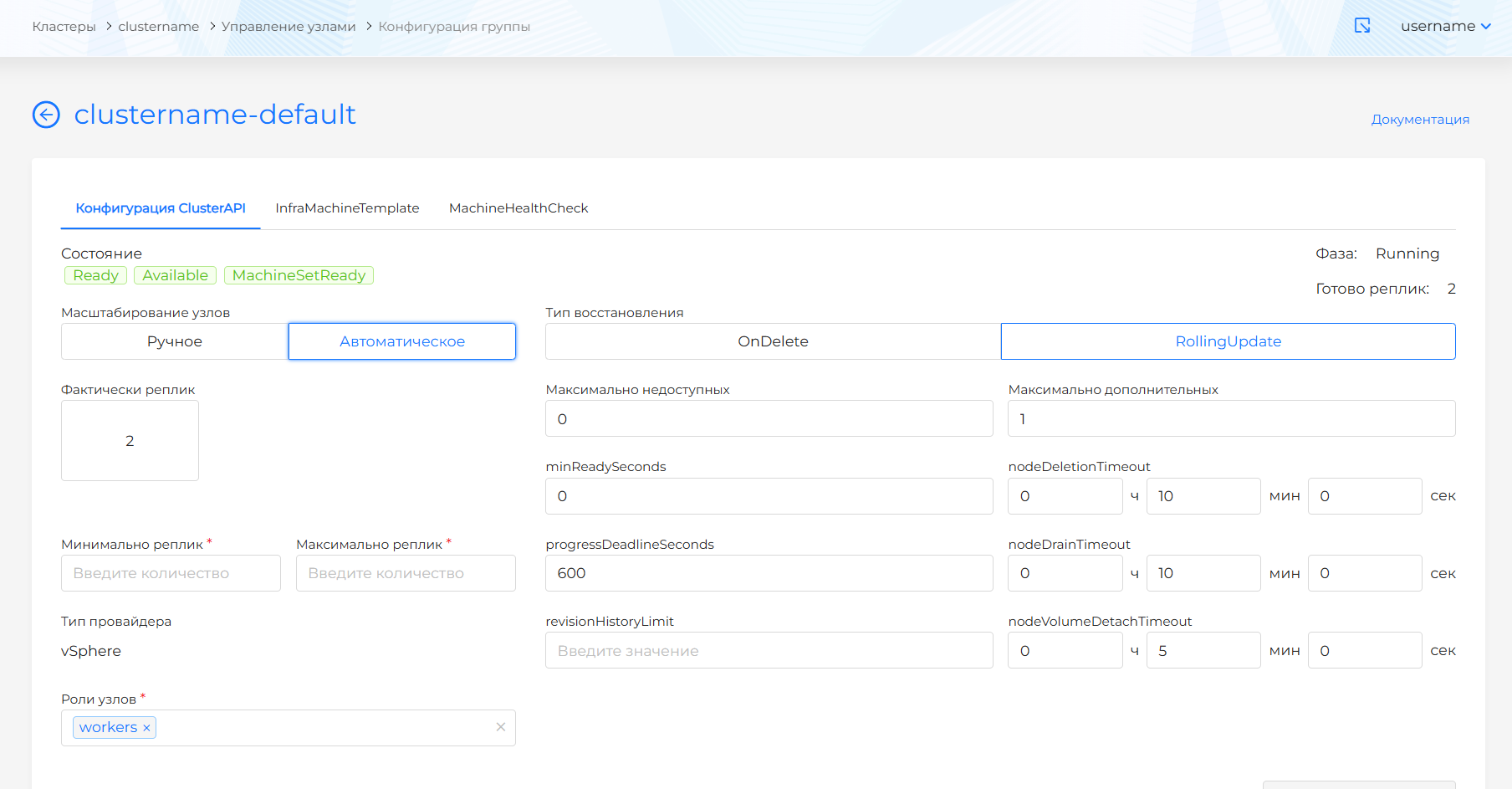
On the Configuration Cluster API tab of the Worker node group, two scaling methods are available:
- Manual—specify the desired number of nodes in the Replicas Requested field.
- Automatic—specify the range in the Minimum replicas and Maximum replicas fields.
Screenshot: manual scaling
Screenshot: automatic scaling
Save your changes. On the Manage Nodes page you can track the scaling process.
Manual scaling guidelines
When manually changing the number of nodes, consider the following:
- Plan node growth before peak load or before deploying new applications so that pods do not remain in the Pending state.
- Reduce nodes during low-load periods. Make sure remaining nodes have capacity for pods from nodes being removed.
- Change the number of replicas step by step (for example, one or two nodes in a group), especially when decreasing.
- After the change, check the Manage Nodes page: new nodes should go into the Ready state, if decreasing, wait until the drain completes and the nodes are deleted.
- For Control Plane groups, do not reduce the number of nodes below that required for quorum.
- Consider license limits for Worker nodes and vCPUs.
Cluster Autoscaler
Cluster Autoscaler resizes the Kubernetes cluster based on pod and node usage. In Cluster API it controls the creation and deletion of nodes through Cluster API resources and applies only to Worker Machines.
According to Cluster API Book, autoscaler with the Cluster API provider works with MachineSet, MachineDeployment or MachinePool resources, if they have both range annotations. In Shturval, configure automatic Worker group scaling in the GUI on the Configuration Cluster API tab (Node groups); Worker groups use MachineDeployment.
Range annotations
| Annotation | Purpose |
|---|---|
cluster.x-k8s.io/Cluster API-autoscaler-node-group-min-size | Minimum number of nodes in a group. Autoscaler does not scale the group below this value. |
cluster.x-k8s.io/Cluster API-autoscaler-node-group-max-size | The maximum number of nodes in a group. Autoscaler does not scale the group above this value. |
Autoscaler tracks Cluster API resources that have both annotations. In Shturval, these values correspond to the Minimum replicas and Maximum replicas fields.
Example of MachineDeployment fragment
apiVersion: cluster.x-k8s.io/v1beta1
kind: MachineDeployment
metadata:
  annotations:
    cluster.x-k8s.io/cluster-api-autoscaler-node-group-max-size: "7"
    cluster.x-k8s.io/cluster-api-autoscaler-node-group-min-size: "2"
YAML viewing is performed in the management cluster: Administration → Custom Resources.
Note: Warning: autoscaler does not automatically adjust the group to min/max if the current number of nodes is already below the minimum or above the maximum. To enforce the minimum, upstream Cluster Autoscaler uses the --enforce-node-group-min-size flag; Availability of settings in Shturval depends on delivery.
Scale from zero
In Cluster API scale-from-zero is an optional feature of the infrastructure provider. If the provider does not provide autoscaler with information about the size of future nodes, you can use capacity annotations on MachineDeployment or MachineSet (minimum CPU and memory), for example:
capacity.cluster-autoscaler.kubernetes.io/cpu: "16"
capacity.cluster-autoscaler.kubernetes.io/memory: "128G"
Capacity annotations take precedence over data received from infrastructure machine templates.
Note: In Shturval, scale-from-zero for group replicas is not enabled. For fault tolerance, at least two Worker nodes are recommended; in the GUI, you cannot set the minimum below 2.
Operating principle
If autoscaling is enabled for a group, Cluster Autoscaler periodically:
- searches for pods in the Pending status with the reason Unschedulable;
- evaluates pod requests for CPU, RAM and GPU;
- analyzes the load on group nodes.
Then it can add nodes when resources are insufficient or remove a node when all of the following are true:
- total pod requests on the node are below the scale-down threshold;
- pods (except system pods on all nodes) can be rescheduled;
- the node has no annotation that disables scale-down.
cluster-autoscaler.kubernetes.io/scale-down-disabled: "true"
Provisioning a new node is independent of Autoscaler; The typical wait for requested nodes to be created is up to 15 minutes, after which an attempt may be made to scale another group.
If it is necessary to add several nodes to several Worker groups, Autoscaler can distribute the created nodes evenly between the groups.
Accounting for PodDisruptionBudget and affinity
Autoscaler takes into account PodDisruptionBudget, nodeSelector and nodeAffinity with type requiredDuringSchedulingIgnoredDuringExecution. preferredDuringSchedulingIgnoredDuringExecution is not taken into account.
Why the node is not deleted
Autoscaler will not delete a node if at least one of the following conditions is true:
- PDB applies to pods;
- there are “stand-alone” pods that do not belong to Deployment, ReplicaSet, StatefulSet, etc.;
- pods use local storage;
- there are not enough resources on other nodes for pod requests;
- other nodes are not suitable for nodeSelector or nodeAffinity pods.
If necessary, you can add an annotation that allows eviction:
cluster-autoscaler.kubernetes.io/safe-to-evict: "true"