How to deploy a new service
If you need to install an additional service in an already deployed Shturval platform cluster, this can be done in three ways: through the GUI, through the Kubernetes API or through the CLI (kubectl).
In all options, the platform uses the service management module shturval-services and the connected Helm repository. The service is installed from the Helm chart of the selected repository: the shturval repository is available by default; if necessary, you can connect your own.
During installation, the ShturvalServiceConfig (SSC) resource is created in the cluster, and the shturval-services controller, based on its configuration, deploys the Helm release in the specified namespace.
Deployment via GUI and via CLI (kubectl) is shown below. When working through the API, the same resource ShturvalServiceConfig is used; For more information about working with Swagger, see Swagger: Reference and Scripts.
Deployment via GUI
Step 1. Open the “Available Charts” page
- Select a cluster in the left menu.
- Open the Services and Repositories section.
- Go to the Available Charts page.
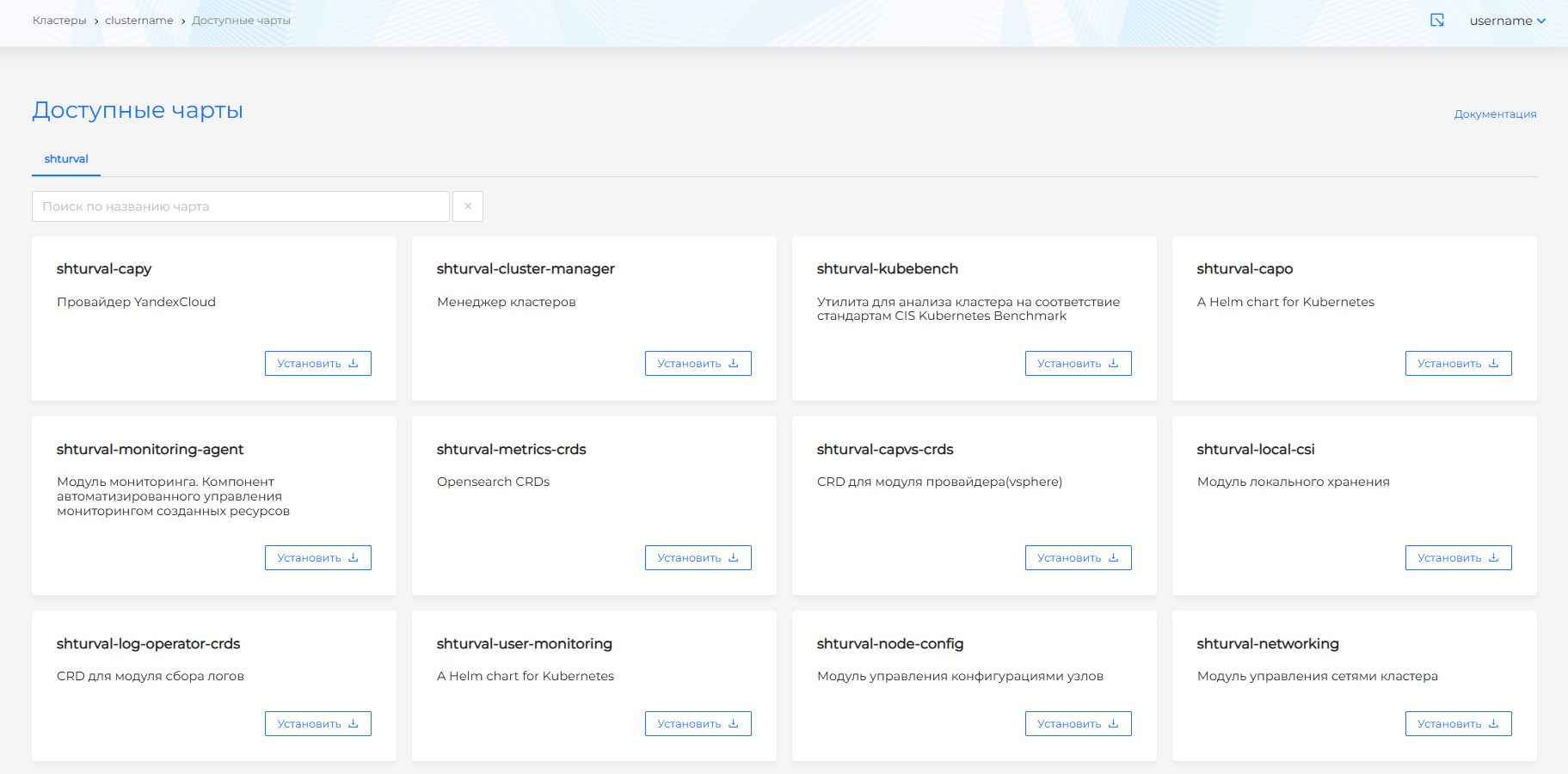
The page displays Helm charts of services available for installation. The charts are divided into tabs in accordance with the connected repositories (for example, shturval - Shturval platform charts). Under the name of the tab there is a search bar: you can search for a chart by name; the search starts from the first character entered.
Note: Important: services consisting of a CRD and a main chart. Some services are divided into two charts: a separate chart with a CRD (Custom Resource Definitions) and the main service chart. If there is such a division, both charts will be displayed in the catalog - as a rule, a CRD chart contains the -crd suffix in its name (for example, shturval-monitoring-crd and shturval-monitoring). In this case, install the CRD chart first, wait for its installation to complete (Healthy status on the “Installed services” page), and only after that install the main chart. Installing the main chart before CRD deployment is complete will result in an error.
Screenshot: “Available charts” page
Step 2. Select a chart and click “Install”
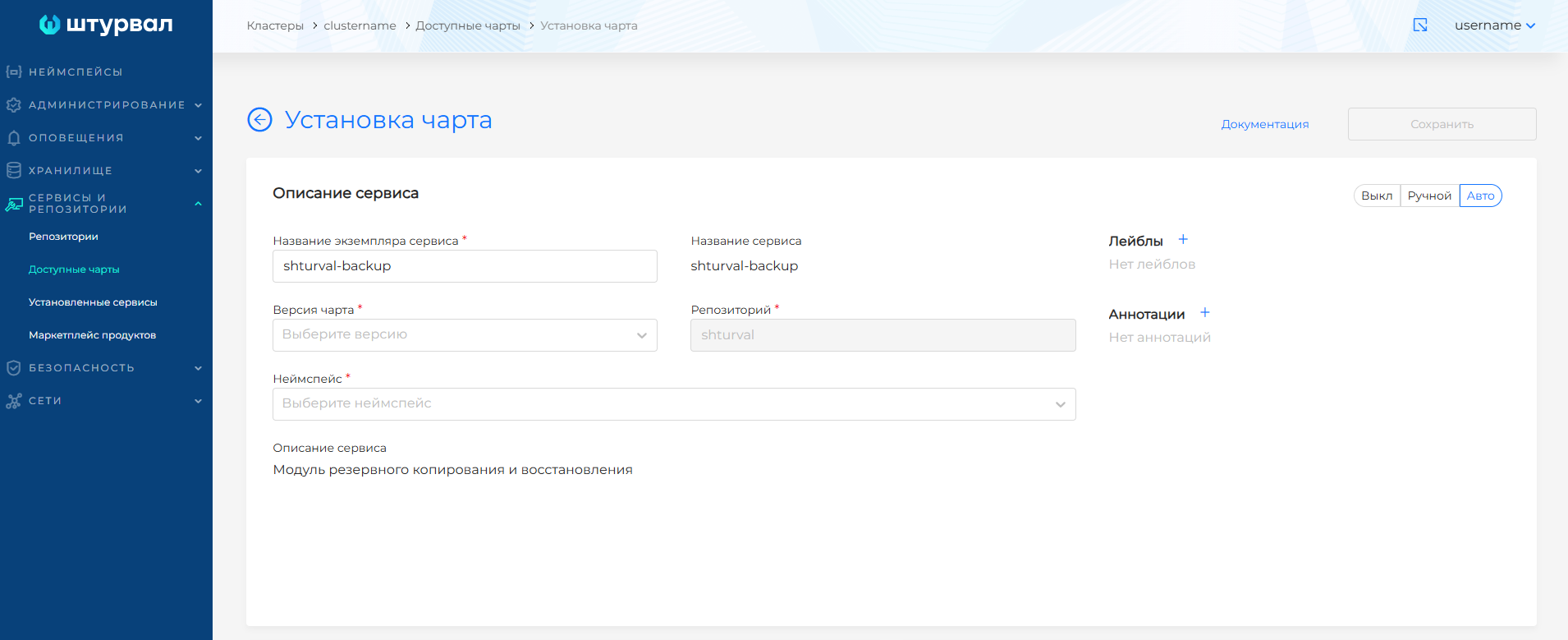
Find the desired service by name (for example, shturval-nfs-csi, shturval-dashboards, shturval-backup) and click Install on the chart card. The Chart setup page opens for initial instance configuration.
Screenshot: “Install” button and chart installation page
Step 3. Set basic parameters
On the Chart setup page, specify:
| Parameter | Description |
|---|---|
| Instance name | The name of the service to be created (system identifier). Once created, it cannot be changed. Usually matches the chart name (for example, shturval-nfs-csi). |
| Chart version | Helm chart version (by default, the latest available one is offered). Select from the list. |
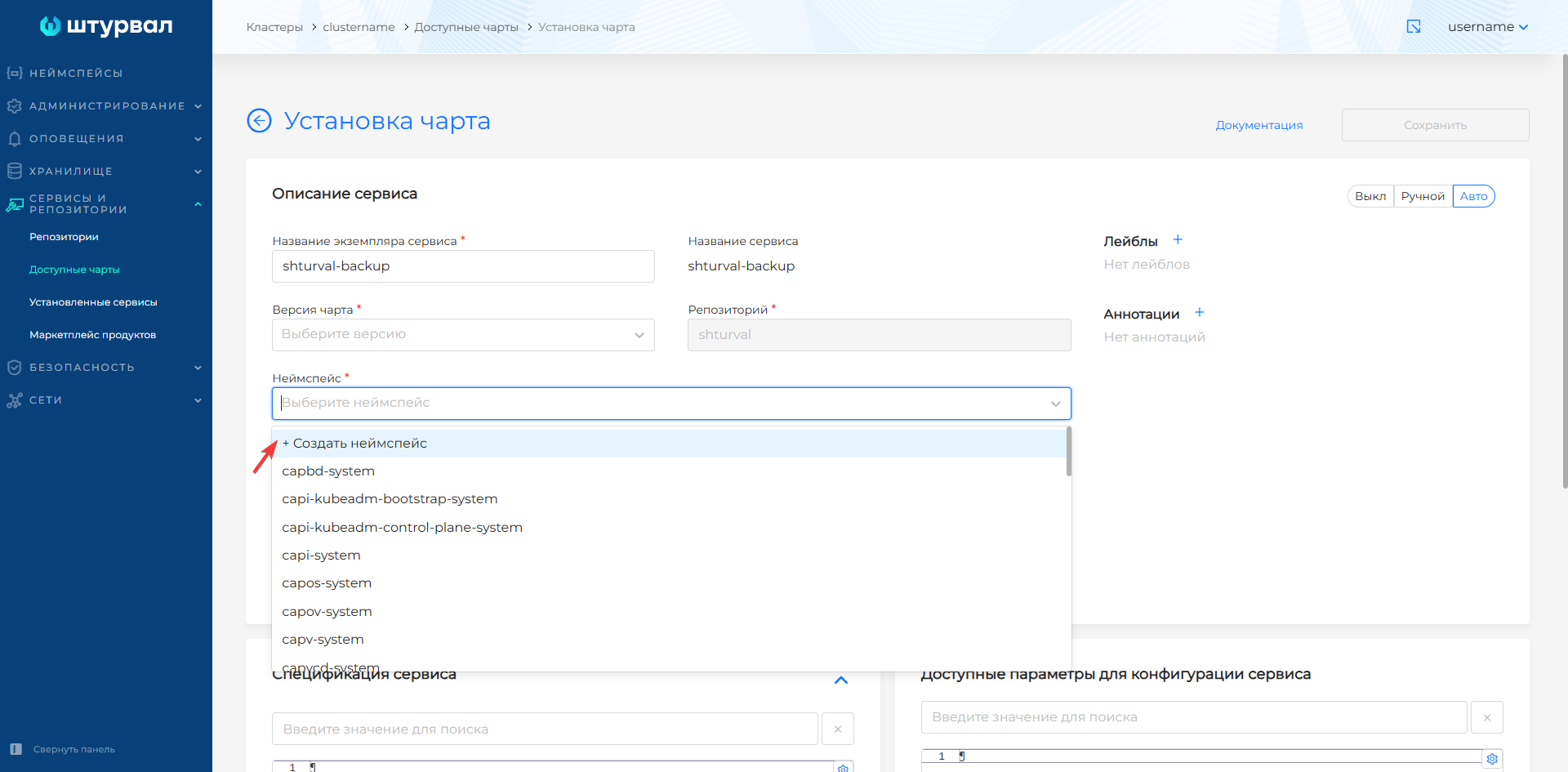
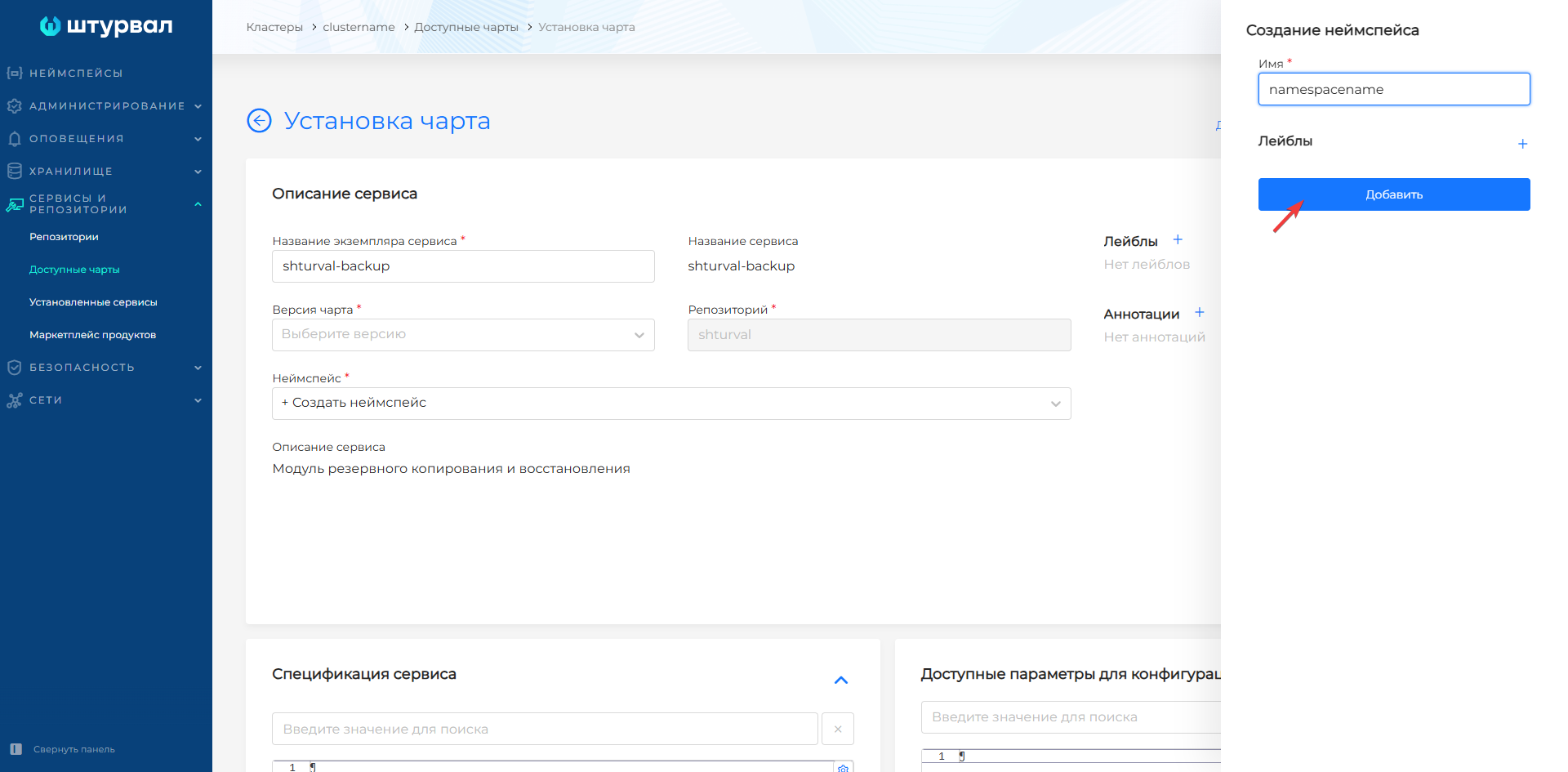
| Namespace | Namespace in which the service will be deployed. In the drop-down list, you can create a new namespace. |
| Control Mode | Off—install, but do not start (enable later on the “Installed services” page). Auto — install and run, service resources will be launched, updates will be applied automatically. Manual - install, but do not create resources or update automatically. |
Note: Important: fixed namespace. Some charts require installation in a strictly defined namespace. If the service documentation specifies a mandatory namespace, use it; installation in another namespace will lead to incorrect operation of the service.
If necessary, specify labels and annotations for the instance.
Screenshot: choosing a version and namespace, creating a namespace
Step 4. Service specification (customvalues)
The Service Specification block is values in YAML format that are passed to Helm when installing or updating a service. Here you can override the chart parameters (ports, resource limits, flags, etc.).
- Changes are made only on the left side - in the “Service Specification” block.
- The available parameters of the chart are displayed on the right (for viewing only). You can search by parameter name.
Screenshot: “Service specification” block and available values
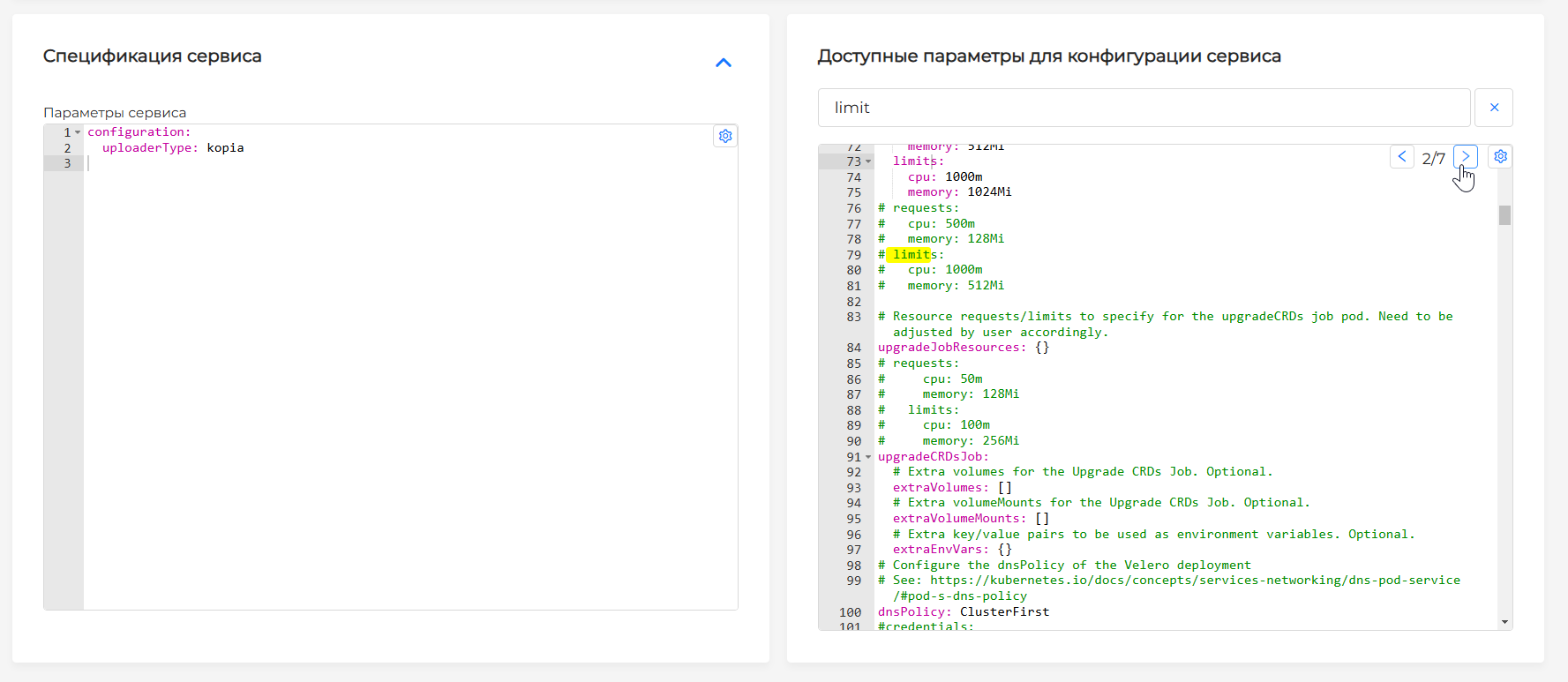
For the first installation, you can leave the default values or set the minimum required (for example, for NFS - the server and share address). Customvalues set during installation are not automatically reset on subsequent cluster or chart upgrades within supported scenarios - they remain part of the SSC until you change them manually, via an SSP patch, or until a platform upgrade explicitly requires migration (see release notes). It is convenient to perform detailed configuration after installation via ShturvalServicePatch or on the Installed Services page → Manage → Service Specification.
Step 5. Install
Click the Install button. The platform creates the ShturvalServiceConfig resource and, in Auto or Manual mode, deploys the Helm release to the cluster. The installed instance will appear on the Installed Services page.
You can check the status there: Services and repositories → Installed services → find the service by name → Manage. More information about management - Services and repositories (overview).
Repositories using the OCI protocol
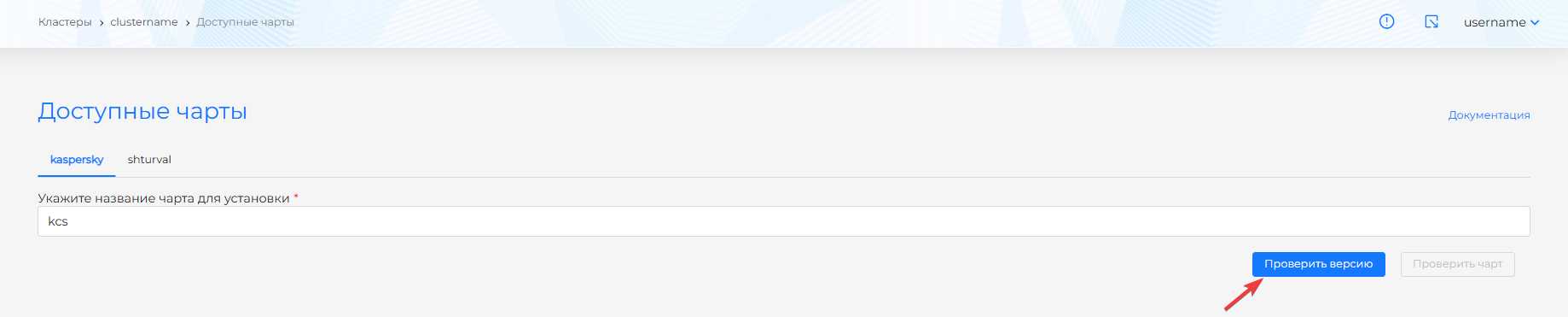
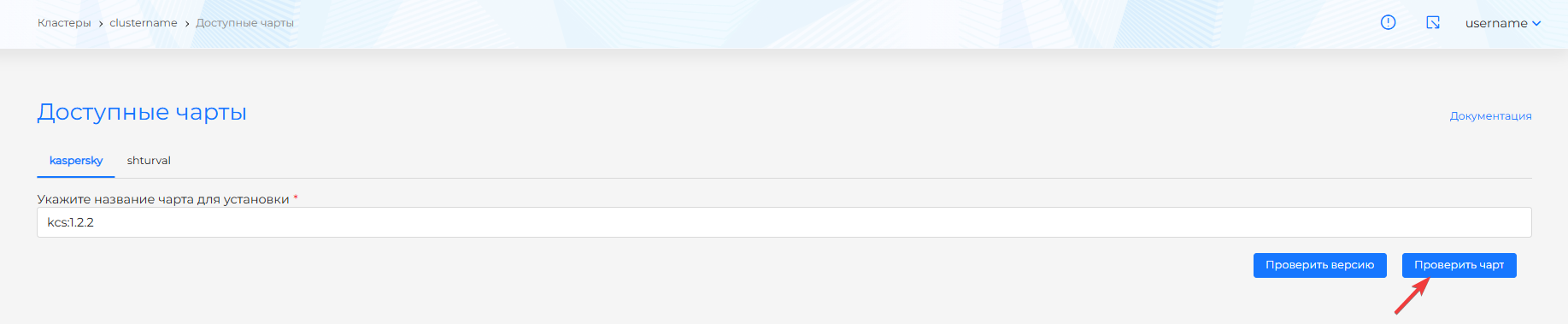
If the chart is located in a repository connected via the OCI protocol, on the tab of this repository on the Available charts page, you must manually enter the chart name.
- Enter the name of the chart in the field on the repository tab.
- Click Check version - a list of available chart versions will be displayed.
- Select the version (or leave the latest one suggested).
- Click Check chart - the Install chart page will open with a pre-filled name and version.
- Fill in the namespace, control mode and, if necessary, service specification, then click Install.
Screenshot: checking the chart version (OCI)

Deployment via console (kubectl)
You can install the service by creating the ShturvalServiceConfig (SSC) resource in the cluster. The shturval-services controller will process the SSC and deploy the Helm release from the specified repository.
Conditions: a repository with the required chart must be connected to the cluster (as for the GUI). The chart name and version must exist in this repository.
ShturvalServiceConfig manifest example
Below is a minimal example for deploymentsDeleting a service from the shturval repository (the chart name must match the name of the service in the repository, for example shturval-nfs-csi):
apiVersion: ops.shturval.tech/v1beta1
kind: ShturvalServiceConfig
metadata:
  name: shturval-nfs-csi # system name of the instance (cannot be changed after creation)
  namespace: shturval-services # namespace where the SSC resource is created (often shturval-services or your own)
spec:
  chart: shturval-nfs-csi # name of the chart in the repository
  reponame: shturval # name of the connected repository
  version: "4.11.0" # chart version (must be in the repository)
  namespace: nfs # namespace in which the Helm release will be deployed (pods, ConfigMap, etc.)
  mode: auto # auto | manual | absent
  customvalues: |                  # YAML values for Helm (optional)
    #storageClass:
    # create: true
    # name: nfs-csi
The spec.dependency field specifies dependencies on other services (for example, CRD) if necessary. For many shturval charts, the dependencies are already taken into account in the platform.
Applying a manifest
- Save the manifest to a file (for example,
ssc-nfs.yaml). - Apply to the cluster:
kubectl apply -f ssc-nfs.yaml
- Check SSC appearance and status:
kubectl get shturvalserviceconfig shturval-nfs-csi -o wide
kubectl describe shturvalserviceconfig shturval-nfs-csi
status.conditions displays the installation progress (Install, Sync, Healthy, etc.). After successful installation, the service will appear on the Installed services page in the GUI.
Important spec fields
| Field | Description |
|---|---|
chart | The name of the chart in the repository (as in the repository directory). |
reponame | The name of the repository connected to the cluster (for example, shturval). |
version | Chart version; must be available in the repository. |
namespace | Namespace for the Helm release (where pods and objects will be deployed). |
mode | auto - auto control, manual - manual, absent - do not deploy. |
customvalues | YAML string with values for Helm. |
The resource name (metadata.name) will become the system name of the service and should not change after creation.
What to do after installation
- Check status: Installed services → select service → Manage. On the “Service” tab - status and version.
- Change configuration: via ShturvalServicePatch or the “Service Specification” block on the service management page.
- Enable a disabled service: if the Off mode was selected during installation, on the Installed services page, open the service → Manage → change the mode to Auto or Manual → Save.
More information about managing services - Services and repositories (overview).