Continuous Application Delivery Module (shturval-cd)
About the service
| Parameter | Description |
|---|---|
| GUI name | Continuous Application Delivery Module |
| System name (identifier) | shturval-cd |
| Cluster Assignment | GitOps: declarative continuous delivery of applications from Git/Helm repositories; synchronizing the cluster state with the desired state in the repository. Designed for deployment of custom applications (as opposed to shturval-services). |
| Critical | No |
| Public repository | Argo CD |
| Dependencies | shturval-cd-crds, shturval-ingress-controller |
| Namespace | shturval-cd |
Purpose
shturval-cd is a continuous delivery module based on Argo CD. Monitors the state of applications relative to the Git/Helm Repo, automatically delivers changes, and brings the application into compliance with the repository.
Where to configure
Services and repositories → Installed services → shturval-cd → Manage. More: Argo CD.
If the service is not displayed among the installed ones, install the shturval-cd chart through Services and repositories → Available charts. When installing, after creating the cluster, ensure that shturval-cd-crds and shturval-ingress-controller are enabled and in auto-update mode.
Resource configuration (CPU, memory)
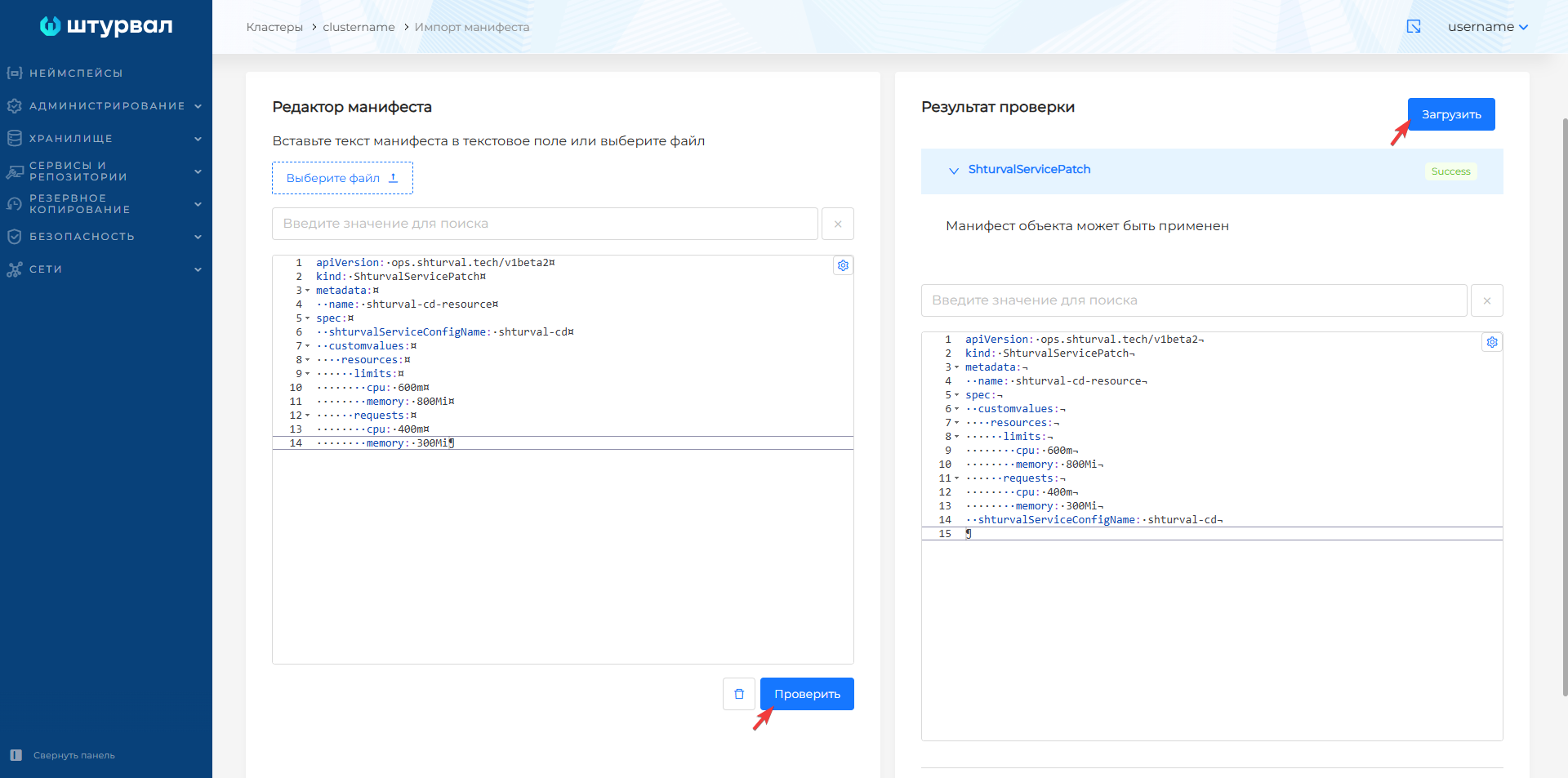
By default, Argo CD has limits and requests for resources (CPU, memory). If necessary, override them via ShturvalServicePatch:
Example ShturvalServicePatch
apiVersion: ops.shturval.tech/v1beta2
kind: ShturvalServicePatch
metadata:
  name: <resource name>
spec:
  shturvalServiceConfigName: shturval-cd
  customvalues:
    controller:
      resources:
        limits:
          cpu: <your value>
          memory: <your value>
        requests:
          cpu: <your value>
          memory: <your value>
| Parameter | Description | Type | Example |
|---|---|---|---|
metadata.name | Name ShturvalServicePatch | string | shturval-cd-resource |
limits.cpu | CPU limit (default 500m) | string | 600m |
limits.memory | Memory limit (default 512Mi) | string | 800Mi |
requests.cpu | Requested CPU resources (default 250m) | string | 400m |
requests.memory | Requested memory resources (default 256Mi) | string | 300Mi |
Screenshot of ShturvalServicePatch for resources
Transition to Argo CD
The Argo CD interface is accessible in several ways:
- By prefix argocd in the cluster domain. For example:
argocd.clustername.ip-XX-XX-XX-XX.shturval.link. - From the client cluster dashboard - the “Argo CD” button (SSO authorization).
- From the namespace of the client cluster - the “Argo CD” button. If the “Create a project in Argo CD” button is displayed, then the project has not yet been created; a button to go to Argo CD will appear after successful creation of the project.
- From the namespace
shturval-cd→ Network → Ingresses →shturval-cd-server.
For authorization, use the Shturval platform (SSO) credentials or Argo CD administrator credentials:
- Login:
admin - Password: in the GUI - namespace
shturval-cd→ Configuration → Secrets →argocd-initial-admin-secret.
Or via the console:
kubectl -n shturval-cd get secret argocd-initial-admin-secret -o jsonpath="{.data.password}" | base64 -d
GUI customization
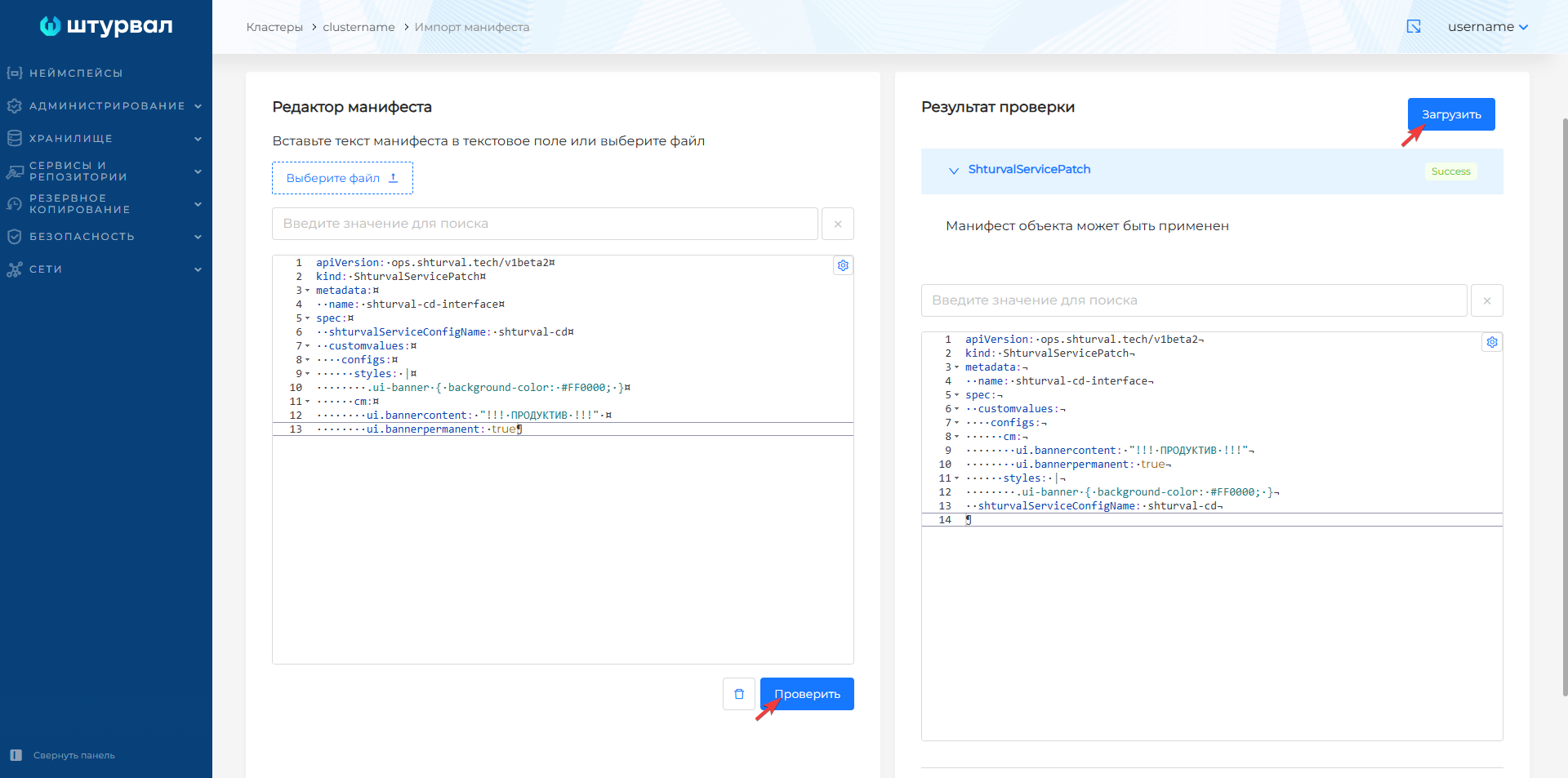
To customize the Argo CD interface, use ShturvalServicePatch:
Example ShturvalServicePatch
apiVersion: ops.shturval.tech/v1beta2
kind: ShturvalServicePatch
metadata:
  name: <resource name>
spec:
  shturvalServiceConfigName: shturval-cd
  customvalues:
    configs:
      styles: |
                <your value>
      cm:
        ui.bannercontent: "<your value>"
        ui.bannerpermanent: <your value>
| Parameter | Description | Type | Example |
|---|---|---|---|
metadata.name | Name ShturvalServicePatch | string | shturval-cd-interface |
styles | CSS styles for customizing interface elements | string | .ui-banner { background-color: #FF0000; } |
cm.ui.bannercontent | Banner text (displayed to user) | string | !!! PRODUCTION !!! |
cm.ui.bannerpermanent | Constant visibility of the banner | boolean | true |
Screenshot of ShturvalServicePatch for the interface
Changing shturval-cd parameters may be required when adding or replacing a certificate in a cluster.
Connection certificate in Argo CD
When connecting a repository with a self-signed or corporate certificate, configure it from the Argo CD interface:
- Go to Settings → Repository certificates.
- Click Add TLS certificate.
- Enter the repository address (Repository server name) and the certificate in PEM format (TLS certificate (PEM format)).
The body of the certificate must contain the lines -----BEGIN CERTIFICATE----- and -----END CERTIFICATE-----. Click Create to save.
Trust error after replacing cluster certificate with ACME
After migrating a cluster from a self-signed certificate to ACME, logging into Argo CD via SSO may fail with a token retrieval error:
failed to get token: Post "https://shturval.<cluster-name>.ip-XX-XX-XX-XX.shturval.link/authn/oauth/token": tls: failed to verify certificate: x509: certificate signed by unknown authority
After updating the certificate, restart Deployment named shturval-cd-server:
kubectl -n shturval-cd rollout restart deployment/shturval-cd-server
If there is no access to the CLI, delete under shturval-cd-server in the namespace shturval-cd via the GUI. Deployment will create a new Pod with the current ConfigMap contents.
How to deploy this service - How to deploy a new service.