PersistentVolumeClaim (PVC)
PersistentVolumeClaim - storage request from the application. The PVC is created in the namespace and bound to the PV (or causes the PV to be dynamically created).
Where to manage
Namespace → Storage → PersistentVolumeClaims.
Screenshot: PVC list
Creating PVC
- Storage → PersistentVolumeClaims → + Add PersistentVolumeClaim.
- Set the Name of the PVC.
- Select Access Mode:
- ReadWriteOnce (RWO);
- ReadOnlyMany (ROX);
- ReadWriteMany (RWX).
- Specify Requested storage capacity (for example, 10Gi).
- Select StorageClassName from the list created in the cluster.
- If necessary, set VolumeName to bind to an existing PV.
- If necessary, add a PV Selector (matchLabels) to select PVs by label.
- Add PVC labels and annotations as needed.
- Click Create.
Required fields when creating a PVC: PVC name, access mode, requested storage volume and StorageClass. The volume is specified in Kubernetes units: bytes (B), kibibytes (Ki), mebibytes (Mi) or gibibytes (Gi).
Access modes
The access mode determines how the PV associated with the PVC can be mounted into pods:
| Mode | Description | When to use |
|---|---|---|
| ReadWriteOnce (RWO) | PV can be mounted read-write on a single node. | Suitable for most databases and stateful applications that do not require simultaneous access from multiple nodes. |
| ReadOnlyMany (ROX) | PV can be mounted in read-only mode on multiple nodes. | Suitable for general references, static data, and configurations that should not be modified by applications. |
| ReadWriteMany (RWX) | PV can be mounted in read-write mode on multiple nodes. | Use only if multiple pods really need a shared volume to write to, such as for NFS/CephFS scenarios. |
The availability of a specific mode depends on the StorageClass and CSI driver: not every storage type supports ROX or RWX.
PV and VolumeName selector
- VolumeName is used to force the PVC to link to a previously created PV. For successful binding, the StorageClass, access mode and volume must match, and from the PV side it must be possible to bind to this PVC.
- PV selector allows you to specify
matchLabelsand select only PVs with matching labels.
PVC statuses
| Status | Description |
|---|---|
| Pending | Waiting for binding to PV. |
| Bound | Successfully attached to PV. |
| Lost | Communication with PV is lost. |
View and delete PVC
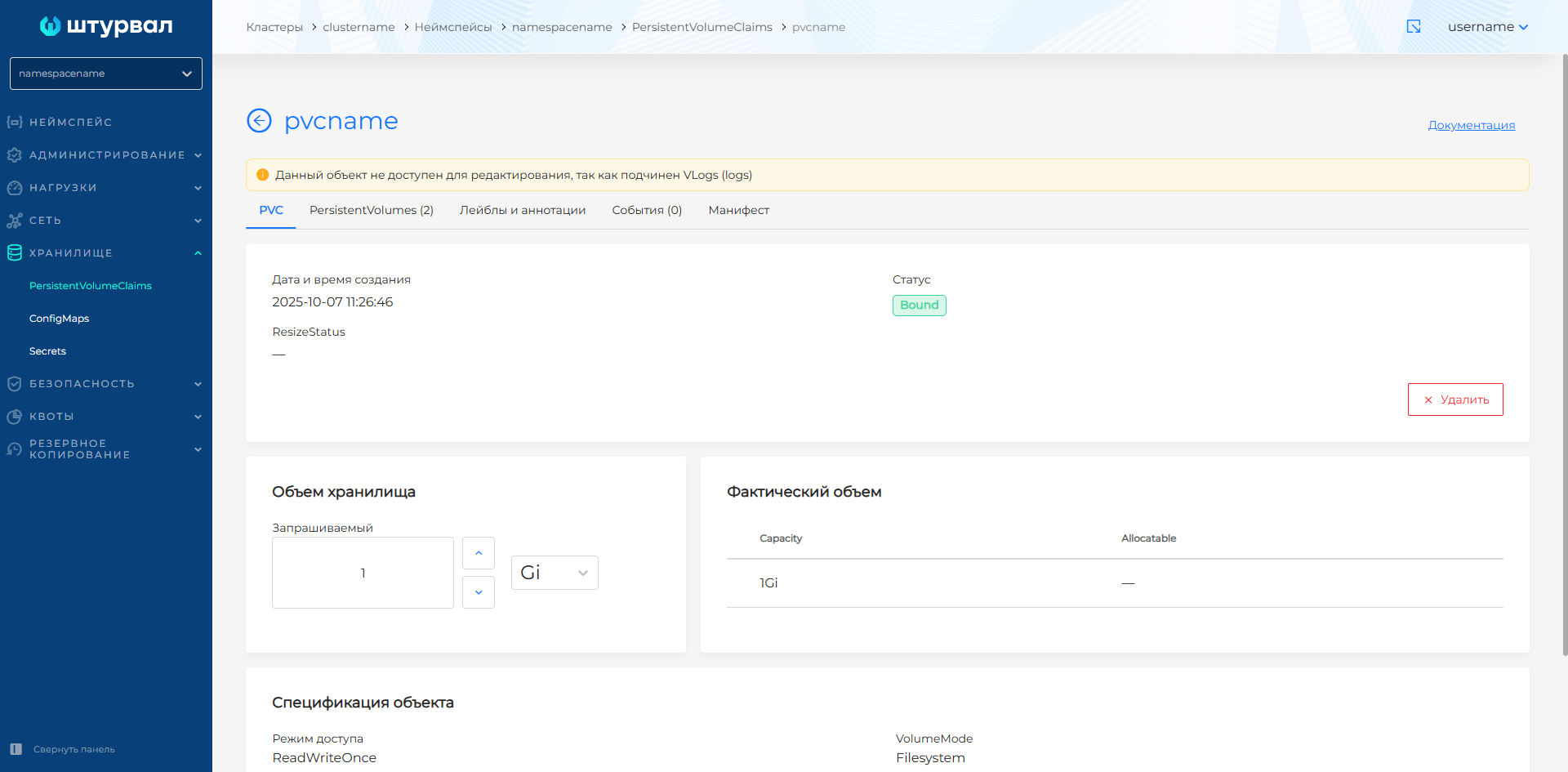
The following tabs are available on the PVC page:
- PVC — main parameters of PVC;
- PersistentVolumes — associated PV;
- Labels and annotations;
- Events — Kubernetes events associated with PVC;
- Manifest — YAML manifest of PVC.
You can remove PVC in one of the following ways:
- in the PersistentVolumeClaims list, click the delete icon in the object line;
- on the PVC page on the PVC tab, click Delete;
- on the Manifest tab, click the delete icon.
Features of PVC
Volume expansion
In the Shturval platform, after creating a PVC, increase in the requested volume is allowed through the GUI. Expansion is only possible if:
- StorageClass has
allowVolumeExpansion: true; - CSI driver supports extension (vSphere, oVirt, Ceph, Cinder, etc.).
How to increase: open PVC → change the requested volume → Save. The file system within the volume may require an extension (for example, resize2fs for ext4).
Limitation: Volume reduction is not supported by Kubernetes.
Delete Delay
If PVC is used in a pod, removal is delayed until the pod frees the volume.