StorageClasses (storage classes)
StorageClass defines how to dynamically create a PersistentVolume when a PVC is requested. One class - one storage type and set of parameters.
Before creating a StorageClass for NFS, vSphere, oVirt, vCloud Director or Ceph, you must enable the appropriate CSI provider in Services and Repositories → Installed Services. More details: Storage: enabling provisioner.
Where to manage
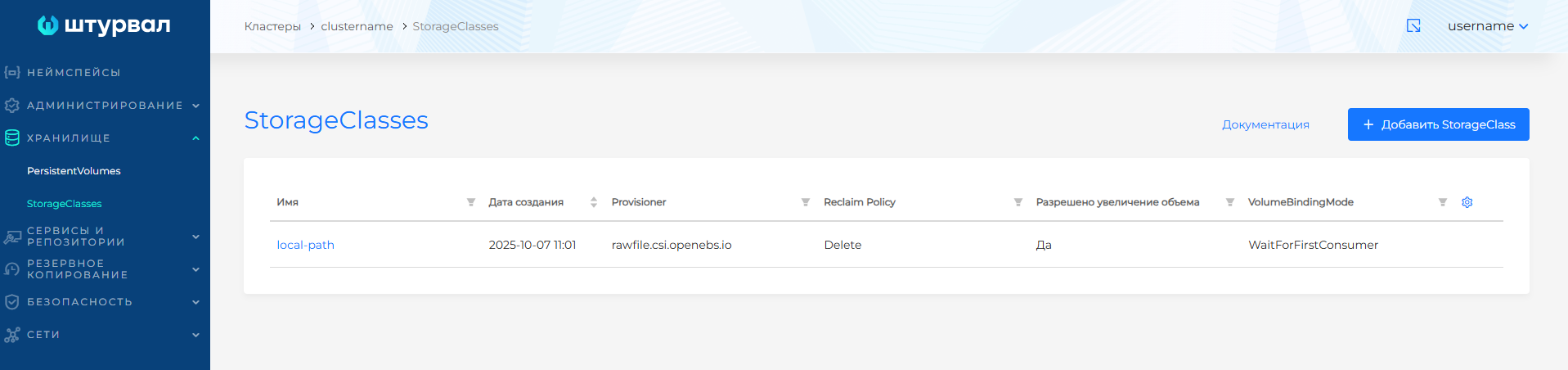
Storage → StorageClasses (cluster level).
Screenshot: list of StorageClasses
Creating a StorageClass
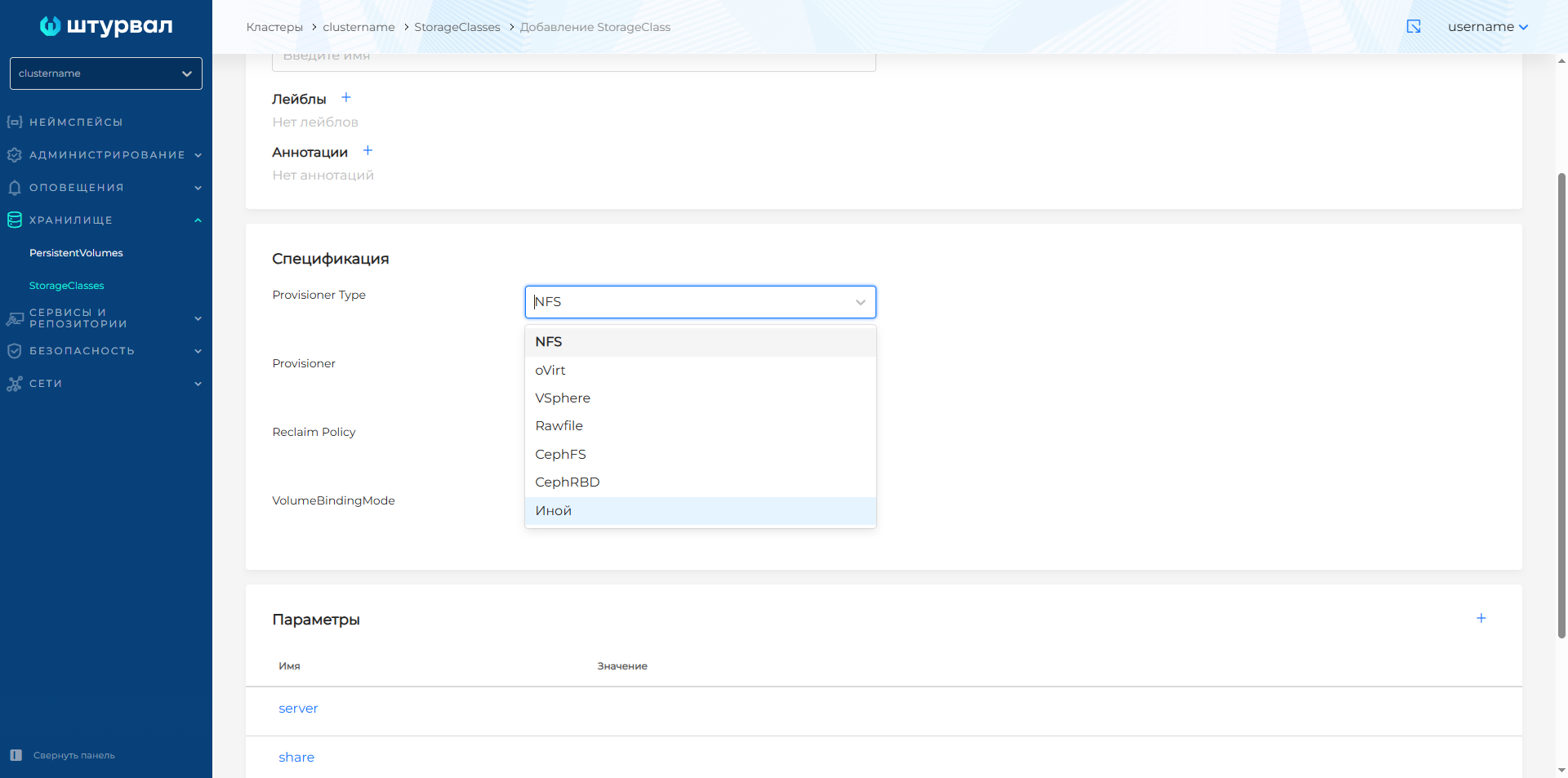
- Storage → StorageClasses → + Add StorageClass.
- Set the name to the StorageClass.
- Add labels and annotations as needed. For example, add the
storageclass.kubernetes.io/is-default-class: "true"annotation to be the default. - Select provider type: oVirt, vSphere, NFS, Rawfile, CephFS, CephRBD, Other.
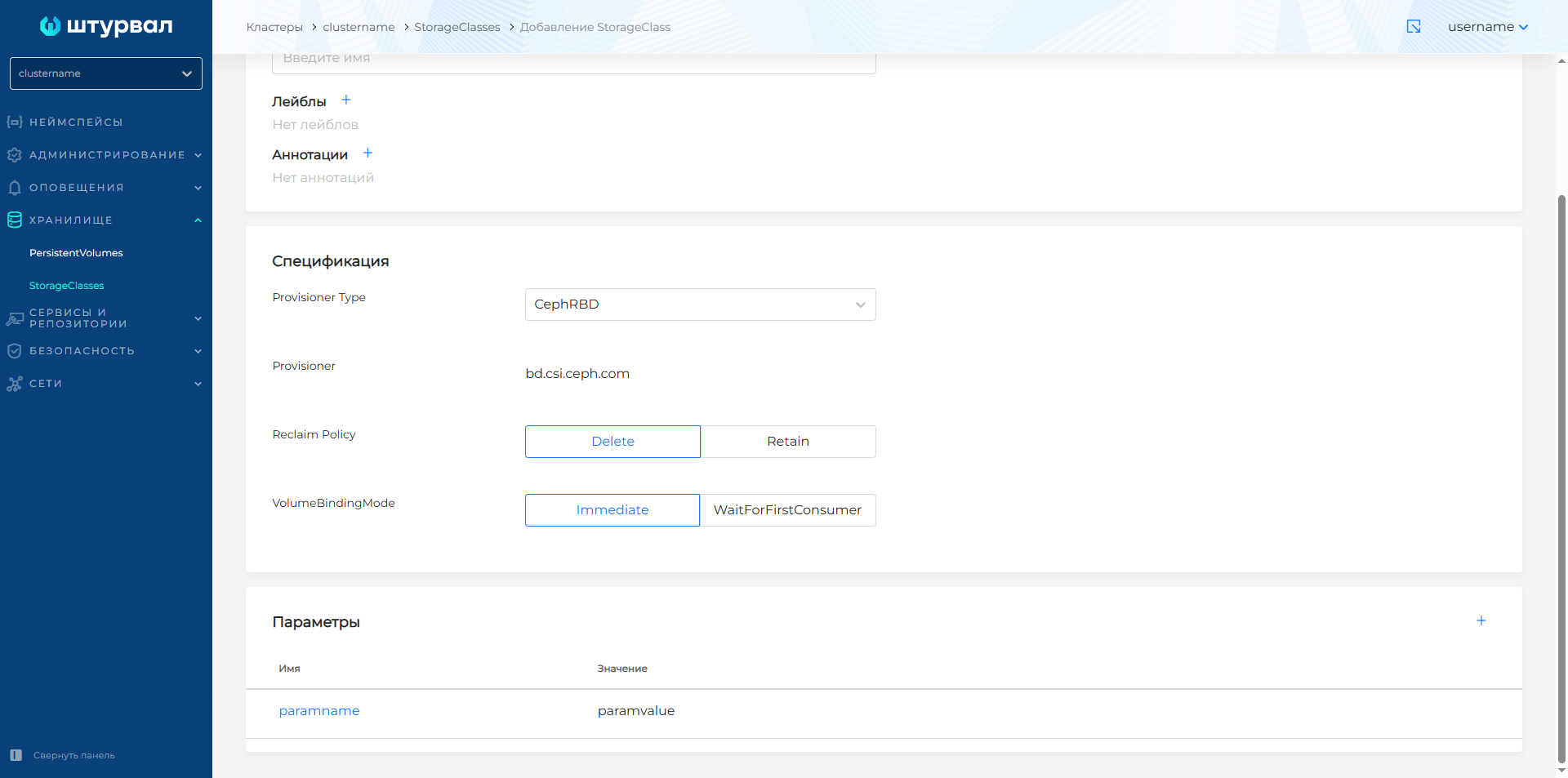
- Set reclaim policy:
- Delete — when deleting a PVC, the corresponding PV is deleted (by default).
- Retain - use if PV data needs to be managed manually after deleting a PVC.
- Set volumeBindingMode:
- Immediate — PV is created immediately after PVC is created.
- WaitForFirstConsumer - PV is created only after the creation of a pod that uses PVC.
- Configure Settings StorageClass.
- Click Save.
Screenshot: creating StorageClass
Parameters by type
The provider type in the GUI helps configure the StorageClass. The value provisioner is set automatically for all types except Other:
- vSphere —
csi.vsphere.vmware.com; - NFS -
nfs.csi.k8s.io; - oVirt —
csi.ovirt.org; - Rawfile -
rawfile.csi.openebs.io; - CephFS -
cephfs.csi.ceph.com; - CephRBD -
bd.csi.ceph.com.
By default, the following types of providers are available in the platform:
- CephFS Provisioner;
- CephRBD Provisioner;
- OpenEBS Rawfile Provisioner;
- oVirt Provisioner;
- vSphere Provisioner;
- NFS Provisioner.
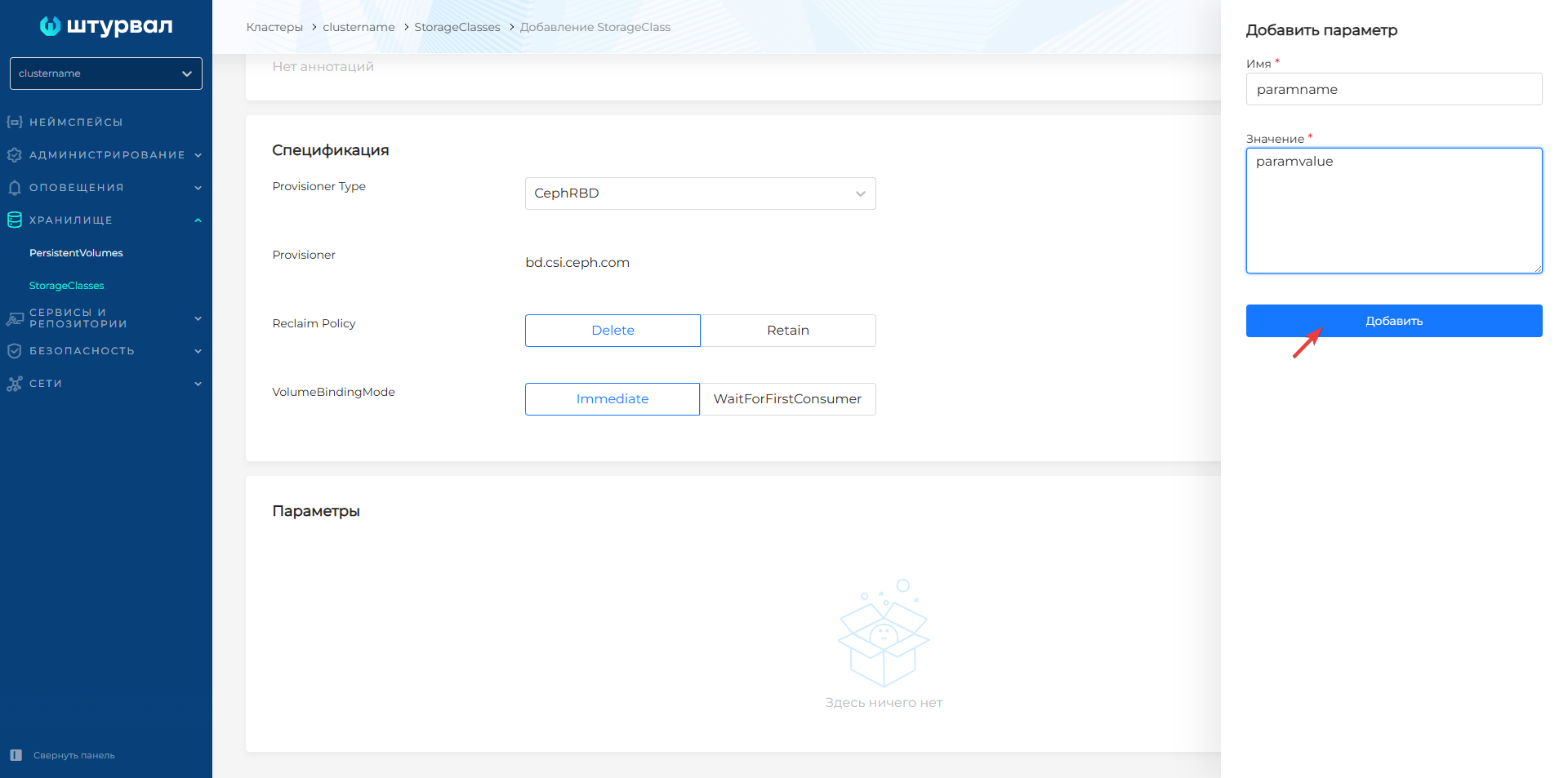
To add a parameter for CephFS, CephRBD, OpenEBS Rawfile or the Other type, click + in the Parameters block, set the name and value, click Add.
To set a value for a suggested parameter, click the parameter line, enter data in the Value field and click Edit. If the set of parameters is not suitable, you can add a new parameter, change an existing one, delete an existing one, or select the Other provider type and configure the parameters manually.
NFS (nfs.csi.k8s.io)
| StorageClass parameter | Description | Compliance on the provider side (NFS server) |
|---|---|---|
| server | IP address or hostname of the NFS server, for example 10.11.12.13 | The host on which the NFS server is installed; must export the directory (export). |
| share | Export path, for example /nfs | The exported directory on the NFS server (specified in /etc/exports or equivalent). |
| onDelete | delete | retain | archive | Action when deleting a PVC: delete the volume directory on NFS, leave the data, or archive it. |
| mountPermissions | Octal number (for example 0777, 0755); default 0 | Permissions (chmod) for the mounted point; 0 - no change. |
Screenshot: NFS parameters

vSphere (csi.vsphere.vmware.com)
| StorageClass parameter | Description | Provider Compliance (vCenter/vSphere) |
|---|---|---|
| storagepolicyname | Storage policy name (optional). | vSphere Storage Policy (SPBM) - storage placement and quality policy in vCenter. |
| vsphereFstype | ext4 | xfs | The type of file system created in the virtual disk (VMDK) when formatting for the first time. |
| datastore | Datastore name. | Datastore in vSphere. |
| diskformat | Disc format. | Virtual disk format in vSphere. |
Screenshot: vSphere parameters

oVirt (csi.ovirt.org)
| StorageClass parameter | Description | Compliance on the provider side (oVirt / RHV) |
|---|---|---|
| storageDomainName | Storage domain name, for example VM_Store | Storage Domain in oVirt. Admin portal oVirt → Storage → Domains; VM disks (images) will be created here. |
| thinProvisioning | true | false | Thin or thick selection: true - space is allocated as recording occurs; false — the entire volume is allocated to the Storage Domain at once. |
| ovirtFstype | ext4 | xfs | The type of file system on the disk when formatting. |
Screenshot: oVirt parameters

CephRBD (bd.csi.ceph.com)
Parameters are set manually. For example:
| StorageClass parameter | Description | Provider Compliance (Ceph) |
|---|---|---|
| clusterID | Unique Ceph cluster identifier (up to 36 bytes) | ID of the Ceph cluster in which RBD images are created. |
| pool | Ceph pool name, for example replicapool | RBD pool in a Ceph cluster; images for PV are created in this pool. |
| dataPool | Pool name for data (optional, for erasure-coded) | Pool for data when using erasure-coded pool; the pool in pool is used for metadata. |
| imageFeatures | List separated by commas: layering, journaling, exclusive-lock, etc. | Included features of the RBD image (see Ceph RBD documentation). |
| Secrets | Links to Secret with Ceph keys (admin, user) | Ceph access credentials (keys from ceph auth get, secret namespace). |
CephFS (cephfs.csi.ceph.com)
Parameters are set manually. For example:
| StorageClass parameter | Description | Provider Compliance (Ceph) |
|---|---|---|
| clusterID | Ceph Cluster ID | Ceph cluster ID. |
| fsName | CephFS file system name, for example myfs | CephFS filesystem in cluster (ceph fs ls); subvolumes for PV are created in it. |
| volumeNamePrefix | Volume Name Prefix (optional) | Prefix for the names of created subvolumes in CephFS. |
| provisionerSecret / nodeStageSecret etc. | Secret names in the cluster | Secrets with Ceph credentials (user with rights to CephFS). |
OpenEBS Rawfile (rawfile.csi.openebs.io)
Parameters are set manually depending on the OpenEBS configuration (paths, pools, etc.). See driver documentation.
Other
The names and values of the parameters are specified according to the documentation of the specific CSI driver. Compliance on the provider side is determined by this driver (cloud, storage, file server, etc.).
Screenshot: adding a parameter
View and change StorageClass
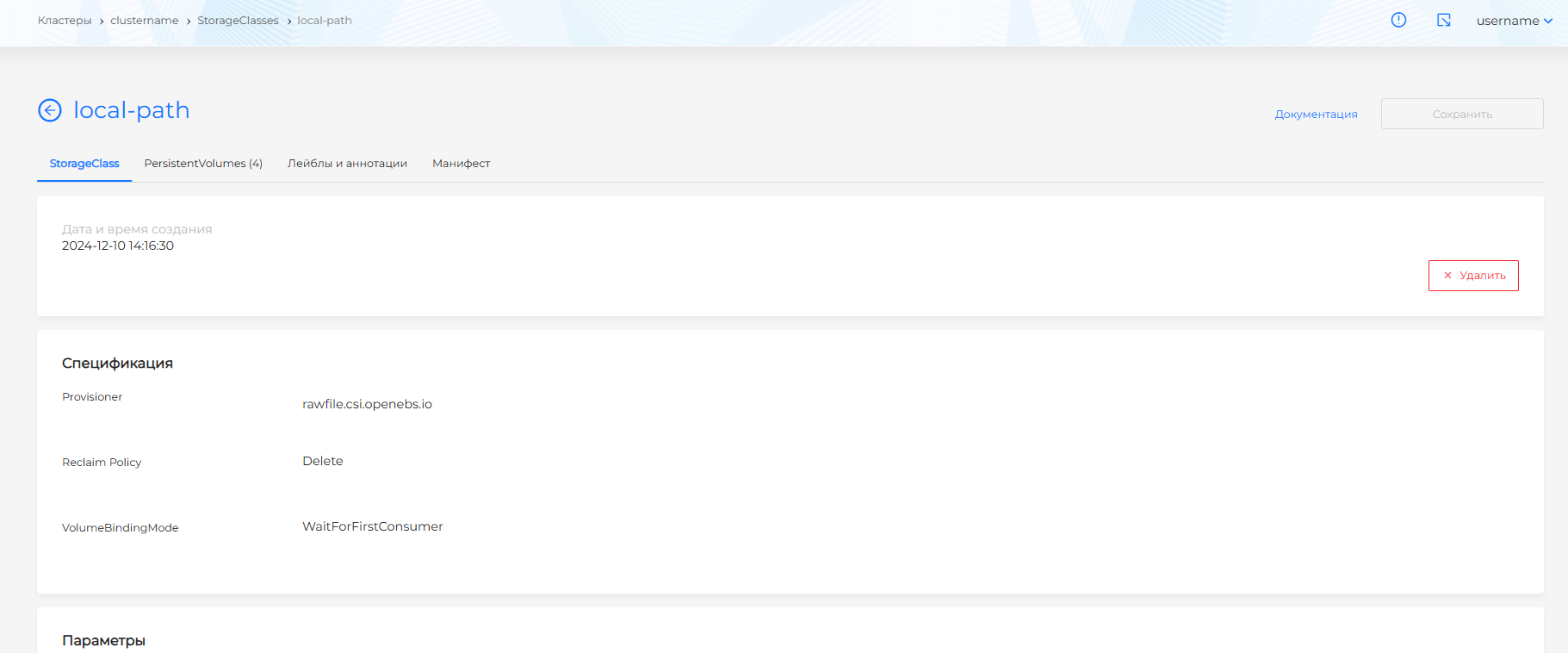
The following tabs are available on the StorageClass page:
- StorageClass — class parameters;
- PersistentVolumes — list of PVs of this class. Click on the row called PersistentVolume to go to the view page for that PV;
- Labels and annotations;
- Manifest - viewing YAML and editing labels and annotations.
In the created StorageClass, only labels and annotations are changed.
To adjust the labels and annotations in the StorageClass manifest, go to the Manifest tab and make the changes. After modifying the manifest, click Apply. The result will be displayed on the right side of the screen. Expand Expand the verification result block to see the full manifest.
Save the changes you made to the manifest. Unsaved changes will not be applied.
You can delete StorageClass in one of the following ways:
- on the StorageClasses page, click the delete icon in the object line;
- on the StorageClass viewing page, on the StorageClass tab, click Delete;
- On the StorageClass view page, go to the Manifest tab and click the delete icon.
Screenshot: StorageClass page