Overview of the namespace list and dashboard
Namespace list, resource monitoring, pods, events, and alerts.
To open the namespace dashboard:
- Select a cluster in the left menu.
- Open the Namespaces section.
- Select the namespace you need from the list.
- The namespace dashboard opens with summary information.
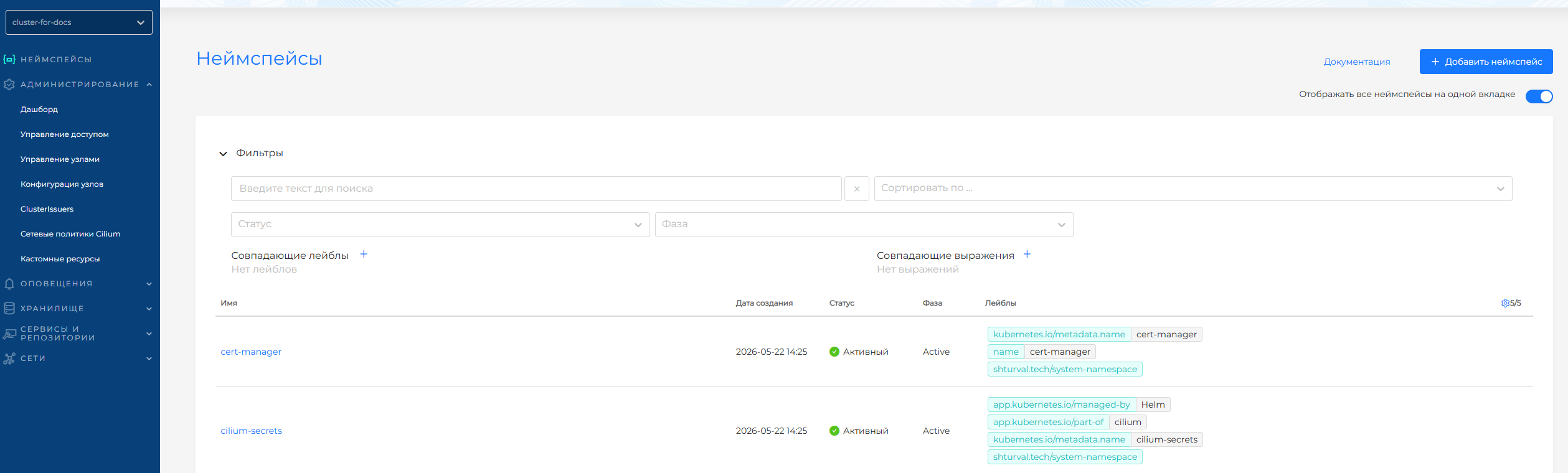
The Namespaces section lists all namespaces in the selected cluster. You can show user and system namespaces in one list or on separate tabs (use the switch above the list). System namespaces contain Shturval platform components. Use filters to find a namespace quickly.
Screenshot: list of namespaces, see the illustration below.
Note: The namespace dashboard and all its blocks are accessible only if the user has the appropriate access rights to this namespace. The interface automatically hides information that is not accessible.
Dashboard structure
The namespace dashboard consists of tabs (the availability of tabs and blocks depends on the user’s access rights):
- Namespace — workloads, metrics, quotas;
- Network Policies — configured network policies (CiliumNetworkPolicies);
- Labels and annotations — namespace metadata;
- Events — events for all namespace objects;
- Security — image scan results and security policy analysis.
At the top of the page, a header with the name of the namespace, the date and time of creation, and the status of the namespace are displayed.
Screenshot: namespace dashboard header, see the illustration below.

“Namespace” tab
Loads
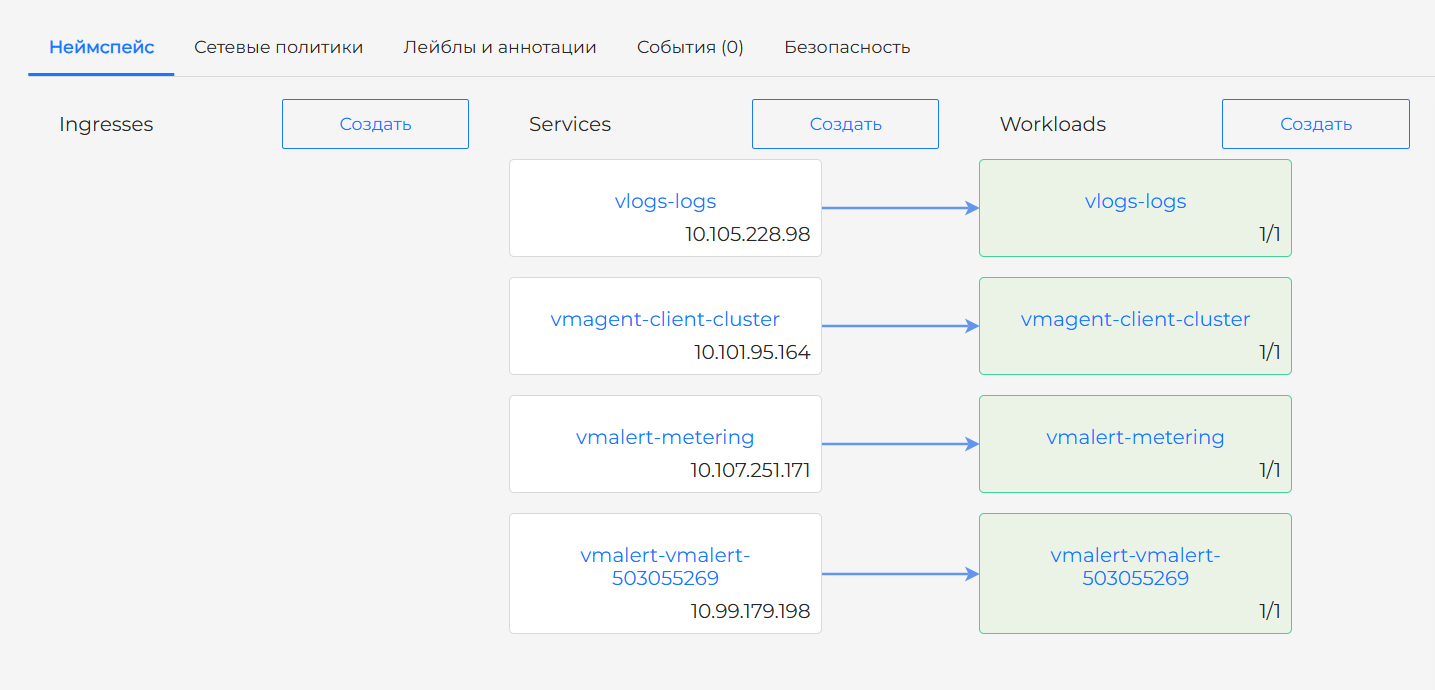
The central element of the Namespace tab displays information about applications (available only if you have rights to view workloads in the namespace):
- Which workloads are deployed — ratio of healthy pods to the requested count;
- Vulnerabilities — if the container image scanning module (
shturval-scanner) is enabled in the cluster, vulnerabilities appear as a lightning icon on the workload block; - Workload-to-service connections — connection diagram;
- Service-to-Ingress connections — connection diagram.
Note: ReplicaSets, Jobs and CronJobs are not displayed on screen because ReplicaSets result in duplicate information and Jobs and CronJobs are not used to publish applications.
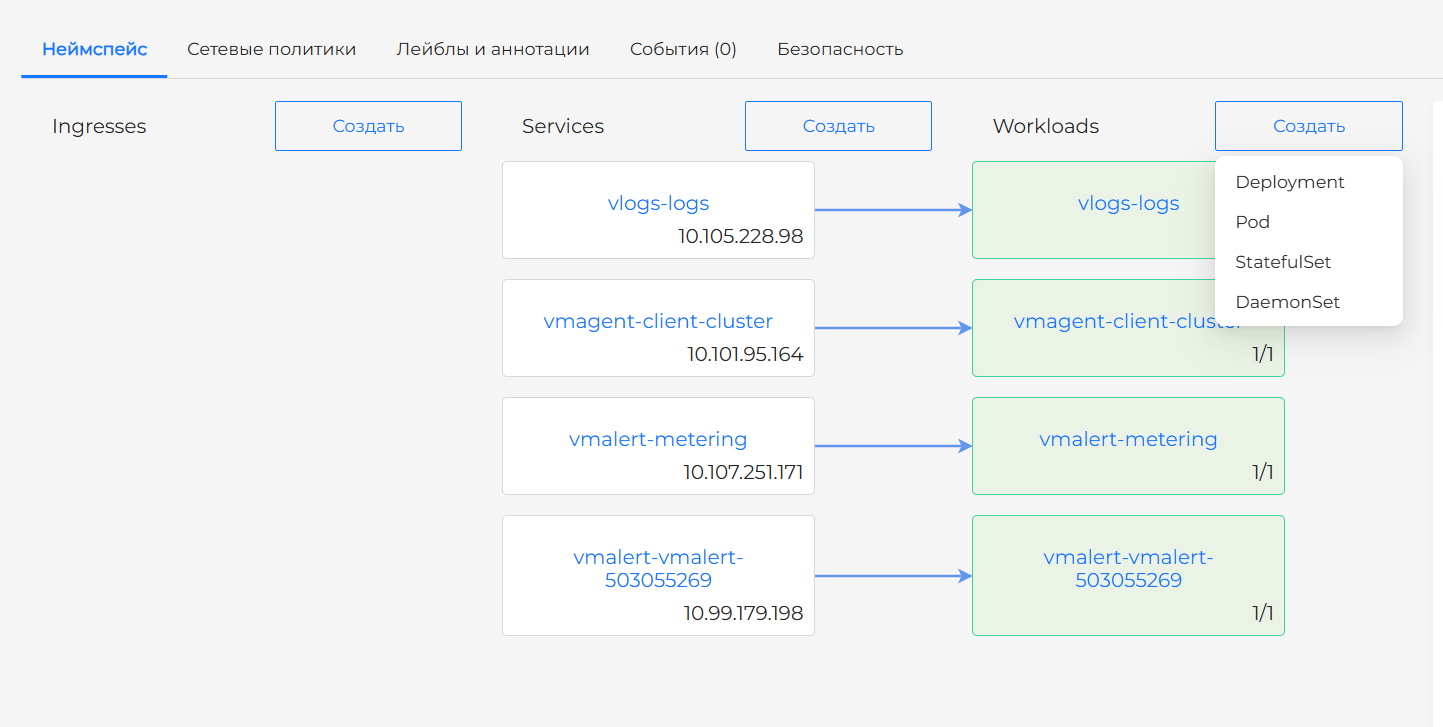
Near the Ingresses and Services headers there are buttons for creating the corresponding objects. Near the Loads header there is a button for creating one of these workload types:
- Deployment;
- StatefulSet;
- DaemonSet; (see the screenshot below)
- Pod. (see the screenshot below)
Screenshot: Loads block on the namespace dashboard, see the illustration below.
Screenshot: object creation buttons, see the illustration below.
Creating workloads is also available from the Loads section in the left menu.
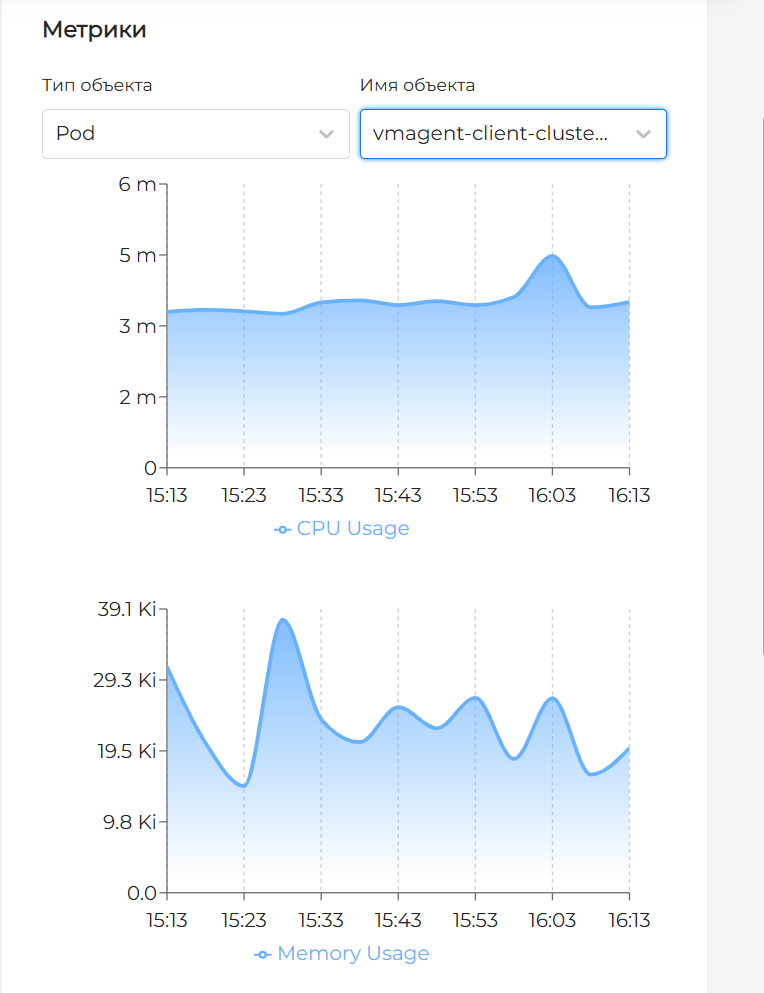
Metrics
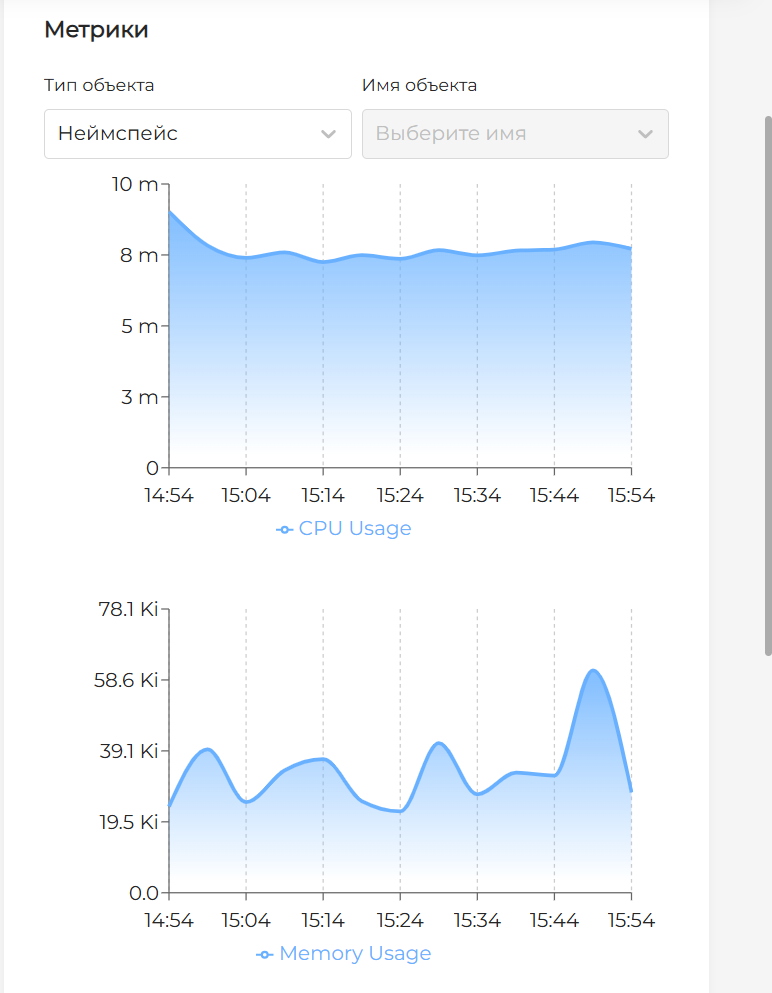
The Metrics block with built-in resource utilization graphs is displayed on the right side of the screen (available only if you have rights to view metrics and if monitoring is enabled in the cluster):
- CPU Usage — graph of CPU usage of the entire namespace and individual workloads over the past hour;
- Memory Usage — graph of memory usage of the entire namespace and individual workloads over the past hour.
The graphs are built directly into the namespace dashboard and are updated automatically. To select a workload, use the drop-down lists (workload type and name).
Screenshot: metrics block (general view), see the illustration below.
Screenshot: metrics block (workload selection), see the illustration below.
Quotas
In the lower right part of the screen there is a Quotas block containing aggregated information about the utilization of resource quotas set in the namespace (displayed only if quotas are configured in the namespace and the user has rights to view them). To configure quotas, contact the cluster administrator or go to the Quotas section (if you have the appropriate rights).
“Network Policies” tab
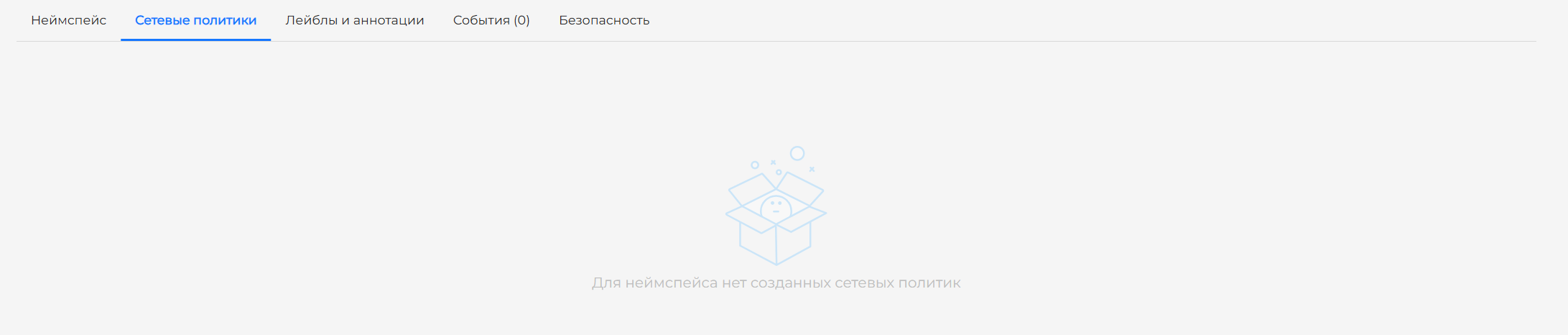
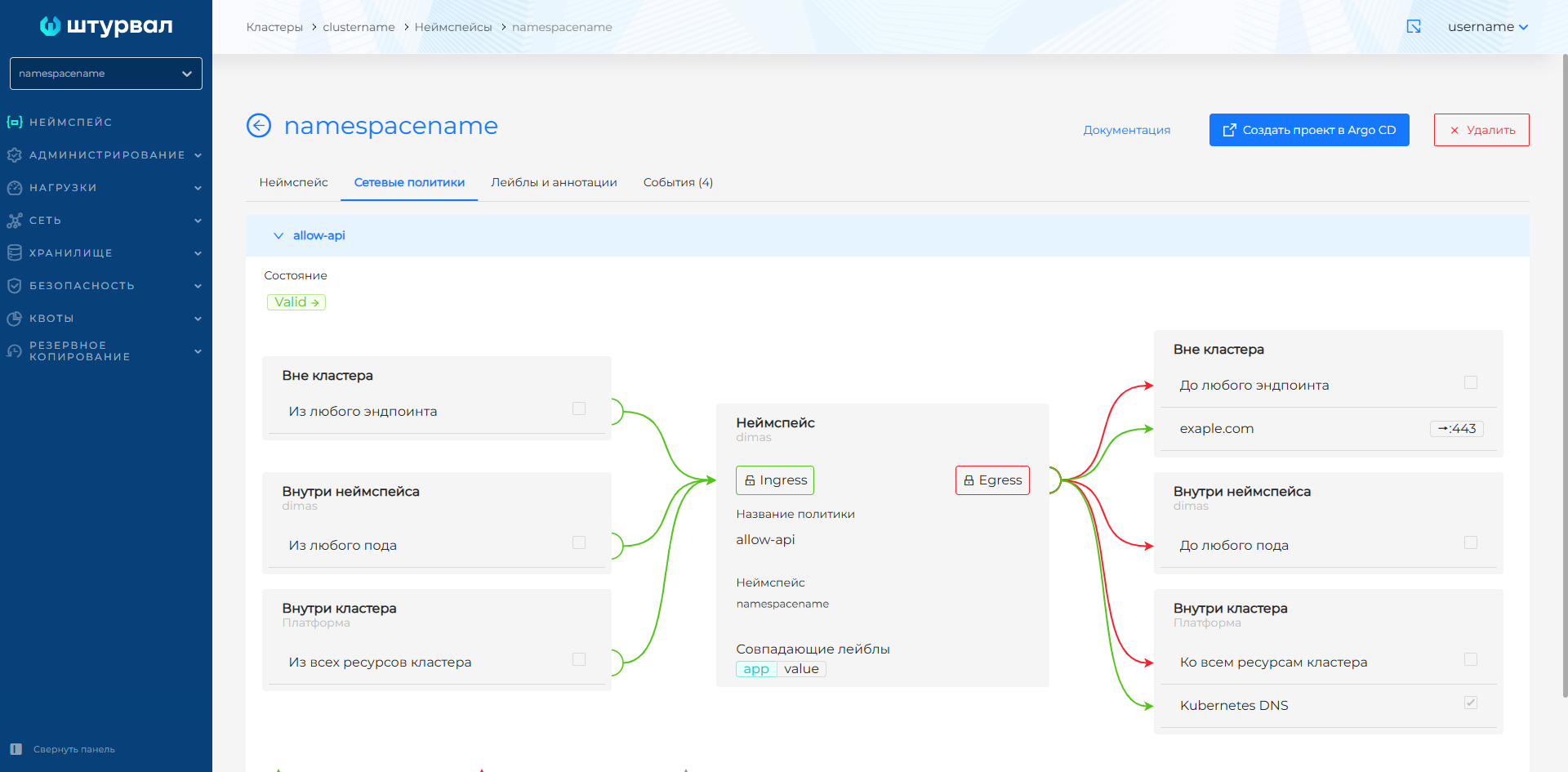
The tab contains information about the network policies configured for the namespace (CiliumNetworkPolicies). Available only if you have rights to view network policies. Created policies in this interface are viewable only. Policies are created by the cluster administrator from the Network Policies interface of the cluster.
Screenshot: “Network Policies” tab (without policies), see the illustration below.
Screenshot: “Network Policies” tab (with policies), see the illustration below.
Labels and Annotations Tab
The tab contains namespace labels and annotations. Available only if you have rights to view and edit namespace metadata. Labels and annotations help organize resources and attach metadata.
Events tab
The tab lists Events for all namespace objects. Available only if you have rights to view events in the namespace. The tab title shows how many events are available.
Events include:
- creation/deletion of resources;
- pod scheduling errors;
- warnings about resources;
- changes in object statuses.
Security tab
The tab contains (only available if you have rights to view security information):
- Image vulnerability scan results — for objects in this namespace (shown only if the
shturval-scannermodule is installed and you have rights to view scan results); - Security policy compliance analysis results — for objects in this namespace (shown only if the
shturval-policy-managermodule is installed and you have rights to view analysis results).
Open Argo CD project
If the continuous application delivery module (shturval-cd) is installed and running in the cluster, the platform or cluster administrator can create an Argo CD project for this namespace. After the project is created, the Go to Argo CD button appears on the namespace page. Click it to open the Argo CD interface with SSO. For details, see How Shturval and Argo CD are connected.

Note: The Argo CD button is displayed only if the service is installed in a cluster and the administrator has created an Argo CD project for this namespace. If the Create a project in Argo CD button is visible instead, the project has not yet been created.
Illustration: Open Argo CD project

Transition to Kubeflow
If a namespace is created to work with ML workloads, the Kubeflow button is displayed on the namespace page. When clicked, the Kubeflow interface for the selected namespace opens.
Screenshot: transition to Kubeflow, see the illustration below.

For more details, see the section How Shturval and Kubeflow are related.