How to create and use cluster profiles (ClusterProfile)
Reference: the purpose and features of profiles: What are cluster profiles (ClusterProfile).
Creating a custom profile
Creating and working with a profile in the GUI
To create a new profile in the GUI:
- In the Platform, go to the Configuration profiles of client clusters page in one of the following ways:
- in the Platform, select the Cluster Profiles section → the Client Cluster Configuration Profiles page;
- on the Platform tab, click the Cluster Profiles button.
- Click + Create Profile.
- Enter your Profile Name.
Add Labels and Annotations if necessary. For example, in the annotations you can indicate for which environment and requirements the profile is being created. This will help you quickly select and edit the desired profiles in the future.
Screenshot: creating a configuration profile
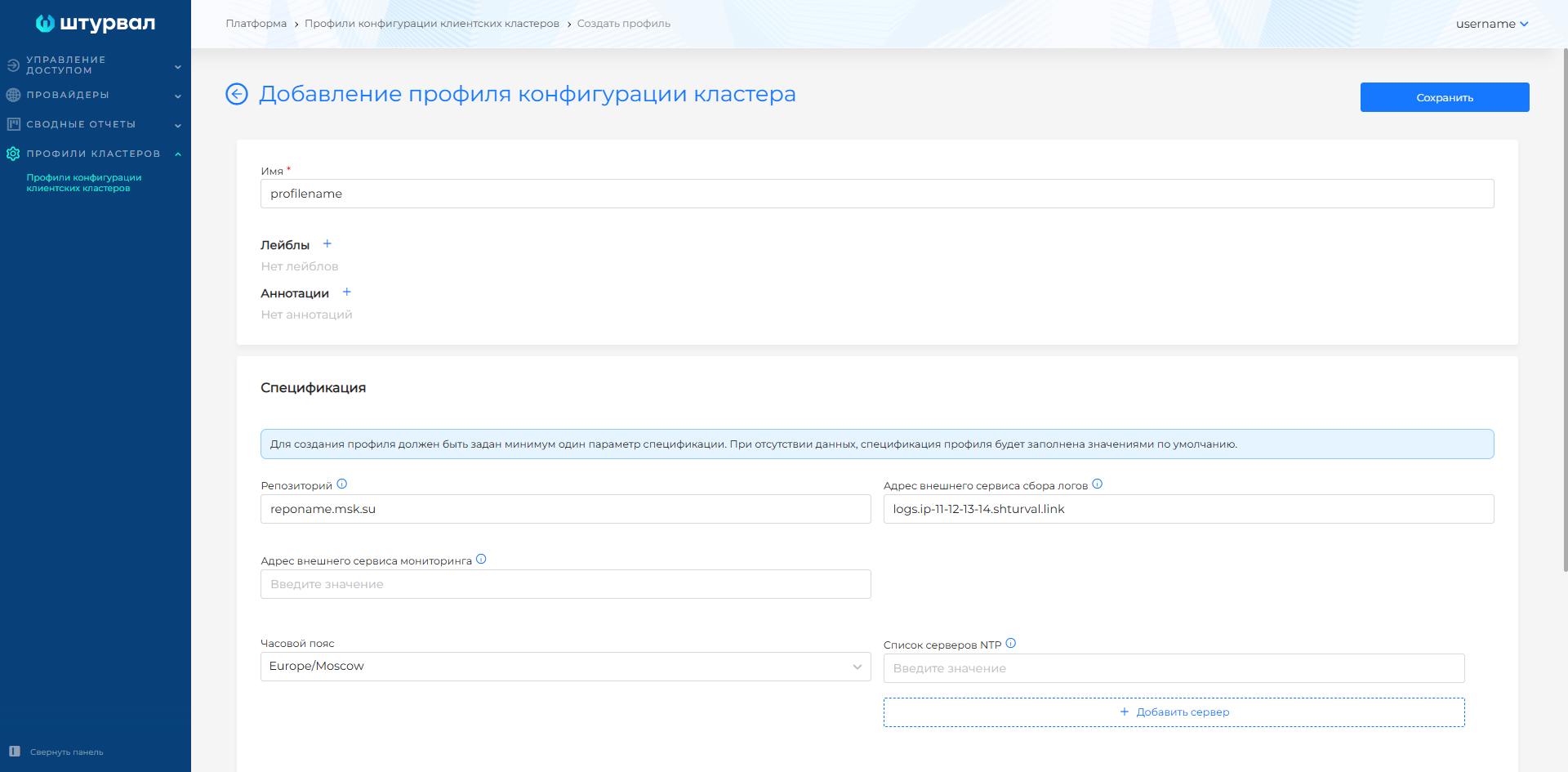
- In the Specification block, fill in the required parameters. To create a profile, at least one specification parameter must be specified. The missing parameters will be filled with the values of the default profile
default-client-cluster-profile.
| Field | Description |
|---|---|
| Repository | Image repository address |
| Address of external log collection service | By default, logs are sent to an external service via the Elasticsearch v8 protocol in json format. If the address of the external service is not specified, the platform logging FQDN is entered |
| Address of external monitoring service | By default, metrics are sent to an external service via the Prometheus/VictoriaMetrics RemoteWrite protocol in json format. If the address of the external service is not specified, the platform monitoring FQDN is entered |
| Time Zone | Time zone, for example, Europe/Moscow. Default is Europe/Moscow |
| List of NTP servers | Corporate server addresses. IP address or FQDN of NTP servers |
- If necessary, on the tabs:
- Custom manifests add YAML object manifests;
- override the configuration:
- Cluster API;
- Kubelet;
- Kubeadm.
Custom manifests tab
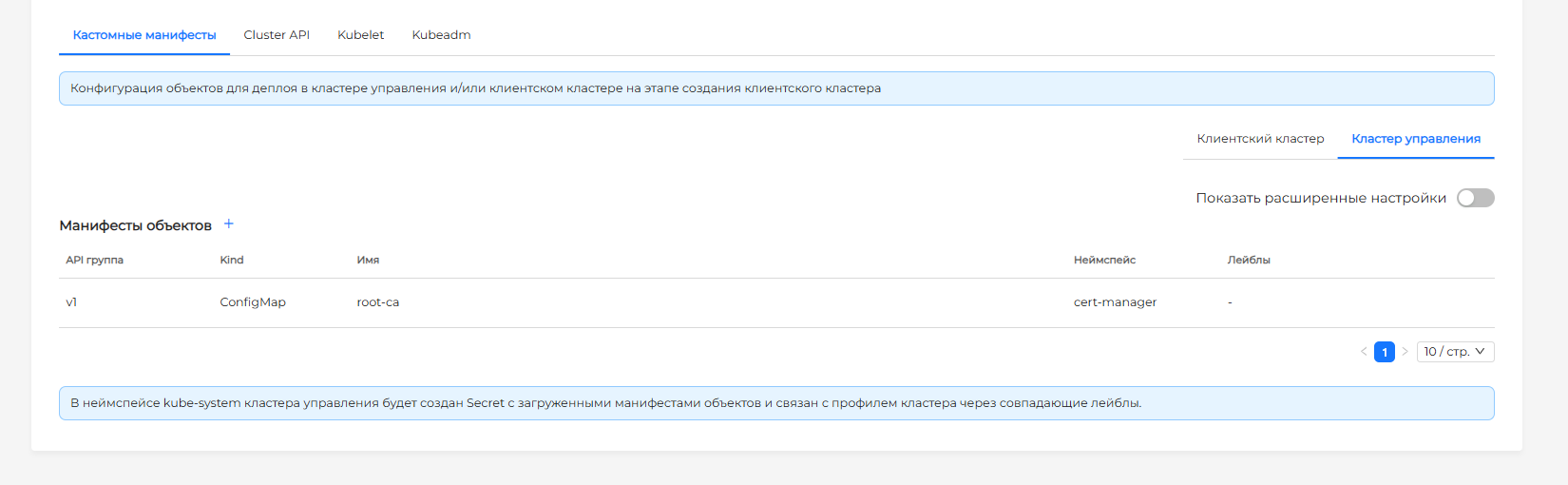
On the Custom manifests tab, YAML manifests of objects that must be created when initializing the client cluster are specified.
The tab contains two sub-tabs:
- Client cluster — manifests must be created in the client cluster;
- Management cluster - manifests must bebe created in the namespace of the client cluster in the management cluster.
If manifests have been added, when creating a profile in the namespace kube-system of the management cluster, a Secret will be created with the loaded manifests.
The subtabs are arranged identically.
Requirements for manifests
Uploaded manifests are verified before the profile is used.
Both single and multi-object YAML manifests are supported (via the --- delimiter).
The manifest is considered correct if the following conditions are met:
- the manifest content is not empty;
- YAML is syntactically correct;
- for manifests on the Management Cluster subtab, only resources of allowed API groups are used.
Check the list of rights for applying manifests in the GUI: management cluster → Administration → Custom resources → API group rbac.authorization.k8s.io → ClusterRole - shturval-cluster-manager-role.
If you don’t have the necessary rights, see the section If you don’t have enough rights to platform manifests.
Allowed API groups for management cluster manifests
| Category | API groups | Allowed resources |
|---|---|---|
| Kubernetes core | core, apps, authorization.k8s.io, coordination.k8s.io | configmaps, events, namespaces, secrets; deployments; selfsubjectaccessreviews; leases |
| Cluster API | cluster.x-k8s.io, bootstrap.cluster.x-k8s.io, controlplane.cluster.x-k8s.io, infrastructure.cluster.x-k8s.io | all resources cluster.x-k8s.io; kubeadmconfigs; kubeadmcontrolplanes; ipaddresses, ippools, ippools/status, ovirtproviders, shturvalproviders, vcdclusters, vsphereclusteridentities |
| Shturval platform | auth.shturval.tech, cluster.shturval.tech, node.shturval.tech, ops.shturval.tech, permissions.shturval.tech, update.shturval.tech | authoidcclients ; clusterconfigs, clusterconfigs/finalizers, clusterconfigs/status, clusterinfoes, clusterinfoes/finalizers, clusterinfoes/status, clusterprofiles, clusterprofiles/finalizers, clusterprofiles/status; nodeconfigitems; shturvalserviceconfigs; grouproles, tenants; shturvalupdates |
| Observability | observability.kaasops.io, operator.victoriametrics.com | vectorpipelines; vlsingles, vmagents, vmalertmanagerconfigs, vmalerts, vmrules, vmusers |
You can use a placeholder in manifests:
{{ .ClusterName }}
When applying the manifest, the placeholder will be replaced with the name of the client cluster being created.
Profile manifest management modes
Two modes are available:
- Basic - only allows you to load object manifests. Labels for created Secrets with manifests and the Secrets selector in the profile are assigned automatically.
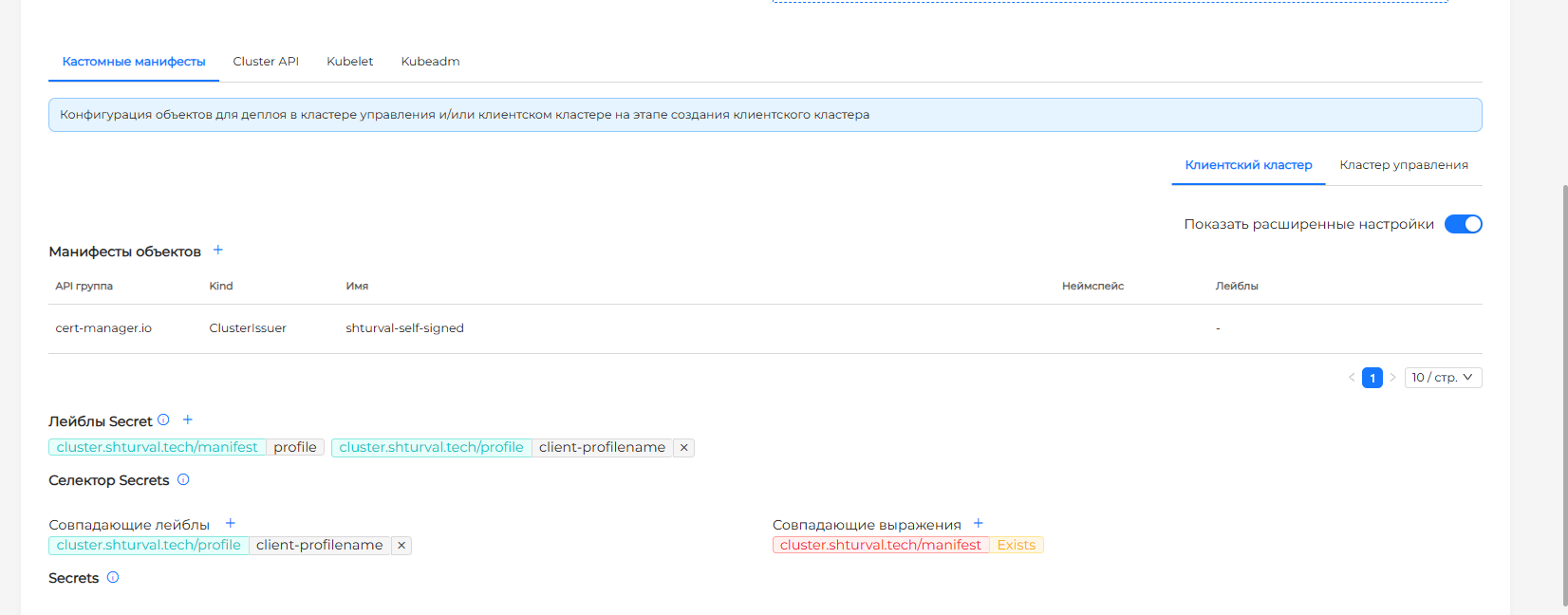
- Advanced – allows you to additionally:- manage labels created by Secret;
- flexibly configure the Secrets selector to add to your profile.
By default, Basic mode is selected. Loaded manifests are not reset when switching between modes. If you re-add the manifest of the same object to the created profile, it will be saved in the new Secret, but an error will appear when applying the profile.
The name Secret with manifests is generated automatically when loaded via the GUI. For objects inside YAML manifests, the standard Kubernetes requirements apply.
In Basic mode, you can load object manifests.
To add manifests:
- In the Object Manifests block, click +.
- In the window that opens, add one or more YAML manifests. If there are several manifests, separate them with the line
---. - Check that the YAML is valid.
- Click Add. To close the window without saving, click Cancel.
Once added, manifests are displayed in a table. For each object, the API Group, Kind, Name, Namespace and Labels are displayed. Clicking on the line with the manifest opens a window for viewing and editing the manifest.
Created Secrets are automatically assigned labels:
- service
cluster.shturval.tech/manifest- required. Checks for the presence of this label’s key, its value is not used; - additional:
cluster.shturval.tech/profile: client-<profile-name>— if manifests are loaded on the Client Cluster subtab;cluster.shturval.tech/profile: platform-<profile-name>— if manifests are loaded on the Management Cluster subtab.
When creating a profile, the labels of the created Secrets with manifests are automatically added to:
clientManifestsSelector, if manifests are loaded on the Client Cluster subtab;platformManifestsSelectorif manifests are loaded on the Management Cluster subtab.
When viewing a profile, the Secrets block is available with a list of Secrets with manifests for deployment when creating a client cluster. After creating a profile, downloaded manifests are not displayed in the Object Manifests block. To view uploaded manifests, go to the Secret page by clicking on the name in the list.
Screenshot: basic mode of managing manifests in a profile
If changes were made in Advanced mode, they are reset when you switch to Basic mode.
To load manifests in advanced mode:
- In the Object Manifests block, click +.
- OpenIn the next window, add one or more YAML manifests. If there are several manifests, separate them with the line
---. - Check that the YAML is valid.
- Click Add.
In the Secret Labels block you can manage the labels of the created Secret with manifests. By default the following are displayed:
- service
cluster.shturval.tech/manifest: profile- it cannot be deleted; - custom
cluster.shturval.tech/profile: client-<profile-name>orcluster.shturval.tech/profile: platform-<profile-name>- it can be deleted.
Clicking on + in the Secret Labels block opens a standard label management window.
In the Secrets Selector block, matching expressions display the expression cluster.shturval.tech/manifest Exists by default - it cannot be removed.
Don’t use just the cluster.shturval.tech/manifest service label in the selector. Such a selector can select Secrets of other profiles. Add an additional unique profile label.
Matched labels display the Secret label by default:
cluster.shturval.tech/profile: client-<profile-name>— on the Objects to be added to the client cluster subtab;cluster.shturval.tech/profile: platform-<profile-name>- on the Objects to add to the management cluster subtab.
This label can be removed.
A Secrets search is performed when at least one matching label or one matching expression is added.
If manifests are loaded, but labels and the Secrets selector are not specified, a Secret will be created with the manifests, but will not be added to the profile.
To control the addition of Secrets with manifests to a profile via the Secrets selector:
- In the Secret Labels block, add the required Secret label.
- In the Secrets selector block, specify matching labels or matching expressions.
- Check the list of Secrets matching the selector.
All manifests from Secrets included in the selection will be used at the stage of creating a client cluster.
Screenshot: advanced mode for managing manifests in a profile
Cluster API tab
On the Cluster API tab, you set the Cluster API configuration parameters in YAML format. By default, the parameters and their values are displayed. You can only override the values of existing parameters. Adding a new unknown parameter will be ignored.
Screenshot: “Cluster API” tab

Kubelet tab
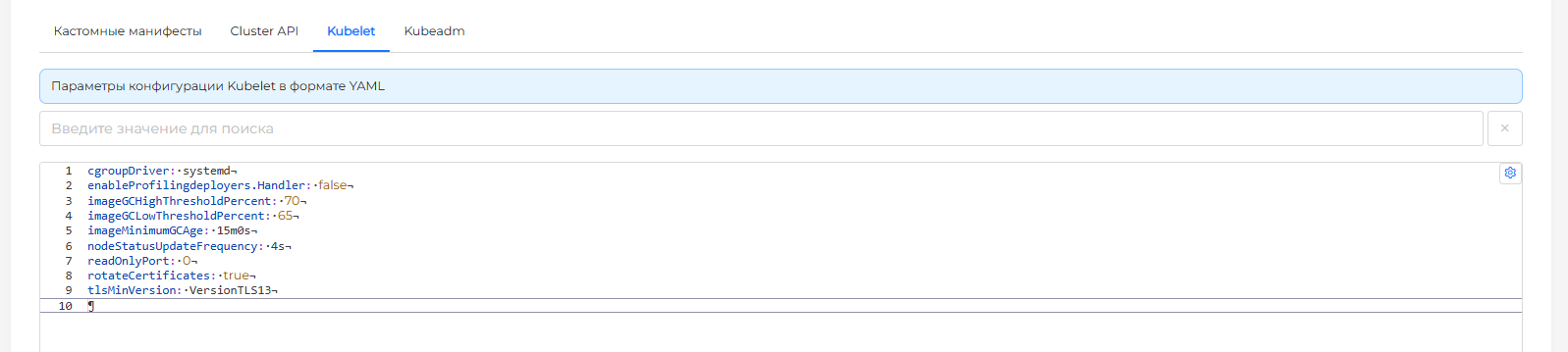
On the Kubelet tab, Kubelet configuration parameters are specified in YAML format. By default, the parameters and their values are displayed. You can only override the values of existing parameters. Adding a new unknown parameter will be ignored.
Screenshot: “Kubelet” tab
Kubeadm tab
The Kubeadm tab specifies Kubeadm configuration parameters in YAML format. By default, the parameters and their values are displayed. You can only override the values of existing parameters. Adding a new unknown parameter will be ignored.
Screenshot: “Kubeadm” tab
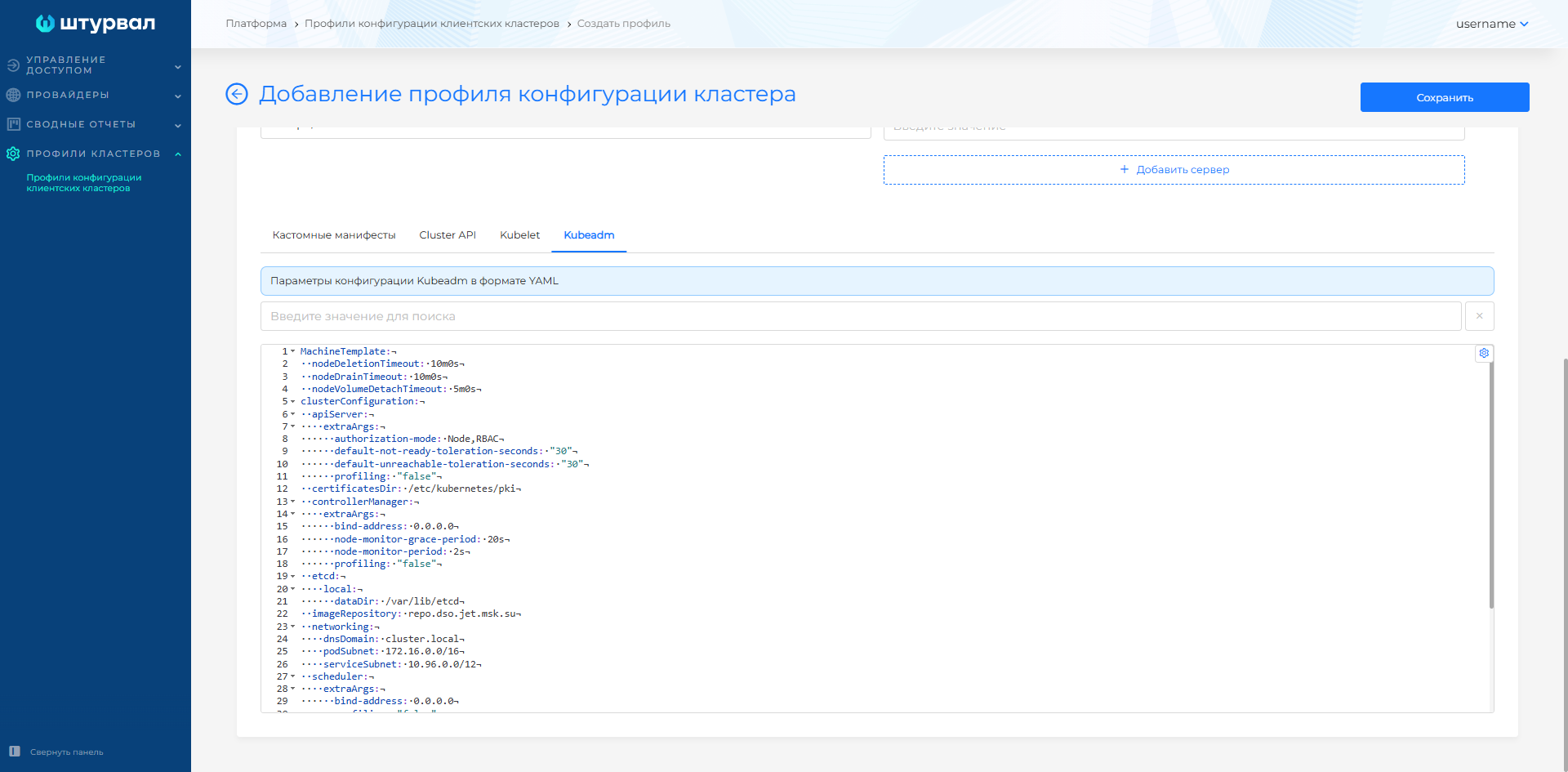
To create a profile, click Save. After creating your profile, check its status. If the profile contains custom manifests, Secrets will be found by selector and the results of checking each Secret will be displayed.
Step 1: Prepare object manifests
Prepare YAML manifests of the objects that must be created when the client cluster is initialized.
If you need to substitute the name of the client cluster being created, use a placeholder:
{{ .ClusterName }}
Step 2: Create a Secret with manifests
In the namespace kube-system of the management cluster, create a Secret of type Opaque. Add keys whose values include prepared manifests.
Secret must have the service label cluster.shturval.tech/manifest. Secrets without this label will be ignored in profiles.
Additionally, add a unique label by which only the necessary Secrets will be selected in the profile.
Example Secret with NCI and Namespace manifests
apiVersion: v1
kind: Secret
type: Opaque
metadata:
  name: secret-for-profile
  namespace: kube-system
  labels:
    cluster.shturval.tech/manifest: ""
    cluster.shturval.tech/profile: client-cluster-profile
stringData:
  nci.yaml: |
    apiVersion: node.shturval.tech/v1beta2
    kind: NodeConfigItem
    metadata:
      name: admin-user
    spec:
      nodeconfigselector:
        kubernetes.io/os: linux
      priority: 100
      users:
        - group: someusergroup
          homedir: ""
          shell: /bin/bash
          username: someuser
  namespace.yaml: |
    apiVersion: v1
    kind: Namespace
    metadata:
      name: ns-by-clusterprofile
Note: The example uses stringData so the values do not need to be base64 encoded. If the data field is used, the values must be base64 encoded.
Save the Secret to a file, for example secret-for-profile.yaml, and apply it to the management cluster:
kubectl apply -f secret-for-profile.yaml
Step 3: Prepare the ClusterProfile manifest
In the ClusterProfile manifest:
- Specify the profile name and namespace
kube-system. - In the
customManifestsblock, specify a selector for selecting Secret, indicating where manifests from Secret should be deployed:clientManifestsSelector— in the client cluster;platformManifestsSelector— in the namespace of the client cluster in the management cluster.
Not recommendeduse only the Secret service label in the profile selector because it can select the Secrets of other profiles.
If the cluster.shturval.tech/manifest service label is not specified in the selector, it will be added automatically when creating or updating a profile.
apiVersion: cluster.shturval.tech/v1beta1
kind: ClusterProfile
metadata:
  name: cluster-profile
  namespace: kube-system
spec:
  customManifests:
    - deployPhase: postsscdeploy
      clientManifestsSelector:
        matchLabels:
          cluster.shturval.tech/profile: client-cluster-profile
If you need to apply manifests in the management cluster, use platformManifestsSelector:
apiVersion: cluster.shturval.tech/v1beta1
kind: ClusterProfile
metadata:
  name: cluster-profile
  namespace: kube-system
spec:
  customManifests:
    - deployPhase: postsscdeploy
      platformManifestsSelector:
        matchLabels:
          cluster.shturval.tech/profile: client-cluster-profile
Save ClusterProfile to file cluster-profile.yaml and apply it to the management cluster:
kubectl apply -f cluster-profile.yaml
After creation, check the profile status:
kubectl get clusterprofile cluster-profile -n kube-system -o yaml
If there are not enough rights to platform manifests
Manifests added to the GUI in the Management Cluster subtab or via the CLI in platformManifestsSelector are applied to the management cluster shturval-cluster-manager. If a profile specifies a resource from an allowed API group, but ClusterRole shturval-cluster-manager-role does not have rights to create such a resource, checking the Secret with manifests in the created profile will fail.
Example of status check:
kubectl get clusterprofile cluster-profile -n kube-system -o yaml
Error example:
status:
  extraManifestsStatus:
    manifestsStatus:
      - deployPhase: postsscdeploy
        platformManifestsStatus:
          - message: >
              1 error occurred:
                * key manifest-1: validate key manifests error: 1 error occurred:
                * no permission to create auth.shturval.tech/User (resource="users"): access denied
            secretRef:
              name: for-role
              namespace: kube-system
            status: incorrect
Screenshot: profile status
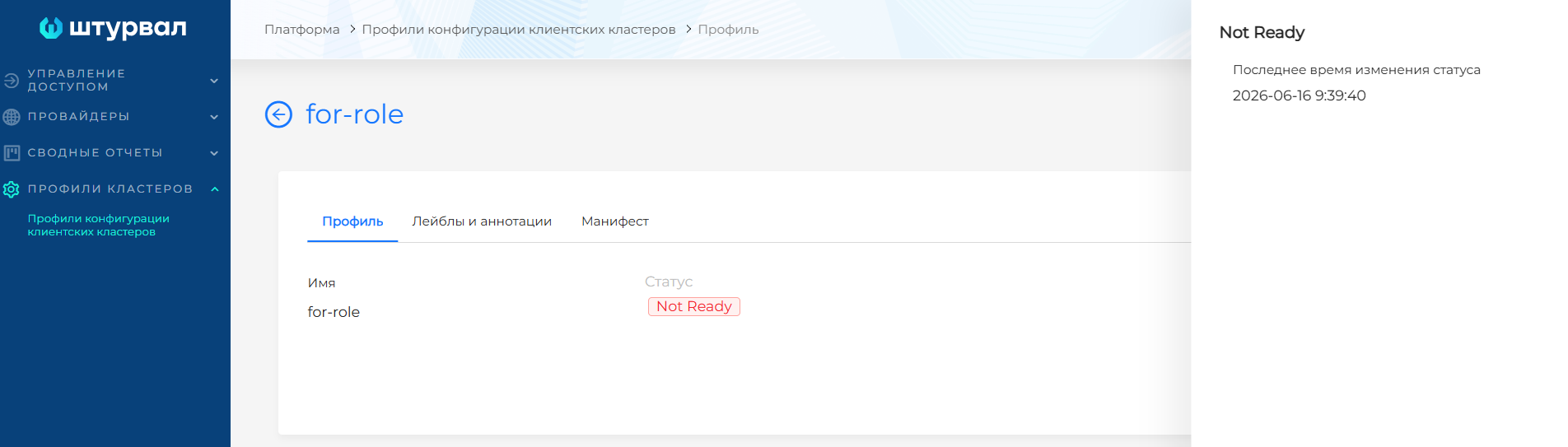
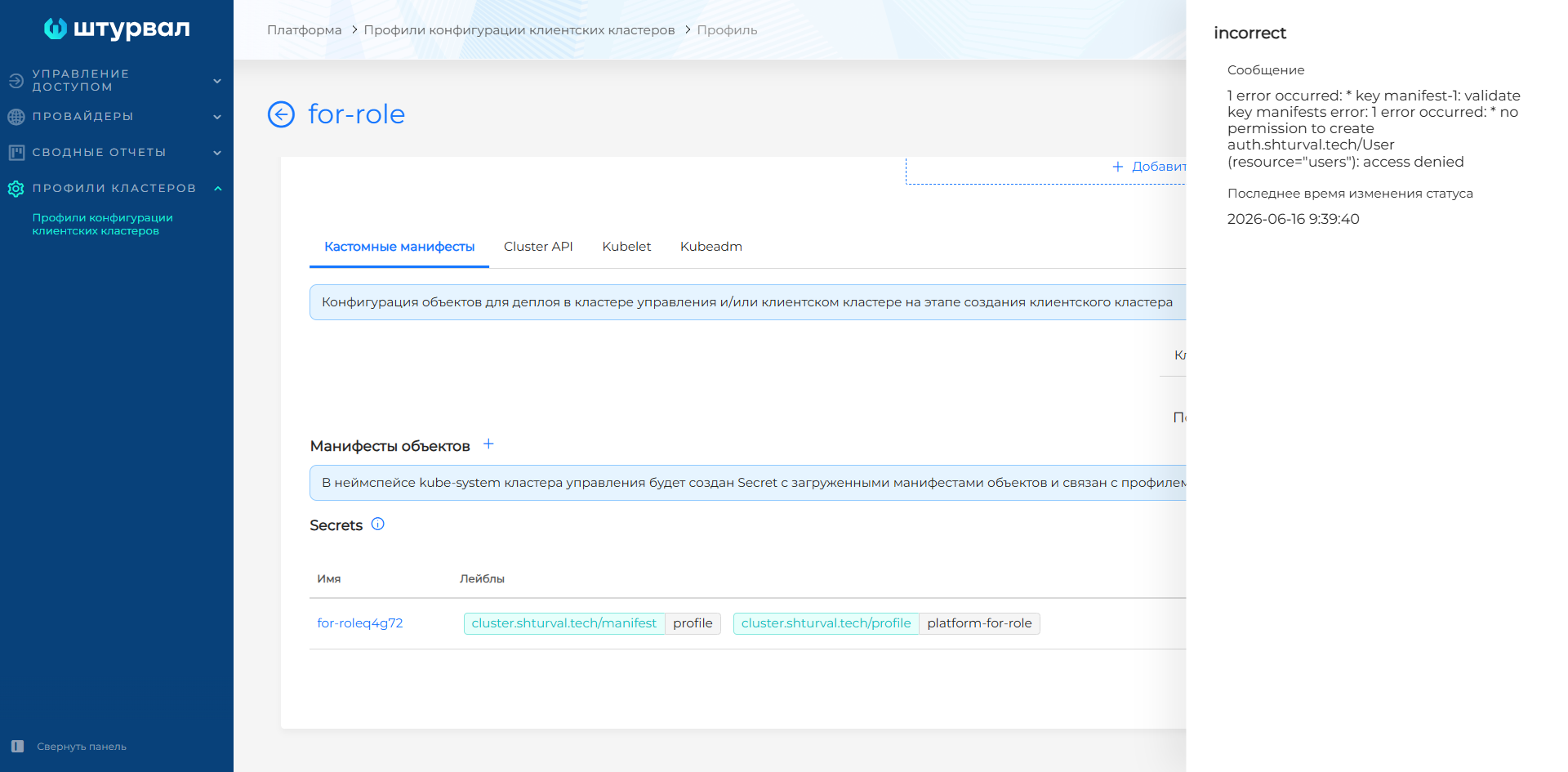
While the profile status is Not Ready and Secret has the status incorrect, the profile is not available for selection when creating a client cluster.
Additional rights may be required to create, for example:
- users of the platform in the API group
auth.shturval.tech; - arbitrary Pods in the API group
core.
What to do
Grant cluster-manager minimal rights to only those resources and actions that are necessary to apply profile manifests in the management cluster in one of the following ways:
- create
ClusterRolewith labelrbac.shturval.tech/shturval-cluster-manager-aggregated-role: "true" - create
ClusterRolewith a custom label, which should be entered in customvalues shturval-cluster-manager.
As a result, the rights will be added to the aggregation role shturval-cluster-manager-role.
In the management cluster, create ClusterRole with the label rbac.shturval.tech/shturval-cluster-manager-aggregated-role: "true".
Example role for creating and reading Pod:
apiVersion: rbac.authorization.k8s.io/v1
kind: ClusterRole
metadata:
  name: cluster-manager-pods-create-get
  labels:
    rbac.shturval.tech/shturval-cluster-manager-aggregated-role: "true"
rules:
  - apiGroups:
      - ""
    resources:
      - pods
    verbs:
      - create
      - get
Apply the role in the command management cluster or using import manifests.
Example command:
kubectl apply -f cluster-manager-pods-create-get.yaml
This option is useful if you want to manage the set of roles that fall under the aggregation role shturval-cluster-manager-role.
- In the management cluster, create
ClusterRolewith a custom label, for example, custom/auth-user-role: “true”.
Example role for creating and reading internal platform users:
apiVersion: rbac.authorization.k8s.io/v1
kind: ClusterRole
metadata:
  name: cluster-manager-auth-users
  labels:
    custom/auth-user-role: "true"
rules:
  - apiGroups:
      - auth.shturval.tech
    resources:
      - users
    verbs:
      - create
      - get
- Create a
ShturvalServicePatchto apply to the SSCshturval-cluster-manager, where you specify a custom label inroleAggregateLabels.
apiVersion: ops.shturval.tech/v1beta2
kind: ShturvalServicePatch
metadata:
  name: cluster-manager-auth-users
spec:
  shturvalServiceConfigName: shturval-cluster-manager
  customvalues:
    roleAggregateLabels:
      custom/auth-user-role: "true"
- Apply
ClusterRoleandShturvalServicePatchin the management cluster in the CLI or via import manifests in the GUI.
kubectl apply -f cluster-manager-auth-users-role.yaml
kubectl apply -f cluster-manager-auth-users-rbac-ssp.yaml
How to check
After applying ClusterRole, check that the rights of the created role are included in the aggregation role:
kubectl get clusterrole shturval-cluster-manager-role -o yaml
Then check your profile status again:
kubectl get clusterprofile cluster-profile -n kube-system -o yaml
The status should change to Ready, and the Secret with manifests should change to valid.
Applying a profile
After creating a profile, select it when creating a client cluster in advanced settings mode.
Before creating a cluster, check that the profile status is True. The default profile is always available for selection and is applied by default if the Cluster Profile field is left empty.