Assigning access rights
GUI for managing roles and assigning access sets.
Role model
Rights are configured in the context of the Platform, Tenant, Cluster and Namespace levels. The structure of the model, the composition of sets of accesses and permissions are described in Architecture of access modules and in Setting permissions.
Overview
Assigning access rights to the entire platform and tenants is available only from the platform GUI. You can also assign rights at the management cluster, client cluster, and namespace levels.
Permissions are assigned to users and groups by selecting one or more access sets. For more information about sets and permissions, see Setting permissions.
Places for assigning access rights by level
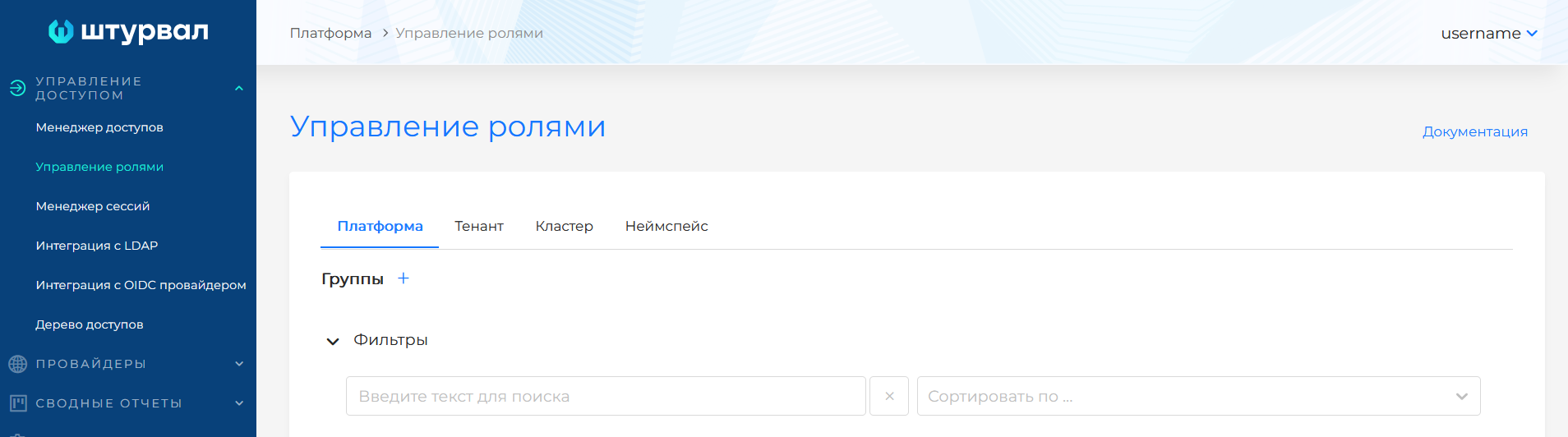
From the Platform section of the GUI, you can manage group/user rights for level objects:
- all platform clusters;
- tenant; (see the screenshot below)
- any cluster or namespace. (see the screenshot below)
To manage rights, go to the tab of the desired level.
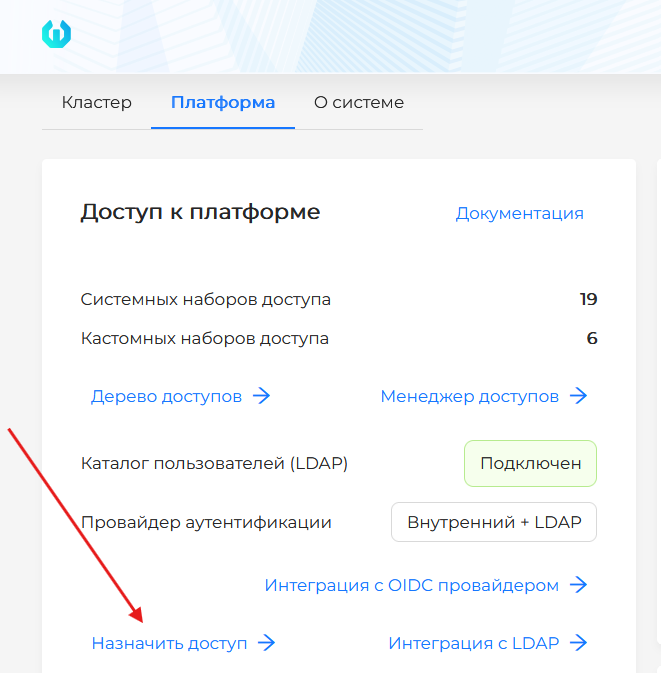
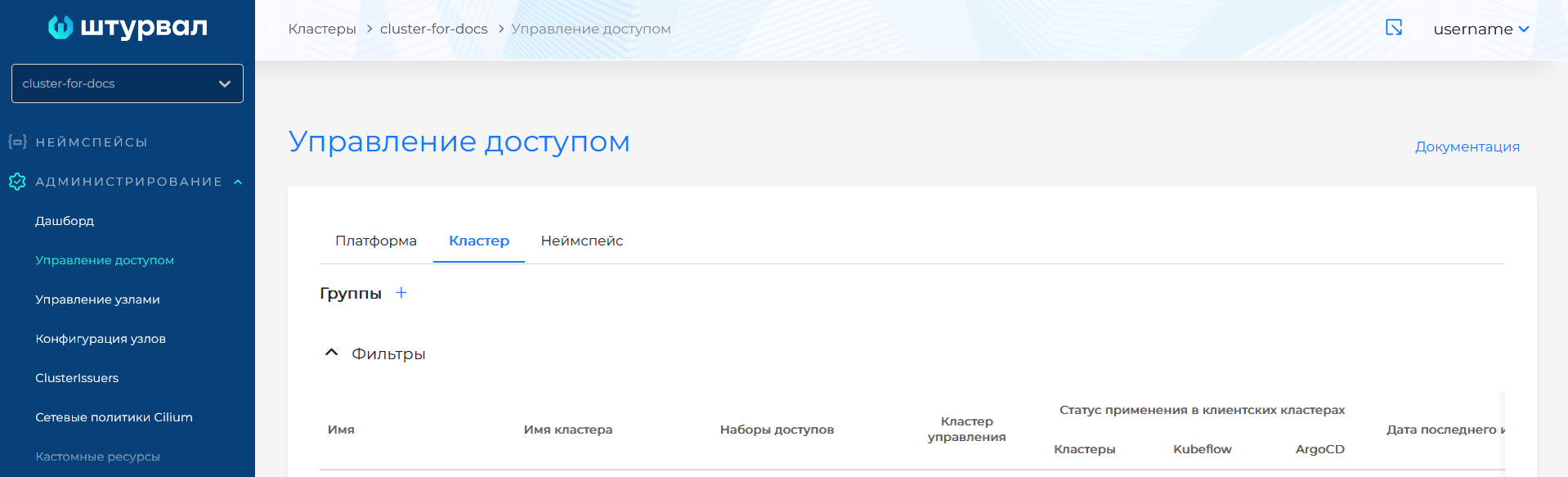
From the Cluster section, the following is available:
- manage the rights of a group or user in this cluster or the namespace of this cluster; (see the screenshot below)
- see which groups/users with rights to the platform have access to this cluster. (see the screenshot below)
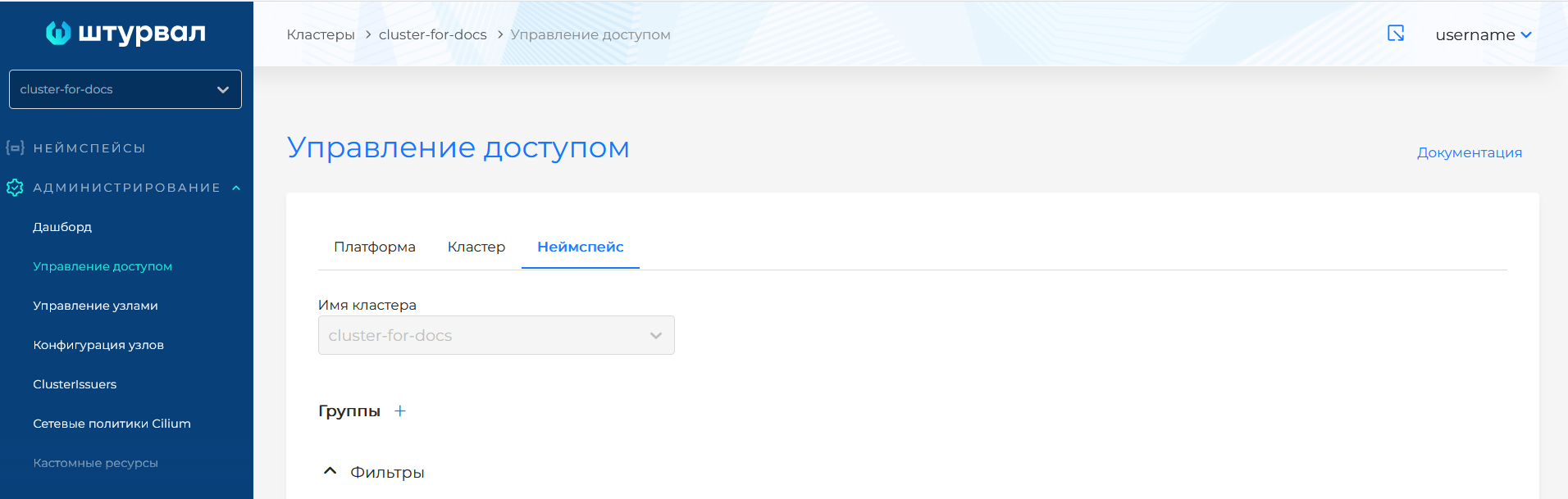
Available from the Namespace section:
- manage rights to this namespace;
- see which users with rights to the platform or cluster have access to this namespace. (see the screenshot below)
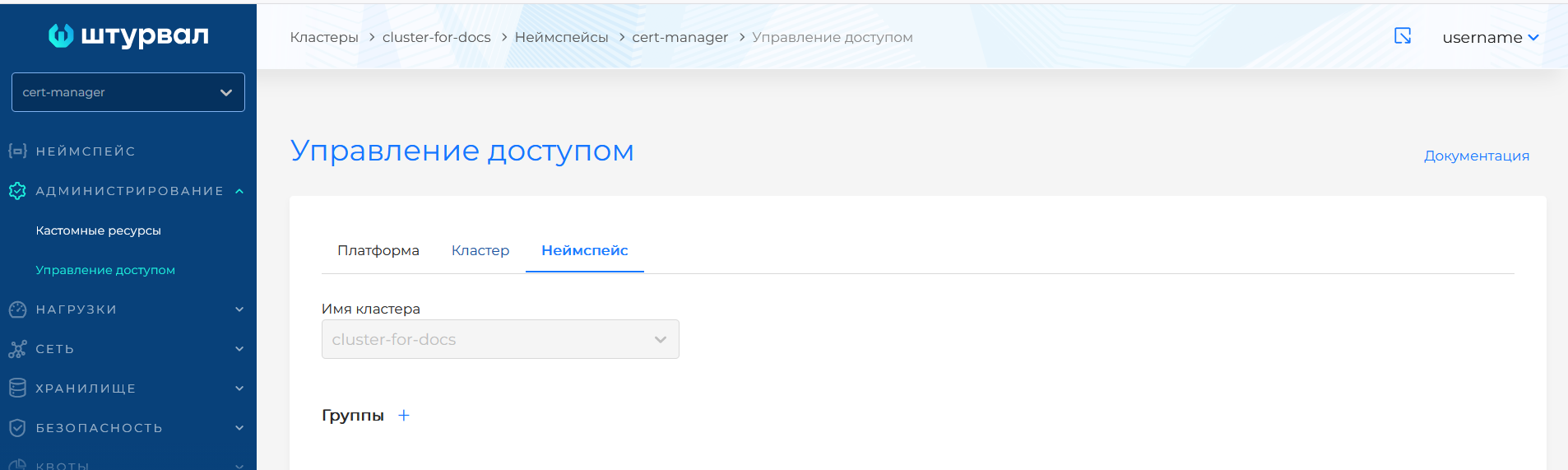
From the Platform section of the GUI, you can manage group/user rights for level objects:
- all platform clusters;
- tenant; (see the screenshot below)
- any cluster or namespace. (see the screenshot below)
To manage rights, go to the tab of the desired level.
From the Cluster section, the following is available:
- manage the rights of a group or user in this cluster or the namespace of this cluster; (see the screenshot below)
- see which groups/users with rights to the platform have access to this cluster. (see the screenshot below)
Available from the Namespace section:
- manage rights to this namespace;
- see which users with rights to the platform or cluster have access to this namespace. (see the screenshot below)
Object level selection tabs for assigning access rights
| Tab | Purpose |
|---|---|
| Platform | Rights to the platform as a whole (management cluster, client clusters) |
| Tenant | Rights to the tenant and all nested objects. Only platform users have access to tenants. |
| Cluster | Rights to the cluster (management or client cluster). |
| Namespace | Rights to the namespace of the management cluster or client cluster. |
Tabs “Platform”, “Tenant”, “Cluster”, “Namespace”
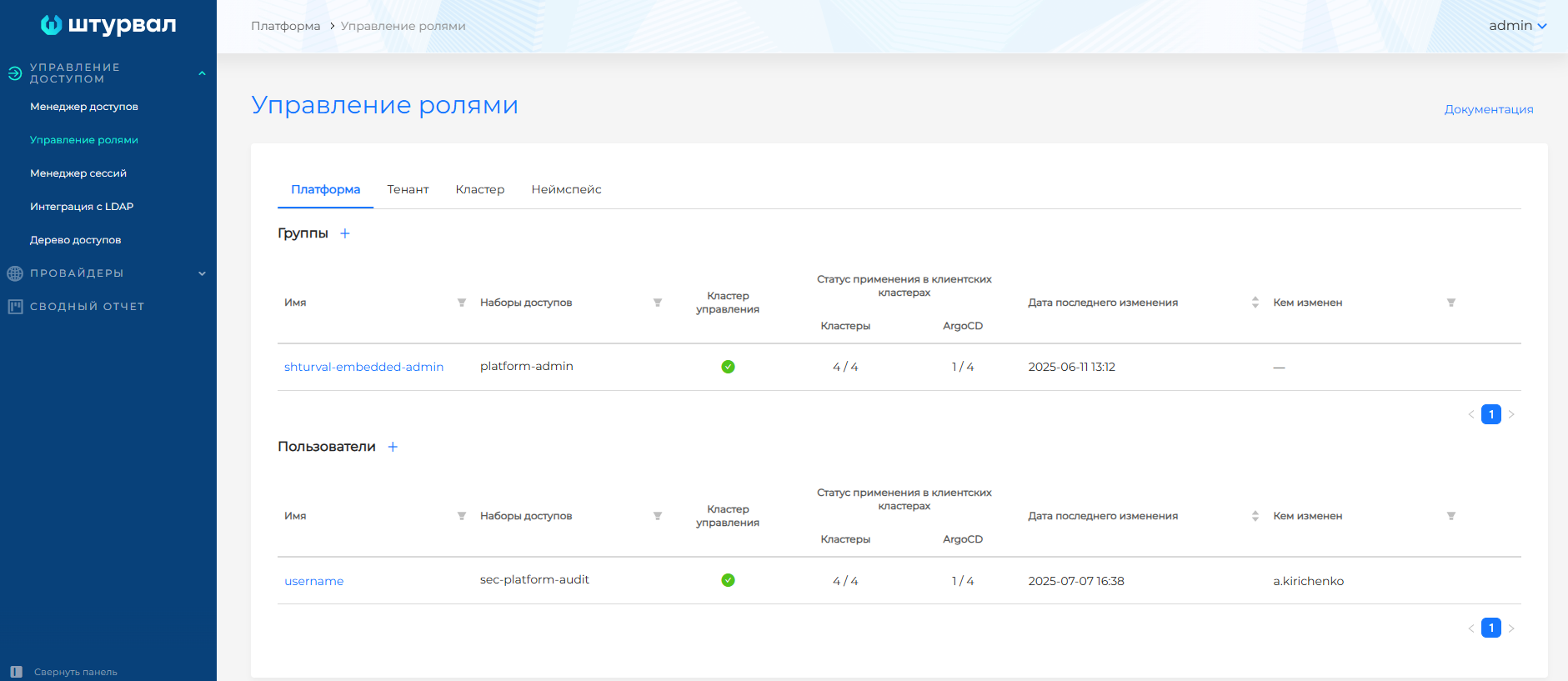
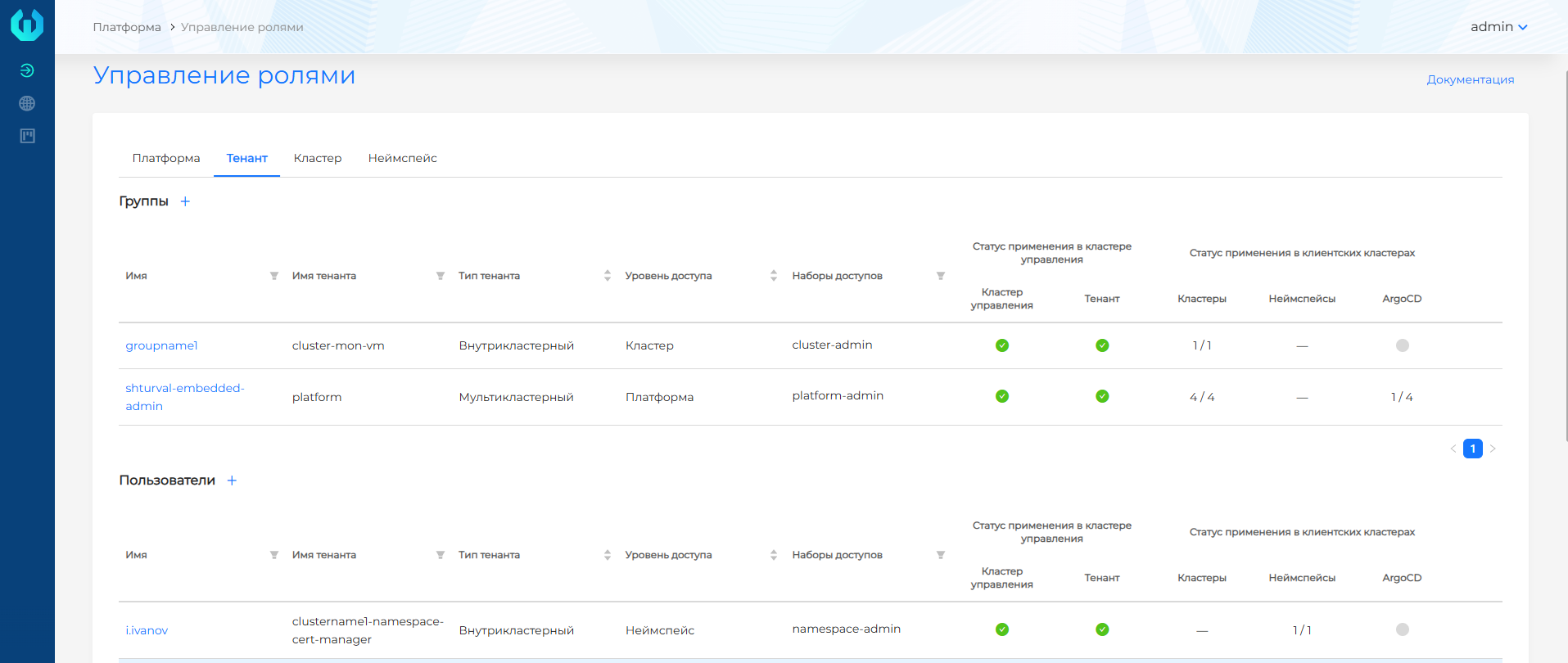
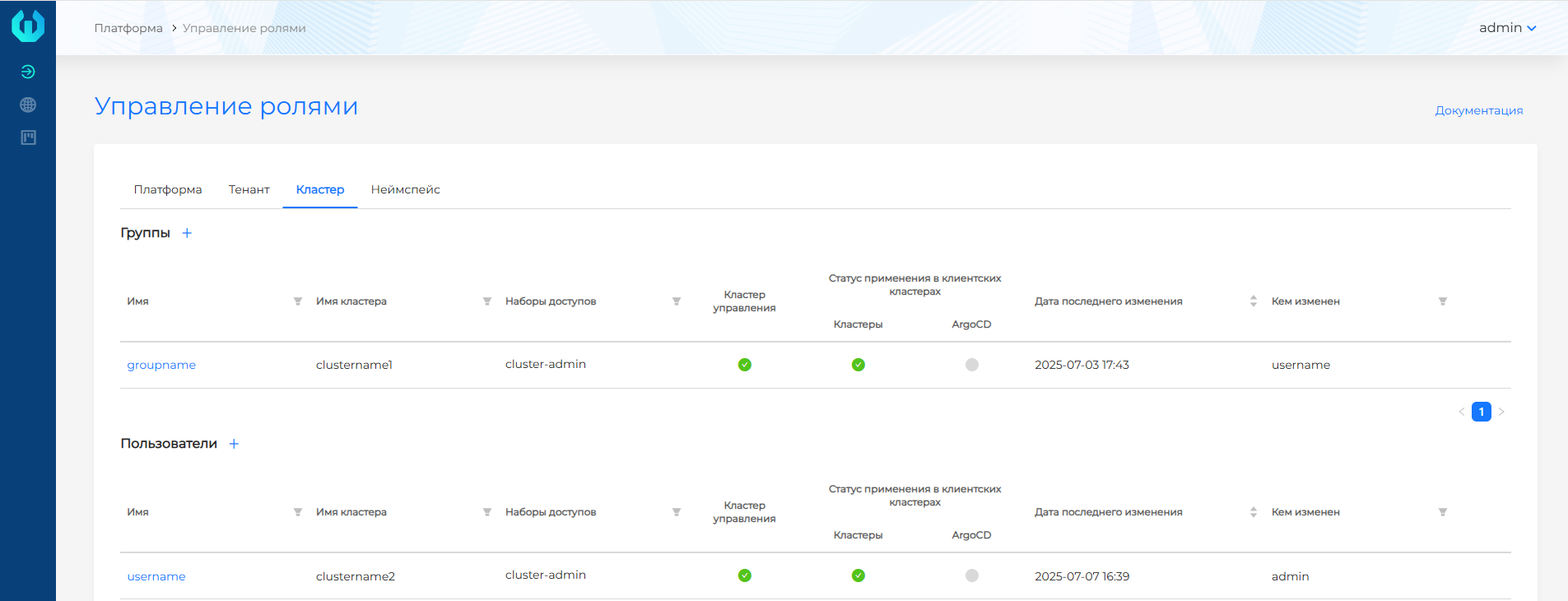
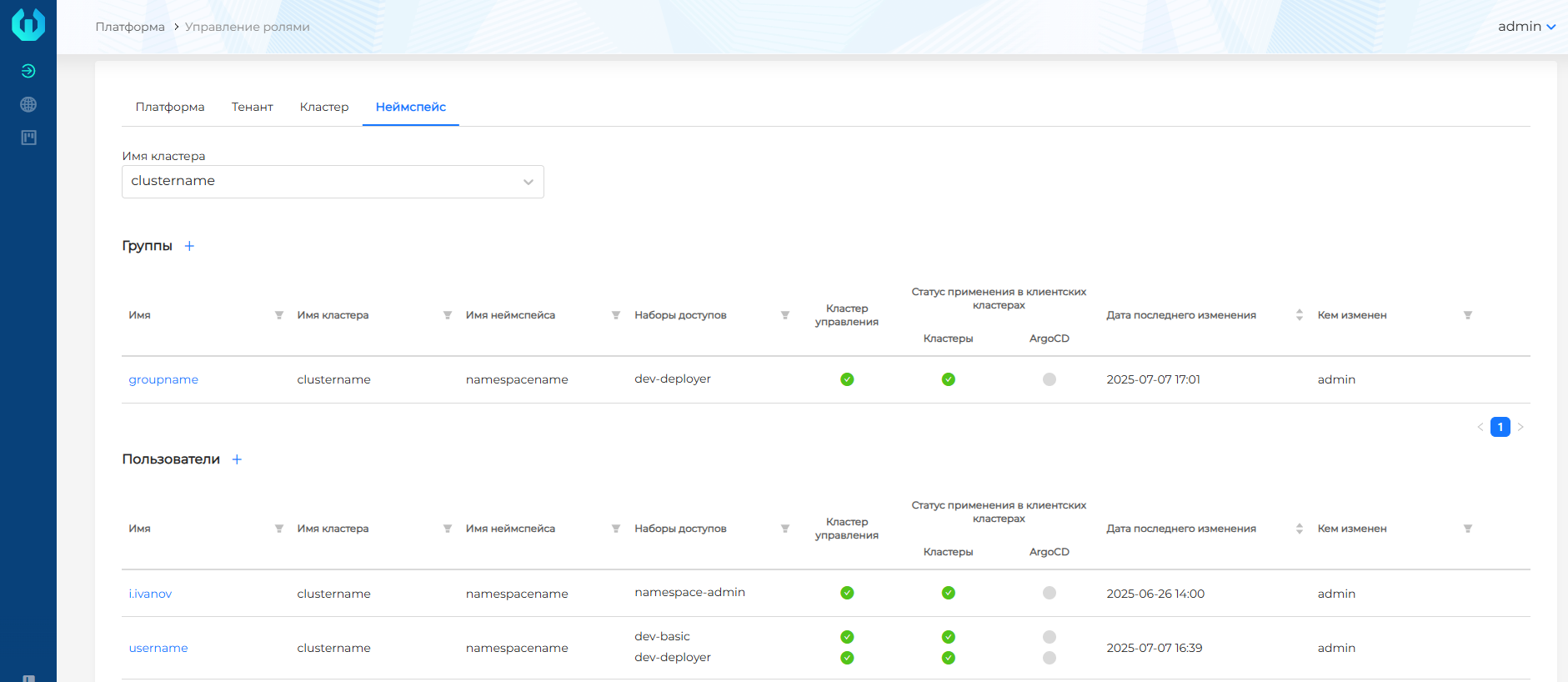
From the Manage Roles page you can:
- Assign users and groups access rights to the platform, cluster or namespace;
- Change and delete platform, cluster and namespace rights assignments in all clusters and namespaces available to the user.
You can also assign access rights from the cluster and namespace Access Control sections. See Assigning access rights in a cluster or namespace.
Assigning rights to a user
Go to the tab of the desired level (Platform, Tenant, Cluster or Namespace). The screen that opens displays the form for assigning access rights.
Specify a unique username in one of the following ways:
Method 1: Select from an LDAP directory
Available when LDAP integration is configured (for example, AD or openLDAP).
- In the Unique Username field, start typing your name. Starting from the second character, a directory search is performed.
- Select a user from the list (case-insensitive search).
If the directory is not connected, use manual entry.
Method 2: Manual entry
- Select Manual Entry and enter the username in the Unique Username field.
Manual entry may be required when using an external authentication provider (Keycloak, Blitz, etc.). Manual entry does not perform an LDAP search.
Form for assigning rights to a user
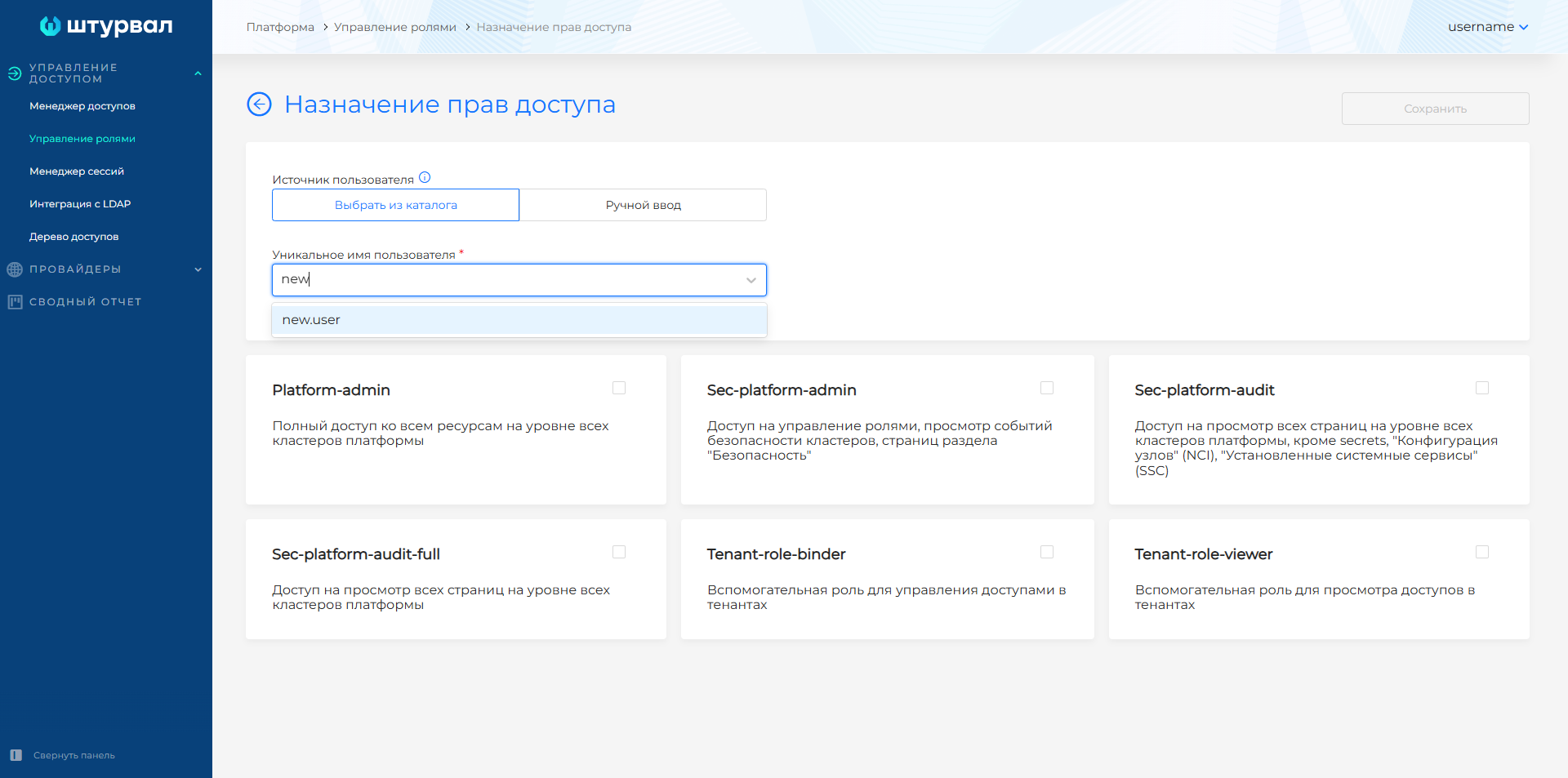
- Select the access sets to assign.
- Click Save.
Note: The username cannot be edited after creating a record. To change the name, delete the entry and create a new one.
Assigning rights to a group
- Go to the tab of the desired level (Platform, Tenant, Cluster or Namespace).
- Click + next to the Groups table.
- Specify group name in one of the following ways:
Method 1: Select from an LDAP directory
Available when LDAP integration is configured.
- In the Group Name field, start typing a name. Starting from the second character, a directory search is performed.
- Select a group from the list (case-insensitive search).
If the directory is not connected, use manual entry.
Method 2: Manual entry
- Select Manual Entry and enter the group name in the Group Name field.
Manual entry may be required when using an external authentication provider (Keycloak, Blitz, etc.). When entering manually, search by LDAP is not satisfied.
- Select the access sets to assign.
- Click Save.
All users in the group will receive assigned permissions.
Note: The group name cannot be edited after the entry is created. To change the name, delete the entry and create a new one.
Peculiarities of assignment in tenants
Access rights assigned to a tenant apply to all objects in that tenant. Users with tenant access gain access to nested objects. Only platform users have access to the tenants themselves.
Tenant combines entire clusters
If the tenant’s namespaces indicate * (clusters are combined entirely), cluster-level access sets are available for assignment.
Tenant with entire clusters
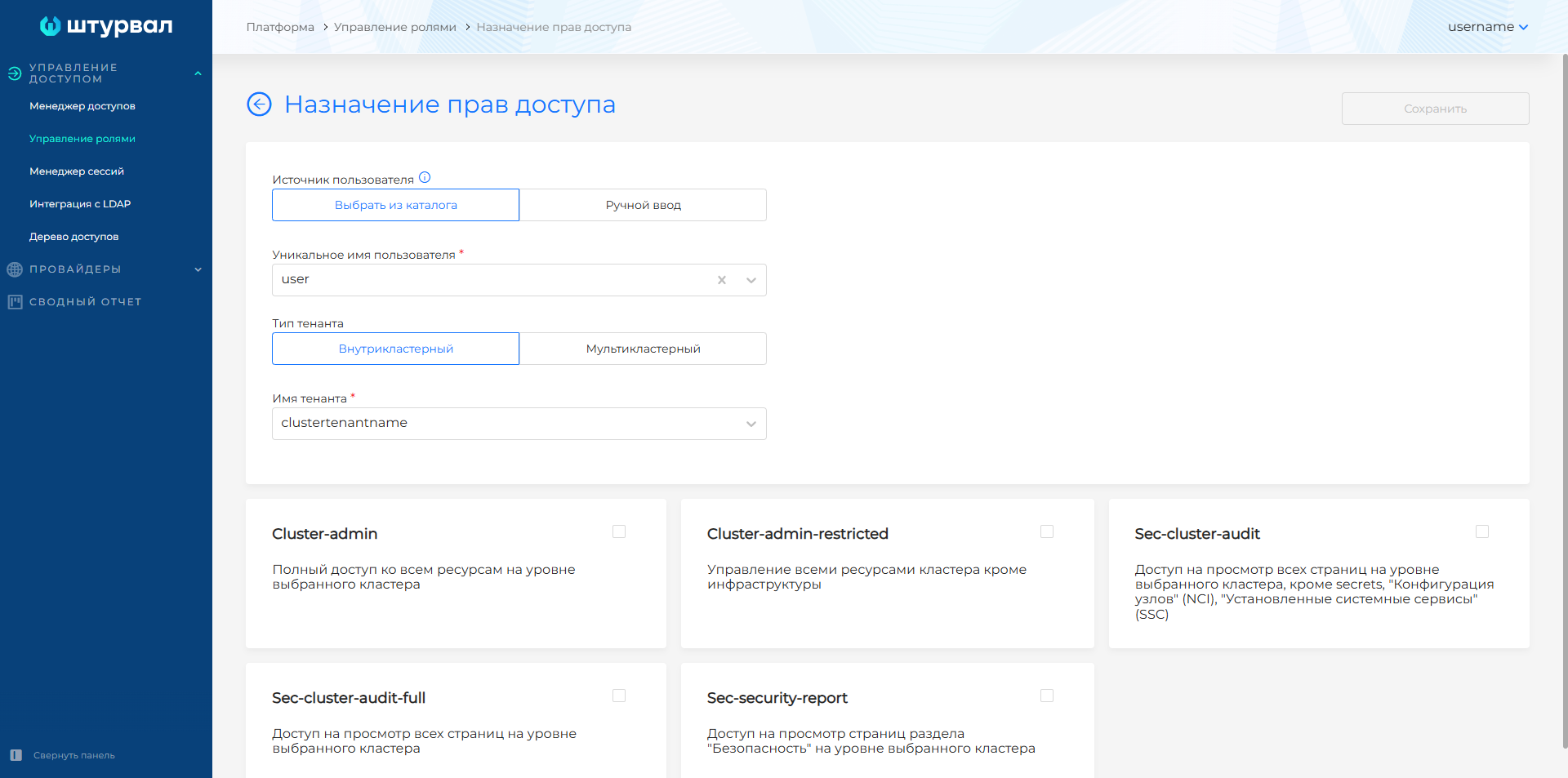
Tenant unites namespaces
If a tenant unites specific namespaces, namespace-level access sets are available for assignment.
Tenant with namespaces
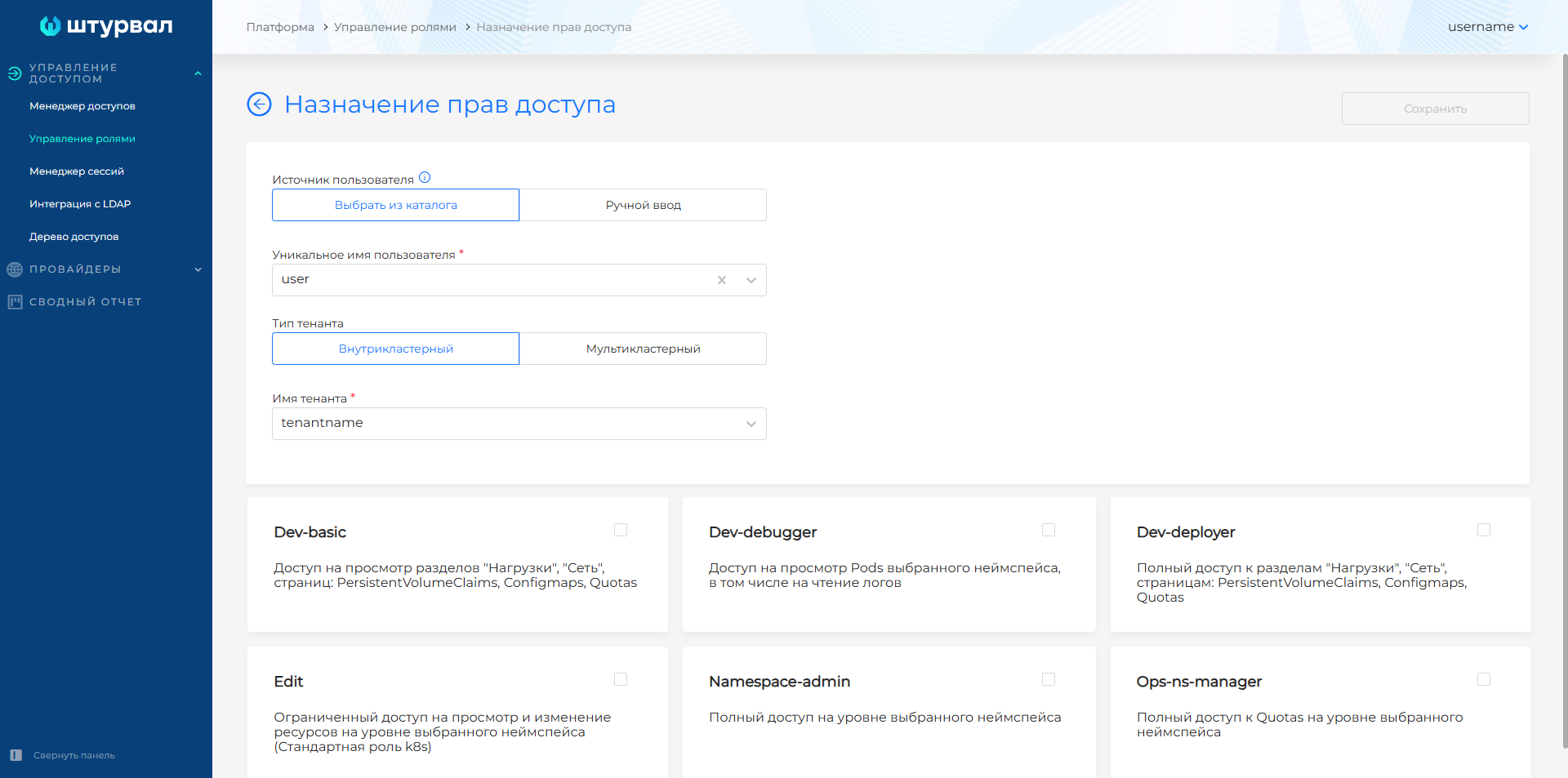
A list of access sets is displayed after selecting a tenant name.
Kubeflow permissions and role in Argo CD
If a set of permissions includes Kubeflow rights or a role in Argo CD, their application depends on the assignment level:
| Assignment level | Kubeflow access | Argo CD access |
|---|---|---|
| Platform | Access to Kubeflow profiles of all clusters. | Access to all Argo CD projects of all clusters. |
| Cluster | Access to Kubeflow profiles of the selected cluster. | Access to all Argo CD projects of the selected cluster. |
| Namespace | Access to the Kubeflow profile of only one namespace. | Access to the Argo CD project for only one namespace. |
Assignment application status
Once saved, the assignments are applied to the management cluster and client clusters. The status model displays the result of the application.
Block “Application status in the management cluster”
Contains the results of applying assignments to the management cluster itself.
The management cluster stores client cluster objects (API groups: cluster.x-k8s.io, bootstrap.cluster.x-k8s.io, infrastructure.cluster.x-k8s.io, permissions.shturval.tech). Therefore, platform permissions are required to work with such objects in the access set. The statuses can display application to the management cluster even for assignments at the “cluster” or “namespace” level.
Block “Application status in client”ski clusters"
Reflects the success of enforcing cluster permissions, Kubeflow permissions, and roles in Argo CD.
- Platform level: quantitative indicator - the ratio of clusters with successful application to the total number of clusters.
- Level Cluster: color indication for each cluster.
- Namespace level: color indication for each namespace.
Color indication
| Color | Description |
|---|---|
| Green | The assignment was successfully applied. |
| Red | Errors occurred while applying access rights. |
| Gray | No application required. This is possible if the access set did not request the allocation of access rights, for example, in Argo CD and/or Kubeflow |
Brief assignment process
- Click Assign access on the desired object (platform, tenant, cluster, namespace).
- Select the tab with the desired level.
- Click + next to Users or Groups.
- Specify the user or group (from the LDAP directory or manually).
- Select access sets.
- Click Save.
- Check the application status in the “Application Status” blocks.
Revoking assignments
You can delete assignments on the Manage Roles page (tabs by object level) or in the Access Control section of a cluster or namespace.
Revocation of all assignments of a user or group is available on the Access Tree page.