Connect an external OIDC provider
The “Shturval” platform supports the connection of Keycloak and Blitz as external OIDC providers.
When the management cluster is running services such as Kubeflow, Argo CD and Grafana, changing the OIDC provider will not require changes to ssc.
If the external OIDC provider stops working, you can turn it off and restore access for users. Follow the steps in instructions.
Preparing to set up a connection in the platform
Requirements for the Access Token of an external OIDC provider
For correct integration with the Shturval platform on the side of the external OIDC provider (Blitz, Keycloak), the following fields must be configured in access_token:
| Claim in token | Description | Source of value |
|---|---|---|
aud | ID of the client for which the token was issued. Must match CLIENT_ID, for example backend. | Client settings in OIDC provider |
sub | Unique username. | For example, sAMAccountName user in AD |
preferred_username | User account name. | For example, sAMAccountName user in AD |
name | User’s display name. | For example, displayName or sAMAccountName user in AD |
email | User email. | For example, mail user in AD |
claims | List of groups the user belongs to. | For example, claims in AD |
iss | Issuer URL of the external OIDC provider. | OIDC Provider Settings |
jti, exp, iat | Mandatory claim token. Must be present and configured in accordance with RFC 7519. | OIDC Provider Settings |
For Keycloak, Full group path in the client Group Membership mapper must be off. If it stays on, the token contains the full path, for example /parent/developers, instead of the group name developers, and the integration fails with an error.
When setting up integration in the GUI, you can map the access_token fields of the external OIDC provider to the fields that the platform expects. Use this setting if the fields in your OIDC provider token are called something other than aud, sub, preferred_username, name, email.
Root CA certificate of external OIDC provider
If you need to establish a TLS connection during authentication, obtain the root CA certificate of the external OIDC provider, encoded in base64. You can request a certificate from the administrator of the OIDC provider or obtain it using the following method.
From the command line interface, connect via SSH to the OIDC provider and obtain a base64 encoded certificate.
Team — illustration
cat <path to external OIDC provider certificate file> | base64
For example, the path to the external OIDC provider certificate file:/usr/share/keycloak/cert/keycloak.shturval.crt.
Example answer
LS0tLS1CRUdJTiBDRVJUSUZJQ0FURS0tLS0tClvRgdC10YDRgtC40YTQuNC60LDRgiDQstC90LXRiNC90LXQs9C+INGB0LXRgNCy0LjRgdCwINCw0YPRgtC10L3RgtC40YTQuNC60LDRhtC40LhdCi0tLS0tRU5EIENFUlRJRklDQVRFLS0tLS0=
Connecting an external OIDC provider in the platform
You can configure integration with an external OIDC provider in the GUI (GUI) or command line interface (CLI) by creating a Secret auth-provider in the namespace shturval-backend.
To integrate the platform with a new OIDC provider, it is recommended to use the settings in the GUI.
If integration with the OIDC provider is configured through the Authentication Management Module ssc (shturval-auth), editing in the GUI will not be available.
In GUI
How to proceed to setting up integration
- In the platform, go to the Integration with OIDC provider page in one of the following ways:
- In the platform, open the Access Management section → the Integration with OIDC provider page;
- On the Platform tab from the Platform Access block, click on the Integration with OIDC provider button.
On the Platform tab, the Authentication Provider line displays the connection status of the provider:
- if an internal provider is connected, Internal is displayed;
- if an external OIDC provider is connected, its name is displayed. Clicking on the name opens the Integration with OIDC provider view page.
Step 1. Fill in the connection parameters
On the Integration with OIDC provider page, fill in the fields:
Parameters of the “Provider Configuration” block
| Field in the GUI | Description |
|---|---|
| Provider Name | Provider configuration name. Displayed when authenticating in the GUI. Available for editing after saving the integration settings. |
| Display internal authentication provider | Determines whether the internal provider will be available for authentication when connecting to an external OIDC provider. The default is Yes. If the connection cannot be verified by client ID and secret, the value set to No will be ignored. |
| OIDC Issuer URL | URL issuer of the external OIDC provider. For example, for Keycloak, Issuer is located in the Identity providers section in the OpenID Connect settings block. |
| OIDC Client ID | OIDC provider client ID. |
| Client Secret | External OIDC provider client secret. For example, for Keycloak, clientSecret is located in the Clients section on the client page, Credentials tab in the Client Secret field |
| PKCE method | Select a method if you are interested inThe driver includes Proof Key for Code Exchange (PKCE) Challenge Method. The available options are plain or S256. By default, the method is not selected. |
| Enable CA Verification | Determines whether the OIDC provider’s CA certificate should be verified. The default is No. When verification is enabled, downloading the root CA certificate is available |
| Root CA certificate | Base64 encoded root CA certificate of external OIDC-provider |
Step 2: Check your connection
When all required fields are completed, click Test connection. The platform will check the availability of the well-known OIDC provider configuration and authentication endpoints necessary for the correct operation of external authentication in Shturval.
If the check is successful, the following will become available:
- fields for matching the Access Token fields of the OIDC provider.
- switch the operating mode of the OIDC provider in the platform.
If, when checking the connection, it was not possible to check client.clientId and client.clientSecret, a warning will be returned. In this case, when connecting an external OIDC provider, the internal provider will remain available for secure login.
Step 3. Mapping the Access Token of the OIDC provider
After a successful connection check, it is possible to set Map OIDC Provider Access Token Fields.
Fill in the parameters only if the OIDC provider’s Access Token uses claim names other than the names: sub, claims, preferred_username, aud, name, email.
Indicate the names of the claim access_token OIDC provider in the fields. For example, if user groups are transferred not to claim claims, but to claim groups, specify groups in the Claims field.
| Field in the GUI | Claim by default | Description | What the platform expects to receive | Example |
|---|---|---|---|---|
| Sub | sub | The name of the field with a unique user name (UserID). | Unique username | sAMAccountName |
| Claims | claims | Name of the fieldwith user groups. | List of user AD groups | |
| Preferred Username | preferred_username | Name of the field with the login account name (login). | User login | sAMAccountName |
| Aud | aud | Name of the field with the client ID. | CLIENT_ID service | backend |
| Name | name | Field name withfull username. | User’s Display Name | displayName or sAMAccountName |
email | The name of the field with the user’s email address with a UPN suffix and @. | User Email | mail |
Step 4: Enable and save the configuration
The OIDC provider operating mode switch is only available after a successful connection check. By default, the external OIDC provider is disabled. Click the toggle to enable it in the platform and save your integration settings. If necessary, you can save the integration settings without enabling the OIDC provider in the platform.
View and edit integration settings
- After saving, the page for viewing integration settings opens.
- All fields can be edited.
- For security reasons, the client secret is not displayed. To test your connection, re-upload the secret.
- After any changes, you must re-check the connection before saving and/or changing the provider operating mode in the platform.
If the platform is configured to connect an OIDC provider via the ssc Authentication Management Module (shturval-auth), editing in the GUI is not available.
In the command line interface
External OIDC provider configuration
- Before connecting an external OIDC provider in the “Shturval” platform, prepare the configuration according to the example, using your parameter values.
External OIDC provider configuration example
{
  "name": "<your parameter value>",
  "issuerUrl": "<your parameter value>",
  "codeVerifyMethod": "<your parameter value>",
  "client": {
    "clientId": "<your parameter value>",
    "clientSecret": "<your parameter value>"
  },
  "insecureSkipVerify": "<your parameter value>",
  "caBundle": "<your parameter value>",
  "tokenClaimMapping": {
    "sub": "<your parameter value>",
    "name": "<your parameter value>",
    "email": "<your parameter value>",
    "preferredUsername": "<your parameter value>",
    "claims": "<your parameter value>",
    "aud": "<your parameter value>"
  }
| Parameter | Description | Example |
|---|---|---|
name | Configuration name (specify any) | keycloak |
issuerUrl | URL issuer of the external OIDC provider. For example, for Keycloak, Issuer is located in the Identity providers section in the OpenID Connect settings | https://keycloak.ip-XX-XX-XX-XX.shturval.link/realms/shturval |
codeVerifyMethod | If Proof Key for Code Exchange Code (PKCE) Challenge Method is enabled in Keycloak, specify the Challenge Method in the codeVerifyMethod parameter. Only S256 and plain are supported. When Challenge Method is not enabled, leave codeVerifyMethod empty or omit it. | S256 |
client.clientId | External OIDC provider client ID | shturval_unikeycloak_backend_client_id |
client.clientSecret | External OIDC provider client secret. For example, for Keycloak, clientSecret is located in the Clients section on the client page, Credentials tab in the Client Secret field | HG0rxJMKopmAGSasDxDtkJYQHinsecureSkipVerify |
caBundle | Base64 encoded root CA certificate of external OIDC provider. Add the resulting base64 encoded certificate to caBundle. | * |
tokenClaimMapping | A list of matches between the claim in access_token of the external OIDC provider and the fields that the platform expects. Specify the values if the claim provider token is called differently | - |
tokenClaimMapping.sub | Claim with a unique user ID | sub |
tokenClaimMapping.name | Claim with username display | name |
tokenClaimMapping.email | Claim with user email address | |
tokenClaimMapping.preferredUsername | Claim with user account name | sub |
tokenClaimMapping.claims | Claim with a list of user groups | groups |
tokenClaimMapping.aud | Claim with the client ID for which the token was issued | aud |
*LS0tLS1CRUdJTiBDRVJUSUZJQ0FURS0tLS0tClvRgdC10YDRgtC40YTQuNC60LDRgiDQstC90LXRiNC90LXQs9C+INGB0LXRgNCy0LjRgdCwINCw0YPRgtC10L3RgtC40YTQuNC60LDRhtC40LhdCi0tLS0tRU5EIENFUlRJRklDQVRFLS0tLS0=
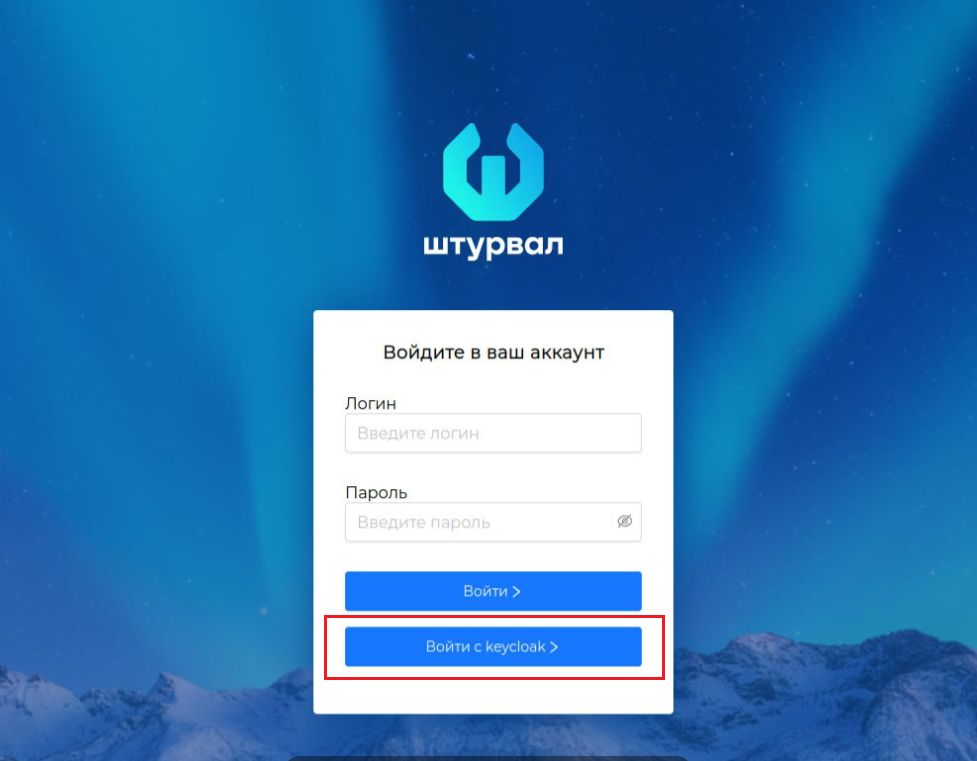
If users can select an authentication provider (external or internal) in the GUI, the value of the name parameter will be displayed in the authentication window.
Screenshot
Copy the configuration prepared in the previous step. When creating a Secret via
stringData, there is no need to encode the configuration in base64.Download and save the current kubeconfigs of the clusters (client clusters, management cluster). Kubeconfig will be required to connect to the cluster from the console.
Next, create Secret auth-provider in namespace shturval-backend.
Connection in the platform
Log in to the “Shturval” platform using the kubeconfig received during platform installation, or you can take it from the Control Plane of the platform node /etc/kubernetes/admin.conf.
- Prepare a YAML file with a Secret manifest named
auth-providerand labelauth.shturval.tech/oidc-provider: "". In Secret, set the required parameters.
apiVersion: v1
kind: Secret
metadata:
  name: auth-provider
  namespace: shturval-backend
  labels:
    auth.shturval.tech/oidc-provider: ""
type: Opaque
stringData:
  active: "true"
  external_idp: |
        {"name":"shturval-keycloak","issuerUrl":"https://keycloak.example.com/realms/shturval","codeVerifyMethod":"plain","client":{"clientId":"shturval_keycloak","clientSecret":"<client-secret>"},"insecureSkipVerify":true,"tokenClaimMapping":{"sub":"sub","name":"name","email":"email","preferredUsername":"sub","claims":"groups","aud":"aud"}}
  skip_internal_auth: "false"
| Parameter | Description | Data type | Example |
|---|---|---|---|
active | Enabling Keycloak as an external OIDC provider | string | "true" |
external_idp | Keycloak JSON configuration. The example shows a configuration with issuerUrl https://keycloak.example.com/realms/shturval, clientId shturval_keycloak, clientSecret <client-secret> and standard mapping claim | string | {"name":"shturval-keycloak",...} |
skip_internal_auth | Availability of internal provider when Keycloak is enabled | string | "false" |
apiVersion: v1
kind: Secret
metadata:
  name: auth-provider
  namespace: shturval-backend
  labels:
    auth.shturval.tech/oidc-provider: ""
type: Opaque
stringData:
  active: "true"
  external_idp: |
        {"name":"shturval-blitz","issuerUrl":"https://blitz.example.com/realms/shturval","client":{"clientId":"shturval_blitz","clientSecret":"<client-secret>"},"insecureSkipVerify":true,"tokenClaimMapping":{"sub":"sub","name":"name","email":"email","preferredUsername":"sub","claims":"groups","aud":"aud"}}
  skip_internal_auth: "false"
| Parameter | Description | Data type | Example |
|---|---|---|---|
active | Enabling Blitz as an External OIDC Provider | string | "true" |
external_idp | Blitz JSON configuration. The example shows a configuration with issuerUrl https://blitz.example.com/realms/shturval, clientId shturval_blitz, clientSecret <client-secret> and standard mapping claim | string | {"name":"shturval-blitz",...} |
skip_internal_auth | Internal provider availability when Blitzis enabled | string | "false" |
- Create Secret
auth-providerin the cluster
Team — illustration
kubectl apply -f SPECIFY-MANIFEST-FILE-SECRET.yaml
An example manifest file name: auth-provider.yaml.
- Check that Secret
auth-providerwas created in namespaceshturval-backendand contains the configuration of the external OIDC provider.
Team — illustration
kubectl get secret auth-provider -n shturval-backend -o yaml
Once the changes are applied, to access the cluster using kubeconfig, download and use the new kubeconfig. Learn more about how to get kubeconfig on the Cluster Actions page.