LDAP integration
Active Directory, OpenLDAP, FreeIPA, ALD Pro, Samba DC and MULTIDIRECTORY.
Who is this page for?
The page is needed by the platform administrator, who connects the LDAP directory and then assigns rights to users or groups from this directory.
The Shturval platform is compatible with the following catalogues:
- Active Directory;
- OpenLDAP;
- FreeIPA;
- ALD Pro;
- Samba DC;
- MULTIDIRECTORY.
If you need to connect Keycloak or Blitz via OIDC, use the External Authentication Providers section.
If the user is a member of a large number of LDAP groups (more than 100), access to the GUI may not be available, see Restore GUI Login.
Step 1. What to prepare
LDAP settings are usually issued by the directory administrator. You will need:
- LDAP server address: FQDN or IP address;
- LDAP server port, if it differs from the standard one: 389 for LDAP or startTLS, 636 for LDAPS;
- DN of the account to connect to the directory;
- password for this account;
- DN of the container where the platform will look for users;
- DN of the container where the platform will look for groups.
Group and user names in the directory must not contain line breaks (\n). Users whose name or group name contains a line break cannot access clusters in the graphical interface.
After this, get the LDAP attributes. They are needed so that the platform understands which directory field is the user name, group name, email, and the user’s connection to the group.
Step 2. How to get attributes via ldapsearch
Execute ldapsearch, substituting your values:
ldapsearch -H Your-LDAP-server-address -b "Your-container-DN" -D "Your-user-account-DN" -w "Your-password"
Command parameters:
| Parameter | What to indicate | Example |
|---|---|---|
-H | LDAP server address | ldap://10.11.12.7 |
-b | DN of the container in which to search for users or groups | cn=Users,dc=shturval,dc=lab |
-D | Account DN for connecting to LDAP | cn=Administrator,cn=Users,dc=shturval,dc=lab |
-w | Account password for connection | dkjhdfss |
Find in the answer:
- user’s full name attribute;
- unique username attribute;
- user email attribute or general email suffix;
- group short name attribute.
Provide attribute names exactly as they came in the ldapsearch response. Character case is important.
For the user’s email, fill in at least one field in the platform: Email attribute or Email suffix.
Step 3. Setting up LDAP integration
- Open Access Control → LDAP Integration.
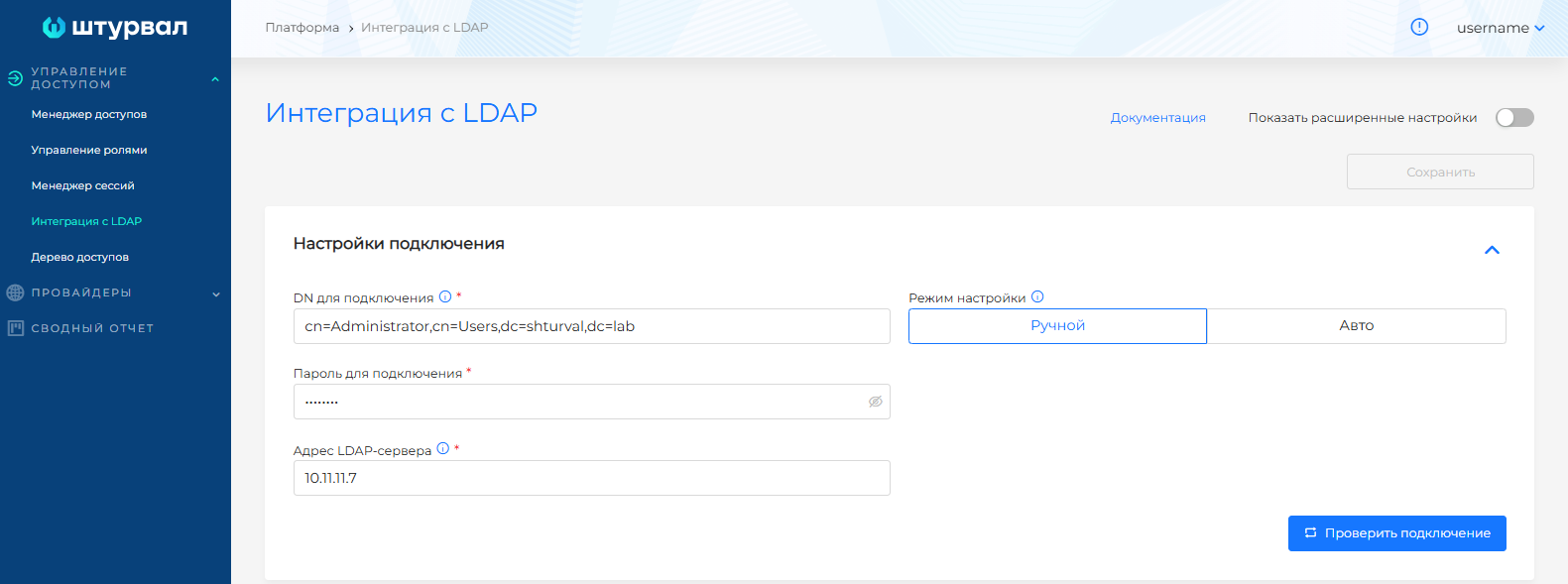
- Fill in the connection details. The connection fields must match the parameters with which you tested access via
ldapsearch:
| Field in the GUI | Parameter ldapsearch | What to indicate |
|---|---|---|
| DN for connection | -D | Account DN for connecting to the LDAP directory |
| Password for connection | -w | Password for this account |
| LDAP server address | -H | LDAP server address in FQDN or IP address format |
- Click Test connection.
Connecting to an LDAP directory
Search for groups
After successfully checking the connection, fill in the Search for groups block:
- Basic DN of group search;
- Group name attribute.
Search for groups
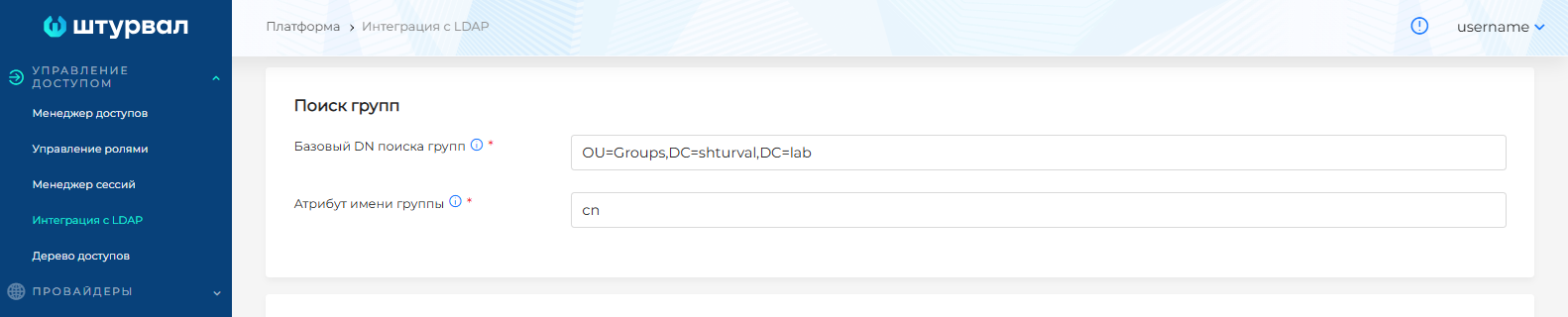
When filling in the fields, the output of the ldapsearch command is generated to check the search for groups. To view the request, expand the View ldapsearch request block under the group search settings.
Use it to test group searches from the command line and pass parameters to the LDAP directory administrator when troubleshooting errors.
Search for users
Fill out the Search for users block:
- Basic DN of user search;
- Email attribute or Email suffix;
- Name attribute;
- UserName attribute.
Search for users
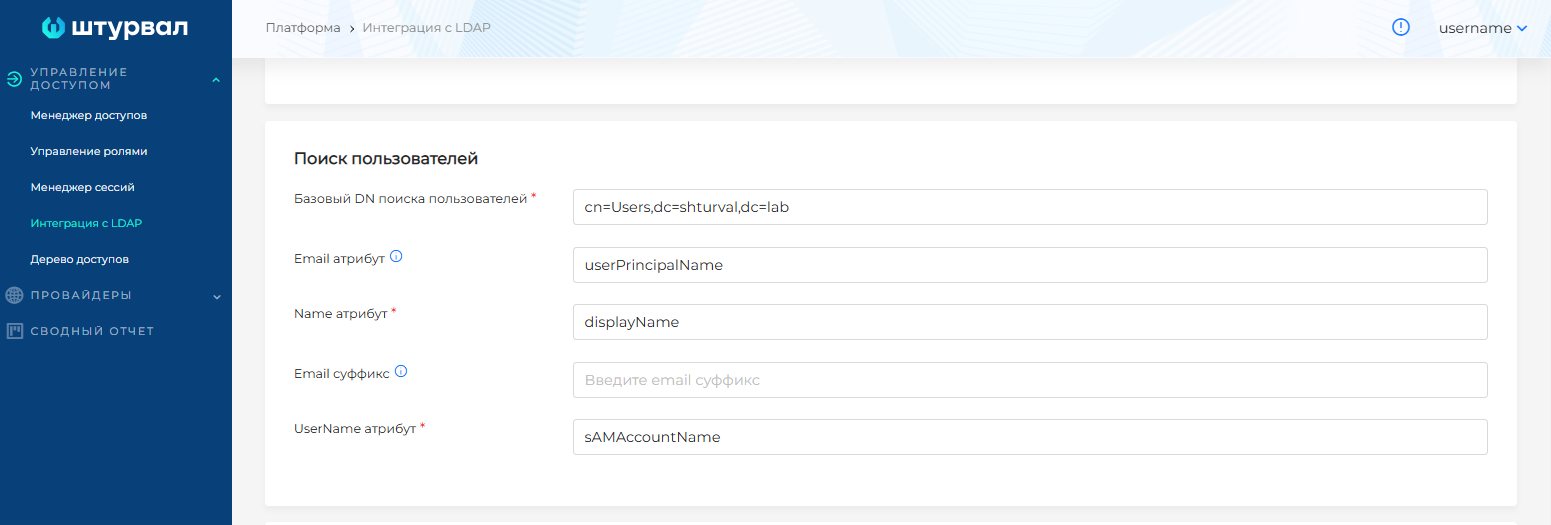
When filling in the fields, the output of the ldapsearch command is generated to check the search for users. To view the request, expand the View ldapsearch request block under the user search settings.
Use it to check what entries and attributes the directory returns.
User mapping
In the User Mapping block, specify the relationship between the user attribute and the group attribute. These attributes depend on your directory structure, so take them from the result of ldapsearch.
User mapping

Check and save
- Click Test.
- If the test is successful, click Save.
To change an already saved LDAP setting, enter the connection password again, test the integration and save the changes.
Advanced settings
In advanced settings, you can enable TLS, set Port and additional search parameters.
For LDAP without a secure connection, the port 389 is typically used. For LDAPS, the port 636 is typically used. For LDAP with startTLS the port 389 is typically used. If yourThe LDAP directory uses a different port, specify the port issued by the directory administrator.
When TLS is enabled, the following options are available:
| Parameter | What does |
|---|---|
| Connection via startTLS | Create a TLS session when connecting to LDAP. Disabled by default. |
| Enable CA Verification | Check the LDAP server certificate. If you enable verification, download a trusted root certificate. |
| Client Certificate | Client certificate file, if needed for connection. |
| Trusted Root Certificate | CA file that the platform should trust. Required when CA verification is enabled. |
| Client private key | Private key file for the client certificate. |
| Port | LDAP server port. For LDAPS, 636 is usually used, for LDAP/startTLS - 389. |
Configuring TLS
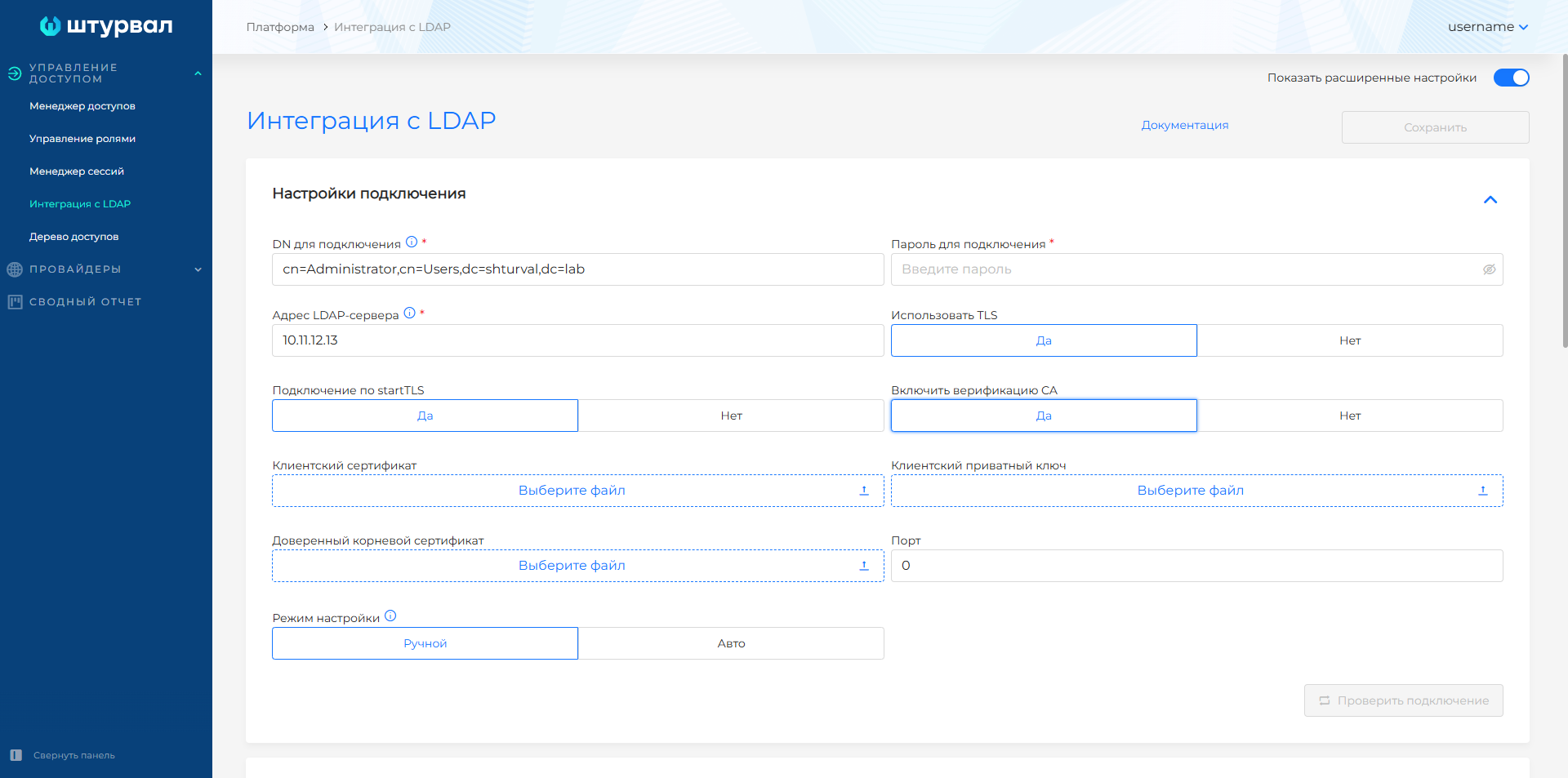
If you upload TLS certificates and keys, the platform saves them in base64 format. Once configured, these files can be downloaded from the GUI.
After filling in the TLS parameters, click Test. The DN and password in the platform must match the data you use when manually checking via ldapsearch, for example:
ldapsearch -H ldaps://LDAP-SERVER -b "CONTAINER-DN" -D "ACCOUNT-DN" -w "PASSWORD"
If CA verification is enabled, verify that the correct trusted root certificate is loaded.
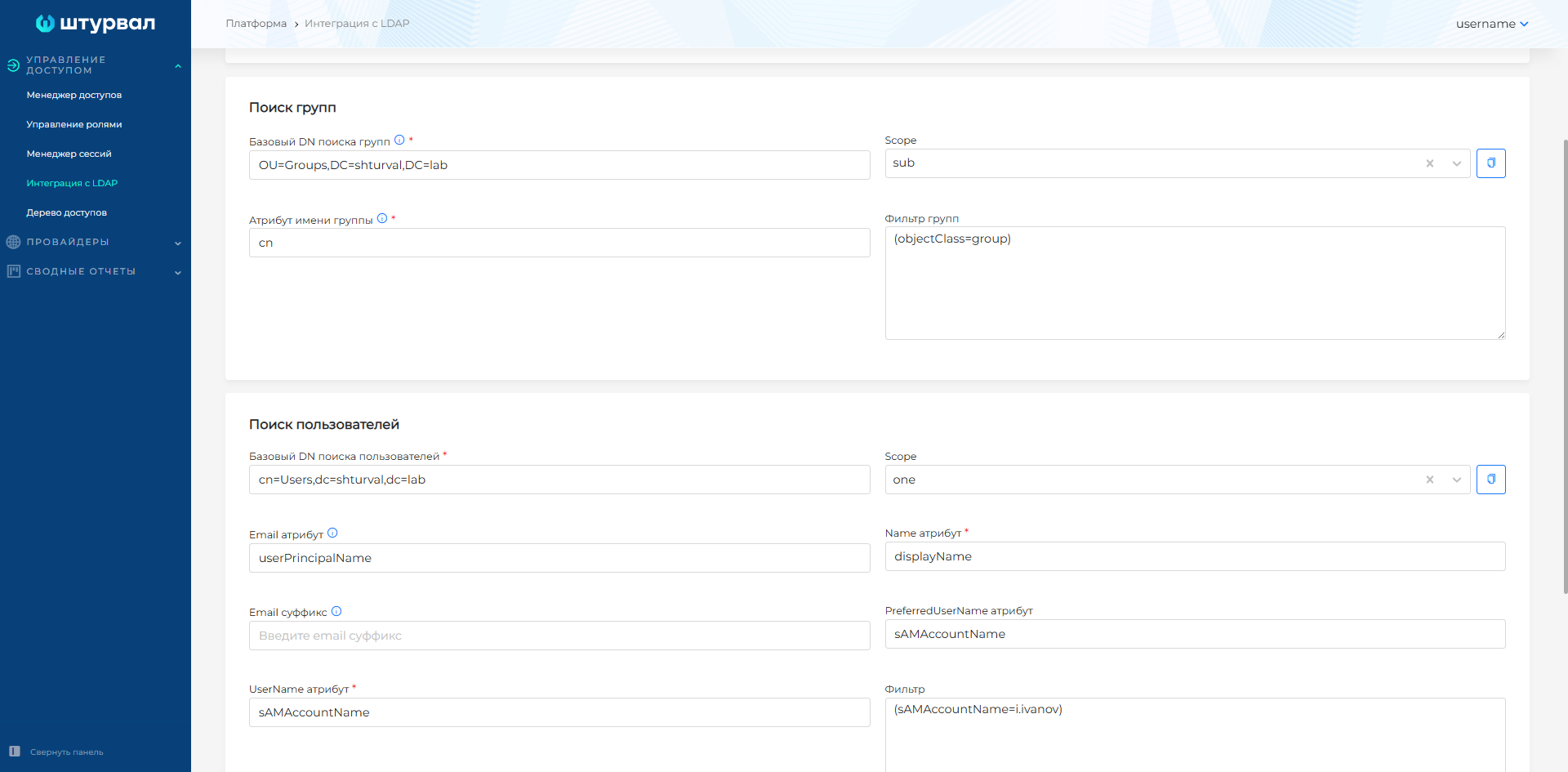
To search for users and groups in advanced settings, the following are available:
- Filter — additional search condition. Specify the filter in parentheses, as in
ldapsearch, for example(objectClass=group); - Scope — search area, for example
subfor searching the entire tree oronefor searching one level; - PreferredUserName attribute – user field with the preferred name.
If a filter, scope, or PreferredUserName attribute is specified in the advanced settings, these values are also included in the generated ldapsearch request.
Advanced search settings
Automatic configuration mode
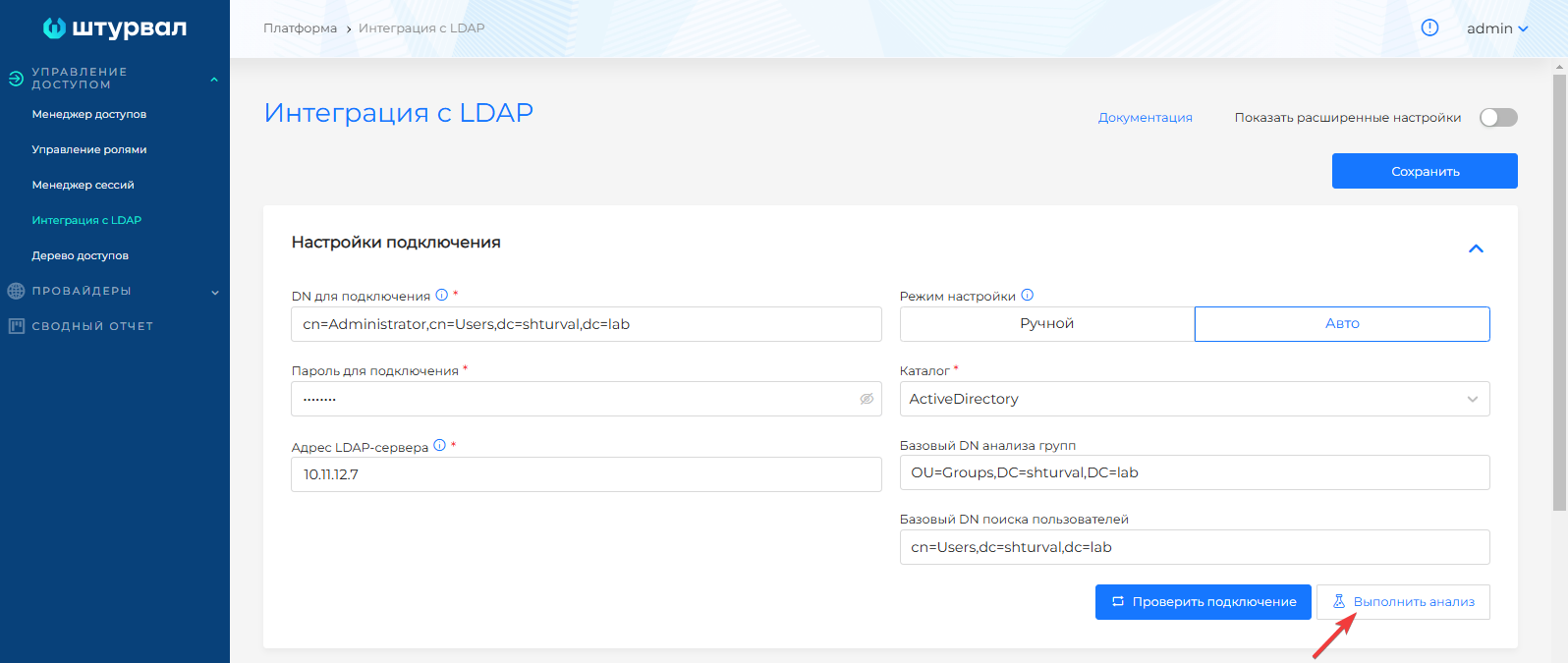
If automatic connection mode is selected:
- Select Catalog
- If necessary, specify the base DN for analysis of users and groups and click Perform analysis.
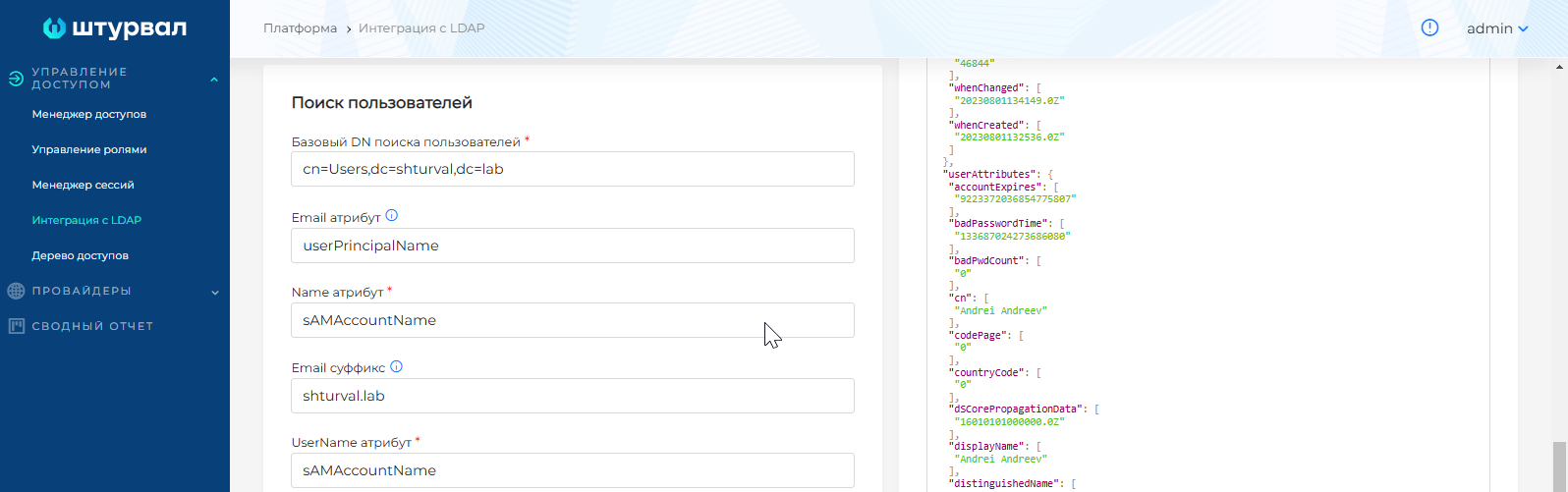
- Check the values that the platform has entered into the search fields for groups and users.
- Correct the values if they differ from the data in your LDAP directory.
- Test and save the setting.
After completionDuring the analysis, the platform also shows the generated query ldapsearch for the found search settings for users and groups. Review the request if you need to make sure which parameters were automatically recognized.
Start analysis
Result of analysis of groups and users

LDAP can be configured via Secret ldap-config in namespace shturval-backend.
- Prepare the file
config.json:
{
  "host": "ldap.example.ru",
  "insecureNoSSL": true,
  "insecureSkipVerify": true,
  "startTLS": false,
  "rootCA": "",
  "clientCert": "",
  "clientKey": "",
  "bindDN": "cn=admin,dc=example,dc=com",
  "bindPW": "YOUR_PASSWORD",
  "usernamePrompt": "",
  "userSearch": {
    "baseDN": "ou=Users,dc=example,dc=com",
    "filter": "",
    "username": "uid",
    "scope": "",
    "idAttr": "DN",
    "emailAttr": "mail",
    "nameAttr": "cn",
    "preferredUsernameAttr": "uid",
    "emailSuffix": ""
  },
  "groupSearch": {
    "baseDN": "ou=Groups,dc=example,dc=com",
    "filter": "",
    "scope": "",
    "userAttr": "",
    "groupAttr": "",
    "userMatchers": [
      {
        "UserAttr": "DN",
        "GroupAttr": "member"
      }
    ],
    "nameAttr": "cn"
  }
Main parameters:
| Parameter | What does |
|---|---|
host | LDAP server address |
insecureNoSSL | Do not use TLS session for connection |
insecureSkipVerify | Disable CA check |
startTLS | Create a TLS session when connecting to LDAP |
rootCA | Trusted root certificate in base64 format |
clientCert | Client certificate in base64 format |
clientKey | Client private key in base64 format |
bindDN | Account DN for connecting to LDAP |
bindPW | Account password for connection |
userSearch.baseDN | Base DN for user search |
userSearch.filter | User search filter |
userSearch.username | Unique username attribute |
userSearch.scope | Search area: sub or one |
userSearch.emailAttr | User email attribute |
userSearch.nameAttr | User’s full name attribute |
userSearch.emailSuffix | Email suffix |
groupSearch.baseDN | Base DN for group search |
groupSearch.filter | Group search filter |
groupSearch.scope | Search scope: sub or one |
groupSearch.nameAttr | Group short name attribute |
- Encode the file in base64:
cat /path/to/config.json | base64 --wrap=0
3.Create a Secret:
kubectl apply -f - <<EOF
apiVersion: v1
kind: Secret
metadata:
  name: ldap-config
  namespace: shturval-backend
type: Opaque
data:
  config.json: BASE64_CONTENT_CONFIG_JSON
EOF
Examples for different directories
The values below are examples. In your installation, use the values from your LDAP directory.
Active Directory
Example command to get users:
ldapsearch -H ldap://10.11.12.7 -b "cn=Users,dc=shturval,dc=lab" -D "cn=Administrator,cn=Users,dc=shturval,dc=lab" -w "PASSWORD"
Example attributes:
| Field in platform | LDAP attribute |
|---|---|
| Group name attribute | cn |
| Email attribute | userPrincipalName |
| Name attribute | displayName |
| UserName attribute | sAMAccountName |
| Email suffix | suffix from userPrincipalName, for example shturval.lab |
DN examples:
- DN for connection:
cn=Administrator,cn=Users,dc=shturval,dc=lab; - basic user search DN:
cn=Users,dc=shturval,dc=lab; - base group search DN:
OU=Groups,dc=shturval,dc=lab.
OpenLDAP
Example parameters:
| Field in platform | Example value |
|---|---|
| Connection DN | cn=admin,dc=example,dc=com |
| LDAP server address | ldap.example.ru |
| Base Group Search DN | ou=Groups,dc=example,dc=com |
| Group name attribute | cn |
| User Search Base DN | ou=Users,dc=example,dc=com |
| Email attribute | mail |
| Email suffix | @example.com |
The email suffix is specified if there is no separate email attribute explicitly in LDAP.
FreeIPA or ALD Pro
Example parameters:
| Field in platform | Example value |
|---|---|
| Connection DN | uid=admin,cn=users,cn=accounts,dc=freeipa,dc=tech |
| LDAP server address | freeipa.xxx.xx.msk.ru |
| Base Group Search DN | cn=groups,cn=accounts,dc=freeipa,dc=tech |
| Group name attribute | cn |
| User Search Base DN | cn=users,cn=accounts,dc=freeipa,dc=tech |
| Email attribute | mail |
| Email suffix | freeipa.tech |
| Name attribute | uid |
| UserName attribute | uid |
Samba DC
Example parameters:
| Field in platform | Example value |
|---|---|
| Connection DN | cn=admin,dc=example,dc=com |
| LDAP server address | ldap.example.ru or 10.11.112.33 |
| Group name attribute | cn |
| User Search Base DN | ou=users,dc=example,dc=com |
| Email attribute | mail |
| Email suffix | @example.com |
| Name attribute | displayName |
| UserName attribute | sAMAccountName |
MULTIDIRECTORY
A service account with rights to read the directory must be created in MULTIDIRECTORY.
Examples of connection parameters:
| Field in platform | Example value |
|---|---|
| Connection DN | cn=admin,cn=users,dc=example,dc=local |
| LDAP server address | 10.11.12.13 |
| Setting Mode | Manual |
| Use TLS | No |
Examples of group search parameters:
| Field in platform | Example value |
|---|---|
| Base Group Search DN | cn=groups,dc=example,dc=local |
| Group name attribute | cn |
| Group filter | (objectClass=group) |
Examples of user search parameters:
| Field in platform | Example value |
|---|---|
| User Search Base DN | cn=users,dc=example,dc=local |
| Email attribute | mail |
| Email suffix | @example.local |
| UserName attribute | sAMAccountName |
| Name attribute | displayName |
| PreferredUserName attribute | sAMAccountName |
| Filter | (objectClass=user) |
Search filters and PreferredUserName attribute are available in advanced settings.
To map users and groups, specify:
| Field in platform | Example value |
|---|---|
| User attribute | memberOf |
| Group Attribute | distinguishedName |
Checking search and assigning rights
After saving the LDAP integration, check the search:
- Open the Access Management section in the platform → Manage Roles page or click Assign Access on the Platform tab.
- Click + next to the Users or Groups table.
- Start typing your user or group name.
- The search starts from the second character entered.
- Select an entry from the list and assign access sets.
Search for a user when assigning rights
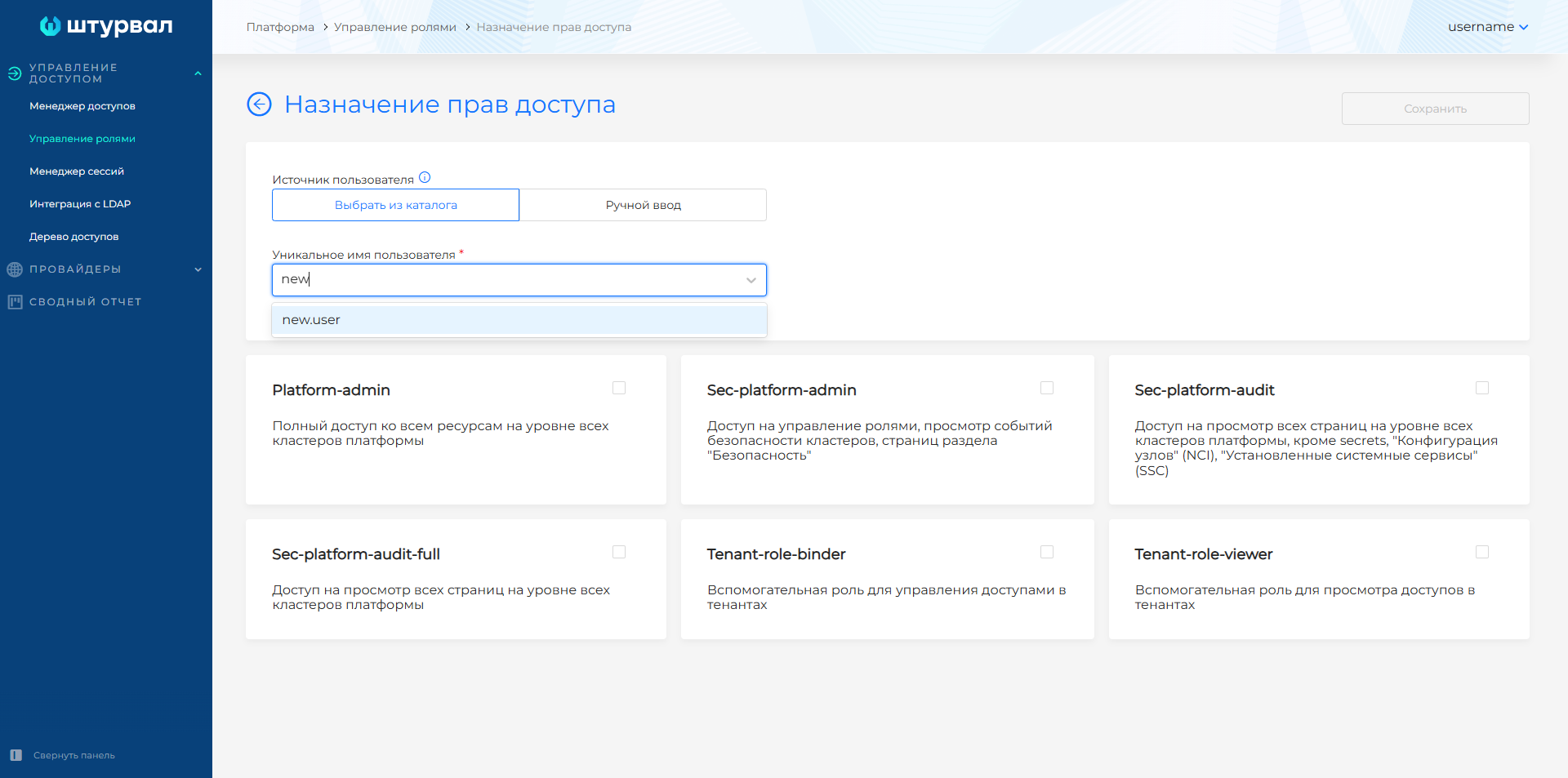
Catalog search is not case sensitive.