Preparation
Deploying a mirror and checking before installing a cluster.
Installation sequence (closed loop)
Below is a general diagram of steps from preparation to launch of the platform. Details on each stage are in the sections of this page and on the Installation process page.
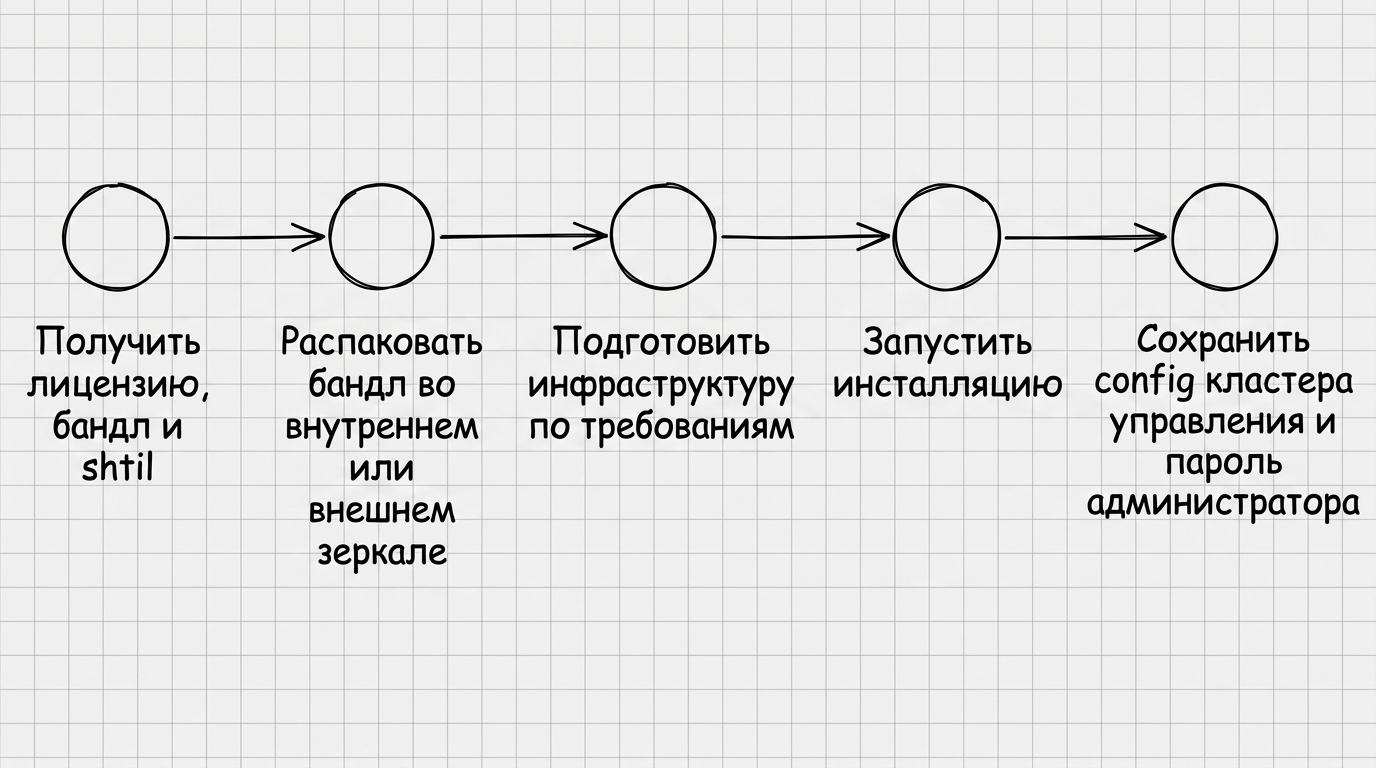
In a closed loop, the installer and nodes access a mirror of images and packages, which is deployed before the management cluster is installed. The stm and shtil utilities are launched on Linux hosts: stm — on the mirror host to upload the bundle to the mirror, shtil — on the administrator’s machine to launch a local installation cluster and deploy a management cluster. After preparing the Enterprise license, bundle, mirror, shtil machine and target infrastructure, run install-gui, install-cli or YAML installation with mirror parameters.
Preparing the environment
The goal is for the license, mirror, bundle, network and rights on the machine and nodes to be ready by the time shtil is launched.
- License — Enterprise only; needed to deploy the mirror and for bootstrap when running
shtil. - Bundle - tar archive with images and packages for the platform version. Reported by the manager from Shturval.
- Mirror host is a host with Linux OS on which stm runs. Requirements for the host - in the section Requirements for the mirror host.
- Machine shtil is a workstation or host with one of the supported OS, Podman from the bundle (if
shtilis launched on the same host) and access to the mirror via HTTPS (port according to the mirror configuration, usually 443). Do not plan to add this host to the cluster as a node. - Infrastructure provider - read in advance how the work with providers in the platform works: it depends on the selected provider whether you need to prepare ready-made hosts or a VM template.
- Target infrastructure: either already prepared physical or virtual nodes Linux (provider script Shturval v2), or virtualization (oVirt and similar, VMware vSphere), from which the installer will create virtual machines for management cluster nodes. In all cases, determine the number of Control Plane and Worker nodes and their resources in advance (see requirements).
- KubeAPI and Ingress Balancing: Determine in advance whether you are using internal balancers (free VIP on nodes) or external. Requirements for the Control Plane and VIP subnets for internal balancers are in the Control Plane subnet and virtual IP (VIP) section. Requirements for an external load balancer are in the External load balancer section.
- For Shturval v2, an SSH key without passphrase is transferred to each node, and the user must be able to perform
sudowithout entering a password for installation.
Working with a mirror
A mirror is a local repository of platform images and packages. The cluster nodes will download the distribution from the mirror, because They don’t have internet access. You need to deploy the mirror before starting the cluster installation; Before deployment, check [mirror host resource requirements](/2.14/en/platform-admin/installation/closed-circuit/requirements/#Mirror Host Resources).
You can also use an existing mirror - see the External Nexus section.
To work with a mirror, use the stm (Shturval Mirror) utility. It is included in the bundle: after unpacking the bundle, you run the stm commands on the mirror host. The mirror can be deployed as root or in rootless mode (from an unprivileged user) - see the section Rootless launch mirror. Below is a step-by-step sequence depending on whether this host has Internet access.
Scenario 1: Closed loop (there is no internet on the mirror)
The mirror host does not have Internet access. All images and packages are taken only from the bundle. Step 1. Transfer and unpack the bundle
Transfer the tar archive received from the Shturval manager to the mirror host (SCP, removable media, etc.). Create a directory and unpack the bundle into it:
mkdir newbundle && cd newbundle
tar -zxvf bundle_name.tar.gz
CD..
As a result, a directory with the contents of the bundle (including the stm utility) will appear. Remember the path to it - for example, ./newbundle/shturval-bundle.
Step 2. Initializing the mirror and downloading the contents of the bundle
One command creates a mirror configuration (certificates, Nexus, Nginx) and loads images and packages from the bundle into it:
stm bundle make --fqdn=FQDN-MIRRORS --license=XXXX-XXXX-XXXX
Substitute MIRROR-FQDN with the address at which nodes and the shtil machine will access the mirror (for example, mirror.corp.local). Substitute XXXX-XXXX-XXXX with your Enterprise license. Run the command from the directory with the unpacked bundle, or specify the bundle path if needed.
After successful execution, the mirror is launched and ready to receive requests.
Alternative: Initialize and load separately
If you first only need to create a mirror configuration, then download the bundle:
# Initialization only (configuration, certificates, Nexus/Nginx startup)
stm init --fqdn=mirror.corp.local --license=XXXX-XXXX-XXXX

# Then download the contents of the bundle
stm bundle load --path=./newbundle/shturval-bundle
Scenario 2: Conditionally closed loop (there is Internet on the mirror)
The mirror host has Internet access. You can initialize the mirror once and download images and packages from the Shturval repository (without a preliminary bundle).
Step 1. Initializing the mirror and downloading from the repository
One command creates a mirror and downloads the specified version of the platform from the Internet:
stm make --fqdn=mirror.corp.local --license=XXXX-XXXX-XXXX --version=2.14.0
Step 2. Updating the mirror (when new versions are released)
If the mirror is already deployed and you need to add a new version:
stm download --version=2.14.0
For reference: other stm commands
| Command | Purpose |
|---|---|
stm start | Launch of the mirror |
stm stop | Stopping the mirror (if necessary, with the --force flag) |
stm restart | Restarting the mirror |
stm status | Checking the mirror and registry status |
stm uninstall | Removing a mirror |
stm bundle check | Checking the integrity of the bundle |
stm bundle load --path=PATH | Loading bundle contents (after executing stm init) |
Initialization parameters (for stm init / stm bundle make / stm make): required - --fqdn, --license; for downloading from the repository additionally --version. Optional: --cert-file, --privkey-file (import your certificate), --https-port, --registry-port, --cri-socket.
External Nexus
If you are using an external Nexus (already deployed in the infrastructure), images and packages can be loaded into it, and only Nginx with a mirror configuration can be deployed for access from nodes.
Preparing an external Nexus: create hosted repositories in raw, helm, docker formats (the docker repository must have a dedicated port - connector). For apt distributions you need a hosted apt repository (in the config - deb_universal), for yum - hosted yum (rpm_universal). Repository names are specified in the configuration.
stm commands:
| Command | Purpose |
|---|---|
stm external config | Generating example configuration config/external-config.yaml |
stm external load --path=PATH | Uploading bundle contents to external Nexus |
stm external nginx --fqdn=FQDN [--cert-file=... --privkey-file=...] | Deploying Nginx to proxy requests to an external Nexus |
Copy the generated example to config/external-config.yaml, fill in the matching repository names and connection parameters to Nexus. For a conditionally closed loop, downloading from the Shturval repository is available: stm external sync.
Rootless mirror launch
The mirror can be run as an unprivileged user (rootless): containers run without root, which increases security. Modetested on Ubuntu 20, 22, 24, Astra Linux 1.7, 1.8, RED OS 7 and 8, Alt Linux 10, Rosa Chrome, OSNOVA, Sber Linux, Debian 11 and 12, OEL 8, RHEL 8 and 9, Rocky Linux 8 and 9. Other distributions may require additional configuration.
Preparing as root
Create a user and group from which the mirror will be launched. Requirement: The user must have a home directory.
Assign subuid and subgid ranges, enable lingering:
usermod --add-subuids 100000-165535 $USER
usermod --add-subgids 100000-165535 $USER
loginctl enable-linger $USER
Make sure that the newuidmap and newgidmap utilities are installed (usually included in the
uidmappackage).Check the
kernel.unprivileged_userns_clonekernel parameter: runsysctl kernel.unprivileged_userns_clone. If the value is 0, set it to 1 (add to/etc/sysctl.confand executesysctl -p). If the error is “No such file or directory”, you can ignore it on supported distributions.Ports 80 and 443 are not accessible to unprivileged users by default. Options:
- when initializing the mirror, specify ports higher than 1024:
--http-port=1080 --https-port=1443(or other free ones); - or set
net.ipv4.ip_unprivileged_port_start=80(to/etc/sysctl.conf, thensysctl -p) to allow snapping to 80 and 443.
- when initializing the mirror, specify ports higher than 1024:
If you use firewalld (Sber Linux, OEL, RHEL, Rocky) - open the ports:
firewall-cmd --add-port=80/tcp --permanent
firewall-cmd --add-port=443/tcp --permanent
firewall-cmd --reload
(If the mirror listens on something other than 80/443, specify your ports.)
Download and unpack the bundle into a directory accessible to this user.
As root perform initialization specifying the user UID and GID and, if necessary, ports:
./stm init --fqdn=mirror.corp.local --license=XXXX-XXXX-XXXX --uid=1001 --gid=1001 --http-port=1080 --https-port=1443
Substitute your --uid and --gid (user and group id). After initialization, the mirror will be stopped, the owner of the files will change to the specified uid:gid.
Launch and work as user
- Switch to the created user and launch the mirror:
stm start
- Download content from the bundle or repository:
# from bundle
stm bundle load --path=./newbundle/shturval-bundle

# from r.shturval.tech (conditionally closed loop)
stm download --version=2.14.0
- Perform further control of the mirror (stop, start, restart) from the same user:
stm stop,stm start,stm restart.
Features on selected distributions
Alt Linux: The newuidmap and newgidmap utilities may not be available to the user. Run as root:
chmod 751 /usr/bin/newuidmap /usr/bin/newgidmap
chmod u-s /usr/bin/newuidmap /usr/bin/newgidmap
setcap cap_setuid+eip /usr/bin/newuidmap
setcap cap_setgid+eip /usr/bin/newgidmap
If iptables is not available to the user, add /sbin/ to PATH or create symlinks, for example in /bin: ln -s /sbin/xtables-legacy-multi /bin/iptables, similarly for ip6tables.
Basic: package with newuidmap/newgidmap may be missing; It is possible to install the uidmap package from a compatible distribution (for example, Ubuntu 20). In /etc/sysctl.conf add user.max_user_namespaces = 15000 and execute sysctl -p.—
Certificate from ACME (Step-CA, certbot)
The mirror module is not integrated with the ACME server. A certificate from Step-CA or another ACME provider can be obtained using certbot, then copied to the mirror directory.
- Stop the mirror (to free ports 80/443):
stm stopordocker stop shturval_proxy. - Request a certificate (substitute your FQDN, ACME server address, email and, if necessary,
REQUESTS_CA_BUNDLEfor the CA root certificate):
REQUESTS_CA_BUNDLE=/path/to/root_ca.crt certbot certonly -d mirror.corp.local \
  --server https://acme-server.example.local/directory --standalone --agree-tos -m admin@example.local
- Copy the certificates to the mirror directory (replace the path to the mirror and FQDN with your own):
cp /etc/letsencrypt/live/FQDN_MIRROR/fullchain.pem PATH_TO_MIRROR/config/certs/dst.pem
cp /etc/letsencrypt/live/FQDN_MIRROR/fullchain.pem PATH_TO_MIRROR/config/certs/fullchain.pem
cp /etc/letsencrypt/live/FQDN_MIRROR/privkey.pem PATH_TO_MIRROR/config/certs/privkey.pem
- Start the mirror:
stm start. - Set up a certificate renewal on a schedule (cron or systemd timer): before renewal, stop Nginx/mirror, run
certbot renew, copy new files toconfig/certs/, start the mirror again.
Working with certificates
The certificate can be imported during initialization (--cert-file, --privkey-file) or as a separate command:
stm cert import --cert-file=export/mirror_cert.pem --privkey-file=export/privkey.pem
Certificate requirements: PEM, CA chain + certificate, subjectAltName with mirror FQDN (same as --fqdn).
CSR generation:
stm cert csr --fqdn=mirror.corp.local
The CSR and key are saved in the export/ directory.
Verifying successful mirror deployment
Run the Commands to check section below: Mirror DNS, HTTPS to Mirror, stm status on the mirror host.
When the mirror is ready
Machine shtil (administrator’s workstation)
Machine shtil is a workstation or jump host with Linux OS, from which the shtil utility is called.
The following must be done on the machine:
- Podman is available from the bundle; the executable file is located in
PATH. If running shtil on the same host where the mirror is initialized, do not manually install Podman/Docker. If you are using Docker and the mirror has a self-signed or corporate CA, trust in the mirror is configured at the Docker daemon level before runningshtil; the--bootstrap-insecureflag is not enough for the primarydocker pull. - There is network access to the FQDN of the mirror via HTTPS (port according to the mirror settings, usually 443).
- The GUI script (
install-gui) requires sufficient permissions to work with the/tmpdirectory, usually when run as root or via sudo.
Requirements for the minimum free resources of the shtil machine when installing with GUI (`install-gui`)
| Parameter | CPU (vCPU) | Memory(GiB) | Disk (GiB) |
|---|---|---|---|
The machine that runs install-gui | 3 | 3 | 20 |
After running install-gui, a check of free resources is performed.
The shtil executable file is included in the bundle. After unpacking the bundle, copy the utility to the shtil machine and make the file executable:
chmod +x ./shtil
The shtil version must match the bundle version.
Commands for checking before installation
Below are typical checks before running shtil. Substitute MIRROR-FQDN and VIP addresses from your schema (see requirements).
DNS: mirror name is resolved (machine quiet and node if necessary)
getent hosts FQDN-MIRRORS
Success Criteria: The output contains the IP address of the mirror.
If there are no records: configure a corporate DNS or local resolver; Without resolution, nodes and shtil will not be able to access the mirror via HTTPS. For a temporary diagnosis, you can check the local /etc/hosts, but a permanent solution must comply with your infrastructure policy.
HTTPS to mirror (shtil machine or node)
curl -I --connect-timeout 10 https://FQDN-MIRRORS
Success criterion: in the response HTTP/1.1 200 or HTTP/2 200 (or other successful code from your Nginx/mirror).
If there is no answer or there is an error - follow the steps:
- Check the detailed output: it will show where the break is - DNS, TCP, TLS or server response.
curl -vI --connect-timeout 10 https://FQDN-MIRRORS
- Check that the mirror port is accessible from the shtil machine and from the cluster nodes. If the mirror listens on something other than 443, specify the actual port:
curl -vI --connect-timeout 10 https://FQDN-MIRROR:PORT
- If there is a TLS error with a self-signed certificate, the following can be used for diagnostics:
curl -vkI --connect-timeout 10 https://FQDN-MIRRORS
For a production installation, negotiate trust in the CA or use the --bootstrap-insecure / --bootstrap-registry-certs-dir flags when running shtil (see installation process).
Setting up a Docker mirror trust
The --bootstrap-insecure and --bootstrap-registry-certs-dir flags affect containerd inside the bootstrap cluster (via hosts.toml or CA mounting). These flags do not configure the local Docker daemon to be trusted.
The initial TLS check at docker pull is performed by the Docker daemon itself before the bootstrap cluster is launched. For a mirror with a self-signed or other untrusted certificate, --bootstrap-insecure alone is not enough: before starting the installation, configure trust in the mirror in one of the following ways.
sudo mkdir -p /etc/docker/certs.d/FQDN-MIRRORS
sudo cp /path/to/ca.crt /etc/docker/certs.d/FQDN-MIRRORS/ca.crt
If the mirror does not work on a standard port, and use directory with port: /etc/docker/certs.d/MIRROR-FQDN:PORT/ca.crt. There is no need to restart Docker when adding a CA to /etc/docker/certs.d/: Docker reads this directory on the fly.
- Open the file
/etc/docker/daemon.jsonand write
{
  "insecure-registries": ["FQDN-MIRRORS"]
}
- Restart Docker:
sudo systemctl restart docker
If trust in the mirror for Docker is not configured, the installer displays a warning in advance, and if docker pull fails, an error with the specific path /etc/docker/certs.d/<registry-host:port>/ca.crt for your mirror.
If the test fails after diagnostics: Before starting the installation, eliminate DNS, routing, firewall or mirror certificate settings.
Mirror host: stm status
stm status
Success Criteria: Mirror components are in working order (see command output).
If stm is not found: run the command from the directory with the unpacked bundle or add the path to stm to PATH.
If the components are stopped: start the mirror and check again:
stm start
stm status
If the status is still not working, check the availability of Nginx ports, the certificate and the mirror initialization parameters.
Checking that virtual IP addresses are free
On each IP address from the Control Plane subnet that will be used as a KubeAPI or Ingress VIP and is not already assigned to a host interface, run the following check:
ping -c 2 IP
Replace IP with a real address (for example, ping -c 2 10.11.12.100).
Success criterion: nodes in the subnet do not respond to ping for the selected VIP (the address is free under kube-vip).
If the node responds: the selected IP is already in use - select another free IP from the Control Plane subnet and repeat the check. If ICMP is not allowed on your network, discuss with your network administrator another way to check if the address is available.
Node: SELinux (if distribution with SELinux)
getenforce
If the getenforce command is not available: on a distribution without SELinux, this subsection do not use.
Output options:
- enforcing — the policy is applied (for an agreed scenario, a transition to
permissiveordisabledis required, or a separate policy as agreed with IS). - permissive - warnings without blocking (suitable if agreed with information security).
- disabled — the policy is not loaded (suitable if agreed with IS).
If the mode is enforcing and you need to disable SELinux before installation (after agreement with IS):
sudo sed -i 's/^SELINUX=.*/SELINUX=disabled/' /etc/selinux/config
After this, reboot:
sudo reboot
Uzel: time and NTP
timedatectl status
With Chrony installed:
chronyc tracking
Success Criteria: Time is synchronized; the discrepancy with the shtil machine is not significant for your policy (a large discrepancy is a risk for certificates and etcd).
If the chronyc command is not available: use timedatectl first and compare date; If necessary, configure or install Chrony according to your OS documentation.
If the time is out of sync: configure NTP or Chrony on the nodes, the shtil machine, and the mirror host, then retest.
Node: Package Repositories
Debian/Ubuntu:
sudo apt update
RHEL and compatible (if dnf is present):
sudo dnf repolist
If dnf is not present:
sudo yum repolist
Success Criteria: No errors due to completely inaccessible repositories.
If the test fails: disable inaccessible OS repositories or configure available package sources in a closed loop based on your organization’s policy. Repeat the command. While the package index update fails due to inaccessible repositories, the installation may fail during the OS package steps.
Working with providers
Before installation, select an infrastructure provider and prepare it for the appropriate scenario. For the general scheme - provider instances, IP pools and VM templates - see the page How to work with providers in the platform.
oVirt and similar providers
If oVirt, zVirt, HostVM, EDIT Virtualization or ROSA Virtualization is selected, prepare the virtualization environment before starting the installation: an account with the necessary rights, Datacenter, Cluster, a network with a VNIC and DHCP profile. Details are on the page oVirt and similar providers.
For management cluster nodes, create a virtual machine template in advance. When using a mirror, specify in stc template the same registry that will be used when deploying the platform.
VMware vSphere
If VMware vSphere is selected, prepare vCenter: an account with service roles, Datacenter, Resource Pool, Network, Datastore and the path for storing the VM. Details are on the VMware vSphere page.
For management cluster nodes, create a virtual machine template in advance. Make sure that the template is connected to the network from which future VMs will receive addresses via DHCP, and prepared with closed loop registry parameters.
Provider Shturval v2
If you choose this providerraise physical or virtual hosts before installation. Resource and OS requirements are on the page with requirements, and the procedure for adding hosts is on the page Shturval v2.
Locally generate a key without passphrase and copy it to each node:
ssh-keygen -t ed25519 -f ./shturval -N ""
ssh-copy-id -i ./shturval.pub shturval@10.11.12.1
Repeat ssh-copy-id for each host IP address (substitute your user and addresses). The SSH key must be without passphrase. The user (for example, shturval) must have sudo without a password on all target nodes.
ssh -i /path/to/private_key USER@NODE
ssh -i /path/to/private_key USER@NODE 'sudo -n true'
Success criterion: login using a key without asking for a key password; the second call ends with code 0.
If SSH login is unsuccessful: check the host’s IP or FQDN, user, private key path, key file permissions, and that the public key has been copied to the host. Ensure that the sshd service on the host is accepting connections and is not being blocked by the firewall.
If sudo -n true fails: configure sudo to run without prompting for a password for the installation user, for example via sudoers according to your organization’s rules.
Checklist before installation
- Mirror host - prepared (SELinux disabled/permissive, ports 80 and 443 are free; Podman is not manually installed if
shtilis running on the same host) - Bundle - received from Shturval manager (tar archive with images and packages)
- Enterprise license - obtained under agreement
- Machine shtil - there is access to the mirror via HTTPS; if Docker is used and the mirror has an untrusted certificate, trust is configured at the Docker daemon level
- Working with providers - read how providers are structured in the platform.
- Shturval v2 provider - if this provider is selected, physical or virtual hosts of the future cluster are created, an SSH key without passphrase and
sudowithout a password are configured (see Shturval v2). - OVirt provider and similar or VMware vSphere - if one of these providers is selected, virtualization is prepared and a provider VM template is created; details: oVirt and similar, VMware vSphere.
- NTP - time is synchronized on all nodes and the mirror host
- VIP or external balancers - prepared according to the selected scenario for KubeAPI and Ingress
- Access to the mirror - from the shtil machine and from each nodecluster on port 443 (see section Commands for checking: DNS and HTTPS)