Preparation
Checks and preparation before installation.
Installation sequence (open loop)
Below is a general diagram of steps from preparation to launch of the platform. The detailed GUI/CLI/YAML process is on the Installation Process page.
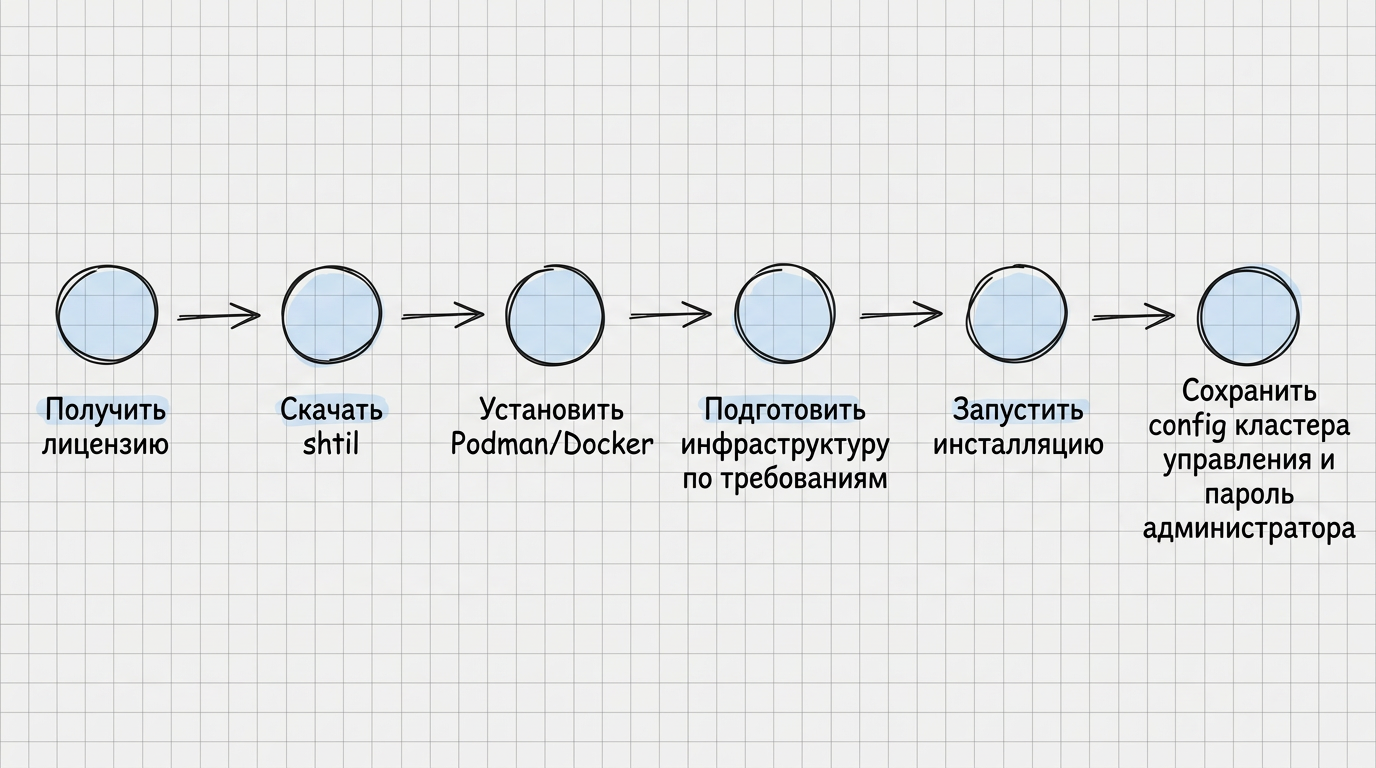
In open loop, the installer and nodes access the public image registry r.shturval.tech. The command line utility shtil runs on the administrator’s Linux machine (it is called the shtil machine): it does not replace the hypervisor and does not “become a cluster node”, but raises temporary installation Kubernetes locally (via a container) and/or deploys the management cluster - the platform control center Shturval.
Preparing the environment
The goal is that by the time shtil is launched it will not run into problems with the lack of a license, network or rights on the machine and nodes.
- The shtil utility must be available on the administrator’s Linux machine.
- License confirms the platform edition (CE or Enterprise) and is needed already at the bootstrap stage - the initial download of the installer components. Without it, commands like
install-gui/install-cliwill not be executed. CE license can be obtained through Telegram bot or form on website; Enterprise - under contract. - The shtil machine with one of the supported OS must be able to run containers (Docker or Podman), see the runtime binary in
PATHand have outgoing access tor.shturval.tech:443. If you choose to install GUI (install-gui), the installer also uses/tmpfor temporary cluster overhead - the account must have permissions to do this (often running as root or viasudo). - Infrastructure provider - read in advance how the work with providers in the platform works: it depends on the selected provider whether you need to prepare ready-made hosts or a VM template.
- Target infrastructure: either already prepared physical or virtual nodes Linux (provider script Shturval v2), or cloud/virtualization (oVirt and the like, VMware vSphere, OpenStack and the like), from which the installer will create virtual machines for the management cluster nodes. In all cases, you need to understand in advance how many Control Plane and Worker nodes you are installing and what resources they have(see requirements).
- KubeAPI and Ingress Balancing: Determine in advance whether you are using internal balancers (free VIP on nodes) or external. Requirements for the Control Plane and VIP subnets for internal balancers are in the Control Plane Subnet and Virtual IP (VIP) section on the requirements page. Requirements for an external load balancer are in the External Load Balancer section.
- For Shturval v2, an SSH key without passphrase is transferred to each node, and the user for installation must be able to execute
sudowithout entering a password - otherwise the automation of deployment on nodes will stop.
Machine shtil (administrator’s workstation)
Machine shtil is a workstation or host with one of the supported shtil launch machine OS, from which the shtil utility is called.
The following must be done on the machine:
- Docker or Podman installed; The runtime executable file is located in
PATH(otherwise the installation may fail). If your installation uses Docker and the image registry is accessible through a self-signed or other untrusted certificate, trust in the registry must be configured at the Docker daemon level before runningshtil. - There is network access to
r.shturval.techvia HTTPS (port 443). - For the GUI installer script (
install-gui), you need rights sufficient to work with the/tmpdirectory (where temporary installation cluster files are created), usually when running as root or via sudo - be guided by the policy of your OS.
Requirements for the minimum free resources of the shtil machine when installing with GUI (`install-gui`)
| Parameter | CPU (vCPU) | Memory (GiB) | Disk (GiB) |
|---|---|---|---|
The machine that runs install-gui | 3 | 3 | 20 |
After running install-gui, a check of free resources is performed.
To check outgoing access to https://r.shturval.tech:443 from the machine shtil, see the Commands to check section below.
shtil utility: loading and call parameters
Download shtil-2.14.0:
Make the file executable:
chmod +x ./shtil-2.14.0
If necessary, rename the file to a friendly name (for example, shtil):
mv ./shtil-2.14.0 ./shtil
The version of shtil must match the version of the platform being deployed.
Commands for checking
Machine shtil: access to the public image registry r.shturval.tech
curl -I https://r.shturval.tech
If successful, the response headers typically include HTTP/2 200 or HTTP/1.1 200.
If there is no response or there is an error, you need to provide outgoing access to the host r.shturval.tech via TCP 443 (HTTPS). Follow the steps:
- DNS check - the name must resolve to IP:
getent hosts r.shturval.tech
If there are no entries, configure corporate DNS or resolver settings on the machine according to your OS and policy (otherwise curl will not be able to connect).
- HTTPS Diagnostics - detailed output shows at what stage the failure occurred (resolve, TCP, TLS, server response):
curl -vI --connect-timeout 10 https://r.shturval.tech
- Proxy - if outgoing HTTPS is only possible through a proxy, set the variables (substitute URL of your proxy; login/password, if needed, add to the URL according to the rules of your organization):
export HTTPS_PROXY=http://proxy.corp:3128
export HTTP_PROXY=http://proxy.corp:3128
curl -I https://r.shturval.tech
- Network Policy - If after steps 1-3 there is still no successful response, check with your network administrators to allow outbound access to
r.shturval.tech:443(and the correct proxy scheme if required).
If the check is unsuccessful after completing steps 1–4: without outgoing access to r.shturval.tech:443 from the machine shtil open loop for installation not ready - remove the blocking on the network side or select another workstation with already allowed access.
Machine shtil: checking access to /tmp (install-gui script)
Run under the same account with which you will run ./shtil.
touch /tmp/shturval-install-prep-check
rm -f /tmp/shturval-install-prep-check
If the check fails: run install-gui as a user with write permissions to /tmp (often root or via sudo), or remove your OS policy restrictions. Otherwise, the installer will not be able to place temporary cluster service data.
Checking that virtual IP addresses are free
On every IP address from the Control Plane subnet that will be used as a VIP (for KubeAPI and/or Ingress), run the following check:
ping IP
Replace IP with the real address (for example, ping -c 2 10.11.12.100 is allowed on the command line).
If the node responds to ping for the selected VIP, select another free IP from the Control Plane subnet;
Checking that SELinux is disabled or permissive (if the distribution has SELinux)
getenforce
If the getenforce command is not available: on a distribution without SELinux thissubsection do not use (see checklist).
Output options:
- enforcing — the policy is applied (for an agreed scenario, a transition to
permissiveordisabledis required, or a separate policy as agreed with IS). - permissive - warnings without blocking (suitable if agreed with information security).
- disabled — the policy is not loaded (suitable if agreed with IS).
If the mode is enforcing and you need to disable SELinux before installation (after agreement with IS):
Disabling SELinux in the configuration (effective after reboot):
sudo sed -i 's/^SELINUX=.*/SELINUX=disabled/' /etc/selinux/config
After this, reboot:
sudo reboot
Host: Time and NTP
timedatectl status
If Chrony is installed:
chronyc tracking
If the chronyc command is not available: use timedatectl first and compare date; If necessary, configure or install Chrony according to your OS documentation.
Node: package repositories (one command for your OS)
Debian/Ubuntu:
sudo apt update
RHEL and compatible (if dnf is present):
sudo dnf repolist
If dnf is not present:
sudo yum repolist
If the check is unsuccessful: resolve errors accessing mirrors (disable inaccessible native repositories or configure available package sources according to your organization’s policy). Repeat the command. While the package index update fails due to inaccessible repositories, the installation may fail at the OS package steps.
Working with providers
Before installation, select an infrastructure provider and prepare it for the appropriate scenario. For the general scheme - provider instances, IP pools and VM templates - see the page How to work with providers in the platform.
oVirt and similar providers
If oVirt, zVirt, HostVM, EDIT Virtualization or ROSA Virtualization is selected, prepare the virtualization environment before starting the installation: an account with the necessary rights, Datacenter, Cluster, a network with a VNIC and DHCP profile. Details are on the page oVirt and similar providers.
For management cluster nodes, create a virtual machine template in advance. Nodes will be created from this template during the installation process.
VMware vSphere
If VMware vSphere is selected, prepare vCenter: an account with service roles, Datacenter, Resource Pool, Network, Datastore and the path for storing the VM. Details are on the VMware vSphere page.
For management cluster nodes, create a [virtual template] in advancenew machine](/2.14/en/platform-admin/providers/template/). Make sure that the template is connected to the network from which future VMs will receive addresses via DHCP.
OpenStack and similar providers
If OpenStack, VK Cloud or Selectel is selected, prepare the cloud before starting the installation: a service account with the necessary rights, API connection parameters, project, region, networks, VM types and disk types. Details are on the page OpenStack, VK Cloud, Selectel.
For management cluster nodes, create a virtual machine template in advance. For VK Cloud, check the access type to the image: the platform can only use images with the access type public.
Provider Shturval v2
Raise physical or virtual hosts before starting the installation with one of the OSes from the cluster node OS table. Resource requirements are in the requirements section, and the procedure for adding hosts is on the Shturval v2 page.
Locally generate a key without passphrase and copy it to each node:
ssh-keygen -t ed25519 -f ./shturval -N ""
ssh-copy-id -i ./shturval.pub shturval@10.11.12.1
Repeat ssh-copy-id for each host IP address (substitute your user and addresses). The SSH key must be without passphrase. The user (for example, shturval) must have sudo without a password on all target nodes.
Check your SSH key login:
ssh -i /path/to/private_key USER@NODE
ssh -i /path/to/private_key USER@NODE 'sudo -n true'
Success criterion: login using a key without asking for a key password; the second call ends with code 0.
If SSH login is unsuccessful: check the IP or host name, user, private key path, key file permissions, and that the public key has been copied to the host. Ensure that the sshd service on the host is accepting connections and is not being blocked by the firewall.
If sudo -n true fails: configure sudo to run without prompting for a password for the installation user, for example via sudoers according to your organization’s rules.
Checklist before installation
Check the boxes before running shtil for the first time. Commands for verification - in the Commands for verification section above. The indication “on nodes” refers to the target nodes of the management cluster under the provider Shturval v2 (pre-prepared hosts); with oVirt and the like / VMware vSphere / OpenStack and the like some of the points are performed after the appearance of host virtual machines.
Machine shtil
- Machine OS is from the list of supported for shtil. The host is not planned as a cluster node.
- License readyfor the parameter
--bootstrap-license. The license text is saved in full, without trimming lines; If there are special characters in the string, pass it in single quotes in the launch command (for example and scripts, see the Installation process page). The final check of correctness is when bootstrap is successful. If bootstrap rejects the license: double-check the completeness of the string and the single quotes in the command; Please ensure that the edition (CE / Enterprise) and acquisition channel comply with the License and Outline section above on the page. - Docker or Podman installed, executable file in
PATH. For your runtime, the commands complete without error and show the version. If Docker is running a registry through an untrusted certificate, trust is configured at the Docker daemon level. - Machine shtil has outgoing access to
https://r.shturval.tech:443. See “Machine shtil: access to r.shturval.tech” in the section Commands for testing (including error diagnostics: DNS,curl -vI,HTTPS_PROXY/HTTP_PROXY). - For
install-gui, the account can write to/tmp. See “Machine shtil: checking access to /tmp (install-gui script)” in the section Commands to check; both commands complete without an access error.
Network and addresses
- Two free VIPs in the Control Plane subnet (if there are no external KubeAPI and Ingress balancers): the selected addresses not yet are located on the node interfaces before installation. Example:
10.11.12.100(API) and10.11.12.101(Ingress) - see requirements. Additional network check - “Check that virtual IP addresses are free” in the Check commands section. - External load balancer for Ingress and/or KubeAPI (if you are not using two free VIPs on the nodes): network and entry points are consistent with your infrastructure. Requirements are in the External load balancer section.
- Resources and number of nodes correspond to the scenario (minimum / production). Please check the Working with Providers section above and requirements. If the configuration is weaker than the requirements: increase vCPU / RAM / node disk or number of nodes by tables in the requirements and repeat planning before running the installation.
- Working with providers - read how providers are structured in the platform.
- Provider Shturval v2 - if this provider is selected, physical or virtual hosts of the future cluster are created, an SSH key is configured without passphrase and
sudowithoutpassword (see Shturval v2). - oVirt provider and the like, VMware vSphere or OpenStack and the like - if one of these providers is selected, virtualization or cloud is prepared and a provider VM template is created; details: oVirt and similar, VMware vSphere, OpenStack, VK Cloud, Selectel.
On management cluster nodes
- SELinux —
permissiveordisabledmode, or a policy agreed with IS. See “Checking that SELinux is disabled or permissive (if the distribution has SELinux)” in the Commands to check section (this item is not applicable on distributions without SELinux). - The time on the nodes is consistent with the shtil machine, NTP is normal. See “Node: time and NTP” in the Commands to check section:
timedatectlhas a synchronization sign (the wording depends on the OS); with Chrony - reasonable outputchronyc tracking; thedatediscrepancy between the node and shtil is no more than typical for your network (minutes or more - a risk for certificates and etcd). In case of failures - Diagnostics. - OS repositories do not disrupt the installation (it is better to disable inaccessible native mirrors). See “Node: Package Repositories (one command for your OS)” in the Commands to check section; There should be no errors due to inaccessible repositories. For a typical installation, you usually need packages like iptables, gnupg (check your distribution).
- The node has access to
r.shturval.tech:443. See “Node: outgoing access to r.shturval.tech” in the Commands to check section (locally on the node or via SSH with shtil). - Shturval v2 Provider: SSH using a key without passphrase and
sudowithout a password. See subsection “Shturval v2 Provider” in the section Working with providers: login using a key without a passphrase request;sudo -n trueexits with code0.
After cluster installation (reminder)
- NTP and time zone are additionally configured if necessary: the NTP installation wizard does not set on nodes; the default is often
Europe/Moscow. Configuration via NCI; control - using commands from “After installing the cluster: time (if necessary)” in the Commands for checking section.
Further actions - select the script and command on the Installation process page:
- with GUI —
install-gui, then the installation wizard in the browser; - with flags -
install-cliand the provider subcommand; - with YAML —
install-cli … --yaml-path/-f.