How to add your own dashboard to Grafana
Custom dashboards that are saved after reinstallation.
Custom dashboards in Grafana can be created manually or connected via ConfigMap (provisioning). Provisioning allows you to save dashboards when reinstalling the service. This page contains step-by-step instructions.
Method 1: Create in the Grafana interface
Open Grafana (section Services and repositories → shturval-dashboards → Manage).
Dashboards → New → Dashboard.
Add panels, select data source (VictoriaMetrics), metrics.
Save the dashboard.
Monitoring section and Grafana
Note: Disadvantage: When reinstalling shturval-dashboards, dashboards may be lost. Use provisioning (method 2).
Method 2: Provisioning via ConfigMap
The dashboard is stored in ConfigMap in the namespace monitoring. Grafana automatically picks up the ConfigMap with the grafana_dashboard: "1" label.
Step 1: Create a ConfigMap with a dashboard
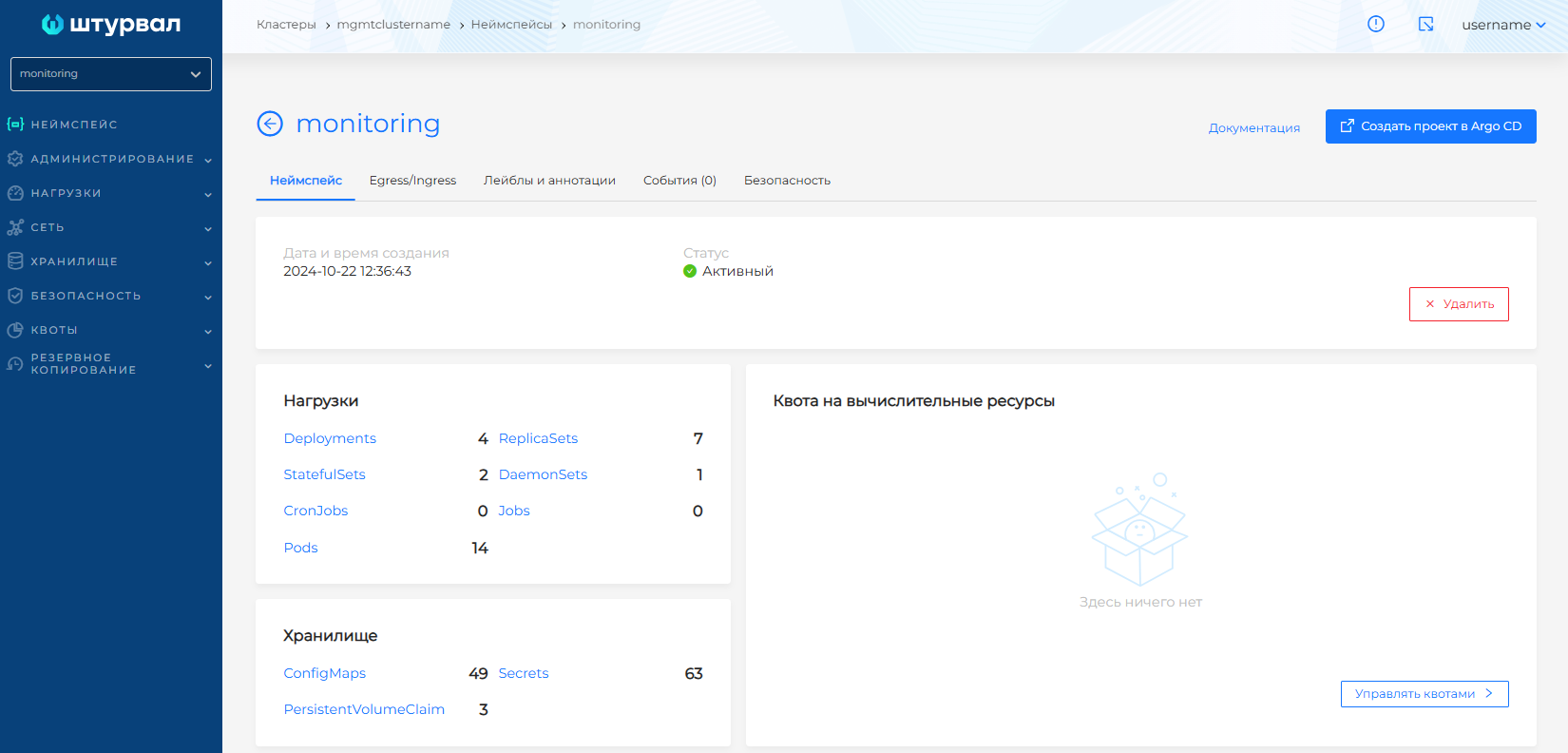
In the management cluster, go to the monitoring namespace.
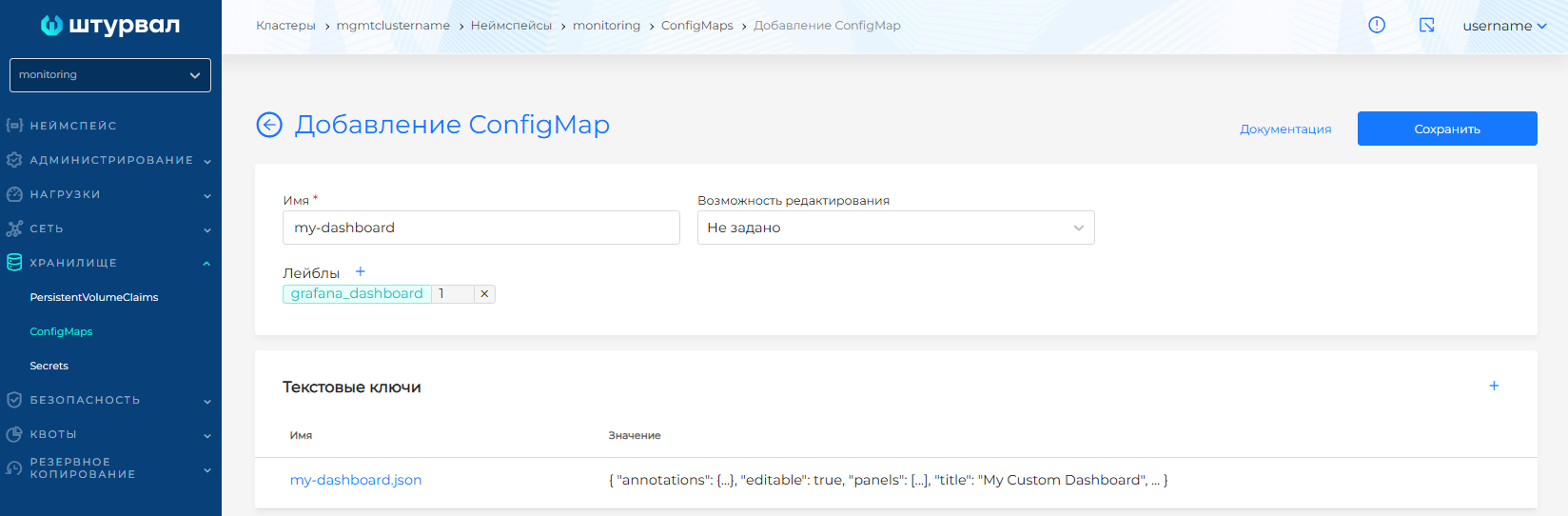
Storage → ConfigMaps → + Add ConfigMap.
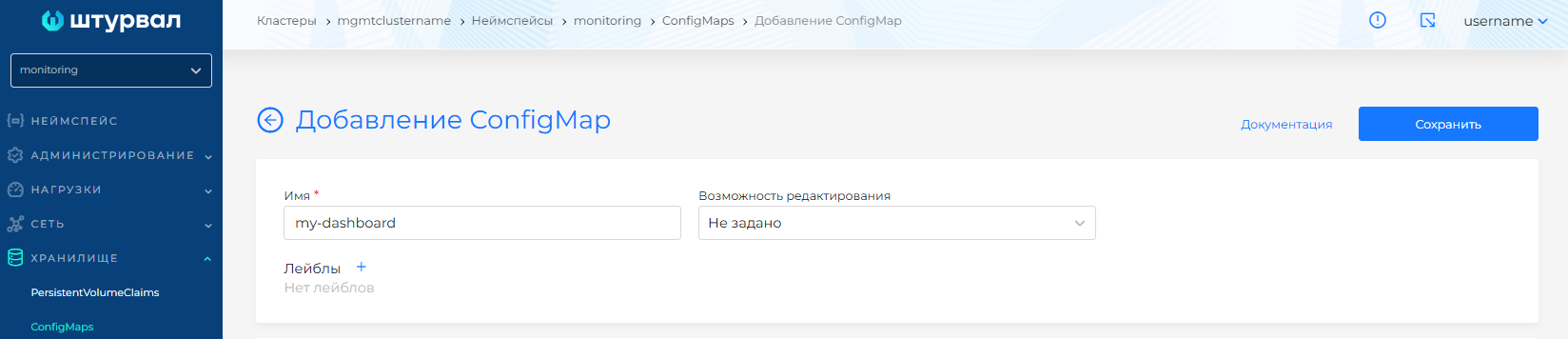
Name: for example,
my-dashboard.In the Text keys block, add a key (for example,
my-dashboard.json) and paste the dashboard JSON.Required include the label
grafana_dashboard: "1".
ConfigMaps in the monitoring namespace
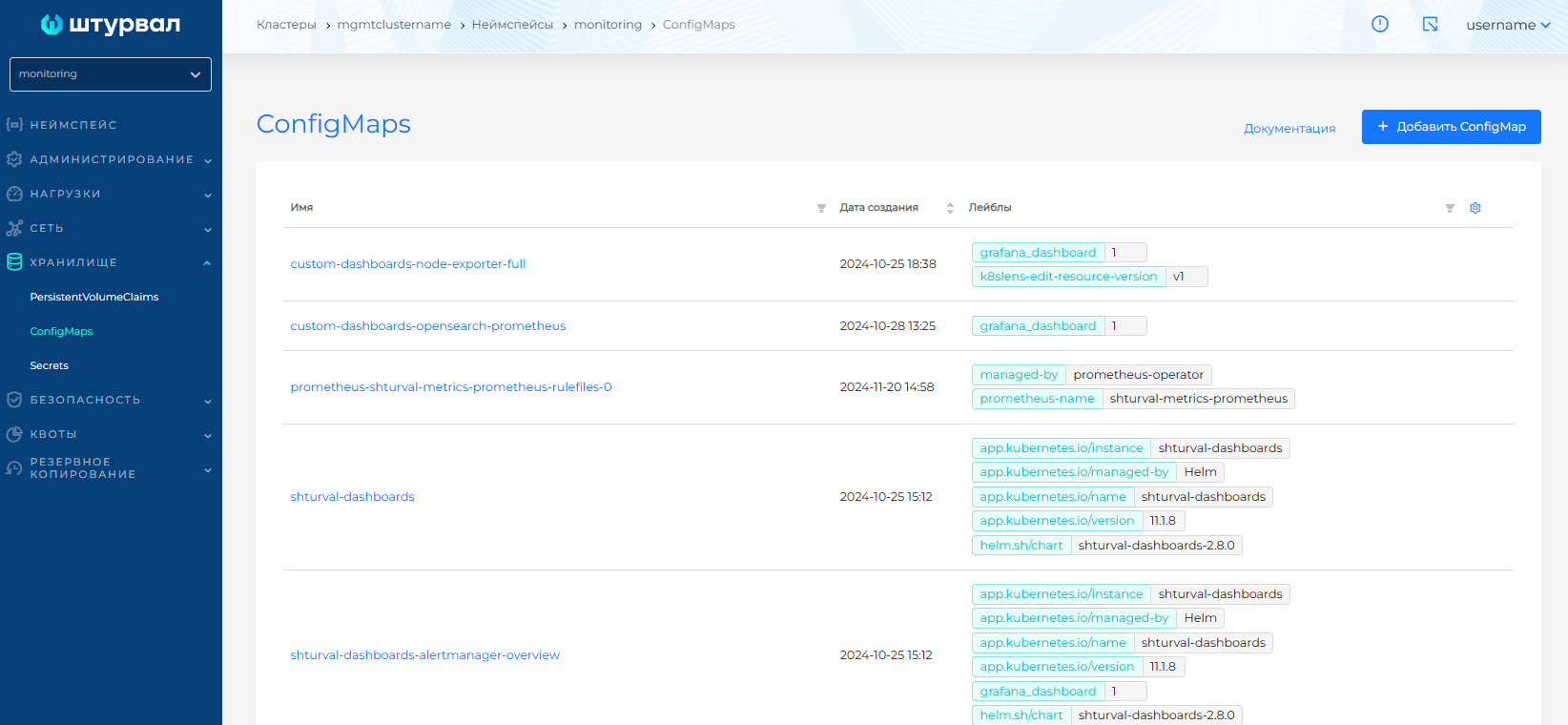
Creating a ConfigMap with a dashboard
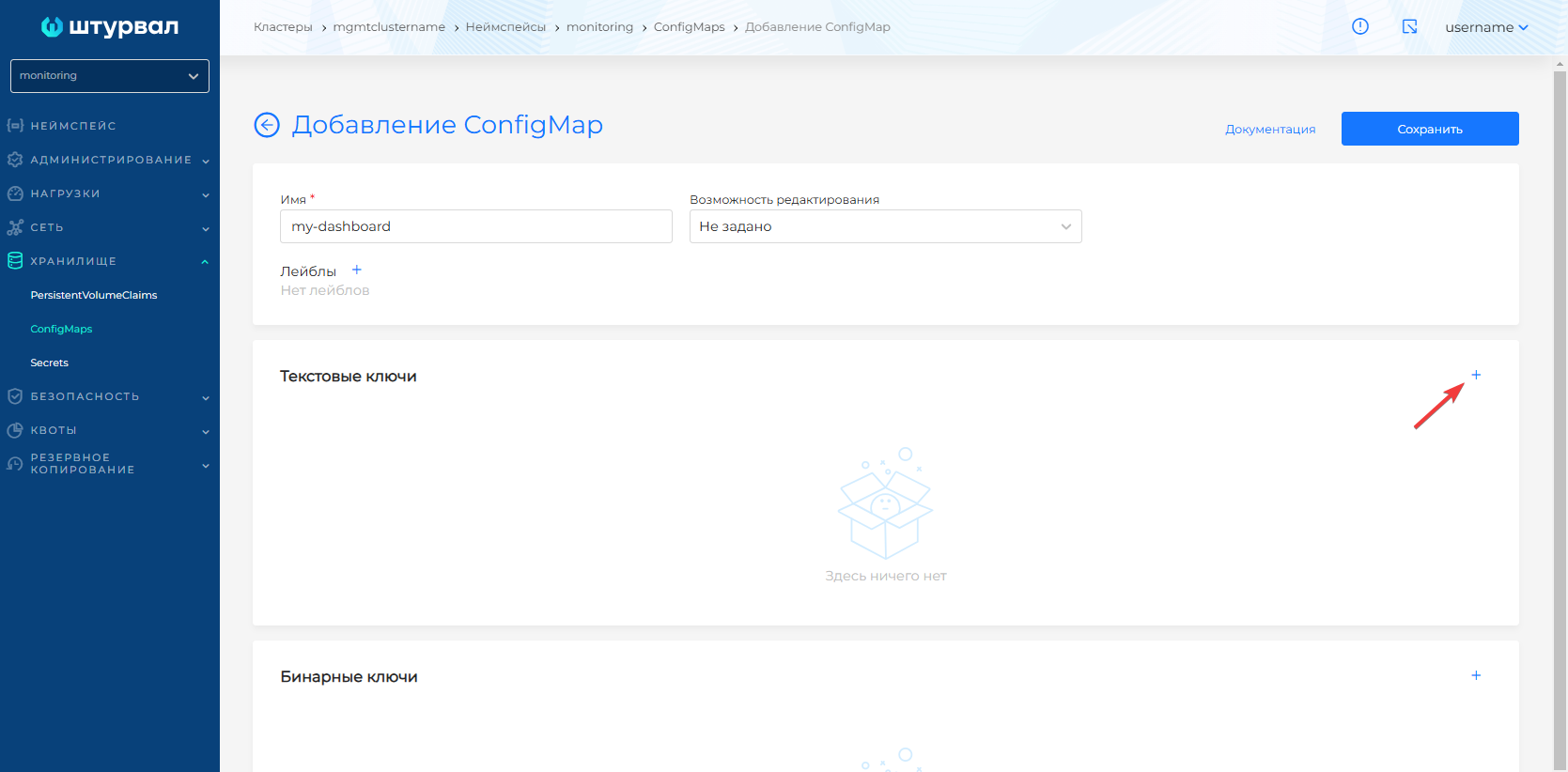
Example ConfigMap
apiVersion: v1

kind: ConfigMap

metadata:

  name: my-dashboard

  namespace: monitoring

  labels:

    grafana_dashboard: "1"

data:

  my-dashboard.json: |-

    {

      "annotations": {...},

      "editable": true,

      "panels": [...],

      "title": "My Custom Dashboard",

      ...

    }
Step 2: Verify Application
- The dashboard will appear automatically in Grafana (it may take 1-2 minutes).
Receiving JSON dashboard
Create a dashboard in Grafana manually.
Dashboard settings (gear) → JSON Model → copy the JSON.
Insert into ConfigMap as key value.
Or import the dashboard from Grafana.com (ID) and export JSON.
Checklist
ConfigMap created in the monitoring namespace
Label grafana_dashboard: “1” installed
Dashboard JSON is valid
Waited for application (1–2 minutes)