oVirt and similar providers
Configuration of providers based on oVirt API.
Purpose
The Cluster API infrastructure provider based on the oVirt API allows you to create Kubernetes cluster nodes as virtual machines in oVirt and compatible products (zVirt, HostVM, etc.). The configuration of the connection and virtualization objects is specified in the provider instance in the Shturval GUI.
To configure the provider, it is necessary that the corresponding service in the management cluster is enabled and in the Auto management mode. Details on the purpose and parameters of the service can be found on the oVirt Provider page (shturval-capov).
Summary table of oVirt infrastructure CRs (OVirt*) in terms of Cluster API: section Custom node lifecycle resources - oVirt.
- oVirt
- zVirt
- HostVM
- ED Virtualization
- ROSA Virtualization
The configuration settings for all oVirt-like providers are identical.
Field mapping in virtualization platforms
The fields on the provider configuration form correspond to virtualization platform entities. Where to look:
| Field in the Shturval platform | oVirt | zVirt | HostVM | ED Virtualization | ROSA Virtualization |
|---|---|---|---|---|---|
| URL Engine | https://<host>/ovirt-engine/api. oVirt Admin Portal | Similar to oVirt. zVirt Admin Portal | Similar to oVirt. HostVM Admin Portal | https://<host>/ovirt-engine/api. Admin portal RED Virtualization | OpenShift Console, Virtualization API |
| Datacenter | Data Center (Data Center). Tree: Data Center | Data Center | Data Center | Data Center (Data Center). Admin portal | Logical Data Center (when using OpenShift Virtualization) |
| Clusters | Cluster inside a data center | Cluster | Cluster | Cluster (Cluster). Admin Portal → Data Center → Clusters | Virtualization Cluster |
| VNIC Profile | Network → vNIC Profile (format network/profile, for example ovirtmgmt/ovirtmgmt) | Network → vNIC Profile | Network → vNIC Profile | Network → vNIC Profile (vNIC Profile) | Network Interface Profile |
Preparation in the virtualization platform
Make sure that the requirements below are met (they must also be met before adding the provider instance to Shturval).
API version. On the virtualization side for oVirt, use oVirt Engine API no lower than 4.4 (including for zVirt 4.4).
Account and withservice role. You need a created account and a service role with permissions to:
- login;
- network device management;
- template provisioning;
- all actions to reboot, create, provision and migrate virtual machines;
- all actions to create disks.
Objects in virtualization. A virtual data center (Datacenter) and cluster(s) inside it, as well as a network with a vNIC profile (to be selected in the provider form), must be prepared.
Network and DHCP. Cluster nodes are created as virtual machines and obtain IP addresses via DHCP. The network linked to the selected vNIC profile must have DHCP enabled — without it, the created VMs will not receive addresses.
VM templates. To add templates to a provider instance, you need already created virtual machine templates in virtualization. Their preparation for the platform is described in the general instructions: Virtual machine template for cluster nodes.
The VM template must have a disk with the Bootable flag enabled. Check and enable the flag in the disk properties before adding the template to the platform so that the VM can use this disk to run the operating system.
If this is your first time working with infrastructure providers in Shturval, it makes sense to read the review How work with providers in the platform works.
Instance creation
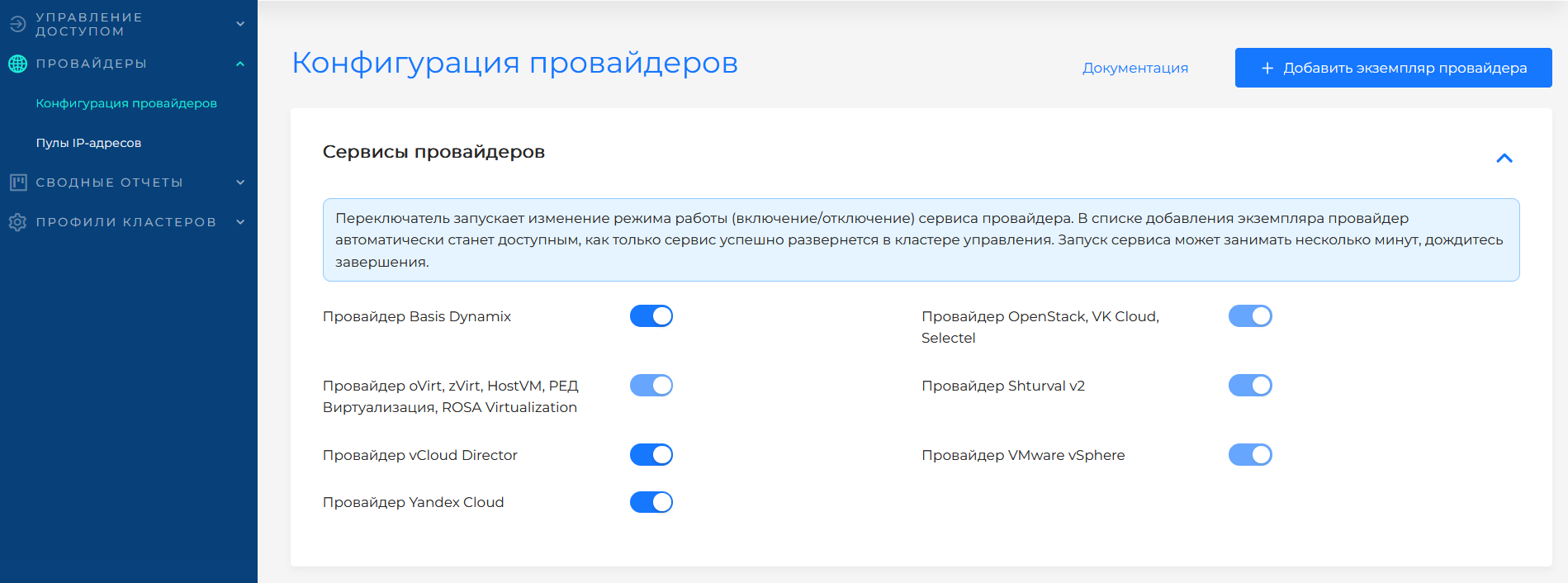
Go to Providers → Providers Configuration. In the Provider Services block, check whether Provider oVirt, zVirt, HostVM, ED Virtualization, ROSA Virtualization is enabled. If the service is disabled, click on the switch and wait for it to start. Then click Add Provider Instance → select the desired type (“+ oVirt”, “+ zVirt”, “+ HostVM”, “+ ED Virtualization”, “+ ROSA Virtualization”).
The service switch puts the associated provider SSCs into auto mode: first the CRD chart, then the main provider chart. Wait until the service enters the ready state.
Illustration: Instance creation
oVirt provider configuration form
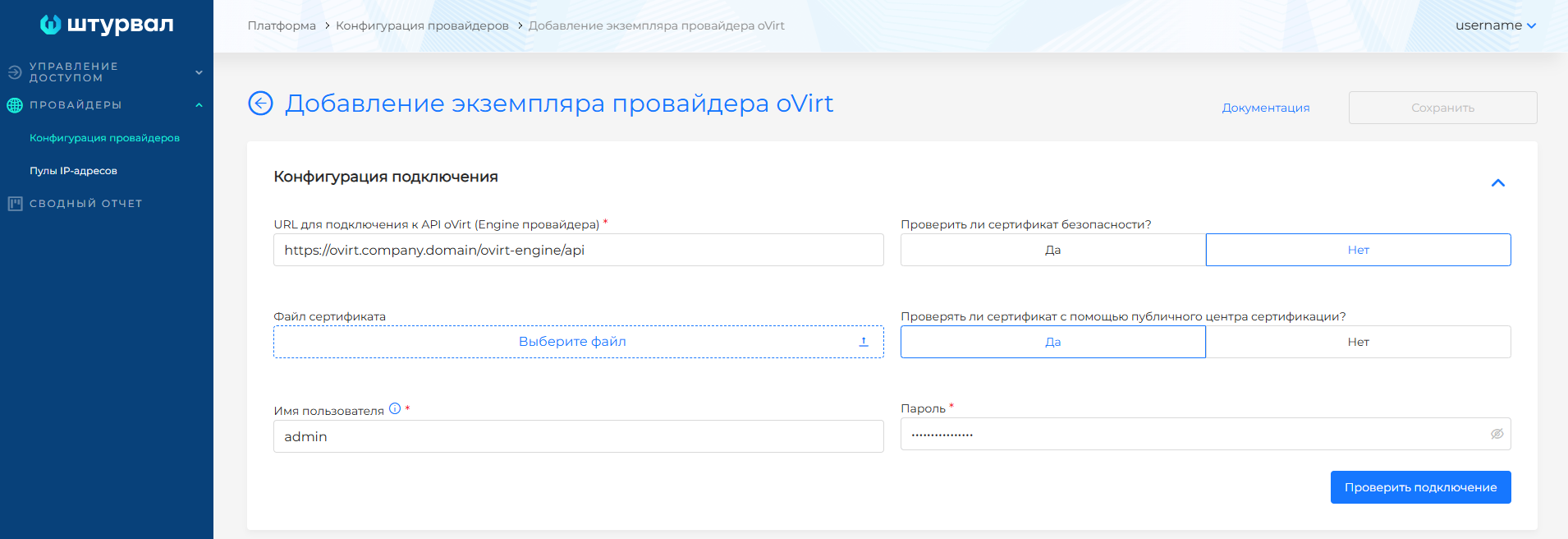
Configuration fields
| Field | Required | Description |
|---|---|---|
| Instance name | Yes | A unique name to identify the instance in the platform. |
| URL Engine | Yes | Full address of the API Engine provider. Format: https://ovirt.company.domain/ovirt-engine/api. The URL must end with /api. |
| Username | Yes | An account with a domain (for exampleer, admin@internal). |
| Password | Yes | Account password for connecting to Engine. |
| Certificate Verification | No | With an enterprise or self-signed CA, it is recommended to configure trust in the certificate on the infrastructure side or perform a chain of trust check; If necessary, TLS checking in the form can be disabled. |
| Datacenter | Yes | Virtual data center oVirt. Select from the list after successful connection verification. |
| Clusters | Yes | oVirt cluster in which VMs will be created. |
| VNIC Profile | Yes | Network profile (for example, ovirtmgmt/ovirtmgmt). Defines the network for the VM network interfaces. Nodes obtain IP addresses via DHCP — DHCP must be enabled on the selected network. |
| Allow CSI | No | If enabled, when you create a cluster with this provider instance, you can enable oVirt CSI integration for Persistent Volumes. |
| Storage domain | No | The name of the Storage Domain in oVirt where virtual machine disks will be created. You will need to enable [featureGates.disk-clone] in the oVirt Provider (shturval-capov) (/2.14/en/cluster-admin/services/platform-services/cluster-services/shturval-capov/#moving-a-disk-to-a-storage-domain) |
| CSIStorageDomainName | Yes | Storage Domain Name for CSI |
| IP Pool | No | When configuring a cluster, pool binding allows you to assign an address to the API server and VIP Ingress from the free addresses of the selected pool. Adding and configuring pools in the platform is on the IP address pools page. |
After entering your credentials, click Test connection.
- If the check is successful, drop-down lists will become available (Datacenter, Clusters, VNIC Profile).
- If the verification failed, check the URL Engine, credentials and TLS settings and try connecting again.
Note! Without working DHCP on the VNIC profile network, cluster nodes will not receive IP addresses and will not be able to join the cluster.
VM templates
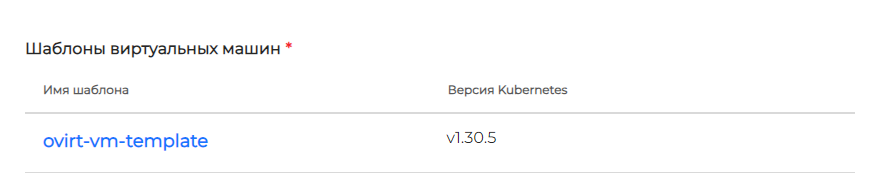
Add VM templates for the required versions of Kubernetes. For one version - one template. Templates are prepared in the same way for all providers.
In the Virtual machine templates block, click + to add a template. In the side window, select name (as in virtualization) and Kubernetes version. Shturval platform version will be filled in automatically and will be available for viewing only.
To update the Kubernetes version on cluster nodes after deployment, follow the instructions VM nodes and templates.
Adding a VM template
Troubleshooting
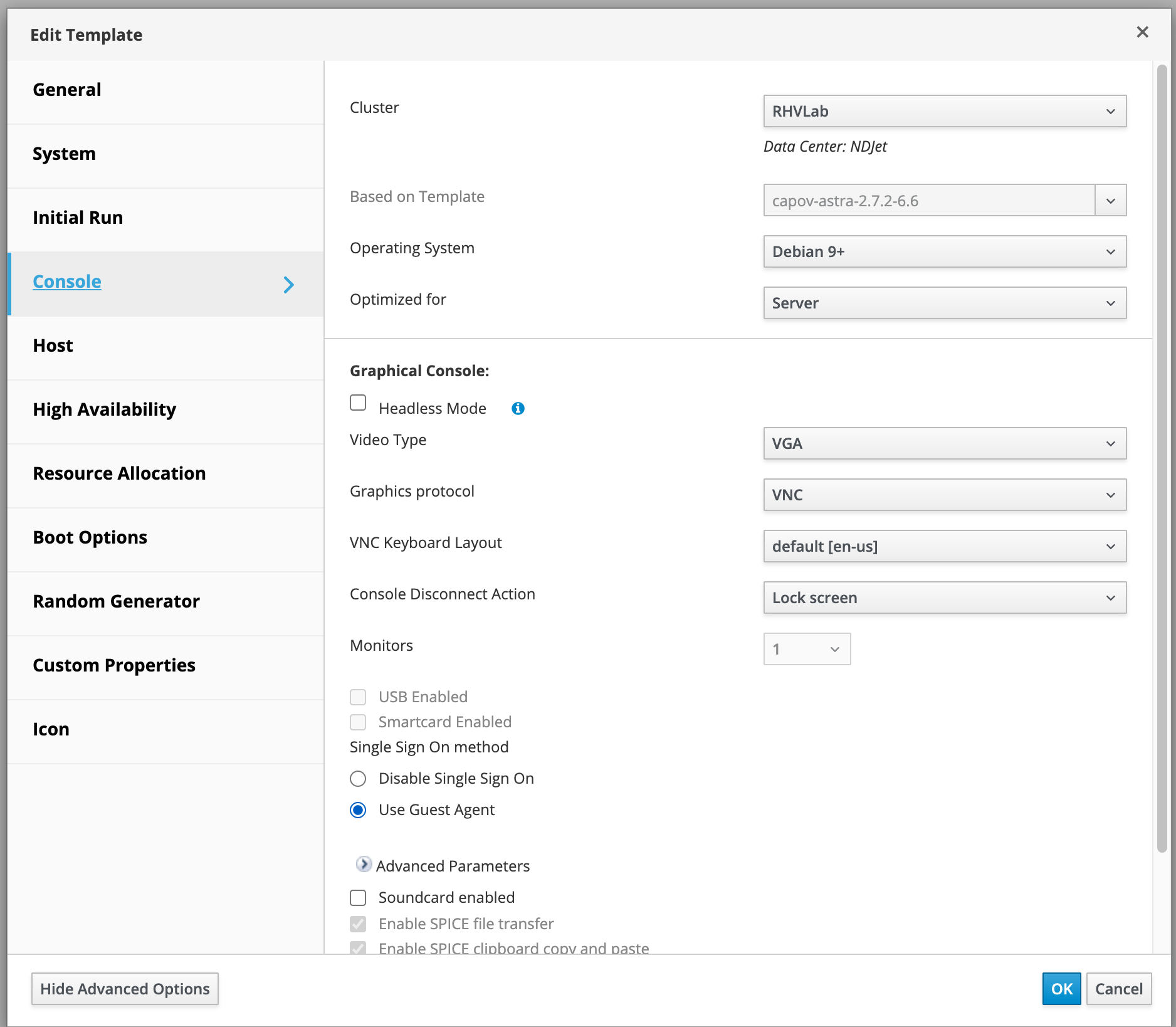
In case of raising a VM template with Astra Linux 1.8 OS with kernel 6.6 zag to RHVVM loading can stop in a random place. This is due to problems with the qxl driver. To solve this, you need to change the type of video card (console) in the VM template to VGA (after creating the template, this setting does not transfer from the VM to the template).
VGA setup screenshot