Shturval v2
Managing hosts via SSH.
Purpose
Shturval v2 is the internal provider of the Shturval platform. It supports adding physical servers and virtual machines as hosts for further use in clusters, and also allows you to create hybrid clusters.
The provider does not require creating different templates for different versions of Kubernetes. When updating a cluster, the Shturval platform automatically updates the version of Kubernetes on cluster nodes with the Shturval v2 provider.
Requirements for hosts
To work with physical servers and virtual machines, the provider needs:
- access to the host via SSH;
- ability to execute
sudowithout a password. If you need to performsudowith a password, you will need to manually edit the Secret of the provider after adding hosts to the provider - see How to add a password for sudo commands; iptablesandgnupgpackages installed on hosts.- the OS installed on the hosts from the list of supported versions - see supported operating systems in the requirements.
Creating a provider instance
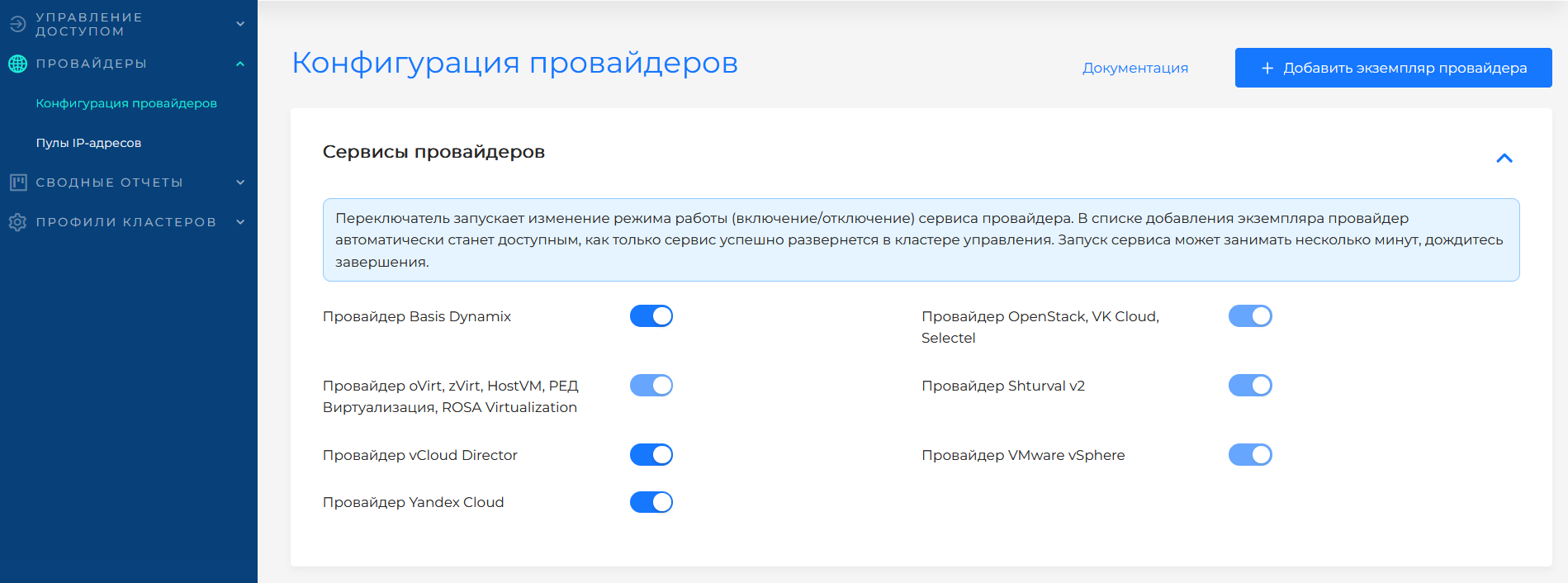
Go to Providers → Providers Configuration. In the Provider Services block, check whether Provider Shturval v2 is enabled. If the service is disabled, click on the switch and wait for it to start. Then click Add provider instance → “+ Shturval v2”.
The service switch puts the associated provider SSCs into auto mode: first the CRD chart, then the main provider chart. Wait until the service enters the ready state.
Illustration: Creating a provider instance
Shturval v2 provider configuration form
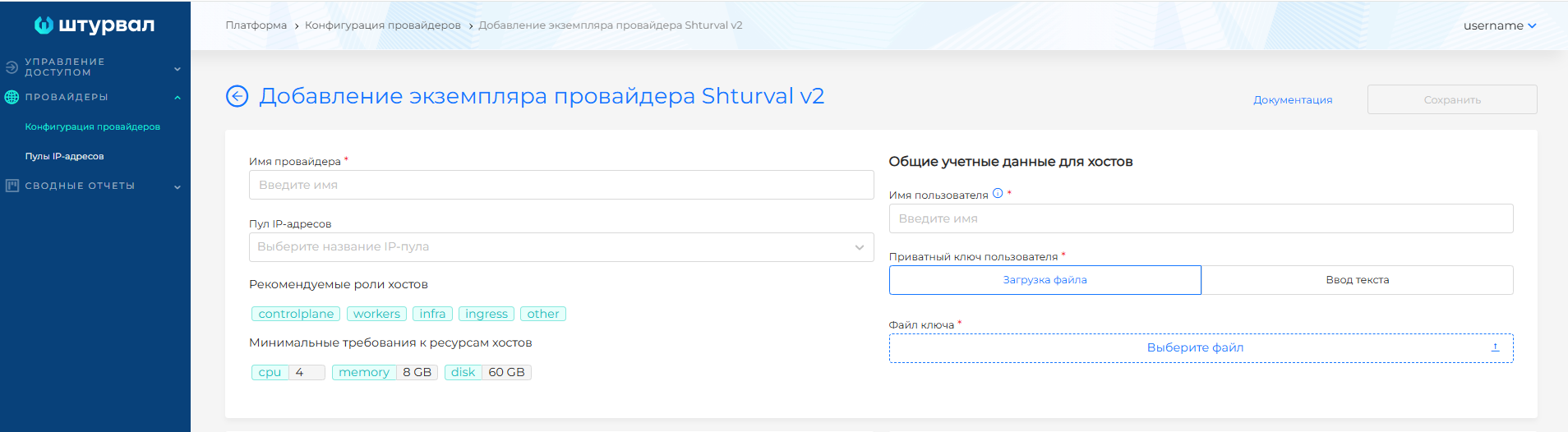
Configuration fields
| Field | Required | Description |
|---|---|---|
| Provider Name | Yes | A unique name to identify the instance in the platform. |
| IP Pool | No | Select the pool to assign addresses to the API server and VIP Ingress when creating the cluster. |
| SSH username | Yes | Username for connecting to hosts via SSH. The user must be able to execute commands via sudo without a password. If you need to execute with a password, you will need to add the password manually to the Secret of the provider - see How to add a password for sudo commands. |
| Private SSH Key | Yes | Upload a file with a private key or allenter the key in the text field. |
By default, the provider uses common credentials for all hosts. If necessary, you can specify private credentials for some or all hosts.
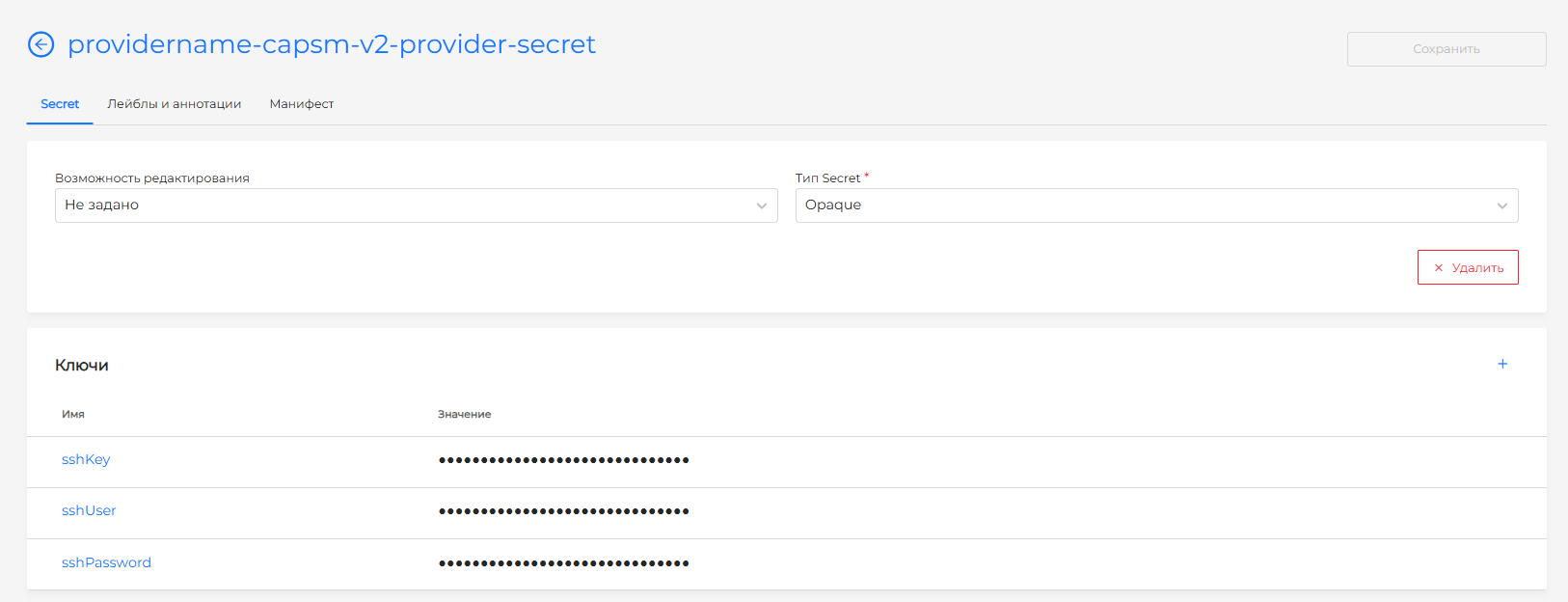
Credentials are stored in the Secret of the management cluster in the namespace shturval-capsm. The Secret name is formed from the name of the provider instance with the suffix capsm-v2-provider-secret. An example of Secret is given on the page Provider Shturval v2 (shturval-capsm).
Adding hosts
In the Hosts block, click + to add a host.
Adding a host
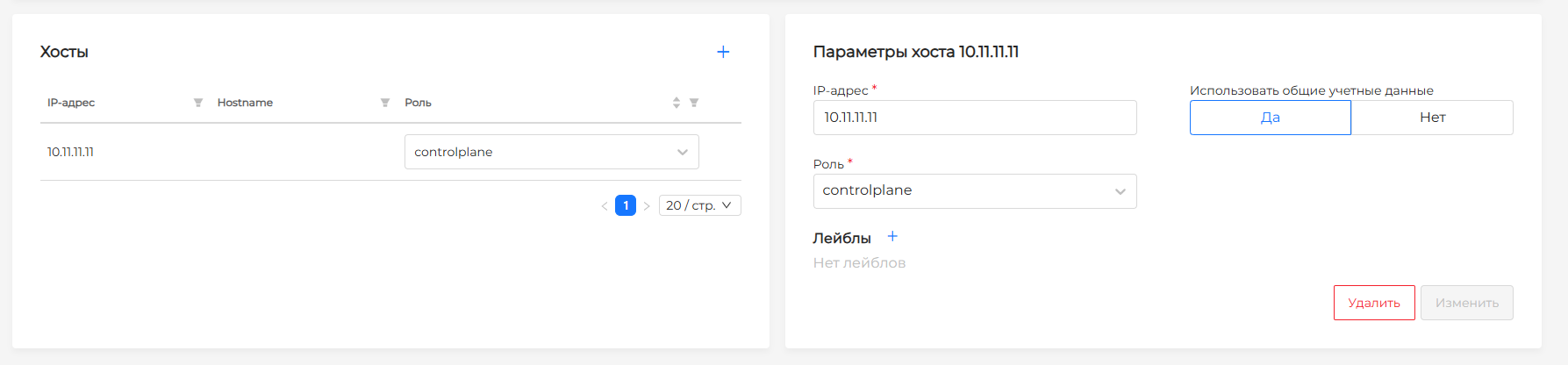
| Host field | Required | Description |
|---|---|---|
| IP address or FQDN | Yes | IP or domain name of the host. |
| Role | Yes | Host role. You can select the recommended role (controlplane, workers, infra, ingress, other) or enter a new value. The role is added as a host label, for example role:other. |
| Labels | No | Additional labels for the selector when creating a cluster. Labels with network interface, host name, OS and its version, provider instance name, CPU, Memory and Disk are created automatically. |
| Use shared credentials | — | Select No if the host requires separate SSH credentials (user and key). |
You can use the default roles or create custom roles for hosts. To create and assign a role when adding a host to the provider, in the “Role” field, enter the name of your custom role and in the drop-down block click “Create name of the role being created”.
Private host credentials
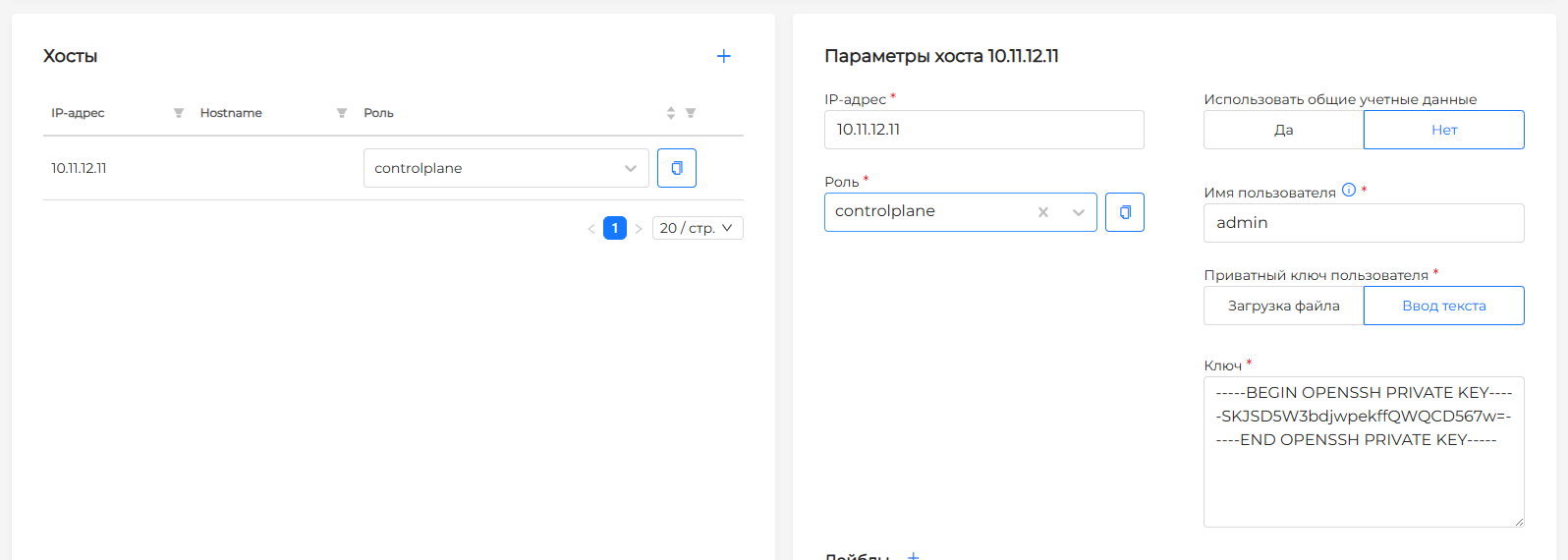
When creating a cluster or scaling a group of nodes, roles and labels allow you to select the desired hosts. If a host group does not have a host role or label selector specified, any available hosts can join it.
Added hosts appear in a list at the bottom left of the screen. In the list you can see the IP address, host name, role and status. The role can be changed if the host is not yet joined to the cluster.
View and edit hosts
Depending on the result of processing by the provider, the host may have one of the statuses:
| Status | Description |
|---|---|
| Busy | The host is bound to the cluster and cannot be bound or modified. |
| Free | The host is ready to jointo the cluster. |
| Error | The host has an invalid configuration, for example, insufficient CPU or memory; the provider cannot connect to the host with the specified user and private key; the user does not have sufficient rights to execute commands over SSH. |
| Not created | The provider has not received a response from the machine. Possible reasons: there is no access to the network on which the host’s IP address is located, or the address is invalid. |
| Undefined | Host reconciliation has not completed. After its completion, the status will change to one of those listed above. |
Error example: insufficient resources (CPU)
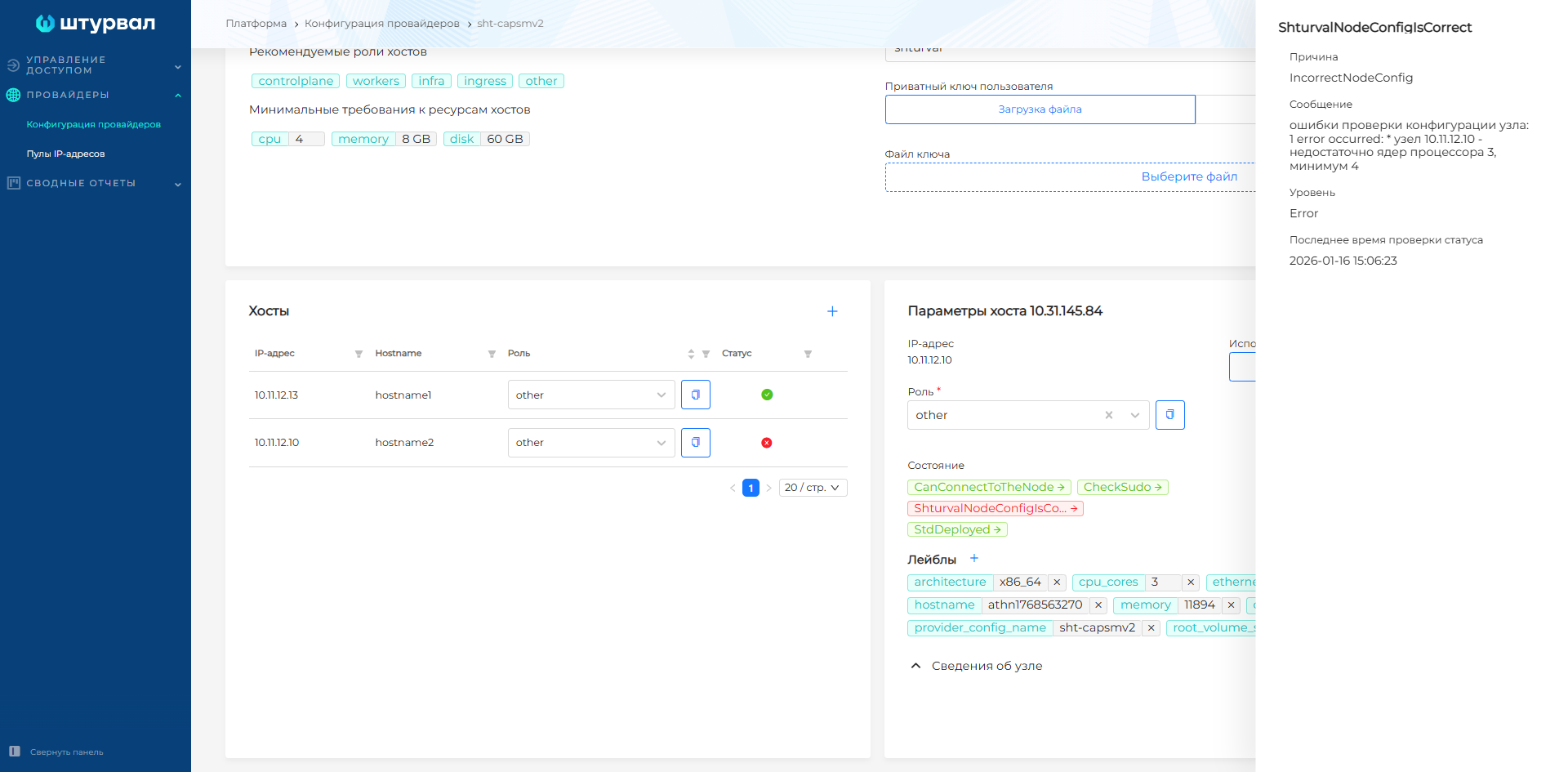
To view detailed information about the host, click on the line with it. If the host is not busy, you can delete the host or change its parameters:
- role;
- connection credentials;
- host labels.
If the host is in MachineAttached state and bound to a cluster, only the connection credentials can be changed. The remaining parameters are not editable.
After the host is created by the provider, the GUI displays:
- host IP address;
- state;
- information about the operating system: OS type and image;
- kernel version;
- architecture;
- network interface;
- root volume size;
- host name;
- list of ports;
- information about available computing resources.
This data is received by the provider directly from the host and is not edited in the GUI. They are assigned to the host as labels for selection in the selector when adding hosts to the cluster.
If you need to change the username in your credentials, also provide the user’s private key. Otherwise the changes will not be applied.
Removing hosts
You can delete one host or multiple hosts at the same time.
To delete one host, use one of the following methods:
- in the list of hosts, move the cursor over the line with the host, check the Select to delete checkbox and click the delete icon in the Hosts block;
- open the host and in the Host Parameters block, click Delete.
To delete multiple hosts, select the Select to delete checkboxes in the rows of the desired hosts and click the delete icon in the Hosts block.
Deleting hosts
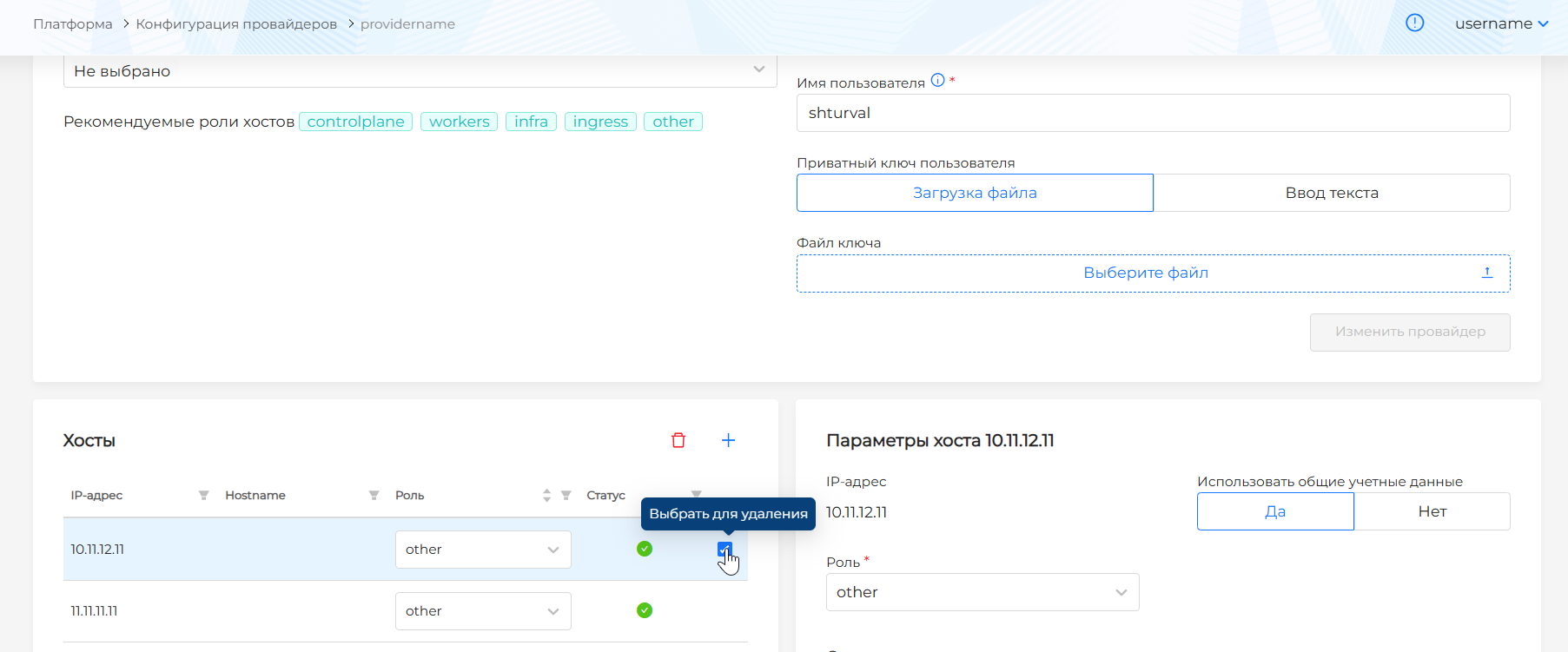
Hosts associated with a cluster cannot be deleted.
How to add a password for sudo commands
The Shturval v2 provider implementsa mechanism for executing commands on hosts via sudo with a password.The password is stored in Secret in the namespace shturval-capsm of the management cluster.
If sudo commands with a password must be executed for the SSH user on hosts, after adding such hosts to the provider instance in the StcDeployment state, a message will be displayed asking you to set a password. To add a password to run sudo commands:
- Go to the management cluster - namespace
shturval-capsm- section Storage - Secrets. - Find the Secret with the name
<provider-instance-name>-capsm-v2-provider-secretand add the keysshPassword, in the value of which specify the SSH user password and save the changes.
Example Secret:
apiVersion: v1
kind: Secret
metadata:
  name: <provider-instance-name>-capsm-v2-provider-secret
  namespace: shturval-capsm
type: Opaque
data:
  sshKey: dXNlcnNzaGtleQ==
  sshUser: c2h0dXJ2YWw=
  sshPassword: LS0tLS1CRUdJTiBPUEVOU1NIIFBSSVZBVEUgS0VZLS0tLS0KdXNlcnNzaGtleQotLS0tLUVORCBPUEVOU1NIIFBSSVZBVEUgS0VZLS0tLS0=
Screenshot: Secret
- Return to the provider instance and wait until the hosts are ready to join the cluster.