Overview of security logs in the GUI
A combination of Audit Logs, logging modules and the “Logs” tab.
Where to look at the logs
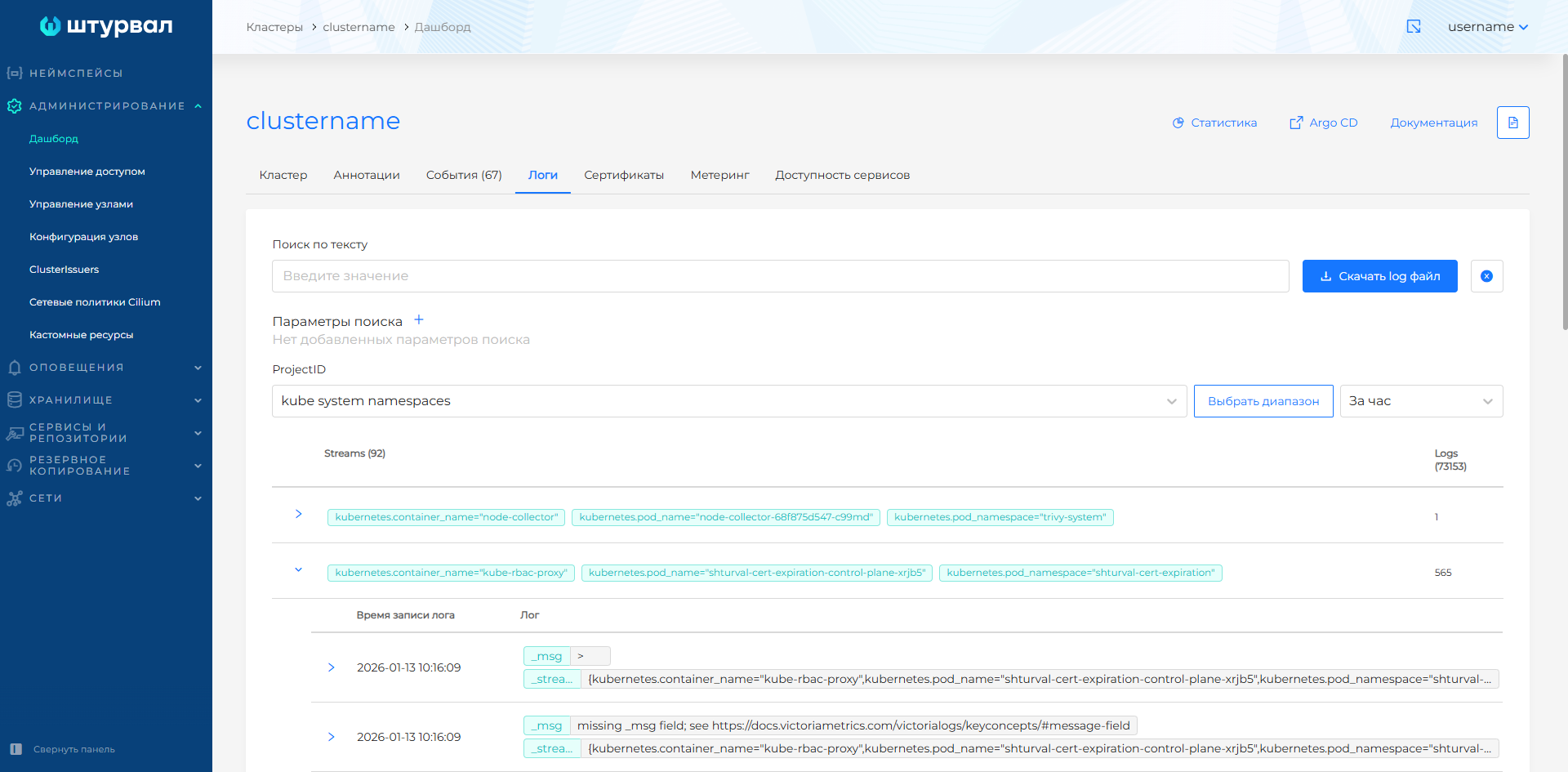
All log viewing in the GUI goes through the Logs tab on the cluster dashboard.
- Open the desired cluster.
- Select Dashboard from the side menu.
- Go to the Logs tab.
The tab is available on the dashboard of the deployed cluster. The data on the dashboard tabs is updated automatically.
Screenshot: “Logs” tab
Log availability conditions
To display logs on the Logs tab, the following conditions must be met:
- The Local Log Collection Module (Vector,
shturval-log-collector) is enabled in the cluster. - The management cluster is running
shturval-metrics-collector.
Additionally, for Audit Logs (logs of calls to API Kubernetes) the following is required:
- either enable advanced security settings when creating a cluster (the audit policy will be configured automatically);
- or manually configure Audit Policy and log collection
/var/log/kube-api-audit/audit.log, as described on the page
Setting Audit Logs.
What log projects are available
In VLogs, corresponding projects (ProjectID) are created for logs. On the Logs tab, filtering by ProjectID is available:
| ProjectID | What contains |
|---|---|
| kube system namespaces | System logs /var/log/containers/*.log |
| cluster namespace | Namespace cluster load logs in the management cluster |
| kube events | Event logs of all cluster objects |
| kube audit | Cluster security event logs |
| journald | Logs shturvald (containerd) |
| auditd | System audit logs |
Logs in projects are grouped by streams (stream). A stream is a set of logs with a unique set of parameters, where the parameter consists of a pair of "field": "value" logs. The stream name corresponds to the value of the _stream field.
The interface displays counters for the number of logs and streams in the selected project.
Time range
On the Logs tab you can get information:
- in the last 15 minutes;
- for nlast 30 minutes;
- for the last hour - selected by default;
- for the whole day;
- for the selected time range.
Downloading logs
On the Logs tab you can download:
- full log file;
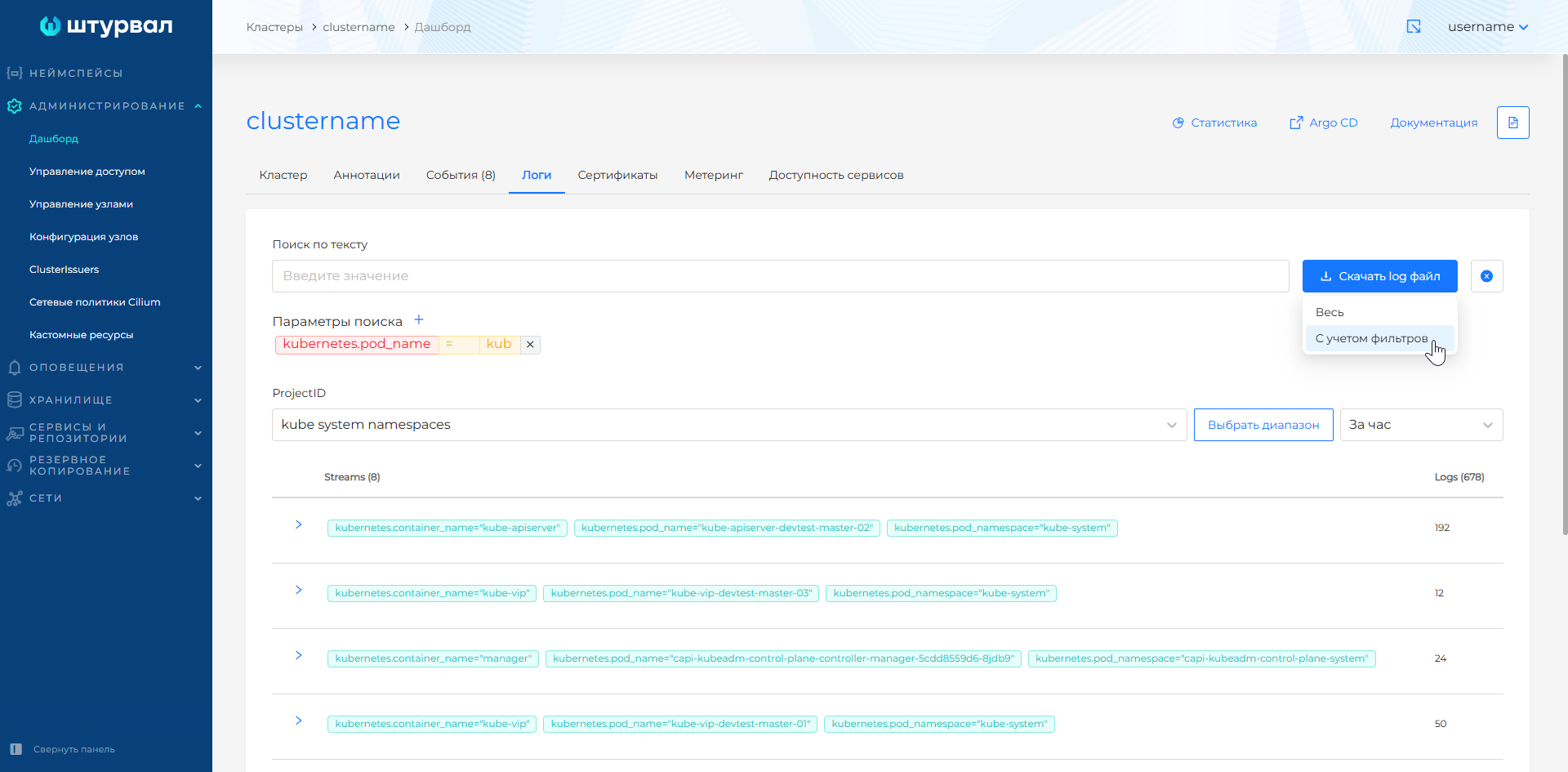
- log file taking into account configured filters.
The file is downloaded with the extension .log. The name is generated automatically: prefix Logs, upload date and number of records.
Screenshot: downloading a log file
Search for logs
Search by text
To search, use the pattern parameter:parameter_value separated by a colon and without spaces.
Examples:
kubernetes.pod_name:shturval-local-csi-node-6g6nh
kubernetes.pod_name:shturval-local-csi-node
message.level:warning | message.id:1
Search by multiple keys is supported. To do this, use the delimiter |.
The search is performed within the selected ProjectID in the selection corresponding to the selected time range.
Search by parameters
To filter by parameters, click + next to the Search Options heading. In the window that opens, select the field, operator and specify the value.
Available operators:
| Operator | How it works |
|---|---|
AND | The selection will include logs that have a specified field that includes all the listed values. If only one value is specified, the operator behaves like =. |
OR | The selection will include logs that have a specified field that includes at least one of the listed values. If only one value is specified, the operator behaves like =. |
NOT | Excludes logs with the specified field containing the listed values. |
= | The selection will include logs with the specified field and the corresponding value. If multiple values are listed, the operator operates as a Boolean AND. |
When searching by parameters, consider the following features:
- The specified filtering parameters are combined according to the logical principle
AND. For example, if the parametersmessage.level=warningandmessage.id=1are specified, logs that match both conditions will be displayed. - The list for setting parameters includes log fields, pre-filtered by project, time range and text search. If the required field is not in the list, change the pre-configured filters.
- Search by parameters can be performed based on partial matches in field values, with the exception of special parameters. For example, with the
kubernetes.pod_name=kubparameter, the sample will include logs thatwhose fieldkubernetes.pod_namecontains the combinationkub.
Special parameters
When searching using special parameters, the selected operator is not taken into account. The search is performed on an exact complete match and only on one value - the first one specified.
| Field | Value Requirement | Example |
|---|---|---|
_stream_id | Enter the full value, without additional characters. | 000000e2f41194 |
_stream | Specify the value in curly braces {}. You can specify one full stream parameter or several parameters separated by commas. For ease of searching, it is recommended to add a separate filter for each parameter rather than using the _stream field. | {kubernetes.container_name="config-reloader"} or {kubernetes.container_name="config-reloader", kubernetes.pod_name="vmagent-client-cluster-6c698bd8c7-rv29k"} |
_time | Enter the full value, without additional characters. To sample logs by time, use the time range setting. | 2026-01-13T10:02:09.393429156Z |
Simultaneous search by parameters and text works using the logical operator AND.
Features of security logs
Authentication, authorization and access rights logs
Authentication, authorization, access rights assignment logs, as well as infrastructure-related logs are located in the management cluster.
To analyze such events:
- Open the management cluster.
- Go to Dashboard → Logs tab.
- Select the appropriate ProjectID (typically
kube system namespaces,journaldorkube auditdepending on the event type). - Search by text or parameters.
API Audit Logs Kubernetes (Audit Logs)
If advanced security settings are enabled in the cluster, security events are written to the cluster, and a project with ProjectID kube audit is created in VLogs. The event information follows the rules of the configured event audit policy in Kubernetes.
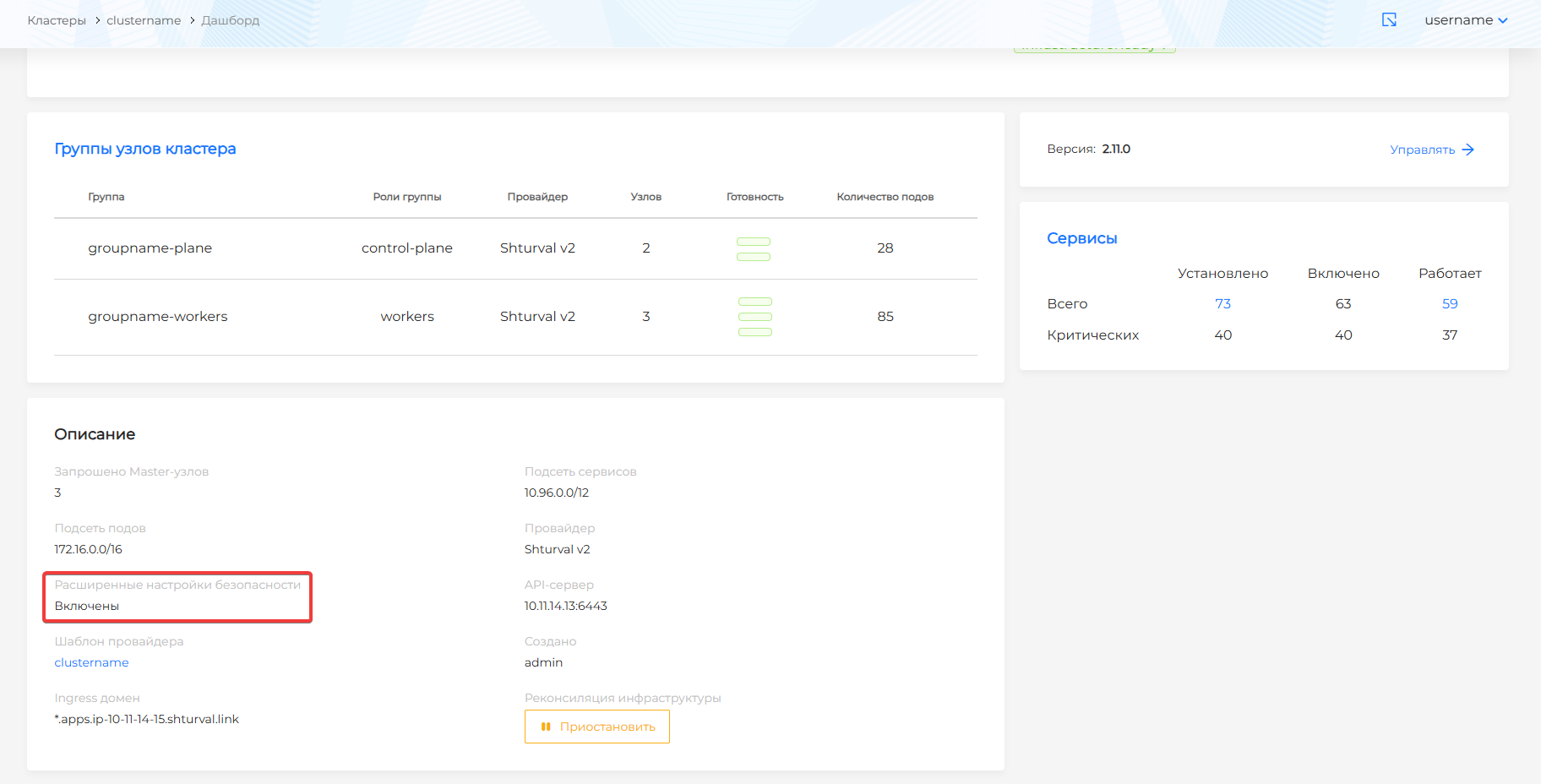
Advanced security settings are available when adding a cluster. You can check whether they are enabled in an existing cluster on the Cluster tab of the dashboard.
Screenshot: advanced security settings