How to enable Hubble UI
Hubble UI in a Cilium-based platform.
Introduction
Hubble provides visibility into network communication between cluster components and network infrastructure. In the Shturval platform, the network is provided by the Cluster Network Management Module (shturval-networking, Cilium CNI).
Enable Hubble
To enable Hubble, upload a ShturvalServicePatch (SSP) to the cluster for the Cluster Network Management Module (shturval-networking). The manifest depends on the circuit.
In an open circuit the hubble-relay image is taken by the chart digest. Enable Hubble, Relay, and UI:
apiVersion: ops.shturval.tech/v1beta2
kind: ShturvalServicePatch
metadata:
  name: shturval-networking-hubble
spec:
  shturvalServiceConfigName: shturval-networking
  customvalues:
    hubble:
      enabled: true
      relay:
        enabled: true
      ui:
        enabled: true
Note: The SHA-256 of the hubble-relay image differs between the open circuit and the closed circuit. Applying an SSP that enables Hubble with enabled flags only fails. In hubble.relay.image, set the image tag from the delivery mirror and useDigest: false.
The ingress block publishes Hubble UI.
apiVersion: ops.shturval.tech/v1beta2
kind: ShturvalServicePatch
metadata:
  name: shturval-networking-hubble
spec:
  shturvalServiceConfigName: shturval-networking
  customvalues:
    hubble:
      enabled: true
      relay:
        enabled: true
        image:
          tag: <your value>
          useDigest: false
      ui:
        enabled: true
        ingress:
          enabled: true
          className: <your value>
          annotations:
            cert-manager.io/cluster-issuer: <your value>
          hosts:
            - <your value>
          tls:
            - secretName: <your value>
              hosts:
                - <your value>
| Parameter | Description | Type | Example |
|---|---|---|---|
hubble.relay.image.tag | hubble-relay image tag from the delivery mirror | string | tag from the delivery mirror |
hubble.relay.image.useDigest | Do not use the chart digest: the image SHA-256 in the chart and in the mirror differ | boolean | false |
hubble.ui.ingress.className | Ingress Class name for publishing Hubble UI | string | nginx |
hubble.ui.ingress.annotations | Ingress annotations. For a certificate, set the cert-manager ClusterIssuer | object | cert-manager.io/cluster-issuer: <ClusterIssuer name> |
hubble.ui.ingress.hosts | Hubble UI DNS name | array | hubble-ui.example.com |
hubble.ui.ingress.tls.secretName | TLS secret name | string | hubble-ui-tls |
hubble.ui.ingress.tls.hosts | Host names in the TLS section | array | hubble-ui.example.com |
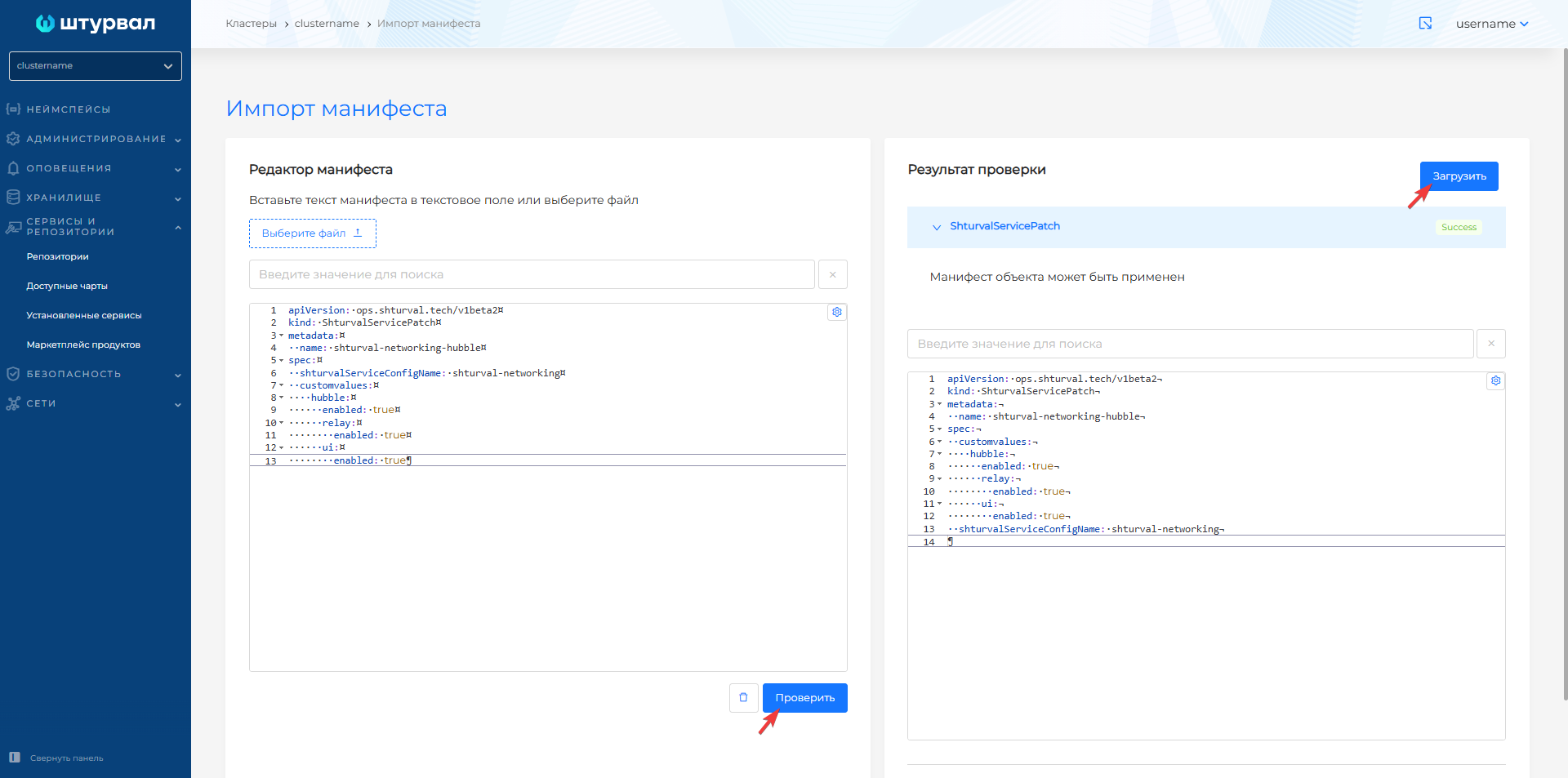
Upload the manifest via import manifests in the cluster GUI (see the screenshot below).

Checking the application of the patch
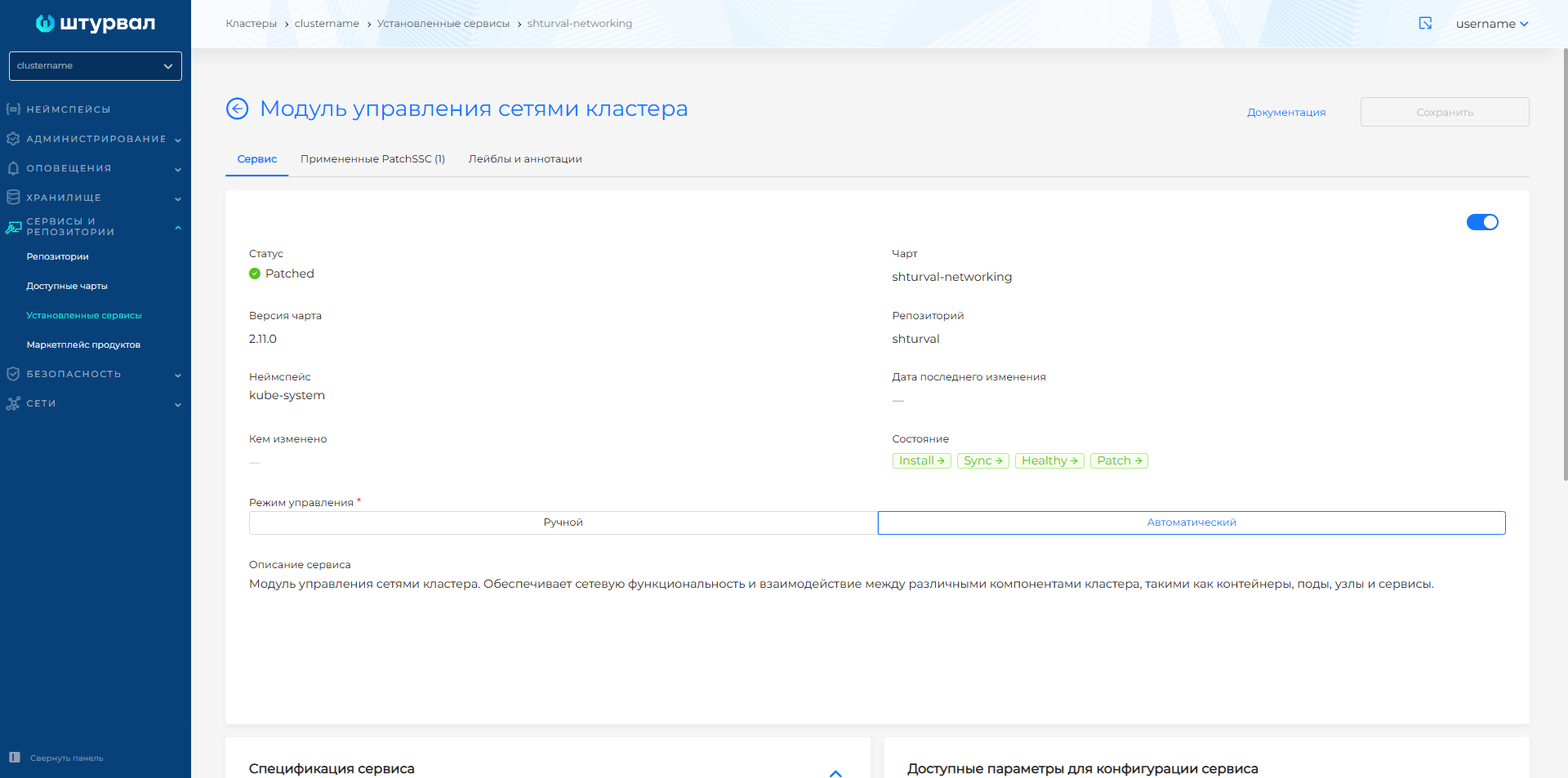
After downloading the manifest, open Services and Repositories → Installed Services, find the Cluster Network Management Module (shturval-networking) and go to management. The Applied ShturvalServicePatch tab will display the loaded ShturvalServicePatch. When ShturvalServicePatch is applied, the status on the Service tab will be Patched.
Illustration: Checking the application of the patch
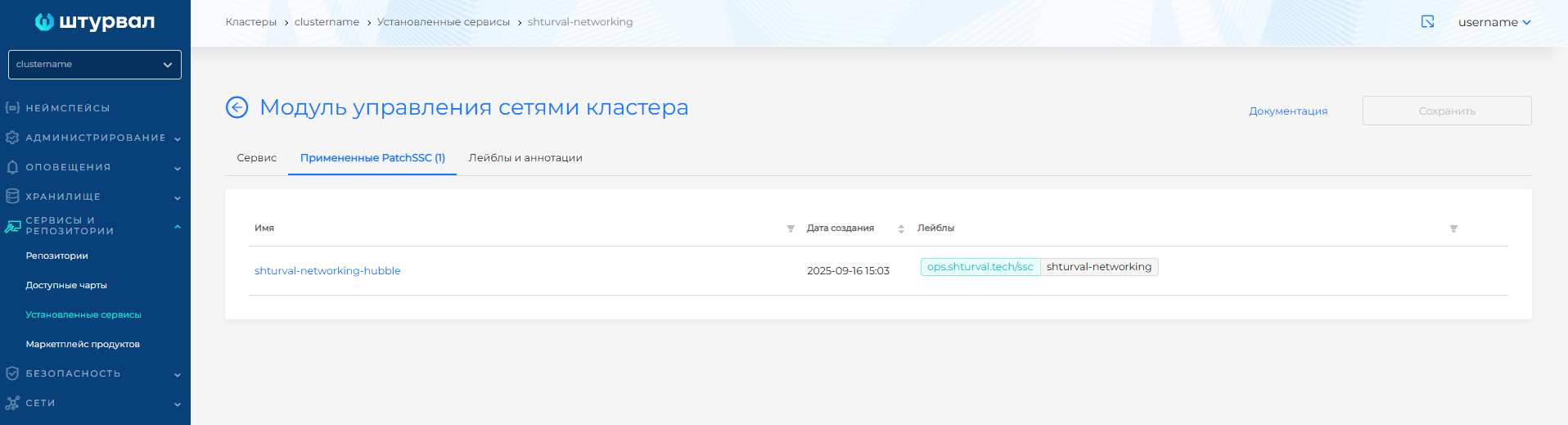
Illustration: Checking the application of the patch
Access to Hubble UI
To temporarily forward a port from your workstation to the Hubble UI, enter the command in the CLI:
kubectl -n kube-system port-forward services/hubble-ui 12000:80
Cilium Hubble will be available at: http://127.0.0.1:12000
Additional information can be found on the official Cilium website.