Scanning container images
Module shturval-scanner (Trivy), reports, interval and storage settings.
Introduction
Scanning container images for vulnerabilities in the Shturval platform is performed by the Container Image Scanning Module (shturval-scanner) module using Trivy.
The scan results are displayed in the cluster in the Security section on the Image Analysis page.
Where to see results
On the Image Analysis page, you can filter the results by namespace. By default, the results are displayed for all namespaces in the cluster.
Illustration: Where to see results
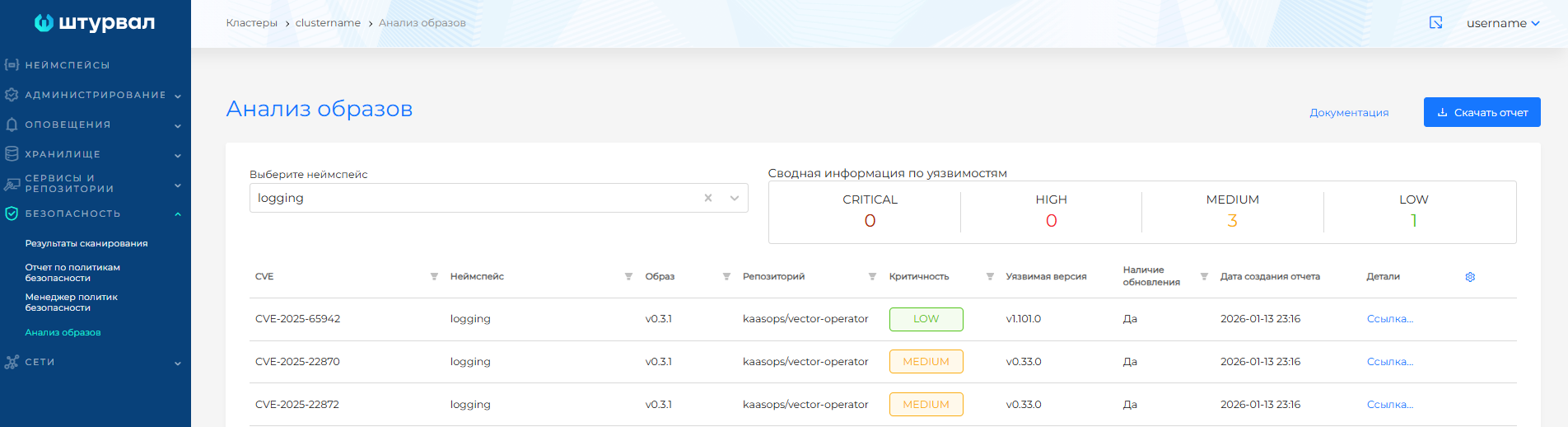
The report can be downloaded:
- in CSV format - completely for all namespaces, for one namespace or in accordance with the filters configured in the table;
- in PDF format - only in the context of one namespace.
If there is no data in the report, an empty file is generated when downloading in CSV format.
The interface displays a report of one scan; each new report replaces the previous one.
Summary information shows the number of vulnerabilities by severity level, taking into account the selected namespace. If filters are configured in the table, the vulnerability summary is not updated based on those filters.
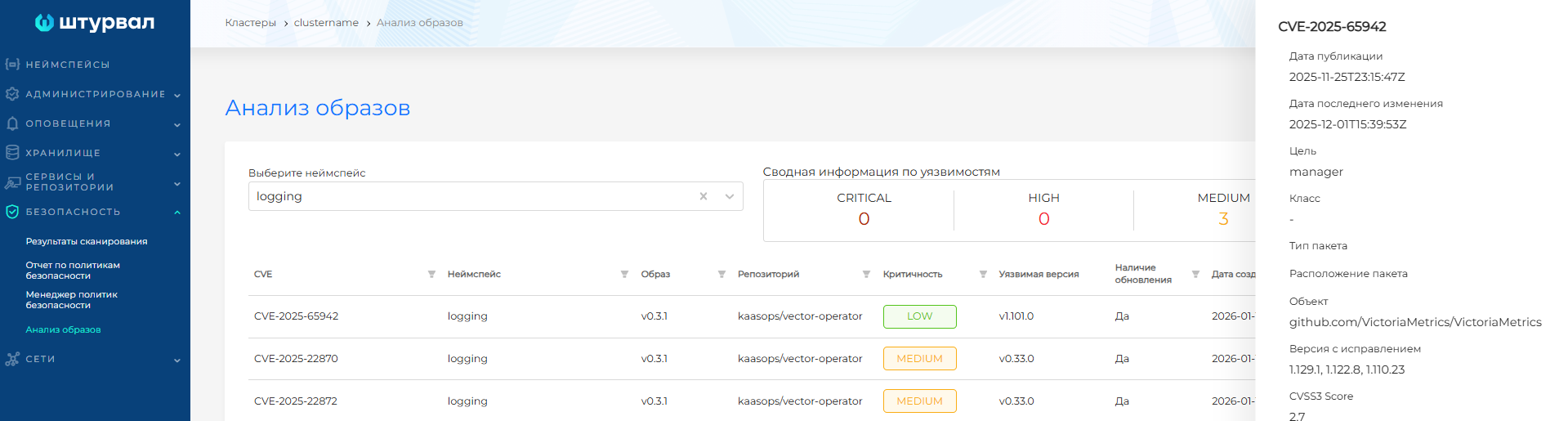
Clicking on a vulnerability line opens a sidebar with additional information (see the screenshot below).
Criticality classification (Trivy)
| CVSS Rating | Level | Description |
|---|---|---|
| 0–2.9 | Low | May be delayed or compensated for by other measures. |
| 3.0–6.9 | Medium | Potential security breach, additional protection required. |
| 7.0–8.9 | High | Possible degradation or security breach. |
| 9.0–10.0 | Critical | An attacker can have complete control over the system. |
Reports may display vulnerabilities with High and Critical severity, which are not applicable for container images of Shturval platform components. Such vulnerabilities can be excluded from the report using the instructions for marked vulnerabilities.
Report in CSV format
To add a report in CSV format in MS Excel:
- On the Image Analysis page, click Download Report and select Download CSV.
- In the modal window that opens, select the namespaces and severity levels that should be in the report.
- Create a new MS Excel file and go to the Data section.
- On the left side of the control panel, select Get external data → From text, select the downloaded report file and click Import.
- In the Text Wizard (Import) window, select the data format Delimited and click Next.
- Select the delimiter Comma and click Next.
- Select the column data format General and click Finish.
Configuring the scanning interval and report storage period
By default, scanning is restarted every 24 hours, the report storage period before deletion is 24 hours. To change the retention interval and duration:
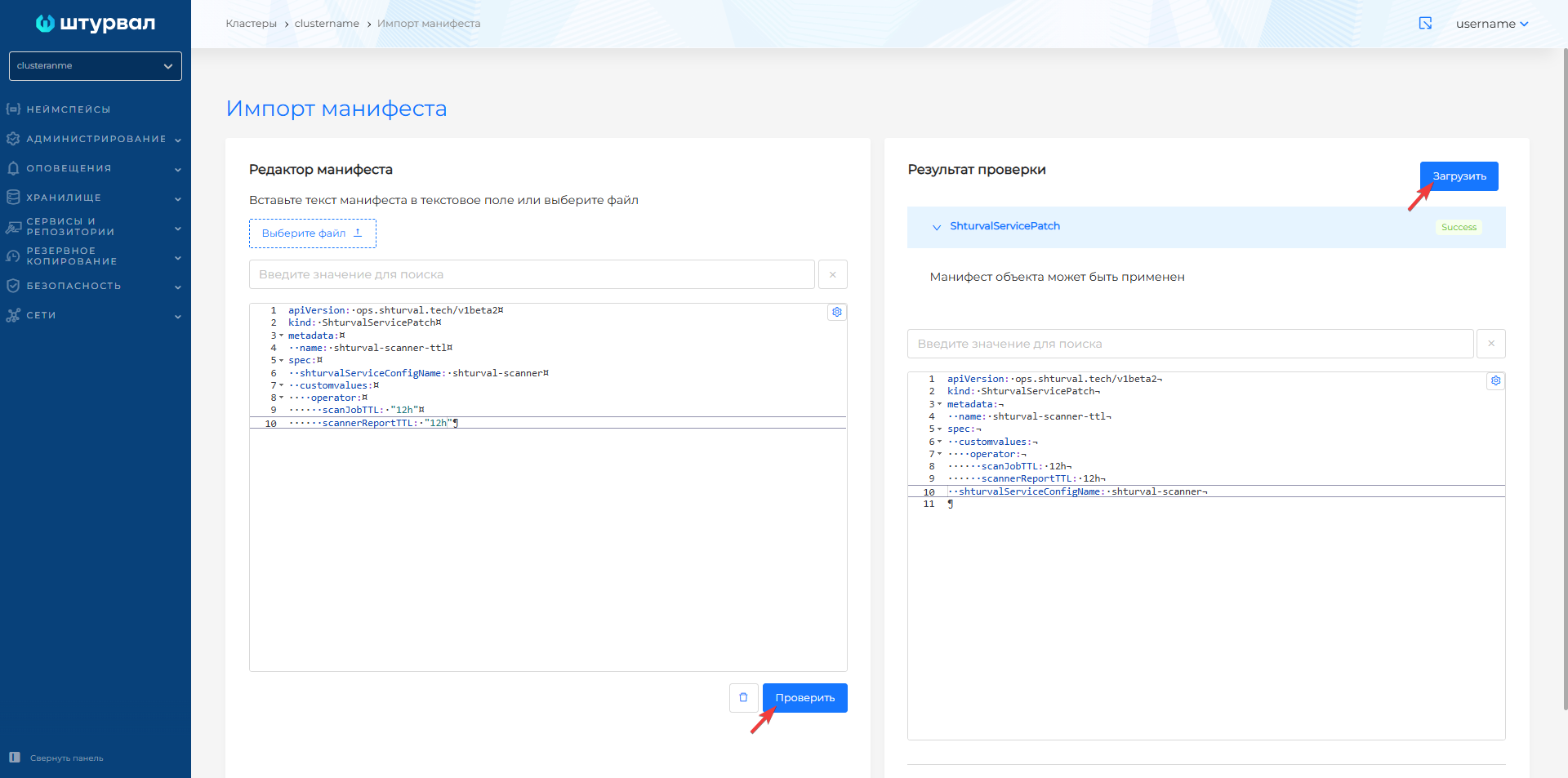
Prepare a manifest ShturvalServicePatch to apply to the
sscspecification of theshturval-scannermodule with parameters incustomvalues.apiVersion: ops.shturval.tech/v1beta2 kind: ShturvalServicePatch metadata: name: <resource name> spec: shturvalServiceConfigName: shturval-scanner customvalues: operator: scanJobTTL: "<your parameter value>" scannerReportTTL: "<your parameter value>"Parameter Description Data type Example metadata.nameThe name of the created ShturvalServicePatchstringshturval-scanner-ttloperator.scanJobTTLScan restart interval. The default is 24 hours. string12hoperator.scannerReportTTLRetention period for reports before deletion. The default is 24 hours. string12hUpload the manifest via import manifest in the cluster GUI (import icon → check → upload) (see the screenshot below).

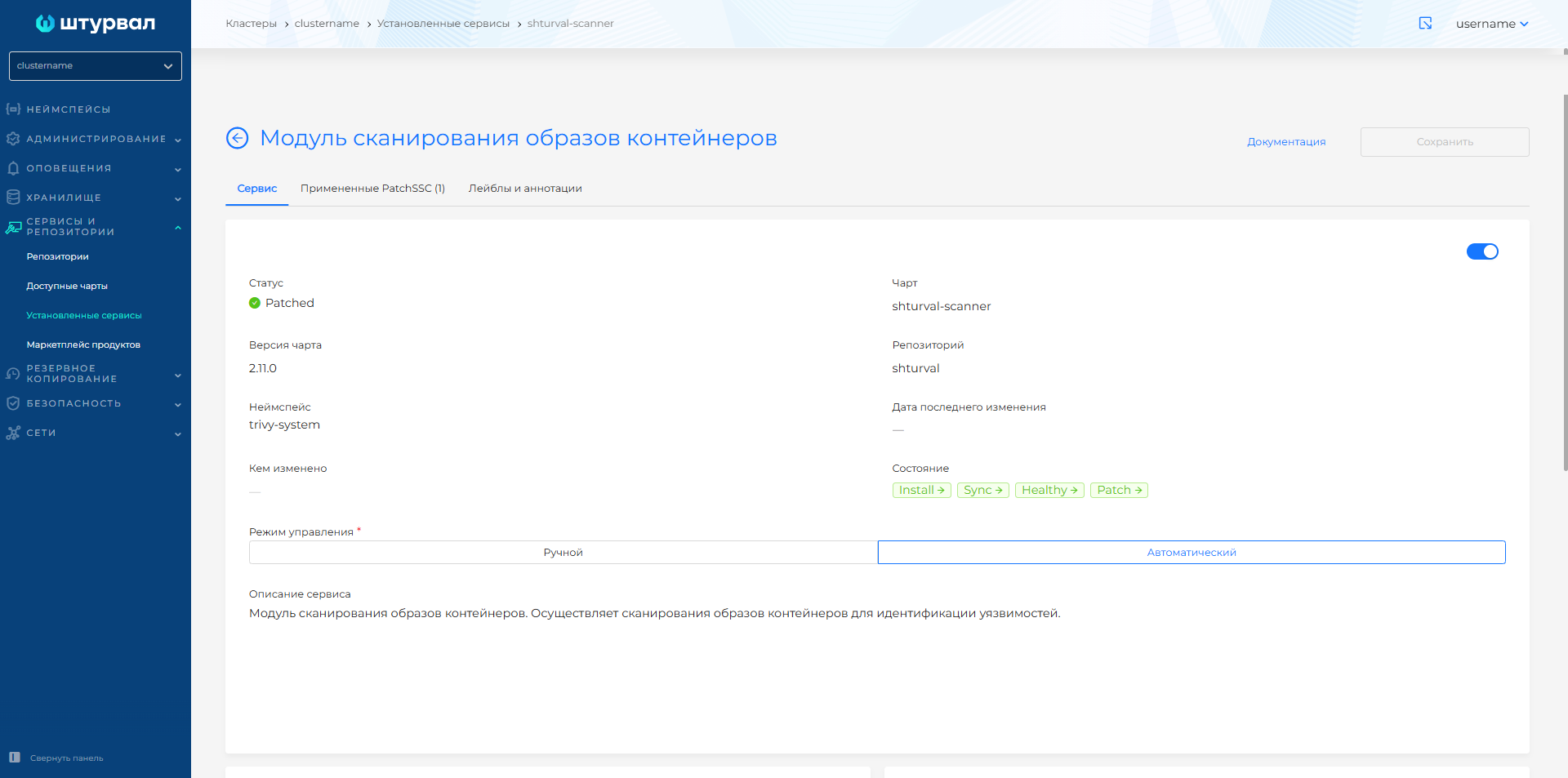
Make sure that the patch is displayed in the Services and repositories section → Installed services → Container image scanning module → Applied ShturvalServicePatch tab, the service status is Patched (see the screenshot below).
Ways to eliminate vulnerabilities
- Updating vulnerable packages to patched versions.
- Removing unused vulnerable packages from the image.
- Correction of vulnerabilities in the application code.
- Temporarily disabling a vulnerable component, installing a patch, or setting up other protection measures.