Cluster access control
Platform, Cluster, and Namespace tabs; cluster-level access sets.
On the cluster Access Control page under Administration, you can view and manage access assignments for users and groups in this cluster and its namespaces. Platform-level assignments are configured only from the platform (Manage roles page).
Where to open: select a cluster → Administration → Access Control.
Tabs on the Access Control page
There are three tabs available on the page:
| Tab | Contents |
|---|---|
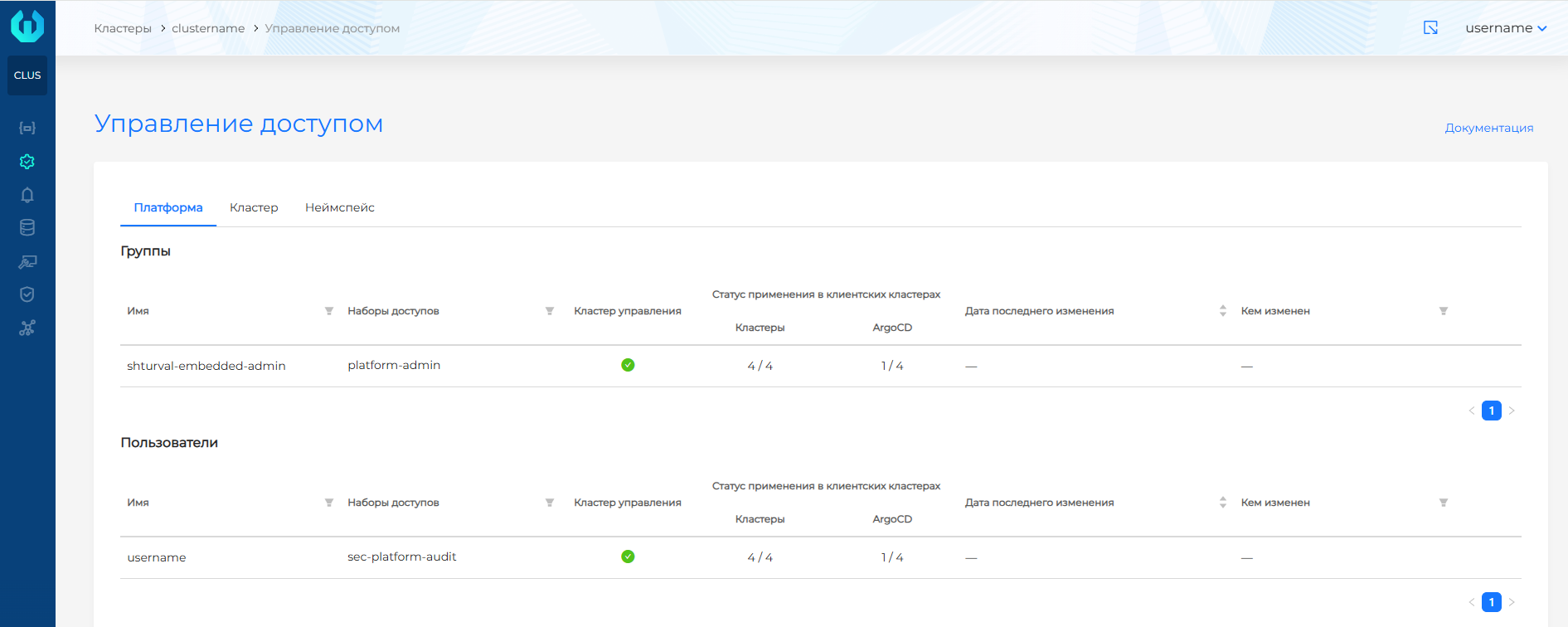
| Platform | View platform permission assignments for users and groups with access to this cluster. View-only entries are not clickable. |
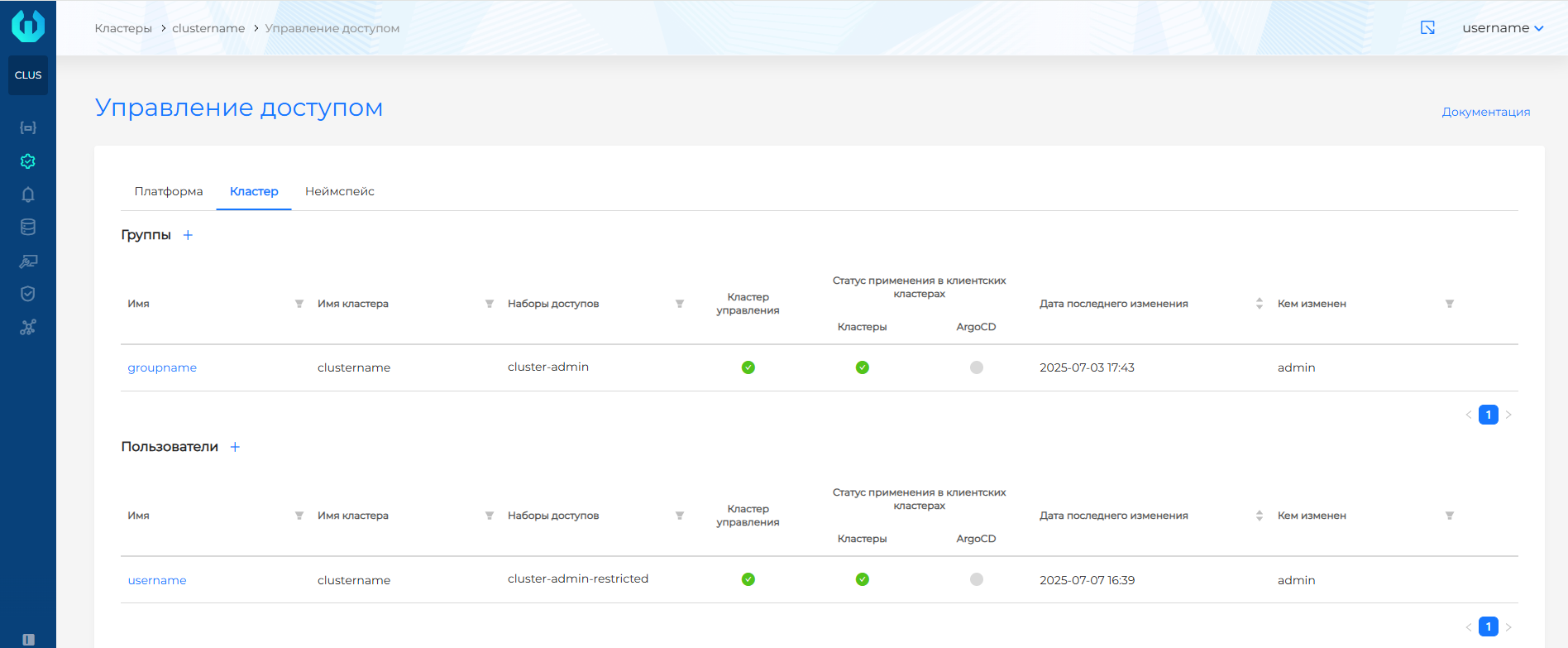
| Cluster | Assign cluster-level access (entire cluster). Create and edit user and group assignments with Cluster-level access sets here. |
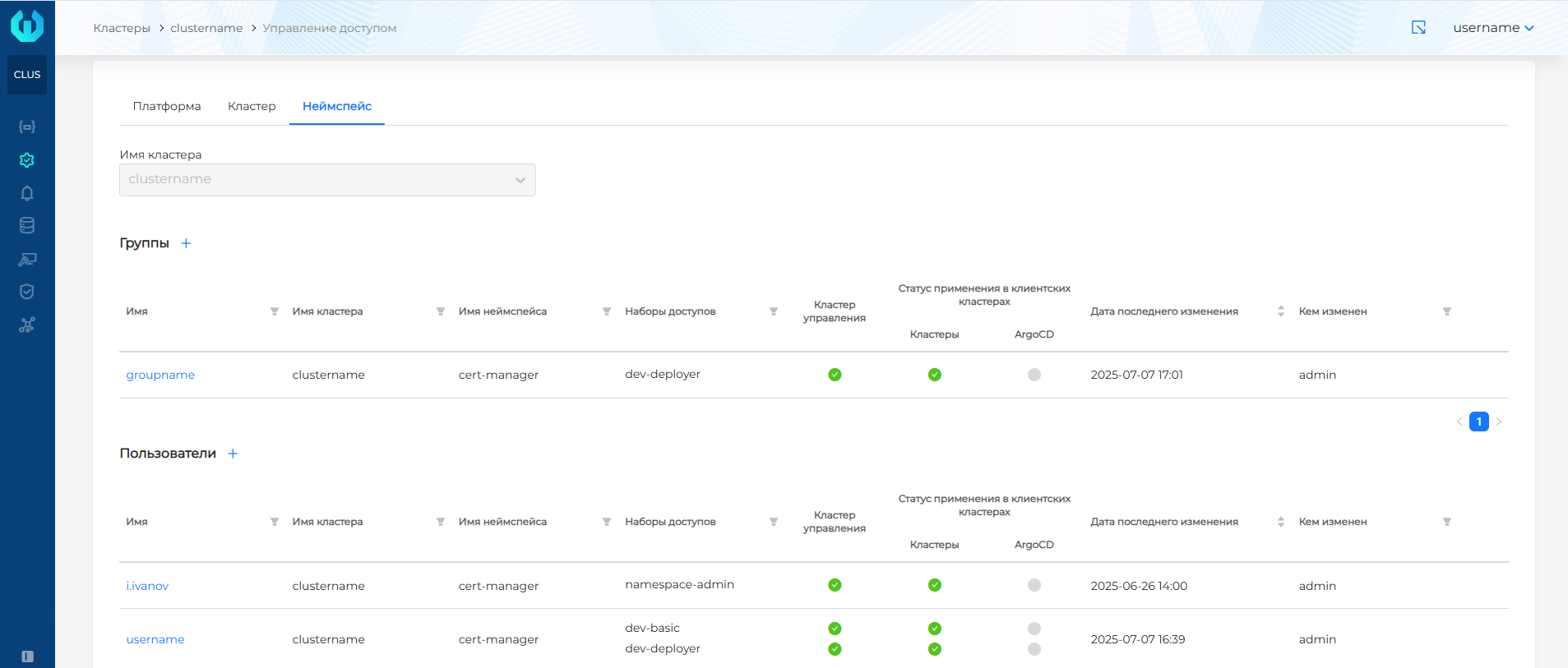
| Namespace | Assign access to individual namespaces (Namespace-level access sets). |
Screenshot: “Platform” tab
Screenshot: “Cluster” tab
Screenshot: “Namespace” tab
How assignments are created
Note: Access resources (UserRole, GroupRole, Permissions) live in the management cluster. You can create assignments for users and groups only through the platform GUI or API — not by editing resources directly in the client cluster.
- Access sets are created in the platform: Permission settings (Access Management → Access Manager).
- Assignments to users and groups are made from the platform or from the cluster Access Control page (Cluster and Namespace tabs). See Assigning access rights.
Cluster level access sets
To assign access on the cluster Access Control page (Cluster and Namespace tabs), use Cluster-level sets on the Cluster tab and Namespace-level sets on the Namespace tab. Platform-level sets are assigned only from the platform Manage roles page.
Preconfigured sets and permission lists are described in Permission settings.
Note: If existing access sets are not enough (for example, you need rights to only part of cluster resources), ask the platform administrator to create additional sets. Sets are managed under Access Management → Access Manager (see Permission settings).
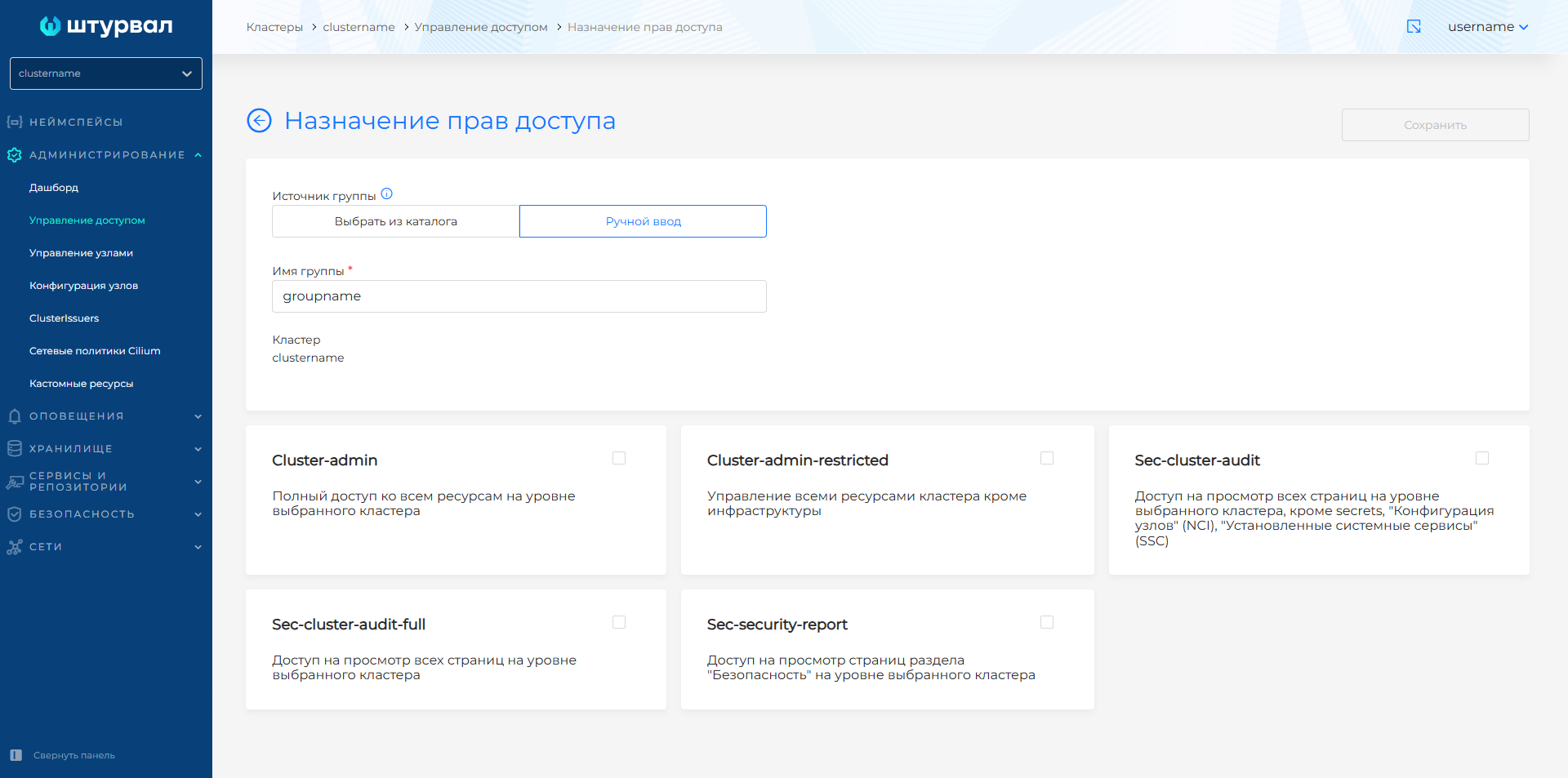
Assigning rights to a group
- Open the Cluster or Namespace tab on the Access Control page of the cluster.
- Press +.
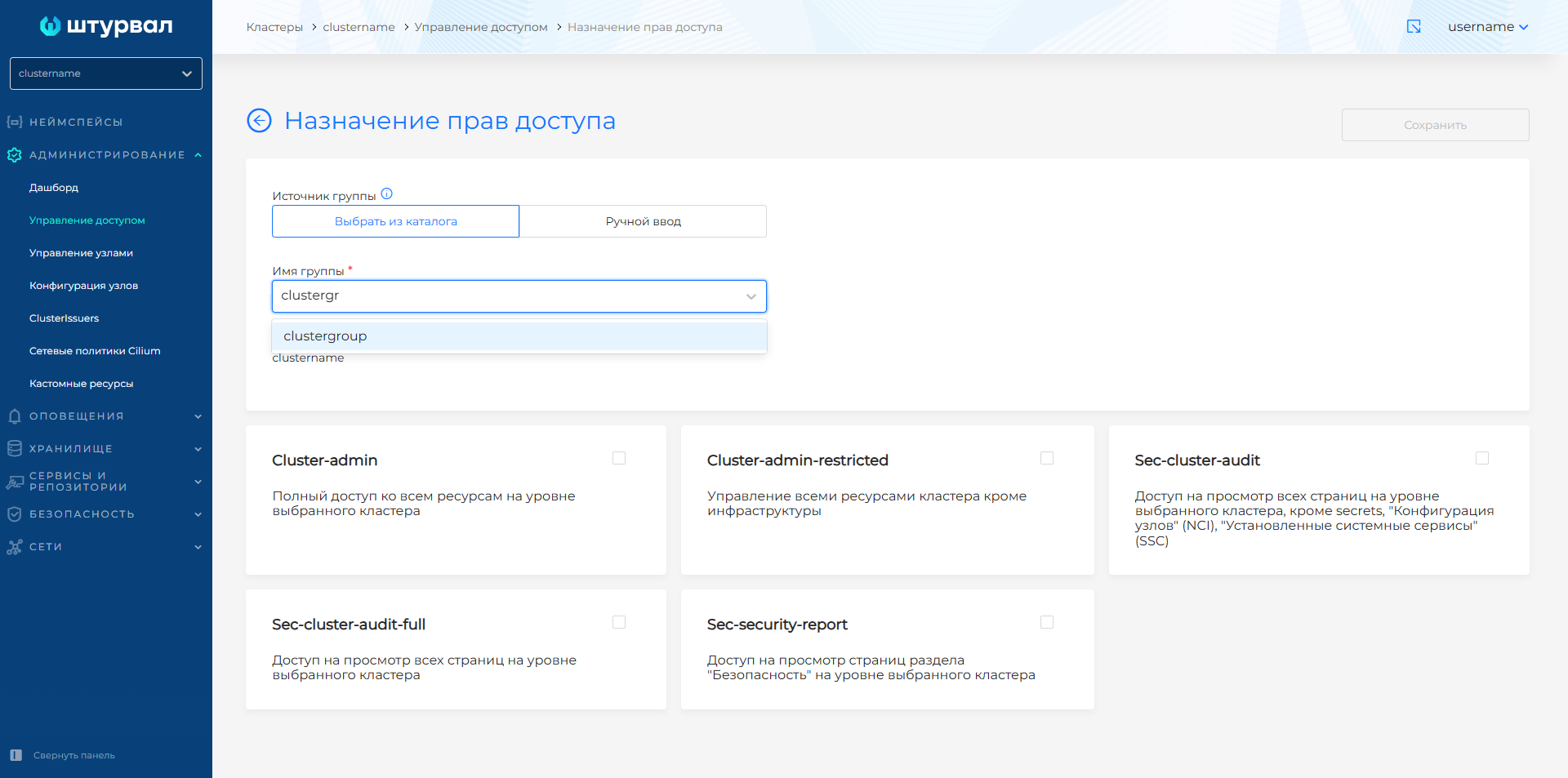
- In the Assigning access rights to a group form, specify the name of the group:
- Select from directory — with LDAP (AD, OpenLDAP) integration, start typing the group name and pick it from the results.
- Manual entry — choose Manual entry and type the group name (for example, with Keycloak or Blitz).
- Select one or more access sets (Cluster or Namespace level depending on the tab).
- Click Save.
The group name cannot be edited after the entry is created. To change, delete the entry and create a new one.
Screenshot: assigning rights to a group (selecting from a directory)
Screenshot: assigning rights to a group (manual entry)
Assigning rights to a user
- Open the Cluster or Namespace tab on the Access Control page of the cluster.
- Press +.
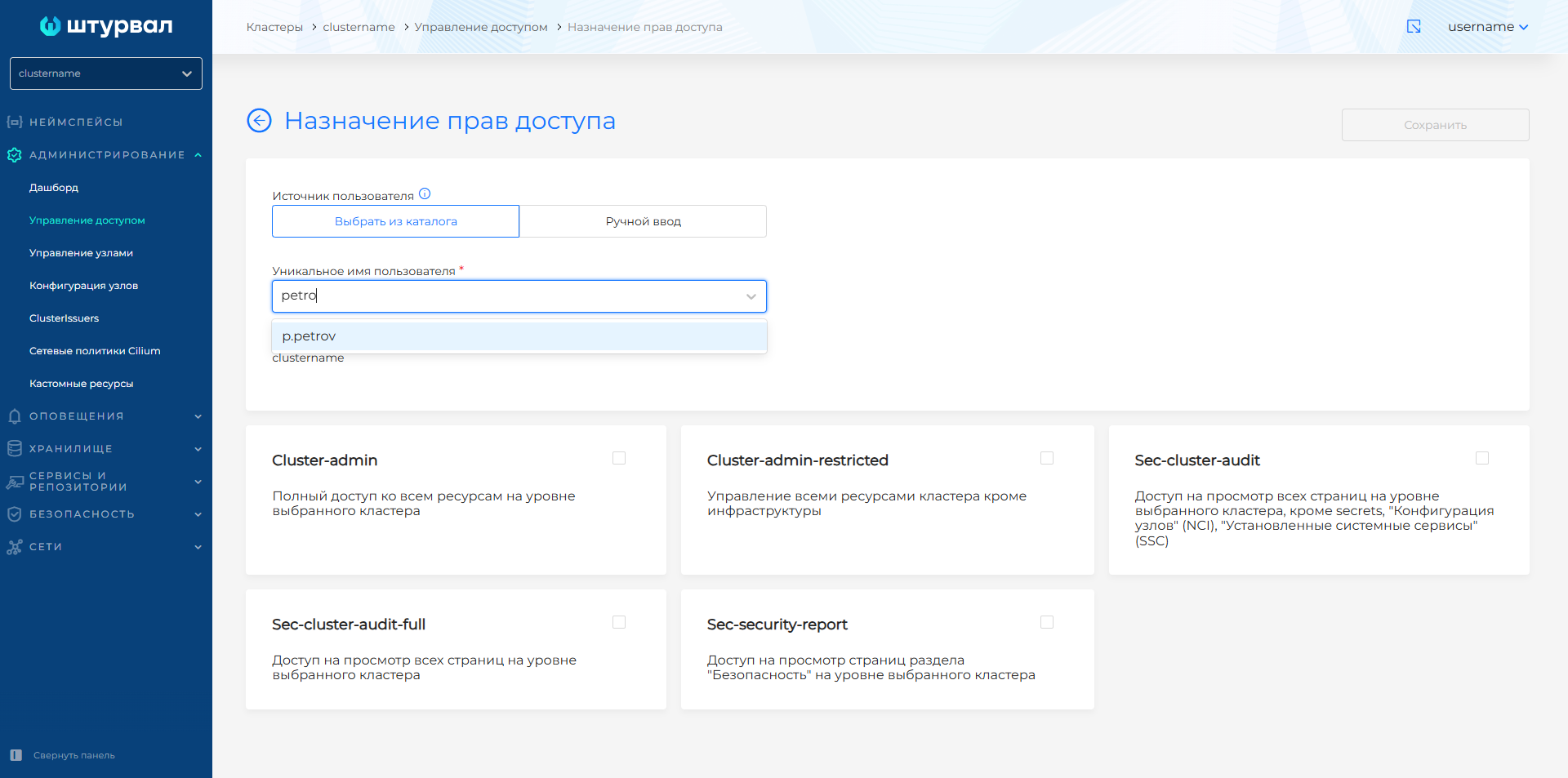
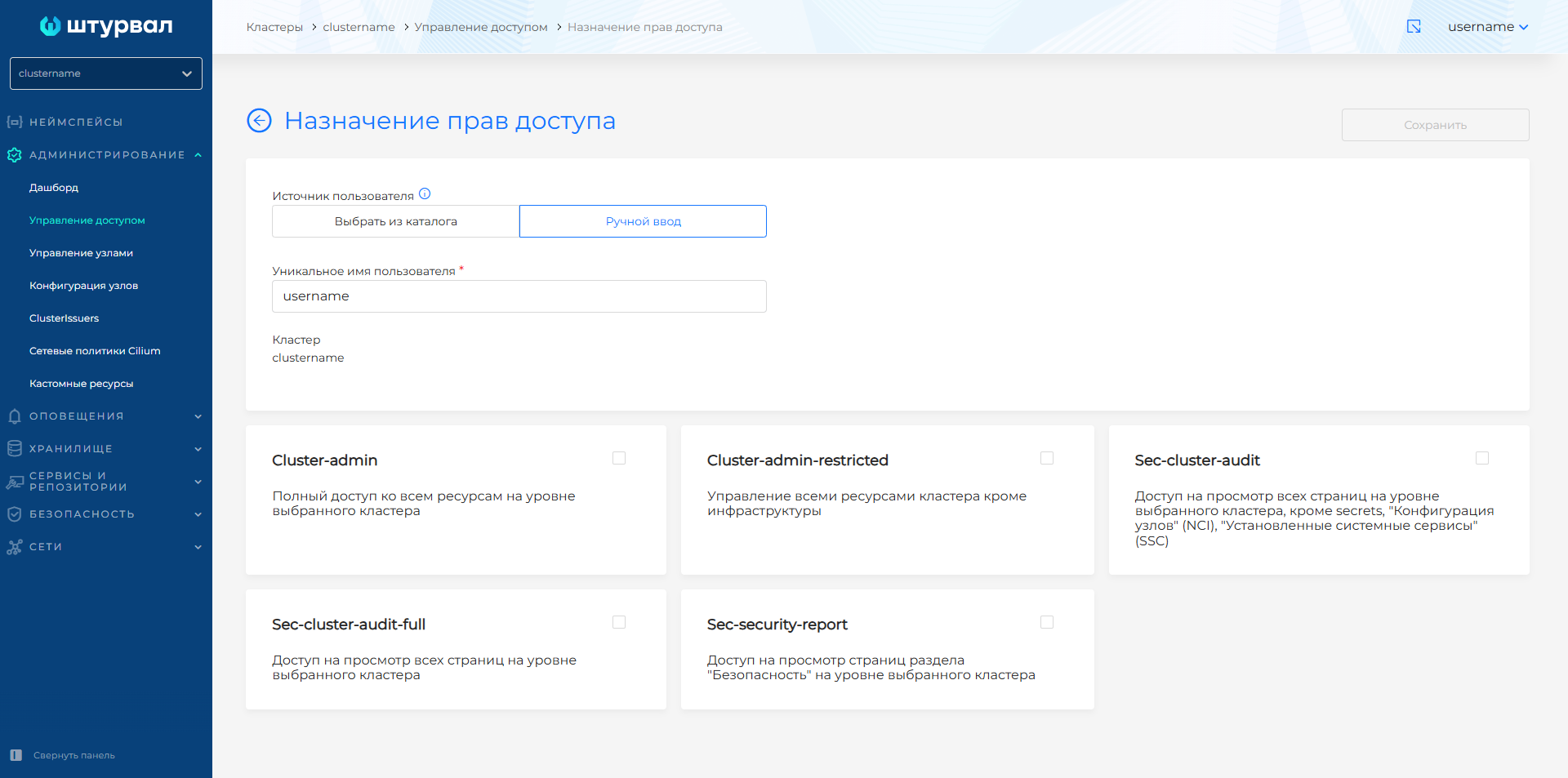
- In the Assignment of access rights form, specify Unique user name:
The username cannot be edited after the entry is created. To change, delete the entry and create a new one.
Screenshot: assigning rights to a user (selecting from a catalog)
Screenshot: assigning rights to a user (manual entry)
Assignment application status
The page displays the status of applying assignments:
- Application status in the management cluster — result of applying assignments in the management cluster (some client cluster objects are managed from there: Cluster API,
permissions.shturval.tech). - Application status in client clusters — successful application in the selected cluster, including Kubeflow rights and Argo CD roles.
If an access set includes Kubeflow rights and/or an Argo CD role:
- at cluster level, the user or group gets access to all Kubeflow profiles and Argo CD projects in that cluster;
- at namespace level, access is limited to the Kubeflow profile and Argo CD project for that namespace.
More about Kubeflow rights, Argo CD roles, and access sets: Permission settings.