Cluster dashboard
The main cluster page in the GUI.
The cluster dashboard shows key cluster information and changes with the cluster lifecycle. Before deployment completes, a reduced view is shown. After deployment, when infrastructure is ready and all control plane and worker nodes are up, the full dashboard with all tabs and blocks is available.
Dashboard before deployment is complete
When creating a client cluster, open Cluster → Client Clusters and select the cluster being created. Until deployment completes, the Dashboard page is available under Administration.
The top of the page shows the cluster name and its conditions. While the cluster is being deployed, conditions that have not succeeded yet are shown next to the name. When all conditions are successful, the overall state OK is shown. Show details opens the full list of conditions. Only the Cluster tab is available.
The Cluster tab contains the Cluster deployment status block, with the overall progress and the deployment stages. Completed stages are grouped into one readiness block. Details of stages that are still running change on the screen according to the selected display mode. The dashboard shows Control Plane and Worker node states, related infrastructure objects, service installation, and NCI applied to nodes. Data is updated automatically. For display modes, tables, and filters, see Cluster deployment status. The stages of installing services and applying NCI on the dashboard are displayed for tracking, but do not affect the transition to the Ready status and on the dashboard of deployed cluster. If the cluster reached a ready state before all services were installed or all NCIs were applied, completion can be verified in Node Configuration (NCI) and on the Installed Services page.
Dashboard of a deployed cluster
The top of the page shows cluster metadata: cluster name, creation date and time, reconciliation state, and conditions that need attention. The full list of cluster conditions is available via Show details. Each condition includes its status, reason, message, and received date. Available tabs:
- Cluster
- Annotations
- Events
- Logs
- Certificates
- Metering
- Availability of services (with metrics collection enabled)
All tabs are updated automatically.
Screenshot: header of the expanded cluster dashboard

Navigation buttons (Statistics, Argo CD)
Buttons for accessing external modules (with SSO authorization) are available on the dashboard:
- Statistics — opens Grafana (metrics visualization).
- Argo CD — opens the continuous delivery module (Argo CD). Buttons are displayed only if the corresponding services are installed and running, and the user has access rights to these services.
| Button | Condition |
|---|---|
| Statistics | shturval-metrics-collector is enabled in the cluster; shturval-dashboards and shturval-monitoring are enabled in the management cluster. |
| Argo CD | shturval-cd is installed and enabled in the cluster. |
Administrator communication
The cluster administrator can share announcements with users (a dashboard banner), set a cluster tag for lists (tag annotation), and apply color coding so environments are easy to tell apart.A banner is shown to all users who work with the cluster in the Shturval GUI. Use it for scheduled maintenance, access changes, or other important notices.
For visual emphasis (for example, by environment), use Visual marking — see the Visual marking tab below.
Where the message is created
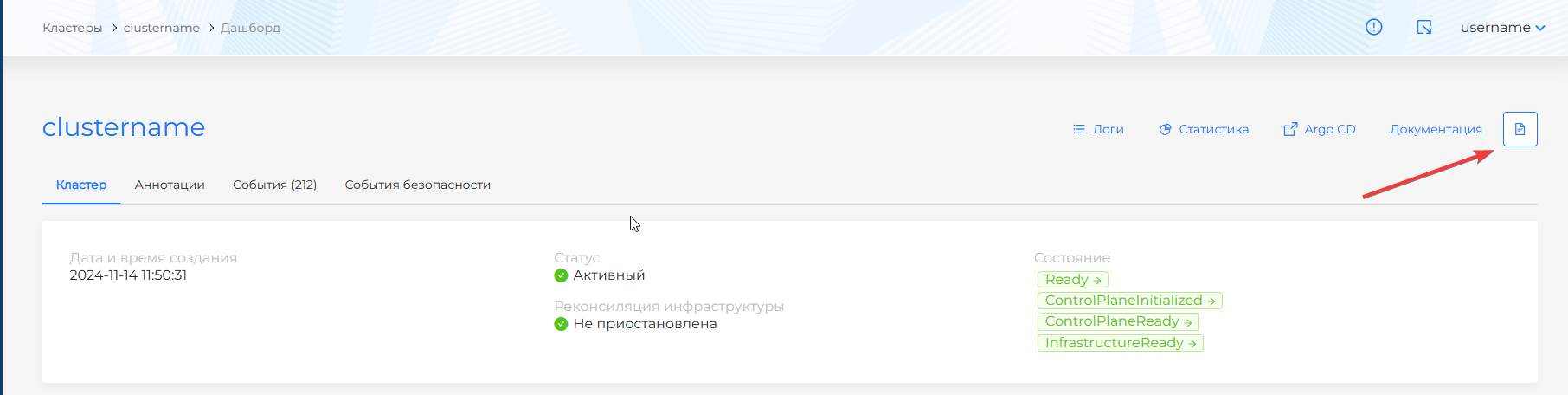
The message is created and edited on the Dashboard page of the cluster. The icon for posting an information message is located in the upper right corner of the dashboard page (next to the buttons for going to Statistics, Argo CD, etc.).
How to add or change a banner
- Open the cluster and go to the Dashboard page.
- In the upper right corner of the page, click the icon for adding or editing an information message (banner).
- In the window that opens, enter or change the text of the message.
- Save your changes.
After saving, the banner appears in the GUI for all users with access to this cluster.
Screenshot: adding an information message (banner)
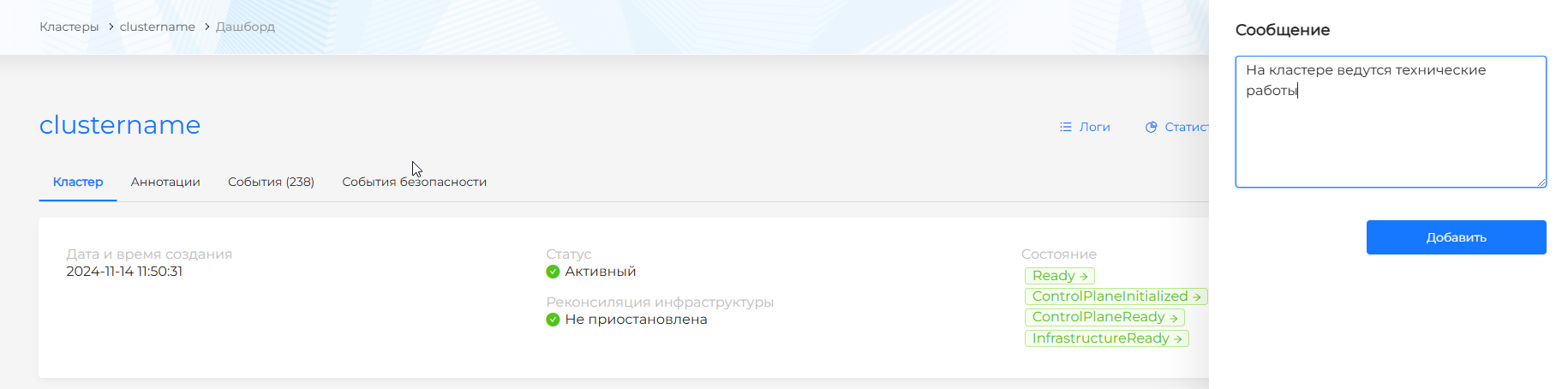
Screenshot: displaying a banner for users

Recommendations
- Use short and clear text.
- For scheduled work, indicate the window date and time and expected duration.
- To remove a message, open the editing form, clear the text and save.
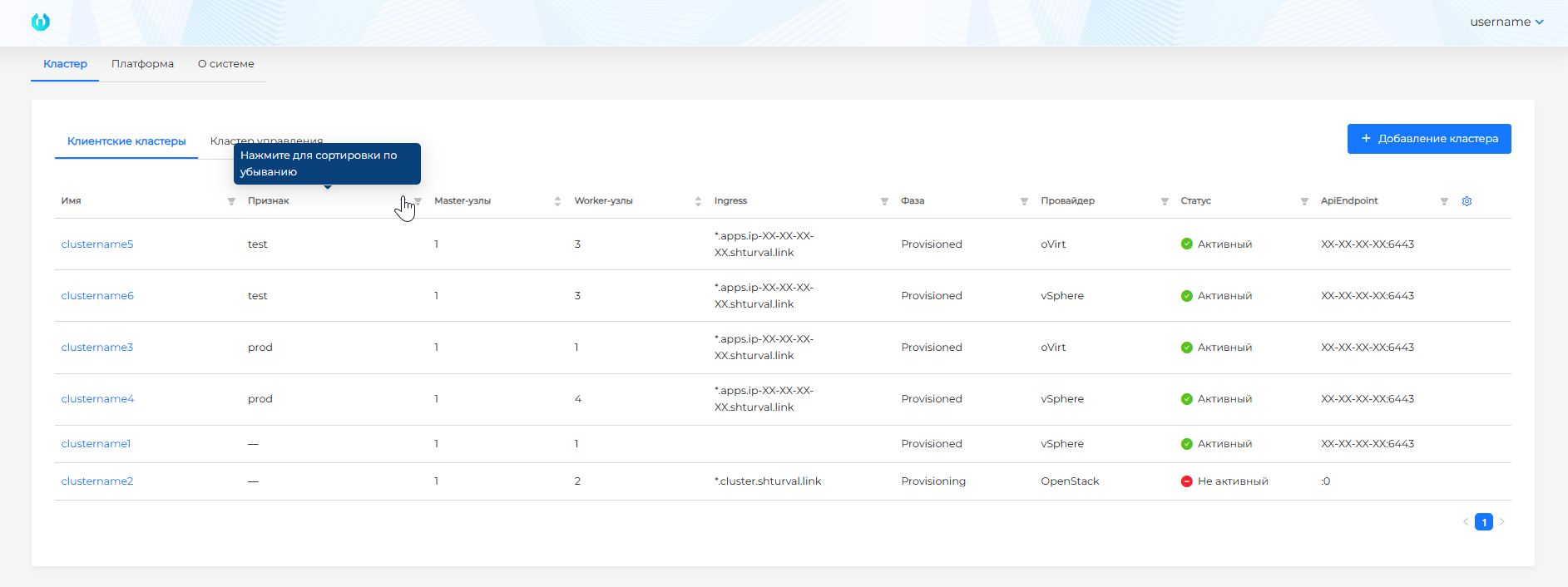
The cluster tag is an annotation with key tag. The value appears in the general cluster list and supports filtering by purpose or environment (for example, prod, test). Russian and English values are supported.
How to set a tag
- On the cluster dashboard, open the Annotations tab.
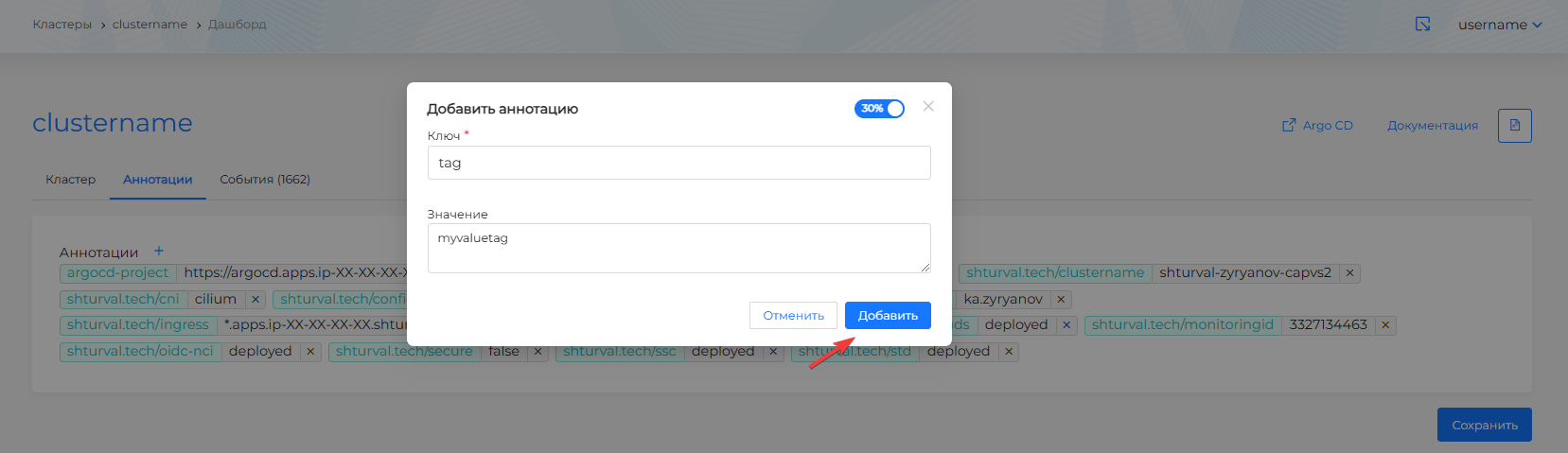
- Click + to add an annotation.
- Set the key to
tag and the value to the tag you want (for example, prod). How to add and change an annotation: Labels and annotations. - Click Save.
How to remove a tag
Click the cross next to the annotation, confirm, and click Save.
Example. To distinguish prod and test, add tag: prod on one cluster and tag: test on another.
Screenshot: adding a cluster annotation (feature)
Screenshot: sorting clusters by criteria
Visual cluster marking
Color marking is an environment bar. It helps distinguish clusters at a glance, for example by environment (production, test, and so on). The bar is displayed to the right of the left side menu on all pages of this cluster in the GUI. The text on the bar is vertical.
Set the bar in the Environment bar settings window or with annotations on the Annotations tab. Both ways change the same annotations, color-<hex-code> and text-color. On the Annotations tab you can still add, edit, and delete these entries by hand.
- Open the cluster Dashboard.
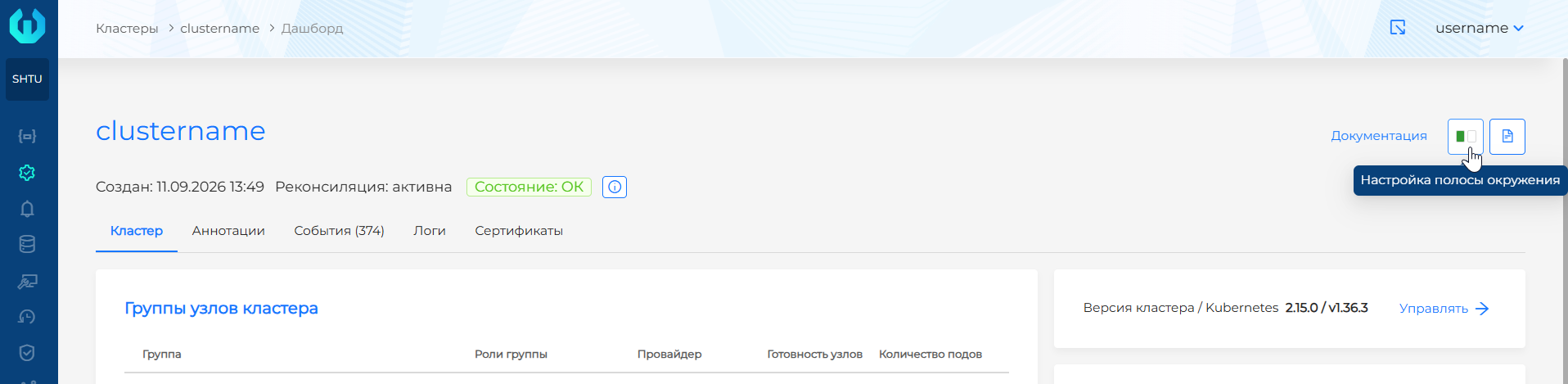
- In the upper-right corner, click the button whose tooltip is Environment bar settings. It sits next to the information-message icon. If a bar is already set, the button shows its colors.
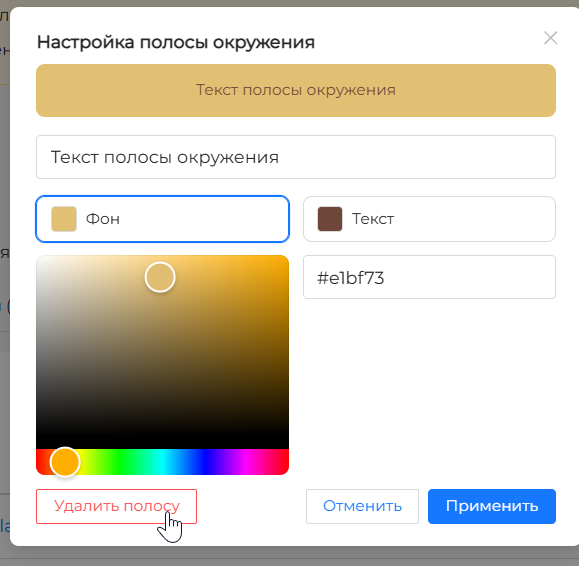
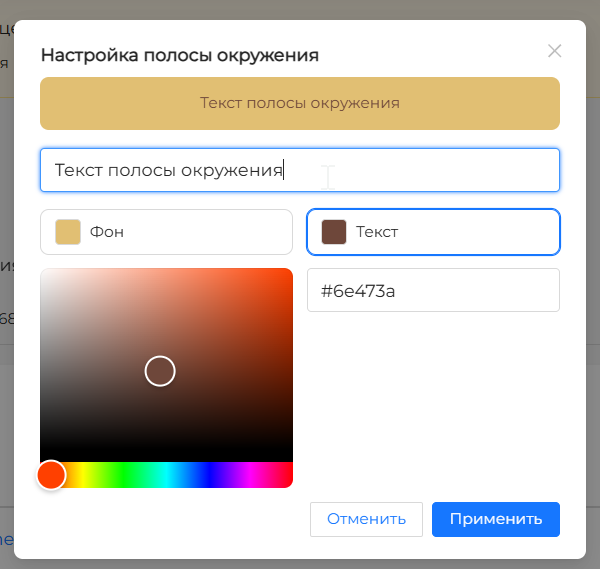
- Enter the bar text. An empty field shows the placeholder Enter a message. The sample at the top of the window updates the text and colors immediately.
- Choose which color to change: Background or Text. Pick the color on the palette. The field on the right shows the hex code with
#. The color-<hex-code> annotation key does not use #. - Click Apply.
Click Cancel to leave without applying the changes.
If a bar is already set, Delete bar is at the bottom of the window.
Screenshot: Environment bar settings button
Screenshot: bar background color
Screenshot: bar text color
How to set up
- On the cluster dashboard, open the Annotations tab.
- Add an annotation with the key
color-<hex-code> and the value — the text that will be shown on the bar (see the table below for an example). - If you need to change the text color, add the
text-color annotation with the hex code of the text color in the value. - Click Save.
To remove the marking, delete the corresponding annotations on the Annotations tab and save the changes.
Annotation Key Annotation value Description Example color-<hex-code>YOUR TEXTSets the background color of the bar and the text that appears on the bar. Hex code is specified without #. Key: color-ff4d4f
Value: PROD text-color<hex-code>Sets the color of the text on the bar. Hex code is specified without #. If the annotation is not specified, the default text color in the dark interface theme is white, and in the light interface it is black. Key: text-color
Value: ffffff
A banner is shown to all users who work with the cluster in the Shturval GUI. Use it for scheduled maintenance, access changes, or other important notices.
For visual emphasis (for example, by environment), use Visual marking — see the Visual marking tab below.
Where the message is created
The message is created and edited on the Dashboard page of the cluster. The icon for posting an information message is located in the upper right corner of the dashboard page (next to the buttons for going to Statistics, Argo CD, etc.).
How to add or change a banner
- Open the cluster and go to the Dashboard page.
- In the upper right corner of the page, click the icon for adding or editing an information message (banner).
- In the window that opens, enter or change the text of the message.
- Save your changes.
After saving, the banner appears in the GUI for all users with access to this cluster.
Screenshot: adding an information message (banner)
Screenshot: displaying a banner for users
Recommendations
- Use short and clear text.
- For scheduled work, indicate the window date and time and expected duration.
- To remove a message, open the editing form, clear the text and save.
The cluster tag is an annotation with key tag. The value appears in the general cluster list and supports filtering by purpose or environment (for example, prod, test). Russian and English values are supported.
How to set a tag
- On the cluster dashboard, open the Annotations tab.
- Click + to add an annotation.
- Set the key to
tagand the value to the tag you want (for example,prod). How to add and change an annotation: Labels and annotations. - Click Save.
How to remove a tag
Click the cross next to the annotation, confirm, and click Save.
Example. To distinguish prod and test, add tag: prod on one cluster and tag: test on another.
Screenshot: adding a cluster annotation (feature)
Screenshot: sorting clusters by criteria
Visual cluster marking
Color marking is an environment bar. It helps distinguish clusters at a glance, for example by environment (production, test, and so on). The bar is displayed to the right of the left side menu on all pages of this cluster in the GUI. The text on the bar is vertical.
Set the bar in the Environment bar settings window or with annotations on the Annotations tab. Both ways change the same annotations, color-<hex-code> and text-color. On the Annotations tab you can still add, edit, and delete these entries by hand.
- Open the cluster Dashboard.
- In the upper-right corner, click the button whose tooltip is Environment bar settings. It sits next to the information-message icon. If a bar is already set, the button shows its colors.
- Enter the bar text. An empty field shows the placeholder Enter a message. The sample at the top of the window updates the text and colors immediately.
- Choose which color to change: Background or Text. Pick the color on the palette. The field on the right shows the hex code with
#. Thecolor-<hex-code>annotation key does not use#. - Click Apply.
Click Cancel to leave without applying the changes.
If a bar is already set, Delete bar is at the bottom of the window.
Screenshot: Environment bar settings button
Screenshot: bar background color
Screenshot: bar text color
How to set up
- On the cluster dashboard, open the Annotations tab.
- Add an annotation with the key
color-<hex-code>and the value — the text that will be shown on the bar (see the table below for an example). - If you need to change the text color, add the
text-colorannotation with the hex code of the text color in the value. - Click Save.
To remove the marking, delete the corresponding annotations on the Annotations tab and save the changes.
| Annotation Key | Annotation value | Description | Example |
|---|---|---|---|
color-<hex-code> | YOUR TEXT | Sets the background color of the bar and the text that appears on the bar. Hex code is specified without #. | Key: color-ff4d4fValue: PROD |
text-color | <hex-code> | Sets the color of the text on the bar. Hex code is specified without #. If the annotation is not specified, the default text color in the dark interface theme is white, and in the light interface it is black. | Key: text-colorValue: ffffff |
Cluster tab
Cluster node groups
The “Cluster Node Groups” block contains information about node groups. When you click on the block name, you go to the Node Management page.
Screenshot: groups of nodes on the dashboard
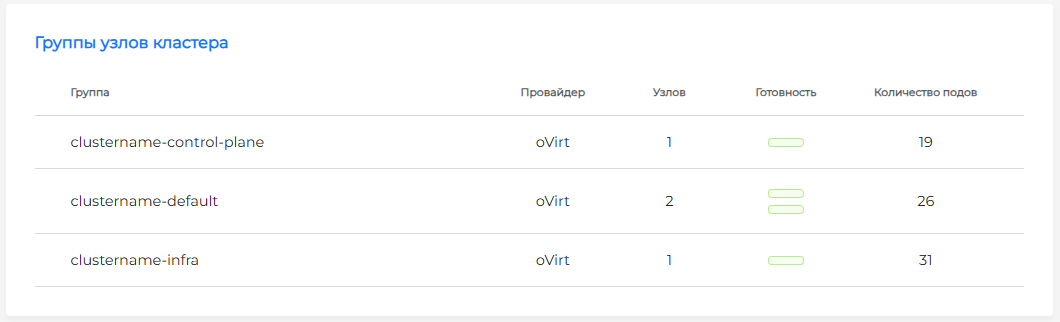
The block displays: group name, provider, number of nodes, readiness of nodes in the form of indicators (green - Ready, red - NotReady), number of pods. If there is a large number of nodes in the group, the ratio of healthy nodes to the requested number is shown.
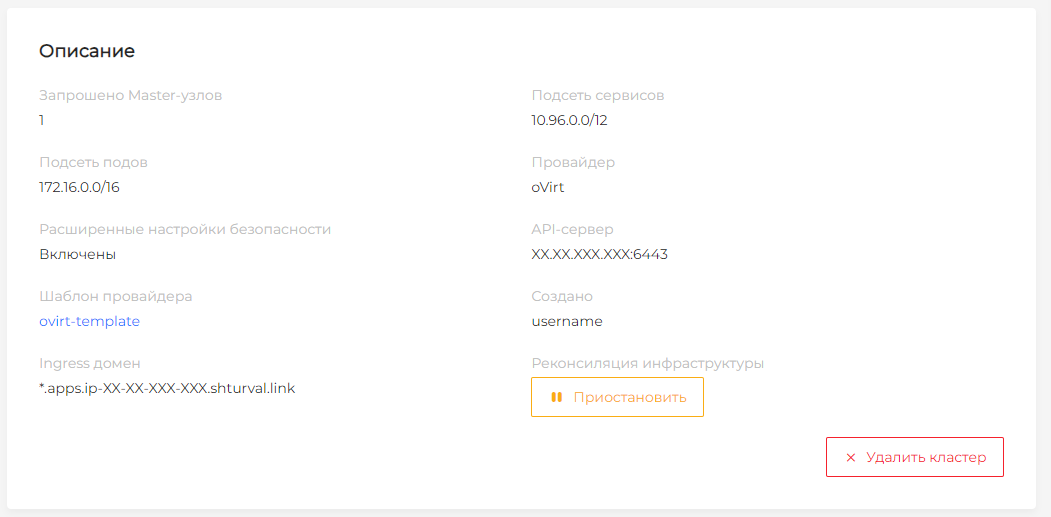
Description
The “Description” block contains the main parameters of the cluster:
- Service subnet;
- Pod subnet;
- Provider;
- Advanced security settings (enabled/disabled);
- API server;
- Provider template;
- Ingress-domain;
- Created (user who created the cluster).
In the same block, the actions “Pause” infrastructure reconciliation and “Delete cluster” are available.
A client cluster can be deleted before deployment completes and when dashboard data fails to load. The action requires delete permission and is available only for a client cluster. How to delete the management cluster: Uninstalling the platform.
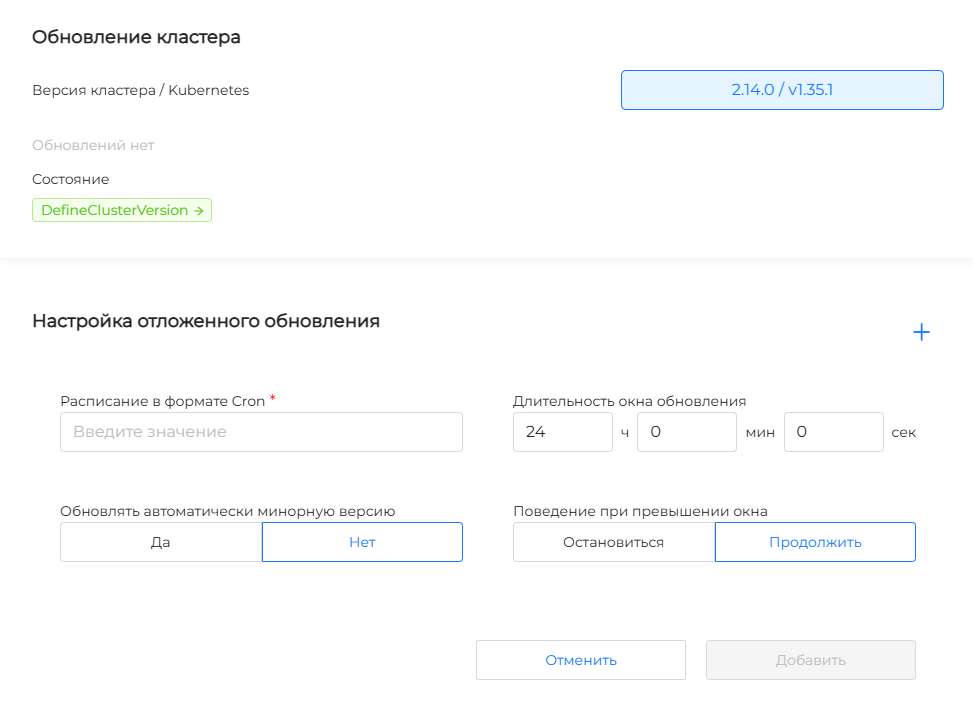
Cluster update
The Cluster Update block shows the installed Kubernetes version. If the update channel contains at least one available version, this is shown in the block before you open update management. Manual and automated update methods are available.
Screenshot: cluster update block
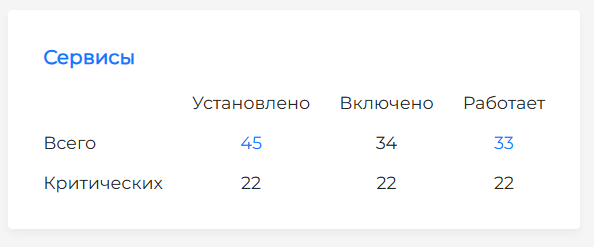
Services
The “Services” block contains counters of installed, enabled and running services (total and critical). When you click on the block name or number, you go to the Installed services page of the cluster.
Screenshot: services block
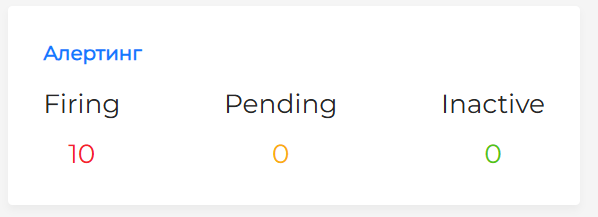
Alerting
The “Alerting” block shows triggered alerts by importance level. When you click on a block or a counter value, you go to the View Alerts page. The block is not displayed if metrics collection is not enabled in the cluster or if the metrics storage module is not enabled in the management cluster.
Screenshot: alerting block
Pausing reconciliation (Paused)
Pausing infrastructure reconciliation temporarily stops changes and checks on machines and nodes in the cluster. Pending changes are queued and applied when reconciliation resumes. Cluster administrators and platform administrators can manage this from the cluster dashboard. For background, see How Shturval controls the clouds.
Screenshot: description and pause of reconciliation
Example: with MachineHealthCheck enabled for a group of nodes, you can pause reconciliation, change the machine sizing, and resume reconciliation so that MachineHealthCheck does not respond to a node being temporarily unavailable.
Annotations Tab
The Annotations tab lists cluster annotations. Adding and editing follow Labels and annotations in the GUI. To delete one, click the cross next to it and confirm. Click Save after changes.
Tagging (tag), color marking, and related annotations are covered in Administrator communication. The environment bar can also be set with the button on the dashboard; the color-<hex-code> and text-color annotations stay on this tab.
Events tab
The “Events” tab displays cluster object events: date and time, source, object, event type, text.
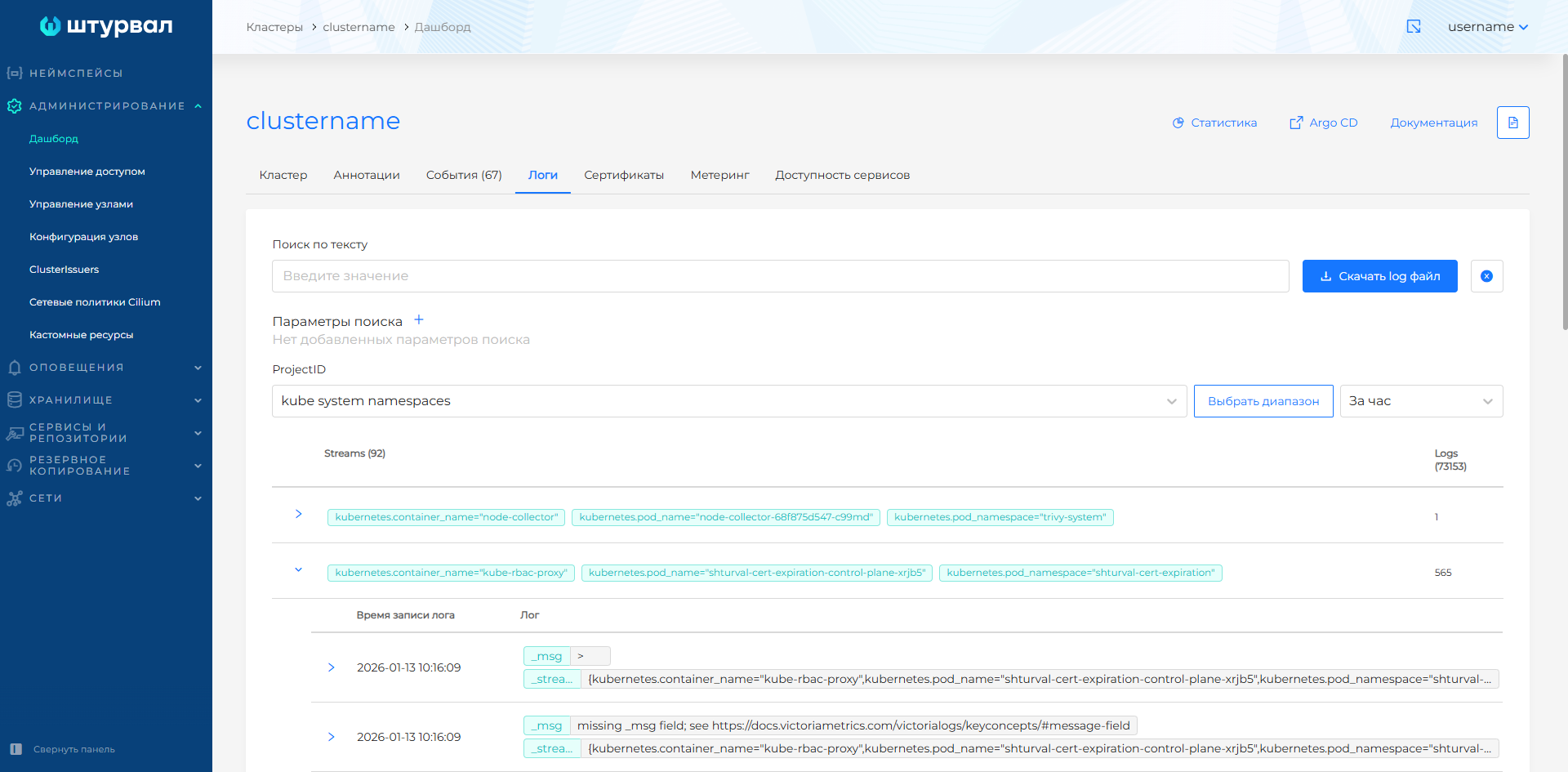
“Logs” tab
If the Local Log Collection Module (shturval-log-collector) is enabled in the cluster and the shturval-metrics-collector is running in the management cluster, the collected logs are displayed on the “Logs” tab. More information about viewing and filtering: View logs.
Screenshot: “Logs” tab
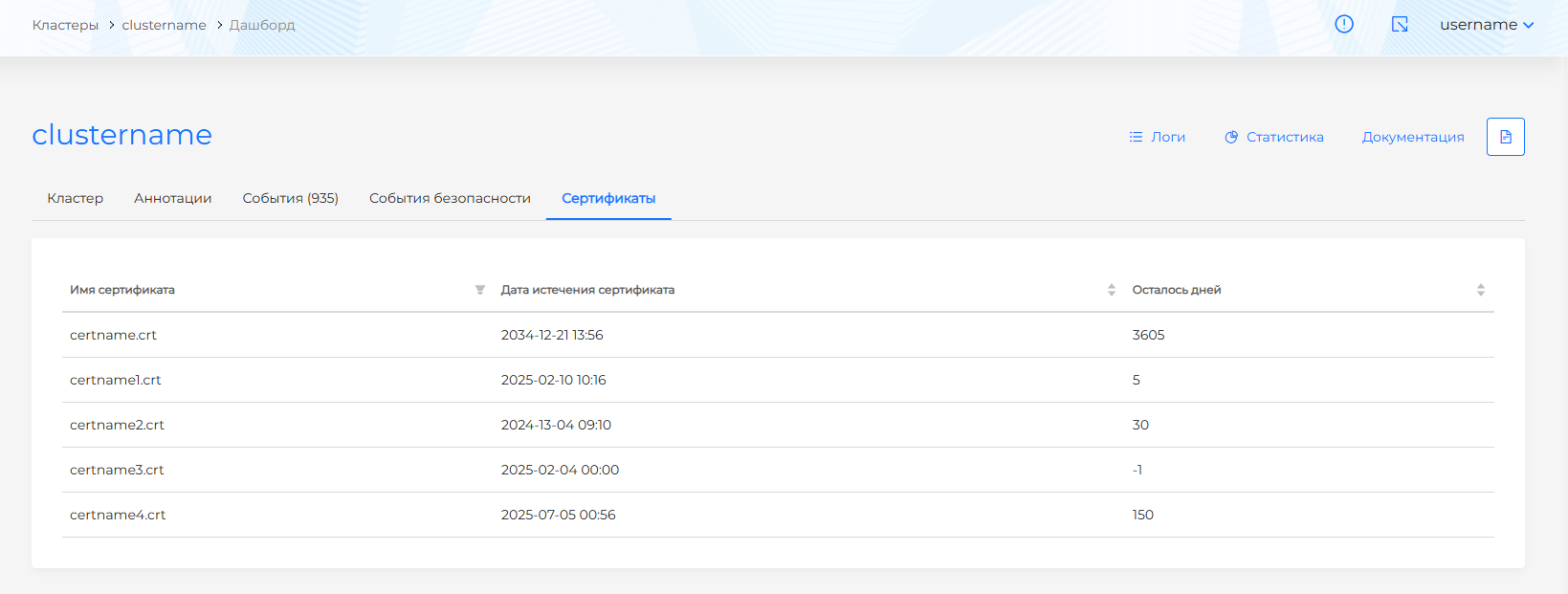
Certificates tab
The Certificates tab displays information about the cluster certificates (based on API Certificate Validator Kubernetes): expiration date and number of days remaining.
Screenshot: “Certificates” tab
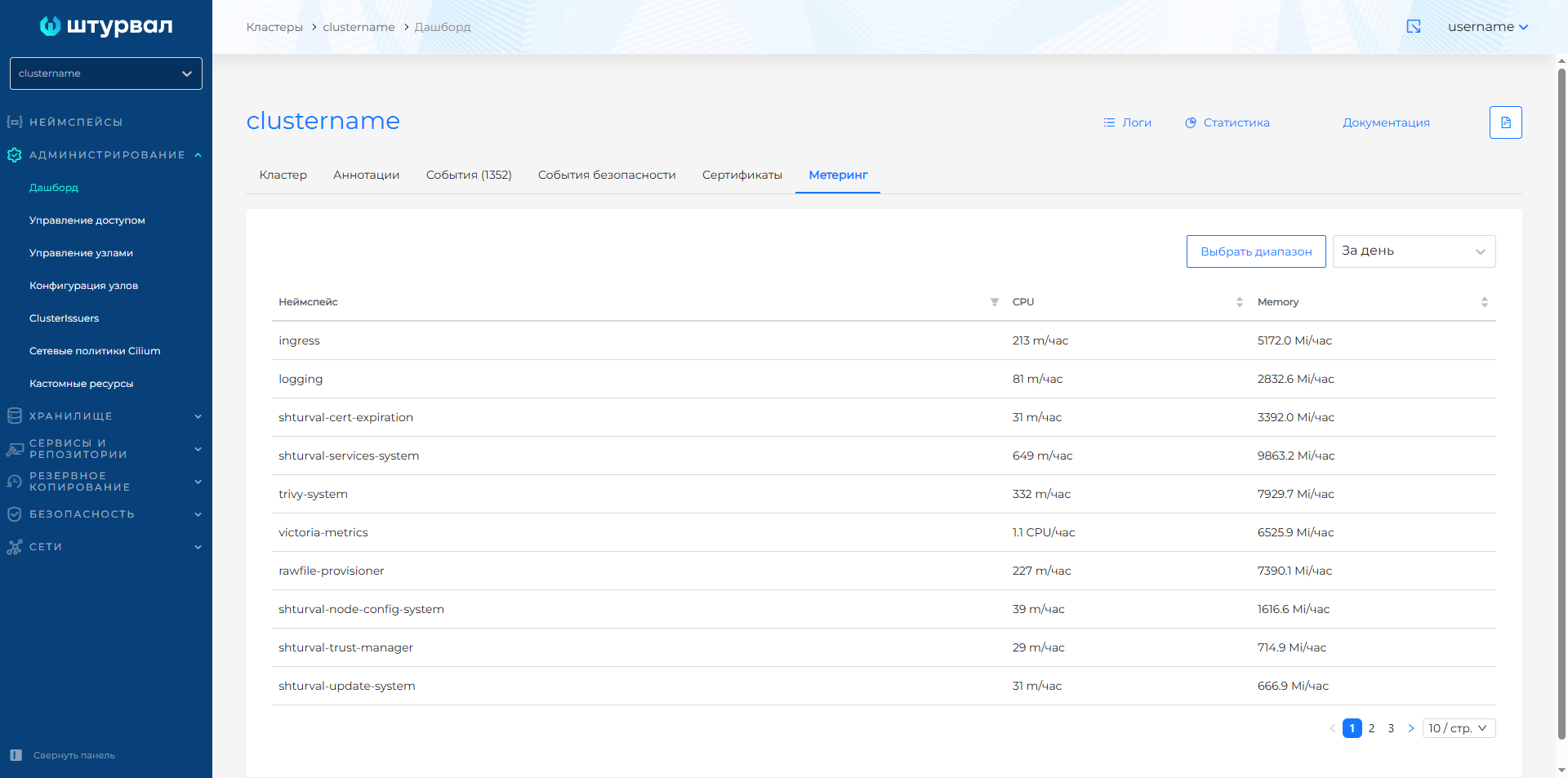
Metering tab
Metering is a simplified representation of resource consumption by namespace (CPU/hour, RAM/hour). Data is stored for up to a year. On the tab, you can get information for the last hour, week, month, year, or for a selected time range.
Screenshot: “Metering” tab
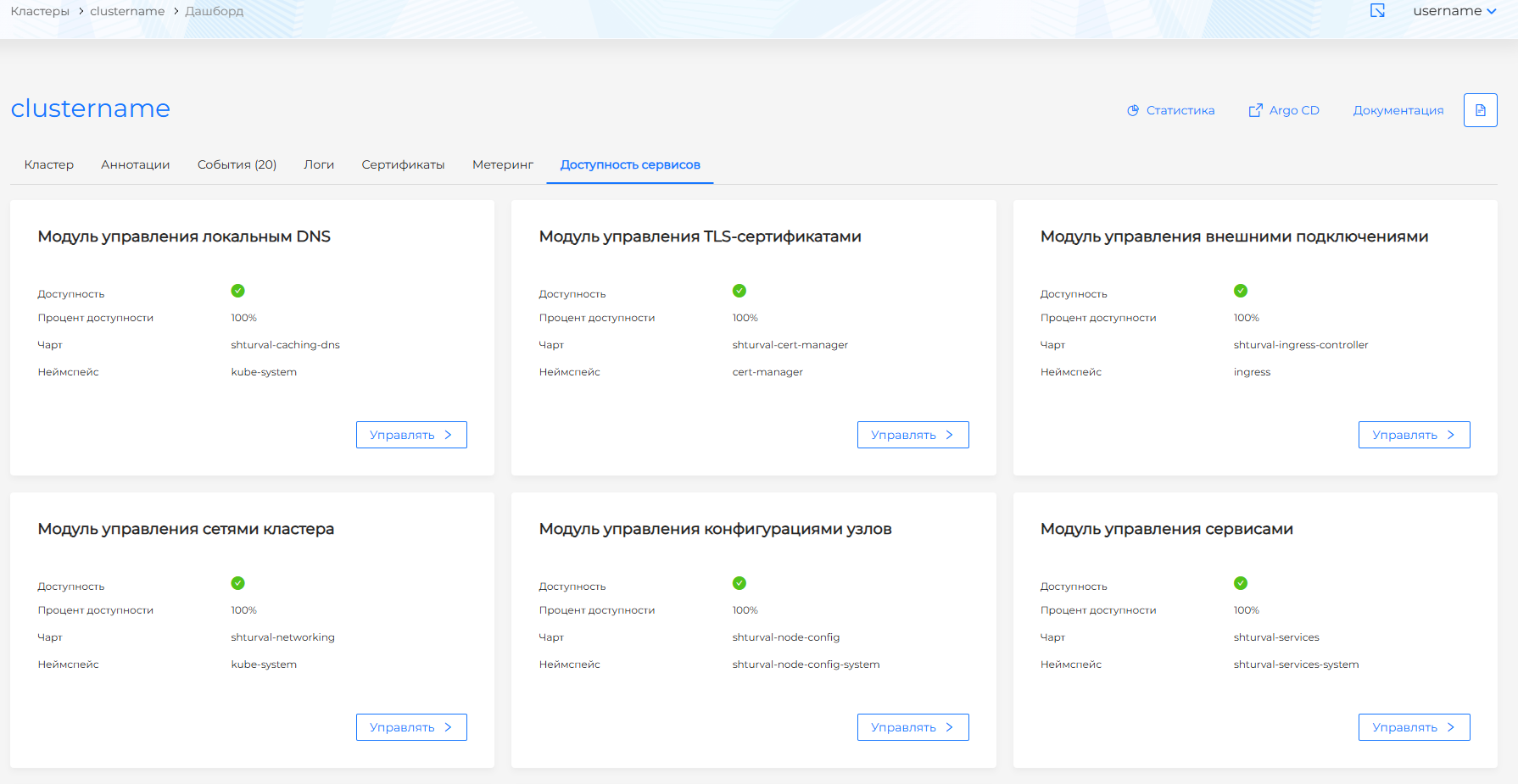
“Service Availability” tab
The Service Availability tab shows cards for key cluster system services: availability status (color), availability percentage for the last hour, Helm chart name, and namespace. Manage opens the service view page.
The tab is available when shturval-metrics-collector is enabled in the cluster and shturval-monitoring is enabled in the management cluster.
Screenshot: “Service Availability” tab
You can also check service status on the Installed services page.