ClusterIssuer and Issuer
ClusterIssuer and Issuer are Kubernetes resources (cert-manager) representing certificate authorities that can issue valid certificates for certificate signing requests.
| Resource | Scope | GUI section |
|---|---|---|
| ClusterIssuer | entire cluster | Administration → ClusterIssuers |
| Issuer | one namespace | Security → Issuers (inside namespace) |
On the corresponding pages you can create, edit, delete or view previously created objects.
ClusterIssuer
Creating a ClusterIssuer
- Administration → ClusterIssuers → + Add ClusterIssuer.
- In the window that opens, specify:
- Name;
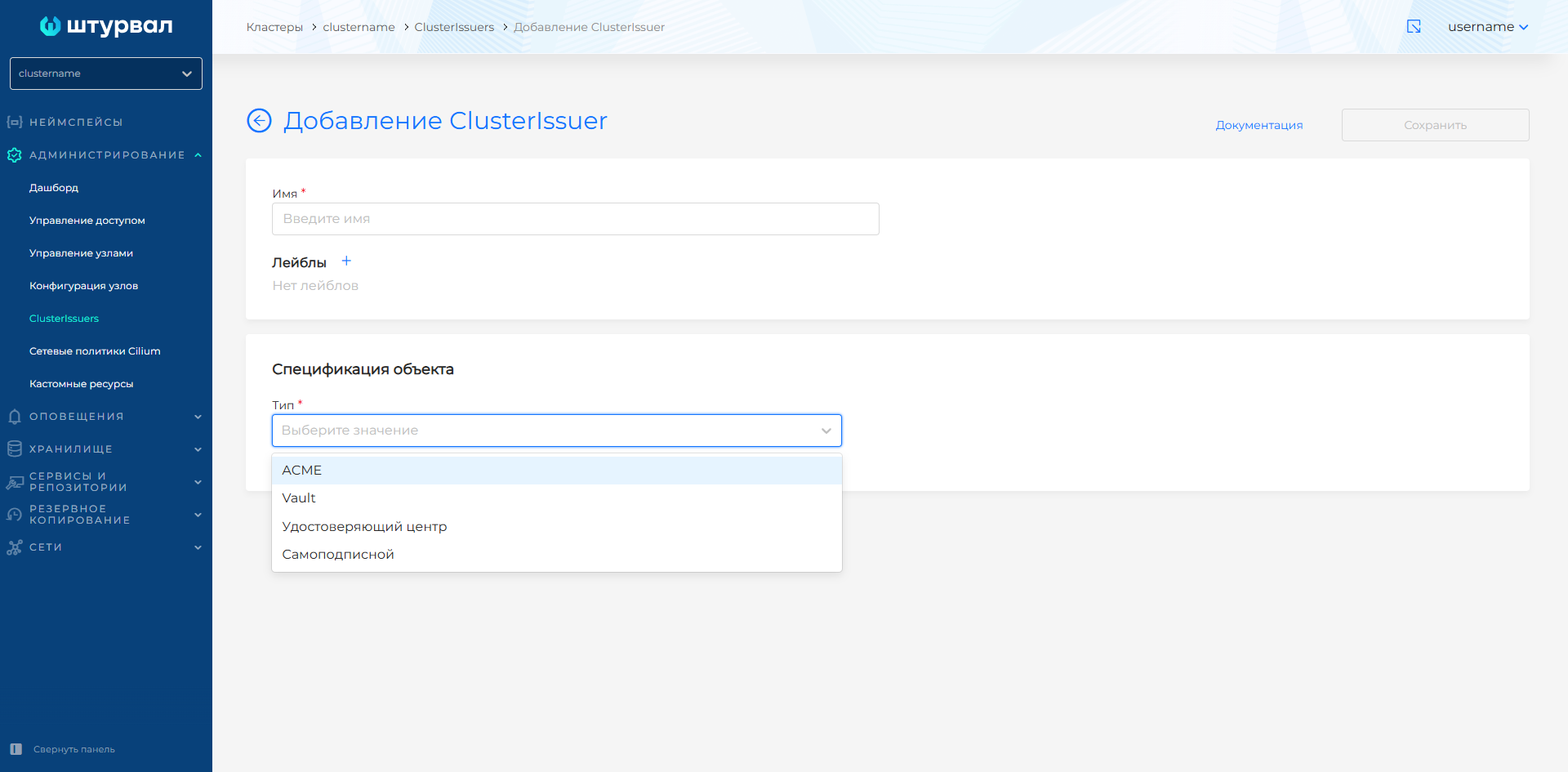
- Object specification - type from the drop-down list:
- ACME;
- Vault;
- Certificate authority (CA);
- Self-signed (SelfSigned).
- if necessary - labels.
Screenshot: selecting the ClusterIssuer type
Setting up ACME
To configure, you need an account in ACME (Automated Certificate Management Environment).
Screenshot: ACME setup
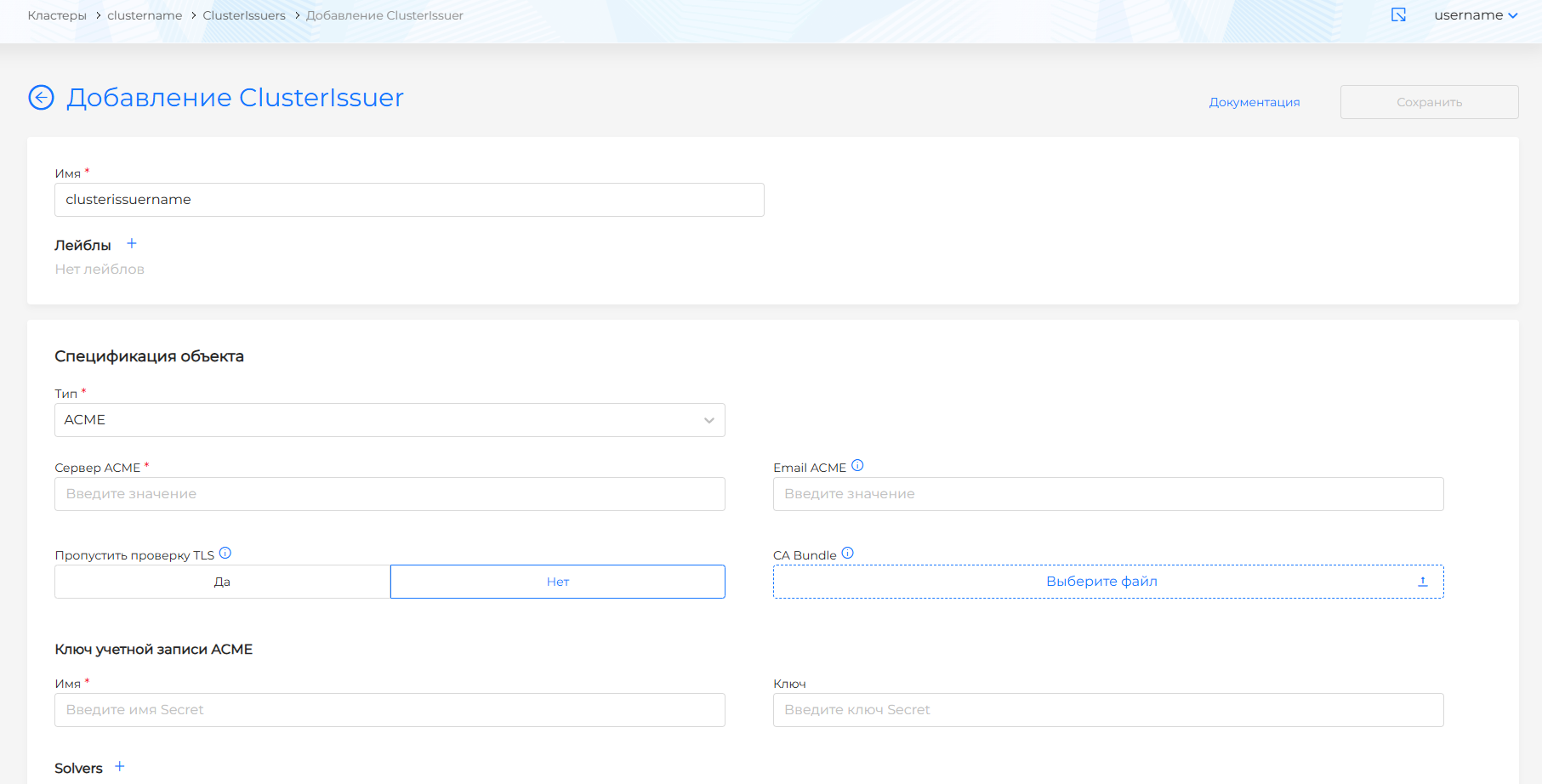
Fill in:
- ACME Server - for example,
https://acme-v02.api.letsencrypt.org/directory; - Email associated with the ACME account;
- Skip TLS check - default No.
If you skip the TLS check, requests to the ACME server will not be validated with a TLS certificate (insecure connections are allowed). Enable this option only in development environments.
Please note! If an ACME certificate is added to the cluster, you need to monitor the operation of the ACME server. If the server fails, clusters with ACME certificates will be unavailable.
- When establishing a secure TLS connection, specify in the CA Bundle field the bundle of certificate authority certificates (root and intermediate in PEM format) to verify the authenticity of the ACME server.
Please note! The CA Bundle file data must contain ----BEGIN CERTIFICATE---- and ----END CERTIFICATE----.
If the CA Bundle is not specified, but TLS connection verification is enabled, the system certificate bundle inside the container is used for verification.
In the ACME Account Key block:
- enter name and key Secret;
- add solvers: click + next to Solvers and select type HTTP01 or DNS01.
HTTP01
- Fill in the ClassIngress field and click Add.
Screenshot: solver HTTP01
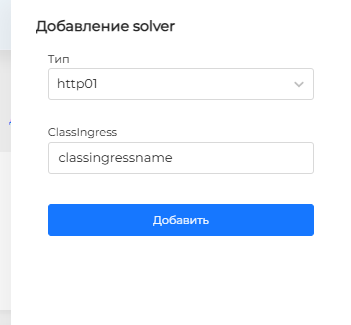
Suitable if:
- the provider does not block port 80;
- The Ingress controller is accessible from the Internet via port 80;
- wildcard certificates are not used.
Specify the Ingress class (ClassIngress) for the challenge solution (for example, Let’s Encrypt).
View ClassIngress in the cluster
kubectl get ingressclass -A
If ClassIngress is not specified, the default class is used.
DNS01/acmeDNS
- Fill in the host value. In AccountSecretRef enter the name and Secret key, then click Add.
Screenshot: solver DNS01 / acmeDNS
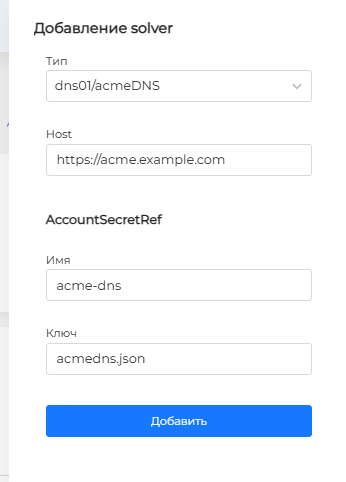
Suitable if:
- wildcard certificates are used;
- there are several web servers.
Example manifest fragment
apiVersion: cert-manager.io/v1
kind: Issuer
metadata:
  name: example-issuer
spec:
  acme:
    solvers:
    - dns01:
        acmeDNS:
          host: https://acme.example.com
          accountSecretRef:
            name: acme-dns
            key: acmedns.json
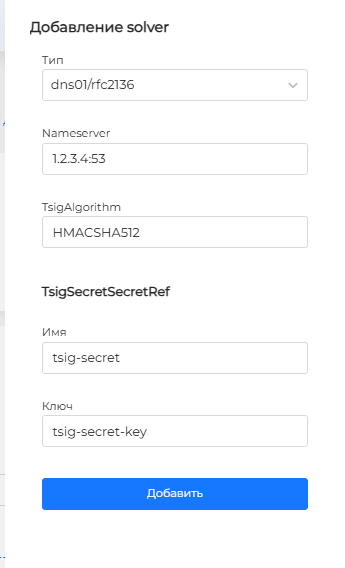
DNS01 / RFC2136
- Fill in Nameserver and TsigAlgorithm. In TsigSecretSecretRef enter the name and Secret key, then click Add.
Screenshot: solver DNS01 / RFC2136
Suitable if you have:
- DNS server with RFC2136 support;
- access to TSIG keys to authorize DNS updates.
Example manifest fragment
rfc2136:
  nameserver: 1.2.3.4:53
  tsigKeyName: example-com-secret
  tsigAlgorithm: HMACSHA512
  tsigSecretSecretRef:
    name: tsig-secret
    key: tsig-secret-key
- tsigKeyName — TSIG key name (for example,
example-key); - tsigAlgorithm — TSIG key algorithm (for example,
hmac-md5); - tsigSecretSecretRef.name — Secret with the TSIG secret key.
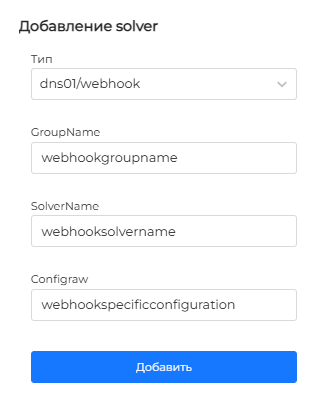
DNS01 / webhook
- Fill in the GroupName, SolverName and Config for Cert-Manager, then click Add.
Screenshot: solver DNS01 / webhook
Example manifest fragment
apiVersion: cert-manager.io/v1
kind: Issuer
metadata:
  name: example-issuer
spec:
  acme:
    solvers:
    - dns01:
        webhook:
          groupName: $WEBHOOK_GROUP_NAME
          solverName: $WEBHOOK_SOLVER_NAME
          config:
            ...
            <webhook-specific-configuration>
Example manifests
ClusterIssuer ACME (Let’s Encrypt, HTTP-01)
apiVersion: cert-manager.io/v1
kind: ClusterIssuer
metadata:
  name: letsencrypt-prod
spec:
  acme:
    server: https://acme-v02.api.letsencrypt.org/directory
    email: admin@example.com
    privateKeySecretRef:
      name: letsencrypt-prod-account
    solvers:
    - http01:
        ingress:
          class: nginx
Import the finished manifest via Import manifests.
Setting up Vault
To configure, you need an account in Vault.
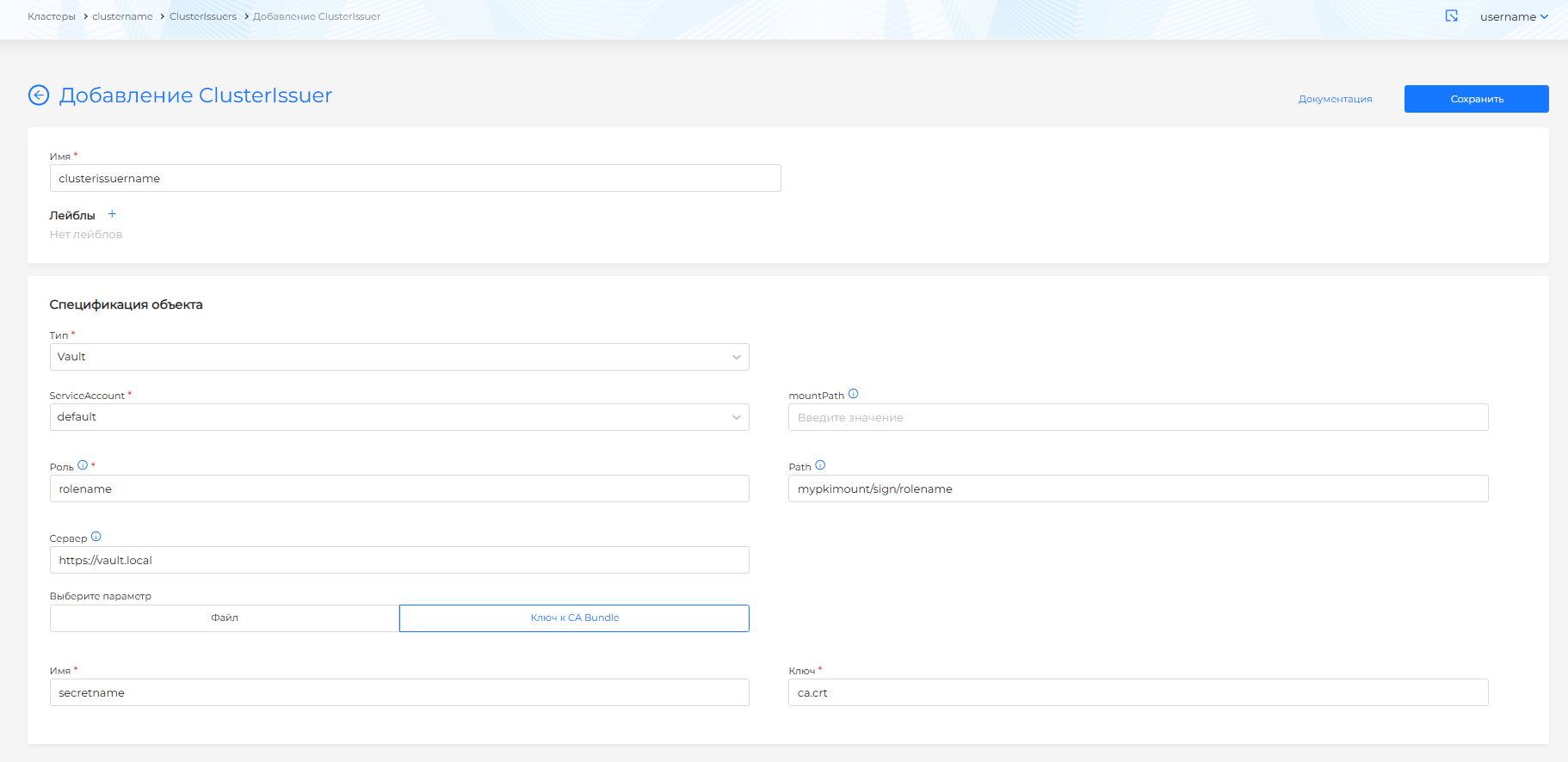
According to cert-manager official documentation ServiceAccountRef is recommended for the current version. Select ServiceAccount from the dropdown list.
Screenshot: setting up Vault
ServiceAccount must be created in namespace cert-manager and have the role vault-issuer in namespace cert-manager:
Permissions of the vault-issuer role
rules:
  - apiGroups: ['']
    resources: ['serviceaccounts/token']
    resourceNames: ['vault-issuer']
    verbs: ['create']
After selecting ServiceAccount:
- mountPath — Vault mount path during authentication (for example,
/v1/auth/kubernetes); - Role — user role on the Vault side (for example,
my-app-1); - Path — path to the PKI-backend Vault signature point (for example,
my_pki_mount/sign/my-role-name); - Server — Vault address (for example,
https://vault.local); - CA Bundle (optional) - root and intermediate certificates in PEM for TLS verification to Vault.
Two ways to specify CA Bundle:
- File — enter the CA Bundle contents. Please note! The data must contain
----BEGIN CERTIFICATE----and----END CERTIFICATE----. - Key to CA Bundle - link to Secret in the cluster: select Secret and key.
If CA Bundle is not specified in ClusterIssuer, the cert-manager certificate bundle is used for TLS verification.
Click Save.
Certificate authority (CA)
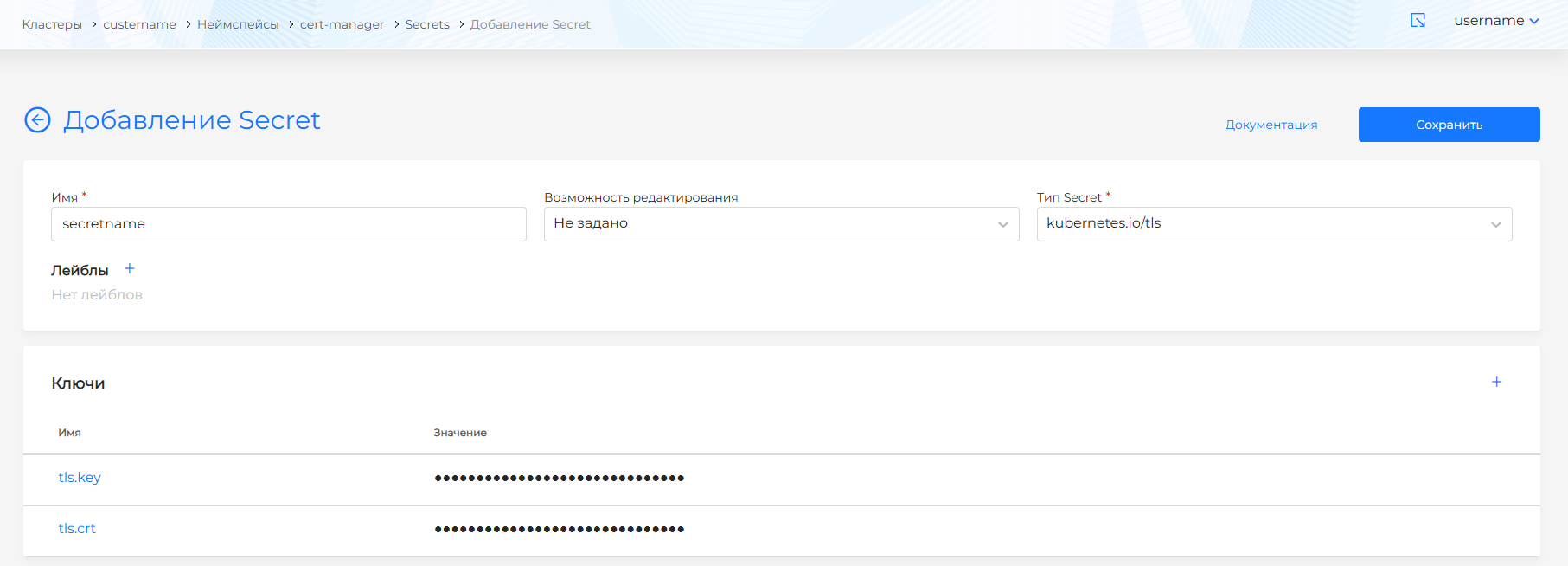
CA ClusterIssuer is configured with a certificate and the CA’s private key in Secret. Before creating a ClusterIssuer, create a Secret in the cert-manager namespace (section Storage → Secrets in the cert-manager namespace or via the CLI) containing the certificate and key.
Please note!
- Secret must be in the namespace
cert-manager. - The field names in Secret are strictly tls.crt and tls.key - using them, cert-manager receives the certificate and CA key.
- The values in tls.crt and tls.key must be in base64.
Secret Example
apiVersion: v1
kind: Secret
metadata:
  name: secretname
  namespace: cert-manager
data:
  tls.crt: <base64>
  tls.key: <base64>
Screenshot: Secret for CA
For ClusterIssuer of type Certificate authority:
Screenshot: ClusterIssuer CA
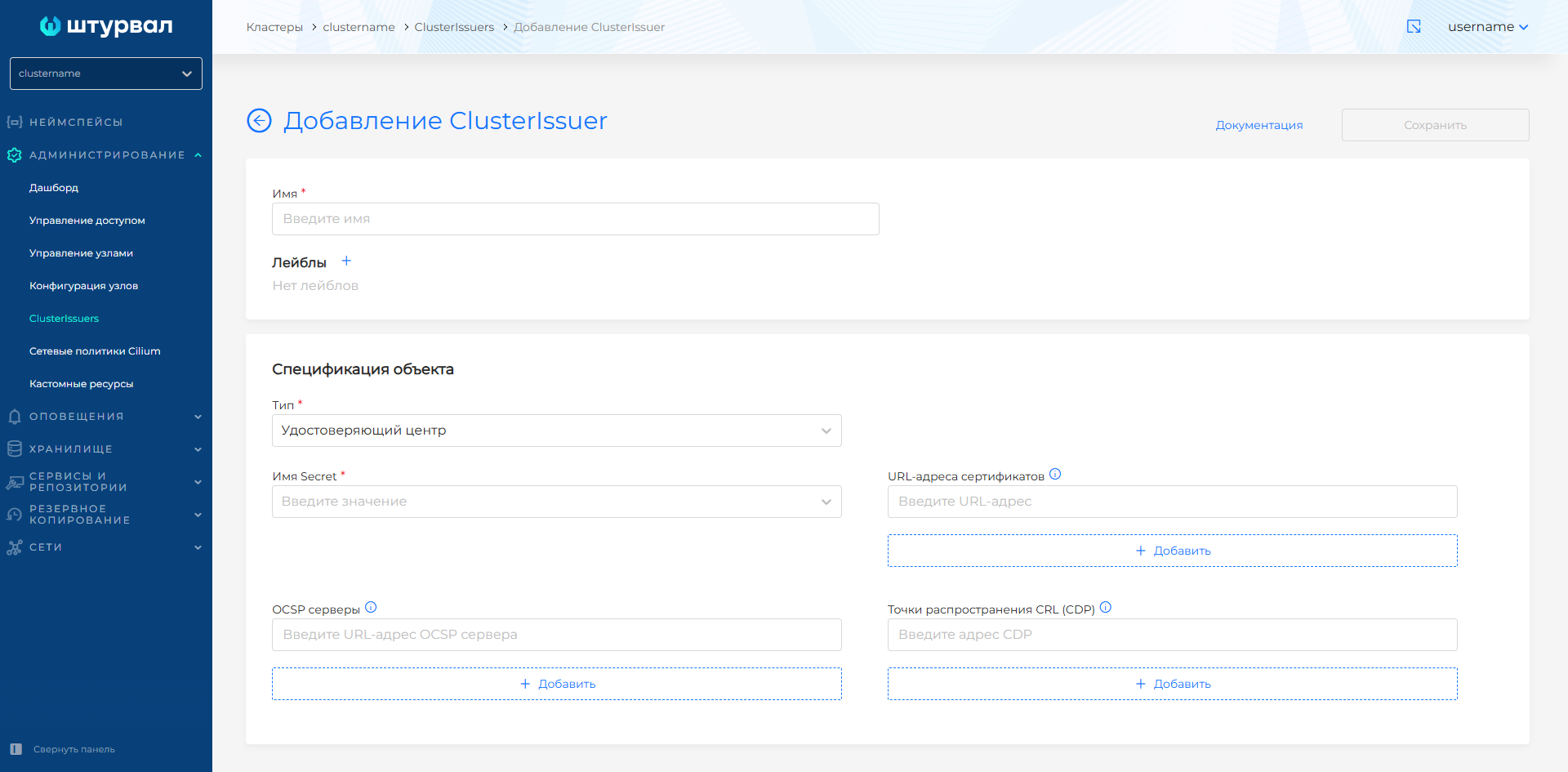
- specify Secret name with certificate and CA key;
- if necessary - URL addresses of OCSP servers (ocspServers); if addresses are not specified, the certificate is issued without an OCSP server (example:
http://ocsp.int-x3.example.org); - if necessary - certificate URLs (issuingCertificateURLs) - HTTP only (example:
http://ca.domain.com/ca.crt); - if necessary, CRL distribution points (crlDistributionPoints) for revocation checking (example:
http://example.com).
Self-signed - SelfSigned
SelfSigned ClusterIssuer provides a quick TLS setup without validation by an external CA.
For Self-Signed type, optionally add CRL distribution points (CDP) (crlDistributionPoints) — URLs of the certificate revocation list (CRL).
Screenshot: ClusterIssuer SelfSigned
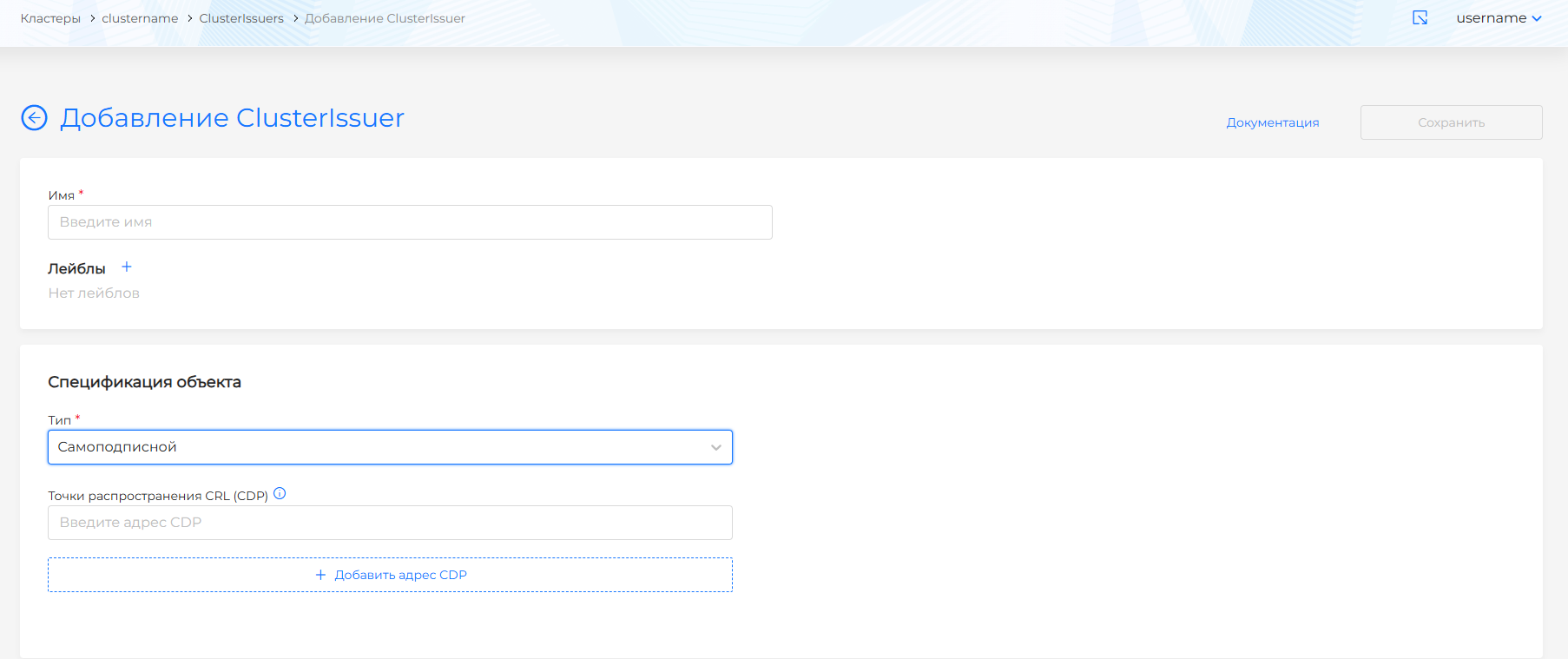
Click Save.
View and change ClusterIssuer
The created ClusterIssuers are displayed in a list on the ClusterIssuers page in the Administration section of the cluster.
- View - click a name in the list.
- Change - Update the specification in the object tab and click Save.
- Manifest (YAML) — Manifest tab: after edits, check; the result is on the right side of the screen. Expand the result block to see the full manifest. If format validation fails, manifest verification is not available. Unsaved changes are not applied.
Delete ClusterIssuer:
- on the ClusterIssuers page - delete icon in the object line;
- on the viewing page - the Delete button on the ClusterIssuer tab;
- on the Manifest tab - delete icon.
In the ClusterIssuers list you can delete one object or several at once. How to select objects and confirm deletion: Bulk deletion.
Issuer
Issuer is a Kubernetes resource (cert-manager): a certificate authority scoped to one namespace. It issues valid certificates for certificate signing requests.
On the Issuers page in the namespace, you can create, edit, delete, or view previously created Issuers.
Creating an Issuer
- In the desired namespace: Security → Issuers → + Add Issuer.
- Specify:
- Issuer name;
- type in the specification: ACME, Vault, Certificate authority (CA), Self-Signed;
- if necessary - labels.
Screenshot: selecting Issuer type
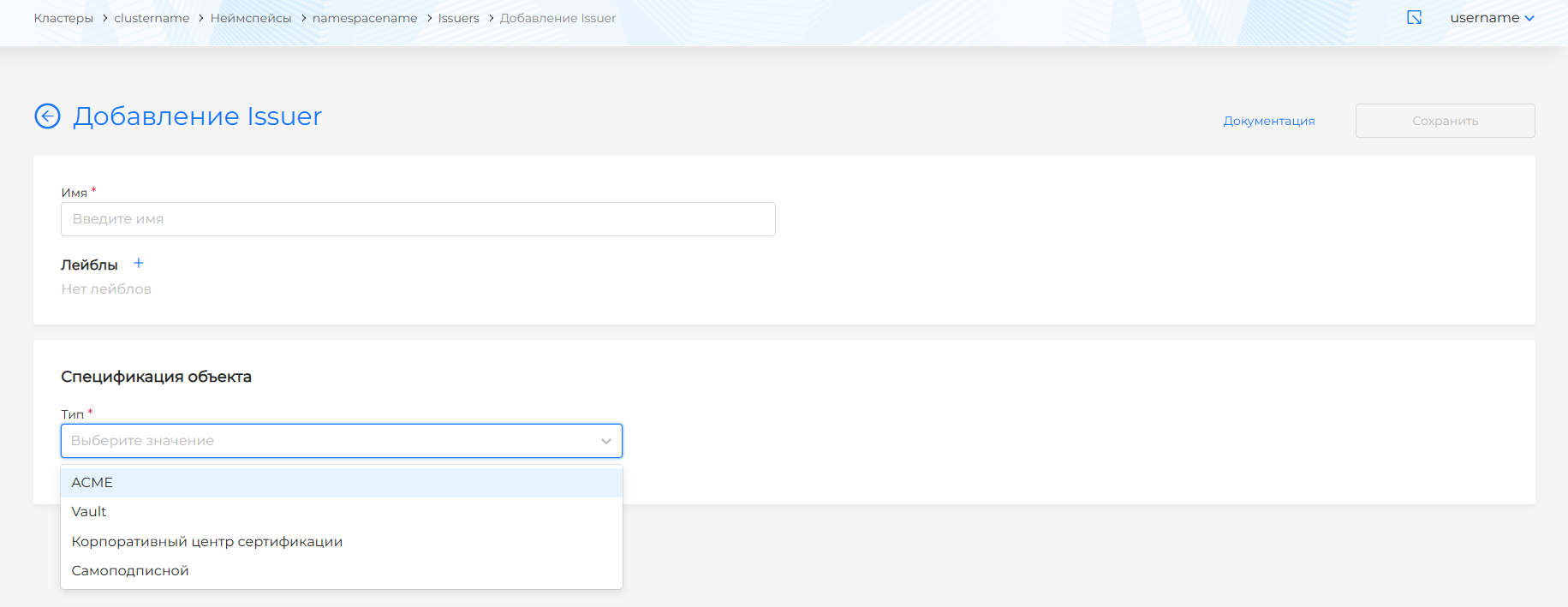
Setting up ACME
To configure, you need an account in ACME (Automated Certificate Management Environment).
Screenshot: ACME setup
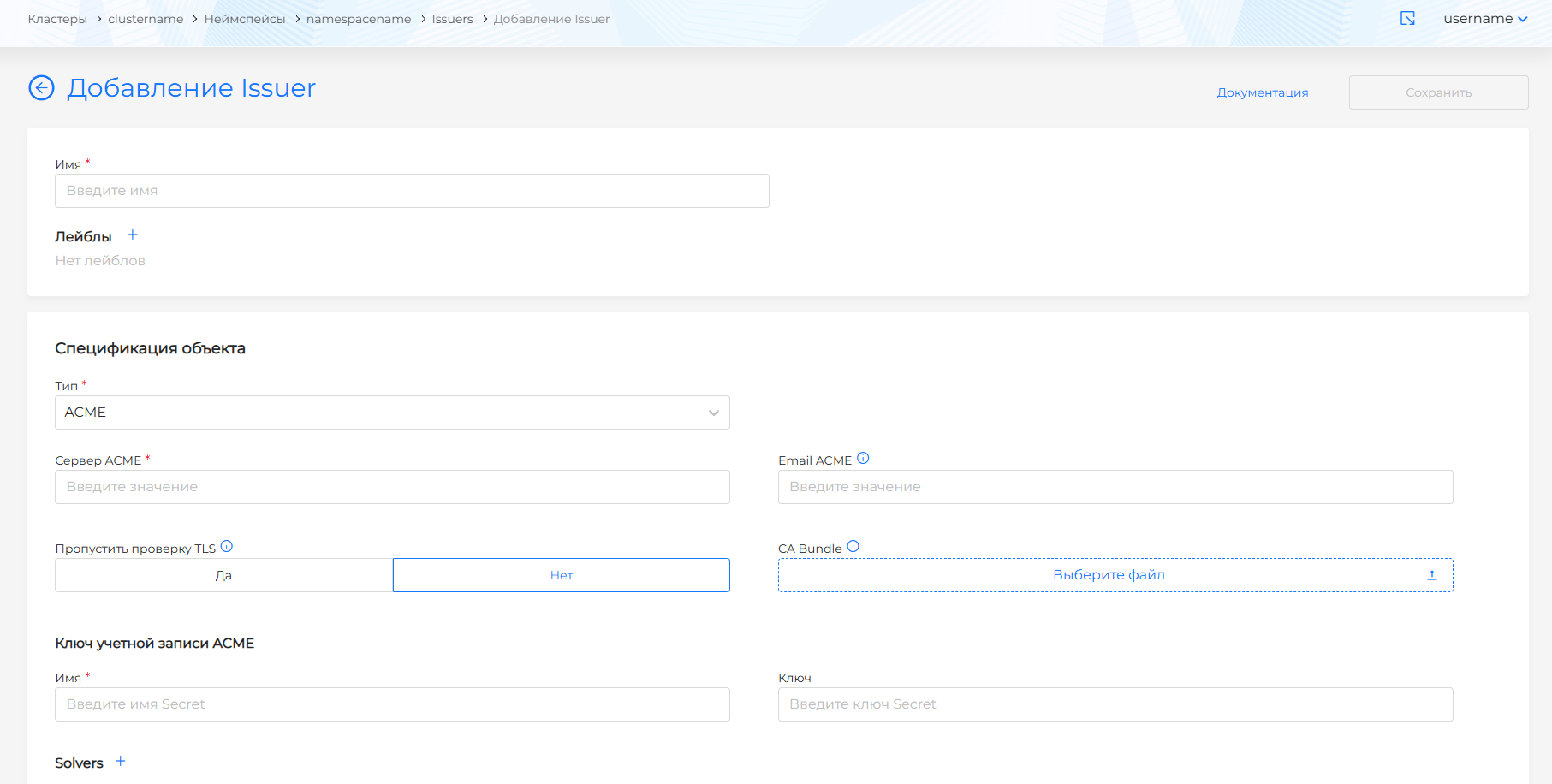
Fill in:
- ACME Server - for example,
https://acme-v02.api.letsencrypt.org/directory; - Email associated with the ACME account;
- Skip TLS check - default No.
If you skip the TLS check, requests to the ACME server will not be validated with a TLS certificate (insecure connections are allowed). Enable this option only in development environments.
Please note! If an ACME certificate is installed in the cluster, you need to monitor the operation of the ACME server. If the server fails, clusters with ACME certificates will be unavailable.
- When establishing a secure TLS connection, specify in the CA Bundle field the bundle of certificate authority certificates (root and intermediate in PEM format) to verify the authenticity of the ACME server.
Please note! The CA Bundle file data must contain ----BEGIN CERTIFICATE---- and ----END CERTIFICATE----.
If the CA Bundle is not specified, but TLS connection verification is enabled, the system certificate bundle inside the container is used for verification.
In the ACME Account Key block:
- enter name and key Secret;
- add solvers: click + next to Solvers and select type HTTP01 or DNS01.
HTTP01
- Fill in the ClassIngress field and click Add.
Screenshot: solver HTTP01
Suitable if:
- the provider does not block port 80;
- The Ingress controller is accessible from the Internet via port 80;
- wildcard certificates are not used.
Specify the Ingress class (ClassIngress) for the challenge solution (for example, Let’s Encrypt).
View ClassIngress in the cluster
kubectl get ingressclass -A
If ClassIngress is not specified, the default class is used.
DNS01/acmeDNS
- Fill in the host value. In AccountSecretRef enter the name and Secret key, then click Add.
Screenshot: solver DNS01 / acmeDNS
Suitable if:
- wildcard certificates are used;
- there are several web servers.
Example manifest fragment
apiVersion: cert-manager.io/v1
kind: Issuer
metadata:
  name: example-issuer
spec:
  acme:
    solvers:
    - dns01:
        acmeDNS:
          host: https://acme.example.com
          accountSecretRef:
            name: acme-dns
            key: acmedns.json
DNS01 / RFC2136
- Fill in Nameserver and TsigAlgorithm. In TsigSecretSecretRef enter the name and Secret key, then click Add.
Screenshot: solver DNS01 / RFC2136
Suitable if you have:
- DNS server with RFC2136 support;
- access to TSIG keys to authorize DNS updates.
Example manifest fragment
rfc2136:
  nameserver: 1.2.3.4:53
  tsigKeyName: example-com-secret
  tsigAlgorithm: HMACSHA512
  tsigSecretSecretRef:
    name: tsig-secret
    key: tsig-secret-key
- tsigKeyName — TSIG key name (for example,
example-key); - tsigAlgorithm — TSIG key algorithm (for example,
hmac-md5); - tsigSecretSecretRef.name — Secret with the TSIG secret key.
DNS01 / webhook
- Fill in the GroupName, SolverName and Config for Cert-Manager, then click Add.
Screenshot: solver DNS01 / webhook
Example manifest fragment
apiVersion: cert-manager.io/v1
kind: Issuer
metadata:
  name: example-issuer
spec:
  acme:
    solvers:
    - dns01:
        webhook:
          groupName: $WEBHOOK_GROUP_NAME
          solverName: $WEBHOOK_SOLVER_NAME
          config:
            ...
            <webhook-specific-configuration>
Setting up Vault
To configure, you need an account in Vault.
According to cert-manager official documentation ServiceAccountRef is recommended for the current version. Select ServiceAccount from the dropdown list.
Screenshot: Vault
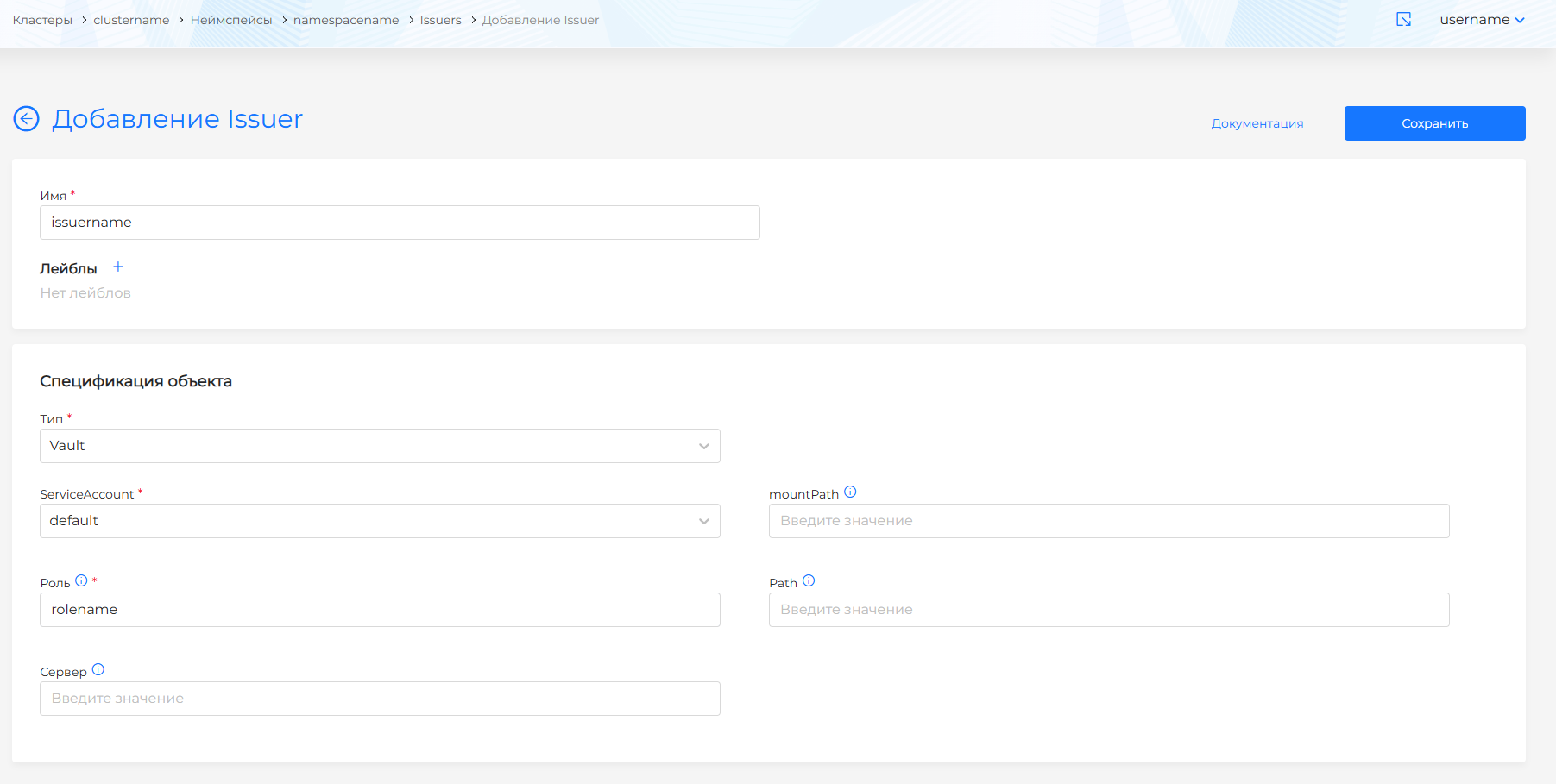
ServiceAccount must be created in the same namespace as Issuer, and have the vault-issuer role in this namespace with the rights:
Permissions of the vault-issuer role
rules:
  - apiGroups: ['']
    resources: ['serviceaccounts/token']
    resourceNames: ['vault-issuer']
    verbs: ['create']
You can create the role on the ServiceAccounts page: after the account is created, on the ServiceAccount tab in the Access rights block click +, then + Create Role. In the manifest import dialog, set the name and write the rules in the rules block.
After selecting ServiceAccount:
- mountPath — Vault mount path during authentication (for example,
/v1/auth/kubernetes); - Role — user role on the Vault side (for example,
my-app-1); - Path — path to the PKI-backend Vault signature point (for example,
my_pki_mount/sign/my-role-name); - Server — Vault address (for example,
https://vault.local); - CA Bundle (optional) - root and intermediate certificates in PEM for TLS verification to Vault.
Two ways to specify CA Bundle:
- File — enter the CA Bundle contents. Please note! The data must contain
----BEGIN CERTIFICATE----and----END CERTIFICATE----. - Key to CA Bundle - link to Secret in the cluster: select Secret and key.
If the CA Bundle is not specified in the Issuer, the cert-manager certificate bundle is used for TLS verification.
Certificate authority (CA)
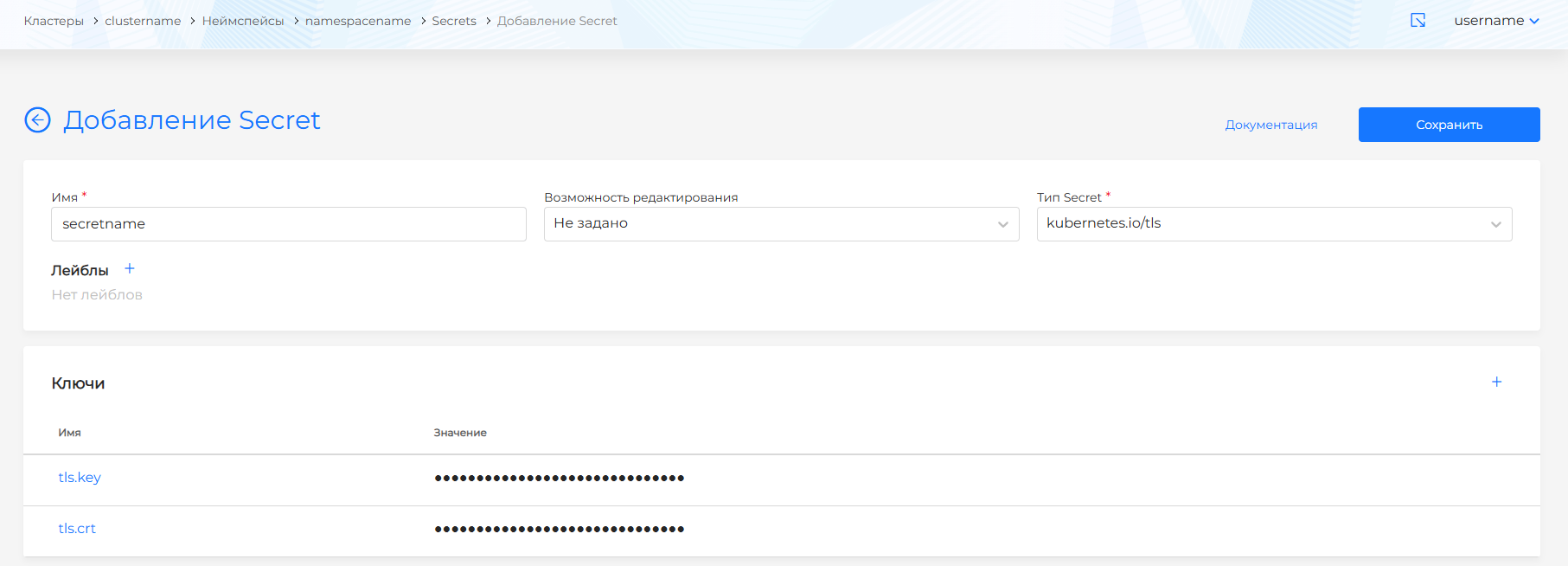
The CA Issuer is configured with a certificate and the CA’s private key in Secret. Before creating an Issuer, create a Secret in the same namespace (Storage → Secrets in this namespace) containing the certificate and key.
Please note!
- Secret and Issuer must be in the same namespace.
- The field names in Secret are strictly tls.crt and tls.key - using them, cert-manager receives the certificate and CA key.
- The values in tls.crt and tls.key must be in base64.
Example Secret (namespace Issuer)
apiVersion: v1
kind: Secret
metadata:
  name: secretname
  namespace: namespacename
data:
  tls.crt: LS0tLS1CRUdJTiBDRVJUSUZJQ0FURS0tLS0tCk1JSUMrVENDQWVHZ0F3SUJBZ0lKQUtQR3dLRGwvNUhuTUEwR0NTcUdTSWIzRFFFQkN3VUFNQk14RVRBUEJnTlYKQkFNTUNHcHZjMmgyWVc1c01CNFhEVEU1TURneU1qRTJNRFUxT0ZvWERUSTVNRGd4T1RFMk1EVTFPRm93RXpFUgpNQThHQTFVRUF3d0lhbTl6YUhaaGJtd3dnZ0VpTUEwR0NTcUdTSWIzRFFFQkFRVUFBNElCRHdBd2dnRUtBb0lCCkFRQ3doU0IvcVc2L2tMYjJ6cHUrRUp2RDl3SEZhcStRQS8wSkgvTGxseW83ekFGeCtISHErQ09BYmsrQzhCNHQKL0hVRXNuczVSTDA5Q1orWDRqNnBiSkZkS2R1UHhYdTVaVllua3hZcFVEVTd5ZzdPU0tTWnpUbklaNzIzc01zMApSNmpZbi9Ecmo0eFhNSkVmSFVEcVllU1dsWnIzcWkxRUZhMGM3ZlZEeEgrNHh0WnROTkZPakg3YzZEL3ZXa0lnCldRVXhpd3Vzc2U2S01PV2pEbnYvNFZyamVsMlFnVVlVYkhDeWVaSG1jdGkrSzBMV0Nmby9SZzZQdWx3cmJEa2gKam1PZ1l0MzBwZGhYME9aa0F1a2xmVURIZnA4YmpiQ29JMnRhWUFCQTZBS2pLc08zNUxBRVU3OUNMMW1MVkh1WgpBQ0k1VWppamEzVlBXVkhTd21KUEp5dXhBZ01CQUFHalVEQk9NQjBHQTFVZERnUVdCQlFtbDVkVEFaaXhGS2hqCjkzd3VjUldoYW8vdFFqQWZCZ05WSFNNRUdEQVdnQlFtbDVkVEFaaXhGS2hqOTN3dWNSV2hhby90UWpBTUJnTlYKSFJNRUJUQURBUUgvTUEwR0NTcUdTSWIzRFFFQkN3VUFBNElCQVFCK2tsa1JOSlVLQkxYOHlZa3l1VTJSSGNCdgpHaG1tRGpKSXNPSkhac29ZWGRMbEcxcFpORmpqUGFPTDh2aDQ0Vmw5OFJoRVpCSHNMVDFLTWJwMXN1NkNxajByClVHMWtwUkJlZitJT01UNE1VN3ZSSUNpN1VPbFJMcDFXcDBGOGxhM2hQT2NSYjJ5T2ZGcVhYeVpXWGY0dDBCNDUKdEhpK1pDTkhCOUZ4alNSeWNiR1lWaytUS3B2aEphU1lOTUdKM2R4REthUDcrRHgzWGNLNnNBbklBa2h5SThhagpOVSttdzgvdG1Sa1A0SW4va1hBUitSaTBxVW1Iai92d3ZuazRLbTdaVXkxRllIOERNZVM1TmtzbisvdUhsUnhSClY3RG5uMDM5VFJtZ0tiQXFONzJnS05MbzVjWit5L1lxREFZSFlybjk4U1FUOUpEZ3RJL0svQVRwVzhkWAotLS0tLUVORCBDRVJUSUZJQ0FURS0tLS0tCg==
  tls.key: LS0tLS1CRUdJTiBSU0EgUFJJVkFURSBLRVktLS0tLQpNSUlFb3dJQkFBS0NBUUVBc0lVZ2Y2bHV2NUMyOXM2YnZoQ2J3L2NCeFdxdmtBUDlDUi95NVpjcU84d0JjZmh4CjZ2Z2pnRzVQZ3ZBZUxmeDFCTEo3T1VTOVBRbWZsK0krcVd5UlhTbmJqOFY3dVdWV0o1TVdLVkExTzhvT3praWsKbWMwNXlHZTl0N0RMTkVlbzJKL3c2NCtNVnpDUkh4MUE2bUhrbHBXYTk2b3RSQld0SE8zMVE4Ui91TWJXYlRUUgpUb3grM09nLzcxcENJRmtGTVlzTHJMSHVpakRsb3c1Ny8rRmE0M3Bka0lGR0ZHeHdzbm1SNW5MWXZpdEMxZ242ClAwWU9qN3BjSzJ3NUlZNWpvR0xkOUtYWVY5RG1aQUxwSlgxQXgzNmZHNDJ3cUNOcldtQUFRT2dDb3lyRHQrU3cKQkZPL1FpOVppMVI3bVFBaU9WSTRvMnQxVDFsUjBzSmlUeWNyc1FJREFRQUJBb0lCQUNFTkhET3JGdGg1a1RpUApJT3dxa2UvVVhSbUl5MHlNNHFFRndXWXBzcmUxa0FPMkFDWjl4YS96ZDZITnNlanNYMEM4NW9PbmtrTk9mUHBrClcxVS94Y3dLM1ZpRElwSnBIZ09VNzg1V2ZWRXZtU3dZdi9Fb1V3eHFHRVMvcnB5Z1drWU5WSC9XeGZGQlg3clMKc0dmeVltbXJvM09DQXEyLzNVVVFiUjcrT09md3kzSHdUdTBRdW5FSnBFbWU2RXdzdWIwZzhTTGp2cEpjSHZTbQpPQlNKSXJyL1RjcFRITjVPc1h1Vm5FTlVqV3BBUmRQT1NrRFZHbWtCbnkyaVZURElST3NGbmV1RUZ1NitXOWpqCmhlb1hNN2czbkE0NmlLenUzR0YwRWhLOFkzWjRmeE42NERkbWNBWnphaU1vMFJVaktWTFVqbVlQSEUxWWZVK3AKMkNYb3dNRUNnWUVBMTgyaU52UEkwVVlWaUh5blhKclNzd1YrcTlTRStvVi90U2ZSUUNGU2xsV0d3KzYyblRiVwpvNXpoL1RDQW9VTVNSbUFPZ0xKWU1LZUZ1SWdvTEoxN1pvWjN0U1czTlVtMmRpT0lPSHorcTQxQzM5MDRrUzM5CjkrYkFtVmtaSFA5VktLOEMraS9tek5mSkdHZEJadGIweWtTM2t3OUIxTHdnT3o3MDhFeXFSQ2tDZ1lFQTBXWlAKbzF2MThnV2tMK2FnUDFvOE13eDRPZlpTN3dKY3E0Z0xnUWhjYS9pSkttY0x0RFN4cUJHckJ4UVo0WTIyazlzdQpzTFVrNEJobGlVM29iUUJNaUdtMGtITHVBSEFRNmJvdWZBMUJwZjN2VFdHSkhSRjRMeFJsNzc2akw4UXI4VnpxClpURVBtY0R0T0hpYjdwb2I1Z2IzSDhiVGhYeUhmdGZxRW55alhFa0NnWUVBdk9DdDZZclZhTlQrWThjMmRFYk4Kd3dJOExBaUZtdjdkRjZFUjlCODJPWDRCeGR0WTJhRDFtNTNqN2NaVnpzNzFYOE1TN25FcDN1dkFqaElkbDI3KwpZbTJ1dUUyYVhIbDN5VTZ3RzBETFpUcnVIU0Z5TVI4ZithbHRTTXBDd0s1NXluSGpHVFp6dXpYaVBBbWpwRzdmCk1XbVRncE1IK3puc3UrNE9VNFBHUW9FQ2dZQWNqdUdKbS84YzlOd0JsR2lDZTJIK2JGTHhSTURteStHcm16QkcKZHNkMENqOWF3eGI3aXJ3MytjRGpoRUJMWExKcjA5YTRUdHdxbStrdElxenlRTG92V0l0QnNBcjVrRThlTVVBcAp0djBmRUZUVXJ0cXVWaldYNWlaSTNpMFBWS2ZSa1NSK2pJUmVLY3V3aWZKcVJpWkw1dU5KT0NxYzUvRHF3Yk93CnRjTHAwUUtCZ0VwdEw1SU10Sk5EQnBXbllmN0F5QVBhc0RWRE9aTEhNUGRpL2dvNitjSmdpUmtMYWt3eUpjV3IKU25QSG1TbFE0aEluNGMrNW1lbHBDWFdJaklLRCtjcTlxT2xmQmRtaWtYb2RVQ2pqWUJjNnVGQ1QrNWRkMWM4RwpiUkJQOUNtWk9GL0hOcHN0MEgxenhNd1crUHk5Q2VnR3hhZ0ZCekxzVW84N0xWR2h0VFFZCi0tLS0tRU5EIFJTQSBQUklWQVRFIEtFWS0tLS0tCg==
Screenshot: Secret for CA
For Issuer type Certificate authority:
Screenshot: Issuer CA
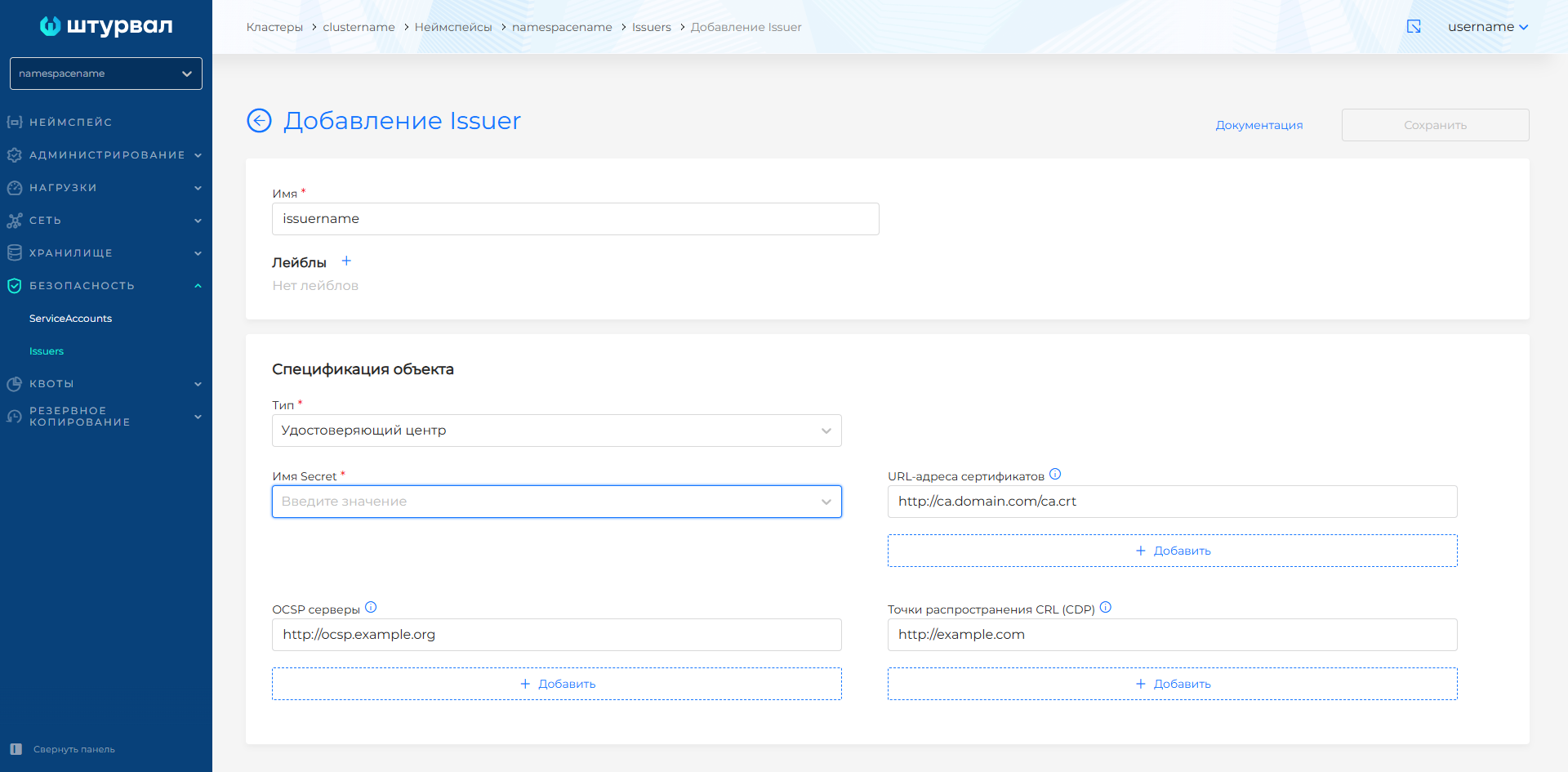
- specify Secret name with certificate and CA key;- if necessary - URL addresses of OCSP servers (ocspServers); if addresses are not specified, the certificate is issued without an OCSP server (example:
http://ocsp.int-x3.example.org); - if necessary - certificate URLs (issuingCertificateURLs) - HTTP only (example:
http://ca.domain.com/ca.crt); - if necessary, CRL distribution points (crlDistributionPoints) for revocation checking (example:
http://example.com).
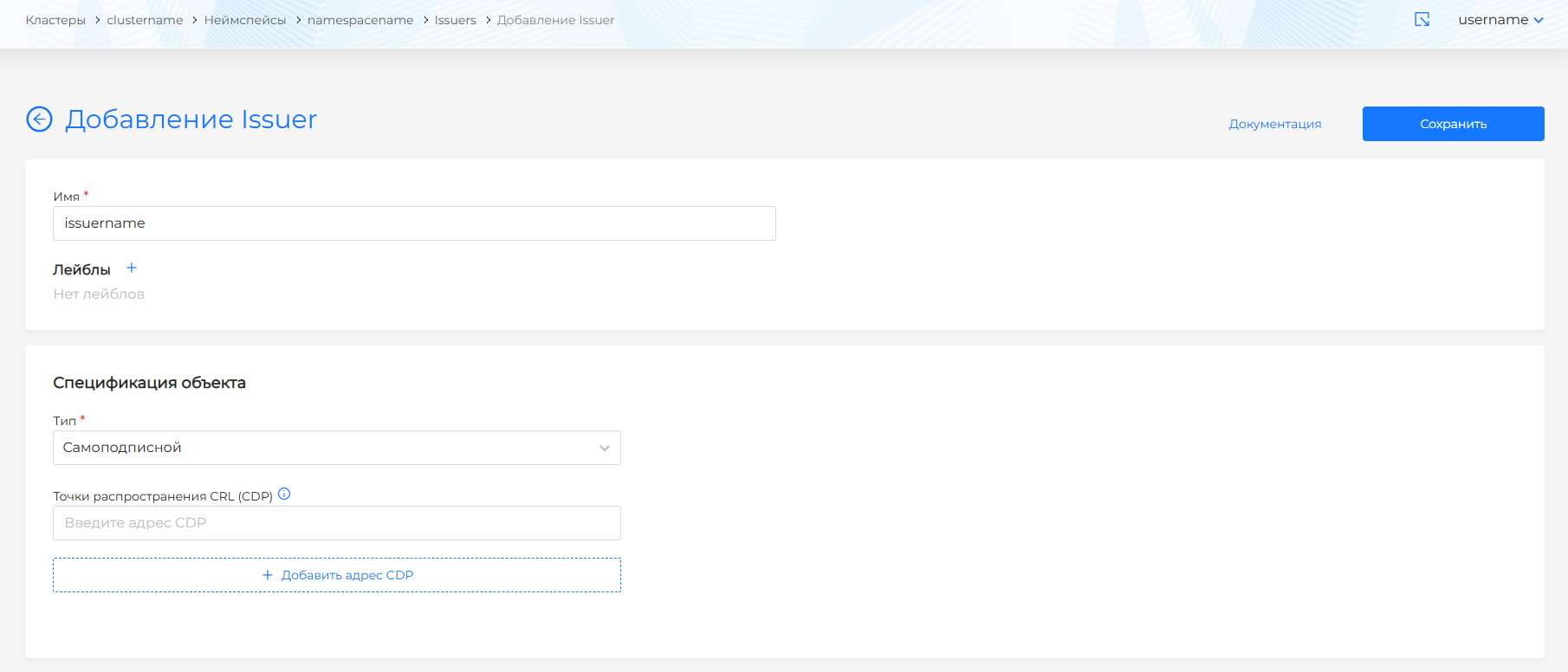
Self-signed - SelfSigned
SelfSigned Issuer is used for a fast secure connection without confirmation by an external certificate authority.
For the Self-Signed type, if necessary, add CRL distribution points (CDP) (crlDistributionPoints) - URL of the certificate revocation list (CRL); For each address (for example, http://example.com) you can check the validity of issued certificates.
Screenshot: Issuer SelfSigned
After completing the Issuer setup, click Save.
Changing and deleting Issuer
- Change - on the Issuer view page: Issuer tab (specification), Labels tab (labels). Save your changes.
- Manifest — Manifest tab: check, result on the right; if there is a format validation error, verification is not available; Unsaved data is not applied.
Removal Issuer:
- on the Issuers page - delete icon in the line;
- on the Issuer tab - the Delete button;
- on the Manifest tab - delete icon.
In the Issuers list you can delete one object or several at once. How to select objects and confirm deletion: Bulk deletion.