Update Kubernetes: launch, modes and transitions between versions
Where to run the update
The cluster update (including the Kubernetes version) is launched in the GUI on the cluster dashboard - management cluster or client cluster, or using commands in the CLI.
Where to see available versions
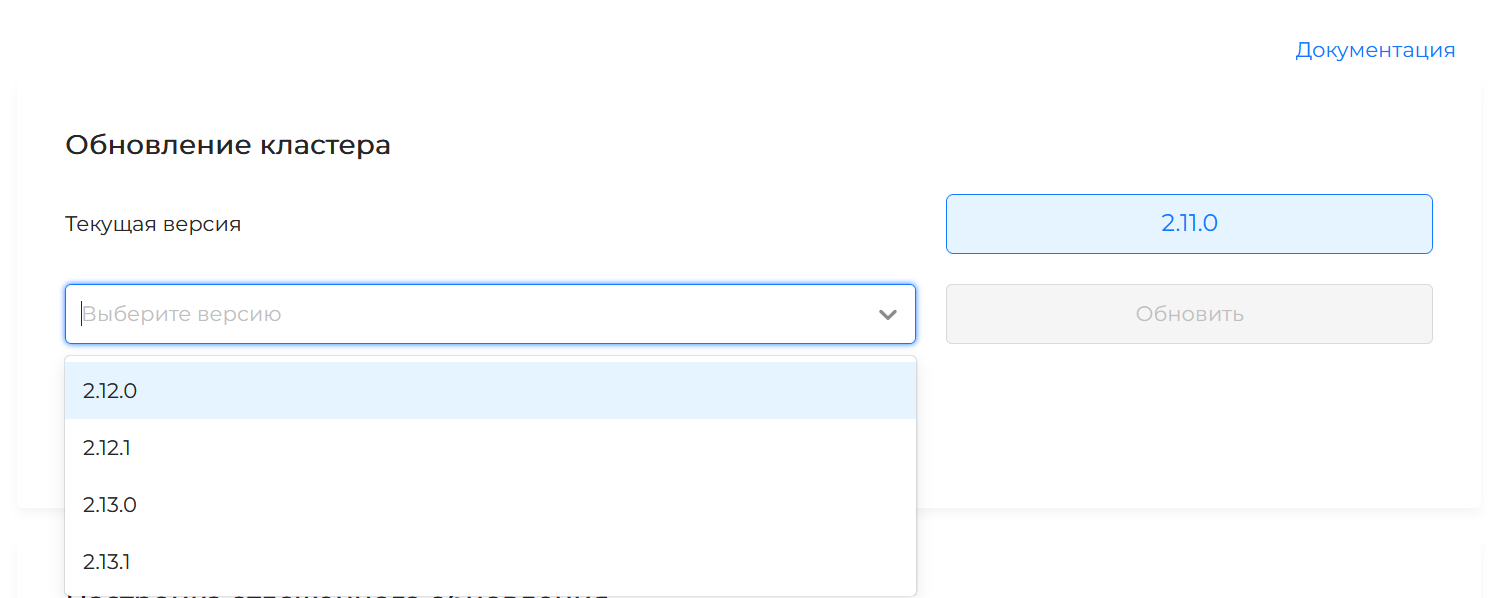
In the GUI, the Update block on the cluster dashboard. If at least one new version is available, the block reports it directly. The full list of stable versions available for an update from the current version opens from the update management button.
Full map - Update version map.
Screenshot: managing updates on the dashboard
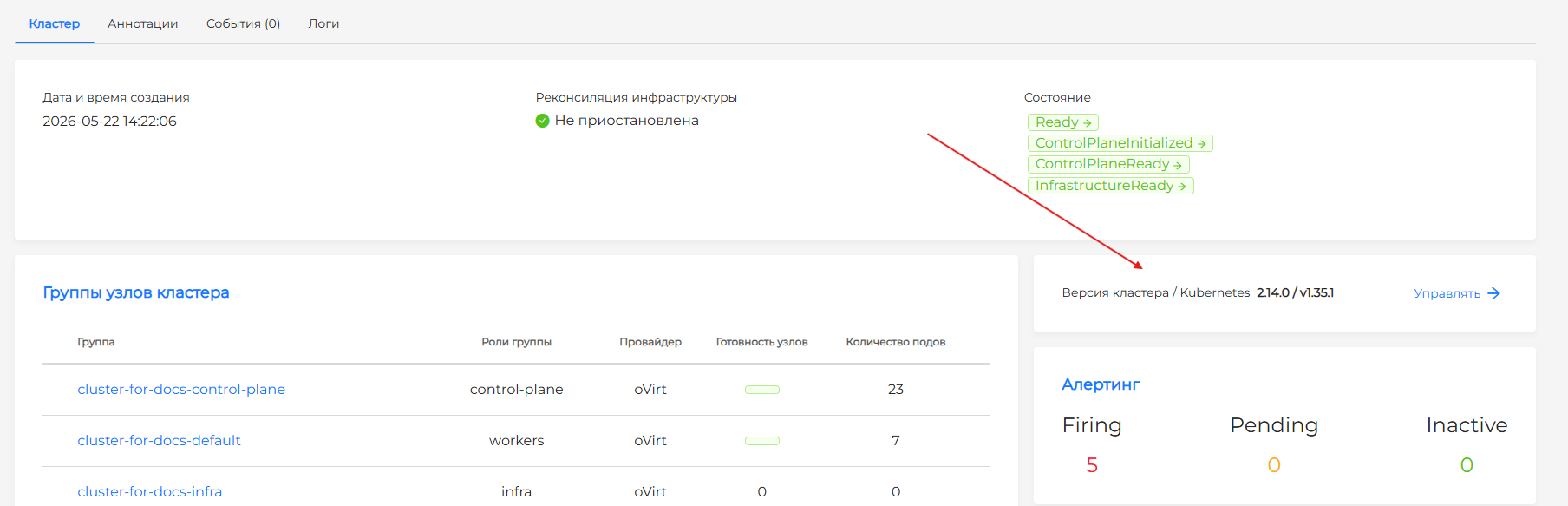
Click Manage to select the version and configure update schedules.
In the CLI, available versions can be viewed in the ShturvalUpdateChannel resource.
This is how an update up to and including version 2.15 is started. When the cluster is already on 2.15, the next update is described in Update from version 2.15 to a newer one.
Recommendations before updating
- Review the release notes of the target version - there may be breaking changes and migration steps.
- Create a backup of the management cluster before upgrading.
- Check the version map - make sure forward navigation is supported. If not, plan to upgrade via an intermediate version.
Update client clusters only after upgrading the management cluster!
Update modes
The update is launched manually - through the GUI or kubectl.
- Select a cluster in the left menu.
- On the dashboard, find the “Update” block (next to the current version of the cluster).
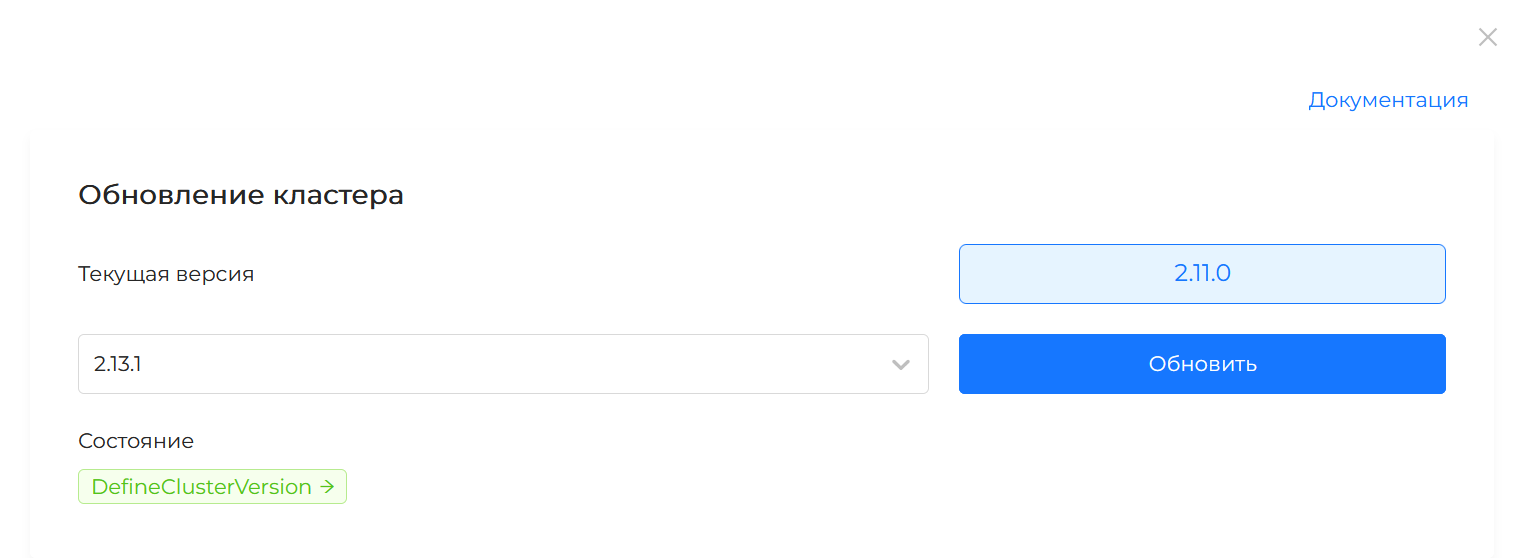
- Click Manage.
- In the modal window, select a version from the list of available ones.
- Click Update.
From the update window you can follow a link to the release list in the public documentation. Before selecting a version, check the release notes for changes and any additional actions required before and after the update starts.
If “No updates” is displayed, you have the latest available version for the current channel.
Screenshot: window for selecting a version for cluster update
Specify the target version in the ShturvalUpdate resource:
kubectl -n shturval-update-system patch su shturval-update --type=merge -p '{"spec":{"version":"X.Y.Z"}}'
Replace X.Y.Z with the desired version.
Example - update to version 2.14.0:
kubectl -n shturval-update-system patch su shturval-update --type=merge -p '{"spec":{"version":"2.14.0"}}'
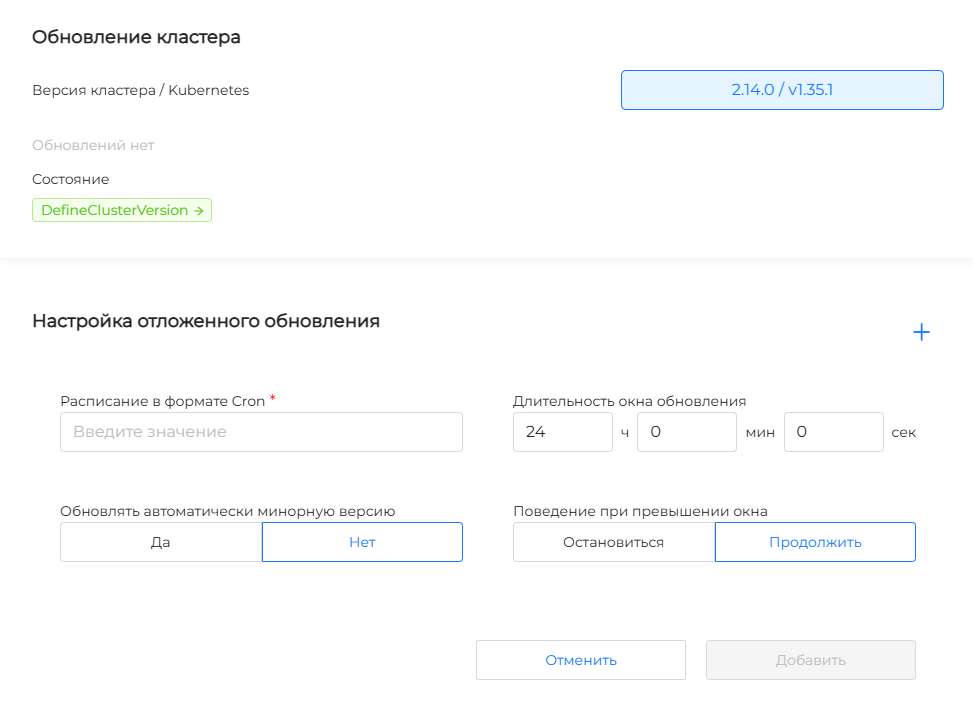
Deferred update lets you configure one or more schedules. The system starts an update automatically when a new version is available.
- Cluster dashboard → “Update” block → Manage.
- Click + next to Deferred update settings.
- Specify:
- Schedule UTC - in cron format (values separated by spaces);
- Update window duration - how much time can be used for updating (default 4 hours, minimum 30 minutes);
- Behavior when the window is exceeded: stop (UpdatePaused) or continue;
- Allow minor versions - if not, only patch versions are automatically updated.
- Click Add.
After the deferred update settings are saved, the date and time of the next cluster update are calculated and shown in UTC. If the next run cannot be calculated yet, the date and time are not shown.
Screenshot: window for creating a schedule for cluster update
Create a manifest and apply it:
apiVersion: update.shturval.tech/v1beta1
kind: ShturvalUpdateSchedule
metadata:
  name: update-schedule
  namespace: shturval-update-system
spec:
  allowMinorVersion: true
  pauseIfUpdatePeriodExceed: false
  schedule: "0 8 26 9 *"
  updatePeriod: "10h0m0s"
| Parameter | Description |
|---|---|
schedule | Schedule in cron format, in UTC |
updatePeriod | Update window duration (e.g. 24h0m0s) |
pauseIfUpdatePeriodExceed | Stop updating when exceeding window (true) or continue (false) |
allowMinorVersion | Allow automatic upgrade to minor versions |
To run a scheduled update, specify the name ShturvalUpdateSchedule in ShturvalUpdate:
kubectl -n shturval-update-system patch su shturval-update --type=merge -p '{"spec":{"followSchedule":"update-schedule"}}'
Changing and deleting a schedule
- Change - select a schedule in the modal window and configure again. If an update is already in progress, the new schedule applies.
- Delete - only possible if the update according to this schedule has not yet started.
Upgrade steps
After launch, the update goes through the following stages (displayed on the dashboard):
- Updating the shturval-update module - updating the update module itself.
- Forced removal of outdated services - this step can be skipped if such services are not available.
- Updating shturval-node-config - module for managing node configurations.
- Updating the Kubernetes version — updates Kubernetes components in the cluster.
- Updating system services — updates platform services (monitoring, logging, and others).
Stage statuses
Color indication on the dashboard:
- Green — the stage has been successfully completed;
- Yellow — the stage is being executed;
- Gray — the stage is not initialized.
When using deferred update: If the update does not complete within the specified window and the “pause” behavior is configured, the status UpdatePaused is displayed. To resume, click Continue outside schedule.
Custom resources
| Resource | Purpose |
|---|---|
| ShturvalUpdate | Sets the update version, displays the status |
| ShturvalUpdateChannel | Update channel (only stable is available in the platform) |
| ShturvalUpdateSchedule | Scheduled deferred update options |
A general overview of these and other custom platform resources is provided on the page “Custom resources in the platform”.
Special steps for individual transitions
Some transitions require additional steps. If manual action is required, this is indicated in the release notes of the target version.
Updating cluster nodes
During an update, the Kubernetes version changes only on nodes already in the cluster. New nodes still use the version from InfraMachineTemplate. After the upgrade, create a new VM template in the infrastructure provider and replace InfraMachineTemplate in node groups. See VM nodes and templates.
Update from version 2.15 to a newer one
The sections above describe how to start an update up to and including version 2.15: the target version is set on ShturvalUpdate, available versions are on ShturvalUpdateChannel.
When the cluster is already running 2.15, the next update is started by resources of the cluster.shturval.tech group in the management cluster. The name and namespace of ClusterConfig and ClusterInfo match the cluster name. After the move to 2.15, the ShturvalUpdate, ShturvalUpdateChannel, and ShturvalUpdateSchedule objects are deleted.
The GUI steps stay the same. In the CLI the resources change.
Available versions are the status.update.availableUpdates field of ClusterInfo:
kubectl get clusterinfo clustername -n clustername -o jsonpath='{.status.update.availableUpdates}'
The target version is spec.releaseVersion on ClusterConfig. Replace clustername with the cluster name and X.Y.Z with a version newer than 2.15:
kubectl patch clusterconfig clustername -n clustername --type=merge -p '{"spec":{"releaseVersion":"X.Y.Z"}}'
The node update strategy is spec.update.updateStrategy. An empty field means InPlace. Allowed values are InPlace and RollingUpdate.
| Value | What happens |
|---|---|
InPlace | The Kubernetes version is updated on nodes that already exist. New nodes are created from the current InfraMachineTemplate until that template is replaced. |
RollingUpdate | Nodes are replaced. For each node group, the VM template of the target Kubernetes version is taken from InfrastructureProvider. If several templates share one version, the first one in alphabetical order is used. |
RollingUpdate is unavailable when the cluster has Shturval v2 nodes, including a hybrid cluster. Allowed strategies are status.update.availableStrategies on ClusterInfo. While an update is in progress, spec.releaseVersion and spec.update.updateStrategy cannot be changed.
To set the strategy together with the version:
kubectl patch clusterconfig clustername -n clustername --type=merge -p '{"spec":{"releaseVersion":"X.Y.Z","update":{"updateStrategy":"RollingUpdate"}}}'
The schedule is a ClusterUpdateSchedule in the cluster namespace. Apply the manifest in the management cluster:
apiVersion: cluster.shturval.tech/v1beta1
kind: ClusterUpdateSchedule
metadata:
  name: update-schedule
  namespace: clustername
spec:
  schedule: "0 8 26 9 *"
  updatePeriod: "10h0m0s"
  pauseIfUpdatePeriodExceed: false
  allowMinorVersion: true
The next run date and time in UTC are written to status.nextUpdateStart and status.nextUpdateEnd of ClusterUpdateSchedule. If the next run cannot be calculated, these fields stay empty.
When the window is open and a version is available, spec.releaseVersion and spec.update.followSchedule (the schedule name) are written to ClusterConfig. The schedule cannot be deleted while followSchedule points to it.