Node page
Overview
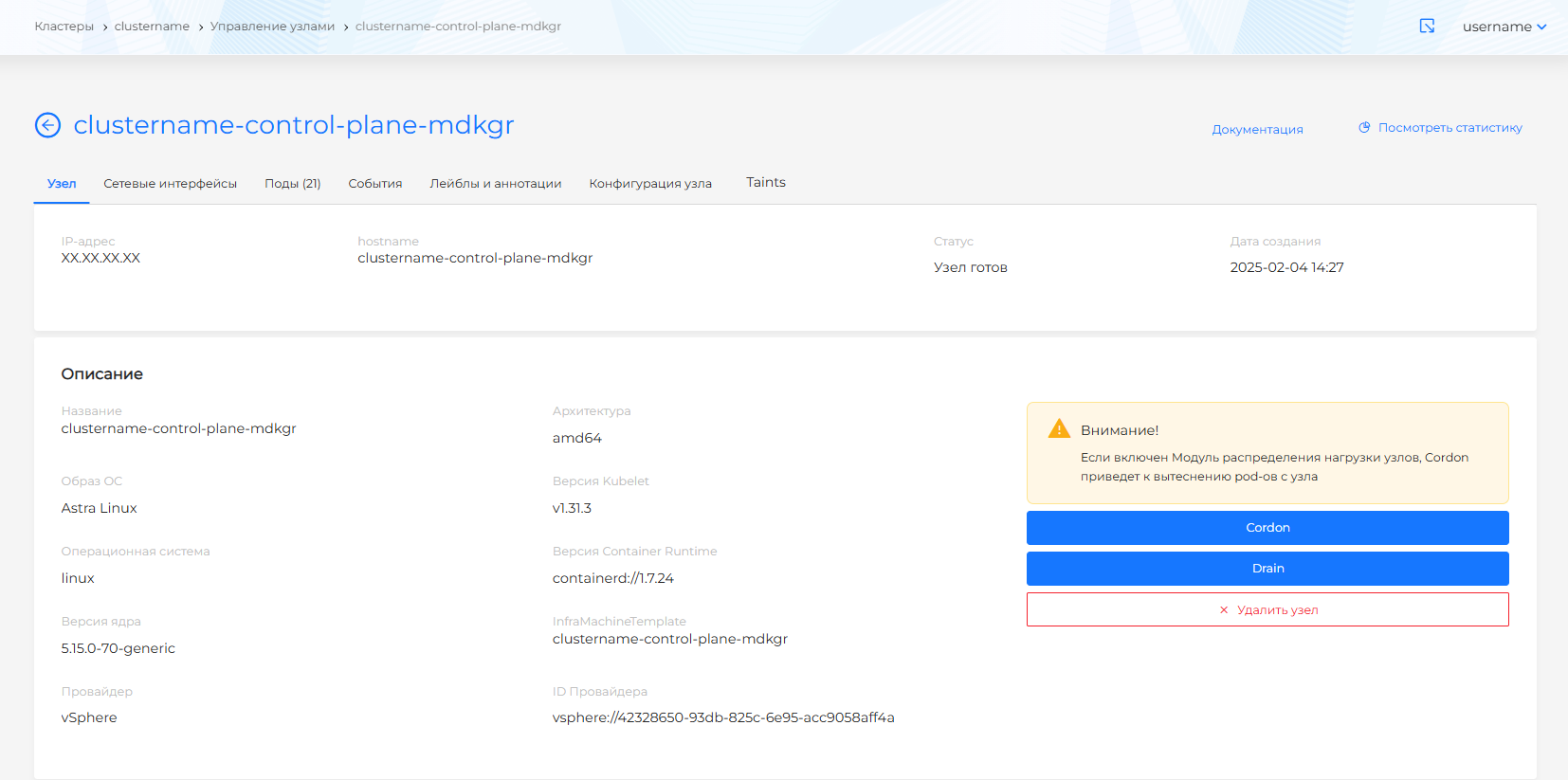
The node page opens by clicking on the node name in the table on the Node Management page. It displays the state of the node, resources, pods, events, and also has available operations: Cordon, Drain, deletion, Taints management.
Where to open: Administration → Manage Nodes → click on the node name.
Node tab
The tab displays:
- description of the node and its computing resources (CPU, memory);
- state of Cluster API, infrastructure and the node itself;
- Node Conditions (Ready, MemoryPressure, DiskPressure, etc.) — see the Node Conditions reference.
The page is available from the moment you request to add a node and allows you to track the stages of node creation.
Screenshot: node page
Screenshot: Node Conditions

If the metrics visualization module is installed and enabled in both the client cluster and the management cluster, a button to open Grafana appears on the tab.
If SR-IOV Network Operator is configured in the cluster, the Network Interfaces tab displays information about the VF (device type, PCI address, policy, etc.). Clicking on the policy name opens the Sriov Network Policy view page.
Cordon
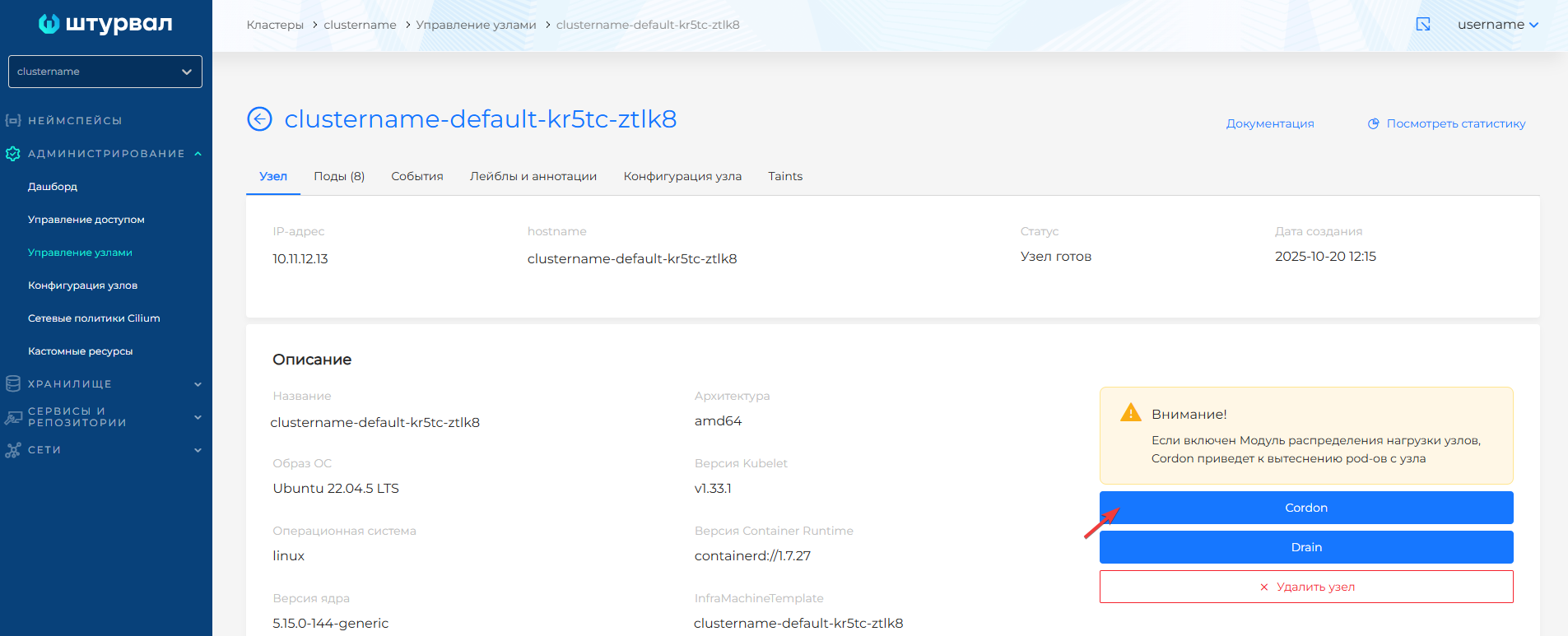
Cordon blocks the node for scheduling new pods. Already running pods continue to run.
When to use: before servicing a node, updating or changing the configuration, so that new pods do not end up on this node.
How to: On the node page, click Cordon.
After clicking:
- the node is marked in the “Scheduling” column as Disabled;
- the button changes to Uncordon - press it to unblock.
Screenshot: Cordon
Drain
Drain frees the node: it blocks the scheduling of new pods and displaces already running pods to other nodes. After Drain, the unit can be safely taken out of service.
When to use: before removing a node, replacing hardware, updating the OS.
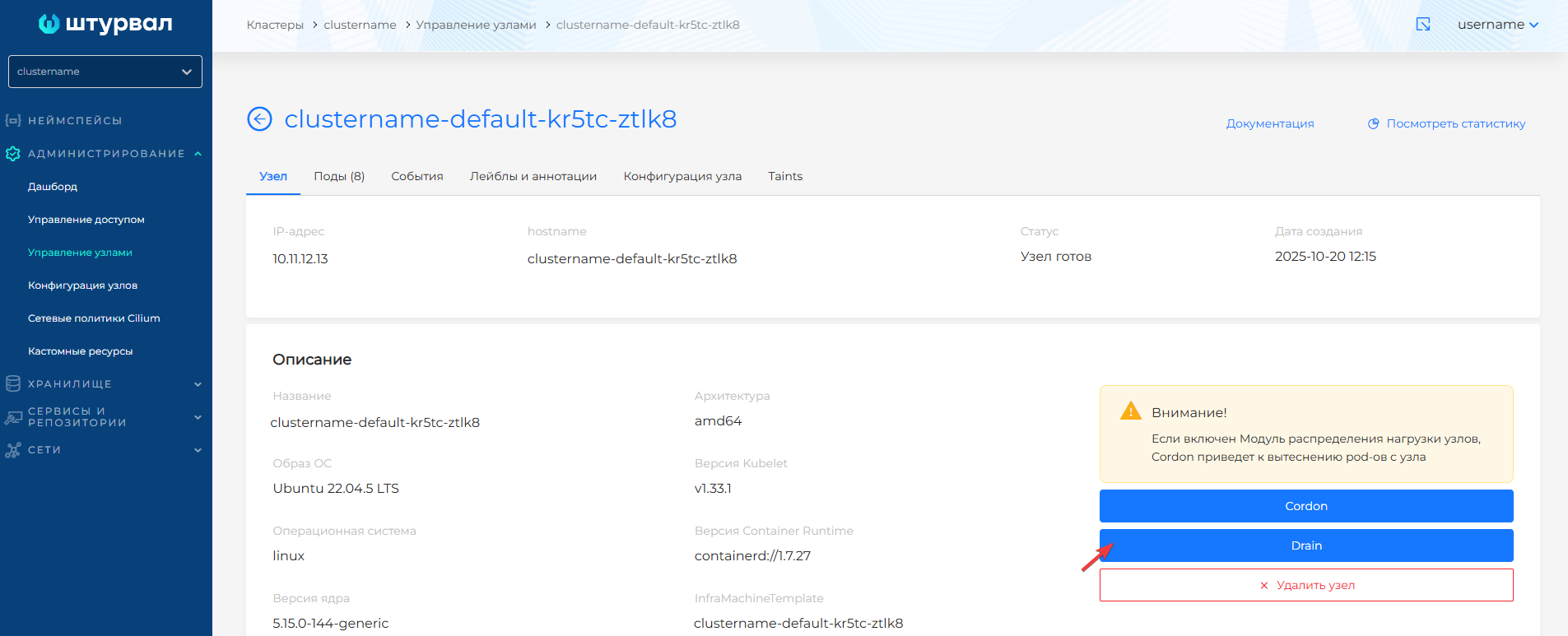
How to: On the node page, click Drain. The settings window will open. By default, all options are disabled. Click Run Drain.
Screenshot: launching Drain
Drain parameters
| Parameter | Description |
|---|---|
| Force launch | Terminate pods immediately, ignoring errors. May cause data loss. |
| Ignore DaemonSets | Do not terminate DaemonSet pods (e.g. node-exporter, Cilium). Usually enable “Yes”, otherwise Drain may freeze. |
| Disallow pod redistribution | Pods will not be rescheduled and the controlled termination resource (Eviction) will not start. PodDisruptionBudget and terminationGracePeriodSeconds are ignored. |
| Skip waiting for pods to be deleted | Timeout in seconds. If the pod has not deleted within this time after the DeletionTimestamp, the wait is skipped. 0—disabled. |
| Ignore errors | Ignore errors between nodes in the group. |
| Remove pods from EmptyDir | When a pod is deleted, the EmptyDir data is also deleted. |
| Remove pods from PV | When you delete a pod, the Persistent Volume data is also deleted. Careful with data. |
| Redistribution waiting period | Drain timeout in seconds. 0—no limitation. |
| Selector / Pod selector | Limit the Drain area by node or pod labels. |
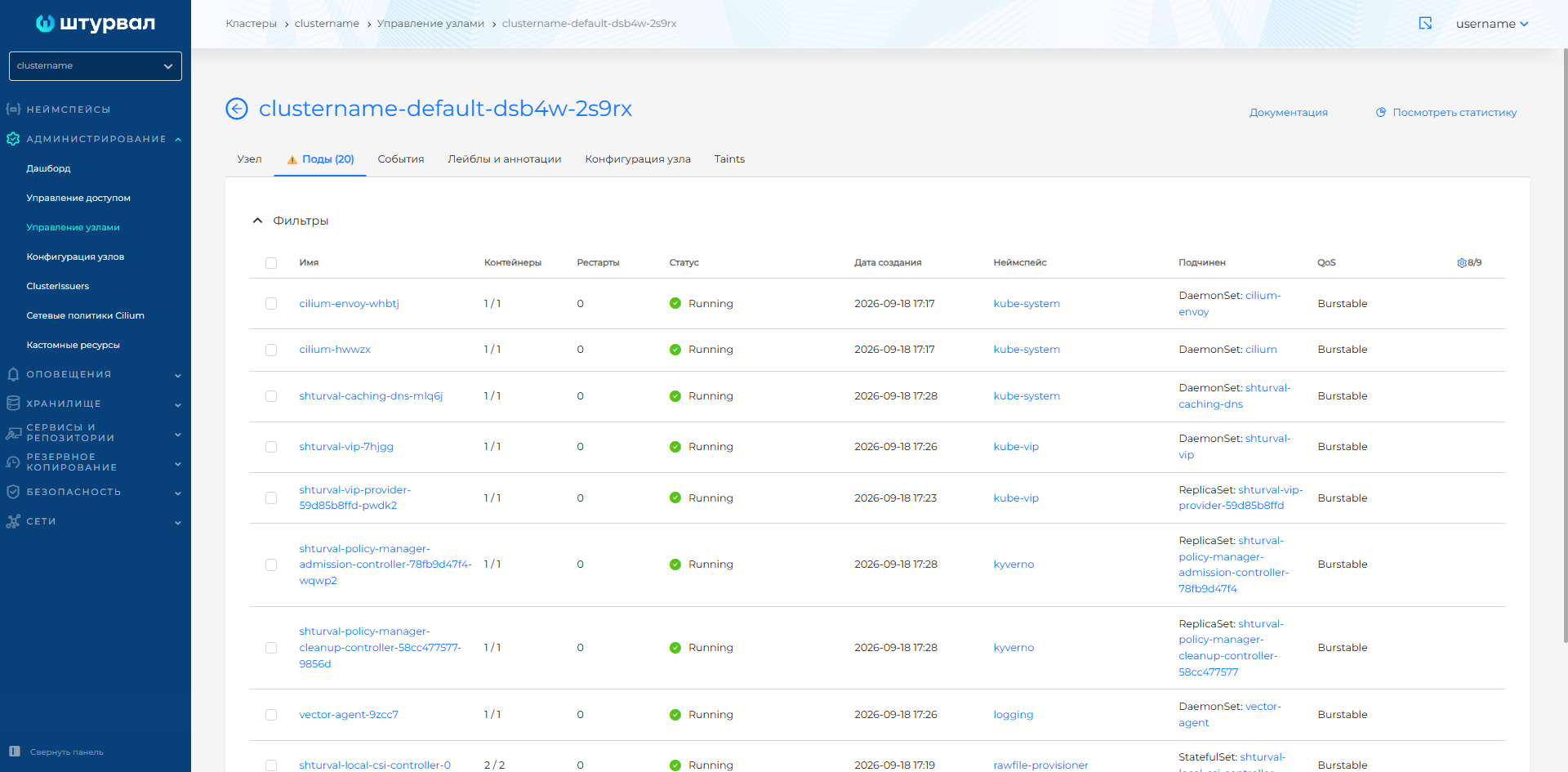
The progress of Drain can be tracked on the Pods tab of the node.
Screenshot: pods on a node
To protect nodes from automatic restart during a configuration change or update (the policy is set by the shturval-node-config service), see Protect nodes from automatic restart.
Deleting a node
Worker nodes
On the Worker node page, click Delete node. In the window select:
- Delete with re-creation - the node will be deleted and created anew (with the same configuration);
- Delete completely—the node is deleted without being recreated.
Screenshot: deleting a Worker node
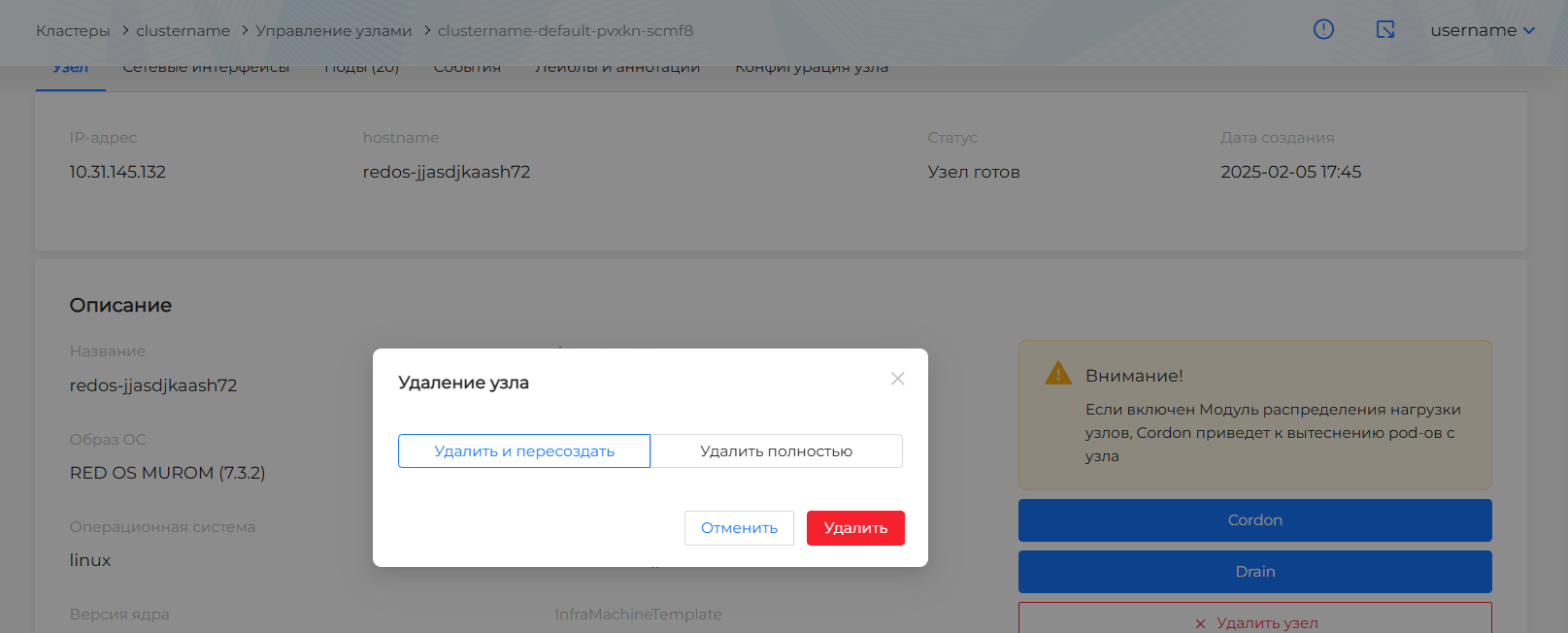
Complete deletion is only available with manual scaling of the group. With autoscaling only deletion with re-creation is available.
When a Worker node is completely removed from a cluster with the Shturval v2 provider, the node is cleaned by default. If the cleanup fails, the ShturvalMachine resource may be forcibly deleted.
Control Plane nodes
For Control Plane nodes:
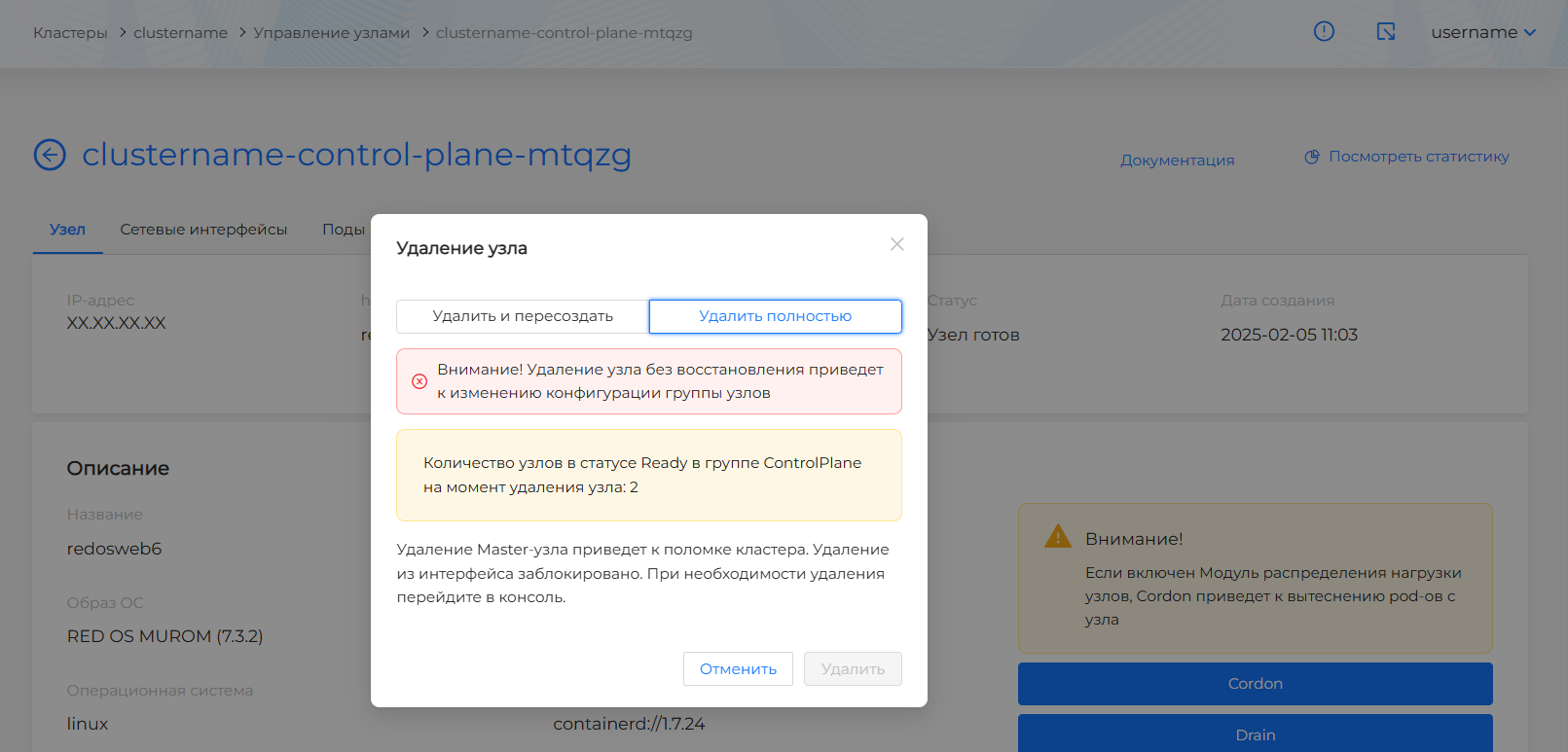
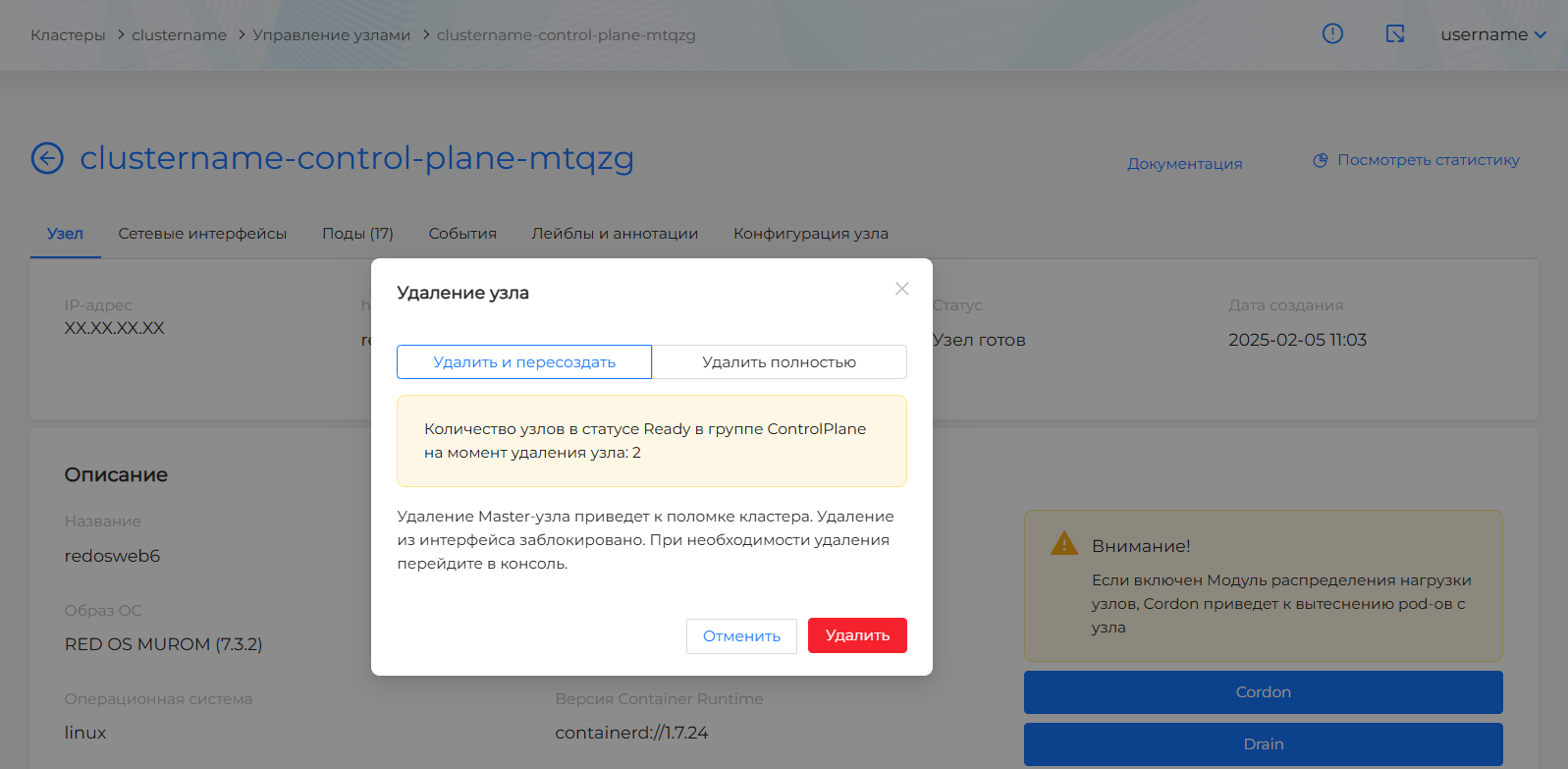
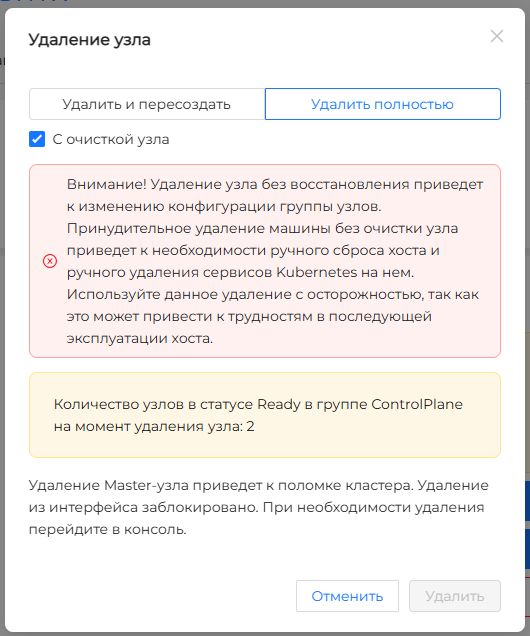
- Delete completely - available if after deletion there remains an odd number of working Control Plane nodes (for example 1 or 3). The condition is checked at the time of the request.
- Delete with re-creation - available if after deletion there are at least 2 working Control Plane nodes left.
When deleting, you must enter the host name for confirmation.
Screenshot: deleting a Control Plane node
Screenshot: deleting a Control Plane and re-creating it
When you completely delete a Control Plane node with the Shturval v2 provider, the node is cleaned by default. If necessary, cleaning can be disabled by unchecking the “With node cleaning” flag.
If you forcefully remove Machine without clearing the node, you will need to manually reset the host and remove the Kubernetes services. Skip node cleanup only if you understand the consequences.
Screenshot: option to clear the Control Plane node (Shturval v2)
Urgent removal of an inoperative node
If a node is down and needs to be quickly removed without waiting for pods to complete, disks to be disconnected, etc., add taint to the node:
kubectl taint nodes <node-name> node.kubernetes.io/out-of-service=NoExecute
In this case, when deleting, Kubernetes will not wait for the standard termination of the node and will urgently reschedule the pods to other nodes.
Exception from autoscaling
To protect a node from being removed by Cluster Autoscaler, on the node page, click Exclude from Autoscaler. The option is available only for Worker groups with autoscaling enabled.
Excluded nodes are marked in the Autoscale column as Forbidden.
Pods tab
Table of pods on the node: name, containers, restarts, status, namespace, parent load, QoS. Used for Drain tracking and diagnostics.
You can delete one pod or several at once from the list. How to select objects and confirm deletion: Bulk deletion.
Events tab
Kubernetes events for Cluster API, infrastructure and node.
Labels and Annotations Tab
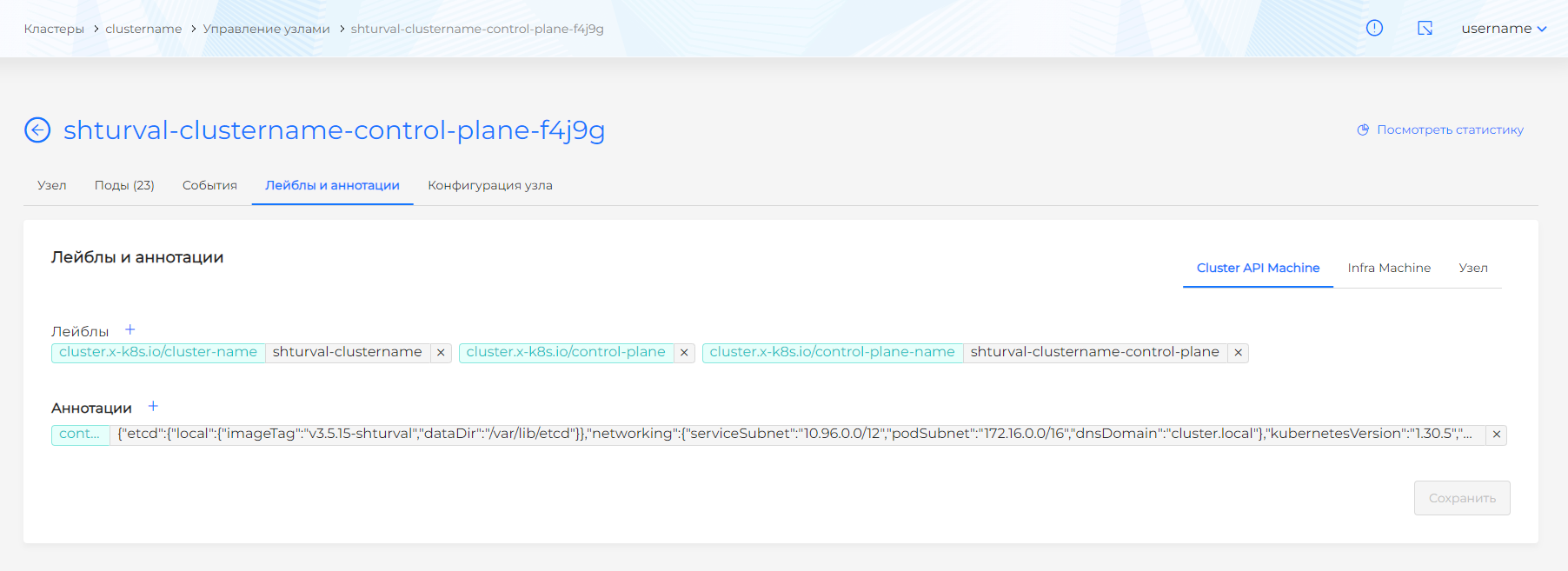
Assigning labels and annotations for Cluster API, infrastructure and node. How to add and change them: Labels and annotations. If necessary, you can set labels, annotations, and taints for all nodes in a group in the group’s CAPI resources. For details, see Labels and Taints in Cluster API.
Screenshot: node labels
Node Configuration tab
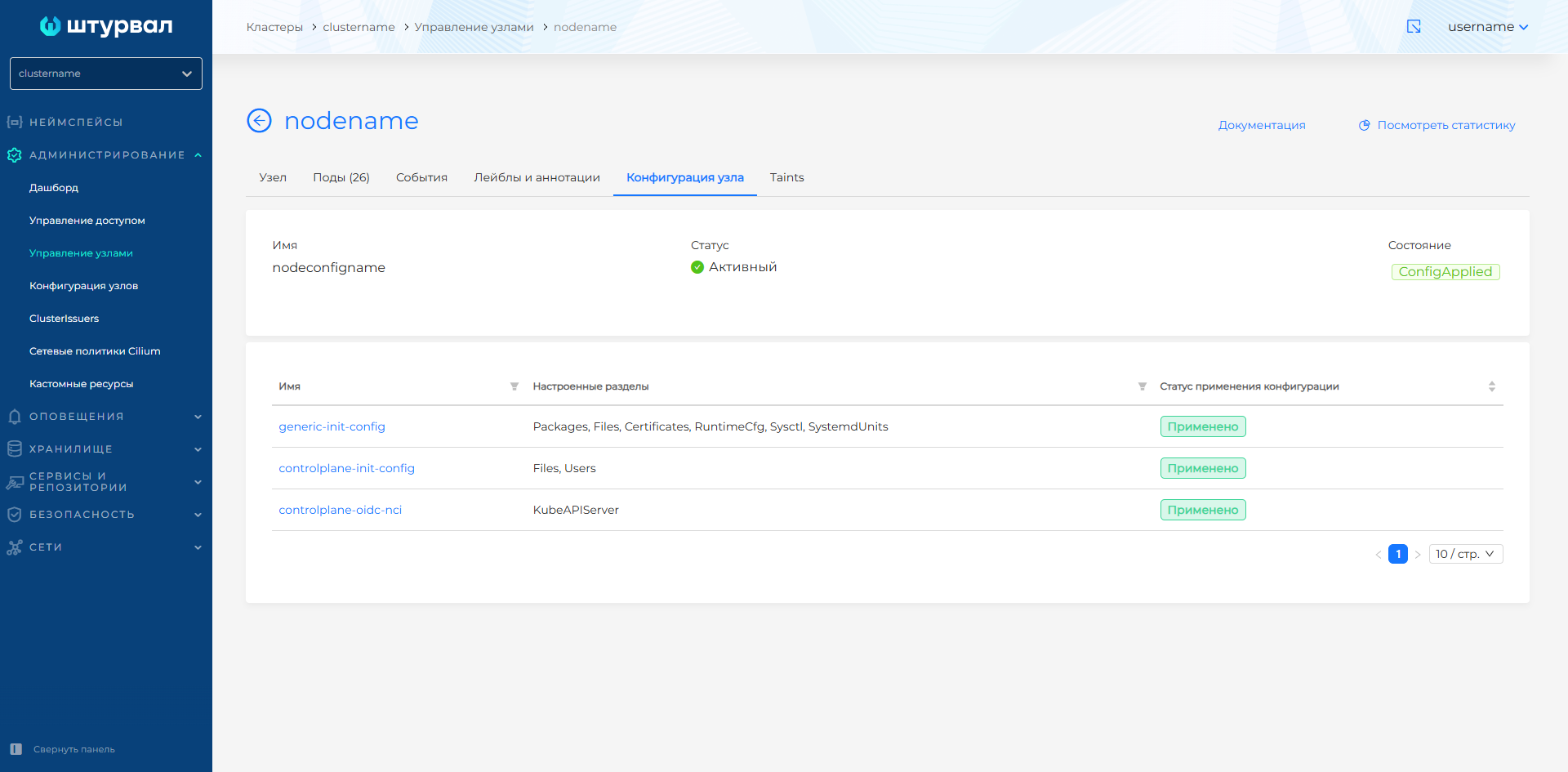
List of NodeConfigItem(NCI) planned for use on the node. If there is an application error, the status is Not applied.
Creation and editing of NCI objects is performed in the Node Configuration (NCI) section. The summary node resource in the API is NodeConfig (NC). Application architecture and diagnostics - module shturval-node-config.
The reboot status is also displayed: reboot required, reboot scheduler, reboot allowed.
Screenshot: NCI on the node
Taints tab
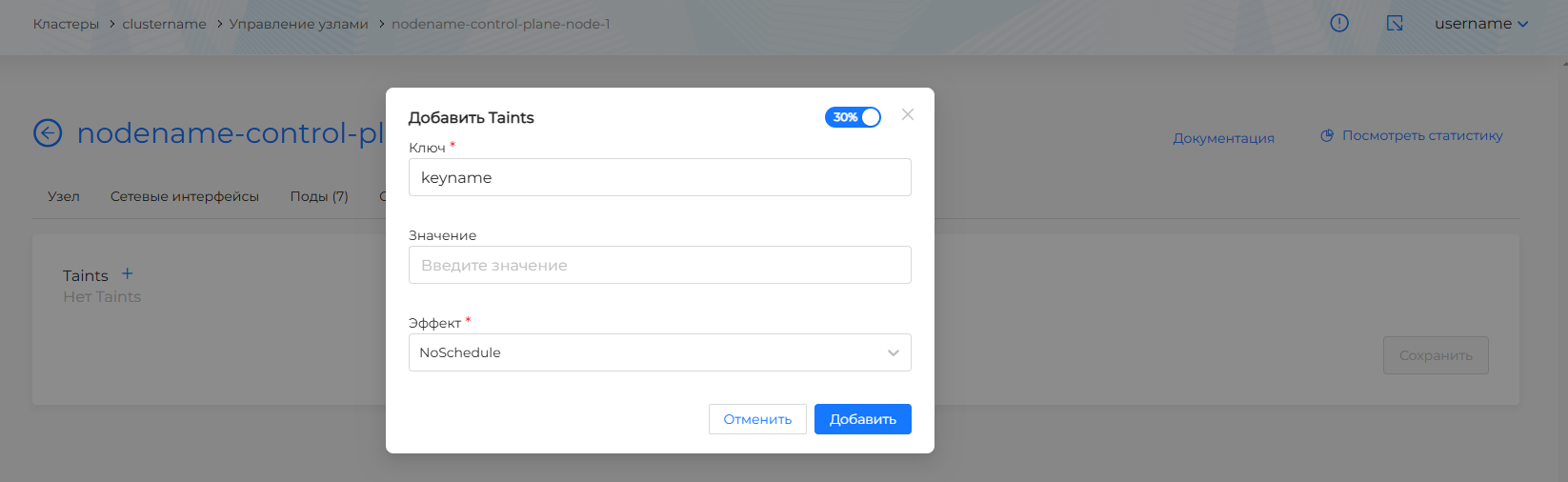
The list of taints on this node. You can add, change, or remove a taint. A taint from this tab belongs only to this node and is not kept if the node is created again. Taints limit pod scheduling — see Taints, Tolerations, and Affinity.
To give the restriction to every node in a Worker group, including nodes created later, set it on the Taints tab of the group configuration. A taint with mode Always is put back by Cluster API even if you remove it on this page.
Screenshot: Taints