How to connect your repository
Overview
The Services and Repositories section on the Repositories page displays a list of Helm repositories connected to the cluster. Each repository in the cluster is represented by a custom resource ShturvalRepoConfig (API group ops.shturval.tech). When installing a cluster, by default the Shturval repository with platform charts is connected (see What services are supplied as part of the platform). You can add your own repository with Helm charts to install services in the cluster.
The Shturval platform is compatible with popular Helm chart repositories such as Nexus, Artifactory, Harbor and others that support standard Helm protocols (HTTP/HTTPS, OCI).
In the GUI: select cluster → Services and Repositories → Repositories.
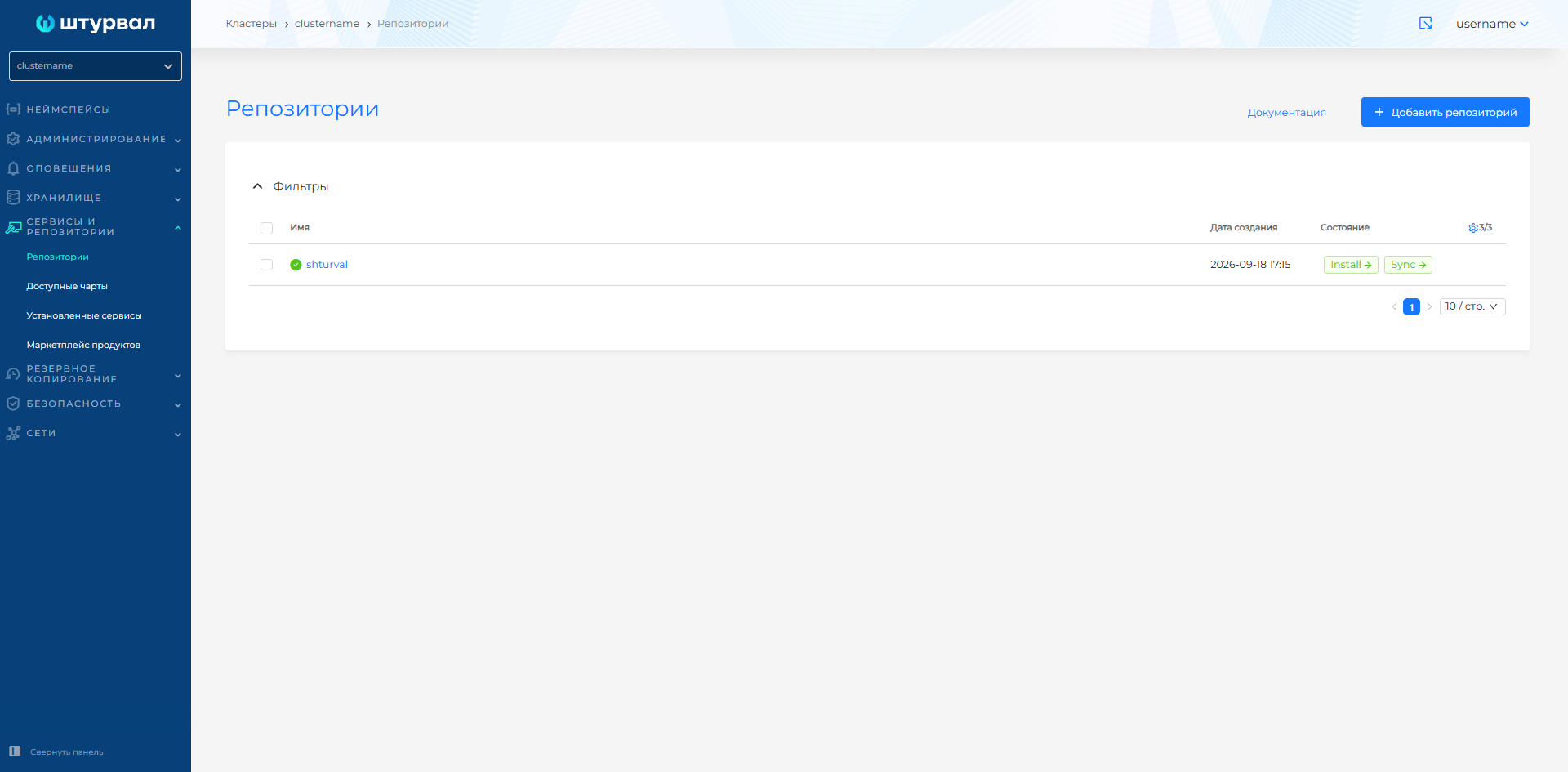
Viewing and editing ShturvalRepoConfig resources through the manifest are also available in Administration → Custom Resources → API group ops.shturval.tech → ShturvalRepoConfig.
Adding a repository
- On the Repositories page, click + Add repository.
- In the window that opens, fill in the parameters:
- Name - the name of the repository (will be displayed in the list and on the “Available Charts” page tab).
- URL — path to the repository. Supported protocols: http, https, oci.
- Certificate verification - enable or disable TLS certificate verification when connecting to the repository.
- Login and password—specify if access to the repository is limited by authentication.
- Labels and annotations - if necessary, set for the repository object in the cluster.
- Save your settings.
Charts from the new repository will appear in the Services and Repositories section on the Available Charts page on the tab with the name of this repository (by default, the shturval repository tab with platform charts is available).
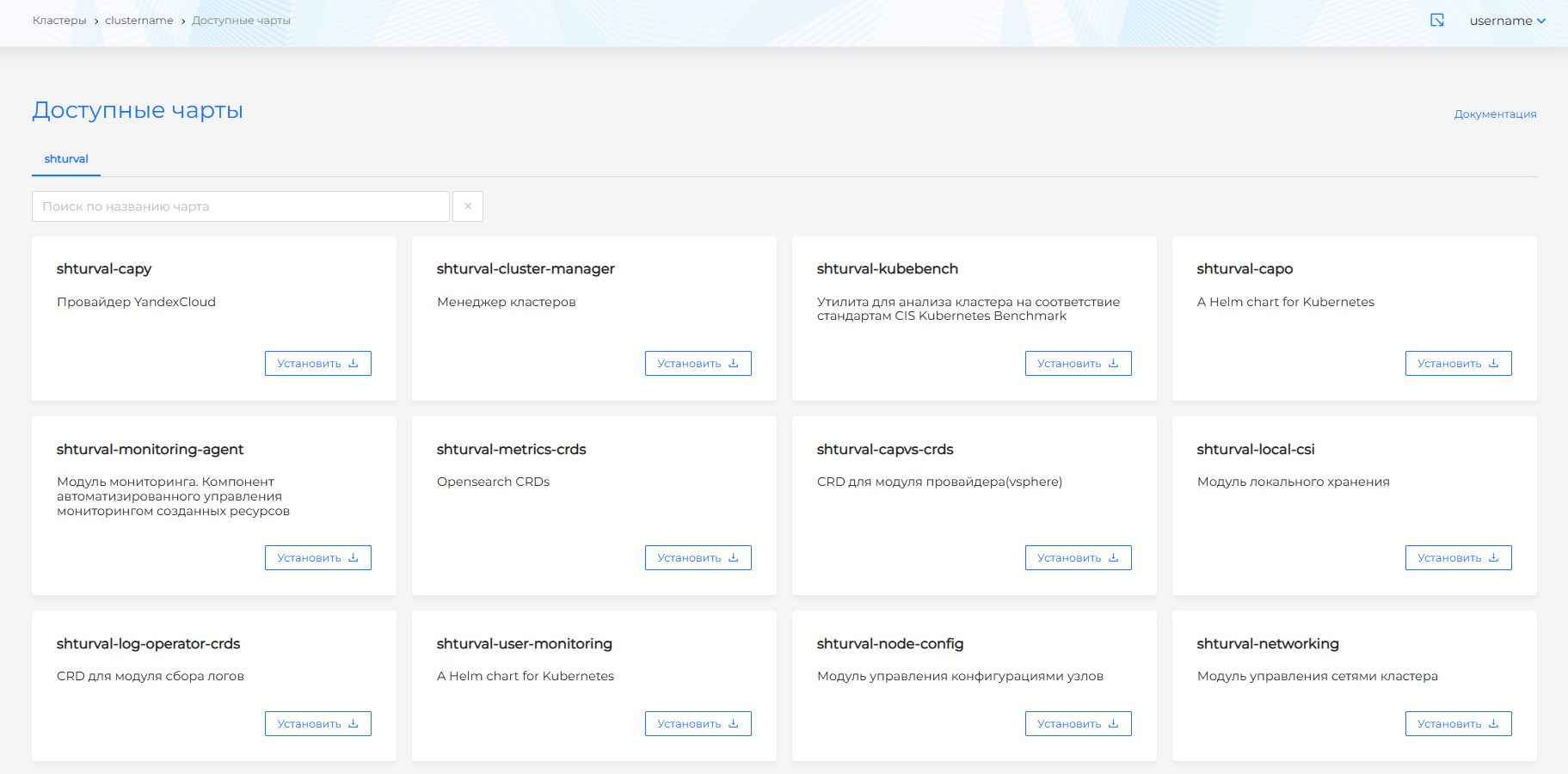
To install services from the added repository, use instructions.
Note: for repositories using the OCI protocol on the repository tab on the Available charts page, you must manually enter chart name, then click Check version and Check chart. More details: OCI protocol repositories.
Marketplace of partner products
On the Marketplace products pagecom you can connect pre-configured repositories of partner products. To connect other Helm repositories, use the Repositories page and the add repository script.
In the GUI: select cluster → Services and repositories → Product Marketplace.
Connecting a partner product
To add a partner’s product, connect its repository:
- On the Product Marketplace page, select a product and click Add.
- In the window that opens, on the Configuration tab, fill in the parameters:
- Username—account data if the connection is made to the private repository of the partner’s product.
- Password — password for the account to access the private repository.
- URL — mandatory link to the partner’s product repository with Helm charts for installing services. The default URL is the product’s public repository. It can be replaced if the desired charts are located at another address, for example in a private repository or mirror. Supported protocols: http, https, oci.
- Certificate verification—enable if you need to check the security certificate to confirm the secure connection and the authenticity of the server.
- If necessary, add labels and annotations on the Labels and Annotations tab.
- Click Connect.
The name of the partner’s product repository is set by default and matches the name of the selected product on the Product Marketplace page. This name cannot be set or changed.
Once connected, the Available Charts tab will appear in the product modal window. Select service charts and install them, or click Finish without installation to connect the repository without installing services.
If the partner’s product repository has been connected previously, you can install charts:
- in the product modal window on the Product Marketplace page: select Manage → Available charts;
- on the Available charts page on the partner’s product repository tab.
For repositories using the OCI protocol, instead of selecting a chart from the list of available charts, enter the name of the chart for subsequent installation.
Partner product change
If the connection to the partner’s product repository is established, but the charts are not available, check the URL and credentials, then reconnect:
- Open Product Marketplace.
- Select Manage for the desired product.
- Update p configurationrepository.
- Click Reconnect.
After reconnecting, the configuration and list of available charts will be updated. Previously installed services from the partner’s product repository charts will continue to work without changes.
The data of a previously connected partner product repository can also be changed on the Repositories page: click on the repository name in the list of connected repositories, update the data and click Save. After saving, the configuration and available charts will be updated.
Disabling access to a partner’s product repository
To disable access to a partner’s product repository, open the Repositories page, select the partner’s product repository from the list, click the delete icon (trash) and confirm the action.
After access is disabled, the partner’s product repository charts will not be accessible from the platform. Already installed services will continue to work.
Available partner products
Repositories of partner products are available for connection on the platform:
- Nimbius is a hybrid cloud management platform. The chart is located in a public repository.
- Kaspersky Container Security is an overlaid information security tool for a cluster. For connection and installation information, see the Security Overlays page.
- Luntry - comprehensive protection of containers and Kubernetes at all stages of the application life cycle. For connection and installation information, see the Security Overlays page.
Nimbius
When installing the chart, create or select the previously created namespace nimbius.
After installing the chart in the namespace nimbius, you need to create a secret with the name regcred and type dockerconfigjson, containing the license data, and also change the service configuration. To purchase a license, contact Nimbius.
On the service management page in the Service Specification block, set customvalues:
ui:
  portalUrl: <your parameter value>
orchestrator:
  env:
    applicationDomain: <your parameter value>
| Parameter | Description | Data type | Example |
|---|---|---|---|
ui.portalUrl | Nimbius user portal domain name | string | nimbius-ui.clustername.ip-11-12-13-14.shturval.link |
orchestrator.env.applicationDomain | Nimbius admin portal domain name | string | nimbius.clustername.ip-11-12-13-14.shturval.link |
View and edit a repository
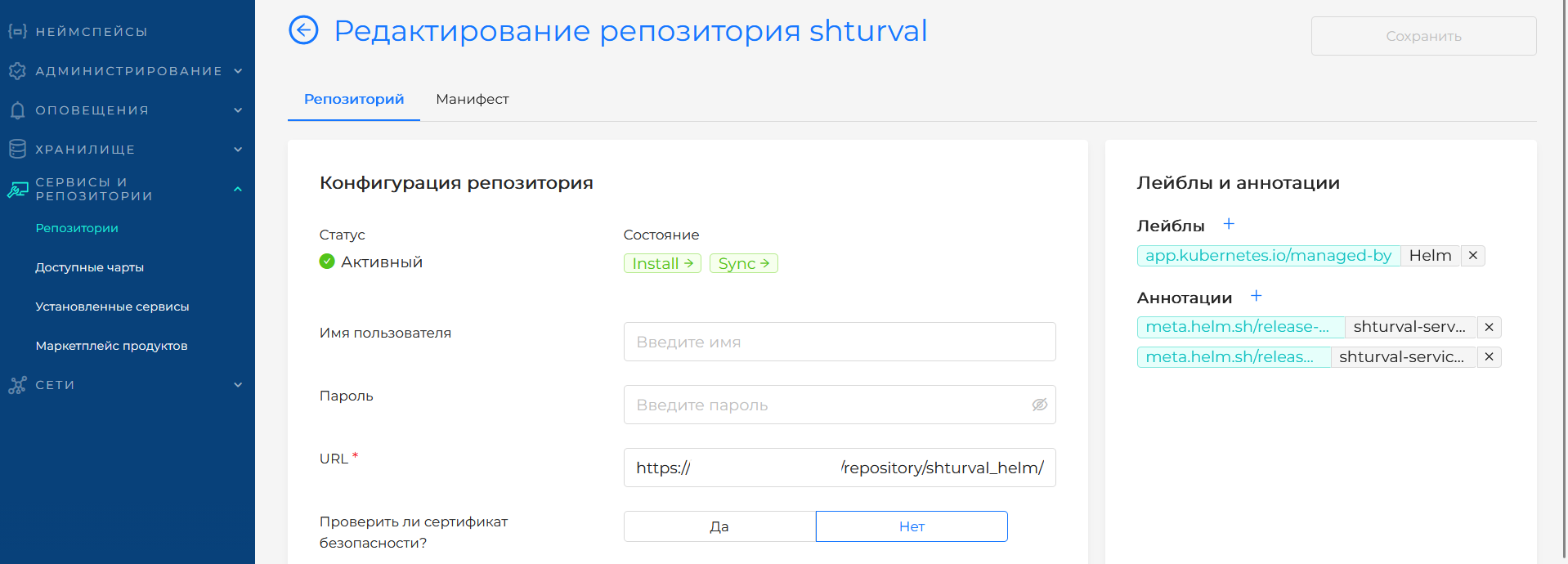
Click on the repository name in the list. The repository page will open.
Repository Tab
Status, status and connection details are displayed. The State block lists the states (conditions), installed when connecting the repository. Click on the status name to see details: name, date and time of check, reason for setting the status. If the connection is unsuccessful, an error message is displayed.
You can change:
- Repository URL;
- access data (login, password);
- certificate verification;
- labels and annotations.
After editing, click Save.
Manifest tab
Repository data can be changed via the YAML manifest. Make changes, click Check - the check result will be displayed on the right. Expand the result block to view the full manifest. If format validation fails, manifest verification is not available. Save the changes - without saving they will not be applied.
Deleting a repository
In the repository list you can delete one repository or several at once. How to select objects and confirm deletion: Bulk deletion.
Click the delete icon (trash can) in the repository row in the list. After deleting a repository, services already installed from the charts of this repository will remain installed in the cluster. To update or remove them, use the Installed services page and manage the corresponding ShturvalServiceConfig (SSC).
For a general overview of custom platform resources (including ShturvalRepoConfig, ShturvalServiceConfig and ShturvalServicePatch), see the page Custom Resources in the Platform. Working with ShturvalServicePatch patches for customvalues system services - How to manage CustomValues of services.