How to manage CustomValues services
Overview
CustomValues are parameters (values) in YAML format that are passed to Helm when installing and updating the service. They allow you to override chart settings: ports, resource limits, flags, storage addresses, etc.
The preferred method for changing customvalues is the ShturvalServicePatch (SSP) resource: patches are overlaid on top of the base ShturvalServiceConfig (SSC) and are convenient for versioning, multiple layers of settings and platform updates (see benefits). Editing customvalues directly in the service interface or in the SSC manifest is not recommended - such methods are listed in the section “Other methods (not recommended)”.
A description of all platform-specific custom resources, including ShturvalServiceConfig and ShturvalServicePatch, is provided on the page “Custom Resources in the Platform”.
ShturvalServicePatch - recommended method
ShturvalServicePatch is a custom patch resource: it refers to a service (SSC) by name and sets additional or overriding customvalues for it. The shturval-services controller combines the basic SSC configuration and all SSPs applied to it and passes the result to Helm.
Where and how to manage SSP:
View:
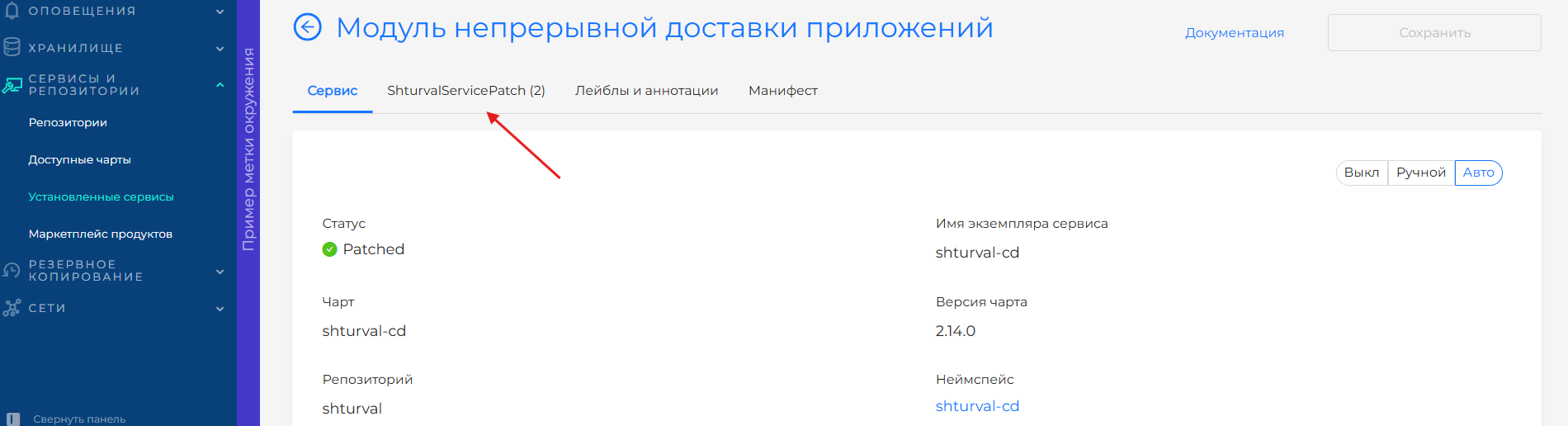
- Service page: Services and repositories → Installed services → Manage service → Applied ShturvalServicePatch tab. Clicking on the line with the patch opens viewing and editing the YAML SSP manifest.
Screenshot: “Applied ShturvalServicePatch” tab
Creation and editing:
- Service page: on the Applied ShturvalServicePatch tab, click Add, upload or paste the manifest, and save it after successful validation.
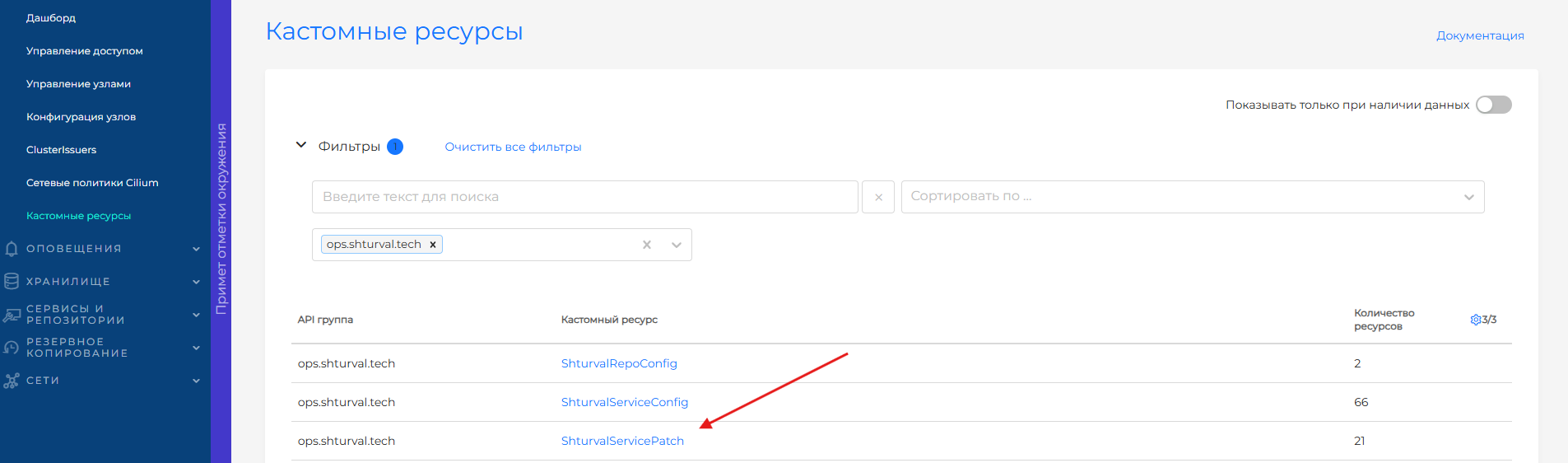
- Custom resources: Administration → Custom resources → ops.shturval.tech → ShturvalServicePatch. You can edit or delete existing ones through manifests.
Screenshot: ShturvalServicePatch in the “Custom Resources” section
- Import: import icon (to the left of username) → paste or download YAML from SSP → Verify → Upload. More details: Import.
In the SSP manifest, be sure to specify spec.shturvalServiceConfigName - the name of the ShturvalServiceConfig resource (service) to which the patch is applied. Parameters are set in spec.customvalues in YAML format.
ShturvalServicePatch manifest example
apiVersion: ops.shturval.tech/v1beta2
kind: ShturvalServicePatch
metadata:
  name: <resource name>
spec:
  shturvalServiceConfigName: shturval-auth
  customvalues:
    ingress_auth:
      annotations:
        nginx.ingress.kubernetes.io/proxy-read-timeout: "<your parameter value>"
Via the console (kubectl)
Create a ShturvalServicePatch manifest file (as in the example above) and apply it:
kubectl apply -f ssp-nfs-csi.yaml
View and edit an existing patch:
# List all SSPs in the cluster
kubectl get shturvalservicepatch -A

# Patch details
kubectl get shturvalservicepatch <name> -n shturval-services -o yaml

# Editing in the console
kubectl edit shturvalservicepatch <name> -n shturval-services
Creating a secret with credentials and transferring it to SSP is done separately (for example, through Secret in the service namespace and a link to it in custom values according to the chart documentation).
Example: full SSP manifest in file for kubectl apply
# File ssp-backup-retention.yaml
apiVersion: ops.shturval.tech/v1beta1
kind: ShturvalServicePatch
metadata:
  name: shturval-backup-retention
  namespace: shturval-services
spec:
  shturvalServiceConfigName: shturval-backup
  customvalues: |
    configuration:
      defaultVolumesToRestic: true
    schedule: "0 2 * * *"
After applying the SSP, the shturval-services controller will recalculate the service configuration and, if necessary, update the Helm release. You can check the application on the Installed services page → Manage service → Service and Applied ShturvalServicePatch tabs.
On the Applied ShturvalServicePatch tab, each resource shows its status.conditions. Select a condition for more information: the reason, diagnostic message, and the time of the last status change.
Benefits of ShturvalServicePatch
Using ShturvalServicePatch instead of editing spec.customvalues directly in ShturvalServiceConfig (SSC) gives:
- Separation of basic and custom configurations - the original SSC remains “as from the platform”; all overrides are collected in separate SSP resources. When updating a platform or chart, it’s easier to understand what you’ve added.
- Several patches for one service - several SSPs can be applied to one SSC (for example, one for general settings, the other for a specific environment). The controller combines them taking into account the order (
patchOrderis used if necessary). - Convenient rollback - to cancel customization, just delete or edit the SSP without touching the SSC itself.
- Versioning and GitOps - SSP manifests can be stored in a repository, applied via CI/CD or manifest import, and track changes in Git.
- Reuse - the same SSP manifest can be used in another cluster (for example, from a ClusterProfile when creating a cluster) without editing the GUI.
Features of ShturvalServicePatch
Below are the rules for merging the configuration and operation of patches in the GUI and API.
- For one service (one SSC) you can create an unlimited number of
ShturvalServicePatchresources. - Through SSP you can add or redefine values in the final customvalues of the service. It is impossible to delete keys and their values already defined in SSC via a patch - to do this you have to edit
ShturvalServiceConfigor the “Service Specification” block in the GUI; these methods are not recommended. - If several SSPs have
patchOrderset, the final configuration is assembled taking into account priority: moreA higher number inpatchOrdermeans higher priority. If priority is not specified, the order of application is not guaranteed. - The value of the parameter in SSP has higher priority than the value of the same parameter in
spec.customvaluesof SSC itself: if the key in the patch and the SSC match, the value from the patch will be lost in Helm, and the field in SSC for this key is actually ignored. - If several SSP specify the same parameter, the value from ShturvalServicePatch with higher priority wins (see point 3). If there is a conflict without
patchOrder, the choice is unpredictable - setpatchOrderexplicitly. - The SSP creation date is entered automatically.
- SSP can be used when the service is in Auto mode. If the service is in Manual mode, set it to Auto or specify the
spec.mode: autofield in the SSP manifest, otherwise the patch may not be applied as expected.
System-generated ShturvalServicePatch
When deploying and updating a cluster, system ShturvalServicePatch are automatically created, which are necessary for the correct operation of services. In metadata.labels of such ShturvalServicePatch the label generated-by is specified with the value cluster-manager or shturval-update. For system SSPs, patchOrder: 10000 is used.
When viewing the manifest of such a ShturvalServicePatch in the GUI: the Applied ShturvalServicePatch tab on the service page or Administration → Custom Resources, a notification is displayed that the viewed object was created systemically. Editing and deleting such a ShturvalServicePatch is not available in the GUI.
Note: system ShturvalServicePatches are not intended to be changed or deleted - this may disrupt the operation of the service. If changes are necessary, create a new ShturvalServicePatch with a higher priority: set patchOrder less than 10000.
Service status after applying ShturvalServicePatch
After applying at least one SSP, the service’s interface displays the Patch status and Patched status. The list of applied patches is on the Installed services page → Manage → Applied ShturvalServicePatch tab.
You can delete SSP:
- on the Applied ShturvalServicePatch tab - delete action in the patch line;
- on the manifest view page for the corresponding
ShturvalServicePatch.
Importing a new ShturvalServicePatch - Import.
Other methods (not recommended)
Below are the ways to change customvalues without fromuseful resource ShturvalServicePatch. They change the underlying SSC or equivalent entry in the GUI and are not recommended as a primary approach: with platform updates, it is more difficult to track differences from delivery, and there is a higher risk of conflicts with the patch mechanism. For permanent and portable settings, use ShturvalServicePatch.
Note: if the values of customvalues have already been changed directly in ShturvalServiceConfig, move such changes to a separate ShturvalServicePatch with an explicitly set higher priority: system SSPs use patchOrder: 10000, so set a value greater than 10000. Otherwise, when the platform is updated or system SSPs become available, these values may be overridden.
Directly in the “Service Specification” block in the service interface (not recommended)
Where: select the cluster → Services and repositories → Installed services → click Manage for the desired service. On the service management page, find the Service Specification (customvalues) block.
The left side of the block displays and edits YAML with the values passed to Helm. On the right are the available chart parameters (for viewing only, with search by name). Make your changes and click Save.
You can move through YAML editor search results with keyboard shortcuts: press Enter to go to the next match, or Shift+Enter to return to the previous one. If necessary, change the selected keybinding scheme in the editor settings.
Suitable only for one-time diagnostics; for regular customization, ShturvalServicePatch is preferable.
Via the “Custom Resources” interface - ShturvalServiceConfig (SSC) manifest (not recommended)
Where: select cluster → Administration → Custom Resources → API group ops.shturval.tech → ShturvalServiceConfig (SSC).
Select the desired service (for example, shturval-nfs-csi), open the Manifest tab. In the spec.customvalues field you can edit YAML values directly in the ShturvalServiceConfig resource manifest. Save the manifest.
This is how you change the original service configuration (SSC). To separate platform delivery and your overrides, use ShturvalServicePatch.