Overview of working with services and repositories
Overview
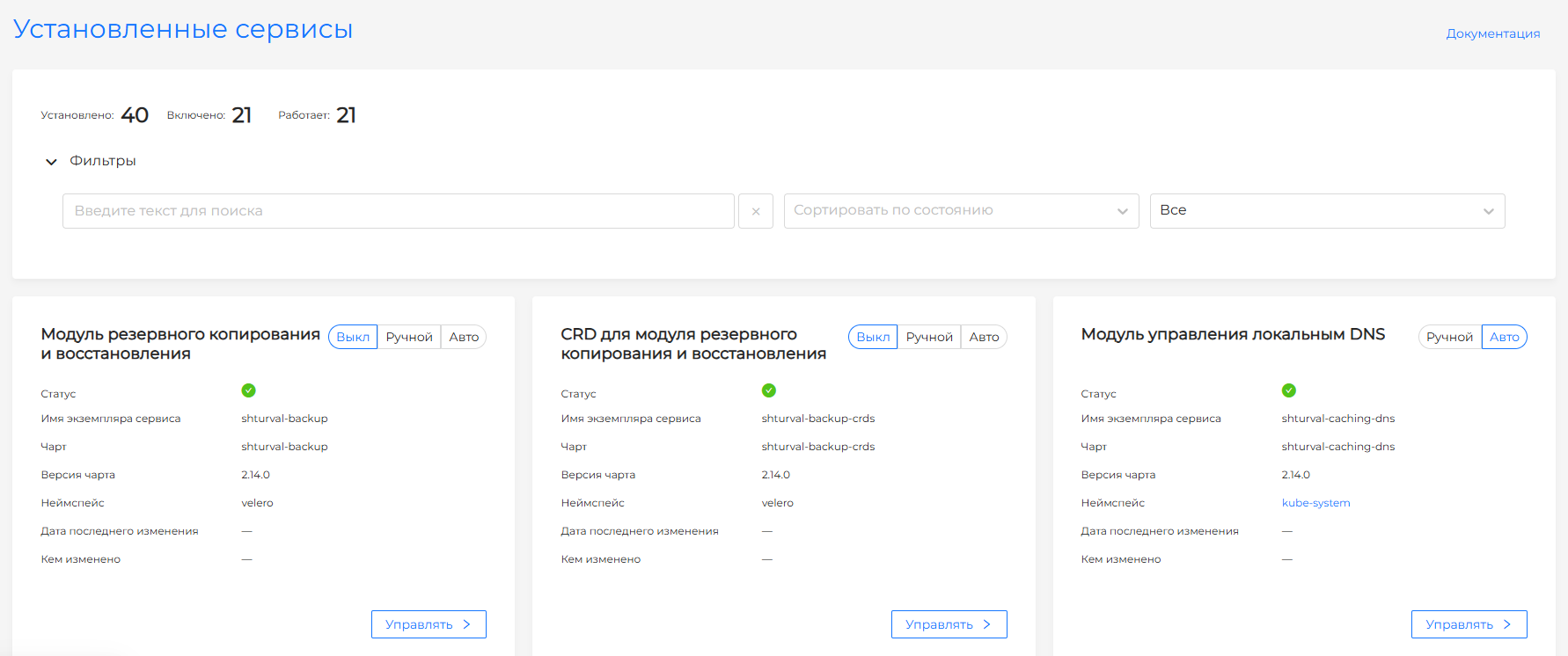
System services in the Shturval platform are Helm charts managed through a custom ShturvalServiceConfig (SSC) object type. They are displayed on the Installed services page of the Services and repositories section.
Who installs the services: During initial cluster deployment, system services are installed by ClusterManager. After deployment, shturval-services (Helm and Flux based) manages service installation. It is for system services only and not suitable for custom applications. For continuous delivery of user applications, the platform supplies Argo CD (shturval-cd).
For more information about custom resources that underlie work with services (ShturvalServiceConfig, ShturvalServicePatch, ShturvalRepoConfig), see the page “Custom resources in the platform”.
Service name: the Russian name is displayed in the card and in the lists (for example, “NFS Operator Module”) - it is specified by the annotation of the SSC resource. Service Instance Name (identifier) is the name of the ShturvalServiceConfig resource in the cluster (for example, shturval-nfs-csi); it is used in the API, in kubectl, in SSP links (shturvalServiceConfigName) and cannot be changed once created.
Where to open: select cluster → Services and repositories → Installed services.
Available on the page:
- counters - for installed, enabled and running services;
- search - by namespaces, names of services and service instances, names of charts;
- sorting - by working and not working services (convenient for quickly checking problems in the cluster), updated by installing a patch or not;
- filtering - by control mode: Manual, Automatic, Disabled.
Screenshot: list of installed services
Control modes
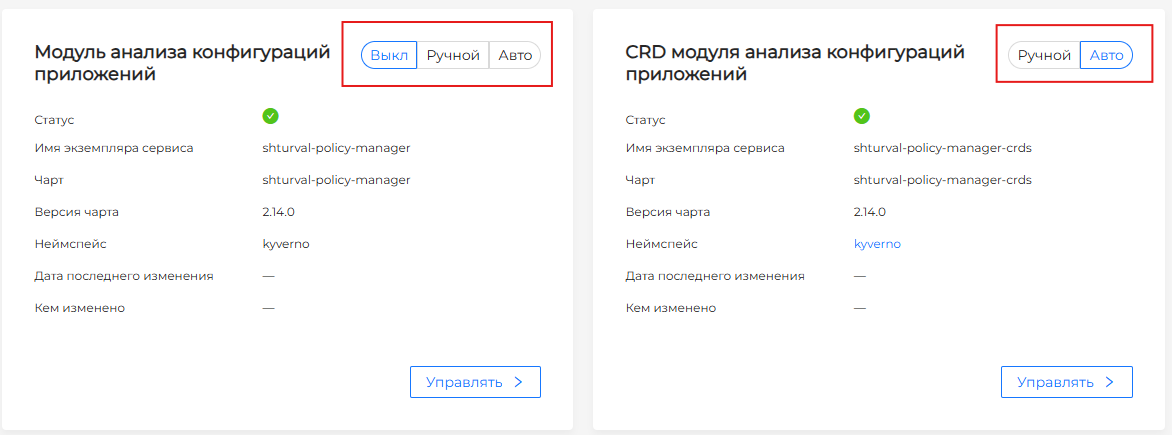
For each installed service, you can set the control mode:
| Mode | Description |
|---|---|
| Off (Absent) | The service is disabled in the cluster. The mode is not available for critical platform services. When disabled, resources that were installed in Auto mode will be deleted |
| Auto | Service resources in the namespace are created automatically, and the service is launched in the cluster. When changing the configuration, select this mode to automatically apply updates. |
| Manual | The service is enabled, but starting and updating resources is done manually. Used when you need a version of the service that is different from the one supplied as part of the platform. |
To pause the service without deleting it, select the Off mode.
Changing the management mode on an installed service card requires confirmation.
Screenshot: selecting a mode on the service card
View and edit service
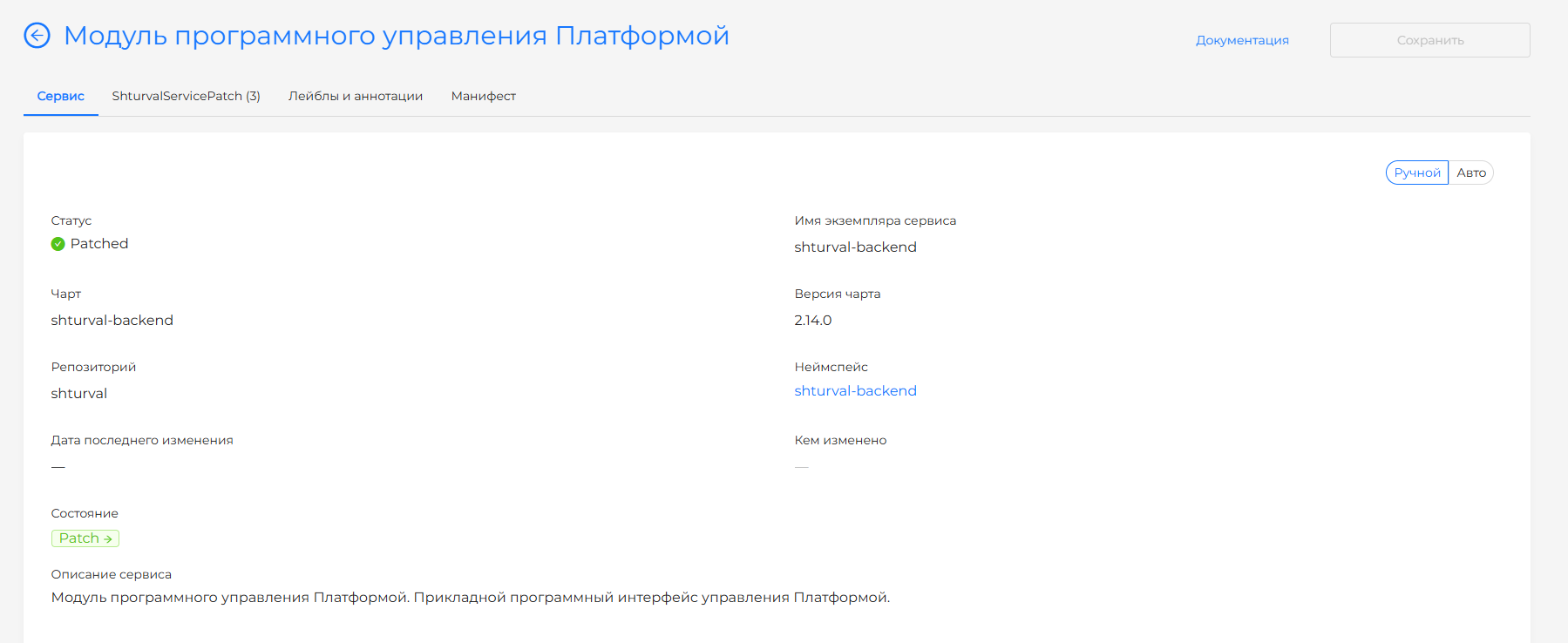
Click Manage on the card of the installed service, a page for viewing the system service with several tabs will open.
Service tab
Displayed:
- name and version;
- chart installation status;
- service status;
- namespace in which the service is deployed. When the service is deployed, clicking on the namespace name opens the namespace dashboard page.
- date of last change.
Here you can change the control mode.
Screenshot: service page
Service specification (customvalues): If necessary, you can redefine parameters or add new ones to the Service specification block. The values specified here during installation or edits are saved when updating the cluster and platform (they are not overwritten by the very fact of updating the chart version as part of the overall process - details in the section “Updating services supplied as part of the platform” below). It is recommended to make permanent overrides through the custom resource ShturvalServicePatch (SSP) - it overrides the Helm chart parameters without editing the original ShturvalServiceConfig (SSC). More details: How to manage CustomValues.
Available parameters for service configuration - a set of values supplied with the chart of the installed version; available for viewing only. Search by name is supported (the search is performed when you enter the first character).
ShturvalServicePatch tab
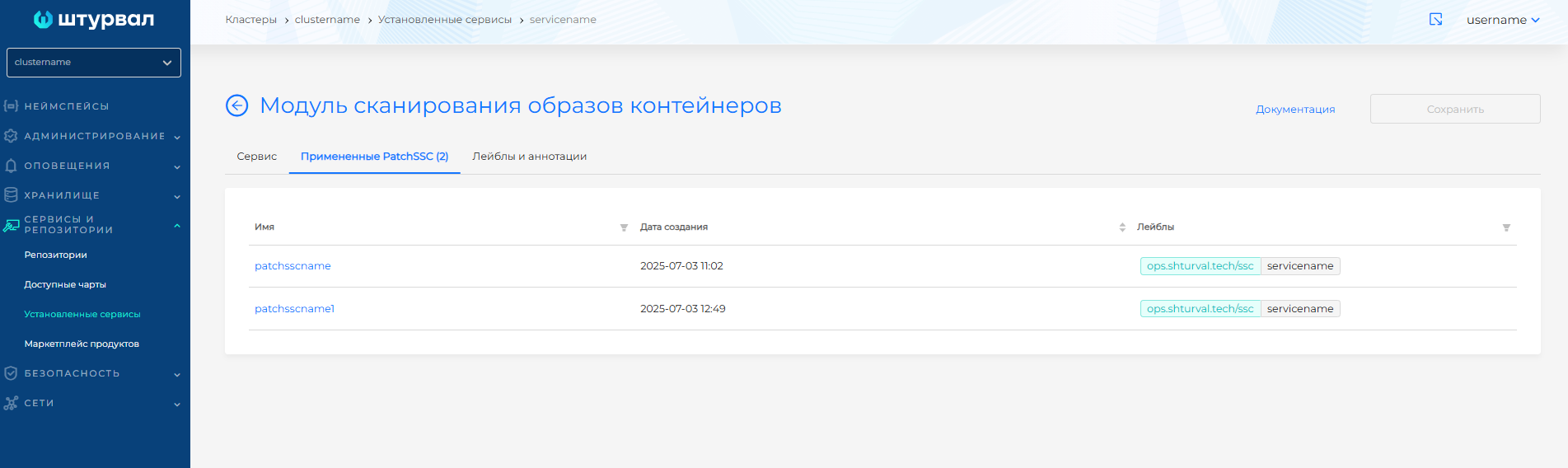
List of ShturvalServicePatch (SSPs) created for this service. By clicking on the line with the patch, you can go to viewing and editing the YAML manifest. The patch can be removed from the list (line action) or from the manifest view page.
If a service has at least one SSP applied, the service displays a Patch status and a Patched status (in addition to the normal installation conditions).
Screenshot: “ShturvalServicePatch” tab — list of patches applied to the service
After modifying the manifest, run Verify. The test result is displayed on the right. Expand the result block to see the full manifest. If format validation fails, manifest verification is not available. Click Save - changes will not be applied without saving.
Labels and Annotations Tab
Changing the labels and annotations of a service instance. How to add and change them: Labels and annotations.
After making changes on any tab, click Save.
Manifest tab
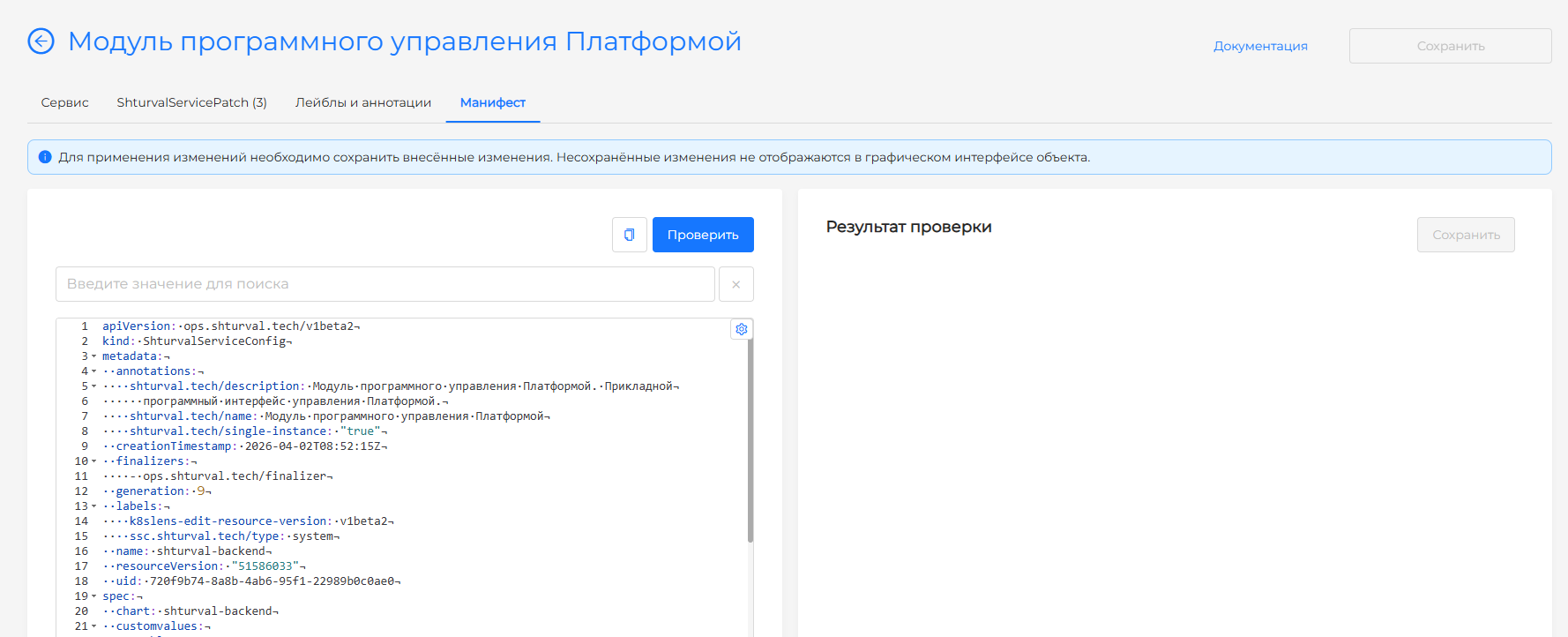
On the Manifest tab, you can view, copy, and edit the YAML manifest of the ShturvalServiceConfig object. Prefer changing service CustomValues with ShturvalServicePatch.
Screenshot: “Manifest” tab - YAML manifest of the ShturvalServiceConfig object
Removal and disabling
- Delete a service instance - on the service card, click Delete.
- Pause operation - select the control mode Off.
Disabling the service results in shutdown and deletion of objects that support the operation of the system service, but all service settings are saved. To further enable the service, just change the mode.
Removing and disabling services that are critical for the operation of the platform is blocked on the installed services page.
Updating services provided as part of the platform
Services included in the platform are supplied in certain versions of charts. They can be updated in two ways.
As part of a cluster upgrade
When you start cluster update (cluster dashboard → update block or Update Kubernetes version), one of the stages is update system services. The platform updates service chart versions to versions that match the target version of Shturval (based on data from ShturvalUpdateChannel). Services in Auto mode receive the new version automatically at this stage; for services in the Manual mode, the version is not updated as part of the general process - if necessary, the version is changed manually in the SSC resource (field version).
More information about the stages and launch of the update - Updating Kubernetes version.
Manual update of the service version
If you need to change the version of an individual service without completely updating the cluster (or the service in Manual mode):
Note: to upgrade the version of a service, a chart with the required version must be available in the repository from which this service is deployed (field spec.reponame in SSC; the repository is configured in the section Services and repositories → Repositories). If there is no chart with the specified version in the repository, the update will not be performed.
- Via GUI: Manifest tab on the service page → change the
spec.version (or version) field to the desired chart version → save. - Via kubectl:
kubectl edit shturvalserviceconfig <system-name> and change spec.version.
After saving, the shturval-services controller will apply the new version of the chart (in Auto mode - automatically to the service version supported in this release; in Manual mode - in accordance with the settings). For compatibility of chart versions with the platform version, see the update documentation and the charts repository.
As part of a cluster upgrade
When you start cluster update (cluster dashboard → update block or Update Kubernetes version), one of the stages is update system services. The platform updates service chart versions to versions that match the target version of Shturval (based on data from ShturvalUpdateChannel). Services in Auto mode receive the new version automatically at this stage; for services in the Manual mode, the version is not updated as part of the general process - if necessary, the version is changed manually in the SSC resource (field version).
More information about the stages and launch of the update - Updating Kubernetes version.
Manual update of the service version
If you need to change the version of an individual service without completely updating the cluster (or the service in Manual mode):
Note: to upgrade the version of a service, a chart with the required version must be available in the repository from which this service is deployed (field spec.reponame in SSC; the repository is configured in the section Services and repositories → Repositories). If there is no chart with the specified version in the repository, the update will not be performed.
- Via GUI: Manifest tab on the service page → change the
spec.version(orversion) field to the desired chart version → save. - Via kubectl:
kubectl edit shturvalserviceconfig <system-name>and changespec.version.
After saving, the shturval-services controller will apply the new version of the chart (in Auto mode - automatically to the service version supported in this release; in Manual mode - in accordance with the settings). For compatibility of chart versions with the platform version, see the update documentation and the charts repository.
Conditions of the ShturvalServiceConfig (SSC) resource
For the ShturvalServiceConfig resource, the status field is filled with conditions - conditions reflecting the state of installation and approval of the service by the controller (shturval-services).
How to view: in the GUI - Installed services page → find the card of the desired service and click Manage → Service tab (service status, chart installation status); or via the console:
kubectl get shturvalserviceconfig <name> -o jsonpath='{.status.conditions}' | jq.
# or
kubectl describe shturvalserviceconfig <name>
The Status / Conditions section displays elements with fields:
- type — condition type (for example, readiness for installation, result of chart installation);
- status —
True,FalseorUnknown; - reason — short reason;
- message — diagnostic message.
From them you can understand whether the chart is applied, whether there are installation errors or conflicts with patches. If there are problems with the service, check status.conditions and object events (kubectl describe shturvalserviceconfig <name>).
Service groups (by purpose)
Platform services are grouped by purpose and by participation in quick installation groups.
For a detailed list of services with versions and links to groups, see the page “Shturval Repository Services”.
To deploy a new service from the charts catalog - How to deploy a new service. For more information about individual services, follow the links in the side menu of the Services and Repositories section.