How to connect a private registry
To use images from a private registry, you need to configure authentication. Three options are available:
- Through Node Configuration (NCI) - the recommended method for a cluster: one NodeConfigItem (NCI) object with a Container Runtime section specifies container registries (and, if necessary, credentials) for selected nodes. The shturval-node-config service applies settings to nodes without manual login via SSH. More information about NCI - Node Configuration (NCI).
- Manually changing the ContainerD configuration on each node - suitable for one-time setup or when NCI is not available.
- ImagePullSecrets in namespace - convenient from a security point of view and for distinguishing by namespace.
Comparison of authentication methods
| Criterion | Via NCI (Node Configuration) | Manual editing ContainerD | ImagePullSecrets |
|---|---|---|---|
| Who configures | Cluster Administrator (one NCI) | Administrator (on each node via SSH) | Namespace or cluster administrator |
| Scope | All pods on selected nodes (by NCI selector) | All pods on node | Only pods using secret |
| Difficulty | One NCI for all nodes, operator application | Editing the config and restarting containerd on each node | The secret is in every namespace |
| Security | NCI Credentials (Clustered) | Credentials in clear text in the config on the node | The secret is stored in Kubernetes (Secret) |
| Changes | Edit NCI, operator will update nodes | Editing the config and restarting on all nodes | Secret update in the required namespaces |
Configuration via Node Configuration (NCI)
This method does not require logging into each node: the node configuration service (shturval-node-config) will apply the Container Runtime settings to nodes based on the selector from NCI. A developer can still specify docker.io (Docker Hub) in the manifest: if the cluster administrator has configured mirroring, requests to that registry go to the corporate mirror.
- Open Administration → Node Configuration → Add NCI (or import the manifest via Import).
- Set the name, priority and node selector (for example,
kubernetes.io/os: linuxfor all Linux nodes ornode-role.kubernetes.io/control-planefor Control Plane). More information about selectors - Node Configuration (NCI). - In the list of sections, select Container Runtime.
- In the Container registry configuration block, click + and fill in the Add image registry configuration window:
Screenshot: add image registry configuration window
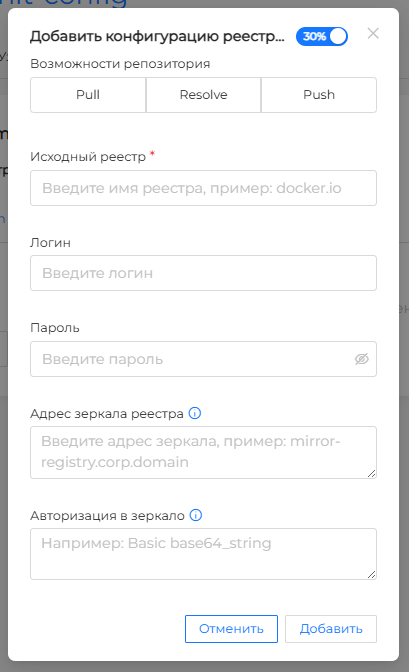
If you are using r.shturval.tech mirroring:
- Source registry is the registry name to mirror, for example
r.shturval.tech. - Registry mirror address is the corporate mirror the images are pulled from, for example
mirror-registry.corp.domain. - Repository Features — select
resolveandpull. - if necessary, specify Authorization in the mirror in the
Basicplus base64 string format.
An example of connecting an image registry with mirroring r.shturval.tech using NCI
apiVersion: node.shturval.tech/v1beta2
kind: NodeConfigItem
metadata:
  name: private-registry
spec:
  nodeconfigselector:
    kubernetes.io/os: linux
  priority: 100
  runtimecfg:
    registries:
    - capabilities:
      - resolve
      - pull
      license: Basic YWRtaW46c2VjcmV0MTIz
      host: https://my-registry.corp:443
      name: r.shturval.tech
If you are using your image registry, which requires basic authorization:
An example of connecting an image registry with basic authorization using NCI
apiVersion: node.shturval.tech/v1beta2
kind: NodeConfigItem
metadata:
  name: private-registry
spec:
  nodeconfigselector:
    kubernetes.io/os: linux
  priority: 100
  runtimecfg:
    registries:
    - capabilities:
      - resolve
      - pull
      license: Basic YWRtaW46c2VjcmV0MTIz
      name: myprivateregistry.domain.ltd
If you are using your image registry, which requires login with a username and password:
- Source registry — the registry name, for example
myprivateregistry.domain.ltd. - Login and Password — private registry credentials. If one field is filled in, fill in the other as well.
- if necessary, specify the mirror and Authorization in the mirror.
An example of connecting your image registry using NCI
apiVersion: node.shturval.tech/v1beta2
kind: NodeConfigItem
metadata:
  name: private-registry
spec:
  nodeconfigselector:
    kubernetes.io/os: linux
  priority: 100
  runtimecfg:
    registries:
    - capabilities:
      - resolve
      - pull
      name: myprivateregistry.domain.ltd
    configSections:
      - exist: true
        path: plugins."io.containerd.grpc.v1.cri".registry.configs."myprivateregistry.domain.ltd".auth
        params:
          - exist: true
            key: username
            value: myLogin
          - exist: true
            key: password
            value: myPassword
If you are using your own image registry, which does not require authorization, you just need to specify its host in the load manifest; adding it to NCI is not required.
- Click Add, complete the remaining steps and Finish.
NCI will be applied to the selected nodes by the operator. Containerd restarts on nodes automatically when the configuration is applied.
Credentials (login/password) are set in the Add image registry configuration window. Authorization in the mirror is a separate field in the same window. Do not create the auth section manually in the Plugins block.
After creating or changing the NCI, check the application on the nodes: Nodes → select the node → Node Configuration tab (list of applied NCIs and status).
Manual configuration via ContainerD configuration
On each node of the cluster you need to edit the ContainerD config (usually the path /etc/containerd/config.toml).
- Find the section in the file:
[plugins."io.containerd.grpc.v1.cri".registry.configs] - Add a block below it with your registry address and credentials:
Example — illustration
[plugins."io.containerd.grpc.v1.cri".registry.configs."myprivateregistry.domain.ltd".auth]
username = "myLogin"
password = "myPassword"
- Save the file and restart ContainerD on the node:
sudo systemctl restart containerd
When updating or changing the registry, you will need to edit the config again and restart ContainerD on all nodes.
Configuration via ImagePullSecrets
Create a Secret of type kubernetes.io/dockerconfigjson in the desired namespace with the registry login information. Then specify this secret in the pods (or in the defaultServiceAccount of the namespace) as imagePullSecrets.
1. Preparing data for authentication
Create a JSON file with the auths field, which contains the registry address and credentials. Field auth is a base64 string from username:password.
JSON example
{
  "auths": {
    "my-registry.example:5000": {
      "username": "tiger",
      "password": "pass1234",
      "email": "tiger@acme.example",
      "auth": "dGlnZXI6cGFzczEyMzQ="
    }
2. Creating a Secret in the cluster
Via the GUI: select the cluster → desired namespace → Storage → Secrets → create a Secret with type dockerconfigjson. In the Keys block, add a key (for example, .dockerconfigjson) and upload or paste the contents of the JSON file with authentication data.
Via kubectl:
Command — illustration
kubectl create secret docker-registry <secret-name> \
  --docker-server=my-registry.example:5000 \
  --docker-username=Username \
  --docker-password=Pass1234 \
  --docker-email=user@example.com \
  -n <namespace-name>
Substitute your values for <secret-name>, <namespace-name> and registry credentials.
The equivalent Secret can be described by a manifest:
Secret Example
apiVersion: v1
kind: Secret
metadata:
  name: external-registry-secret
  namespace: my-namespace
type: kubernetes.io/dockerconfigjson
data:
  .dockerconfigjson: <base64-encoded-docker-config>
3. Using a secret in loads
When creating a load (Deployment, Pod, etc.) in the ImagePullSecrets field, specify the created secret. Then all pods of this load will use it to pull images from the private registry.
In the Pod or controller manifest, specify the secret in the imagePullSecrets field:
Example manifest fragment
spec:
  imagePullSecrets:
  - name: regcred
  containers:
  - name: app
    image: registry.example.shturval.link/my-app:v1.0.0
To ensure that images from this registry are pulled by default throughout the namespace, add imagePullSecrets to the default ServiceAccount of this namespace.
ServiceAccount Example
apiVersion: v1
kind: ServiceAccount
metadata:
  name: default
  namespace: my-namespace
imagePullSecrets:
- name: regcred
Note: the secret is valid only in the namespace where it was created. To use the same registry in another namespace, create a separate Secret there (or configure a cluster secret distribution mechanism, if you have one).
If the pod goes to ImagePullBackOff or ErrImagePull, check the image name and tag, the availability of the registry from the cluster, the rights to the image, and the correctness of imagePullSecrets. For detailed actions, see the Load Troubleshooting section.
Authentication for push images from CI/CD
To publish images from the pipeline, log in to the registry with your CI/CD account and submit the image to the desired repository.
To manually publish images, log into the registry before docker push:
docker login registry.example.shturval.link -u <username> -p <password>
GitLab CI example
build_and_push:
  stage: build
  script:
    - docker login $REGISTRY_URL -u $REGISTRY_USER -p $REGISTRY_PASSWORD
    - docker build -t $REGISTRY_URL/my-app:$CI_COMMIT_SHA .
    - docker push $REGISTRY_URL/my-app:$CI_COMMIT_SHA
  variables:
    REGISTRY_URL: "registry.example.shturval.link"
    REGISTRY_USER: "ci-user"
    REGISTRY_PASSWORD: "${CI_REGISTRY_PASSWORD}"
GitHub Actions Example
- name: Build and push
  uses: docker/build-push-action@v2
  with:
    push: true
    tags: registry.example.shturval.link/my-app:${{ github.sha }}
    registry: registry.example.shturval.link
    username: ${{ secrets.REGISTRY_USERNAME }}
    password: ${{ secrets.REGISTRY_PASSWORD }}