Secrets
A Secret is a Kubernetes resource for a small amount of confidential data: a password, token, or key. Using a Secret reduces the risk of exposing data when creating and viewing pods.
By default, Kubernetes Secrets are stored unencrypted in etcd. For safer use, encrypt Secrets at rest, restrict RBAC, and use an external secret store if needed.
Where to manage
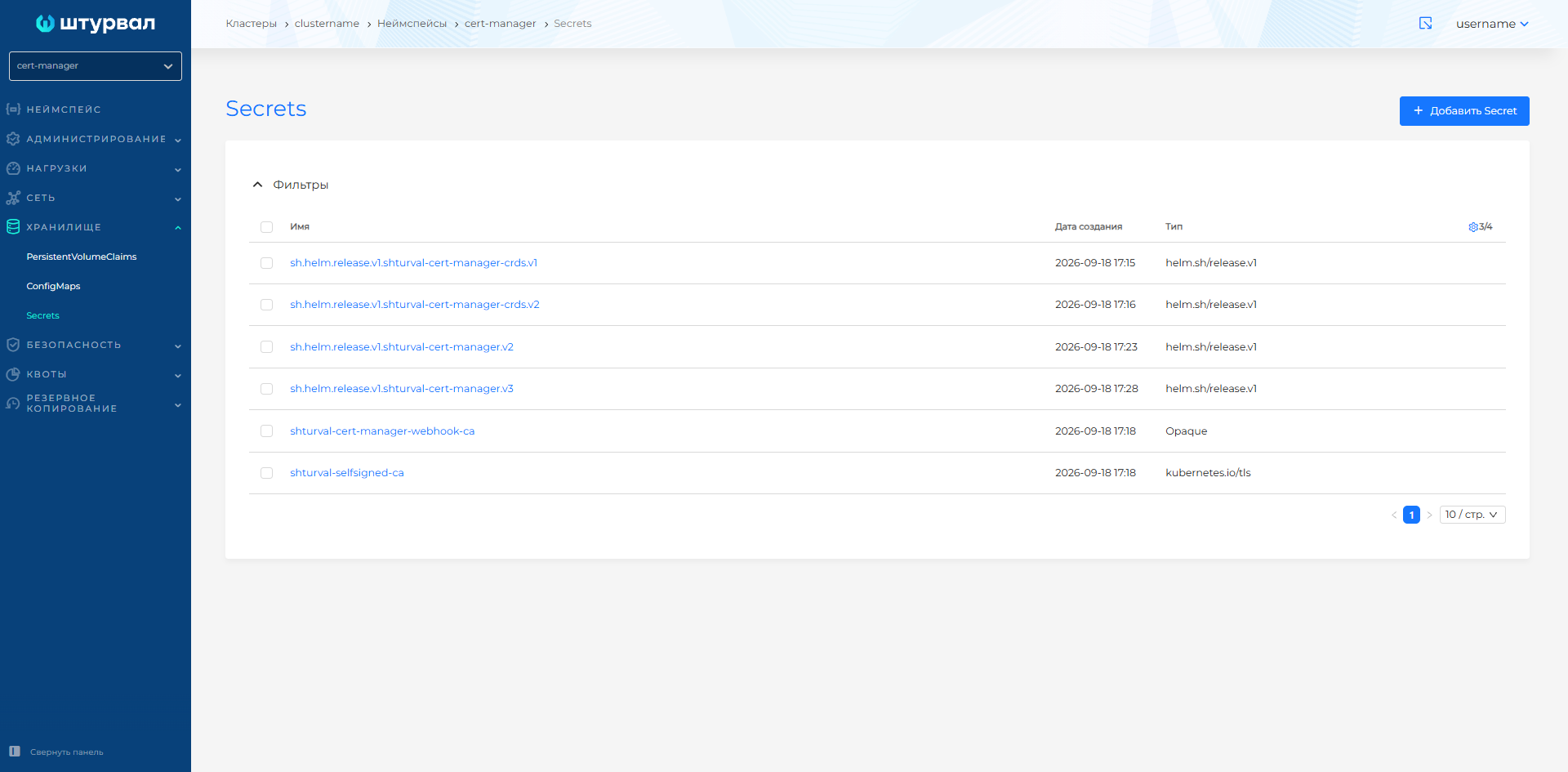
Namespace → Storage → Secrets.
Screenshot: Secrets list
Creating a Secret
- Storage → Secrets → + Add Secret.
- Set the Secret name.
- Optionally set editability, Secret type, labels, and keys.
- Click Save.
If Editability is set to Non-editable, the Secret cannot be changed.
For type kubernetes.io/service-account-token, set ServiceAccountName; optionally add annotations.
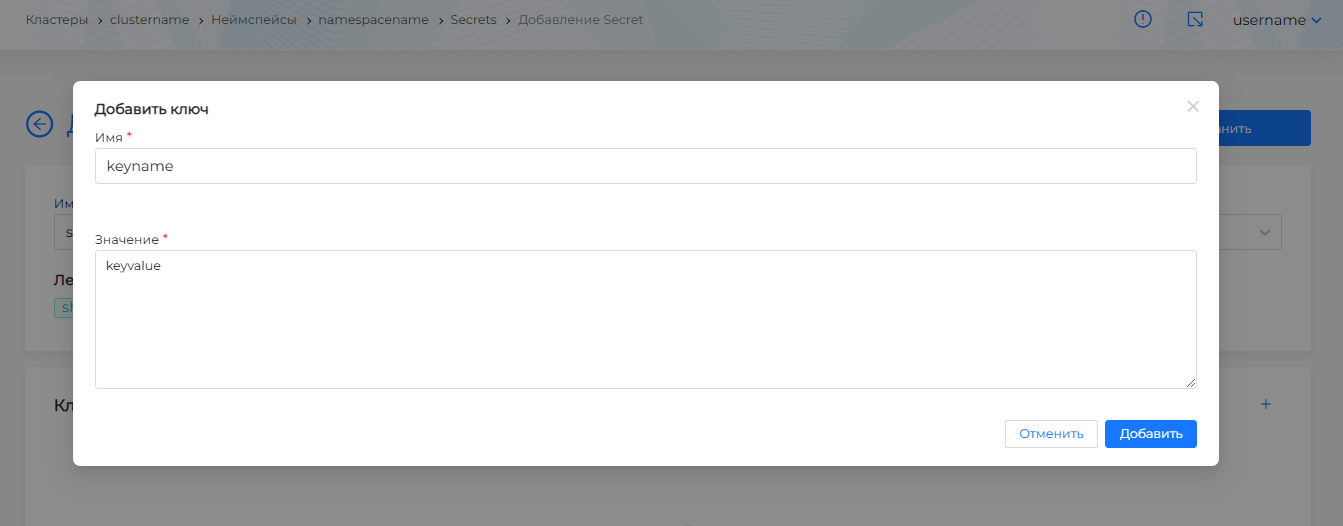
To add a key, click +. The next step depends on the Secret type:
- Opaque or kubernetes.io/service-account-token — enter the key and value, then Add.
Screenshot: Secret key
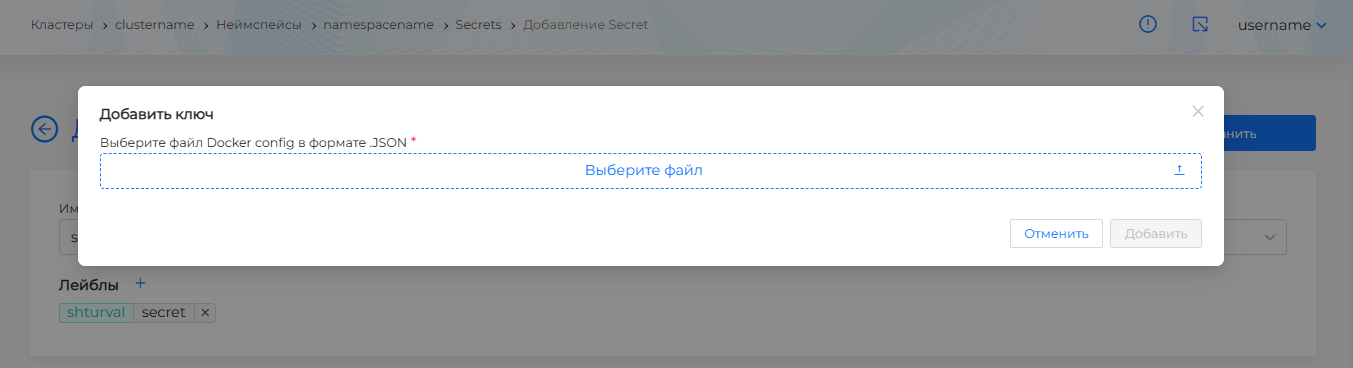
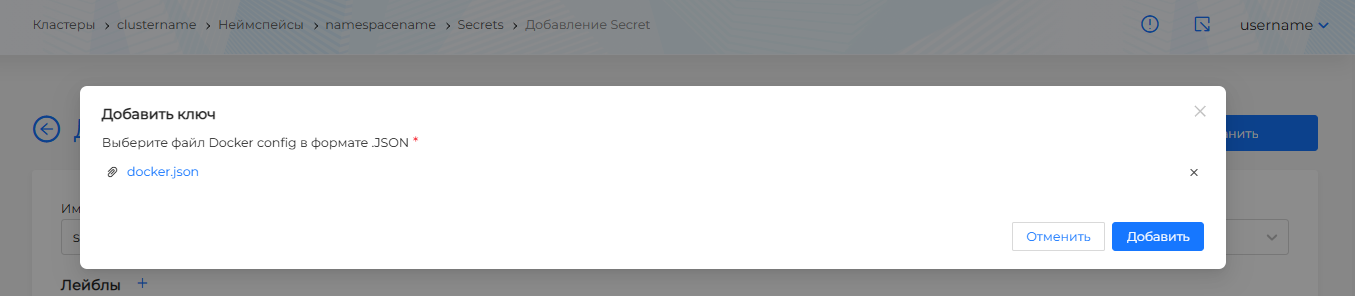
- kubernetes.io/dockercfg or kubernetes.io/dockerconfigjson — upload a Docker config file in JSON format.
Screenshot: Docker config
Docker config example
{
  "auths": {
    "your.private.registry.example.com": {
      "username": "janedoe",
      "password": "xxxxxxxxxxx",
      "email": "jdoe@example.com",
      "auth": "c3R...zE2"
    }
  }
}
where auth is username:password encoded in base64.
- kubernetes.io/tls — upload the certificate file and the key file.
Screenshot: TLS Secret
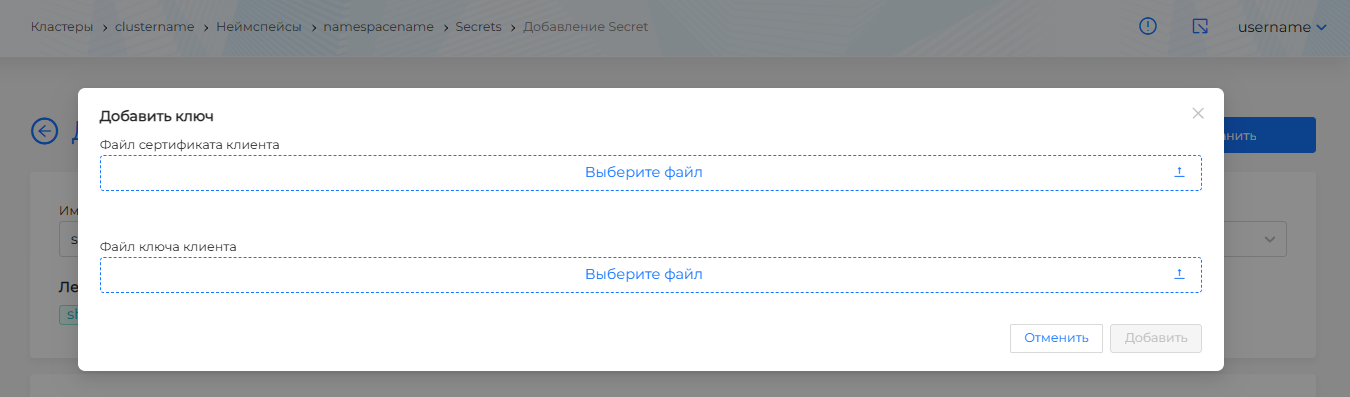
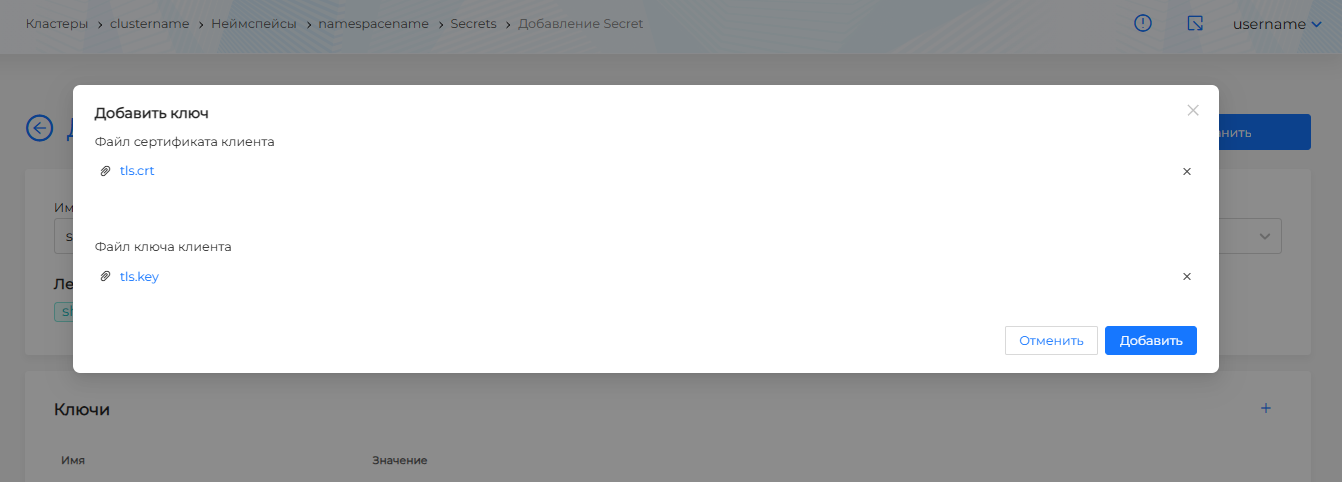
- kubernetes.io/ssh-auth — upload the SSH key file.
Screenshot: SSH Secret
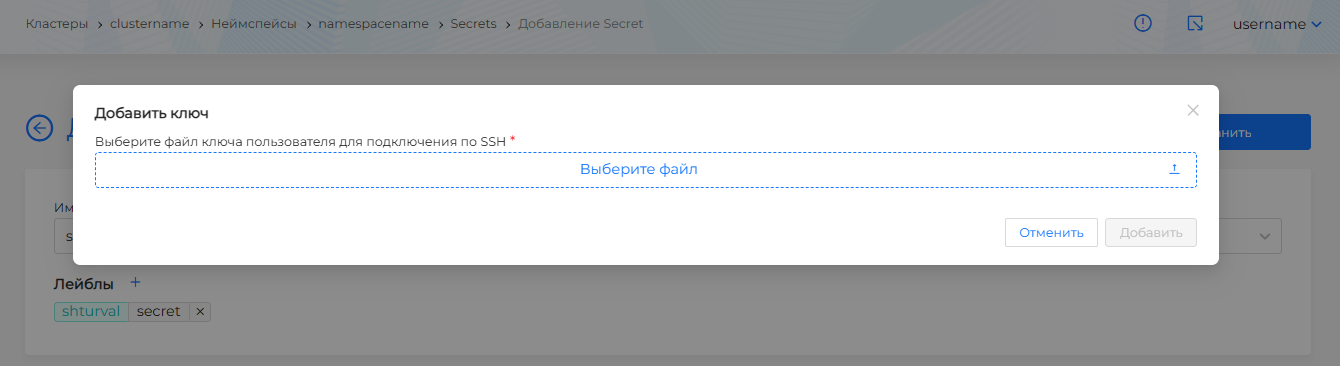
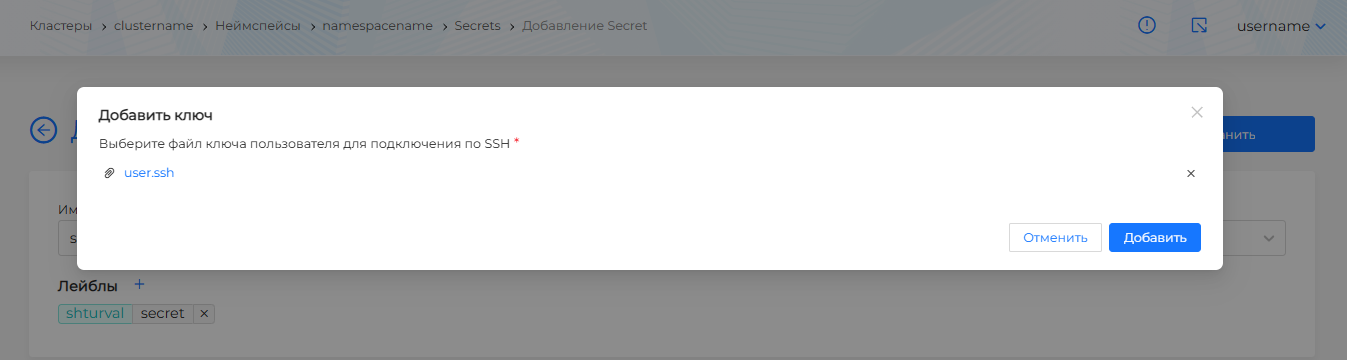
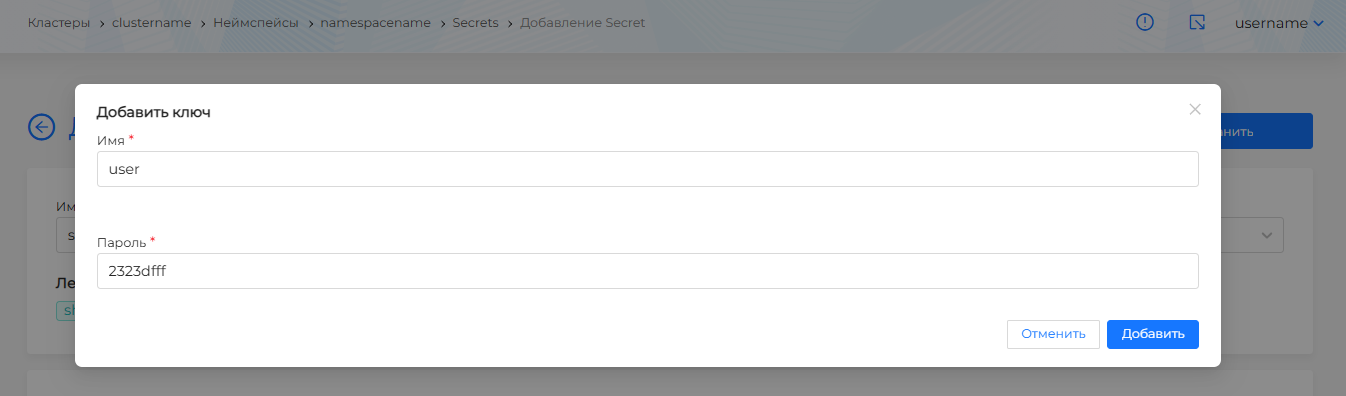
- kubernetes.io/basic-auth — set the username and password.
Screenshot: basic-auth Secret
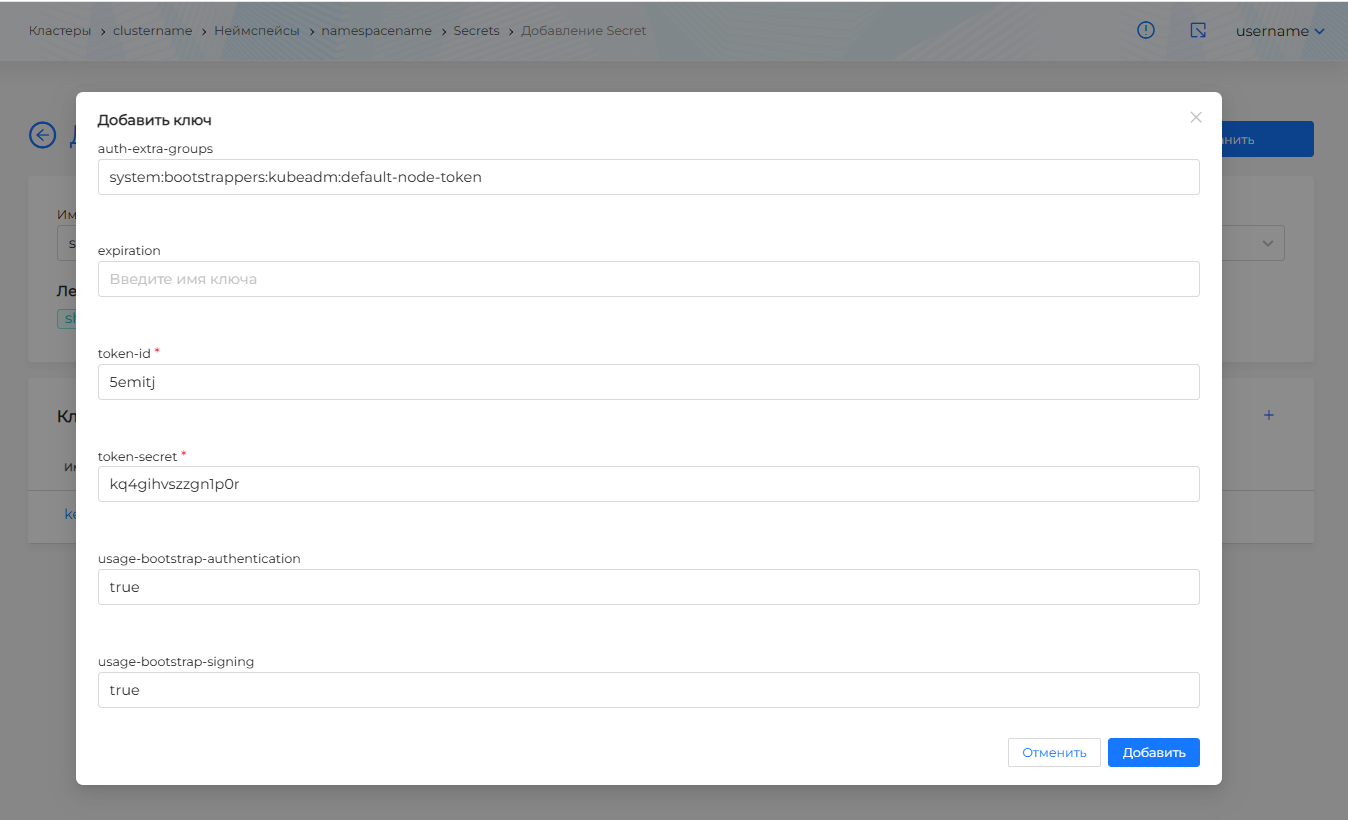
- bootstrap.kubernetes.io/token — fill in the token fields:
auth-extra-groups,expiration,token-id,token-secret,usage-bootstrap-authentication,usage-bootstrap-signing.
Screenshot: bootstrap token
View, edit, and delete
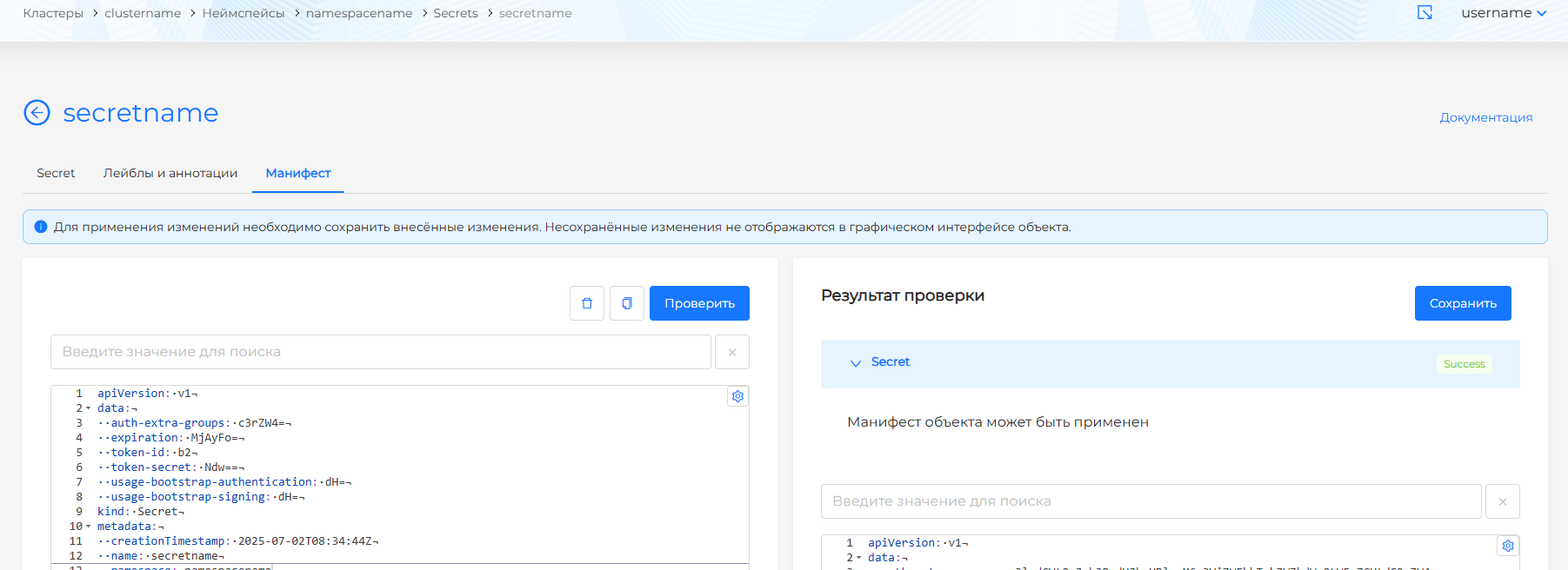
The detail page has the Secret, Labels and annotations, and Manifest tabs.
If Non-editable was selected at creation, the Secret is view-only. If Editable was selected or the value was not set, you can change editability, type, keys, labels, and annotations.
On the Manifest tab, a Non-editable Secret cannot be changed. After edits, run a check; the result appears on the right. Unsaved changes are not applied.
Screenshot: Secret manifest
You can delete a Secret in one of the following ways:
- in the Secrets list, click the delete icon in the object row;
- on the detail page, on the Secret tab, click Delete;
- on the Manifest tab, click the delete icon.
In the Secrets list you can delete one object or several at once. How to select objects and confirm deletion: Bulk deletion.