How to deploy an application (step-by-step)
Creating workloads in a namespace and checking deployment status.
Application deployment is performed through the creation of Kubernetes objects in the Loads section of the selected namespace. The workload in Kubernetes runs in pods, and for production scenarios, pods are usually managed by controllers: they maintain the required number of pods, recreate them when failures occur, and apply changes from the manifest.
Select the type of workload for the task:
| Workload type | When to use |
|---|---|
| Deployment | Stateless applications, rolling update, rollback, replica scaling. Deployment manages ReplicaSet, and ReplicaSet supports the required number of pods. |
| StatefulSet | Stateful services that require persistent pod names, startup/update order, and persistent volumes via PersistentVolumeClaim. |
| DaemonSet | Agents and daemons that must run on each suitable node: monitoring, logging, network components. |
| Job | A one-time task that must run to completion. |
| CronJob | Periodic task on a cron schedule. |
| Pod | One-time or debugging cases. For production, use Deployment, StatefulSet, DaemonSet, Job or CronJob. |
| ReplicaSet | Typically created and managed by Deployment. It is available for viewing in the GUI, but the ReplicaSet parameters can be edited through Deployment. |
For an official description of workload objects, see the Kubernetes documentation: Workloads.
What to prepare before deployment
Before creating a workload, make sure that the application container image is built and accessible from the cluster.
- Publish the image to your internal registry.
- Use stable version tags instead of
latestin production: for example,v1.0.0, semver or git-sha. - If your private registry does not require authentication, it is enough to indicate its address in the workload manifests. To configure private registry authentication, see How to connect a private registry.
- If your cluster has image signature verification policies enabled, sign the image and pass the public key to the policy. More details: Signing containers and verifying images.
Step 1. Select a cluster and namespace
- Select the desired cluster in the left menu.
- Select the target namespace from the list of available ones (only namespaces to which you have access rights are displayed).
Step 2: Create a workload
Go to the Loads section and select the object type. The Deployments tab lists deployments in the namespace. You can delete one Deployment or several at once from the list. How to select objects and confirm deletion: Bulk deletion.
Deployment
Deployment manages and scales the application pods: creates a ReplicaSet, maintains the required number of replicas, applies updates, allows you to rollback versions and restores pods when failures occur. This is the main option for stateless applications.
- Click +Add Deployment.
Screenshot: creating Deployment
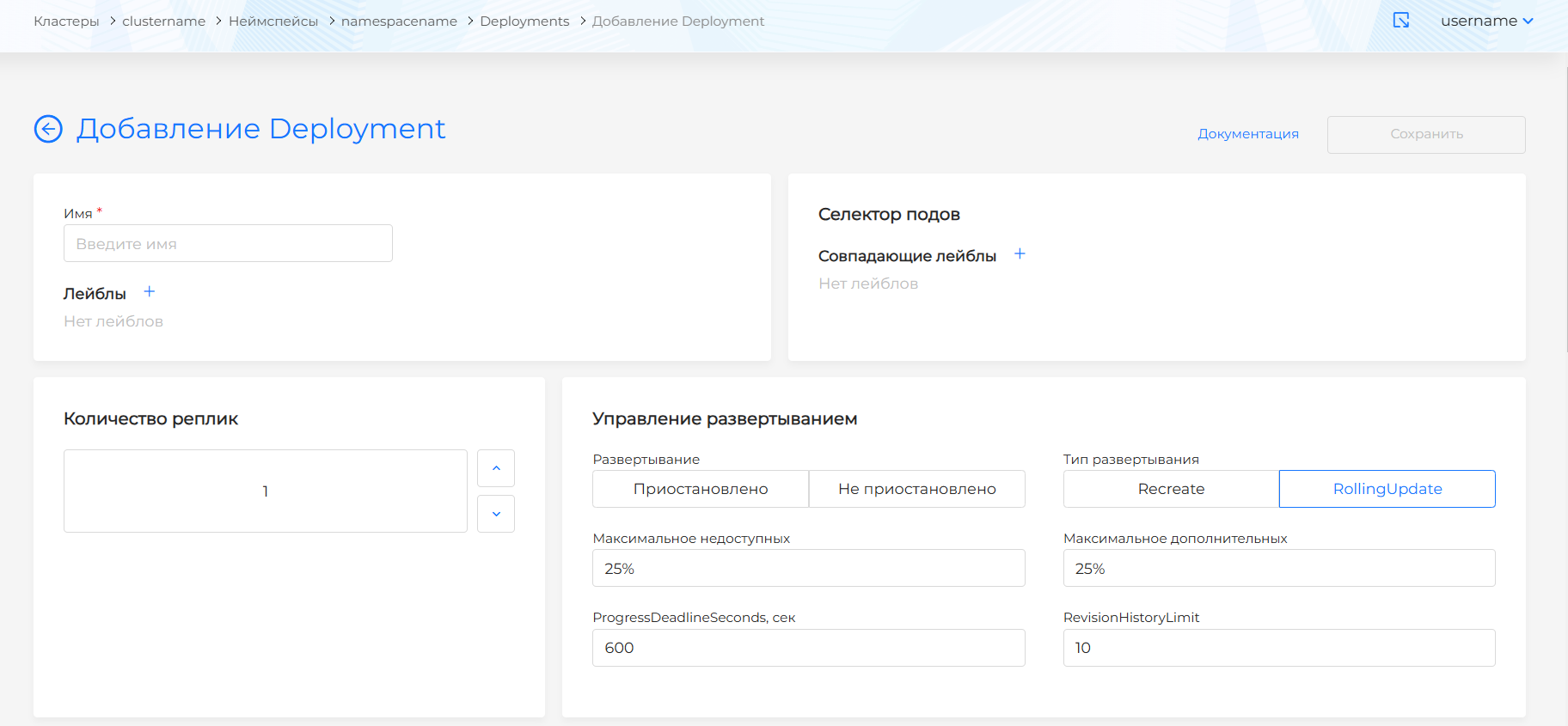
- Fill out the deployment description.
Deployment Management block:
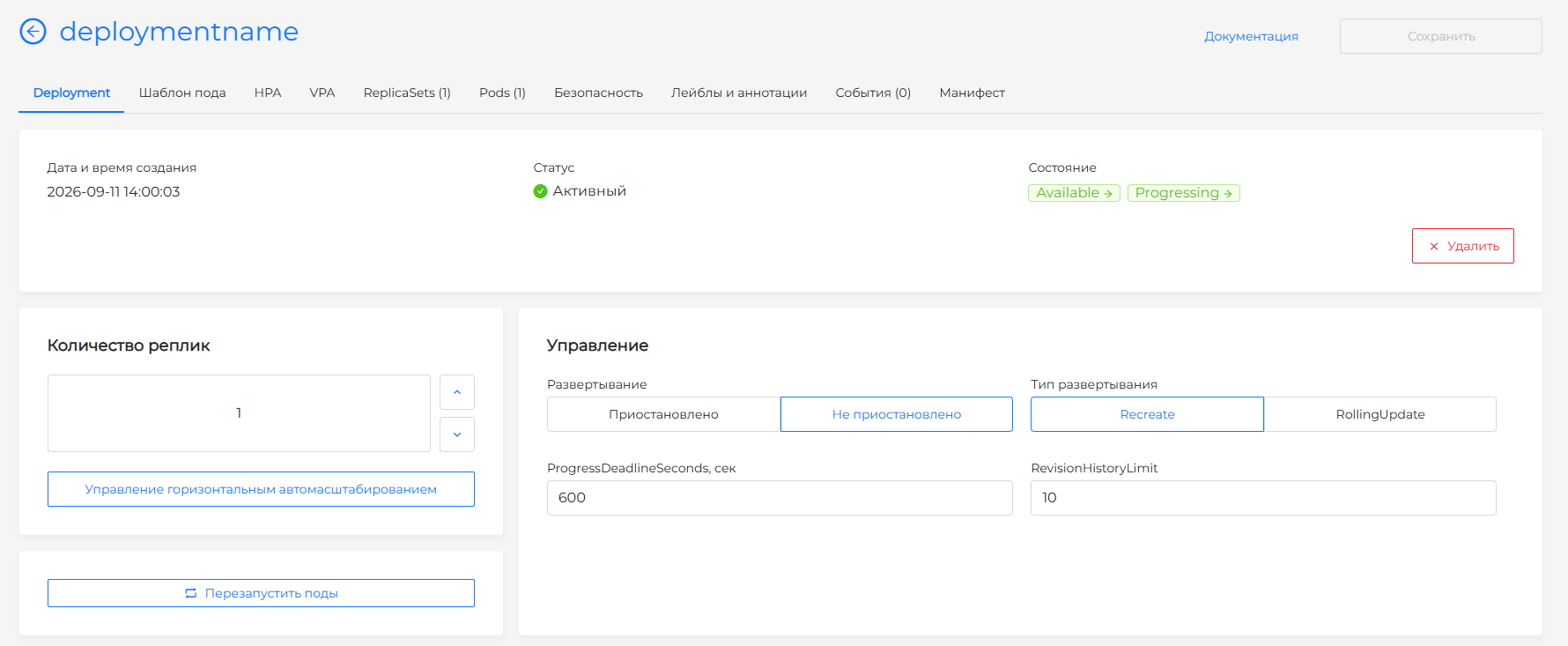
- number of replicas - default 1;
- deployment type - default RollingUpdate;
- whether deployment is suspended - the default value is not specified;
- for the RollingUpdate type - the maximum value of unavailable and additional replicas, by default 25%;
- ProgressDeadlineSeconds—time to wait for deployment in seconds before it is considered completed with an error; default 600 sec (10 minutes);
- RevisionHistoryLimit — the number of ReplicaSets for the rollback option; default is 10.
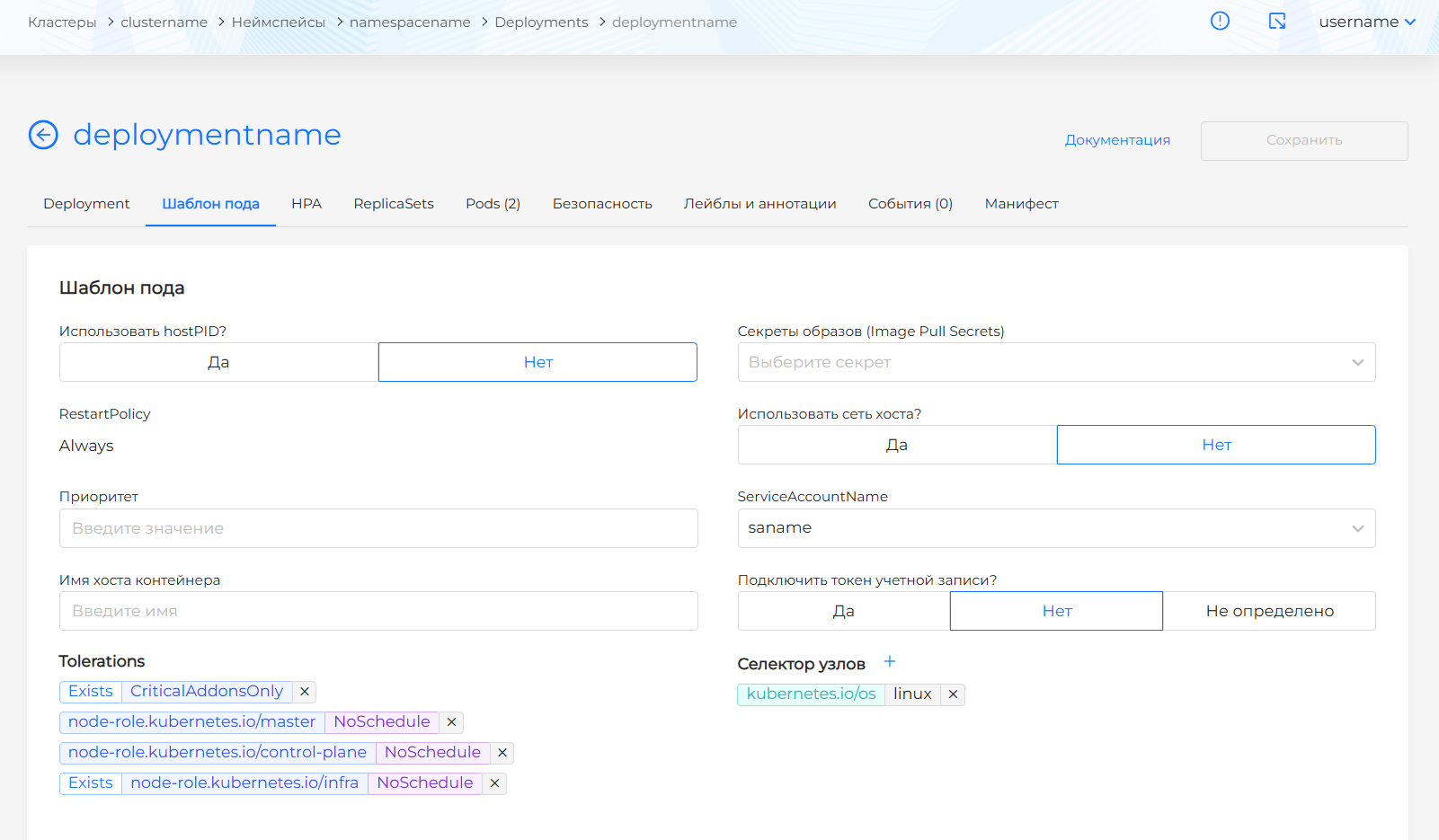
Screenshot: pod template
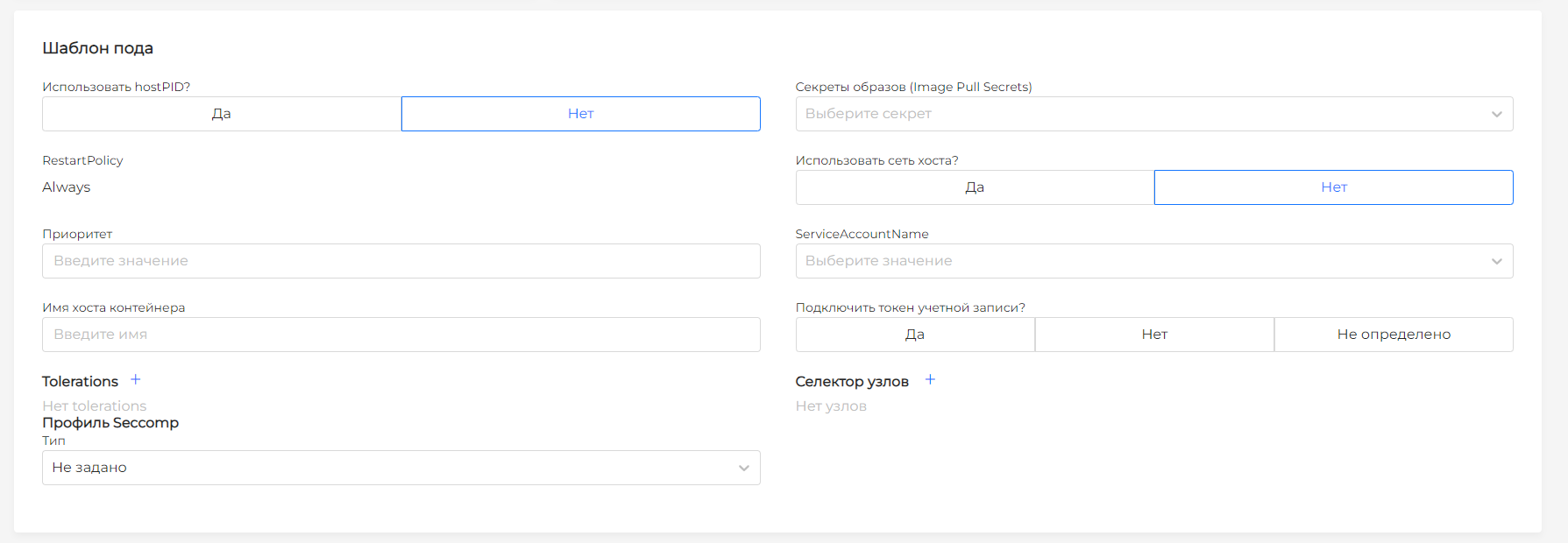
Pod template block:
- whether to use hostPID - not selected by default;
- whether to use host network - not selected by default;
- Image Pull Secrets — select secrets from the drop-down list (secrets are created on the Storage tab of the Namespace section);
- priority of the pod relative to other pods in the cluster;
- container host name;
- Tolerations — press + and fill in the fields;
- nodes — click + in the node selector;
- ServiceAccountName — select from the drop-down list;
- connection of an account token - not specified by default.
Screenshot: init containers
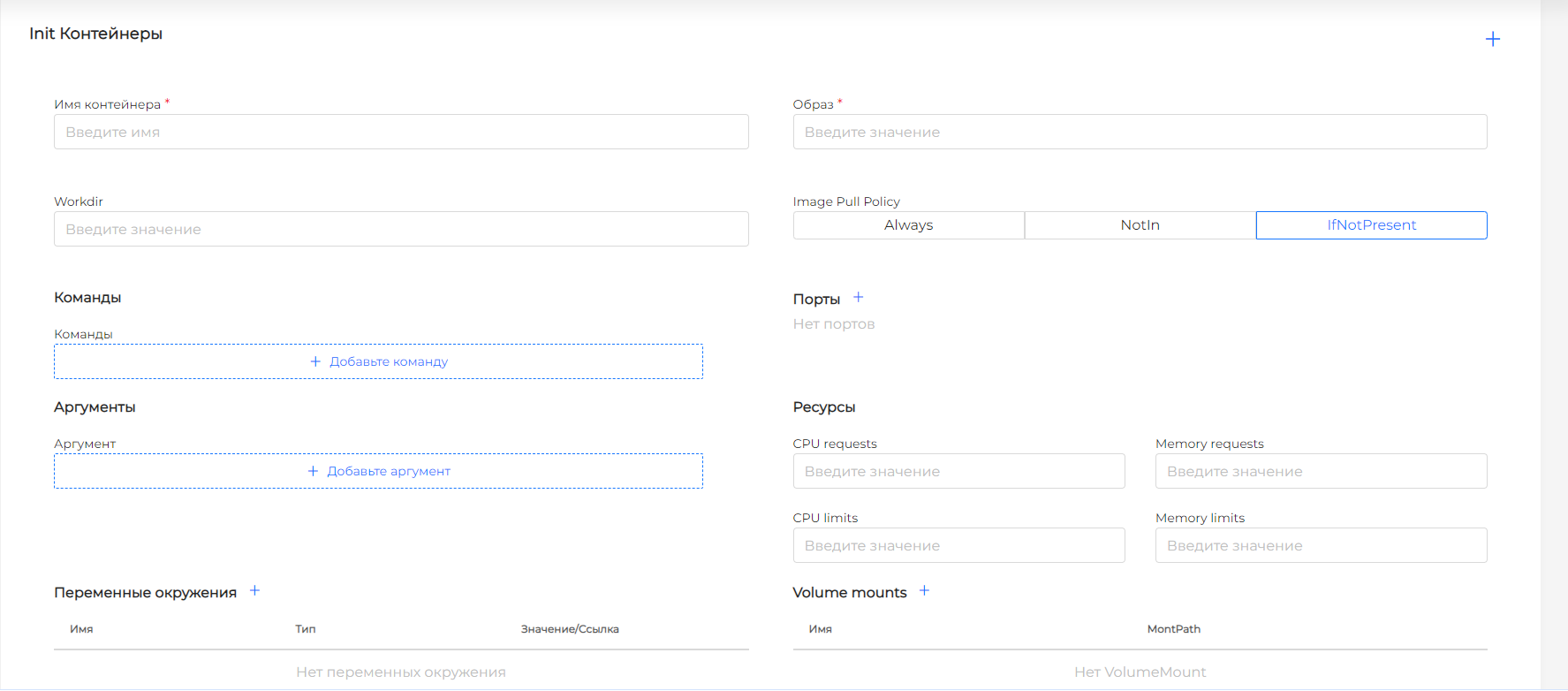
Blocks “Initialization containers” and “Containers”:
- container name;
- image;
- Image Pull Policy - default IfNotPresent;
- commands and arguments (if necessary);
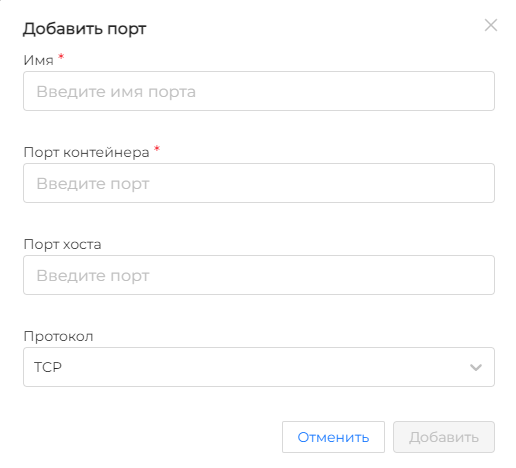
- ports - click + to add;
Screenshot: ports
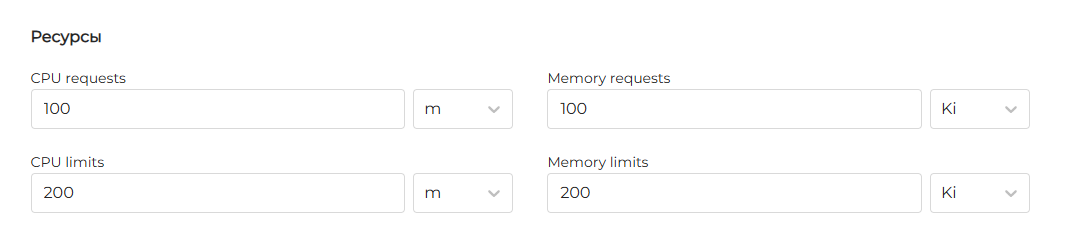
- computing resources - requests and limits for CPU (in CPU or m) and Memory (B, Ki, Mi, Gi);
Screenshot: requests and limits
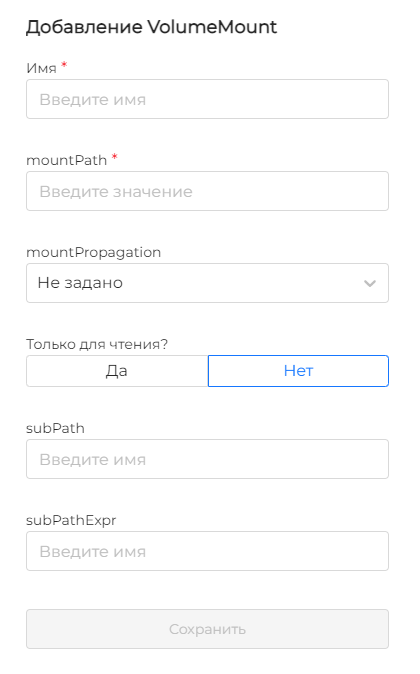
- Volume mounts — press +;
Screenshot: volume mounts
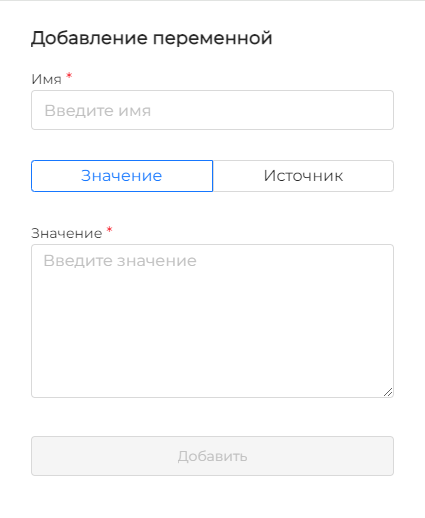
- environment variables - press +.
Screenshot: environment variables
More information about the parameters of the pod template, containers, Security context and volumes can be found on the Pod tab below.
- Click Add.
View Deployment
The following tabs are available on the viewing page:
- Deployment — information about the creation date, status, state, deployment type, pause flag, pod selector, number of replicas and CPU/Memory metrics for the last hour;
- Pod template - containers, init containers and volumes;
- HPA — automatic horizontal scaling;
- VPA — automatic vertical scaling of CPU/Memory requests and limits;
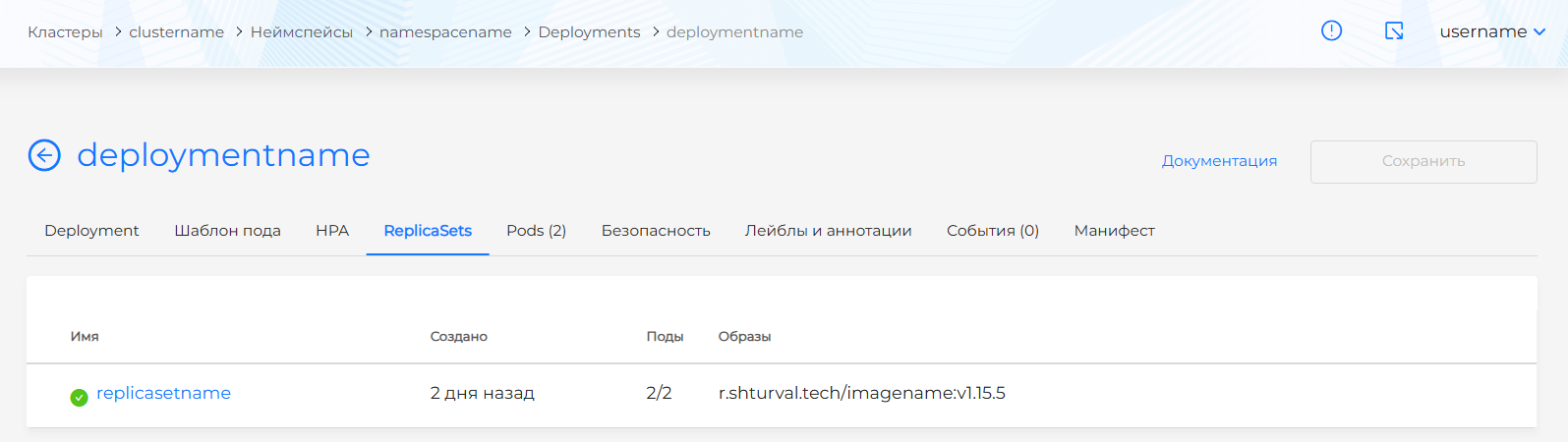
- ReplicaSets — list of ReplicaSets created by the Deployment, with pod count, status, image, and version number;
- Pods — a list of pods with filters by name, namespace, status, parent object, node and QoS;
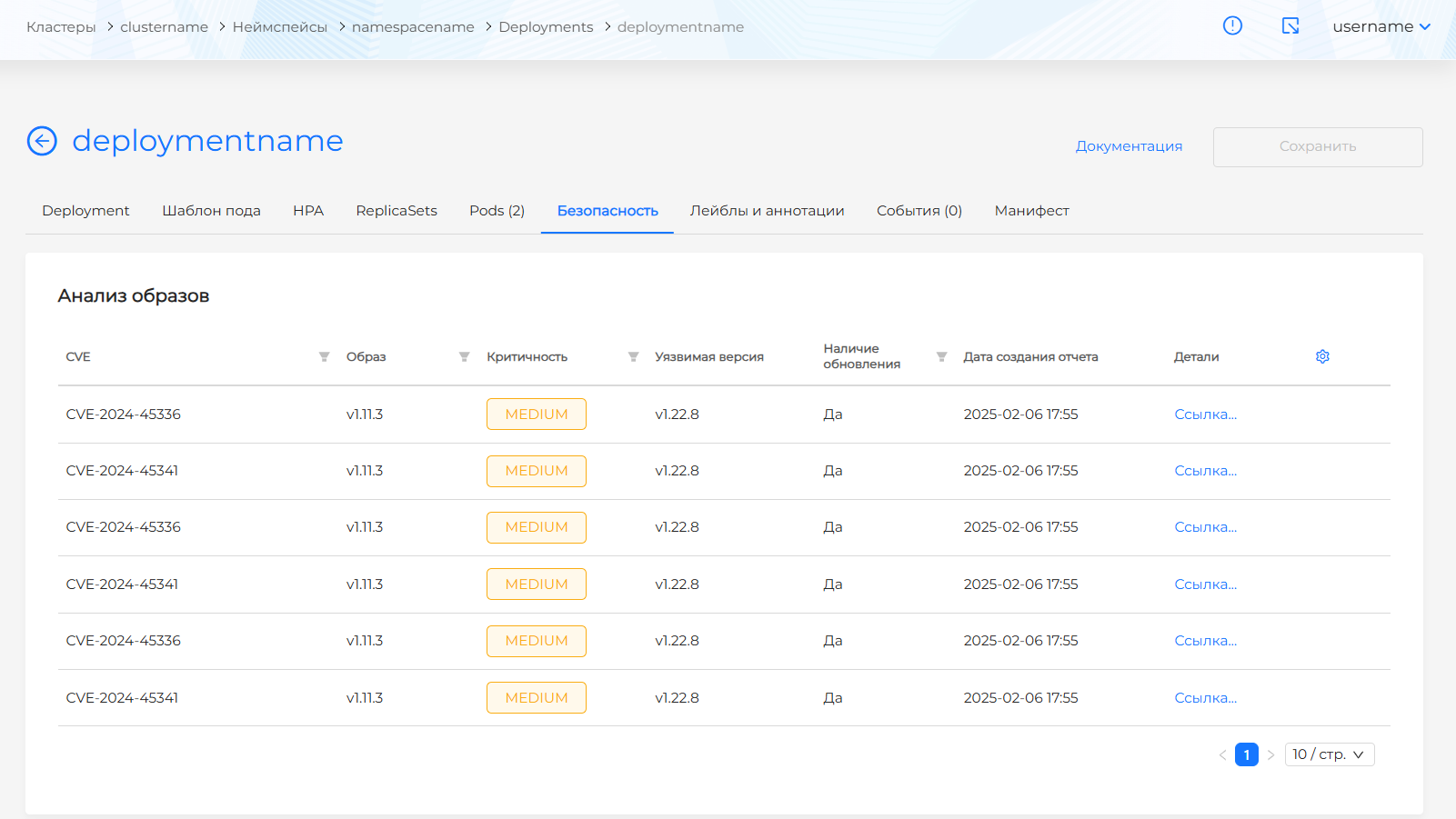
- Security — results of image scanning and configuration analysis, if the corresponding modules are installed in the cluster;
- Labels and annotations, Events, Manifest.
On the Deployment tab, use Manage horizontal autoscaling to open the HPA tab and Manage vertical autoscaling to open the VPA tab. The VPA tab and its navigation button appear only if the user has permission to view VPA.
If you have permission to edit the Deployment, you can restart its pods (Rollout Restart) or return to a previous version (Rollout Undo).
Restart pods runs rollout restart deployment for the workload pods. The current pods are gradually stopped and new ones are started without interrupting the Deployment. The Deployment settings themselves do not change. Confirm the action before it starts. Another restart is unavailable while pods are already restarting or while the Deployment update is paused.
Roll back to previous version returns the Deployment to one of the saved revisions and restores a previously known stable state of the application without downtime. In the Rollout Undo
The version is stored on the ReplicaSet: the revision number is the deployment.kubernetes.io/revision annotation. The ReplicaSet name is the Deployment name plus the pod template hash, for example, my-app-8f98d9df4. A new version appears only when the pod template changes. Changing the replica count does not create a version. A pod restart does not change the image or the other settings, but Kubernetes treats it as a template change and creates the next ReplicaSet with the next number. On the ReplicaSets tab, the version the Deployment is running now is marked Current.
A rollback does not decrease the number1. Kubernetes applies the template of the selected revision and records the rollback as a new, higher version. Only the pod template is restored; the current replica count stays. revisionHistoryLimit sets how many old ReplicaSets to keep; the default is 10. Once an old ReplicaSet is deleted, that version is gone from the list and cannot be restored.
1 For example, a newly created Deployment with one pod has version 1 and one ReplicaSet. After Restart pods, a second ReplicaSet appears with version 2. That version becomes current, and the rollback window offers version 1. After a rollback to version 1, the application runs the first template again, but the same ReplicaSet receives the next number and is marked as the current version 3. Version 1 is no longer in the list. The next rollback offers version 2. Each following rollback increases the number again.
Screenshot: Deployment pod template
Screenshot: ReplicaSets Deployment
Screenshot: Deployment security
StatefulSet
StatefulSet deploys a set of pods with persistent identifiers and data persistence across restarts; guarantees unique names and stable network identity of pods.
- Click + Create StatefulSet.
- In the Description block, specify the name StatefulSet.
- If necessary, define labels and matching pod labels in the Pod Selector block.
- Set the specification:
- number of replicas;
- number of partitions;
- minReadySeconds;
- revisionHistoryLimit — default 10;
- podManagementPolicy: OrderedReady (default) or Parallel;
- serviceName;
- PersistentVolumeClaim storage policy - whenDeleted and whenScaled (by default Retain, Delete is also available).
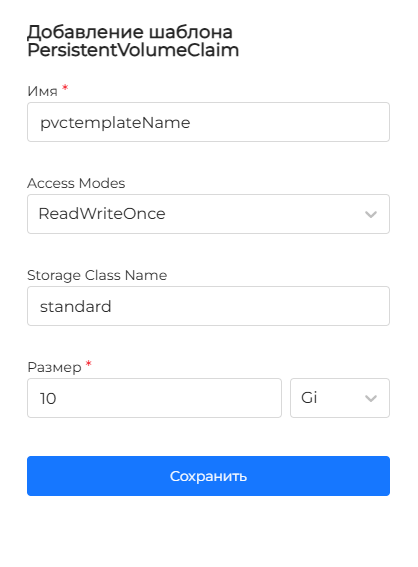
- Define PersistentVolumeClaim templates: Press +, set the name, Access Modes (default ReadWriteOnce), Storage Class Name, size (B, Ki, Mi, Gi) and press Save.
Available PVC access modes:
- ReadWriteOnce (RWO) - read and write from only one node;
- ReadOnlyMany (ROX) - read only from several nodes;
- ReadWriteMany (RWX) - reading and writing from several nodes;
- ReadWriteOncePod (RWOP) - reading and writing by only one pod.
Storage Class Name specifies the storage class, such as standard, fast, or slow. The PVC size is specified in standard Kubernetes units: B, Ki, Mi, Gi.
Screenshot: PVC template
- Define init containers and/or containers, pod template; assign Volumes if necessary. Pod and container template parameters are the same as when creating a Pod (see Pod tab below).
View and edit StatefulSet
The view page has StatefulSet, Pods, Pod Template, VPA, PVC Templates, Security, Labels and Annotations, Events, Manifest tabs. The StatefulSet tab displays partition, minReadySeconds, revisionHistoryLimit, podManagementPolicy, serviceName, PVC storage policy, pod selector and CPU/Memory metrics for the last hour. The StatefulSet tab includes Manage vertical autoscaling, which opens the VPA tab. The VPA tab and the button appear only if the user has permission to view VPA.
If you have permission to edit the StatefulSet, you can restart its pods (Rollout Restart) or return to a previous version (Rollout Undo).
Restart pods gradually stops the current pods and starts new ones without interrupting the StatefulSet. Stable pod names are kept, and the StatefulSet settings themselves do not change. Confirm the action before it starts. Another restart is unavailable while pods are already restarting or while the StatefulSet update is paused.
Roll back to previous version returns the StatefulSet to one of the saved revisions and restores a previously known stable state of the application without downtime. A StatefulSet has no ReplicaSet list: the revision is stored in a ControllerRevision. You choose the version in the Rollout Undo
Screenshot: StatefulSet page
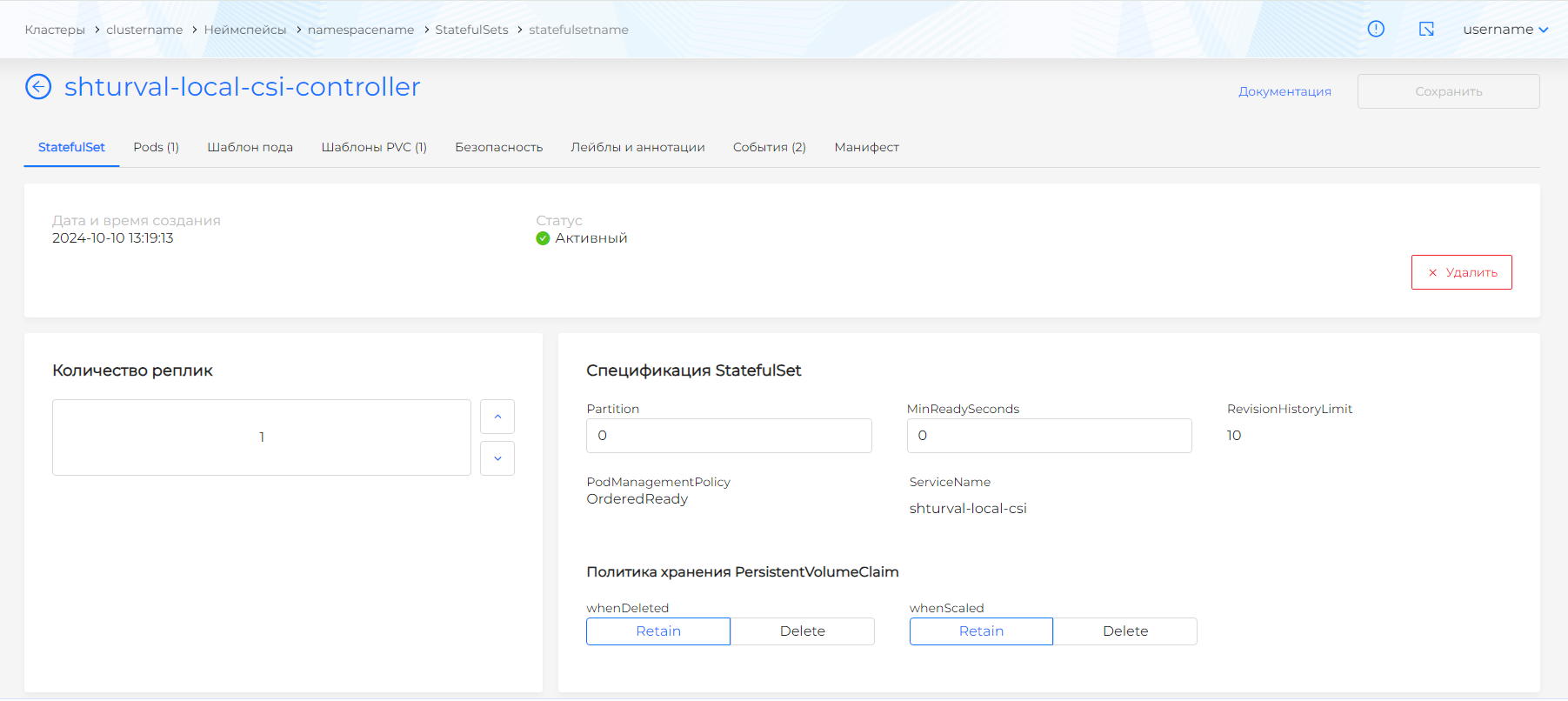
You can edit the StatefulSet specification, PVC storage policy, pod template, init containers, containers and volumes. You can also change the YAML in the Manifest tab: after changing, do Verify, then save the result.
DaemonSet
DaemonSet ensures that a pod runs on every node in the cluster; the number of replicas is not specified.
- Click + Create DaemonSet.
- In the Description block, specify the name of the DaemonSet.
- If necessary, define labels and matching pod labels in the Pod Selector block.
- Set the specification:
- minReadySeconds — default 0;
- revisionHistoryLimit — default 10;
- maximum number of inaccessible and additional pods.
- Define init containers and/or containers, pod template; assign Volumes if necessary. Parameters are the same as when creating a Pod (see Pod tab below).
Screenshot: DaemonSet page
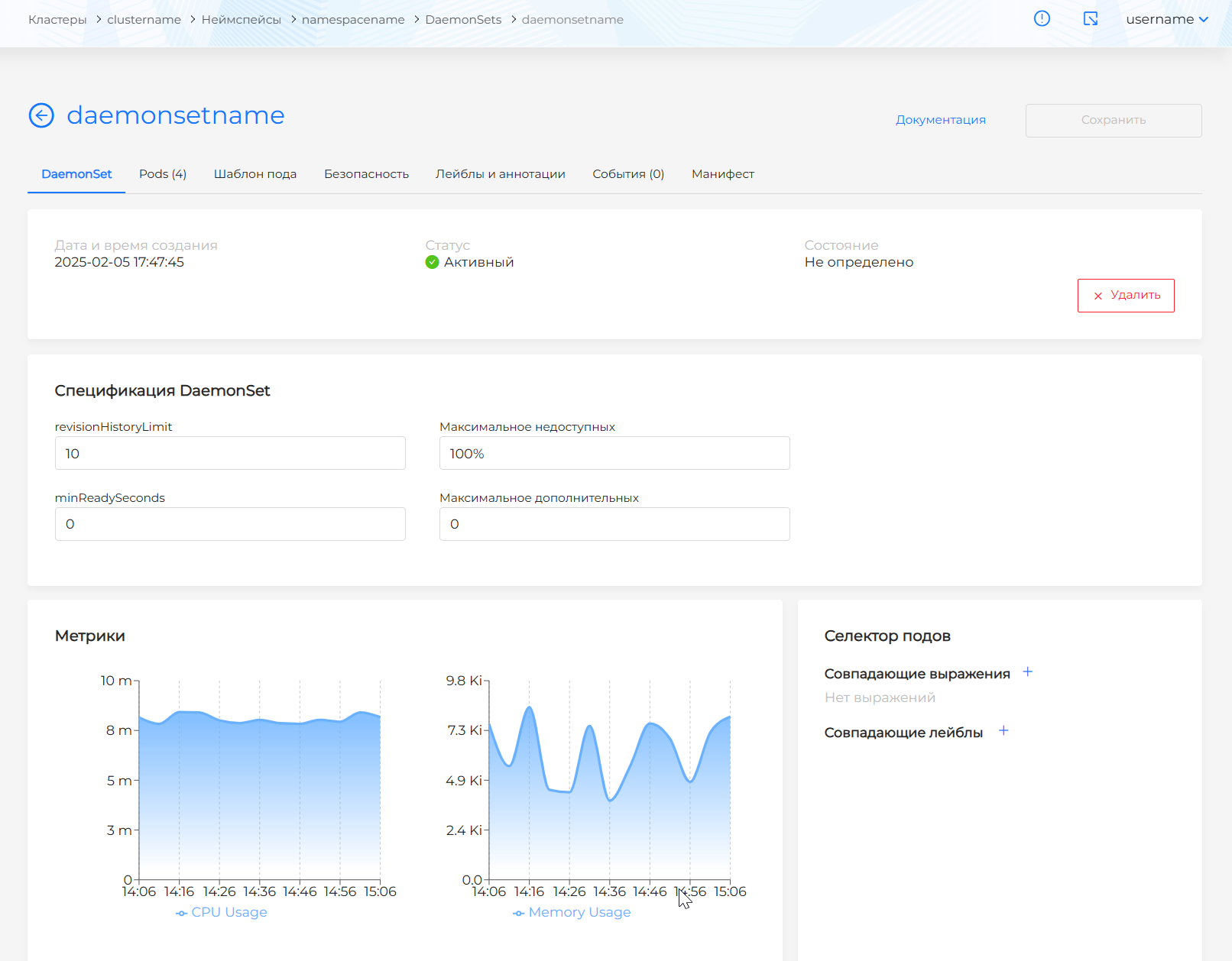
View and edit DaemonSet
The view page has DaemonSet, Pods, Pod Template, Security, Labels and Annotations, Events, Manifest tabs. The DaemonSet tab displays creation date, status, state, minReadySeconds, revisionHistoryLimit, maximum number of unavailable and additional pods, pod selector and CPU/Memory metrics for the last hour.
If you have permission to edit the DaemonSet, you can restart its pods (Rollout Restart) or return to a previous version (Rollout Undo).
Restart pods gradually stops the current pods and starts new ones on the nodes where the DaemonSet runs, without interrupting it. The DaemonSet settings themselves do not change. Confirm the action before it starts. Another restart is unavailable while pods are already restarting or while the DaemonSet update is paused.
Roll back to previous version returns the DaemonSet to one of the saved revisions and restores a previously known stable state of the application without downtime. A DaemonSet has no ReplicaSet list: the revision is stored in a ControllerRevision. You choose the version in the Rollout Undo
1 If versions 1 and 2 exist and you roll back from 2 to 1, that revision becomes version 3. The next rollback offers version 2.
You can edit the DaemonSet specification, pod template, init containers, containers and volumes. YAML is available on the Manifest tab; After the change, check and save the changes.
Pod
Pod is the minimum computing unit (one or more containers). Individual pods are suitable for one-off or debugging tasks; for production, it is recommended to manage pods through Deployment, StatefulSet or DaemonSet.
The Pods page displays the pod name, the ratio of running containers to the total number of containers, the number of restarts, creation date, namespace, status, parent object, node, QoS and labels. Filters are available by name, namespace, status, parent object, node and QoS. You can delete one pod or several at once from the list. How to select objects and confirm deletion: Bulk deletion.
Screenshot: Pods list
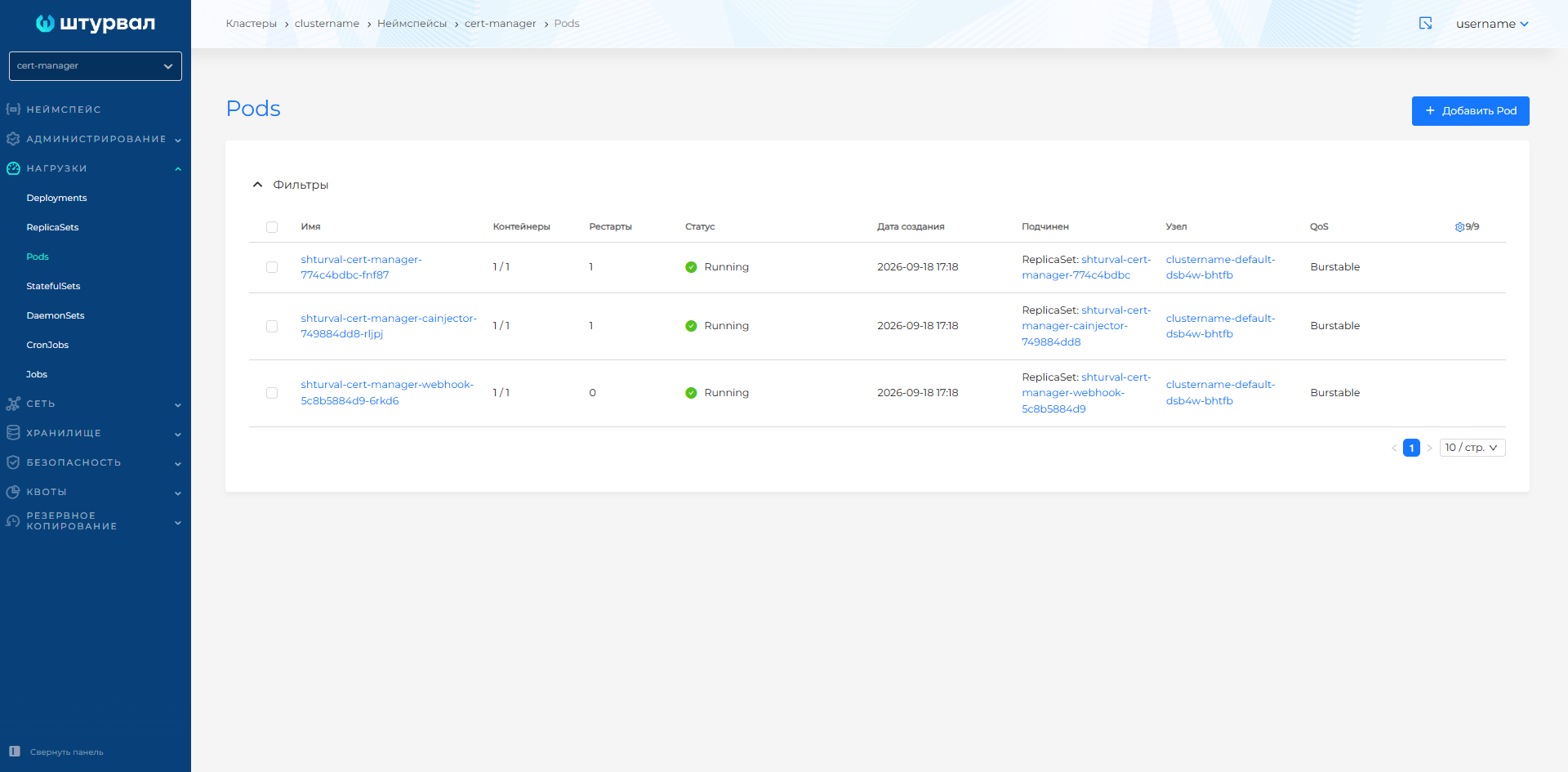
- Click +Add Pod.
Screenshot: creating a Pod
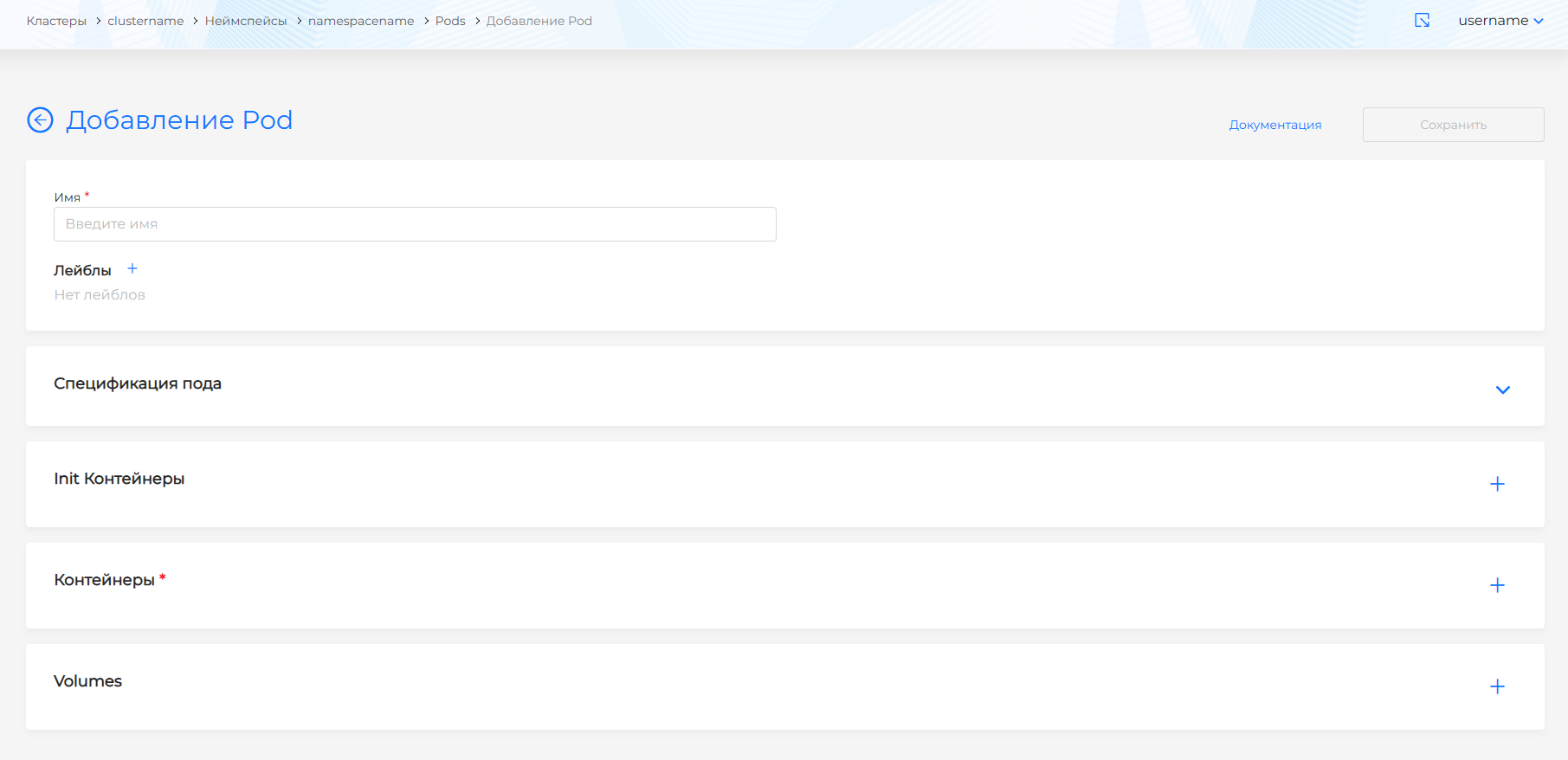
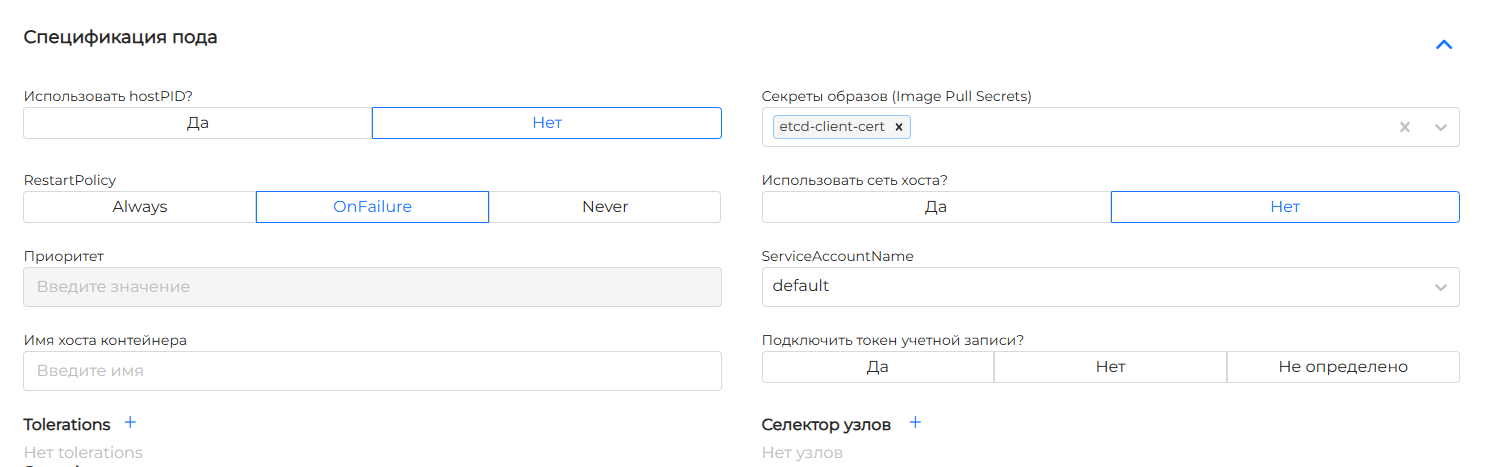
- In the Pod Specification block, specify the hostPID, host network, restart policy, Image Pull Secrets, Tolerations, host selector, ServiceAccountName and other parameters.
Restart Policies:
- Always — the container is restarted after any completion; default value;
- OnFailure — the container is restarted only when it terminates with an error;
- Never — a completed container is not restarted automatically.
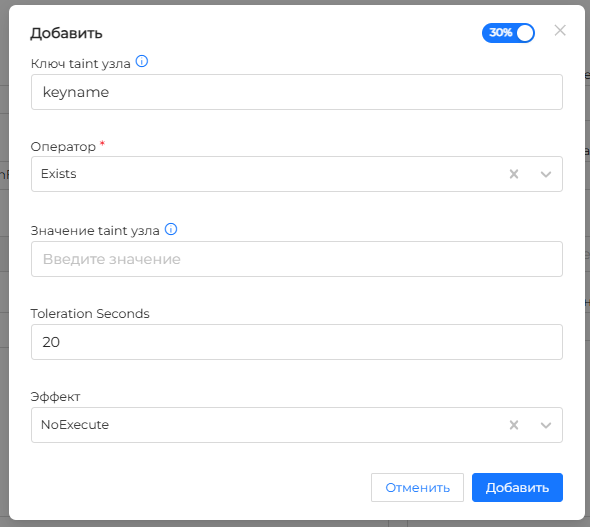
When configuring Tolerations, you can specify the key and value of the node’s taint, the operator Exists or Equal, the effect NoSchedule, PreferNoSchedule, NoExecute or Any, and tolerationSeconds. If the NoExecute effect is selected, tolerationSeconds specifies the period after which the pod will be evicted from the node. The default for this case is 5 minutes.
Screenshot: Tolerations
- Set up Init containers, Containers and Volumes.
Screenshot: pod template
Security context pod
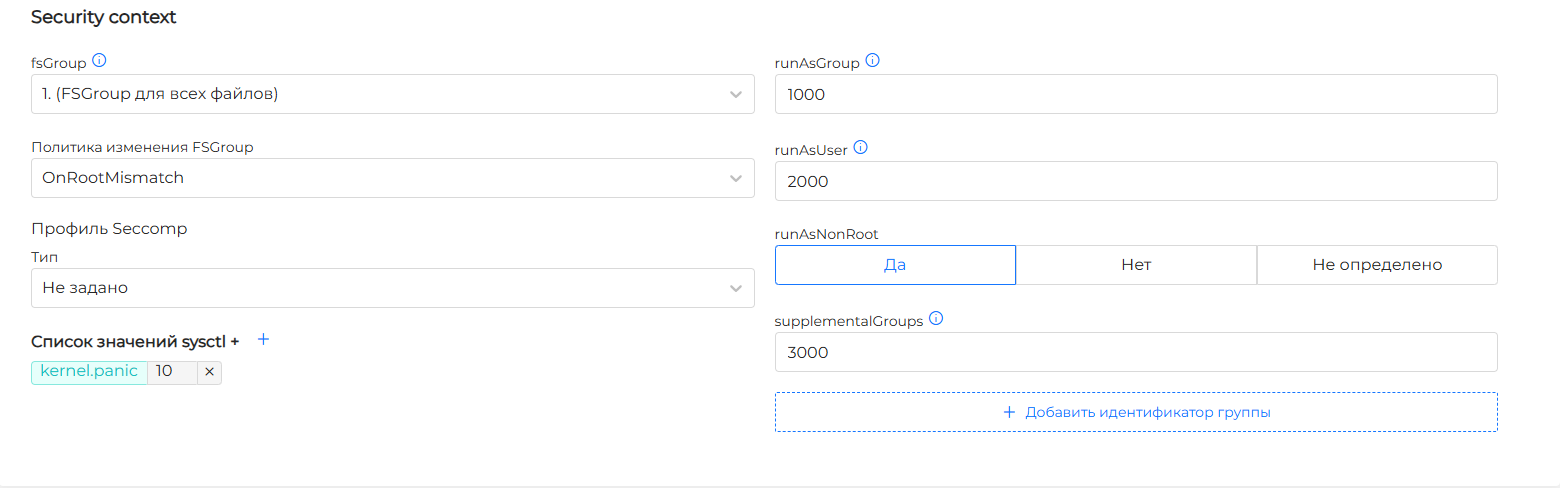
At the pod level, you can configure security settings that apply to all containers:
fsGroup— file system group for changing the owner and rights of files when mounting a volume;- change policy
fsGroup: OnRootMismatch or Always. The policy does not apply to volumessecret,configMap, andemptyDir; runAsGroup,runAsUser,runAsNonRoot;supplementalGroups;- kernel parameters
sysctl. Ifsysctlis unsafe, the pod will not start until at least one node has these parameters enabled; - Seccomp profile: default profile, custom profile on the node, or disable the profile. More details: Seccomp.
Screenshot: Security context of the pod
Init containers and containers
In the Init containers and Containers blocks, set:
- container name and image;
- working directory (
Workdir), commands and arguments; - Image Pull Policy:
Always,IfNotPresentorNever; - ports, environment variables, requests and limits for CPU/Memory;
- volume mounts:
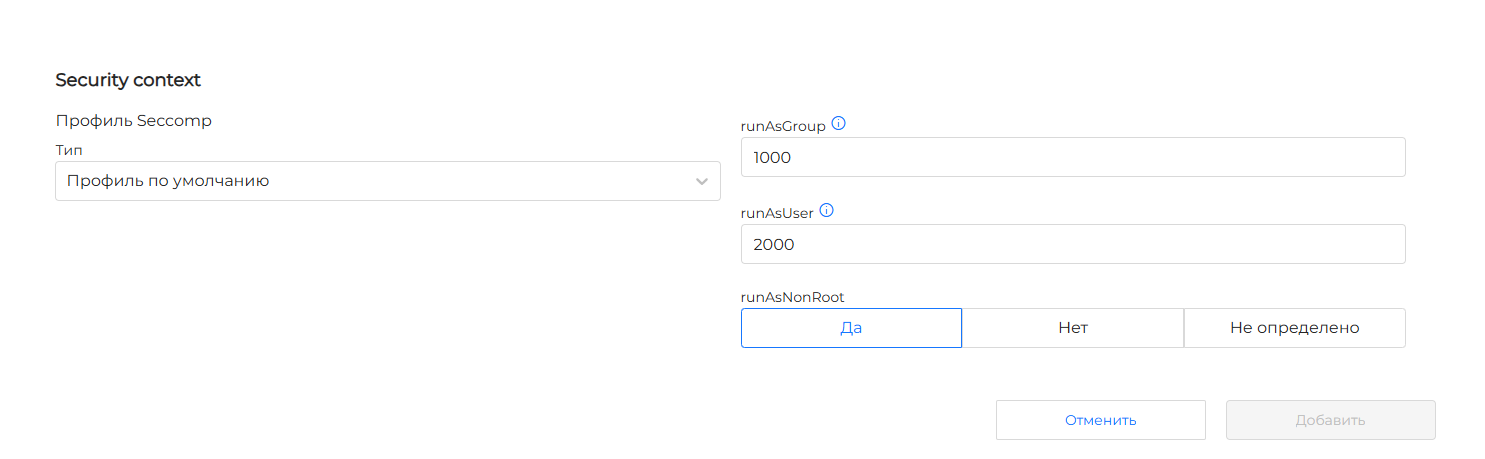
mountPath,mountPropagation,subPath,subPathExpr; - Security context of the container.
The security context of the container overrides the settings specified at the pod level. If privileged mode is enabled (privileged: true), the container receives all Linux capabilities; the Seccomp profile for such a container cannot be set in the GUI.
Screenshot: Security context of the container
For container resources, set requests and limits. If the memory limit is not specified and there is no default limit in the namespace, the container can use all the available memory of the node. If the sum of the pod’s container memory requests exceeds the node’s memory, the pod will not run on that node.
Volumes
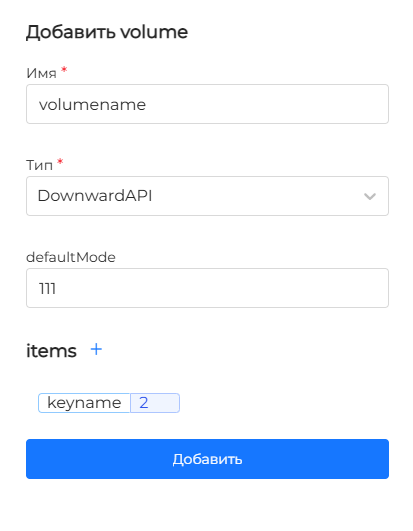
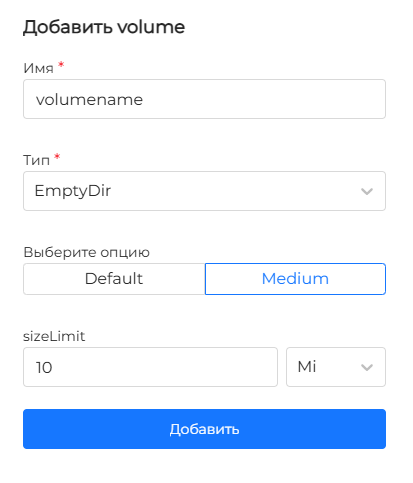
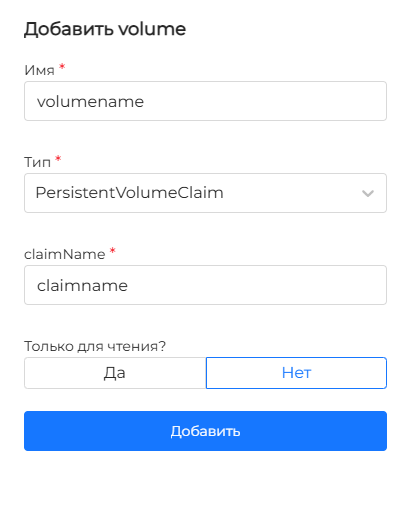
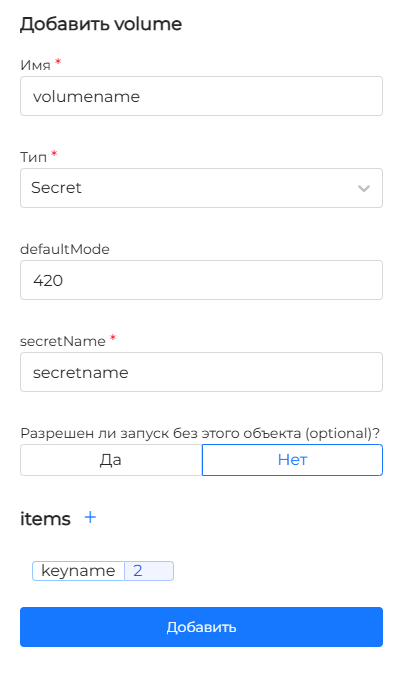
In the Volumes block, add the volumes that will be mounted in the containers:
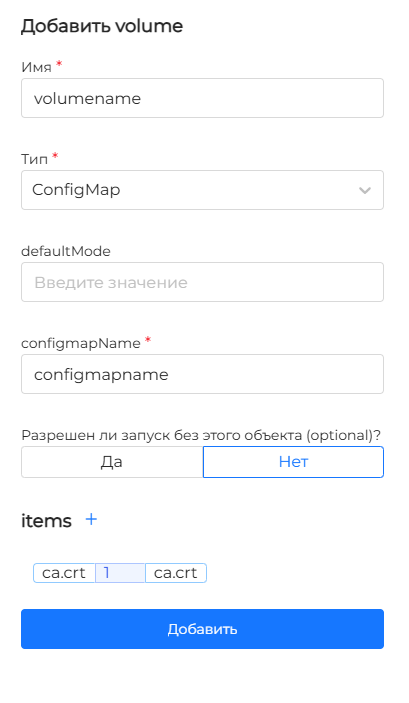
- ConfigMap — configuration data, if necessary
defaultMode; - DownwardAPI — transferring information about the Pod to containers: annotations, labels, name, namespace;
- EmptyDir - ephemeral volume for reading and writing by several Pod containers; you can choose medium and size;
- PersistentVolumeClaim — connection of an existing PVC, if necessary read-only;
- Secret — confidential data, mounted read-only;
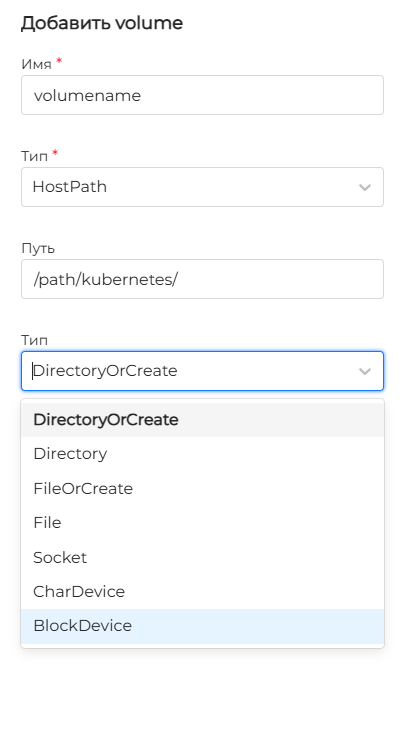
- HostPath — file or directory from the host file system.
Screenshot: ConfigMap volume parameters
Screenshot: DownwardAPI volume parameters
Screenshot: EmptyDir volume parameters
Screenshot: PVC volume parameters
Screenshot: Secret volume parameters
Screenshot: HostPath volume parameters
View Pod
The Pod page has Pod, Containers, Volumes, Security, Labels and Annotations, Events, Manifest, Terminal, Logs tabs.
Pod QoS is determined by requests and limits of containers:
- Guaranteed — each container’s request CPU/Memory is equal to limit CPU/Memory;
- Burstable — at least one container has a request or limit;
- BestEffort - no container has requests or limits.
QoS is taken into account when pods are evicted from a node during Node Pressure: BestEffort is evicted first, then Burstable, then Guaranteed.
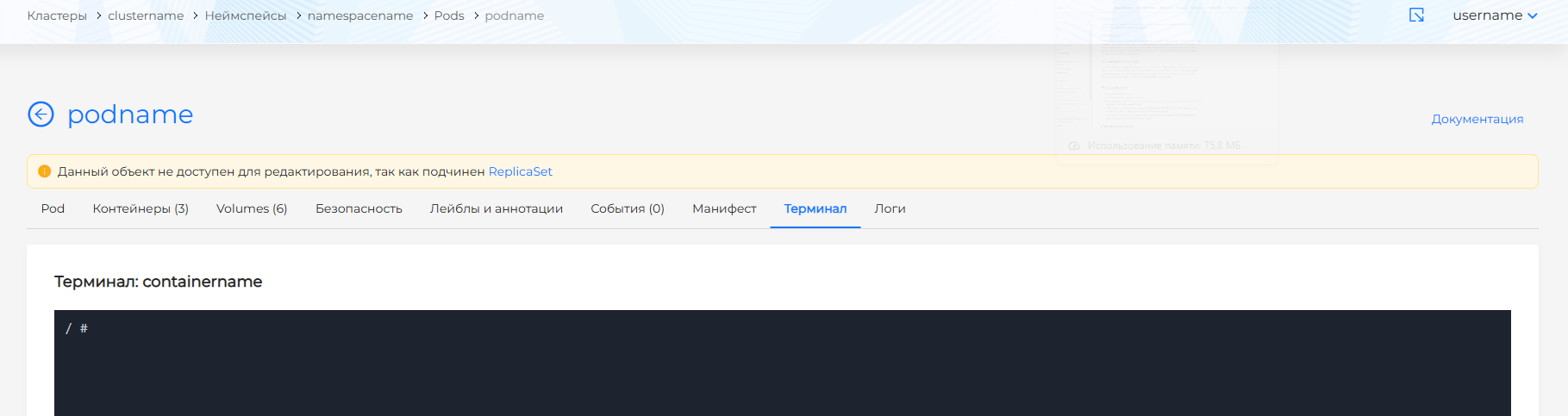
The Terminal tab is displayed if at least one container has a shell. Bash is not supported. Correct operation of the terminal is guaranteed only in Google Chrome.
Screenshot: Pod terminal
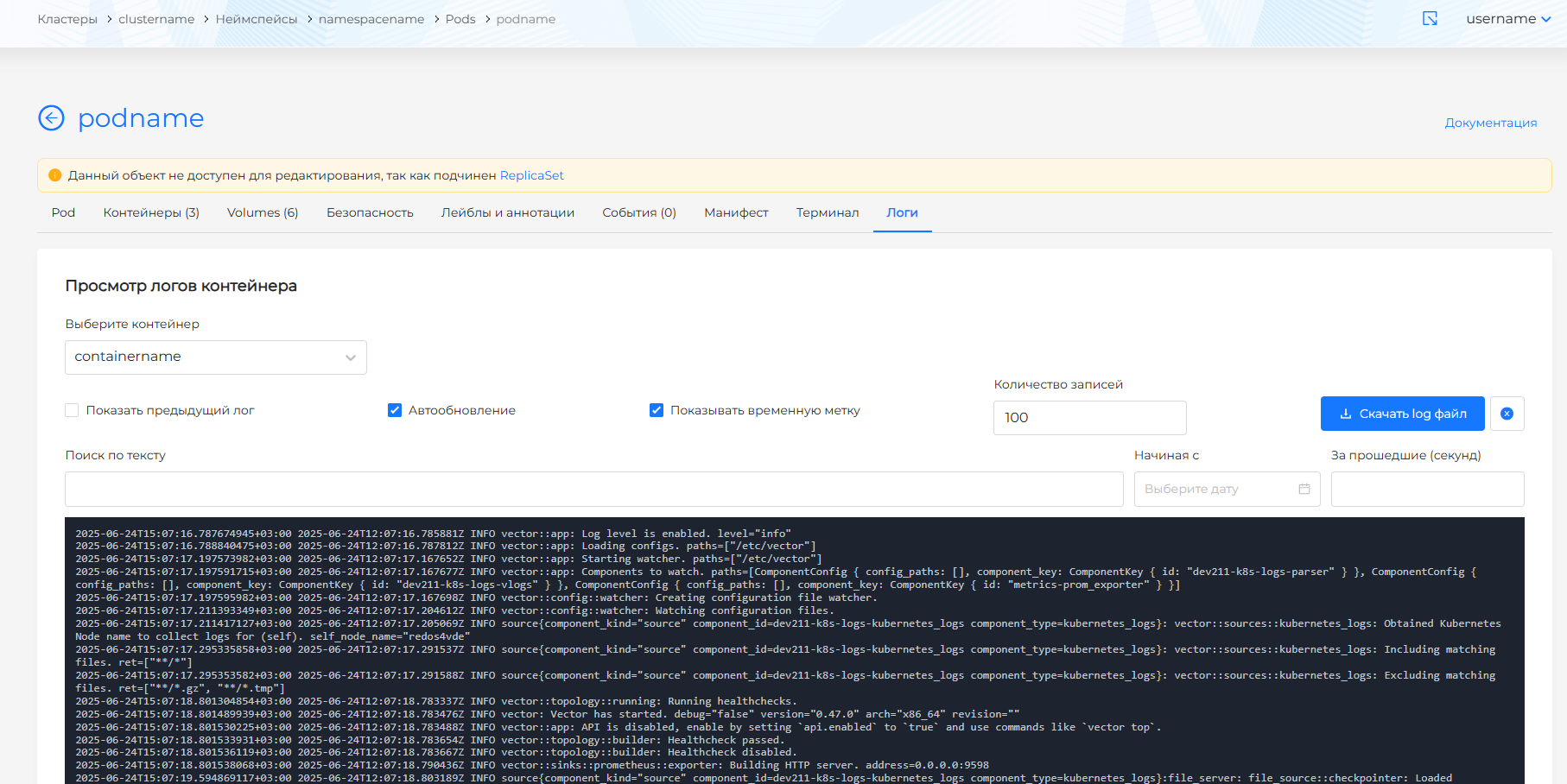
On the Logs tab you can select a container, enable or disable auto-update, timestamps and previous log, set the number of records, time range, text search and download the .log file.
Screenshot: Pod logs
Job
Job manages the execution of parallel or one-time tasks that are restarted when failures occur.
- Click +Add Job.
- Fill in Description, Template Job and container information. Parameters for init containers, containers and pod template - as when creating a Pod (see Pod tab below).
- Click Save.
Screenshot: Job page
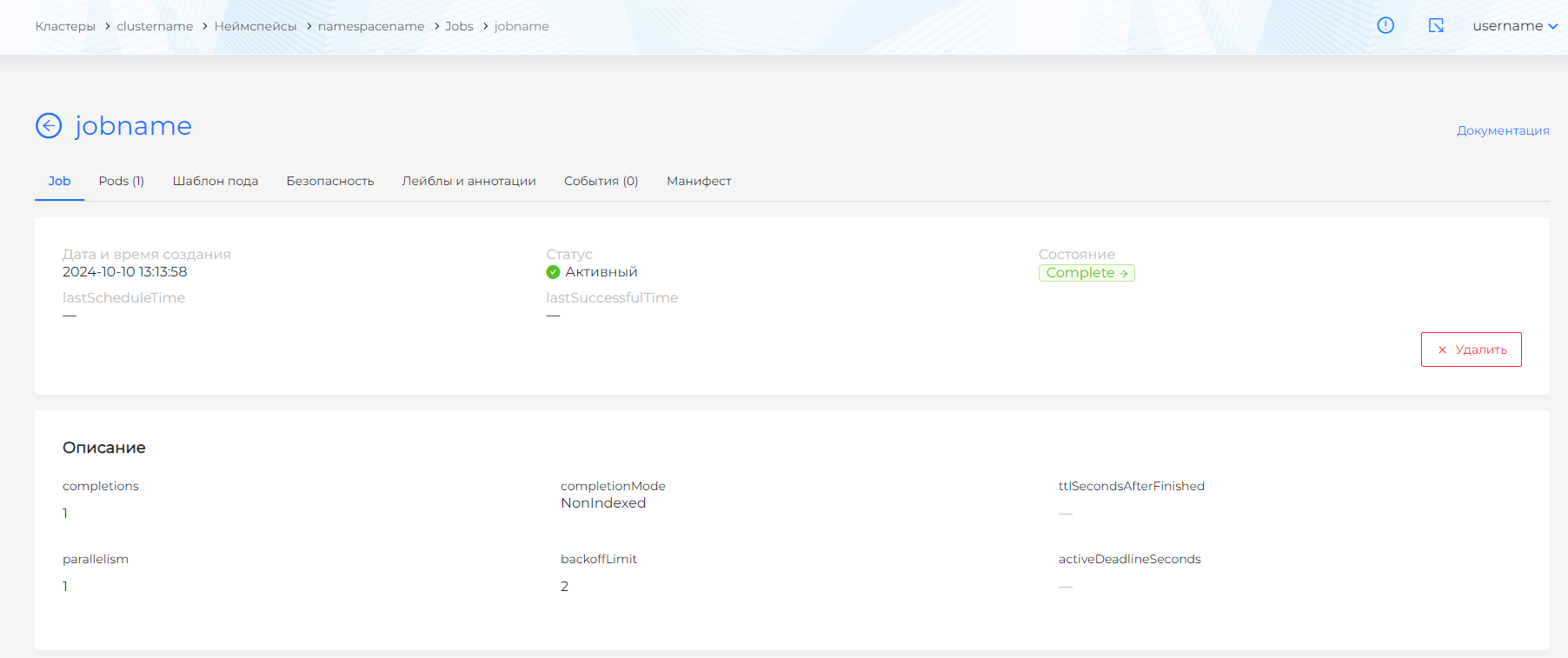
On the Job view page, the following tabs are available: Job,Pods, Pod Template, Labels and Annotations, Events, Security, Manifest. The Job tab displays status, status, lastScheduleTime, lastSuccessfulTime, completions, completionMode, ttlSecondsAfterFinished, parallelism, backoffLimit, activeDeadlineSeconds, pod selector and CPU/Memory metrics for the last hour.
CronJob
CronJob runs periodic tasks according to a cron schedule.
- Click +Add CronJob.
- Fill out Description, CronJob Specification, Template Job and container details. Container parameters are the same as when creating a Pod (see Pod tab below).
- Click Save.
Screenshot: CronJob page
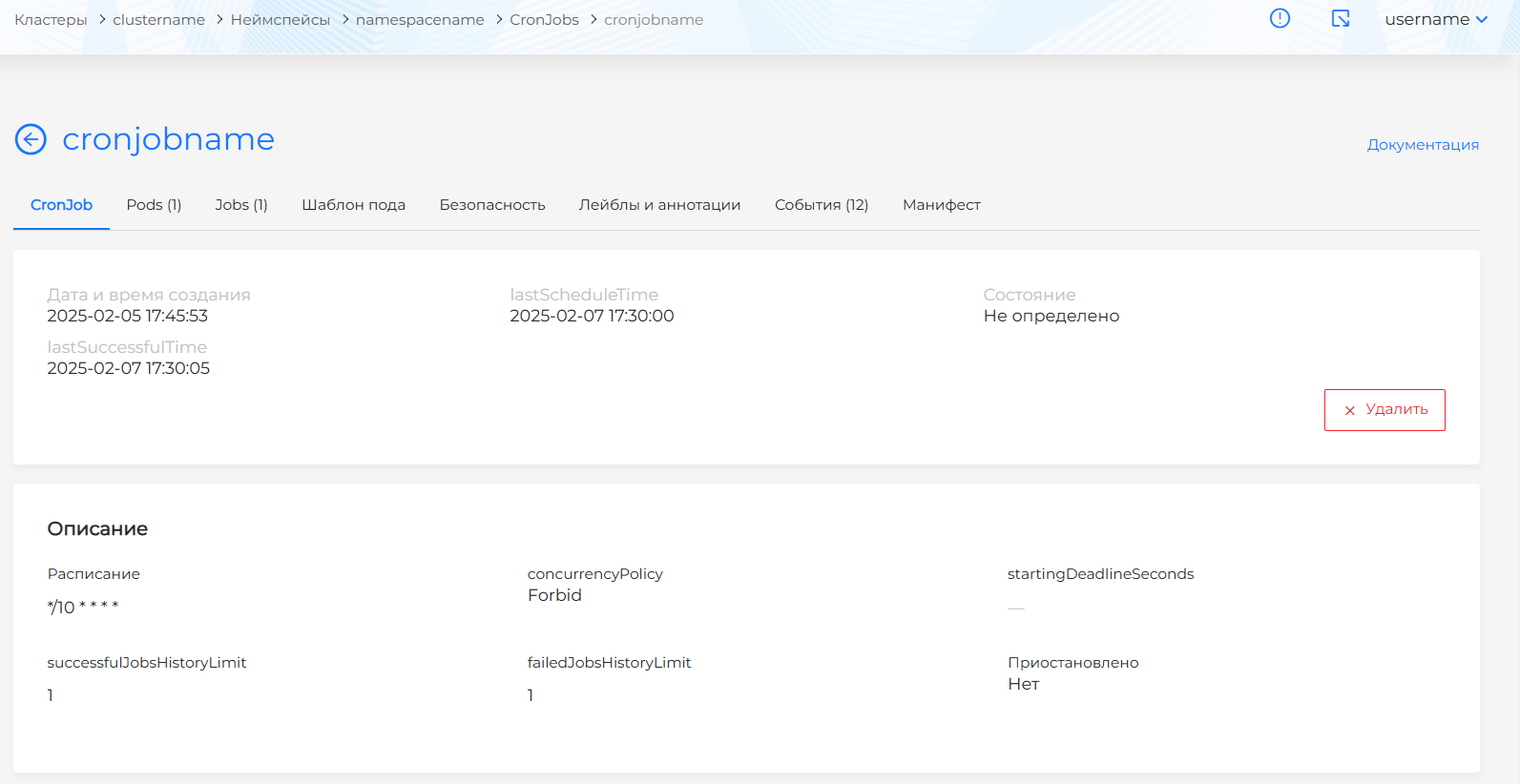
The CronJob page has CronJob, Pods, Jobs, Job Template, Labels and Annotations, Events, Security, Manifest tabs. The CronJob tab displays the schedule, concurrencyPolicy, startingDeadlineSeconds, successfulJobsHistoryLimit, failedJobsHistoryLimit, Suspended/Unsuspended status, pod selector and CPU/Memory metrics for the last hour.
The Jobs tab contains Jobs created by CronJob with status and image.
A ReplicaSet supports a given number of identical pods and is typically created by a Deployment. In most scenarios, don’t create or edit a ReplicaSet directly: modify the Deployment that manages it.
The ReplicaSets page displays sets of replicas in the namespace. If a ReplicaSet is part of a Deployment, its parameters on the ReplicaSet page are not editable.
Screenshot: ReplicaSet page
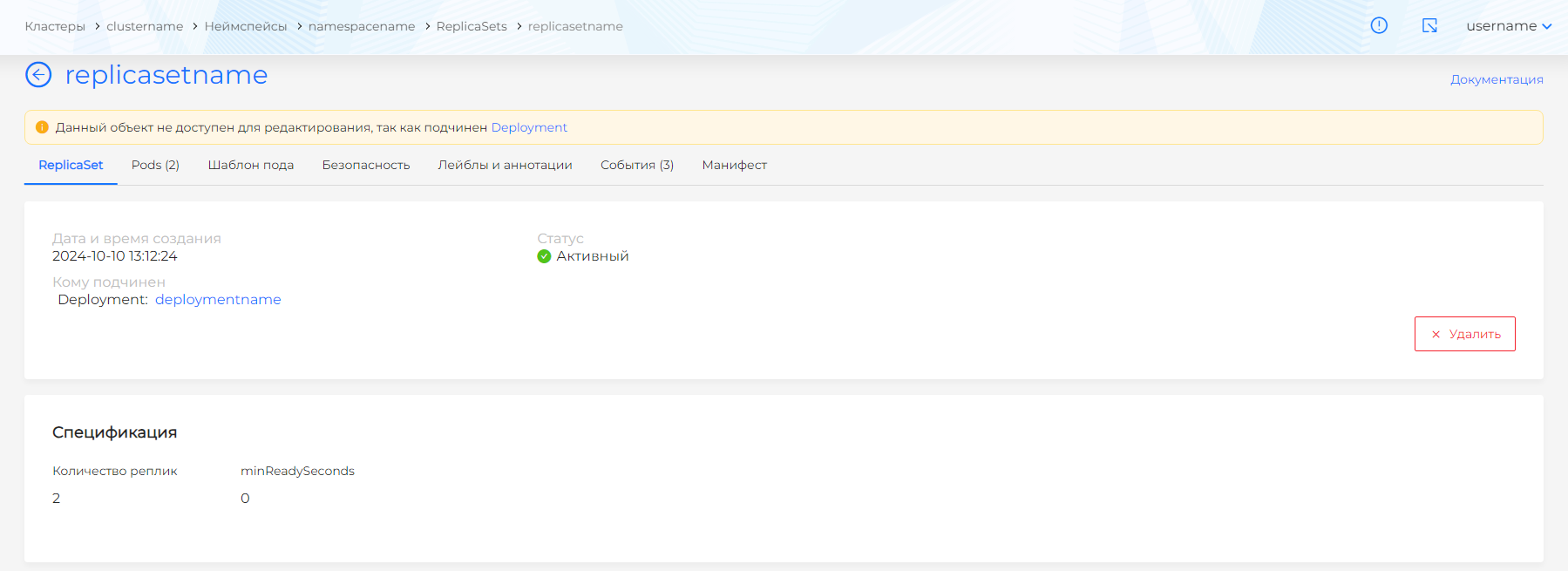
The view page has ReplicaSet, Pods, Pod Template, Security, Labels and Annotations, Events, Manifest tabs. The ReplicaSet tab displays creation date, status, parent object, number of replicas, minReadySeconds, pod selector and CPU/Memory metrics for the last hour. On the Manifest tab, the YAML can be viewed and copied.
Step 3: Check deployment status
- Open the created workload in the Loads section.
- Go to the Pods tab - pods should switch to the Running status (or Completed for Job).
Screenshot: Deployment's Pods tab
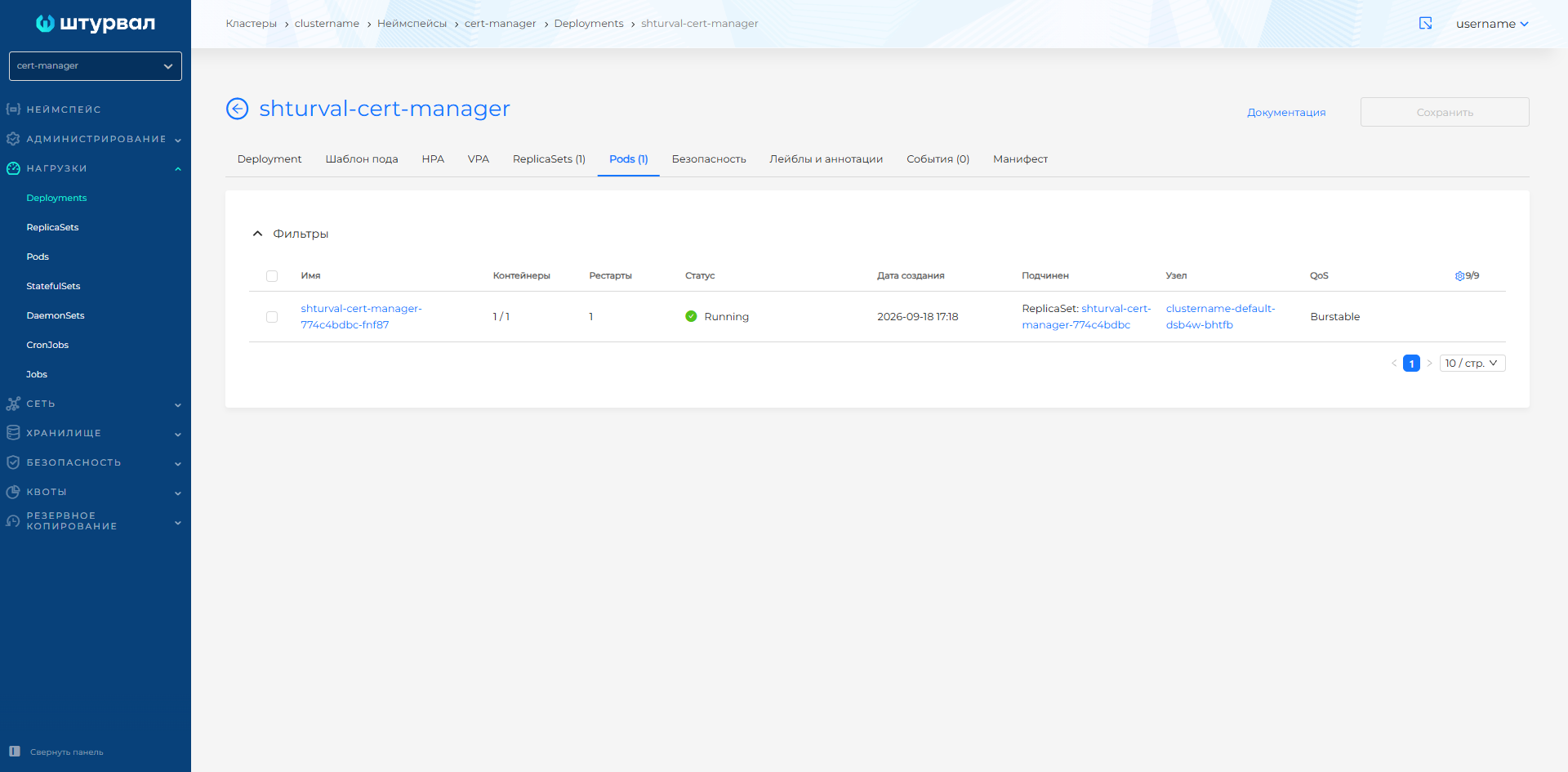
On the Pods tab, filtering by name, namespace, status, parent object, node and QoS is available; sorting by creation date and number of restarts. Possible status values in the filter: Running, Pending, Terminating, CrashLoopBackOff, Completed, Failed, Unknown. Clicking on a pod’s row opens the pod’s view page. On the Pods tab of Deployment, ReplicaSet, StatefulSet, and DaemonSet you can delete one pod or several at once. How to select objects and confirm deletion: Bulk deletion.
Color indication of pod status:
- green — RunningThe Pod is assigned to a node and all containers have been created., CompletedThe containers exited with code 0. This is how a successfully finished Pod is shown, for example a Job Pod., SucceededAll containers finished successfully and are not restarted.;
- yellow — PendingWaiting for the Pod to be scheduled onto a node or for images to download. One or more containers are not yet ready to start.;
- red - TerminatingDeletion has been requested and the kubelet is shutting the Pod down. The status stays Terminating until the object is removed from the API., CrashLoopBackOffA container exits with an error and starts again. Kubernetes increases the delay between start attempts., FailedAll containers have finished. At least one of them finished with an error.;
- gray — UnknownThe Pod state could not be obtained. This usually means a communication error with the node where the Pod should be running..
- If necessary, look at the logs on the Logs tab of the pod page or the events on the Events tab of the created workload.
More details: Workload troubleshooting.
Step 4. Modify and scale
You can change the replica count of a Deployment or StatefulSet manually. Two autoscaling mechanisms are available:
- HPA (Horizontal Pod Autoscaler) — changes the number of pods based on CPU, Memory, or custom metrics.
- VPA (Vertical Pod Autoscaler) — selects container requests and limits from historical CPU and Memory usage. In the platform, VPA is configured for Deployment and StatefulSet.
HPA by CPU/Memory and VPA recommendations both require metrics collection in the cluster:
shturval-metrics-collectoris installed;- if you do not have access to
shturvalserviceconfigs, you can confirm the service is present by the CPU and RAM utilization charts on the workload page.
To avoid conflicts, use one autoscaling method for the workload: horizontal (HPA) or vertical (VPA). If you need both, configure HPA and VPA to control different resources.
You can use HPA and VPA together, but not on the same resource metric: for example, HPA on CPU and VPA on Memory, or HPA on a custom metric and VPA on CPU and Memory. If HPA uses CPU and Memory, use VPA in Off or Initial mode.
Configure scaling in the GUI or apply a manifest.
HPA and VPA are available on the workload tabs and on the Custom Resources page in Administration of the cluster or namespace:
- HPA — API group
autoscaling, resource HorizontalPodAutoscaler; - VPA — API group
autoscaling.k8s.io, resource VerticalPodAutoscaler.
Scaling Deployment or StatefulSet
On the Deployment or StatefulSet tab of the view page, locate the scaling block, change the number of replicas, and save the changes.
Screenshot: Deployment page
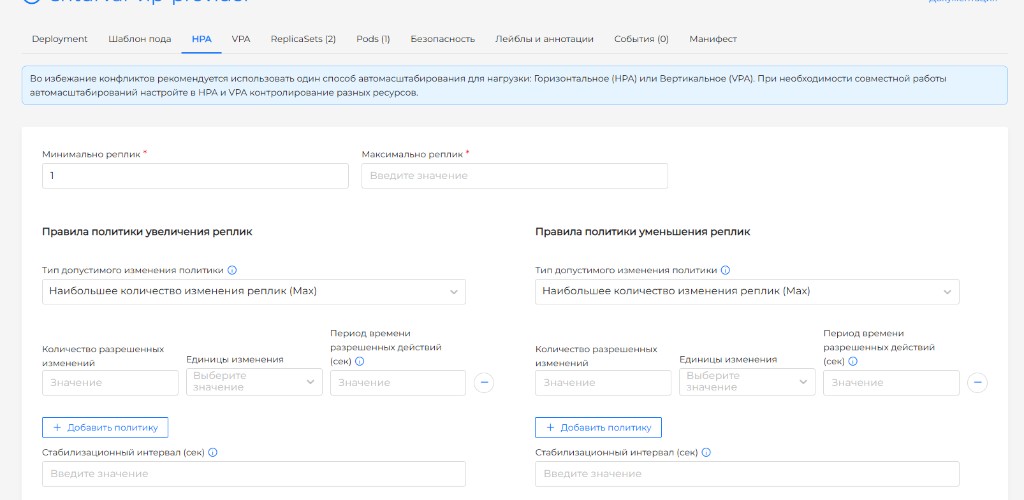
HPA
In the GUI, the HPA object is a tab on the Deployment page. On the Deployment tab, Manage horizontal autoscaling opens the HPA tab. The object is created with an automatically generated name. On create, the platform fills in spec.scaleTargetRef (apiVersion, kind, name).
If target values are exceeded, the number of pods increases within the replica range; when the load decreases, it decreases. If several metrics are set, HPA takes the highest calculated replica count.
Replicas block
| Field | Manifest parameter | Description |
|---|---|---|
| Minimum replicas | spec.minReplicas | Required. The number of pods will not go below this value. |
| Maximum replicas | spec.maxReplicas | Required. The number of pods will not go above this value. |
| Actual replicas | status.currentReplicas | How many pods are running now. Read-only. |
| State | status.conditions | Whether HPA is ready to scale the workload. Read-only. |
Scale-up policy rulesspec.behavior.scaleUp and Scale-down policy rulesspec.behavior.scaleDown limit how quickly the replica count can change. If the rules are not set, Kubernetes defaults apply. Both blocks use the same fields.
| Field | Manifest parameter | Description |
|---|---|---|
| Allowed change policy type | selectPolicy | Which rule to apply if there is more than one. Default MaxUses the rule that changes the replica count the most. Also available: MinUses the rule that changes the replica count the least, DisabledTurns off scaling in this direction. On scale-down, HPA will not remove pods even if load drops; on scale-up, it will not add pods even if load grows. The other direction still works. Example: Disabled on scale-down — replicas can grow, but will not shrink. |
| Allowed change amount | policies[].value | How much the replica count may change in the period below. See the units: pods or percent. Must be greater than zero. |
| Change units | policies[].type | How the change is measured: PodsNumber of pods or PercentPercent of the current replica count. |
| Allowed actions period (sec) | policies[].periodSeconds | In this window the replica count may change by no more than the amount above. Example: 4 and Pods with 60 seconds — at most 4 pods added or removed per minute. From 1 to 1800 (30 minutes). |
| Stabilization window (sec) | stabilizationWindowSeconds | How many seconds of past “how many pods we need” calculations HPA keeps, so short load spikes do not flap the replica count. The replica count follows the safest value in the window, not the latest reading: scale-down uses the highest recommendation, scale-up the lowest. From 0 to 3600 (one hour). If unset: scale-up is immediate (0), scale-down is 300. Example: scale-down window 300, currently 8 pods; load drops for a minute and the calculation is 3 — HPA will not go to 3 until every calculation in the last 5 minutes is 3 or fewer. |
You can add several rules (Add policy) and remove extras.
Screenshot: HPA
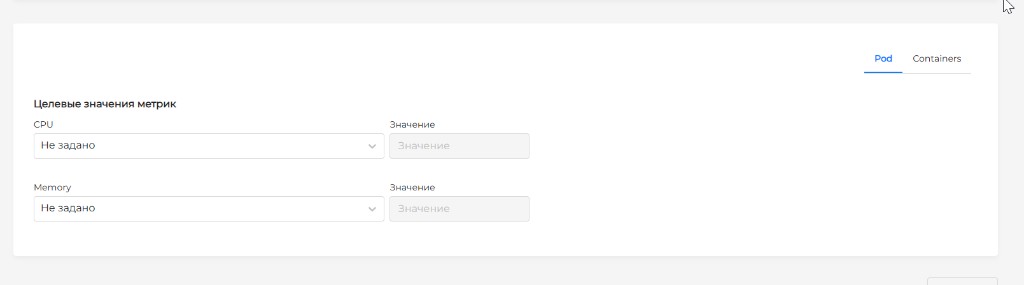
Target metric valuesThe CPU and memory load to treat as normal. If current load is higher, HPA adds pods; if lower, it removes them can be set for all pods of the workload (Pod tab) and for individual containers (Containers tab) at the same time.
Tab block PodAverage CPU and memory load across all pods. HPA uses it to decide whether there are enough pods
| Field | Manifest parameter | Description |
|---|---|---|
| CPU | resource.name: cpu | At what CPU load to add more pods. If Not set, CPU is ignored. UtilizationPercent of container requests is a percentage, AverageValueAverage absolute value across pods is an absolute value. |
| Memory | resource.name: memory | At what Memory load to add more pods. If Not set, Memory is ignored. UtilizationPercent of container requests is a percentage, AverageValueAverage absolute value across pods is an absolute value. |
| Value | resource.target.averageUtilization or resource.target.averageValue | The CPU or memory load to keep. For Utilization, a percent of requests; for AverageValue, an absolute value. |
| Actual metric values | status.currentMetrics | Current load. Read-only. |
Screenshot: HPA target metric values for a pod
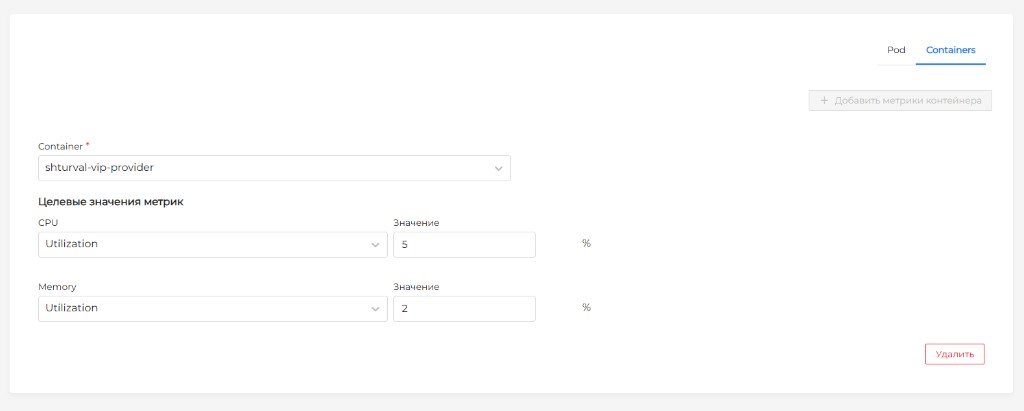
Tab block ContainersLoad of a selected container. Use this when a pod has several containers and you need to watch one of them
On the Containers tab, container metrics are optional. To set them, click Add container metrics. Until you add any, Container metrics are not configured is shown. You can set only one metric set per container. You can Delete a set.
| Field | Manifest parameter | Description |
|---|---|---|
| Container | containerResource.container | Required. Which container to measure — the name from the pod template. |
| CPU | containerResource.name: cpu | At what CPU load of this container to add more pods. If Not set, CPU is ignored. UtilizationPercent of this container’s requests is a percentage, AverageValueAverage absolute value of this container across pods is an absolute value. |
| Memory | containerResource.name: memory | At what Memory load of this container to add more pods. If Not set, Memory is ignored. UtilizationPercent of this container’s requests is a percentage, AverageValueAverage absolute value of this container across pods is an absolute value. |
| Value | containerResource.target.averageUtilization or containerResource.target.averageValue | The load to keep for this container. For Utilization, a percent of requests; for AverageValue, an absolute value. |
Screenshot: HPA container metrics not configured

Screenshot: HPA target metric values for a container
VPA
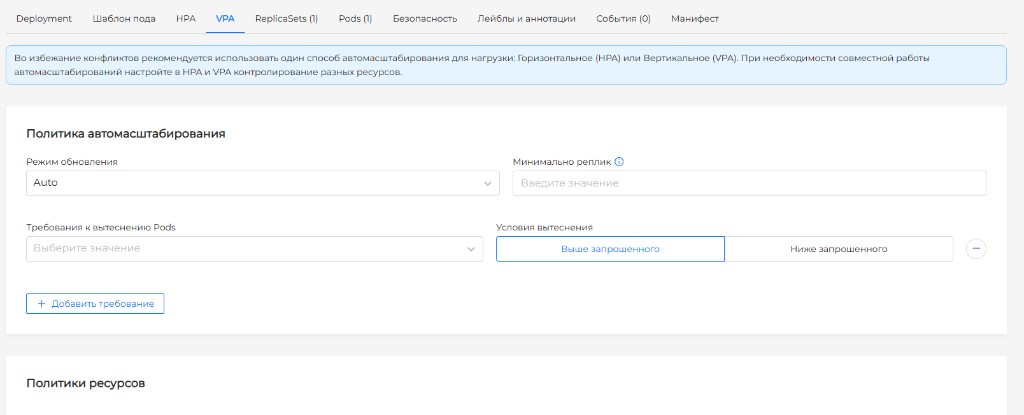
VPA (Vertical Pod Autoscaler) adjusts container CPU and Memory requests and limits from historical usage. In the GUI, the VPA object is a tab on the Deployment and StatefulSet pages. Create only one VPA object per workload.
The VPA tab and the Manage vertical autoscaling button appear only if the user has permission to view VPA. The button on the Deployment or StatefulSet tab opens the VPA tab. On create, the platform fills in spec.targetRef (apiVersion, kind, name).
On the VPA tab, choose when to apply the recommended resources and what bounds to keep them in.
Autoscaling policyWhen and how VPA applies recommended CPU and memory to pods: only show recommendations, or change requests on running pods
| Field | Manifest parameter | Description |
|---|---|---|
| Update mode | spec.updatePolicy.updateMode | When VPA applies recommended CPU and memory. Default AutoSets requests when a pod is created and may recreate a running pod if requests differ a lot from the recommendation. Currently the same as Recreate. Also available: RecreateSets requests when a pod is created. If a running pod’s requests differ a lot from the recommendation, VPA deletes the pod and the controller creates a new one with the right requests, InitialSets requests only when a pod is created. Does not change already running pods, OffDoes not change pod requests. Still computes recommendations so you can look at them without applying anything. |
| Minimum number of replicas | spec.updatePolicy.minReplicas | How many pods must stay running for VPA to recreate one of them. If fewer are alive, it will not recreate. Optional, positive numbers only. |
| Pod eviction requirements | spec.updatePolicy.evictionRequirements | Extra conditions that must all be true before VPA recreates a pod. You can leave them unset. Optional, up to four rules. Duplicate “resource + condition” pairs are not allowed. |
| Resources | evictionRequirements[].resources | Which resources the condition applies to: CPU, Memory, or both. If both are selected, it is enough for the condition to hold for at least one of them. |
| Eviction conditions | evictionRequirements[].changeRequirement | When VPA may recreate the pod. Higher than requestedRecommended CPU and memory are higher than current requests — the pod gets more resources or Lower than requestedRecommended CPU and memory are lower than current requests — the pod gets fewer resources. |
For a StatefulSet that cannot tolerate interruption (for example, a database without high availability), use Initial or Off: VPA will not evict pods and will only recommend resources or apply requests on a rollout.
Screenshot: VPA autoscaling policy
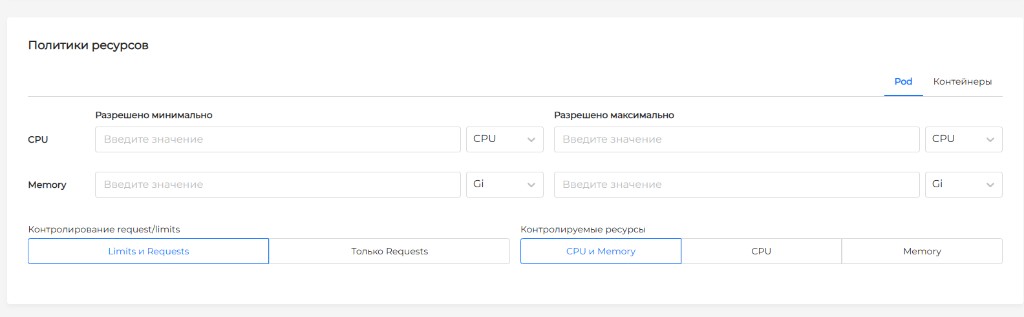
Resource policyBounds for recommended CPU and memory: not below or above the values you set, and which resources to manage. You can set a shared rule for all containers and a separate rule for a specific container. A container rule takes priority over the shared one.
Pod tabShared rule for every container that does not have its own policy
| Field | Manifest parameter | Description |
|---|---|---|
| Minimum allowed (CPU, Memory) | minAllowed.cpu, minAllowed.memory | The smallest CPU and memory VPA may recommend. Even if the container uses less, VPA will not go below this. If unset, there is no limit. CPU units: CPU, m; Memory units: Gi, Mi, Ki, B. |
| Maximum allowed (CPU, Memory) | maxAllowed.cpu, maxAllowed.memory | The largest CPU and memory VPA may recommend. Even if the container uses more, VPA will not go above this. If unset, there is no limit. CPU units: CPU, m; Memory units: Gi, Mi, Ki, B. |
| Request/limits control | controlledValues | What to change. Default Limits and Requests — both requests and limits (the limit scales with the request). Requests only — requests only, limits stay as they are. |
| Controlled resources | controlledResources | Which resources to size. Default CPU and Memory. You can keep CPU only or Memory only. |
Screenshot: VPA resource policy for a pod
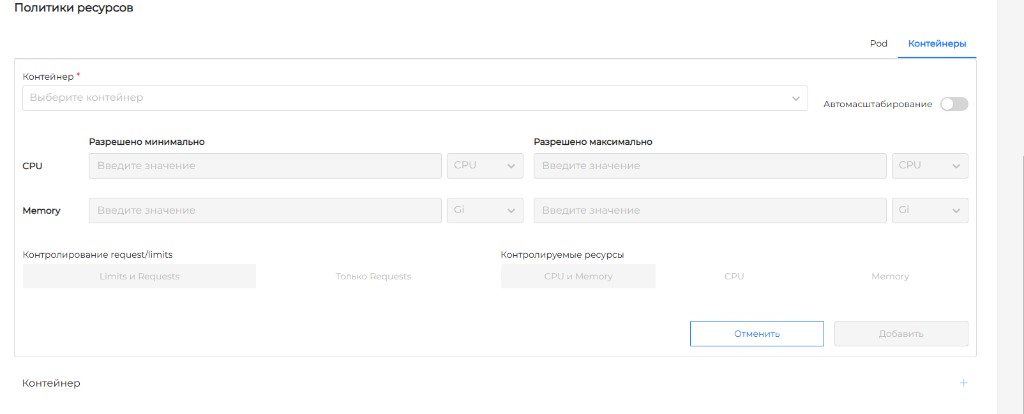
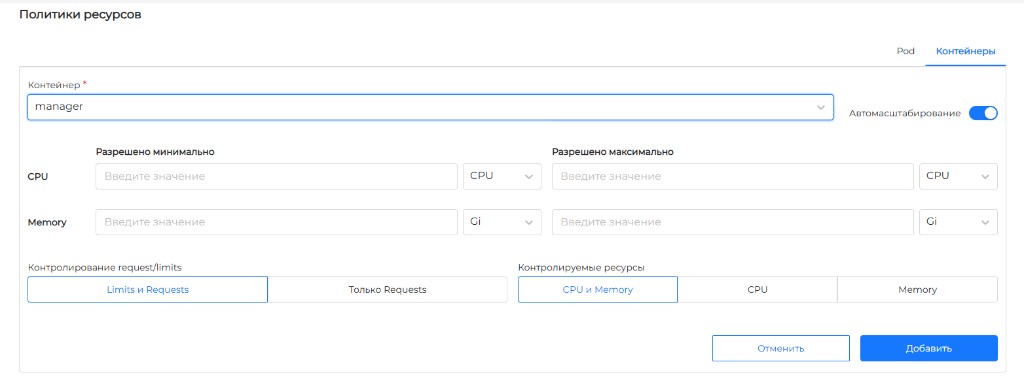
Containers tab ContainersBounds for one container. They take priority over the shared rule
Policies for individual containers are optional: add them only for those containers in the pod template that need their own limits. One policy per container. You can delete a container policy.
| Field | Manifest parameter | Description |
|---|---|---|
| Container | containerName | Required. The container name from the pod template. These bounds apply to that container. |
| Autoscaling | mode | On — VPA sizes this container. Off — VPA leaves it alone and does not compute recommendations for it. |
| Minimum allowed (CPU, Memory) | minAllowed.cpu, minAllowed.memory | The smallest CPU and memory VPA may recommend for this container. Even if the container uses less, VPA will not go below this. If unset, there is no limit. CPU units: CPU, m; Memory units: Gi, Mi, Ki, B. |
| Maximum allowed (CPU, Memory) | maxAllowed.cpu, maxAllowed.memory | The largest CPU and memory VPA may recommend for this container. Even if the container uses more, VPA will not go above this. If unset, there is no limit. CPU units: CPU, m; Memory units: Gi, Mi, Ki, B. |
| Request/limits control | controlledValues | What to change on this container. Default Limits and Requests — both requests and limits (the limit scales with the request). Requests only — requests only, limits stay as they are. |
| Controlled resources | controlledResources | Which resources to size for this container. Default CPU and Memory. You can keep CPU only or Memory only. |
Screenshot: adding a container resource policy
Screenshot: VPA resource policy for a container
After a VPA is created, all fields remain editable, and you can open the object manifest for viewing and editing.
| Field | Manifest parameter | Description |
|---|---|---|
| VPA conditions | status.conditions | Whether VPA is working. Green — yes, red — there is a problem. Click a condition type to see the reasonWhy the condition changed, messageDetails, and when the condition last changedlastTransitionTime. |
| VPA recommendations | status.recommendation | Recommended CPU and memory: how much to give the containers. If there is no data yet, dashes are shown. |
Prepare YAML manifests and apply objects via Import manifests.
HPA (Horizontal Pod Autoscaler) changes the number of Deployment or StatefulSet pods based on CPU, memory or custom metrics.
Prerequisites:
- for HPA by CPU/Memory, containers must have
requestsset, otherwise the metrics will not be calculated.
type: Resource metrics set average CPU and Memory across pods. type: ContainerResource metrics use the selected container. If several metrics are set, HPA takes the highest calculated replica count.
Replica-change rules (spec.behavior): scaleUp and scaleDown with selectPolicy (Max, Min, Disabled), a policies list (type: Pods or Percent, value, periodSeconds), and stabilizationWindowSeconds. If behavior is omitted, Kubernetes defaults apply.
Example HPA:
apiVersion: autoscaling/v2
kind: HorizontalPodAutoscaler
metadata:
  name: my-app-hpa
  namespace: my-namespace
spec:
  scaleTargetRef:
    apiVersion: apps/v1
    kind: Deployment
    name: my-app
  minReplicas: 2
  maxReplicas: 10
  behavior:
    scaleUp:
      selectPolicy: Max
      stabilizationWindowSeconds: 0
      policies:
      - type: Percent
        value: 100
        periodSeconds: 15
      - type: Pods
        value: 4
        periodSeconds: 15
    scaleDown:
      selectPolicy: Max
      stabilizationWindowSeconds: 300
      policies:
      - type: Percent
        value: 100
        periodSeconds: 15
  metrics:
  - type: Resource
    resource:
      name: cpu
      target:
        type: Utilization
        averageUtilization: 70
  - type: Resource
    resource:
      name: memory
      target:
        type: Utilization
        averageUtilization: 80
  - type: ContainerResource
    containerResource:
      name: cpu
      container: app
      target:
        type: Utilization
        averageUtilization: 60
Check HPA status:
kubectl get hpa my-app-hpa -n my-namespace
kubectl describe hpa my-app-hpa -n my-namespace
The output shows the current and desired number of replicas, current metric values, and scaling events.
VPA (Vertical Pod Autoscaler) selects container requests and limits from historical CPU and Memory usage. In the platform, VPA is configured for Deployment and StatefulSet.
A VerticalPodAutoscaler object consists of a workload reference (targetRef: apiVersion, kind, name), an update policy (updatePolicy), a resource policy (resourcePolicy), and computed recommendations in the status. If no recommender is set, the default recommender is used.
Prerequisites:
- create only one VPA object per workload: multiple VPAs matching the same pods have undefined behavior.
VPA update modes (spec.updatePolicy.updateMode): AutoSets requests when a pod is created and may recreate a running pod if requests differ a lot from the recommendation. Currently the same as Recreate, RecreateSets requests when a pod is created. If a running pod’s requests differ a lot from the recommendation, VPA deletes the pod and the controller creates a new one with the right requests, InitialSets requests only when a pod is created. Does not change already running pods, OffDoes not change pod requests. Still computes recommendations so you can look at them without applying anything.
The resource policy sets bounds for recommended CPU and memory:
containerName: "*"— shared rule for containers that have no policy of their own; a named container rule takes priority;mode:Auto— VPA sizes this container,Off— leaves it alone and does not compute recommendations for it;minAllowed/maxAllowed— the smallest and largest CPU and memory VPA may recommend. Even if usage is different, it will not go below the minimum or above the maximum;controlledValues:RequestsAndLimits(default — both requests and limits, the limit scales with the request) orRequestsOnly(requests only);controlledResources:cpu,memory, or both (default is both).
Eviction requirements (updatePolicy.evictionRequirements) are extra conditions that must all be true before VPA recreates a pod. Higher than requested (TargetHigherThanRequests) — recommended CPU and memory are higher than current requests, the pod gets more resources. Lower than requested (TargetLowerThanRequests) — lower than current requests, the pod gets fewer resources. If a condition lists several resources, it is enough for it to hold for at least one of them.
Example VPA:
apiVersion: autoscaling.k8s.io/v1
kind: VerticalPodAutoscaler
metadata:
  name: my-app-vpa
  namespace: my-namespace
spec:
  targetRef:
    apiVersion: apps/v1
    kind: Deployment
    name: my-app
  updatePolicy:
    updateMode: "Auto"
    minReplicas: 1
    evictionRequirements:
    - resources: ["cpu", "memory"]
      changeRequirement: TargetHigherThanRequests
  resourcePolicy:
    containerPolicies:
    - containerName: "*"
      minAllowed:
        cpu: 100m
        memory: 128Mi
      maxAllowed:
        cpu: "2"
        memory: 4Gi
      controlledResources:
        - cpu
        - memory
      controlledValues: RequestsAndLimits
    - containerName: app
      mode: Auto
      minAllowed:
        cpu: 100m
        memory: 128Mi
      maxAllowed:
        cpu: "1"
        memory: 2Gi
      controlledResources:
        - cpu
        - memory
      controlledValues: RequestsAndLimits
Check VPA:
kubectl get vpa -n my-namespace
kubectl describe vpa my-app-vpa -n my-namespace
When recommendations are applied to a pod, the pod annotations include vpaObservedContainers and vpaUpdates, for example:
metadata:
  annotations:
    vpaObservedContainers: recommender
    vpaUpdates: 'Pod resources updated by vpa-recommender: container 0: cpu request, memory request, cpu limit, memory limit'
For a StatefulSet without high availability, prefer Initial or Off so that VPA does not evict pods.
Official documentation: Vertical Pod Autoscaler, VPA limitations and using VPA with HPA.
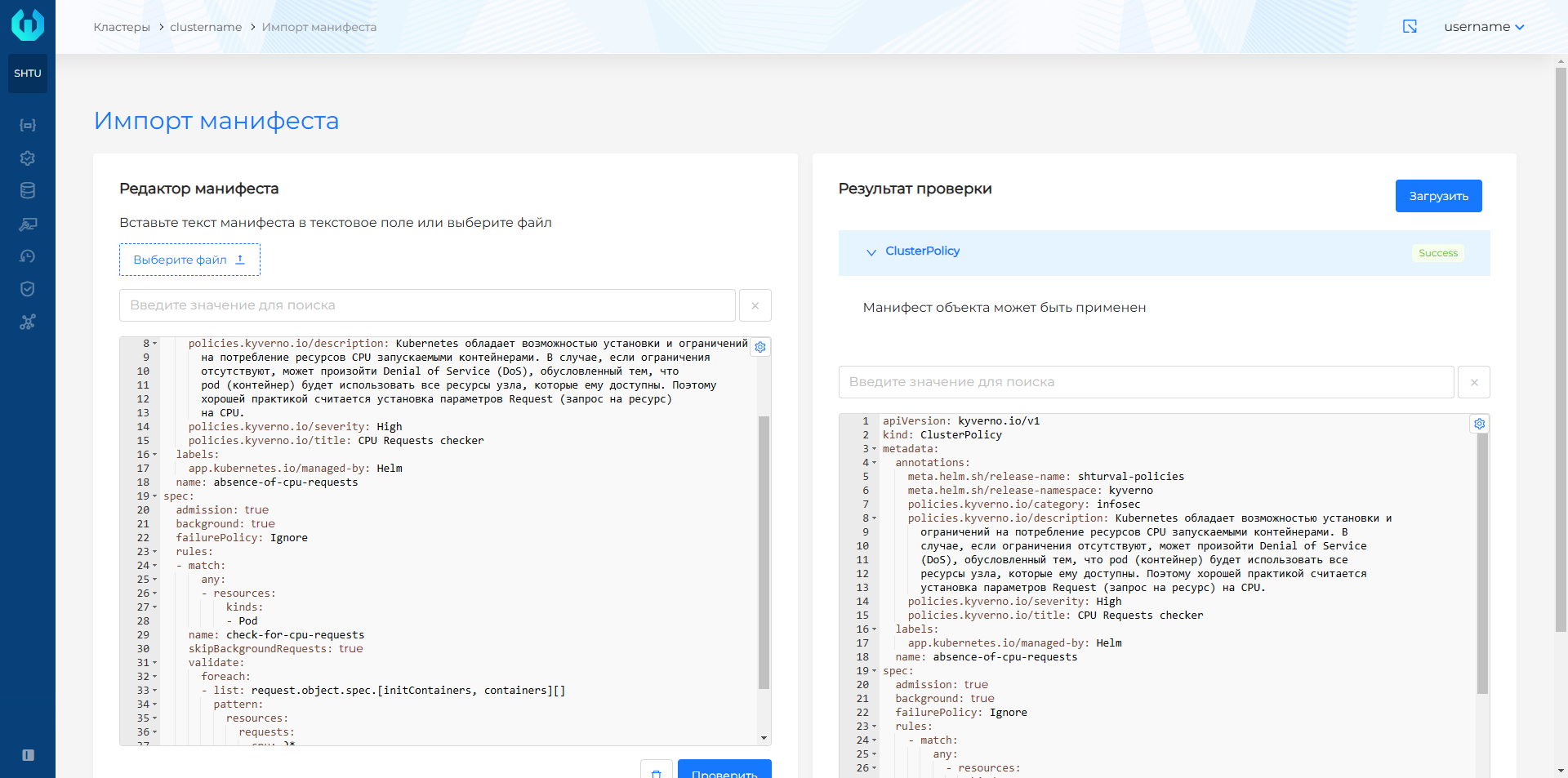
You can create an HPA or VPA via manifest import: click the import icon, paste or upload YAML, run Verify and after successful verification, click Upload.
Screenshot: manifest import window

Screenshot: successful verification of the manifest before uploading
Deployment security
When creating a workload, check the security settings of the pods and images:
- set
runAsUser,runAsGroup,runAsNonRootand other Security context parameters where applicable; - Use Seccomp profiles to restrict pod or container system calls. More details: Seccomp;
- keep in mind that the Security context of the container overrides the Security context of the pod;
- do not enable privileged mode unless necessary: it cancels some protections, including Seccomp;
- store registry credentials in Kubernetes Secrets, not in clear form in manifests;
- use signing of container images and signature verification policies if required by the security requirements. More details: Modifying policies and image signing.
The Security tab for workloads shows image vulnerability scan results and security policy compliance analysis when the corresponding modules are installed in the cluster.
Remove workload
- Deployment, ReplicaSet, StatefulSet, DaemonSet, Job, CronJob, Pod — you can delete one object or several at once from the list; Delete button on the detail page; delete icon on the Manifest tab. How to select objects and confirm deletion: Bulk deletion.
- CronJob — additionally available options are Delete completely and Delete with re-creation (a creation form will open with pre-filled data for the deleted CronJob).
- Pod — on the Pods tab of Deployment, ReplicaSet, StatefulSet, DaemonSet, Job, and CronJob you can also delete one pod or several at once. On the detail page: Delete (graceful termination) or Forcibly delete for pods in the Terminating state.
Related topics
- Namespace dashboard overview - creating a workload from the namespace dashboard.
- How to publish an application (Services/Ingress).
- How to connect a private registry.
- How Shturval and Argo CD are related.
- Seccomp.
- Modifying policies and image signature.
- Workload troubleshooting.