How to publish an application (Services/Ingress)
Publishing applications inside and outside the cluster.
Publishing an application in Kubernetes usually follows the chain workload → Service → Ingress. The workload runs application pods, Service gives them a stable access point, and Ingress exposes HTTP/HTTPS access from outside the cluster.
If the application has not yet been deployed, first create a Deployment, StatefulSet or other workload type according to the instructions How to deploy an application.
How to choose an access method
Service
| Method | When to use |
|---|---|
| ClusterIP | Access is only needed within the cluster. This is the basic option for connecting applications with each other. |
| NodePort | External access is required via a static port on each cluster node. Suitable for test and infrastructure scenarios. |
| LoadBalancer | Requires external IP through a supported infrastructure provider or load balancer. |
| ExternalName | You need to create a DNS alias Service for an external name, for example foo.bar.example.com, without proxying traffic. |
Ingress
| Method | When to use |
|---|---|
| Ingress | You need to publish HTTP/HTTPS by domain name, path, TLS and routing rules to the Service. |
| Gateway API | Use when you need modern, portable routing via the Gateway API; separation of roles between infrastructure and application. This is the default on the management cluster. See Gateway API Routes. |
In the Kubernetes model, each Pod gets its own IP address, but the Pod can be recreated. Service hides this variability behind a stable IP address or DNS name, and Ingress routes external HTTP/HTTPS traffic to the Service.
What to prepare before publishing
Before creating Service and Ingress, check:
- The workload is deployed and pods reach
Running/Ready. - Pods have stable labels by which the Service can select backend pods, for example
app: my-app. - The container port on which the application receives traffic is known, for example
8080. - The user has the rights to create
Service,Ingressand, if necessary,Secretin the desired namespace. - For external access, the Ingress Controller and access to its IP address, VIP, NodePort or balancer are configured. For more information about traffic flow, see Architectural diagrams of cluster networks.
- A DNS record is configured for access by domain name. Before setting up DNS, you can check Ingress with a request with the
Hostheader. - TLS Secret of type
kubernetes.io/tlshas been prepared for HTTPS with keystls.crtandtls.key.
You can create Service and Ingress from the Networks section in the namespace or from the namespace dashboard, which displays the relationship between workloads, services and ingresses. For more details, see Namespace dashboard review.
Step 1. Create a Service
Service defines a logical set of pods and the access policy for them. For an application with labels app: my-app, the Service must use the same selector, otherwise the traffic will not get to the right pods.
- Open the cluster and select the namespace in which the application is deployed.
- Go to Networks → Services.
- Click +Add Service.
- Fill in the Service name, for example
my-app-service. - Add labels and annotations as needed.
- In the deployment details, select the Service type:
ClusterIP,NodePort,LoadBalancer, orExternalName. - Leave the ignore Pod status option at its default value unless there is a specific requirement to change it.
- Add a port and fill in:
- Port name - for example
http; - AppProtocol - if necessary;
- NodePort — for Service type
NodePort, if a specific port is required; - Port — Service port, for example
80; - TargetPort — container port, for example
8080; - Protocol -
TCP,UDPorSCTP.
- Port name - for example
- If necessary, set external IP addresses.
- Add pod selector labels, for example
app: my-app. - Click Save.
Screenshot: Service page
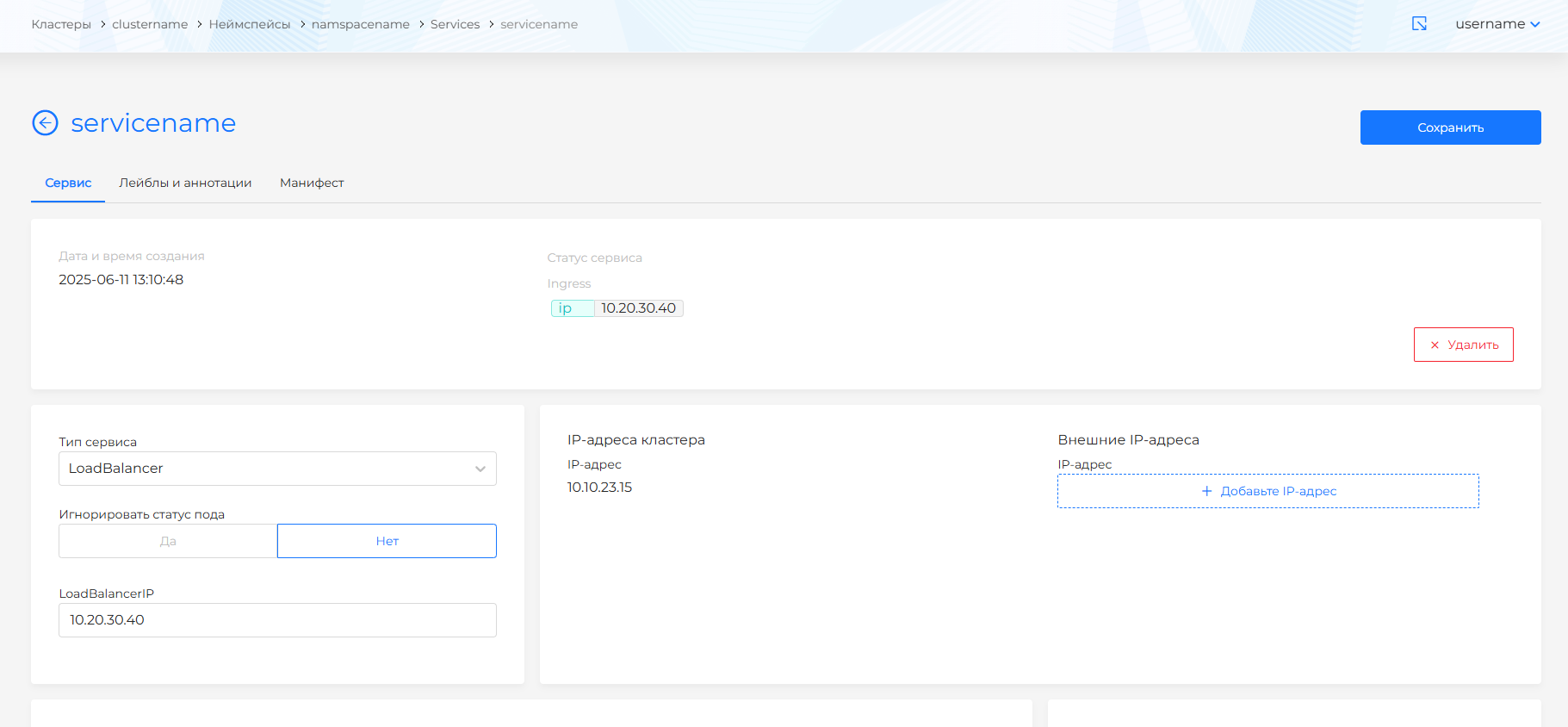
Once created, Service can be opened from the list. In the Services list you can delete one object or several at once. How to select objects and confirm deletion: Bulk deletion. On the Service page, you can view and edit the manifest on the Manifest tab, change the Service type, external IP addresses, ports, pod selector, labels and annotations.
Prepare your manifest and upload it via Import Manifests or apply it via kubectl.
apiVersion: v1
kind: Service
metadata:
  name: my-app-service
  namespace: my-namespace
spec:
  type: ClusterIP
  selector:
    app: my-app
  ports:
    - name: http
      port: 80
      targetPort: 8080
      protocol: TCP
For external access via Service, change spec.type to NodePort or LoadBalancer. For a DNS alias to an external resource, use ExternalName.
apiVersion: v1
kind: Service
metadata:
  name: external-api
  namespace: my-namespace
spec:
  type: ExternalName
  externalName: api.example.com
If the Deployment has already been created and its pods have the label app=my-app, the Service can be created with the command:
kubectl expose deployment my-app \
  --name my-app-service \
  --port 80 \
  --target-port 8080 \
  -n my-namespace
Or use the YAML file:
kubectl apply -f service.yaml
Check Service and backend pods:
kubectl get svc my-app-service -n my-namespace
kubectl describe svc my-app-service -n my-namespace
kubectl get endpointslices -n my-namespace -l kubernetes.io/service-name=my-app-service
Step 2. Configure TLS Secret
For HTTPS Ingress needs Secret containing the private key and TLS certificate. The Secret must contain the keys tls.crt and tls.key, and the certificate must match the domain name under which the application is published.
Ingress uses TLS on port 443 and terminates the TLS connection at the entry point. Traffic from Ingress to Service and pods is then transferred as internal cluster traffic. If multiple hosts are specified in the tls section, they are processed on the same port using SNI. Hosts in tls.hosts must explicitly match hosts in rules.
- In the application namespace, go to Storage → Secrets.
- Click +Add Secret.
- Provide a name, such as
my-app-tls. - Select type
kubernetes.io/tls. - Add a certificate file and a private key file for the published domain.
- Click Save.
If certificates are issued through cert-manager, ClusterIssuer or Issuer is configured separately. See ClusterIssuer and Issuer for details.
apiVersion: v1
kind: Secret
metadata:
  name: my-app-tls
  namespace: my-namespace
type: kubernetes.io/tls
data:
  tls.crt: <base64-encoded-cert>
  tls.key: <base64-encoded-key>
kubectl create secret tls my-app-tls \
  --cert=./tls.crt \
  --key=./tls.key \
  -n my-namespace
Check that the Secret is created in the same namespace where the Ingress will be created:
kubectl get secret my-app-tls -n my-namespace
Step 3: Create an Ingress
Ingress controls external access to services in the cluster. It defines HTTP/HTTPS routes from outside the cluster to a Service inside the cluster, and can use load balancing, TLS, and name-based virtual hosting.
- Go to Networks → Ingresses.
- Click +Add Ingress.
- Specify the name of the Ingress, for example
my-app-ingress. - Add labels and annotations as needed.
- In the object specification, fill in:
- IngressClassName — select the desired
IngressClassfrom the list or leave empty if the class is not required; - Ingress Service Backend - select Service
my-app-service, port namehttpor port number80.
- IngressClassName — select the desired
- Add a rule:
- Host — domain name, for example
my-app.example.com; - HTTPIngressPath — path
/; - Path type —
Prefix,ExactorImplementationSpecific; - Ingress Backend Service - Service
my-app-serviceand port80.
- Host — domain name, for example
- For HTTPS add IngressTLS:
- Secret name — select the created TLS Secret, for example
my-app-tls; - Hosts — specify one or more hosts. The values must match the hosts in the Ingress rules.
- Secret name — select the created TLS Secret, for example
- Click Save.
Screenshot: Ingress page
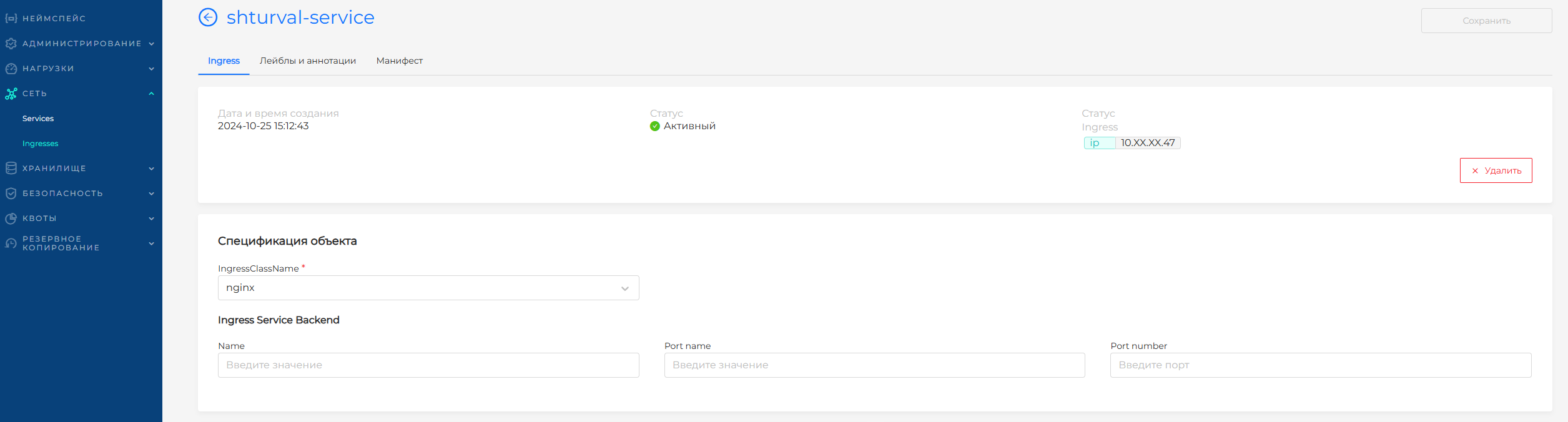
On the Ingress page, you can go to the Manifest tab, change the backend, rules and IngressTLS, as well as update labels and annotations. In the Ingresses list you can delete one object or several at once. How to select objects and confirm deletion: Bulk deletion.
apiVersion: networking.k8s.io/v1
kind: Ingress
metadata:
  name: my-app-ingress
  namespace: my-namespace
spec:
  tls:
    - hosts:
        - my-app.example.com
      secretName: my-app-tls
  rules:
    - host: my-app.example.com
      http:
        paths:
          - path: /
            pathType: Prefix
            backend:
              service:
                name: my-app-service
                port:
                  number: 80
If your cluster requires a specific IngressClass, add the spec.ingressClassName field.
spec:
  ingressClassName: nginx
If NGINX Ingress Controller was selected when the cluster was created, Ingress is served by the NGINX module. If Gateway API was selected, that module is not installed: publish the application with Gateway API routes. For basic Ingress configuration, see the NGINX Ingress Controller documentation.
Create an object by entering your parameter values:
kubectl create ingress my-app-ingress \
  --namespace=my-namespace \
  --class=nginx \
  --rule="my-app.example.com/*=my-app-service:80,tls=my-app-tls"
Check Ingress:
kubectl get ingress my-app-ingress -n my-namespace
kubectl describe ingress my-app-ingress -n my-namespace
If DNS is not yet configured, check the route using the IP address of the Ingress Controller or balancer with the Host header:
curl -H "Host: my-app.example.com" http://<INGRESS_IP>/
Complete example of publishing an application
In the example, Deployment creates pods with label app: my-app, Service selects these pods through a selector, and Ingress directs external traffic on host my-app.example.com to Service my-app-service.
---
apiVersion: apps/v1
kind: Deployment
metadata:
  name: my-app
  namespace: my-namespace
spec:
  replicas: 2
  selector:
    matchLabels:
      app: my-app
  template:
    metadata:
      labels:
        app: my-app
    spec:
      containers:
        - name: app
          image: registry.example.com/my-app:v1.0.0
          ports:
            - containerPort: 8080
---
apiVersion: v1
kind: Service
metadata:
  name: my-app-service
  namespace: my-namespace
spec:
  type: ClusterIP
  selector:
    app: my-app
  ports:
    - name: http
      port: 80
      targetPort: 8080
      protocol: TCP
---
apiVersion: networking.k8s.io/v1
kind: Ingress
metadata:
  name: my-app-ingress
  namespace: my-namespace
spec:
  tls:
    - hosts:
        - my-app.example.com
      secretName: my-app-tls
  rules:
    - host: my-app.example.com
      http:
        paths:
          - path: /
            pathType: Prefix
            backend:
              service:
                name: my-app-service
                port:
                  number: 80
Application and basic check:
kubectl apply -f publish-my-app.yaml

kubectl get deploy,po,svc,ingress -n my-namespace
kubectl describe svc my-app-service -n my-namespace
kubectl describe ingress my-app-ingress -n my-namespace
Checking access within the cluster:
kubectl run curl-test --rm -it \
  --image=curlimages/curl \
  --restart=Never \
  -n my-namespace \
  -- curl http://my-app-service.my-namespace.svc.cluster.local
Checking external access:
# Before DNS configuration
curl -H "Host: my-app.example.com" http://<INGRESS_IP>/

# After DNS and TLS configuration
curl https://my-app.example.com
Testing and diagnostics
Service
If the application is not available through Service, check:
- The service is created in the same namespace where the application pods are located.
spec.selectorService matches the labels of the pods.portService andtargetPortof the container correspond to the real ports of the application.- Service now has EndpointSlice for backend pods. The backend pod must be in the Running and Ready=true state, otherwise the endpoint will not get into the Service.
- The correct DNS name is used inside the cluster:
<service-name>.<namespace>.svc.cluster.local. In the same namespace you can use the short name Service.
kubectl get svc -n my-namespace
kubectl describe svc my-app-service -n my-namespace
kubectl get pods -n my-namespace --show-labels
kubectl get endpointslices -n my-namespace -l kubernetes.io/service-name=my-app-service
Ingress
If Ingress does not open the application, check:
- Ingress Controller is installed and its pods are running.
- Service has backend pods.
host,path,pathType, backend Service and port in Ingress are specified correctly.- The DNS record points to the IP address, VIP, NodePort, or Ingress Controller balancer.
- For HTTPS Secret exists in the same namespace, contains
tls.crtandtls.key, and the certificate is issued to the required FQDN. - Check that there are no errors in Ingress and Pod events.
kubectl get ingress -n my-namespace
kubectl describe ingress my-app-ingress -n my-namespace
kubectl get events -n my-namespace --sort-by='.lastTimestamp'
For detailed commands for checking Ingress Controller, Service and controller logs, see the section Troubleshooting Networks. Frequent application problems are described in Workload troubleshooting.
Network policies
If network policies are enabled in the cluster, they can block traffic from the Ingress Controller to the backend pods. Allow incoming traffic from the Ingress Controller to the application. For an example policy, see Allow incoming traffic from Ingress Controller.
Recommendations
- For internal dependencies between applications, use
ClusterIPand the DNS name Service. - For production publishing of HTTP/HTTPS applications, use
Ingresswith a domain name and TLS. LoadBalanceruse when you need direct external IP without HTTP/HTTPS routing at the Ingress level.NodePortuse for testing or special infrastructure scenarios.- Do not store private keys and certificates in public manifests. Use Kubernetes Secrets.
Additional materials
- How to deploy an application - creation and verification of workload before publication.
- Namespace dashboard overview — how to see connections between Routes, Services, and Workloads.
- Import manifests - loading YAML without
kubectl. - ClusterIssuer and Issuer - issue certificates through cert-manager.
- How to connect a private registry - preparing access to application images.
- Network Troubleshooting - checking Ingress, Service and network access.