How to deploy a cluster
Instructions for deploying a client cluster in the GUI for Shturval v2, VMware vSphere, oVirt, OpenStack, Yandex Cloud, vCloud Director and Basis Dynamix.
Once the working management cluster is available in the platform and the infrastructure provider instance is configured, you are ready to create a client cluster in the platform GUI. Below is a checklist of preconditions, then where to start creating, details for each provider (tabs), general steps of the wizard for the certificate and services, status tracking and links to reference materials.
Preconditions (check before starting)
Before clicking Create Cluster or Add Cluster make sure:
- Management cluster in Ready status — Where to look: Clusters → list of clusters.
- IP address pool created, if you need it for your scenario (facilitates deployment with internal balancers and infrastructure providers VMware vSphere, oVirt and the like, Shturval v2) - Where to look: Providers → IP pools.
- In the pool used minimum 2 free addresses, if you issue a VIP from the pool - Where to look: pool page, “Status” column.
- Provider instance created - Where to look: Providers → Provider configuration.
- Provider connection check passed - Where to look: green check mark on the instance.
- For providers with VM templates/images: template added for the required version of Kubernetes - Where to look: provider instance card.
- IP pool tied to the provider instance, if you use a pool - Where to look: editing an instance, the “IP Pool” field.
- Checking the intersection of subnets when creating a cluster: subnets of pods/services and VIP are consistent with the infrastructure - Where to look: step of the “Basic data” wizard.
Note: For OpenStack, Yandex Cloud, vCloud Director, Basis Dynamix IP pools are not used - addresses are set differently (often through external balancers). See the corresponding provider tab.
If something is not completed, go to How to work with providers in the platform. General requirements for nodes and network are on the Requirements page.
Briefly about providers
| Provider | When to choose | Preparing nodes |
|---|---|---|
| Shturval v2 | Naked hosts, SSH | Hosts and OS, without VM template |
| VMware vSphere | vCenter | VM template (stc), upload to vSphere |
| oVirt and analogues | zVirt, oVirt, HostVM, ED Virtualization, ROSA Virtualization | VM Template, DHCP in VNIC Profile |
| OpenStack and similar | VK Cloud, Selectel, etc. | Images, VPC, security groups |
| Yandex Cloud | Yandex Cloud | Image with --keep-cloud-init, VPC |
| vCloud Director | vCloud Organization | Catalogs, templates, DHCP on the network |
| Basis Dynamix | Basis Dynamix Environment | Templates/images, customizing LB after creation |
Recommendation for the first time: VMware vSphere or Shturval v2.
Where to create a cluster in the platform
- Open the Cluster section and click Add a cluster.
- Select the provider type and specify Cluster Name (see the screenshot below).
- Go through the steps of the wizard: basic data (instance, network and entry points according to the provider’s script, template or image if necessary), nodes Control Plane and Worker, certificate, select services, check data → Create (see the screenshot below).
By default, a required field is filled in automatically when only one allowed option is available. If there are several options, select the appropriate one yourself.
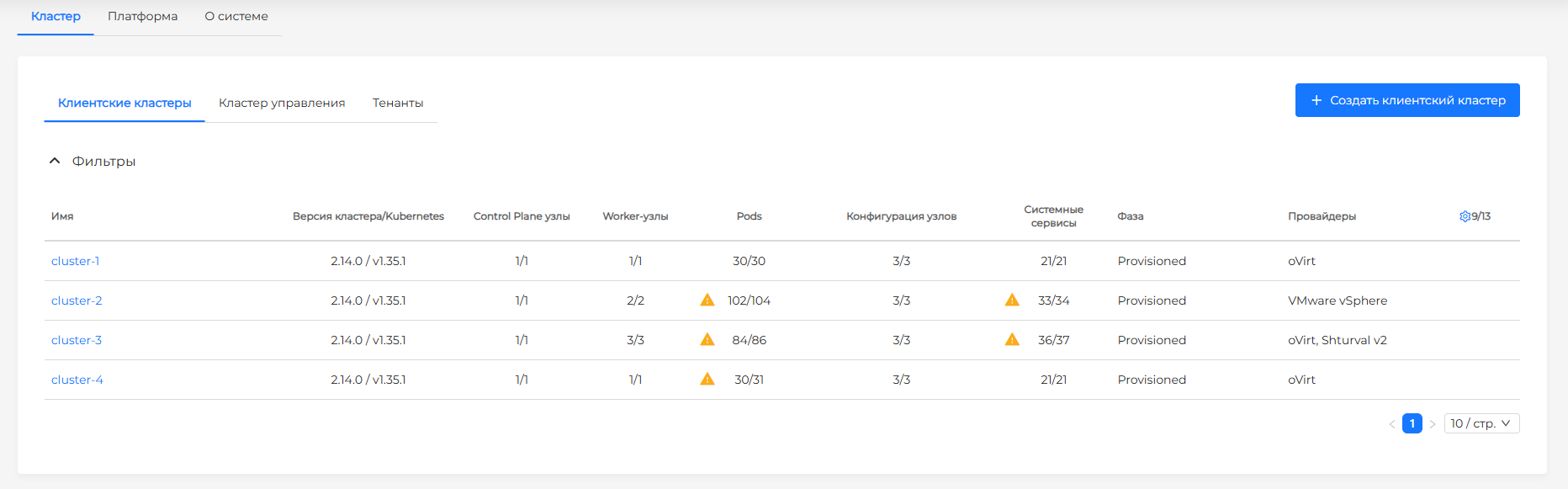
Illustration: Where to create a cluster in the platform
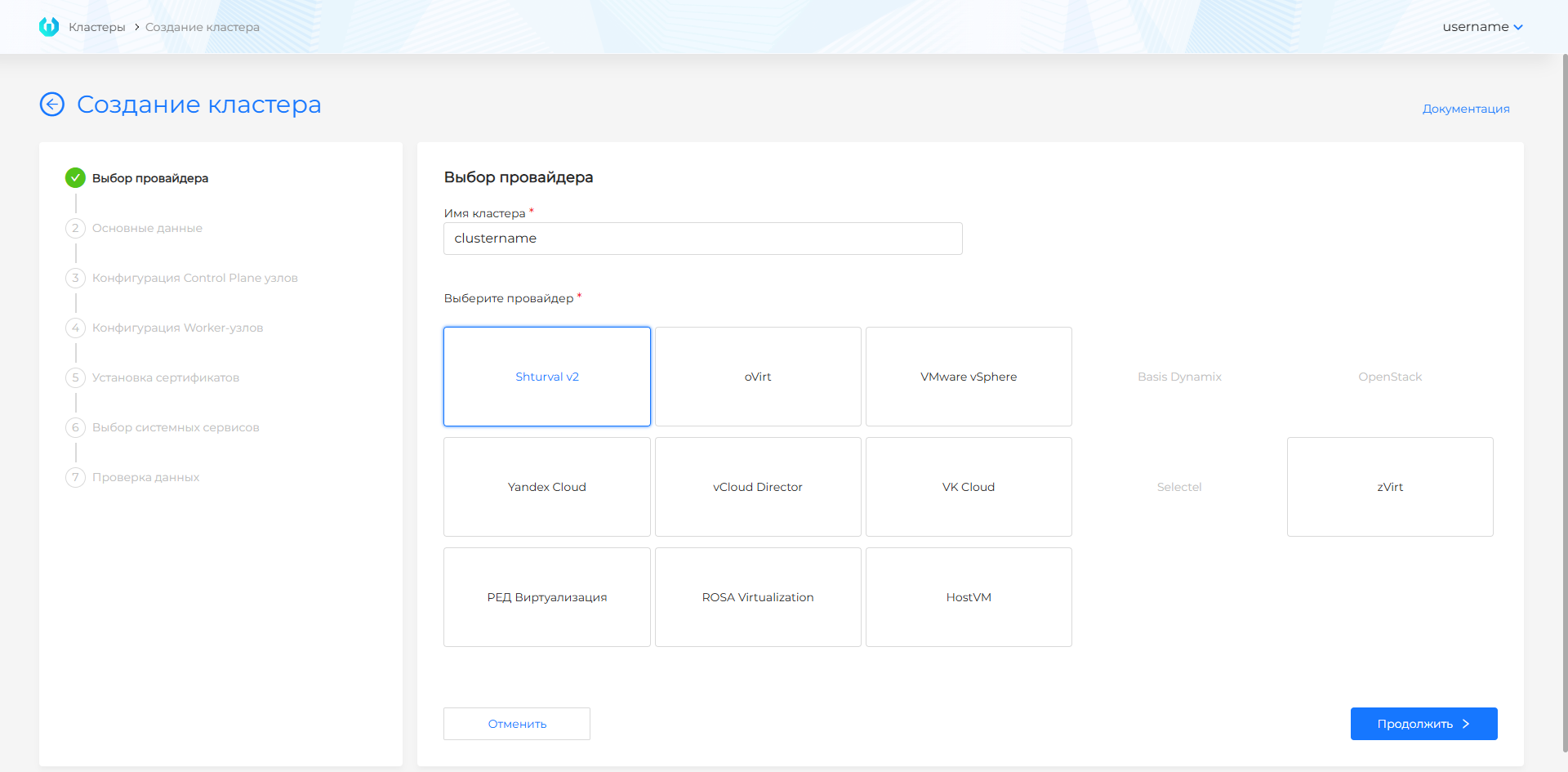
| Field | Purpose |
|---|---|
| Cluster name | Unique identifier. Limited to 37 characters: The cluster name is used when generating labels for related objects that are limited in length (63 characters) |
Detailed wizard fields and environment features are on the tabs in the “Deployment by Provider” section.
Deleting PVs when deleting a cluster
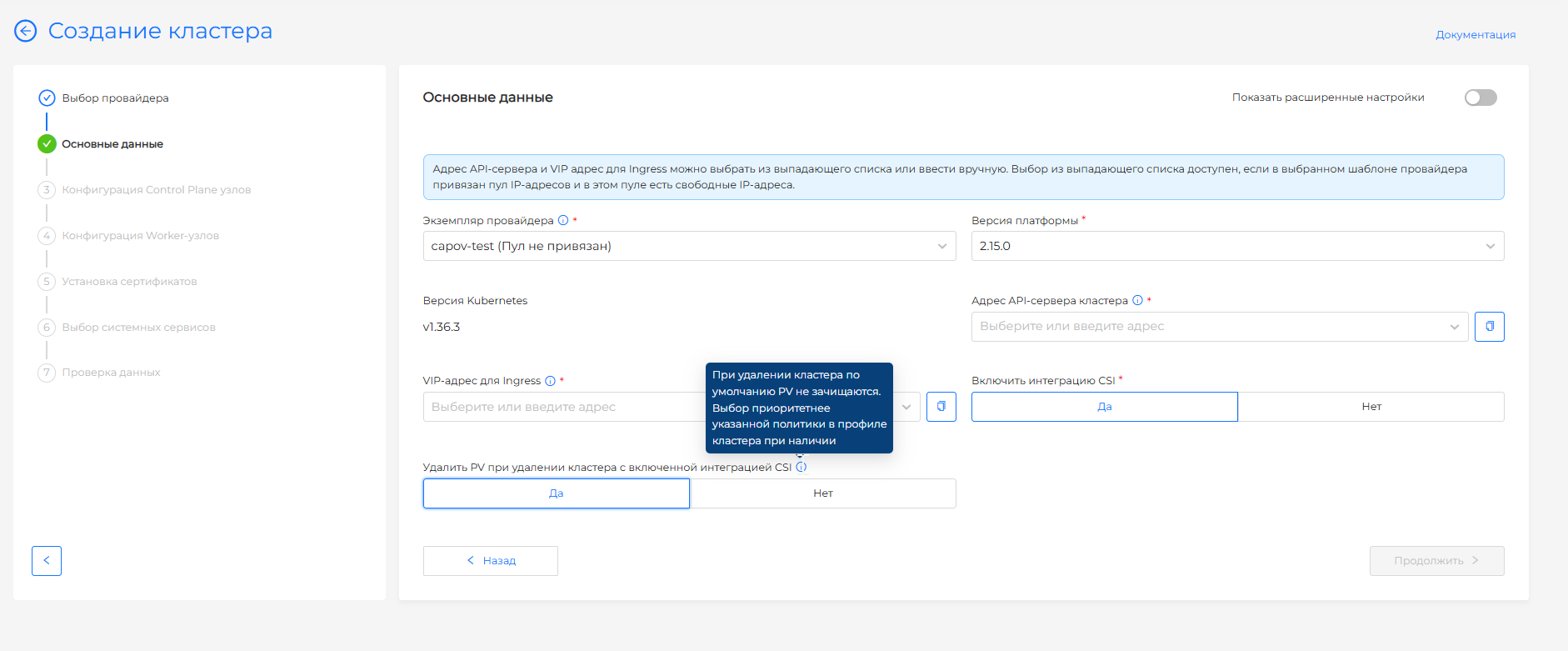
For oVirt (and compatible platforms), VMware vSphere, OpenStack / VK Cloud / Selectel, vCloud Director, and Yandex Cloud, the Basic data step offers Delete PVs when deleting a cluster with CSI integration enabled if CSI integration is allowed on the provider instance.
With CSI integration enabled, volumes live in the provider’s external storage, not on node disks. You can delete the cluster and the VMs — CSI disks still remain and keep occupying infrastructure. The choice controls whether those disks are cleaned up with the cluster.
Screenshot: PV deletion field on the Basic data step
| Value | What happens when the cluster is deleted |
|---|---|
| No (default) | PVs in the cluster are not cleaned up. Disks on the virtualization or cloud side remain. |
| Yes | Before the cluster is deleted, PVs in the cluster are deleted. |
The choice made when creating a cluster takes priority over the policy in the cluster profile. If the parameter is not passed in the GUI or shtil, the profile value is used. If it is set in neither the request nor the profile, PVs are not deleted.
The resulting cluster setting is in the ClusterConfig resource (API group cluster.shturval.tech) in the management cluster. The object name and namespace match the cluster name. The field is spec.deletePersistentVolumes: true — PVs are deleted before the cluster is deleted, false or the field is omitted — they are not. Resource description: Custom platform resources.
Where to look:
- in the GUI: management cluster → Administration → Custom Resources → API group cluster.shturval.tech → ClusterConfig → cluster name;
- in the CLI:
kubectl -n <cluster-name> get clusterconfig <cluster-name> -o yaml
Selecting a VM template
For all providers except Shturval v2, the Basic data step can show a VM template field after you select the platform version.
The field appears only if the selected instance has several VM templates with the same Kubernetes version for that platform version. If there is one template, the field is hidden and the platform selects it.
If the field is on the screen, it is required. The selected template is applied to all cluster nodes (Control Plane and Worker). The Data verification step shows the selected VM template name.
During a cluster upgrade, if the instance has several VM templates for the target Kubernetes version, the platform selects the first one in alphabetical order and applies it to all node groups. To make sure the intended template is used on upgrade, add one template of the next version. If there are several templates, the first one in alphabetical order is selected.
Deployment by provider
Below are the prerequisites, GUI flow, wizard fields (steps 1-4 or equivalent), environment specifics, and API call for each provider. General steps installing a certificate and selecting services are listed after the tabs.
After filling out the provider fields in the wizard, go to the sections “Installing a certificate” and “Selecting services”, then complete data verification and cluster creation.
Shturval v2
Prerequisites
- Configured provider instance Shturval v2 with added hosts;
- Pool of IP addresses with free addresses for KubeAPI and Ingress (optional, simplifies the selection of VIP addresses when using internal balancers for Kube-API/Ingress);
- Hosts with OS from supported list, SSH access.
Advantage: No VM template is needed - the platform deploys Kubernetes directly on selected hosts. For more information about the model without VM templates and Cluster API, see Creating nodes when deploying a client cluster.
Process in GUI
Going to the wizard and selecting a provider with an instance is described at the beginning of the page. Next in the wizard for Shturval v2:
- Fill in basic details (basic or advanced mode): instance, platform version, network entry points (see table), external balancers, subnets and cluster profile if necessary.
- Configure Control Plane and Worker groups: host selection, scaling, selectors in advanced mode.
- Go through certificate installation, select services, data verification and create a cluster.
Step 1: Basic data
At the “Basic data” step, the fields are available in basic mode and in advanced settings mode (the “Show advanced settings” toggle switch). When switching from advanced to basic mode, values in hidden fields are lost.
Basic mode - minimum set: VIP for management access to the cluster and VIP Ingress, if necessary, selecting addresses from the instance pool. Advanced information security parameters, external balancers and explicit CIDR of pods/services are not set in this mode (platform default values are used).
Screenshot: basic data in basic mode
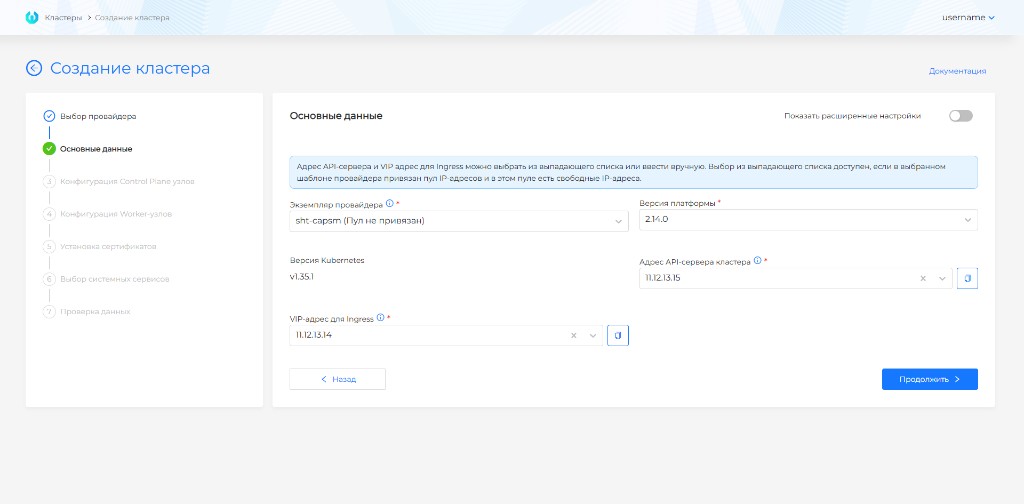
In the basic mode the following are specified:
| Field | Purpose |
|---|---|
| Instance | Instance Shturval v2; if there is one, it is selected automatically. |
| Platform Version | Version of the Shturval platform from which the cluster will be installed |
| Version Kubernetes | Version of Kubernetes in accordance with the selected platform version |
| cluster API server address | IP or FQDN for KubeAPI; you can enter it manually or select a free IP from the pool associated with the instance. Copying of value is available. |
| VIP address for Ingress | IPv4 in internal subnet and nodes or from a pool; will be configured on one of the Workers for the system Ingress. Copying available. |
If an instance has an IP pool defined, the drop-down lists only show free addresses in the pool. If one address is free, it can be specified either for the API or for Ingress; otherwise, set the addresses manually or expand the pool.
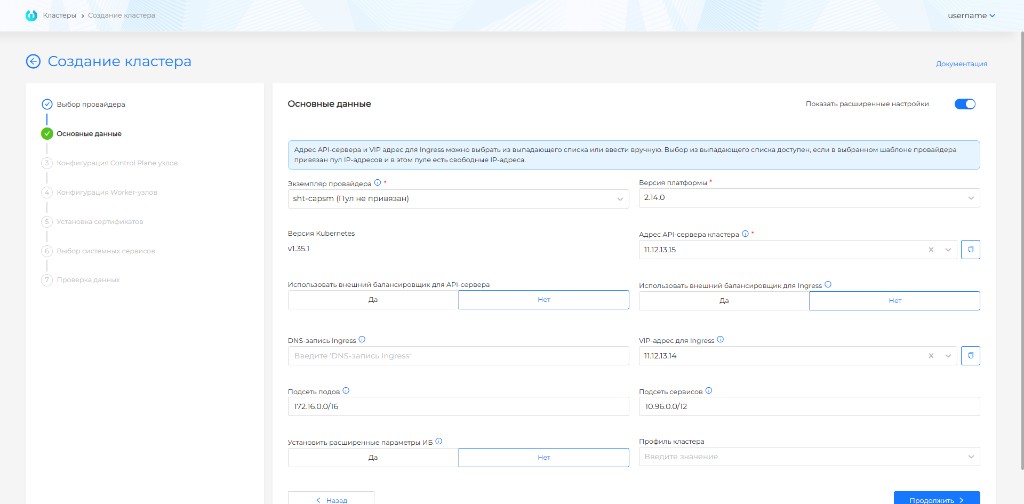
Advanced mode adds external balancing, subnets and profile fields.
Screenshot: extended master data
| Field | Purpose |
|---|---|
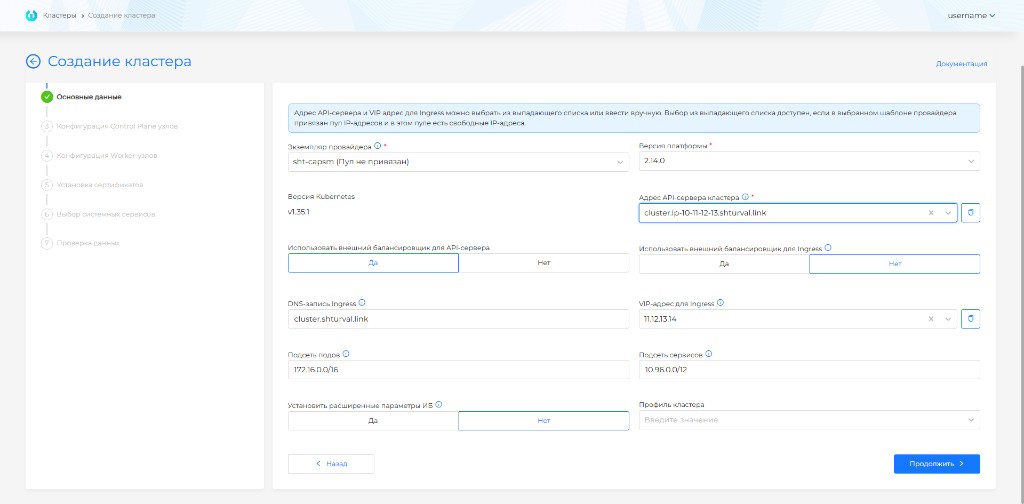
| API server address | Same as in basic mode; when using an external LB for the API, specify the FQDN to which the balancer is configured (see below). |
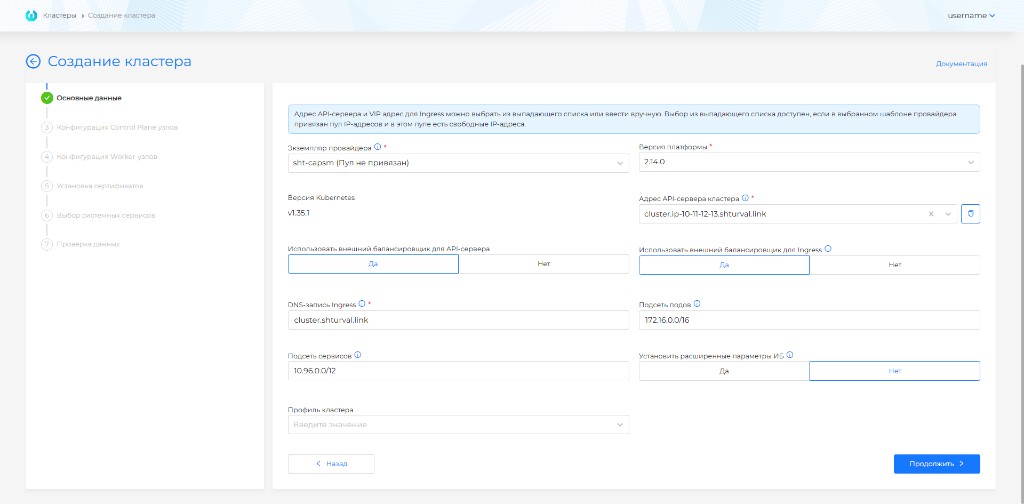
| VIP address for Ingress and DNS record for Ingress | IPv4 and/or Wildcard FQDN for Ingress. If you are using an internal balancer for Ingress, both fields are available. The Ingress DNS record is limited to 53 characters to ensure that the resulting commonName for cert-manager does not exceed the allowed length. |
| Use external balancer for Ingress | When enabled, haproxy is used; with an internal scheme, balancing on the API may not be applied; the traffic goes to the VIP. With an external LB, the Ingress DNS record (Wildcard FQDN) field remains for Ingress. |
| Use an external balancer for the API server | Disabled by default. If enabled, in the API server address field, specify the FQDN of the external balancer. The balancer must be configured before the start of cluster deployment. |
Screenshot: external balancer for API
Screenshot: external balancer for Ingress
| Field | Purpose |
|---|---|
| Set advanced information security settings | Secret Encryption for etcd, TLS connection to Kubelet and pre-configured audit policy. |
| PodSubnet | CIDR for Pod; should not intersect with the network of nodes and services. Typical range: 172.16.0.0/16. |
| Service Subnet | CIDR for ClusterIP; does not intersect with nodes and Pods. 10.96.0.0/12 is recommended. |
| Cluster Profile | See Cluster Profiles; by default - default profile. |
Before saving, check the ranges for intersections; see FQDN and VIP and checking the intersection of subnets when creating a cluster.
Note: There is no reservation IP mechanism: the address could be free when filling out the form and occupied by the time of deployment - a cluster will not be created. Allocate non-overlapping subnets and pools for different clusters.
FQDN in the cluster depend on Ingress:
- for DNS record Ingress:
*.<ingress-dns-record>; - for VIP Ingress:
*.<CLUSTER_NAME>.ip-<VIP-Ingress>.shturval.link.
Step 2–3: Node Configuration
Unlike providers with VM templates, nodes are instance hosts (roles and labels are set when adding hosts or in the provider).
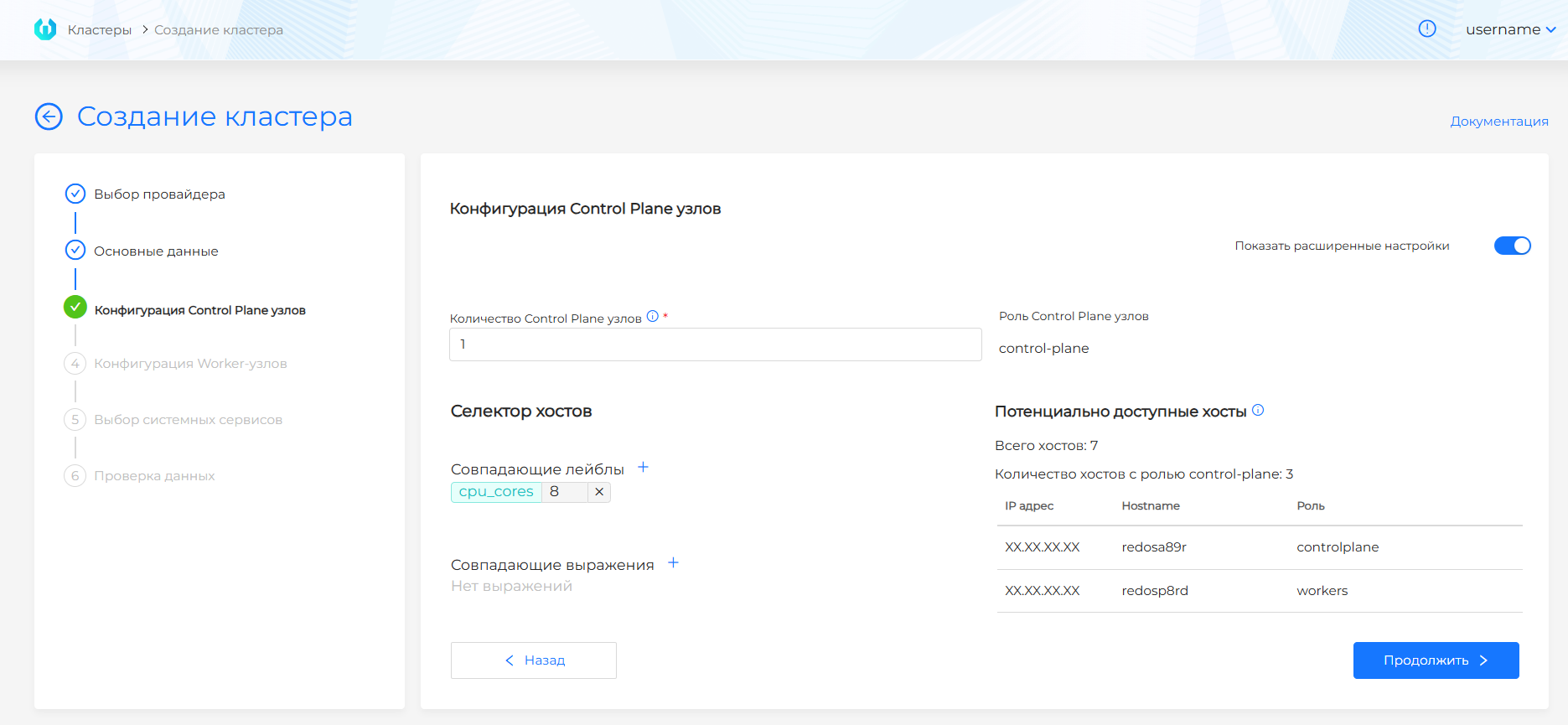
Control Plane — an odd number of nodes, no more than 5. The Potentially available hosts block shows hosts with the role controlplane (or according to the selector). If there are no hosts, add them to the provider instance.
Screenshot: Control Plane, basic mode
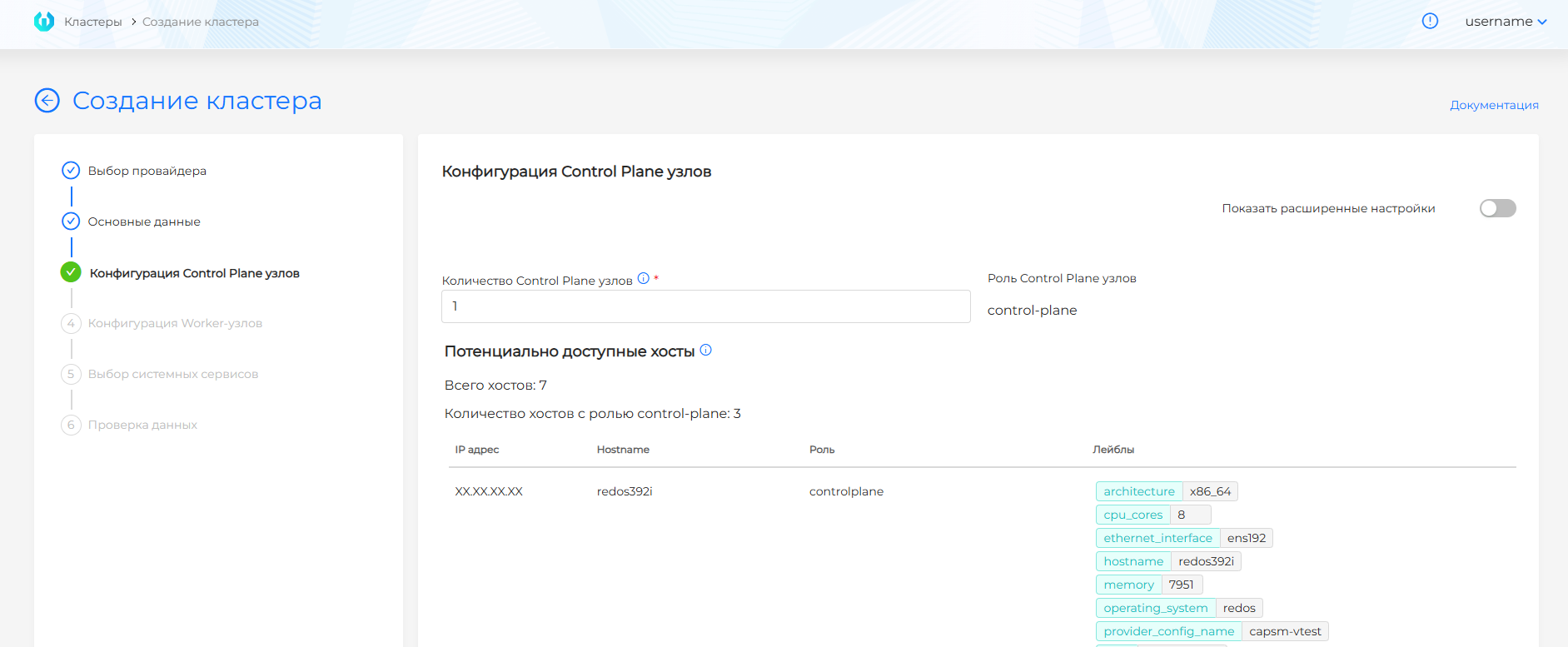
In advanced settings a host selector (labels, expressions) is available; by default the role label controlplane is added.
Screenshot: Control Plane, selector
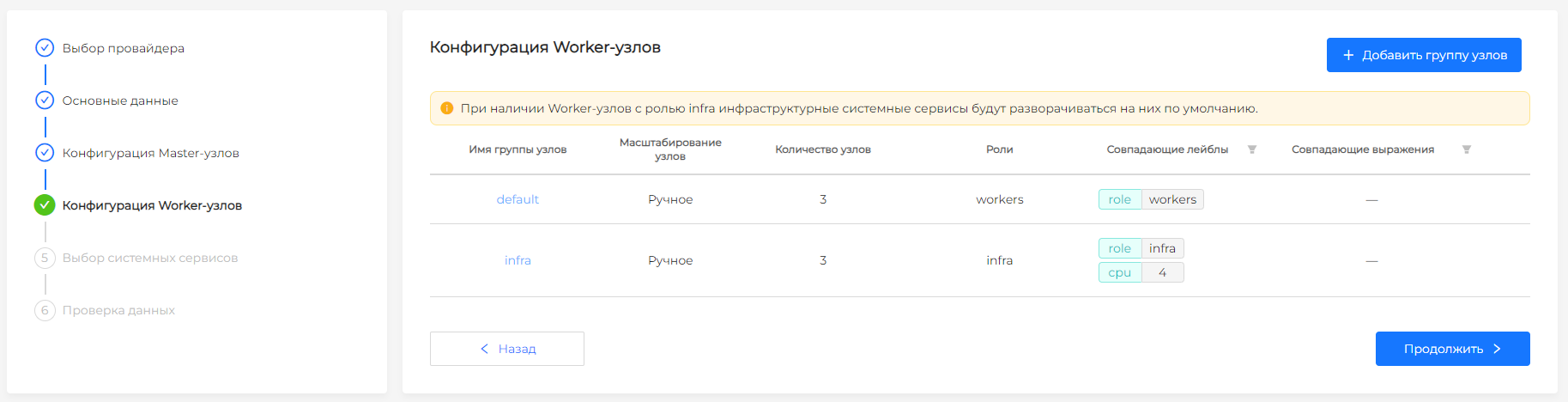
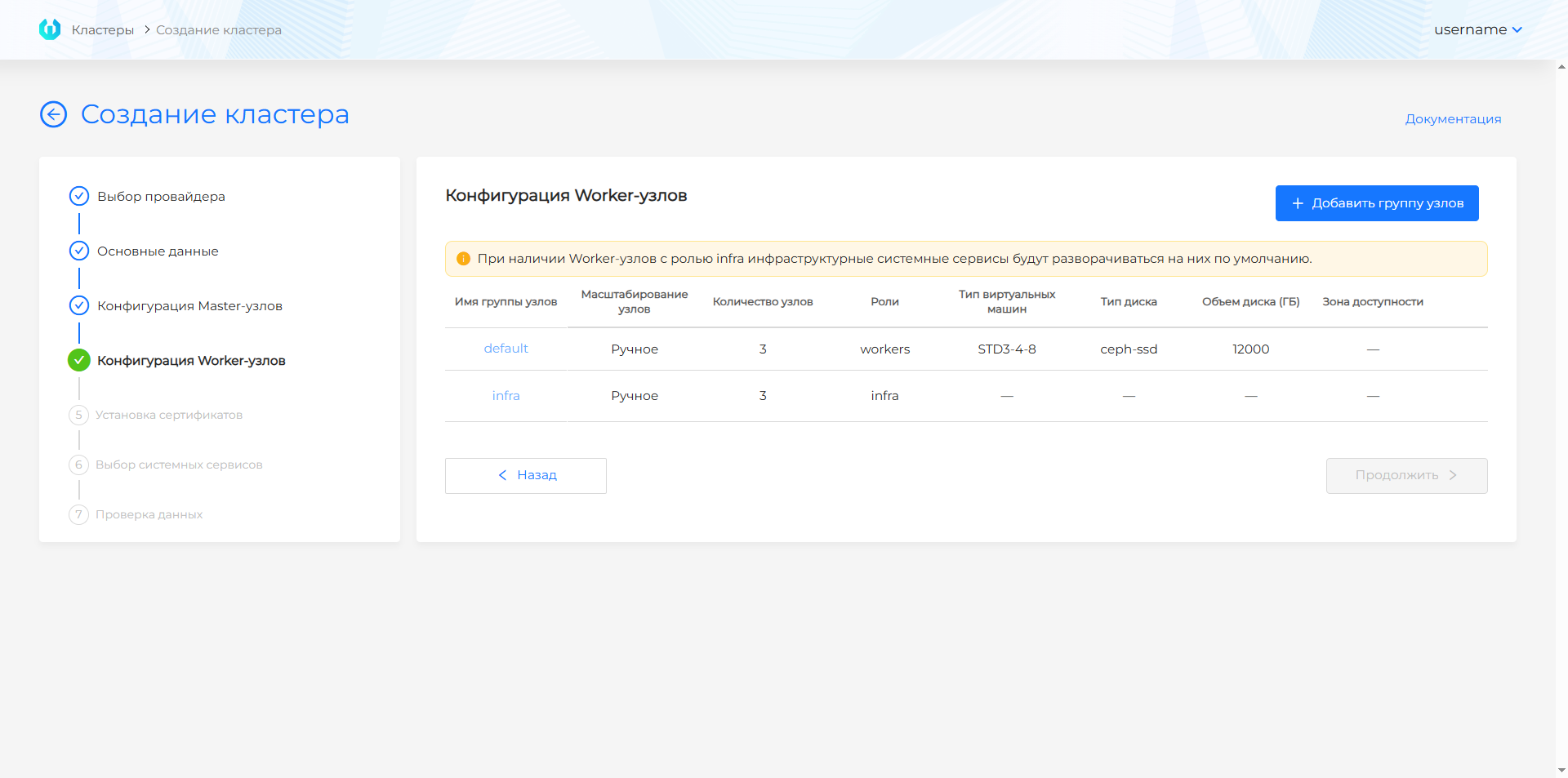
Worker groups - by default, two protected groups of three nodes: default and infra. They can be created without adding hosts (number 0), then MachineDeployments will remain for subsequent scaling. You can add custom groups, copy settings between groups, and duplicate configuration.
Screenshot: Worker groups
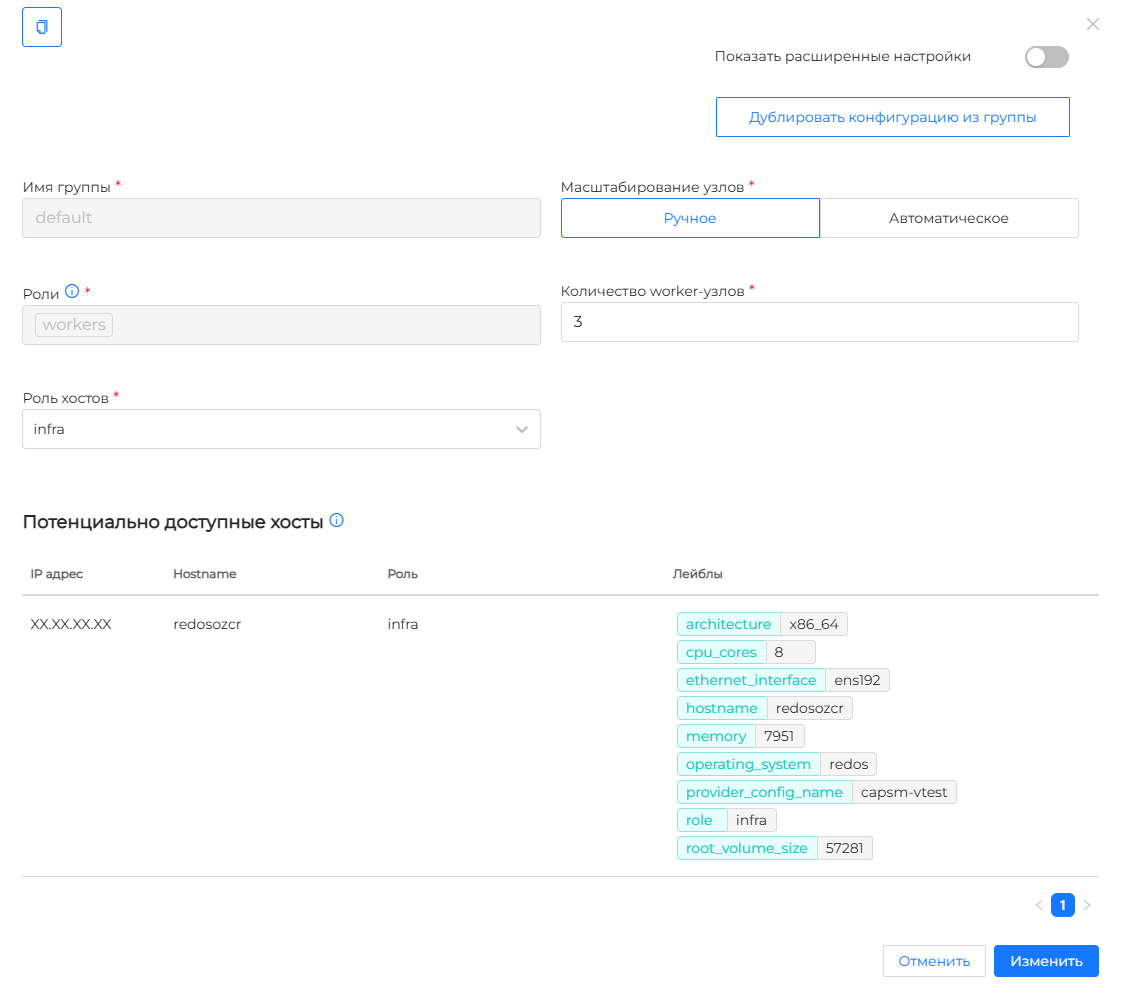
For each group: manual or automatic scaling (the minimum number of nodes in the GUI is usually not lower than 2), in the basic mode - host role (workers, infra, etc.; the controlplane role is not available for Worker). In advanced mode - host selector with default labels for the group.
Screenshot: Worker group parameters, basic mode
Screenshot: Worker selector
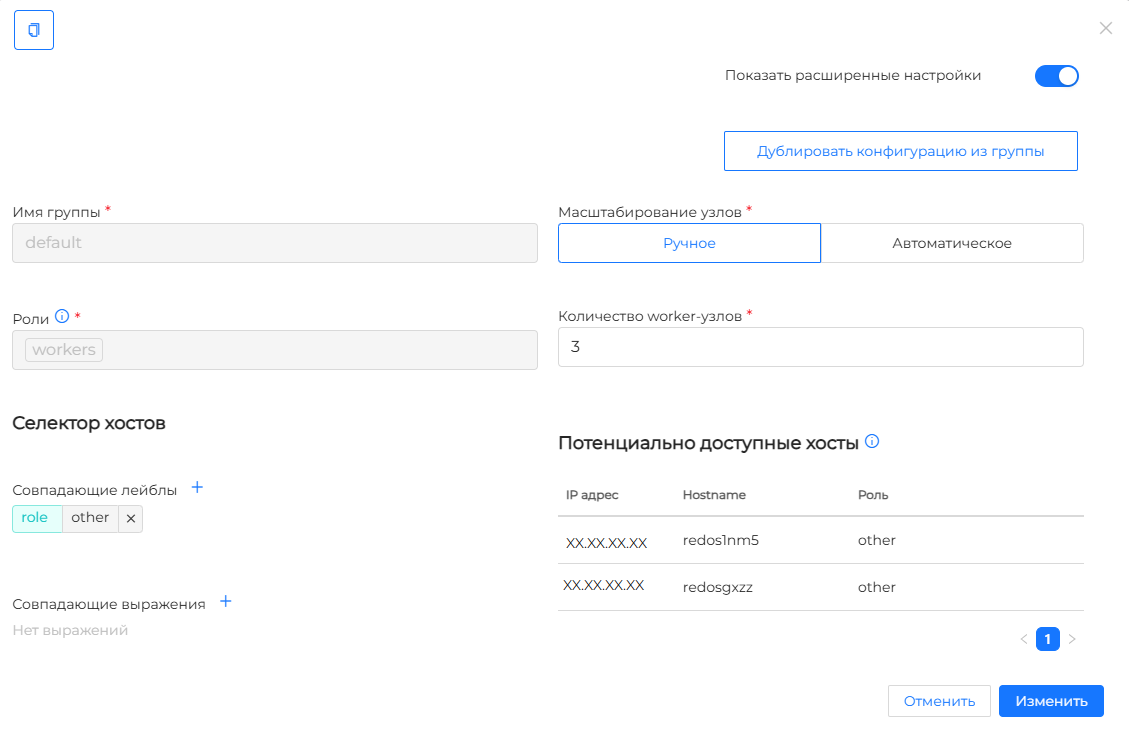
Note: Selector rule: labels specified as a match in one group should be excluded in other groups using NotIn (samekey and value) to prevent the host from being in two groups at the same time.
If at the start of creation there are not enough hosts with the required roles/labels, some nodes may not join: add hosts in the provider and check the labels on the node page (Labels and annotations / Cluster API).
Recommended host resources: client cluster requirements.
Next is the general step “Installing a certificate” and “Selecting services”.
Features Shturval v2
- No template: The platform installs Kubernetes on bare metal hosts with a pre-installed OS.
- Hosts: Added to the provider instance. SSH access by key is required. A
sudopassword, if needed, is set in the host credentials — see How to add a password for sudo commands. When creating the management cluster, set the same password in the installation wizard or from the console — see SSH user password for sudo. The hosts must be on the same subnet. - Resources: CPU, RAM, disk are set on the hosts. The platform does not create VMs - it uses existing ones.
- Recommended for: First cluster, test benches, bare metal.
VMware vSphere
Prerequisites
- Configured provider instance VMware vSphere;
- VM templates for the required versions of Kubernetes: you can add multiple templates, including ones with the same Kubernetes version; prepare using template instructions (stc utility), then upload to vSphere;
- Pool of IP addresses with at least 2 free addresses (KubeAPI and Ingress).
Process in GUI
Going to the wizard and selecting a provider with an instance is described at the beginning of the page. Next in the wizard for VMware vSphere:
- Fill in basic details (basic or advanced mode): instance, provider template, network entry points (see table), platform version, CSI if necessary, external balancer, subnets and cluster profile.
- Configure Control Plane and Worker groups: number of nodes, default or override resources, scaling.
- Go through certificate installation, select services, data verification and create a cluster.
Step 1: Basic data
Filling is available in basic mode and in advanced settings mode. When switching from advanced to basic mode, values in hidden fields are lost.
Screenshot: basic data in basic mode
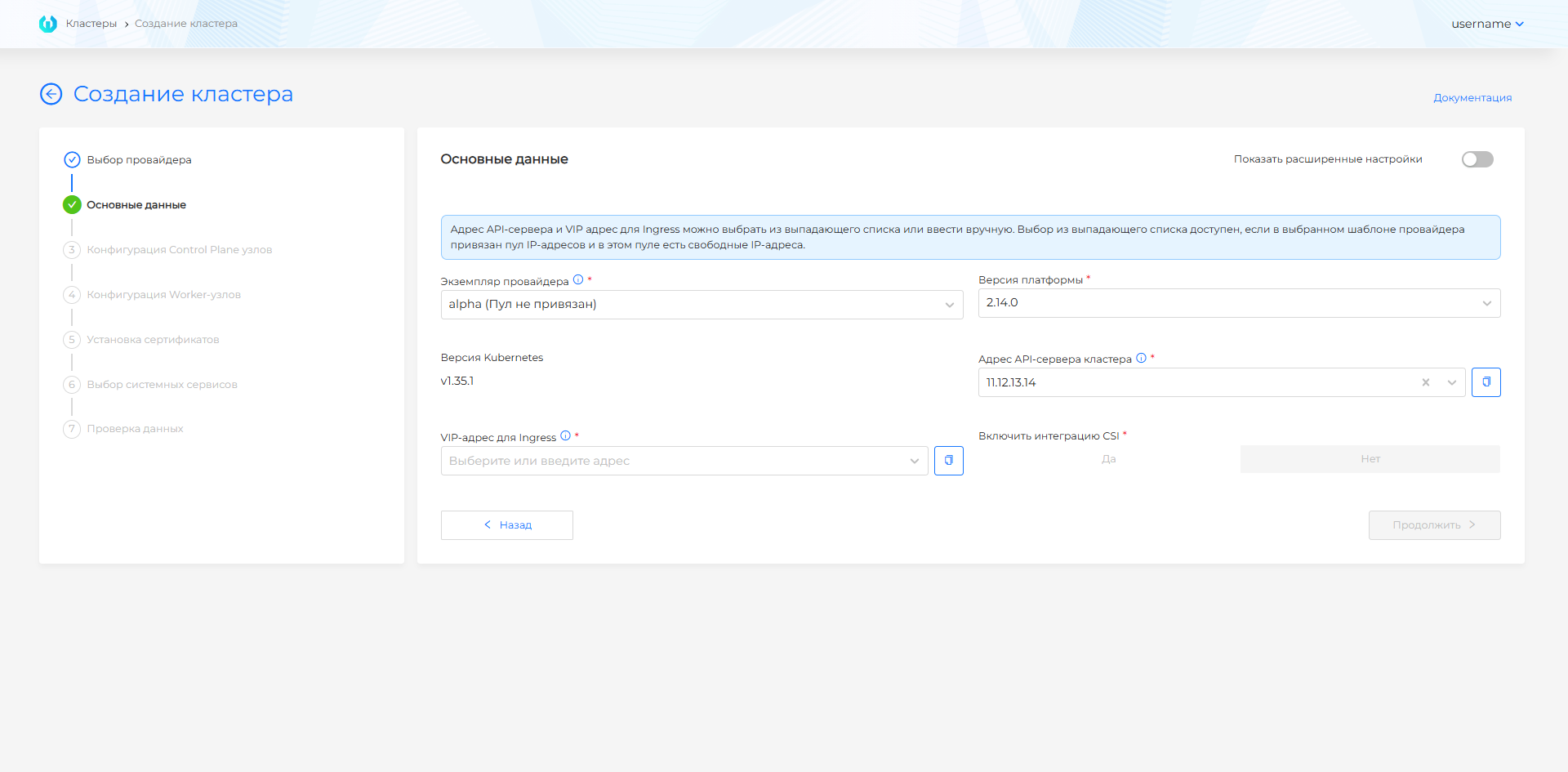
Screenshot: raceextended master data
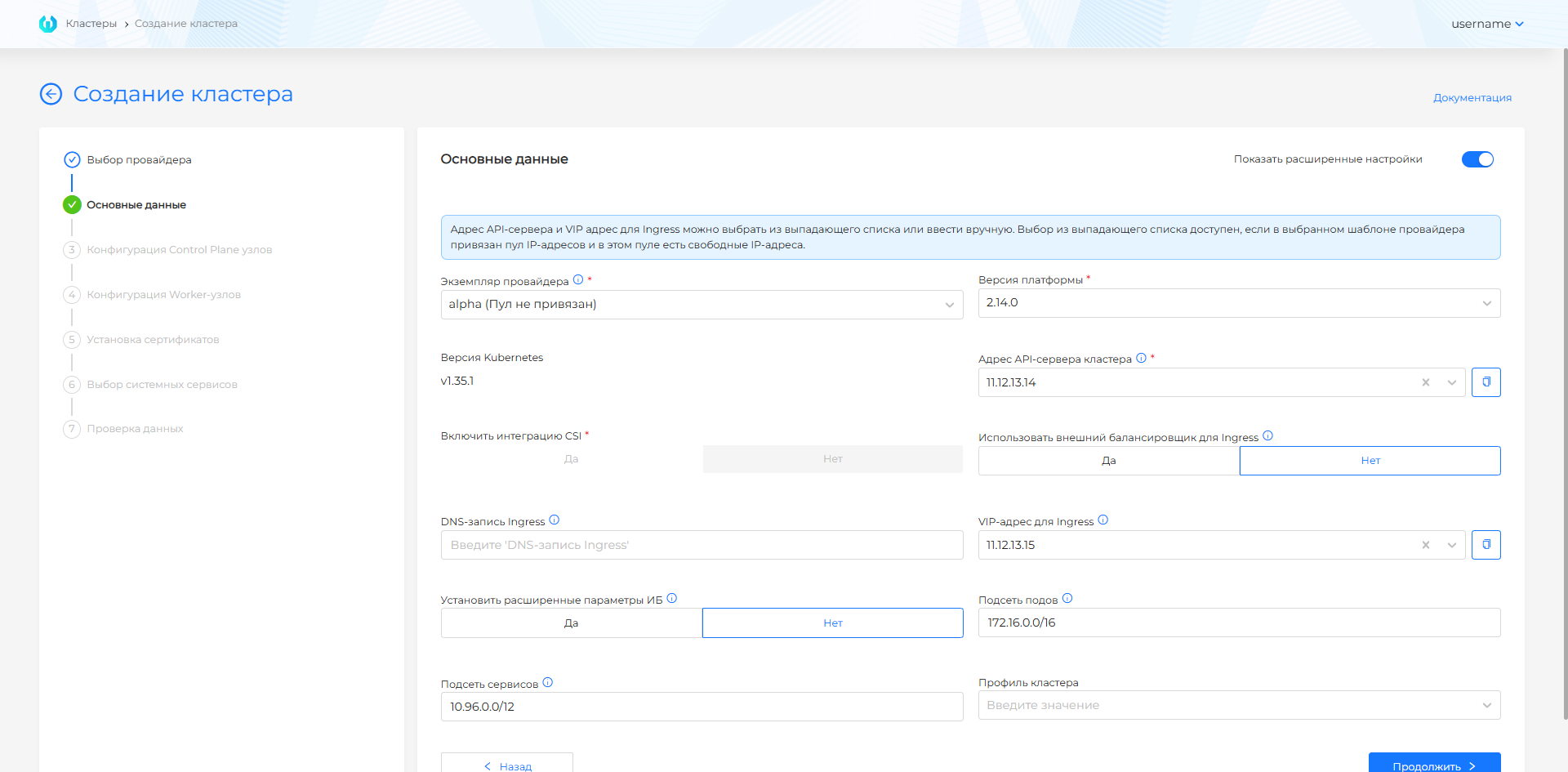
| Field | Why is it necessary | Features |
|---|---|---|
| Instance | vSphere instance; if there is one, it is selected automatically. | — |
| Provider Template | Defines the Kubernetes version and IP pool. The template must be added to the provider instance. | If there is only one template, it is selected automatically. When the pool is linked, the number of free IPs is shown. |
| VM template | Which VM image to use for all nodes. | Appears after you select the platform version, only if the instance has several templates for one Kubernetes version. Required if shown. Details: Selecting a VM template. |
| Platform Version | Version of the Shturval platform from which the cluster will be installed. | Depends on the version of Kubernetes in the template. |
| Version Kubernetes | Version of Kubernetes in accordance with the selected platform version. | |
| cluster API server address | VIP for KubeAPI. It connects kubectl, dashboards, CI/CD. | Select from the pool or enter manually. Must be on the Control Plane nodes subnet. |
| Ingress VIP (Basic), Ingress VIP and/or Ingress DNS (Advanced) | Entry point for HTTP/HTTPS. | In advanced mode, when using an internal balancer, you can fill in both the VIP and DNS records. With an external balancer, the DNS record Ingress field remains for Ingress. The Ingress DNS record is limited to 53 characters to ensure that the resulting commonName for cert-manager does not exceed the allowed length. |
| Enable CSI Integration | vSphere CSI for PersistentVolume. | Requires service role #2 in vCenter. The default is no. |
| Delete PVs when deleting a cluster with CSI integration enabled | Whether to delete PVs in a cluster with CSI enabled. | Yes / No. Default No. Details: Deleting PVs when deleting a cluster. |
| Use external balancer | Use haproxy. | In advanced settings. Otherwise, all control traffic goes to VIP. |
| Set advanced information security settings | Secret Encryption for etcd, TLS connection to Kubelet and audit policy. | Only in advanced settings. |
| PodSubnet | CIDR for Pod network. | 172.16.0.0/16 - typical. Should not intersect with the network of nodes and services. |
| Service Subnet | CIDR for Service (ClusterIP). | 10.96.0.0/12 - default. |
| Cluster Profile | A set of cluster policies and parameters. | See Cluster Profiles; by default - default. |
Before setting subnets, check the ranges for intersection: FQDN and VIP, checking the intersection of subnets when creating a cluster.
Note: If there is no IP pool associated with the template/provider, addresses are entered manually. Requirements: VIP for KubeAPI— in the Control Plane nodes subnet; VIP for Ingress - in a subnet accessible to the balancer; the addresses must not match the IP of the cluster nodes.
Note: There is no IP reservation mechanism. The address is free at the time of configuration, but by the time of startup it may be busy - the cluster will not deploy. It is recommended to allocate non-overlapping subnets for different clusters.
FQDN: for Ingress DNS record - *.<ingress-dns-record>; for VIP Ingress - *.<cluster-name>.ip-<VIP-Ingress>.shturval.link.
Step 2–3: Node Configuration
The provider template is selected at the “Basic data” step. At this step, the number of nodes is set and, if necessary, the resources are redefined.
Screenshot: Control Plane
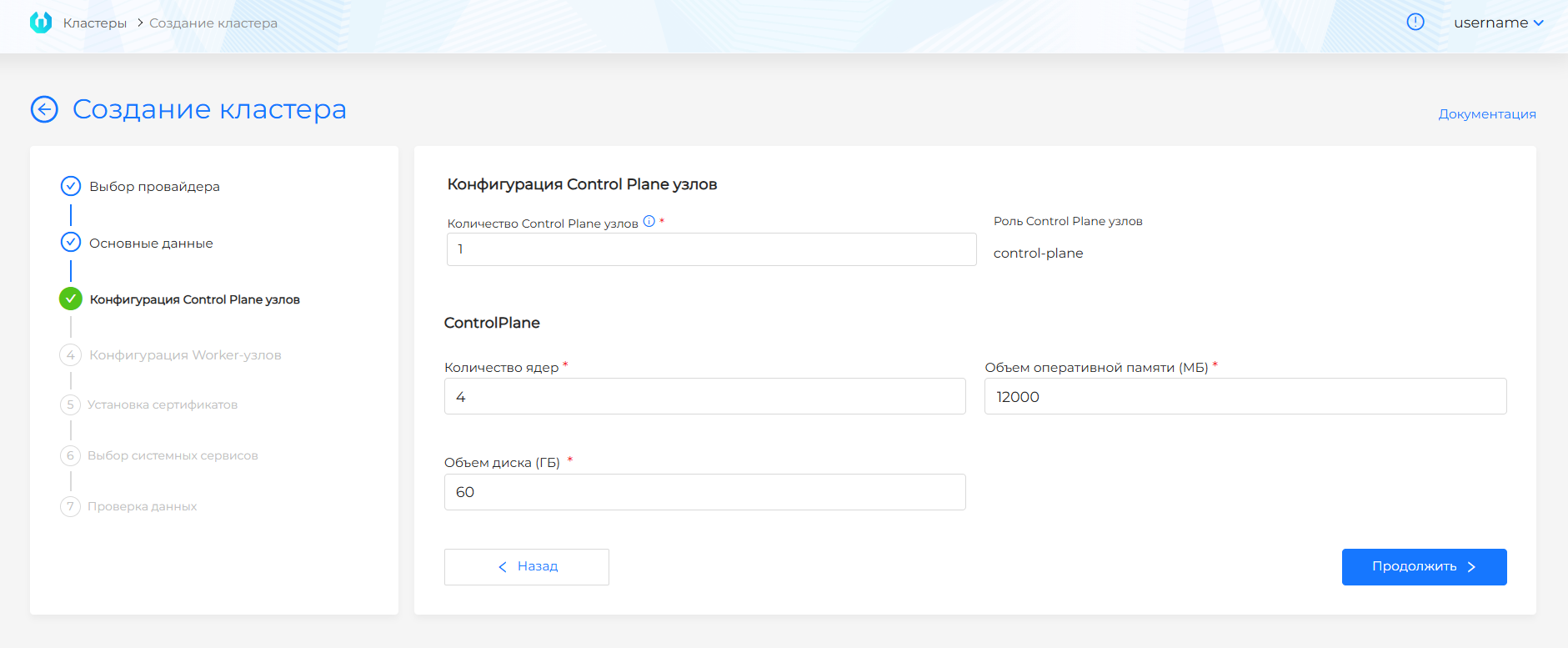
| Parameter | Why is it necessary | Recommendations |
|---|---|---|
| Control Plane: quantity | 1 - test; 3 — production (fault tolerance). | For production - 3 nodes. |
| Worker: group default | Nodes for user applications. | Minimum 2. |
| Worker: group infra | Nodes for system services. Partitioning reduces resource competition with applications. | 0 or 3 for production. |
| Resources (CPU, RAM, disk) | Overriding template parameters for nodes. | See client cluster resource requirements. |
By default, two Worker groups (default and infra) of three nodes are created; the number of nodes can be reset to zero - MachineDeployments will remain for subsequent scaling. Manual and automatic scaling, copying settings between groups, and duplicating group configurations are available.
Screenshot: Worker groups
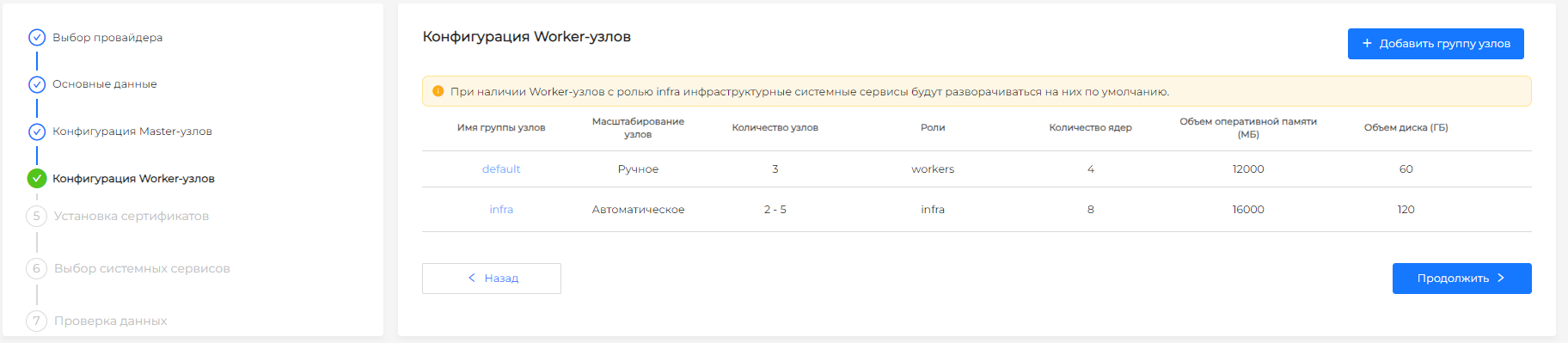
Screenshot: Worker group parameters
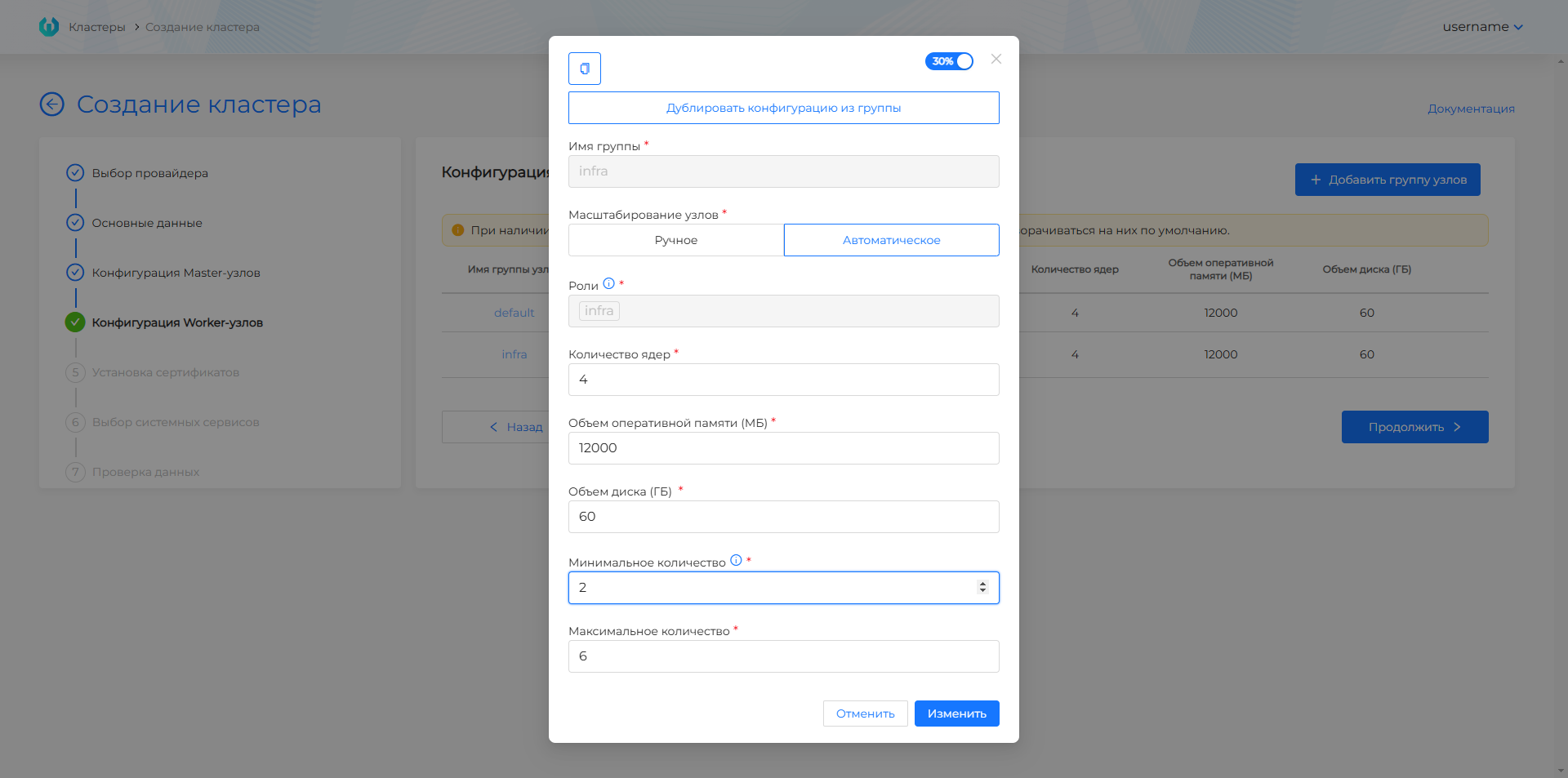
VMware vSphere Features
- Network: DHCP must work in the selected Network (Distributed Port Group) - the platform receives IP for created VMs automatically.
- Template: Must be prepared by the stc utility and loaded into vSphere. For the source VM in vSphere, before preparing the template: parameter
disk.EnableUUID = True, VM hardware version (compatibility) 15 or higher, SCSI controller - VMware Paravirtual. Without a valid template, creation will fail. - CSI: For PersistentVolume, enable “Enable CSI Integration” and configure permissions using the serviceth role No. 2 in vCenter (see vSphere provider).
- FQDN: For VIP Ingress -
*.clustername.ip-X-X-X-X.shturval.link. For DNS records -*.<ingress-dns-record>.
oVirt and similar
Prerequisites
- Configured provider instance oVirt (zVirt, HostVM, ED Virtualization, ROSA);
- VM templates for the required versions of Kubernetes;
- Pool of IP addresses with at least 2 free addresses.
Process in GUI
Going to the wizard and selecting a provider with an instance is described at the beginning of the page. Next in the wizard for oVirt (or equivalent):
- Fill in basic details (basic or advanced mode): instance, provider template, network entry points (see table), platform version, if necessary CSI, external LB, subnets and cluster profile.
- Configure Control Plane and Worker groups: number of nodes, resources (cores/sockets/threads, memory, disk for oVirt), scaling.
- Go through certificate installation, select services, data verification and create a cluster.
Step 1: Basic data
Filling is available in basic and advanced modes (the “Show advanced settings” toggle switch). When you switch to Basic mode, data from hidden fields is lost.
Basic mode: instance, provider template, platform version, VIP/FQDN for cluster management access and for Ingress, CSI. Advanced information security parameters and explicit CIDR of pods/services are not specified; no external balancer is used.
Advanced mode additionally: VIP address for Ingress and DNS record of Ingress (both values can be filled in when the external balancer is disabled for Ingress), external balancer (haproxy; when enabled, the DNS field remains for Ingress), advanced information security parameters, pod subnet, service subnet, cluster profile (help).
| Field | Why is it necessary | Features |
|---|---|---|
| Instance | An instance of oVirt (or equivalent); if there is one, it is selected automatically. | — |
| Provider Template | Kubernetes version, VM image, IP pool. | One template is selected automatically. When pooling, the number of free IPs is shown. |
| VM template | Which VM image to use for all nodes. | Appears after you select the platform version, only if the instance has several templates for one Kubernetes version. Required if shown. Details: Selecting a VM template. |
| API server address | VIP/FQDN KubeAPI. | From a template pool or manually. |
| Platform Version | Version of the Shturval platform from which the cluster will be installed | Depends on the version of Kubernetes in the template. |
| Version Kubernetes | Version of Kubernetes in accordance with the selected platform version | |
| VIP address for Ingress and DNS record for Ingress | HTTP/HTTPS Ingress. | From a pool or manually; in advanced mode, you can also specify a Wildcard FQDN. When the use of an external balancer for Ingress is disabled, it is possible to fill both the VIP and DNS records. |
| Enable CSI Integration | oVirt CSI. | May be prohibited in the template. |
| Delete PVs when deleting a cluster with CSI integration enabled | Whether to delete PVs in the cluster before deleting a cluster with CSI enabled. | Yes / No. Default No. Details: Deleting PVs when deleting a cluster. |
Note: List of IPs in the drop-down fields - free pool addresses of the selected template. One free IP cannot be assigned to both API and Ingress at the same time.
For oVirt and similar providers (zVirt, HostVM, RED Virtualization, ROSA Virtualization) in the GUIs for creating a client cluster and a management cluster, additional checks for the simultaneous filling of the DNS record Ingress and VIP addresses for Ingress are not performed. The correctness of the values can be checked at the configuration check step in dry_run mode.
Note: there is no IP reservation; Plan for disjoint subnets and pools. FQDN: for Ingress DNS record - *.<DNS>; for VIP - *.<cluster-name>.ip-<VIP>.shturval.link.
See FQDN and VIP, checking the intersection of subnets when creating a cluster.
Step 2–3: Node Configuration
The template is selected at the “Basic data” step.
Screenshot: Control Plane
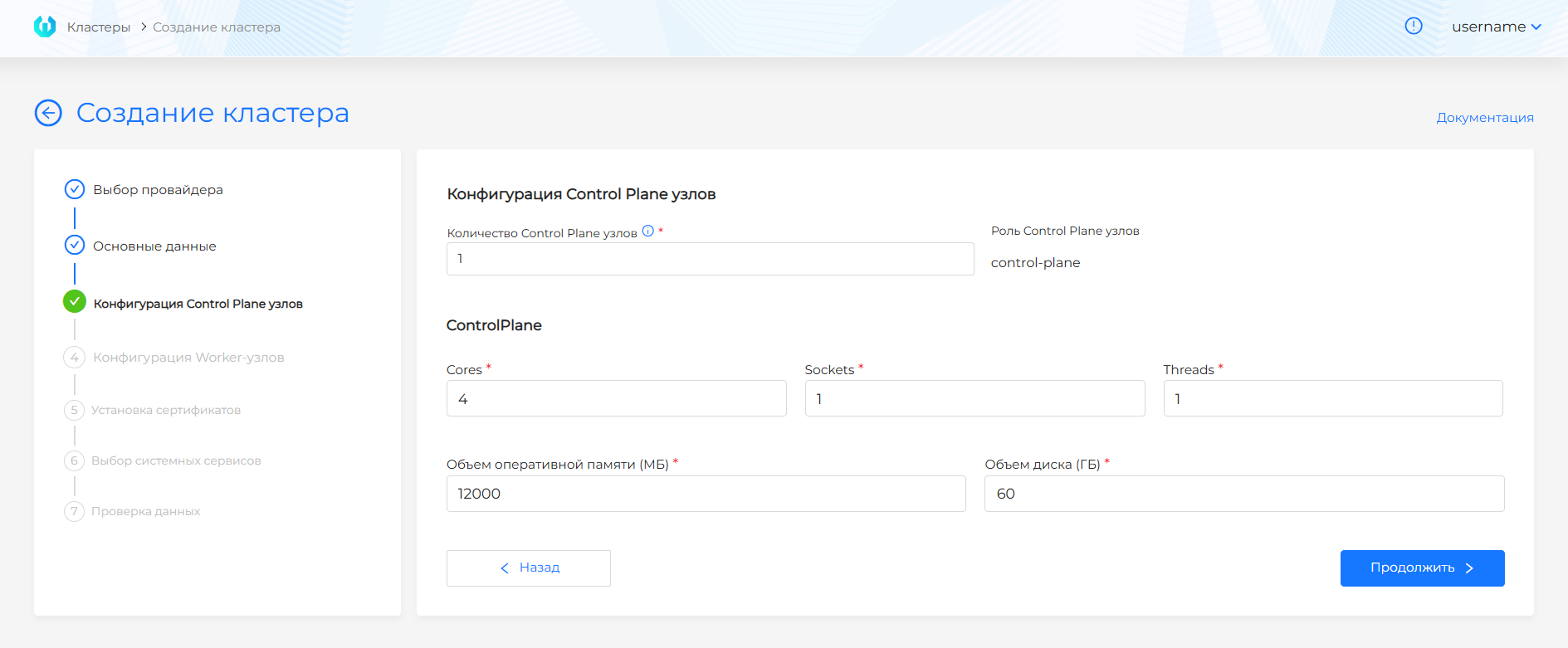
| Control Plane parameter | Description |
|---|---|
| Number of nodes | Odd number, not more than 5. |
| Cores/Sockets/Threads | VM computing resources (default values in the UI). |
| Memory (MiB) | Default is 8192. |
| Disk (GiB) | Default 60; local storage - at least 60 GiB. |
| Clone disk when creating a VM | Yes clones disks of nodes in this group, No creates them without cloning. Default uses the provider instance value, or the disk-clone feature gate if the instance is also Default. Set the same field on Worker groups. Details: disk cloning. |
For Worker, the default is two groups of three nodes (default, infra); you can reset the quantity, add groups, configure manual/automatic scaling and copy settings (as in the vSphere documentation).
| Parameter | Why is it necessary | Recommendations |
|---|---|---|
| Control Plane | 1 or 3 knots. | For production - 3. |
| Worker: default | User loads. | Minimum 2. |
| Worker: infra | Monitoring, logs, Ingress. | 0 or 3 for production. |
Recommended node resources: client cluster requirements.
Features of oVirt
- VNIC profile: The network profile (for example,
ovirtmgmt/ovirtmgmt) is set in the provider. DHCP must be enabled on the network. - Template: Prepared according to single instructions.
- CSI: “Allow CSI” is configured on the provider instance. When enabled - oVirt CSI for PersistentVolume.
- Supported platforms: oVirt, zVirt, HostVM, ED Virtualization, ROSA Virtualization - the settings are identical.
API
Method: POST $BACKENDPOINT/api/v1/platform/providers/clusters/capov
Authorization: header Authorization: Bearer $token. Get token.
Request body: JSON with sections cluster and provider. provider uses capovNodeConfig and identityName is the name of the provider template.
More details: API for cluster management.
OpenStack and similar
Prerequisites
- Configured provider instance OpenStack;
- Images for the required versions of Kubernetes;
- VPC, subnets, security groups;
- Ability to configure an external balancer for KubeAPI/Ingress in the cloud (Octavia / Neutron LBaaS and analogues for VK Cloud, Selectel).
Note: In a typical scenario, the IP pool of the cluster creation wizard is not used - public addresses and Ingress are transferred to external cloud balancers.
Process in GUI
Going to the wizard and selecting a provider with an instance is described at the beginning of the page. Next in the wizard for OpenStack / VK Cloud / Selectel:
- Fill in basic data (basic or advanced mode): instance, platform version, CSI, with advanced settings - external LB, DNS Ingress, node/pod/service subnets, cluster profile.
- Configure Control Plane and Worker (VM type, disk type, availability zone, group scaling) (see the screenshot below).
- Go through certificate installation, select services, data verification and create a cluster. If using an external balancer, then complete the LB configuration in the Virtualization panel (Virtual Networks/Balancers) (see the screenshot below).
For how nodes are created from images, see Creating nodes when deploying a client cluster.
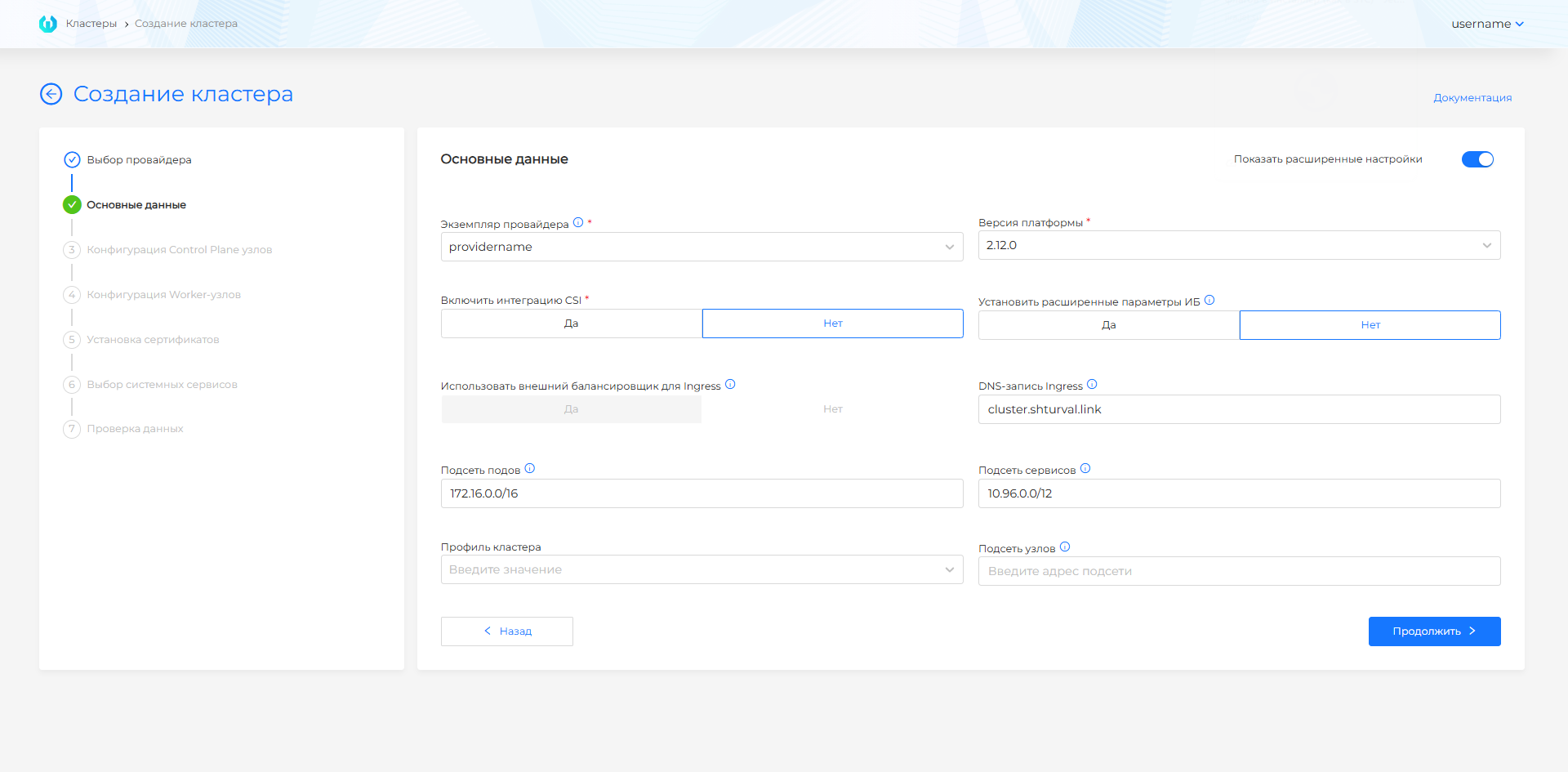
New Cluster Wizard Fields
Step 1: Basic data
Filling in basic and advanced modes; atWhen switching to basic, the extended fields are reset.
Basic Mode
| Field | Description |
|---|---|
| Instance | OpenStack instance (project, network, images, etc.); if there is one, it is selected automatically. |
| Platform Version | Version of the Shturval platform from which the cluster will be installed |
| Version Kubernetes | Version of Kubernetes in accordance with the selected platform version |
| VM template | Which VM image to use for all nodes. Appears after you select the platform version, only if the instance has several templates for one Kubernetes version. Required if shown. Details: Selecting a VM template. |
| Enable CSI Integration | Defaults to “no” if there is no prohibition in the instance. |
| Delete PVs when deleting a cluster with CSI integration enabled | Yes / No. Default No. Details: Deleting PVs when deleting a cluster. |
In the basic mode extended information security is not enabled; FQDN Ingress is generated automatically:
*.<cluster-name>.ip-<IP_EXTERNAL_LB>.shturval.link,
where IP_EXTERNAL_LB is the VIP of the external Ingress balancer in the cloud. Subnets of pods and services - default. After creating the cluster, configure an external balancer in the cloud.
Advanced mode - additionally:
| Field | Description |
|---|---|
| Use external balancer for Ingress | Default is “yes” for this scenario. |
| DNS record Ingress | Wildcard FQDN; the resulting names are *.<ingress-dns-record>. If the field is empty, the automatic scheme with IP_EXTERNAL_LB applies, as above. The Ingress DNS record is limited to 53 characters to ensure that the resulting commonName for cert-manager does not exceed the allowed length. |
| Set advanced information security settings | Secret Encryption for etcd, TLS connection to Kubelet and audit policy. |
| Pod subnet / service subnet | CIDR; typically 172.16.0.0/16 and 10.96.0.0/12. |
| Host Subnet | Should not overlap with subnets of pods and services; if not specified, it is taken from OpenStack provider configuration. |
| Cluster Profile | See Cluster Profiles. |
Checking intersections: checking the intersection of subnets when creating a cluster.
Step 2–3: Node Configuration
VM images and standard parameters are specified in the provider instance/templates; at this step - the number of nodes, VM type, disk type, disk size, availability zone (Control Plane), scaling and resources of Worker groups.
Screenshot: Control Plane
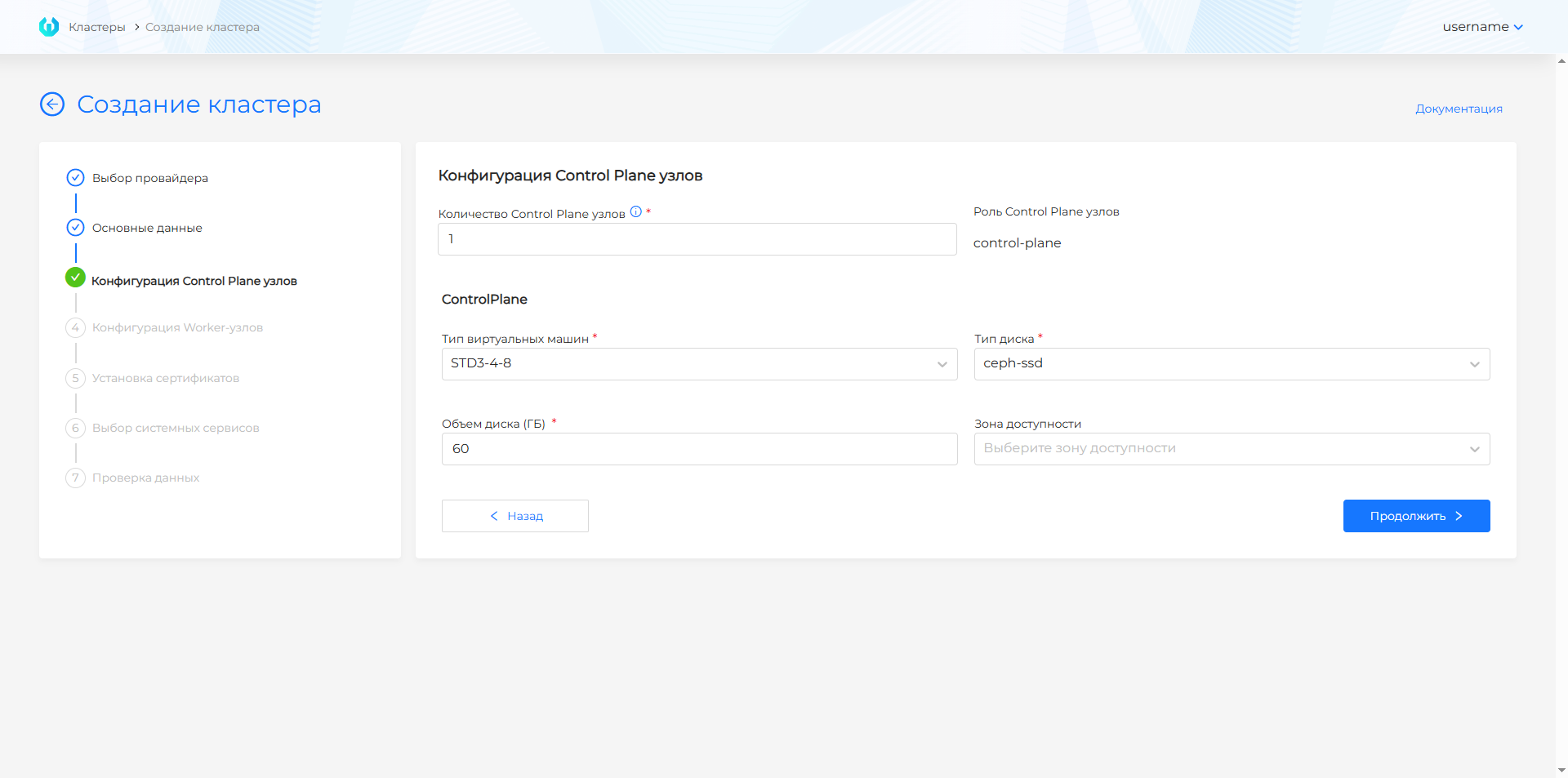
Screenshot: Worker groups
| Parameter | Why is it necessary | Recommendations |
|---|---|---|
| Control Plane | Odd number of nodes (up to 5). | For production - 3. |
| Worker: default | User loads. | Minimum 2. |
| Worker: infra | System services. | 0 or 3 for production. |
Recommended resources: client cluster requirements.
Features of OpenStack
- Network and balancing: In a typical scenario, OpenStack/VK Cloud/Selectel Ingress and public endpoints are tied to an external balancer of the cloud; After creating the cluster, complete the LB configuration in the virtualization panel.
- External balancer: After creating the cluster, configure Load Balancer in OpenStack (Neutron LBaaS, Octavia): frontend for
CLUSTERNAME-ingress-backend, port 30443. - Images: Prepared according to platform instructions. For Yandex Cloud, when creating a template, use the
--keep-cloud-initflag. - Security groups: Must allow traffic for Kubernetes (API, etcd, NodePort, etc.).
API
Method: POST $BACKENDPOINT/api/v1/platform/providers/clusters/capos
Authorization: header Authorization: Bearer $token. Get token.
Request body: JSON with sections cluster and provider. provider uses caposNodeConfig and image parameters.
More details: API for cluster management.
Yandex Cloud
Prerequisites
- Configured provider instance Yandex Cloud;
- Images for the required versions of Kubernetes (with the
--keep-cloud-initflag when creating a template using the stc utility); - VPC, subnets, security groups.
Note: KubeAPI and Ingress are usually delivered to external balancers Yandex Cloud; a separate IP pool of the cluster creation wizard, like VMware/oVirt, may not be used.
Process in GUI
Going to the wizard and selecting a provider with an instance is described at the beginning of the page. Next in the wizard for Yandex Cloud:
- Fill in basic data (basic or advanced mode): instance, platform version, if necessary DNS Ingress, information security, CIDR of pods/services, cluster profile.
- Configure Control Plane and Worker: platform type (VM size), disk type, CPU/RAM/disk, group scaling, node roles (see the screenshot below).
- Go through certificate installation, select services, data verification and create a cluster (see the screenshot below).
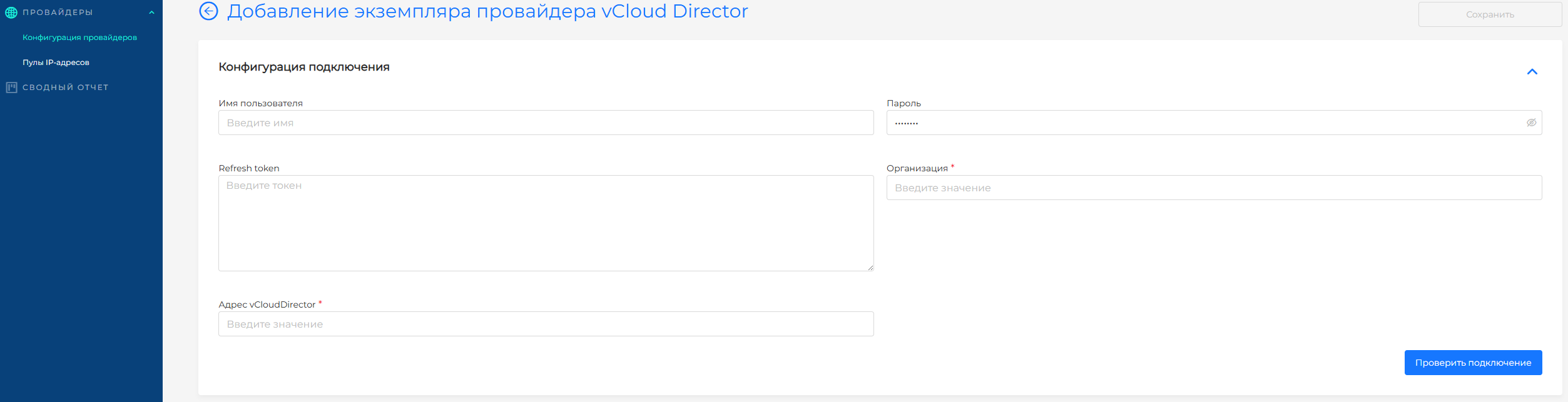
Provider instance configuration, see the illustration below.
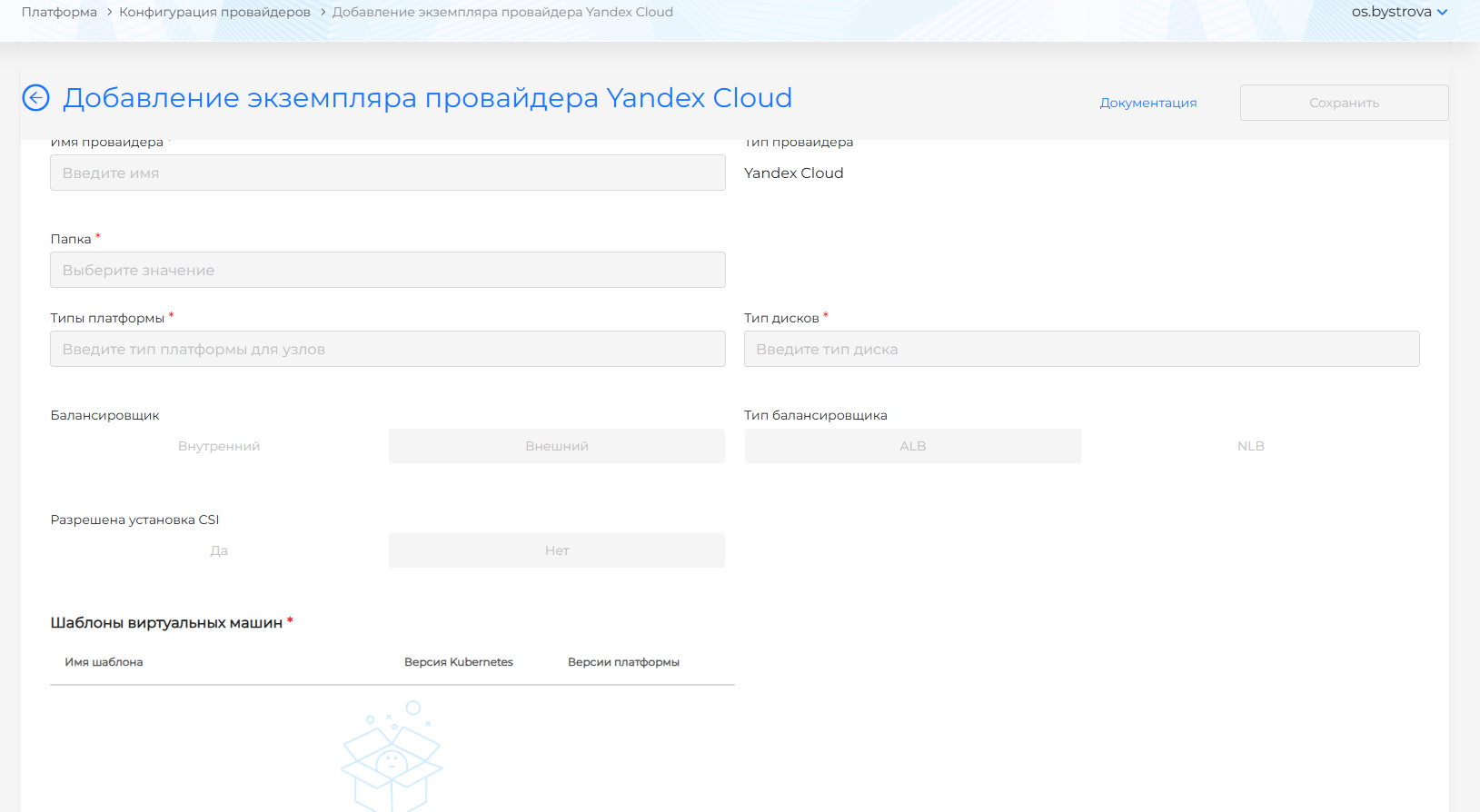
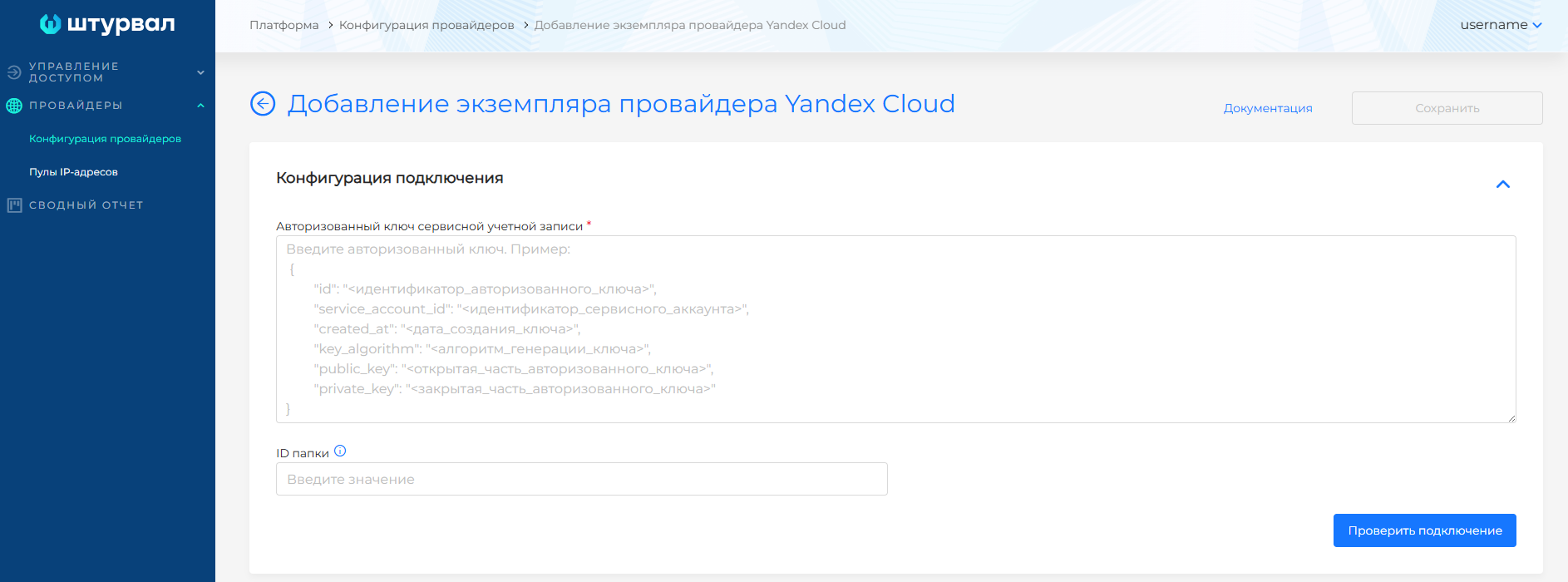
New Cluster Wizard Fields
Step 1: Basic data
Basic and advanced mode (toggle switch “Show advanced settings”); When you switch to basic, the extended values are reset.
| Field | Why is it necessary |
|---|---|
| Instance | Configured instance of the Yandex Cloud provider. |
| Platform Version | Version of the Shturval platform from which the cluster will be installed |
| Version Kubernetes | Version of Kubernetes in accordance with the selected platform version |
| VM template | Which VM image to use for all nodes. Appears after you select the platform version, only if the instance has several templates for one Kubernetes version. Required if shown. Details: Selecting a VM template. |
| Enable CSI Integration | Installs shturval-capy-csi and attaches Yandex Cloud disks as PersistentVolumes. Default is No. Unavailable when the provider instance does not allow CSI. |
| Delete PVs when deleting a cluster with CSI integration enabled | Yes / No. Default No. Unavailable together with CSI integration when the instance does not allow CSI. Details: Deleting PVs when deleting a cluster. |
Screenshot: basic data, basic mode
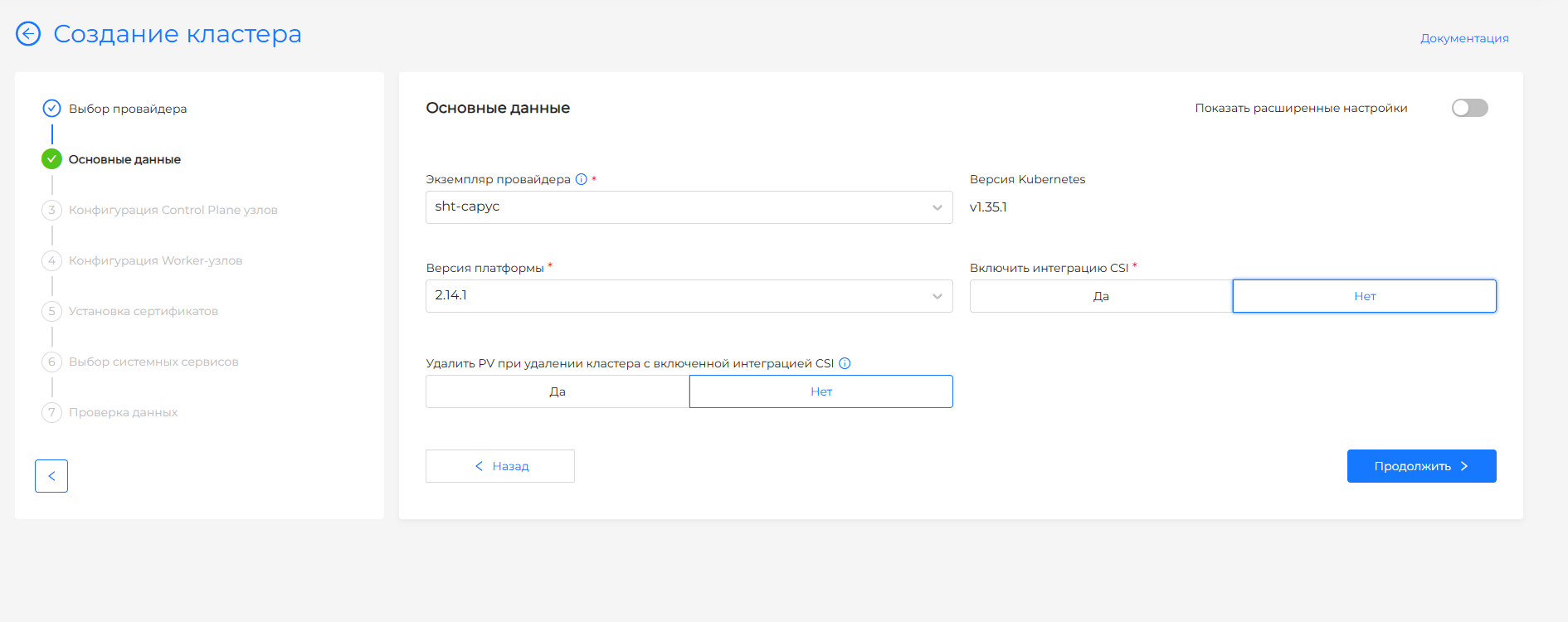
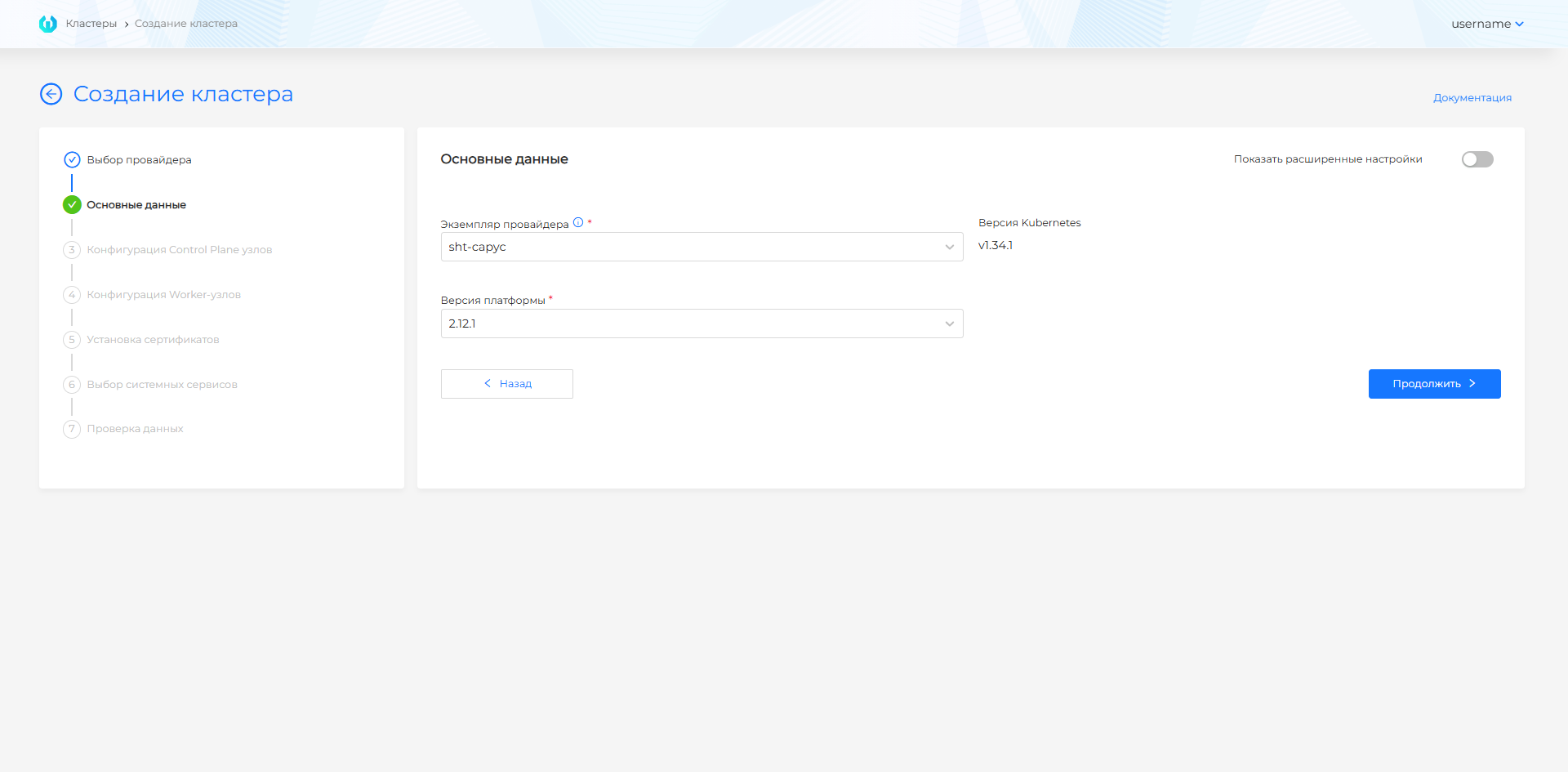
Basic mode: in addition to the name and instance, the platform version (compatible with Kubernetes in instance VM templates and the current platform; can be substituted automatically). Extended information security is not enabled; Ingress DNS record is cluster.shturval.link by default (cannot be edited in basic mode); CIDR of pods and services is the default.
Screenshot: extended master data
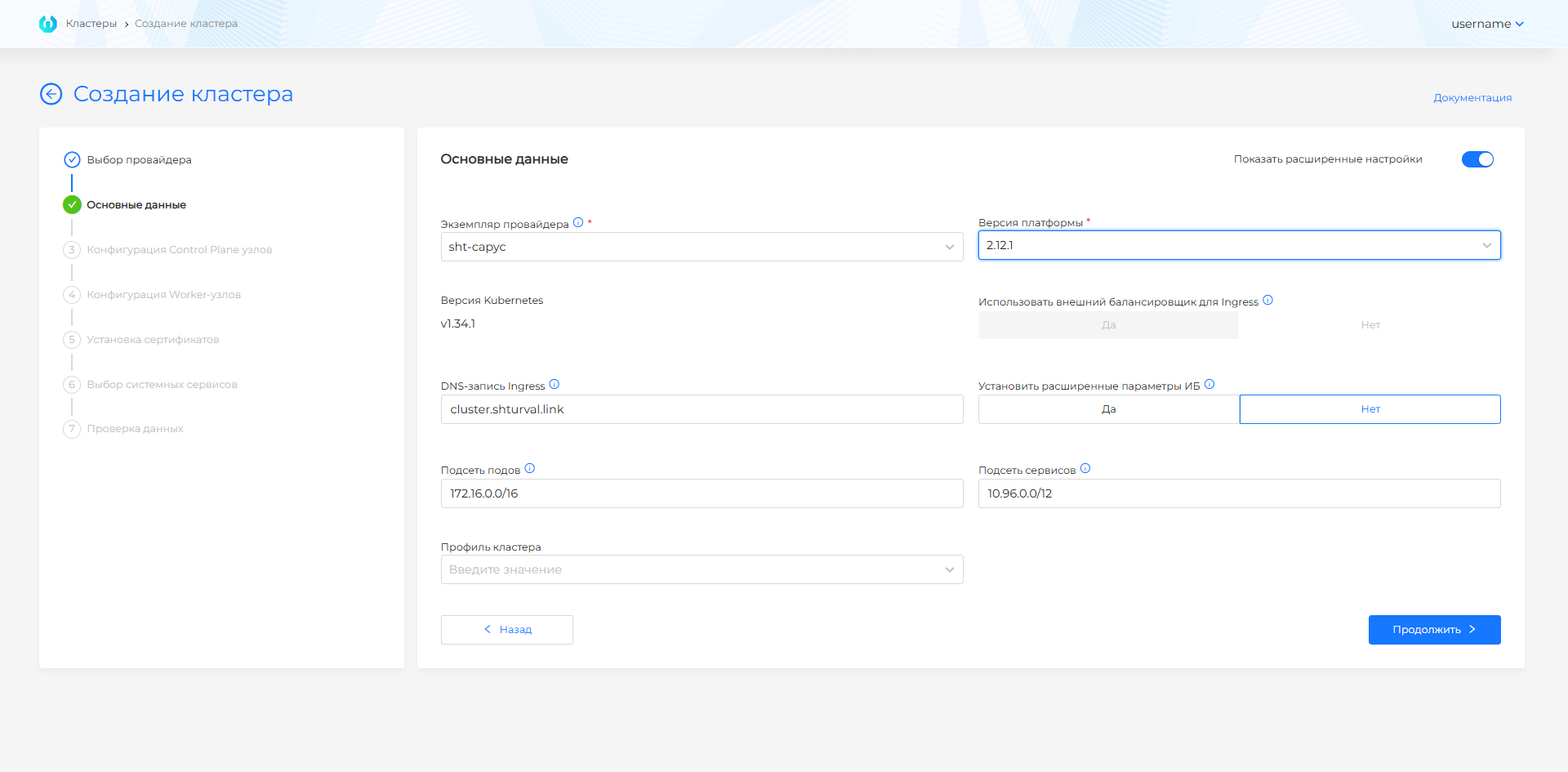
Advanced Mode
| Field | Description |
|---|---|
| DNS record Ingress | Wildcard FQDN; final names *.<ingress-dns-record>. The Ingress DNS record is limited to 53 characters to ensure that the resulting commonName for cert-manager does not exceed the allowed length. |
| Set advanced information security settings | Secret Encryption, TLS connection to Kubelet and audit policy. |
| Pod subnet / service subnet | Should not intersect with the network of nodes and with each other; see checking the intersection of subnets. |
| Cluster Profile | Cluster Profiles. |
The KubeAPI and Ingress addresses in the cloud are set through external Yandex Cloud balancers after the cluster resources become available (see FQDN and VIP).
Step 2–3: Node Configuration
Screenshot: Control Plane
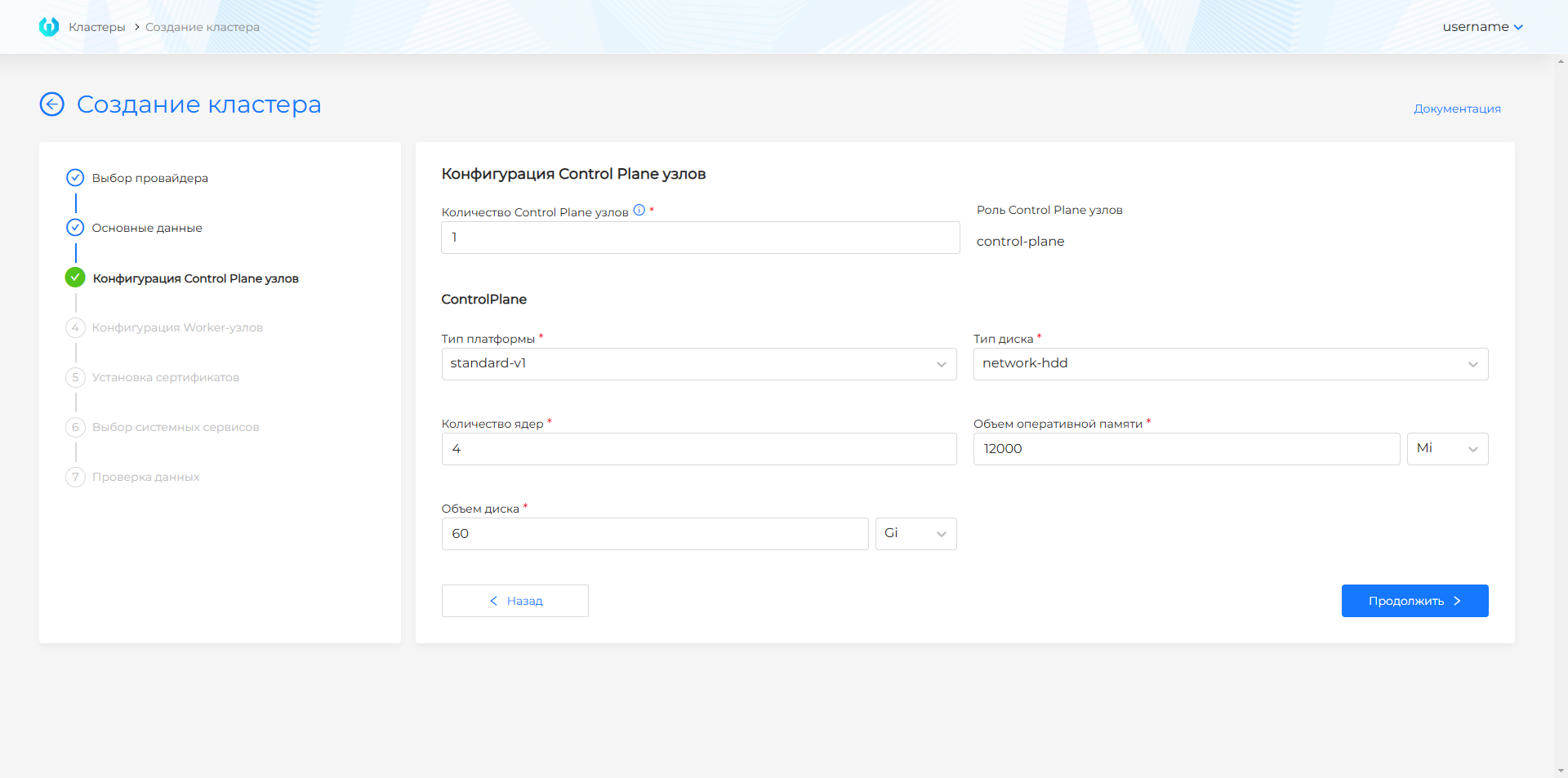
| Control Plane parameter | Description |
|---|---|
| Number of nodes | Odd value. |
| Platform Type | VM profile from the instance. |
| Disk Type | Of those available in copy. |
| Disk | Default 60 GiB (minimum for local storage); for production recomore is required. |
| CPU/memory | In units of Gi or Mi; the UI has minimum restrictions. |
Screenshot: Worker groups
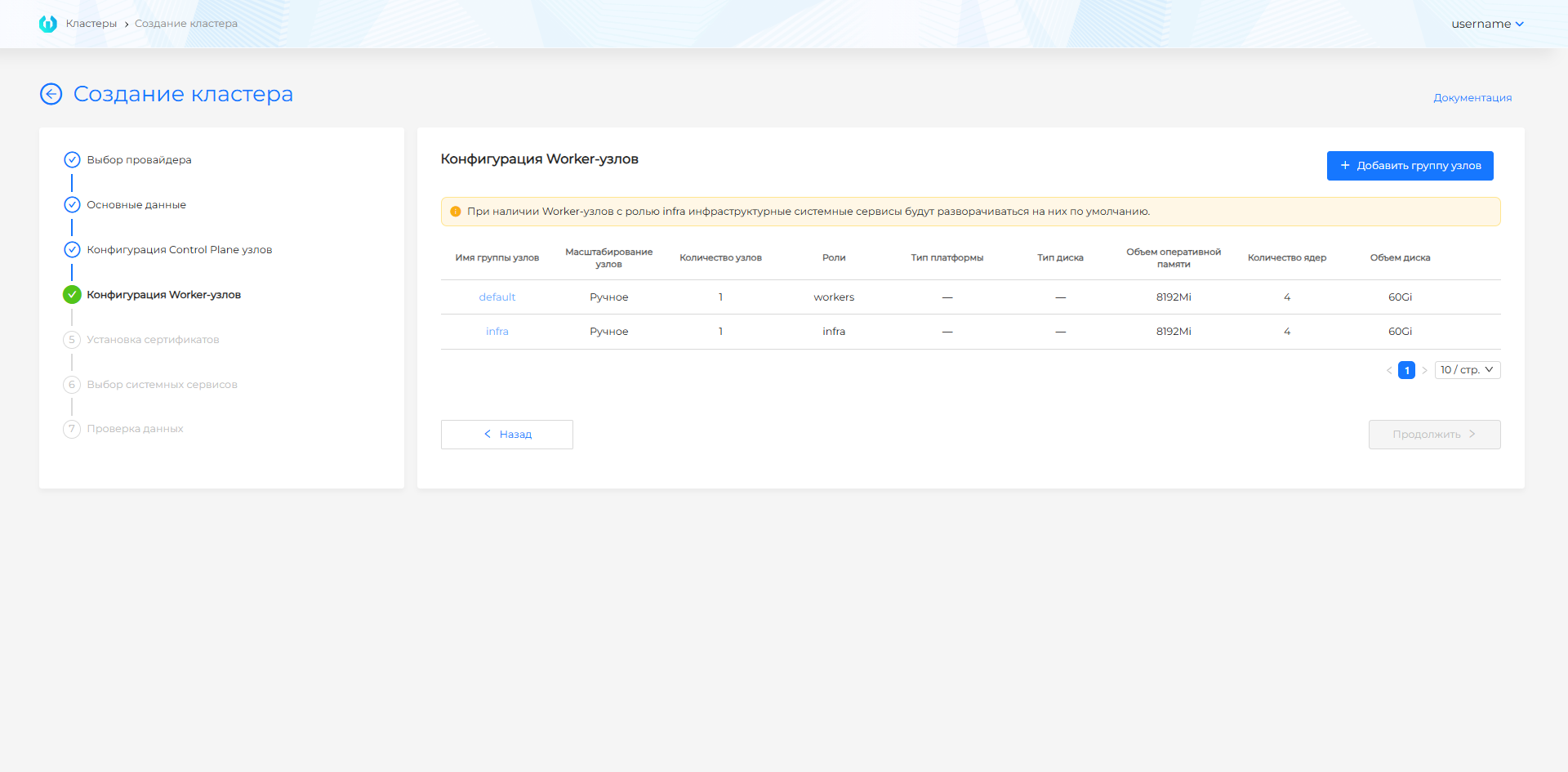
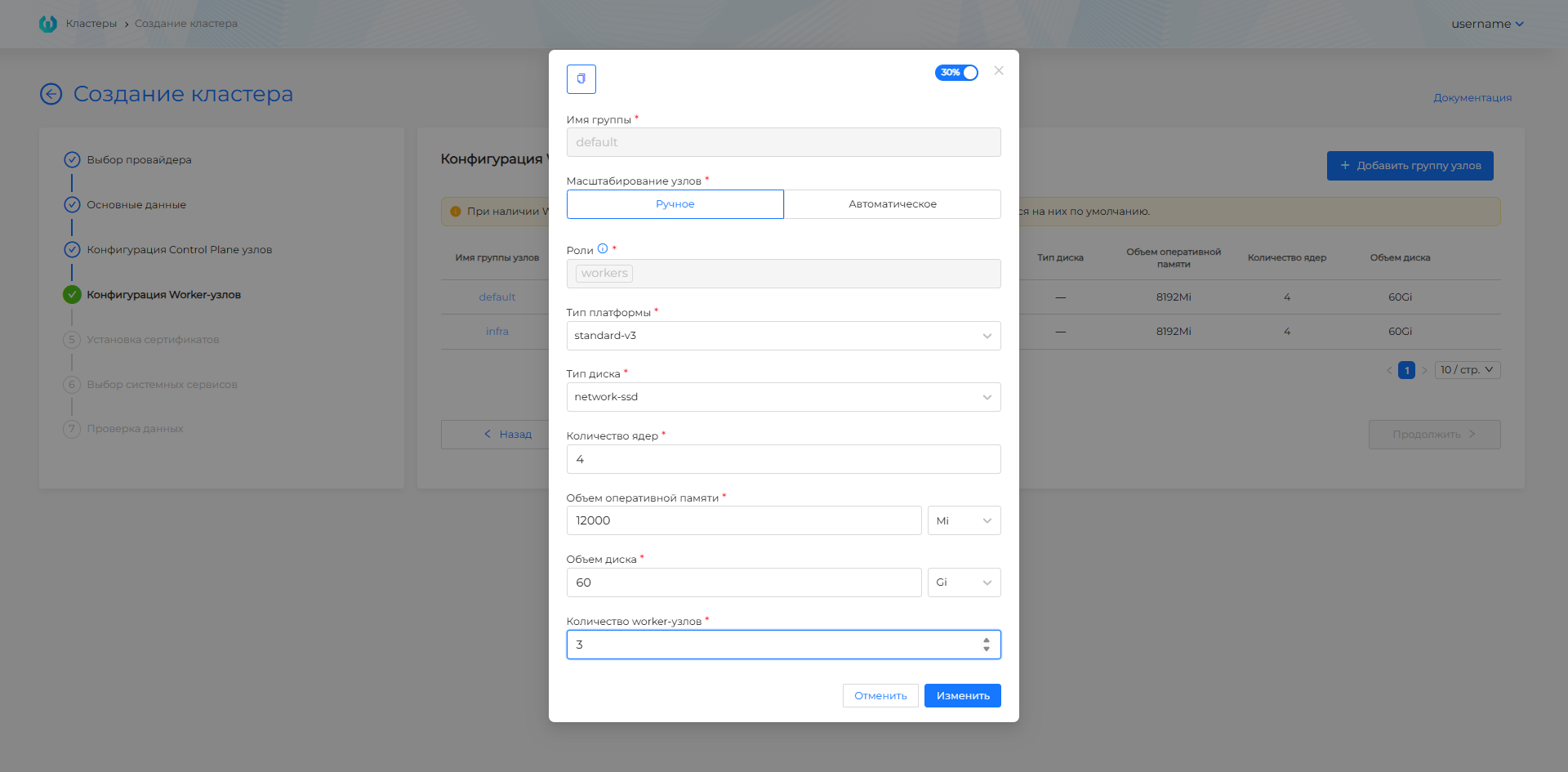
By default, two groups (default, infra) of three nodes each; manual/automatic scaling is available (the minimum number of replicas in the GUI is usually not lower than 2), copying and duplicating groups. In the group parameters: platform type, disk, CPU, memory, roles (separated by commas; node-role.kubernetes.io/... labels will appear on the nodes).
Screenshot: editing the Worker group
| Parameter | Why is it necessary | Recommendations |
|---|---|---|
| Control Plane | 1 or 3 knots. | For production - 3. |
| Worker: group default | Nodes for user applications. | Minimum 2. |
| Worker: group infra | Nodes for system services: monitoring, logging, Ingress. Partitioning reduces resource competition with applications. | 0 or 3 for production. |
Recommended resources: client cluster requirements.
Features of Yandex Cloud
- IP Pool: Not used. Addresses are set through external Yandex Cloud balancers.
- Images: When creating a template using the stc utility, be sure to use the
--keep-cloud-initflag. - VPC: Subnets of pods and services should not overlap with VPC subnets and other clusters.
More information about common errors and checks - checking the intersection of subnets when creating a cluster.
API
Method: POST $BACKENDPOINT/api/v1/platform/providers/clusters/capyc
Authorization: header Authorization: Bearer $token. Get token.
Request body: JSON with sections cluster and provider. provider uses capycNodeConfig and image parameters.
More details: API for cluster management.
VMware vCloud Director
Prerequisites
- Configured provider instance vCloud Director;
- Catalogs, templates in the vCloud Director organization;
- Pool of IP addresses.
Process in GUI
Going to the wizard and selecting a provider with an instance is described at the beginning of the page. Next in the wizard for vCloud Director:
- Fill in basic data (basic or advanced mode): instance, prova templateder, platform version, DNS Ingress if necessary, CSI, VIP subnets, pod/service, cluster profile.
- Configure Control Plane and Worker (SizingPolicy, DiskSize, scaling, roles).
- Go through certificate installation, select services, data verification and create a cluster. If you have an automatic naming scheme after creation, configure an external balancer in vCD for Ingress (see FQDN formula below).
Illustration: Process in GUI
New Cluster Wizard Fields
Step 1: Basic data
| Field | Why is it necessary |
|---|---|
| Instance | An instance with a configured vCloud Director (organization, directory). |
| Platform Version | Version of the Shturval platform from which the cluster will be installed |
| Version Kubernetes | Version of Kubernetes in accordance with the selected platform version |
Basic mode: in addition to the name and instance - the provider template, platform version and, if necessary, CSI. Extended information security is not enabled. FQDN Ingress default:
*.<cluster-name>.ip-<IP_EXTERNAL_LB>.shturval.link,
where IP_EXTERNAL_LB is the VIP of the external Ingress balancer in vCloud Director. Pod and service subnets are default values.
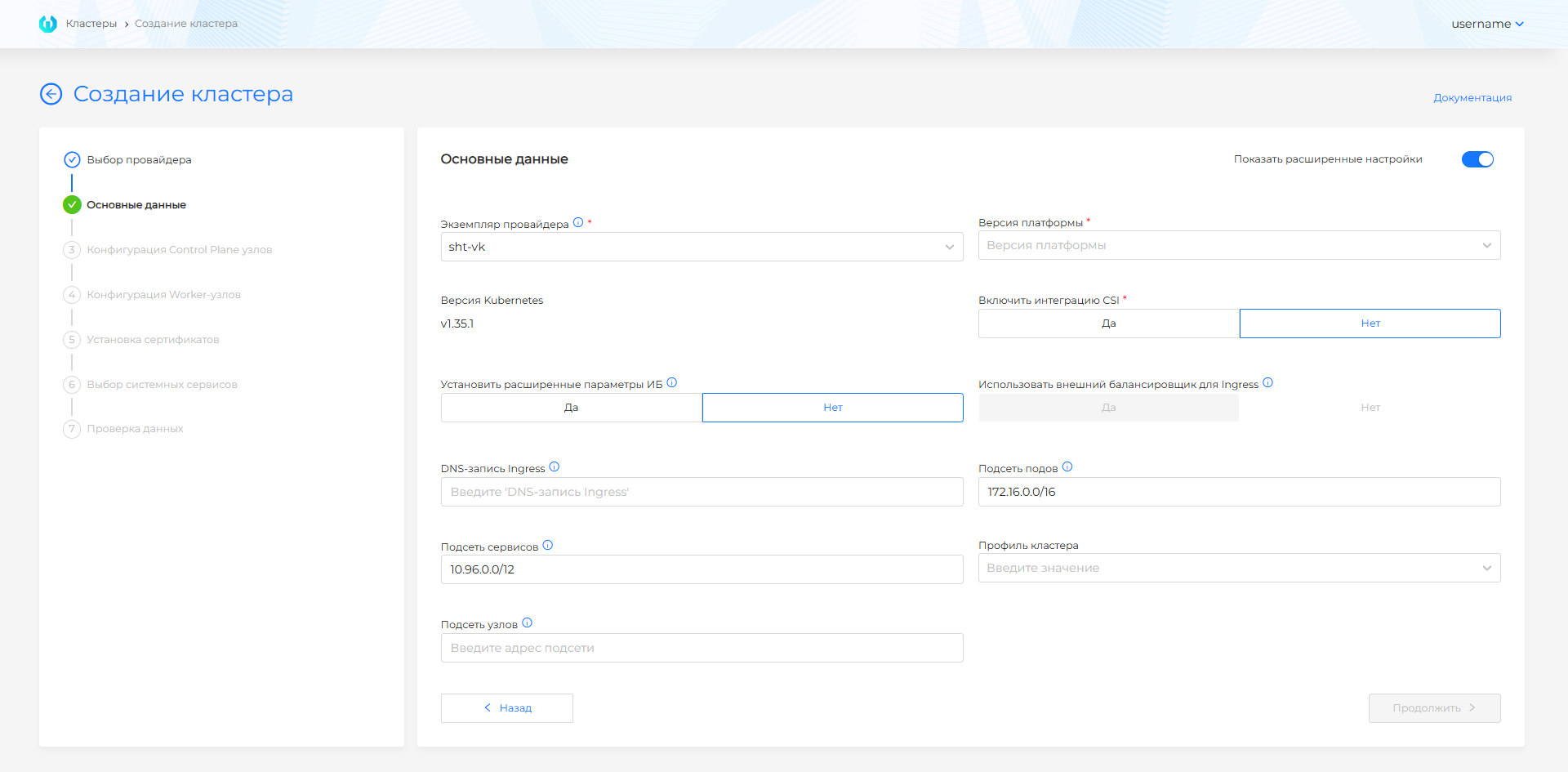
Advanced mode (toggle switch “Show advanced settings”):
Screenshot: extended master data
| Field | Description |
|---|---|
| DNS record Ingress | Wildcard FQDN → *.<DNS>; if empty, the automatic formula with IP_EXTERNAL_LB applies. The Ingress DNS record is limited to 53 characters to ensure that the resulting commonName for cert-manager does not exceed the allowed length. |
| Provider Template | One template is automatically selected when there is only one option. |
| VM template | Appears after you select the platform version, only if the instance has several templates for one Kubernetes version. Required if shown. Details: Selecting a VM template. |
| Enable CSI Integration | Includes vCloud Director CSI for Persistent Volumes. The default is no. Not available if the provider instance does not allow CSI to be installed. |
| Delete PVs when deleting a cluster with CSI integration enabled | Yes / No. Default No. Details: Deleting PVs when deleting a cluster. |
| Set advanced information security settings | Secret Encryption, TLS connection to Kubelet and audit policy. |
| Pod subnet / service subnet | CIDR; check intersections - check subnet intersections. |
| Enable CSI Integration | Unless prohibited by the template; permissions in vCenter - see vSphere. |
| kubeAPIVIPSubnet | The subnet from which the IP for KubeAPI is selected. |
| Cluster Profile | Cluster Profiles. |
Note: If the IP pool is not bound, set the addresses for management access to the cluster and Ingress manually, taking into account the host subnets.
Step 2–3: Node Configuration
The template is set at the “Basic data” step.
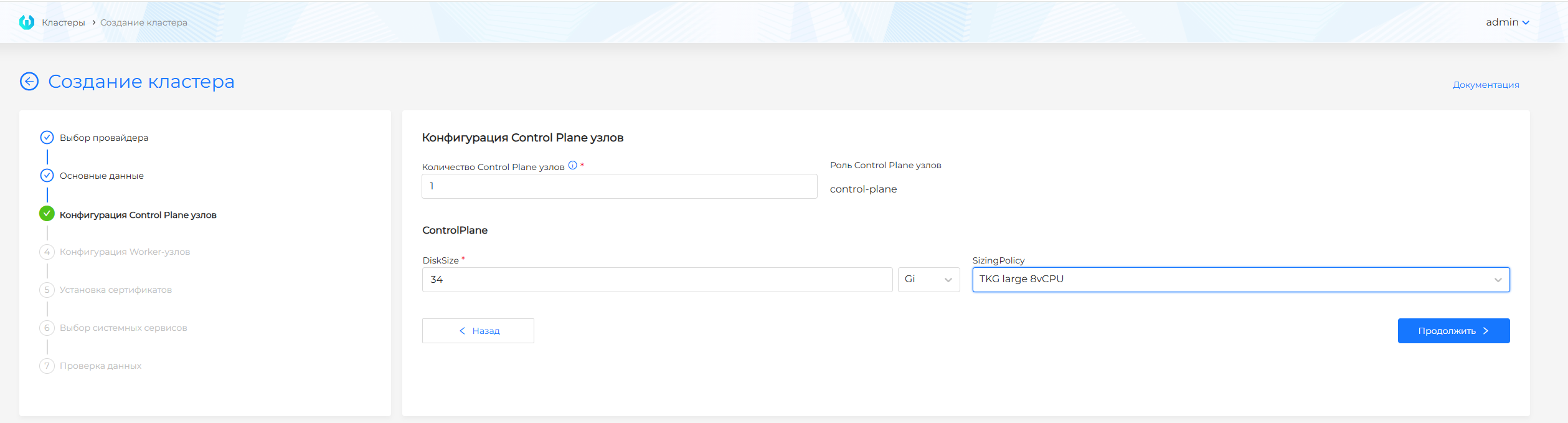
Screenshot: Control Plane
| Control Plane parameter | Description |
|---|---|
| Number of nodes | Odd value. |
| DiskSize | Disk capacity (Gi or Mi); by default 60 GiB, not lower than the minimum in the UI. |
| SizingPolicy | CPU/RAM policy from the vCD list. |
Screenshot: Worker groups
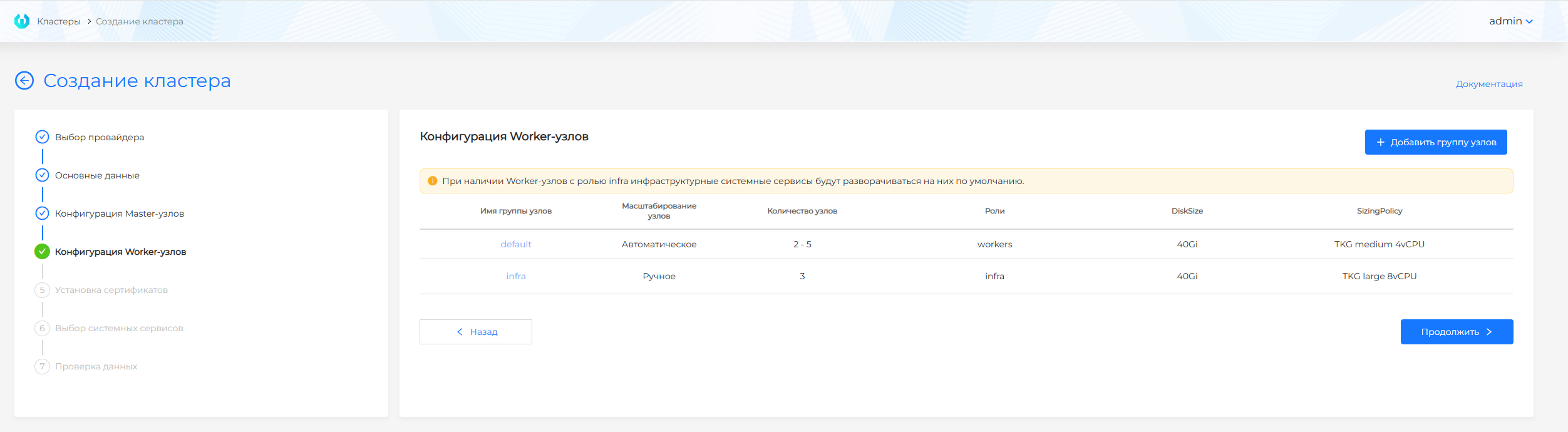
The default groups are default and infra; manual/automatic scaling, DiskSize, SizingPolicy, roles (comma separated, labels node-role.kubernetes.io/...).
| Parameter | Why is it necessary | Recommendations |
|---|---|---|
| Control Plane | 1 or 3 knots. | For production - 3. |
| Worker: group default | Nodes for user applications. | Minimum 2. |
| Worker: group infra | Nodes for system services: monitoring, logging, Ingress. Partitioning reduces resource competition with applications. | 0 or 3 for production. |
Recommended resources: client cluster requirements.
Features of vCloud Director
- Directories: VMs are created in the vCloud Director organization directories.
- Templates: Prepared according to single instructions.
- CSI: “Allow CSI” is configured on the provider instance. If installation is allowed, vCloud Director CSI integration can be enabled in the Basic Data step.
- Network: DHCP must be enabled on the selected network.
API
Method: POST $BACKENDPOINT/api/v1/platform/providers/clusters/capcd
Authorization: header Authorization: Bearer $token. Get token.
Request body: JSON with sections cluster and provider. provider uses the configuration for vCloud Director.
More details: API for cluster management.
Basis Dynamix
Prerequisites
- Configured provider instance Basis Dynamix;
- Templates or images for timesturning knots.
Note: Master IP pool, like vSphere/oVirt, is usually not used - Ingress is configured through an external balancer in Basis Dynamix after the cluster is created.
Process in GUI
Going to the wizard and selecting a provider with an instance is described at the beginning of the page. Next for Basis Dynamix:
- Fill in basic data (basic or advanced mode): instance, platform version, external LB, DNS Ingress, information security, CIDR of pods/services, cluster profile.
- Configure Control Plane and Worker (CPU, RAM, disk, scaling).
- Go through certificate installation, select services, data verification and create a cluster. In the Basis Dynamix panel, add the balancer frontend for
CLUSTERNAME-ingress-backend, port 30443 (see below).
Screenshot: master master data
(see the screenshot below).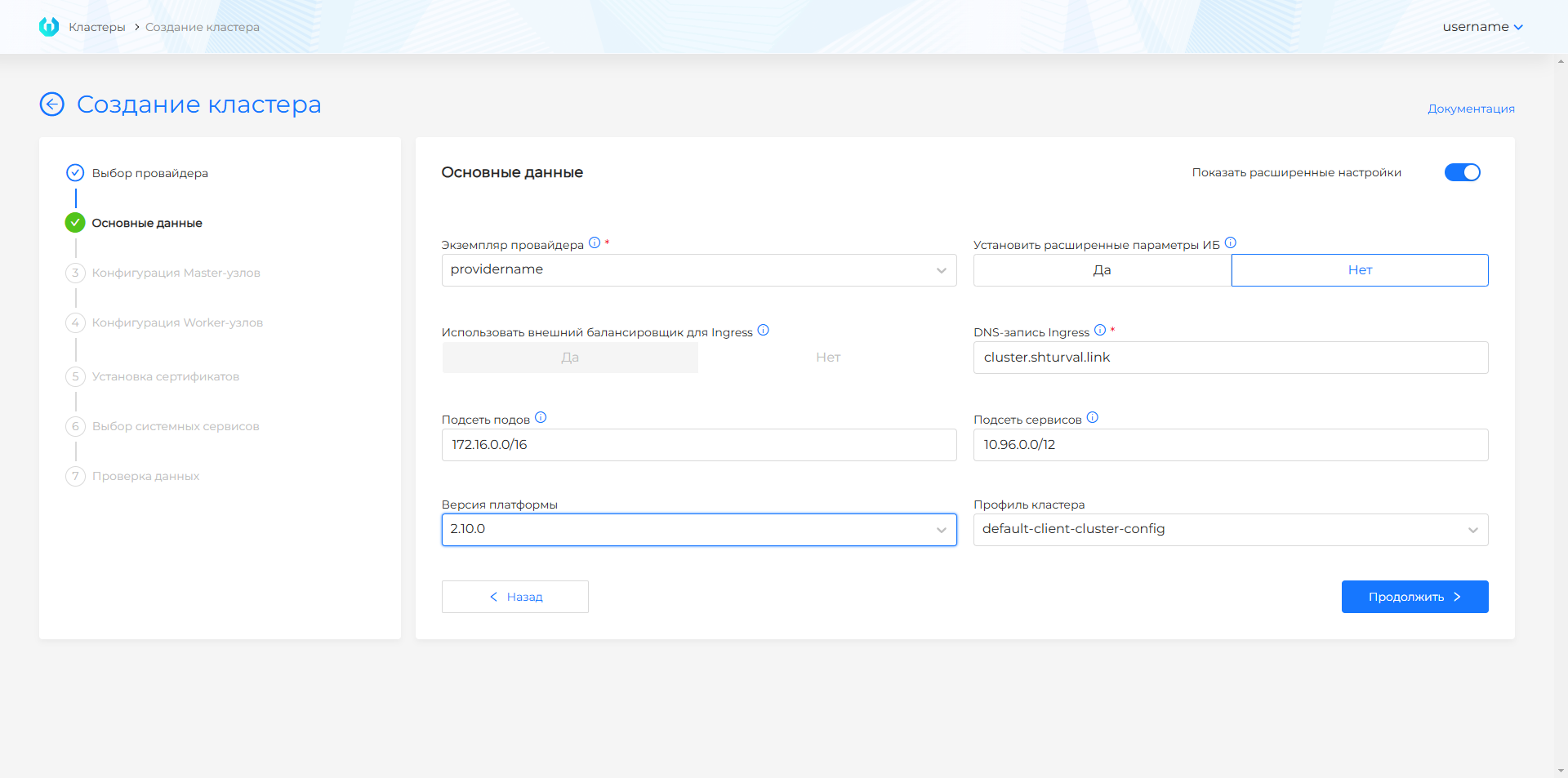
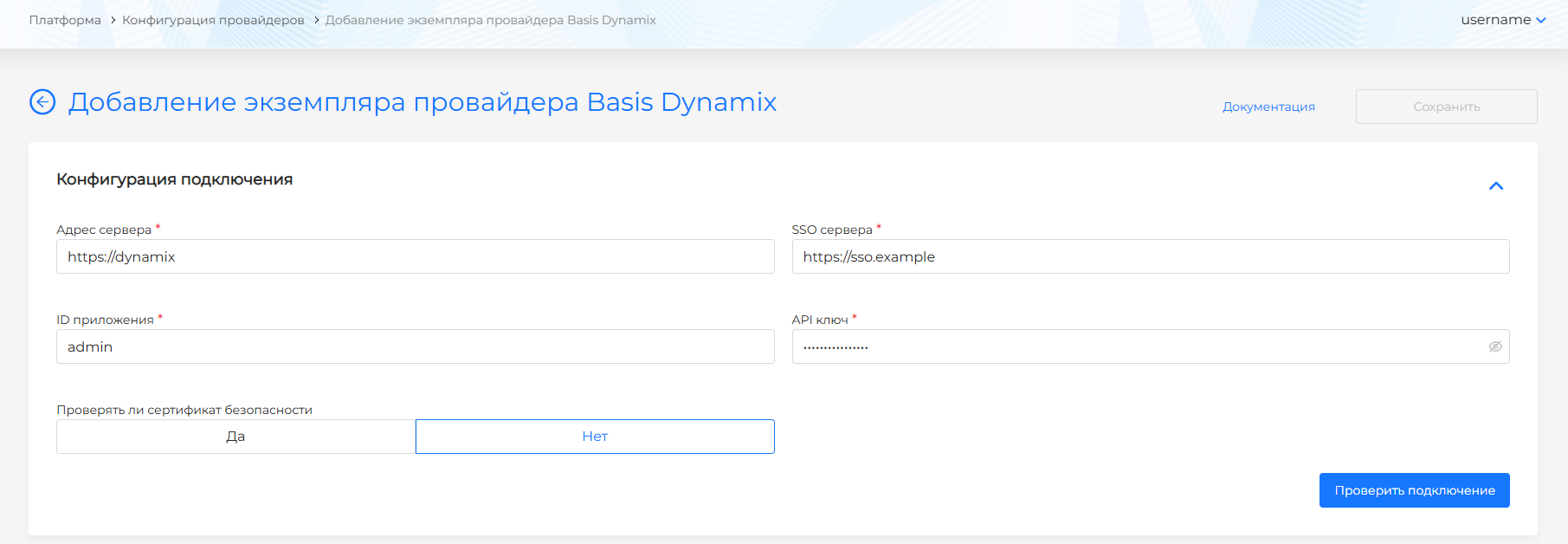
New Cluster Wizard Fields
Step 1: Basic data
Basic and advanced mode; When switching to basic, the extended fields are reset.
Basic Mode
| Field | Description |
|---|---|
| Instance | When there is one instance, it is selected automatically. |
| Platform Version | Version of the Shturval platform from which the cluster will be installed |
| Version Kubernetes | Version of Kubernetes in accordance with the selected platform version |
| VM template | Which VM image to use for all nodes. Appears after you select the platform version, only if the instance has several templates for one Kubernetes version. Required if shown. Details: Selecting a VM template. |
Extended information security is not enabled; CIDR of pods and services is the default. IP Ingress will be received after creation: in Network → Balancers → Schema tab → frontend for CLUSTERNAME-ingress-backend, port 30443.
Advanced Mode
| Field | Description |
|---|---|
| External balancer for Ingress | After creating the cluster, configure LB and frontend as in basic mode. |
| DNS record Ingress | Wildcard FQDN → *.<ingress-dns-record>. The Ingress DNS record is limited to 53 characters to ensure that the resulting commonName for cert-manager does not exceed the allowed length. |
| Set advanced information security settings | Secret Encryption, TLS connection to Kubelet and audit policy. |
| Pod subnet / service subnet | Recommended ranges are 172.16.0.0/16 and 10.96.0.0/12; check intersections - check subnet intersections. |
| Clast profileera | Cluster Profiles. |
Step 2–3: Node Configuration
The template is specified in the instance and in the master data step of the wizard.
Screenshot: Control Plane
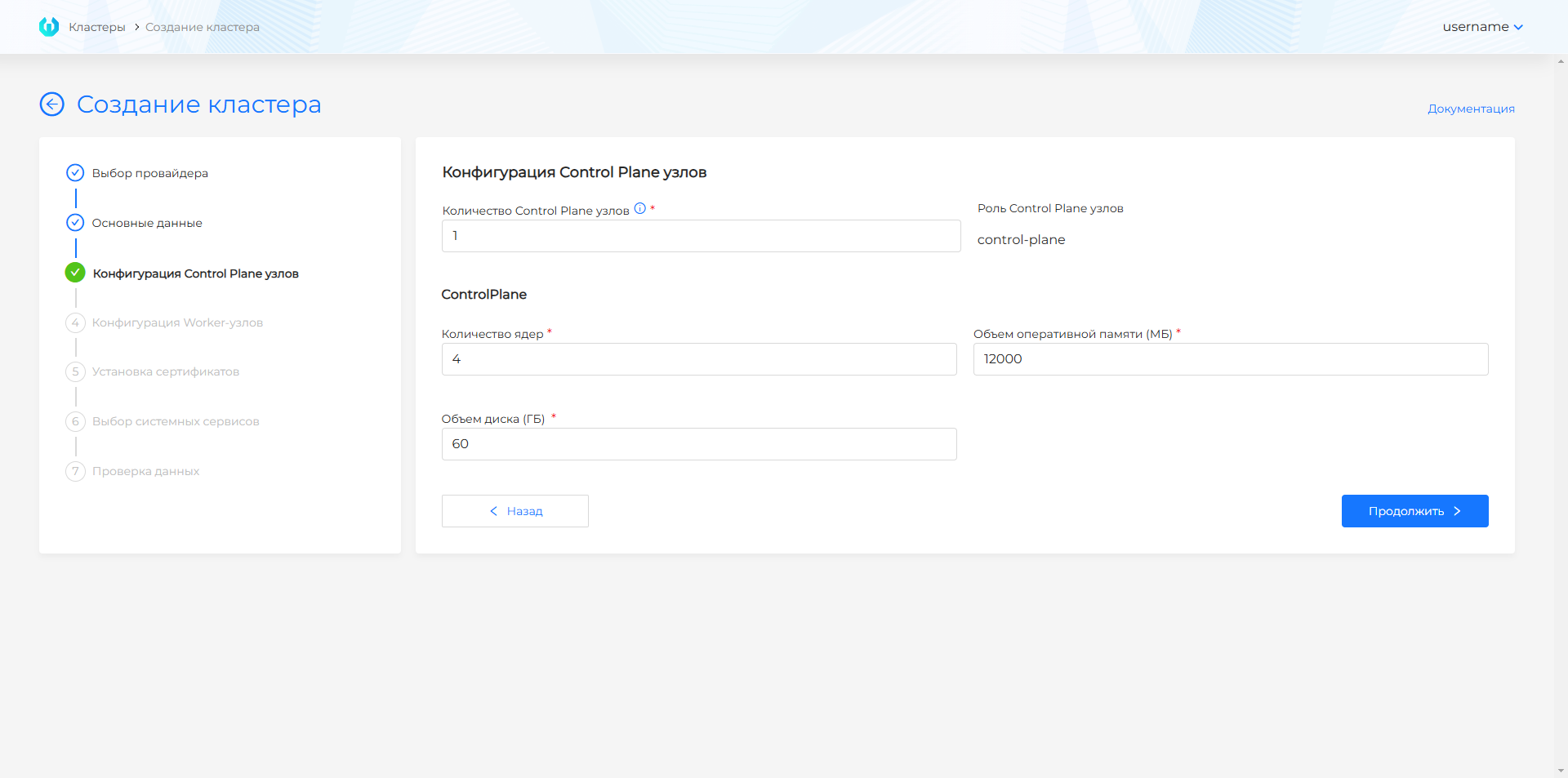
| Control Plane parameter | Description |
|---|---|
| Number of nodes | Odd, no more than 5. |
| CPU/memory/disk | The default is close to the minimum requirements; there are lower limits in the UI. |
Screenshot: Worker groups
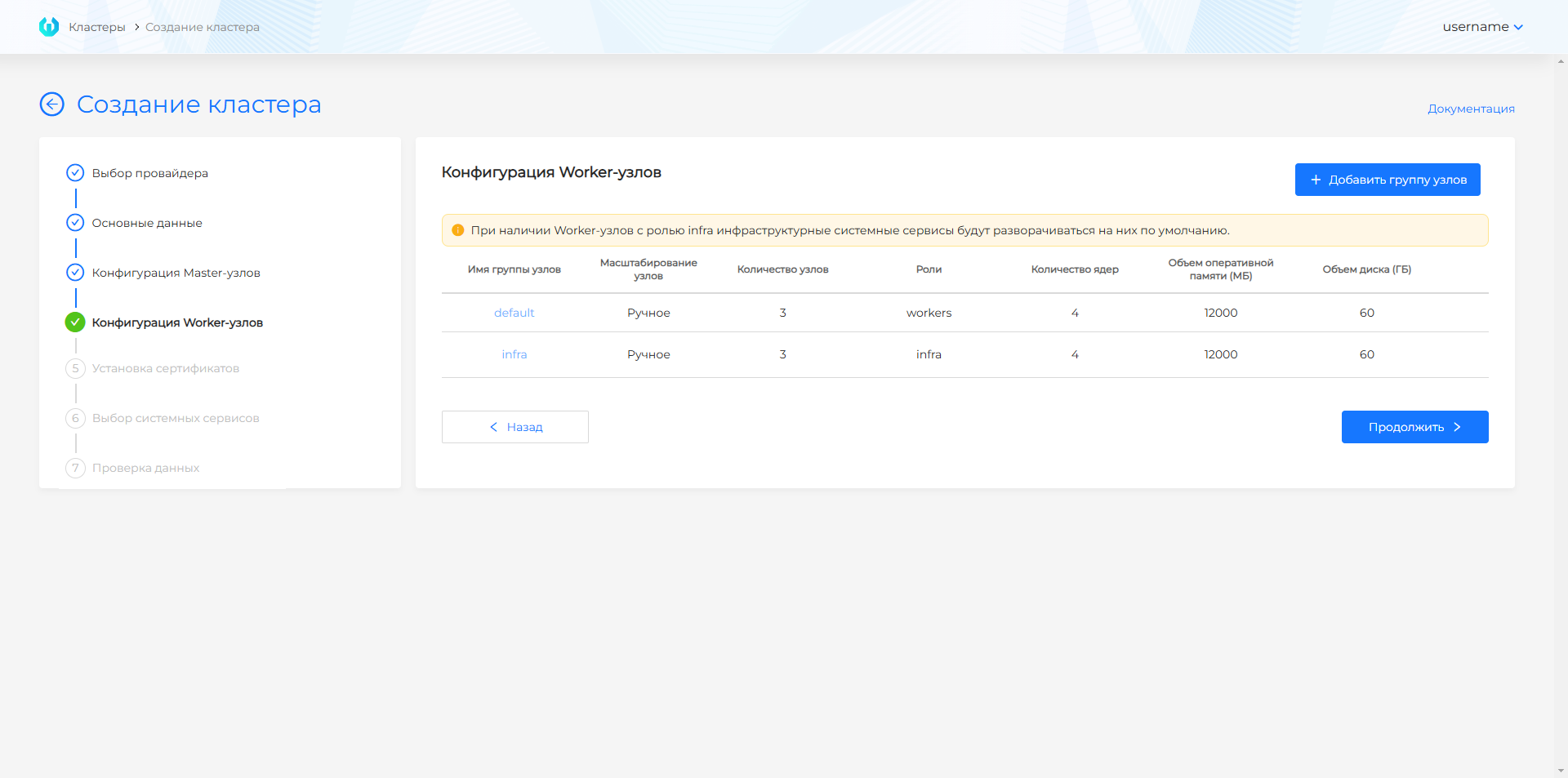
Groups default and infra, manual/automatic scaling, copying settings. 0 nodes in group - MachineDeployment without nodes until further scaling.
Screenshot: Worker parameters
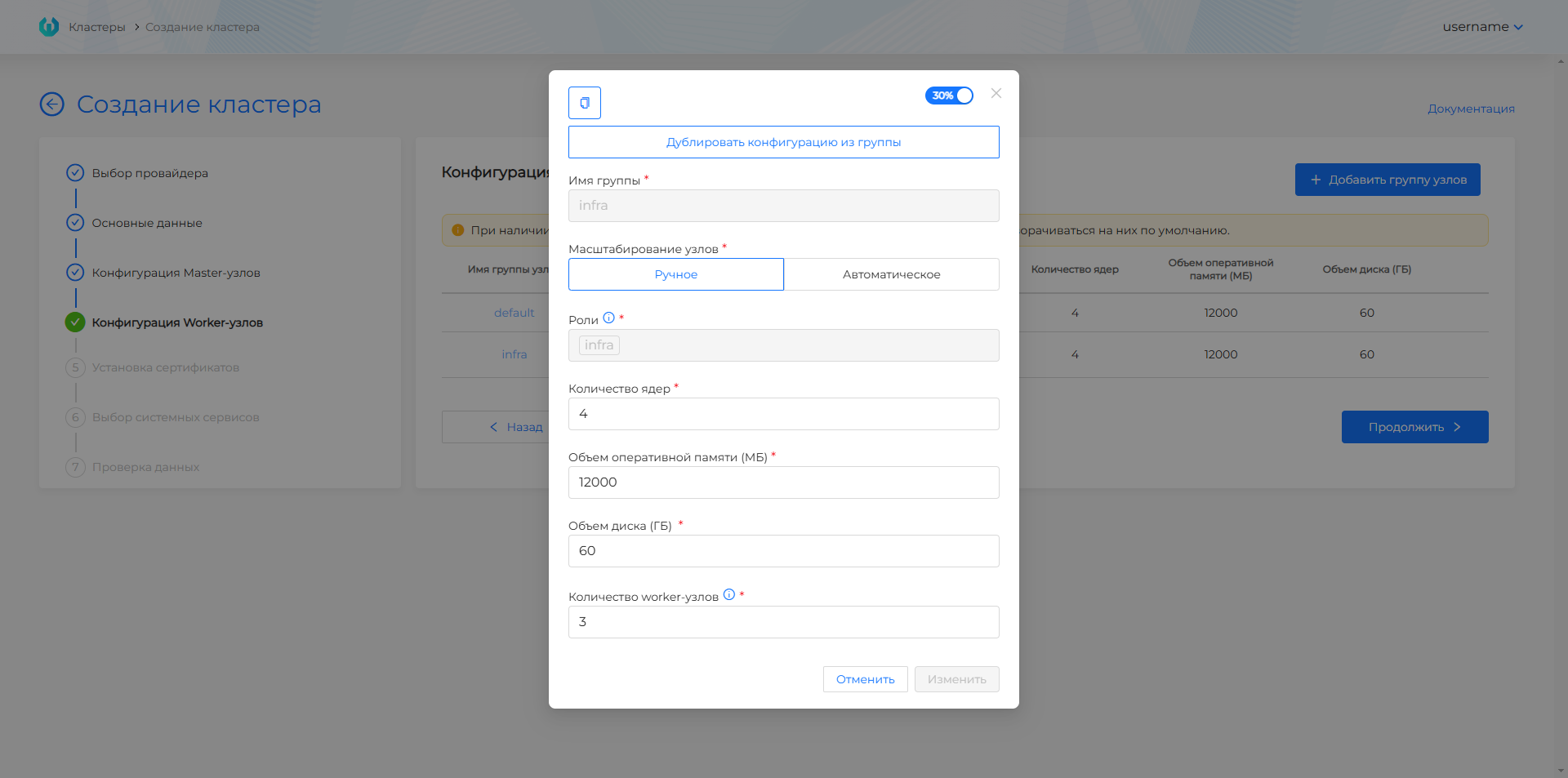
| Parameter | Why is it necessary | Recommendations |
|---|---|---|
| Control Plane | Odd number. | Up to 5 knots. |
| Worker: group default | Nodes for user applications. | Default is 3. |
| Worker: group infra | Nodes for system services: monitoring, logging, Ingress. Partitioning reduces resource competition with applications. | 0 or 3 for production. |
Recommended resources: client cluster requirements.
Features of Basis Dynamix
- IP Pool: Not used. Addresses are set through external balancers.
- External LB: Be sure to configure the Load Balancer in Basis Dynamix after creating the cluster.
- Templates: Prepared according to single instructions.
API
Method: POST $BACKENDPOINT/api/v1/platform/providers/clusters/capbd
Authorization: header Authorization: Bearer $token. Get token.
Request body: JSON with sections cluster and provider. provider uses the configuration for Basis Dynamix.
More details: API for cluster management.
Master steps common to all providers
After provider-specific steps (master data and nodes), the Create Cluster wizard for all infrastructure types involves installing a certificate, selecting services, and validating data.
Step 5: Install the certificate
Screenshot of the “Certificate” step
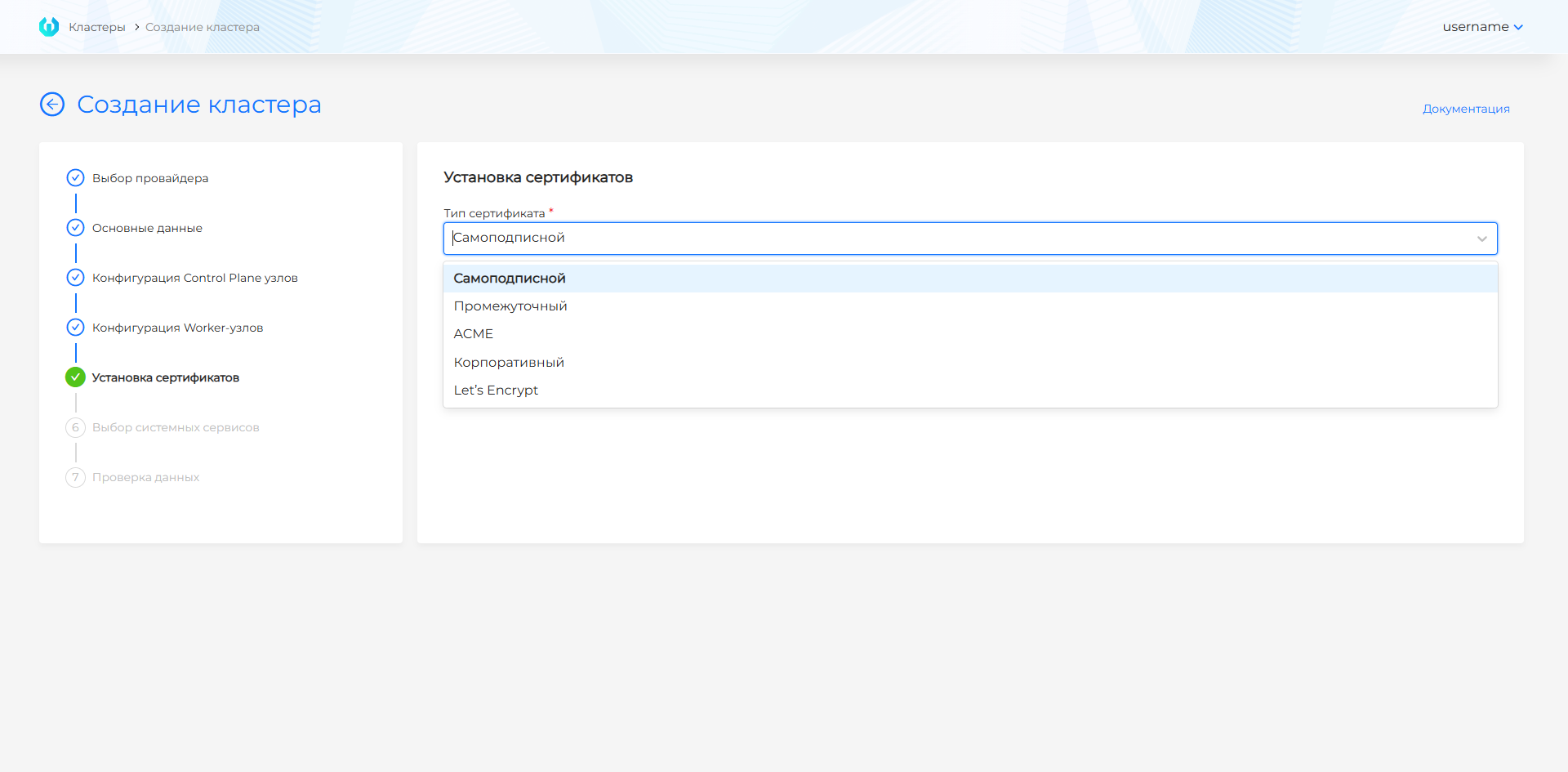
| Option | When to use |
|---|---|
| Self-signed | Test and internal scenarios; the browser shows a warning. No additional configuration required. |
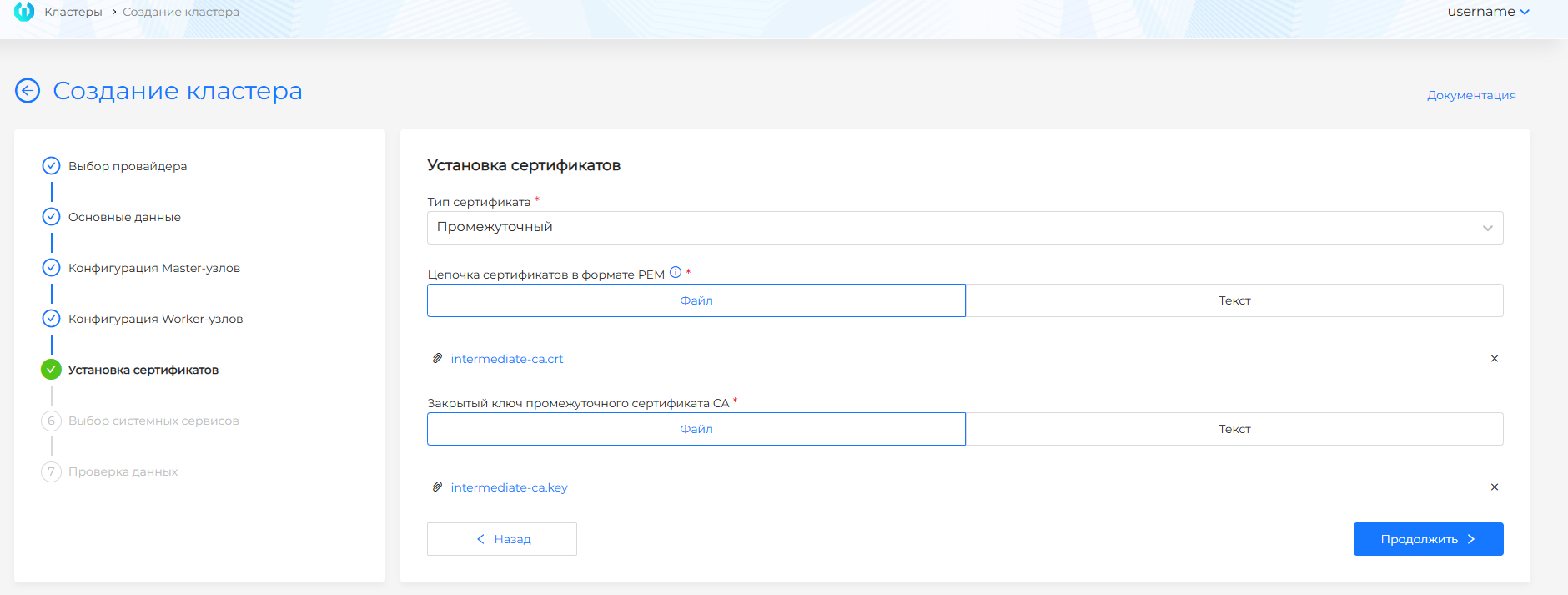
| Intermediate | Your intermediate CA: upload the PEM chain and private key (file or text). |
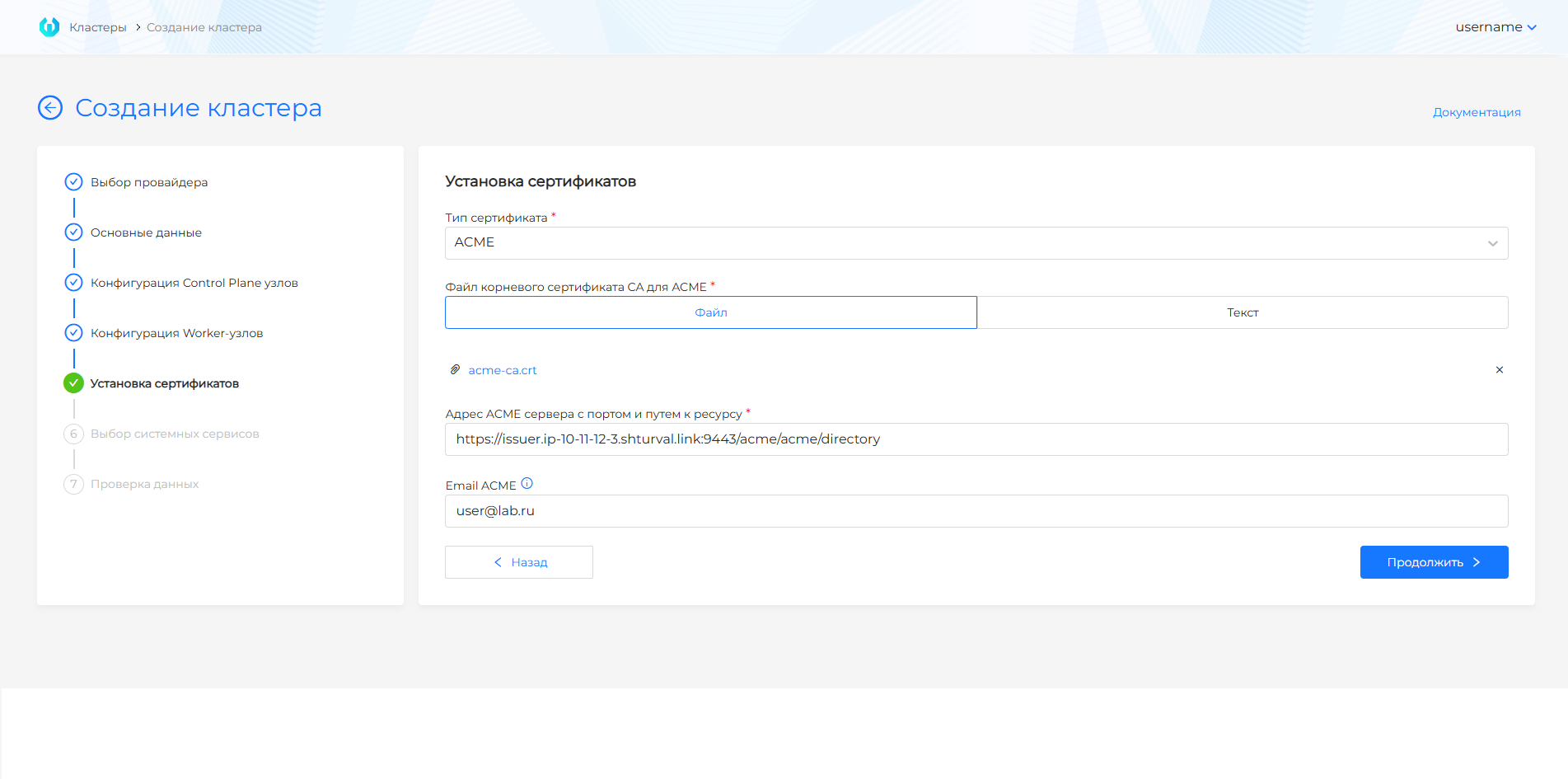
| ACME | External ACME server: root CA, server URL with port and path. If the ACME server fails, clusters with such a certificate may become unavailable - monitoring is required. |
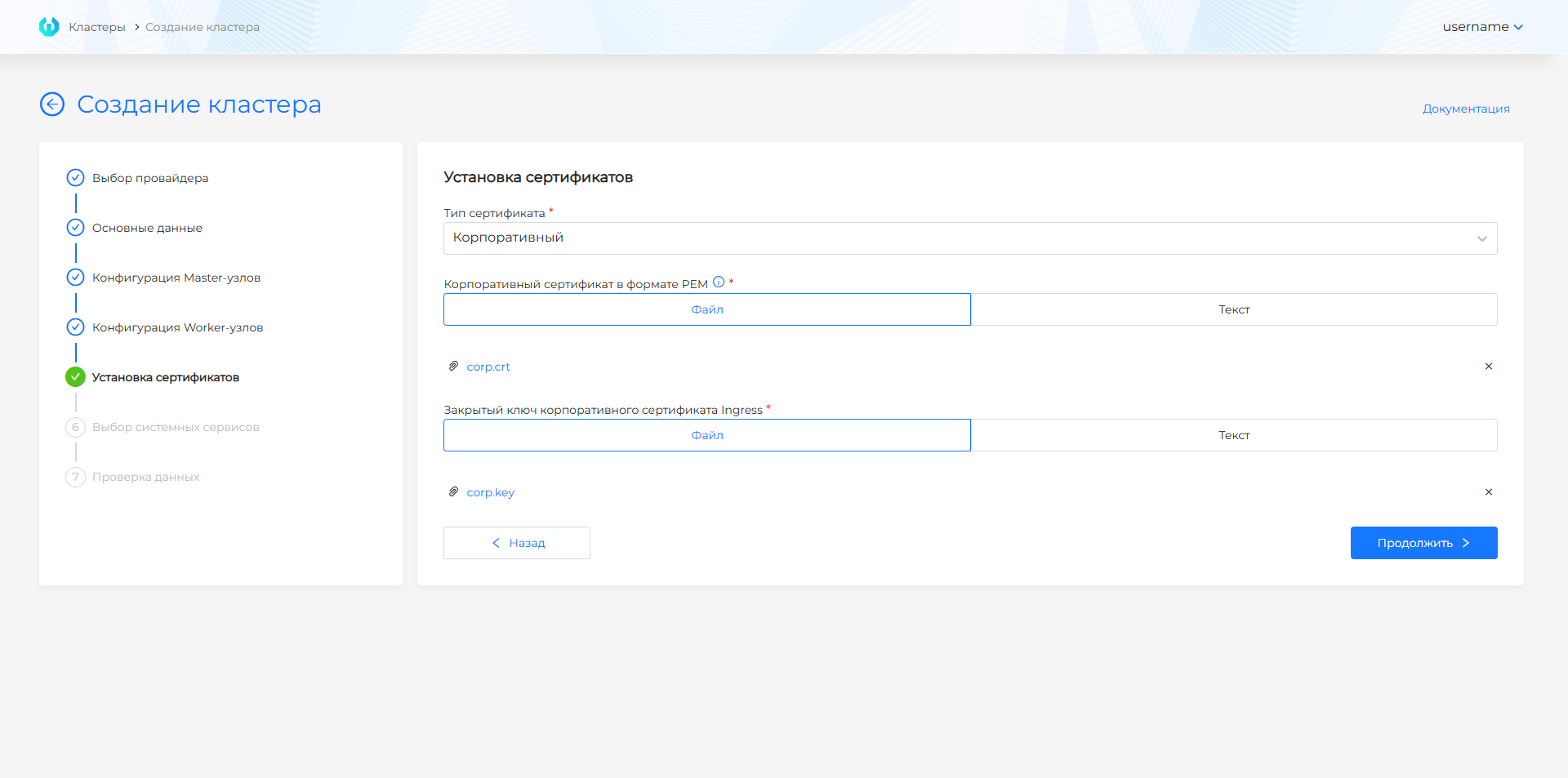
| Corporate | PEM chain and Ingress key issued by your CA or self-signed under the Ingress domain. |
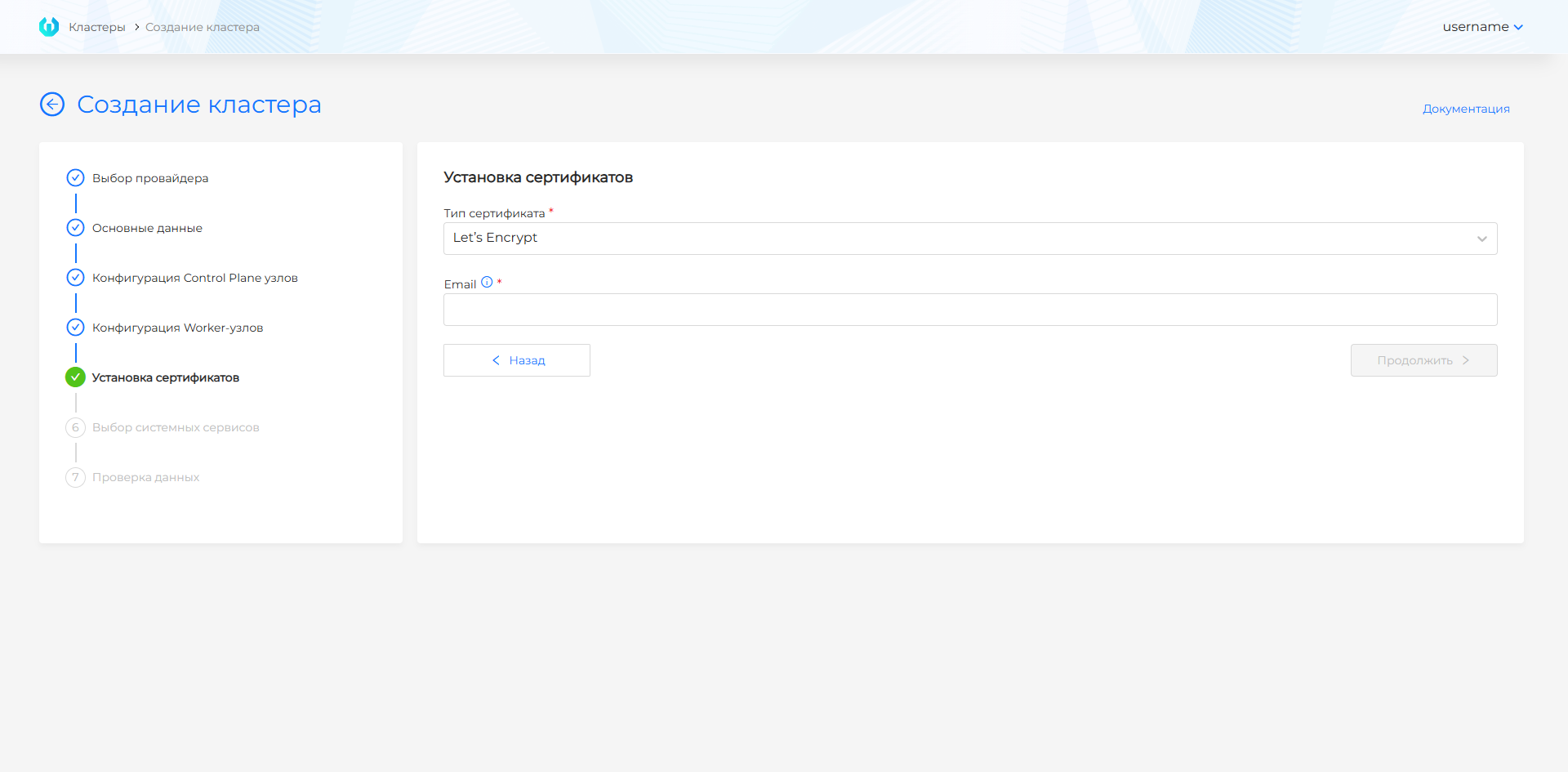
| Let’s Encrypt | Account email; root Let’s Encrypt is substituted automatically; default server https://acme-v02.api.letsencrypt.org/directory. |
For the first cluster, a self-signed certificate is often chosen.
Note: The certificate can be changed after deployment (ClusterIssuer, corporate certificate upload, etc.). Issuers installed when creating a cluster are available in the cluster administration section (ClusterIssuers).
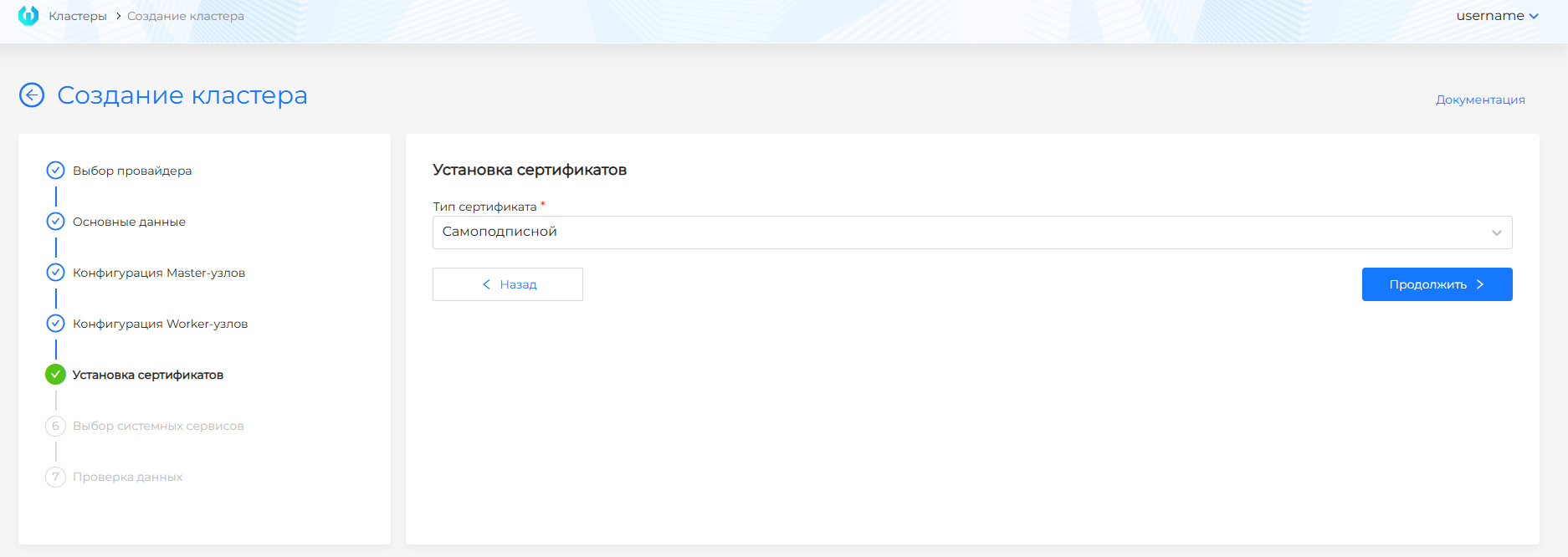
Additional screenshots on certificate types (for reference)
Step 6: Selecting services
On this step you choose what to use for HTTP traffic management. You can select only one option.
| Option | Description |
|---|---|
| NGINX Ingress Controller | Selected by default. External HTTP traffic is served by the external connections module (shturval-ingress-controller). |
| Gateway API | External HTTP traffic is served by Gateway API on Cilium. The external connections module (shturval-ingress-controller) is installed as well, in absent mode. The Cilium Gateway API controller and cert-manager issuance for Gateway API certificates are already enabled. |
Note: Critical services are always enabled and cannot be disabled. These include network components, VIP, local storage, management and update services, key CRDs (for example, shturval-networking, shturval-gateway-api-crds, shturval-ingress-controller, shturval-local-csi, shturval-snapshotter, shturval-node-config, shturval-services, shturval-update, shturval-vip, shturval-vip-provider, shturval-caching-dns, shturval-cert-manager, shturval-trust-manager). Whether shturval-ingress-controller is enabled depends on the option selected above.
In basic mode services are selected by quick installation groups:
| Group | Description | Basic services of the group (examples) |
|---|---|---|
| Monitoring | Collection, export of metrics | shturval-metrics-collector, shturval-cert-expiration |
| Logging | Local collection and processing of logs | shturval-log-collector |
| Backup and Restore | Backup and working with snapshots | shturval-backup, shturval-snapshotter |
| Application Delivery | Continuous Delivery and Advanced Deployment Strategies | shturval-cd, shturval-rollouts |
| Load balancer | Components that reschedule workloads | shturval-descheduler |
| Information Security Tools | Configuration analysis and image scanning | shturval-policy-manager, shturval-scanner |
In the advanced settings mode, you can select individual services. When you switch between Basic and Advanced mode, the selection you made in the step is reset.
Screenshots: basic and advanced selection of services
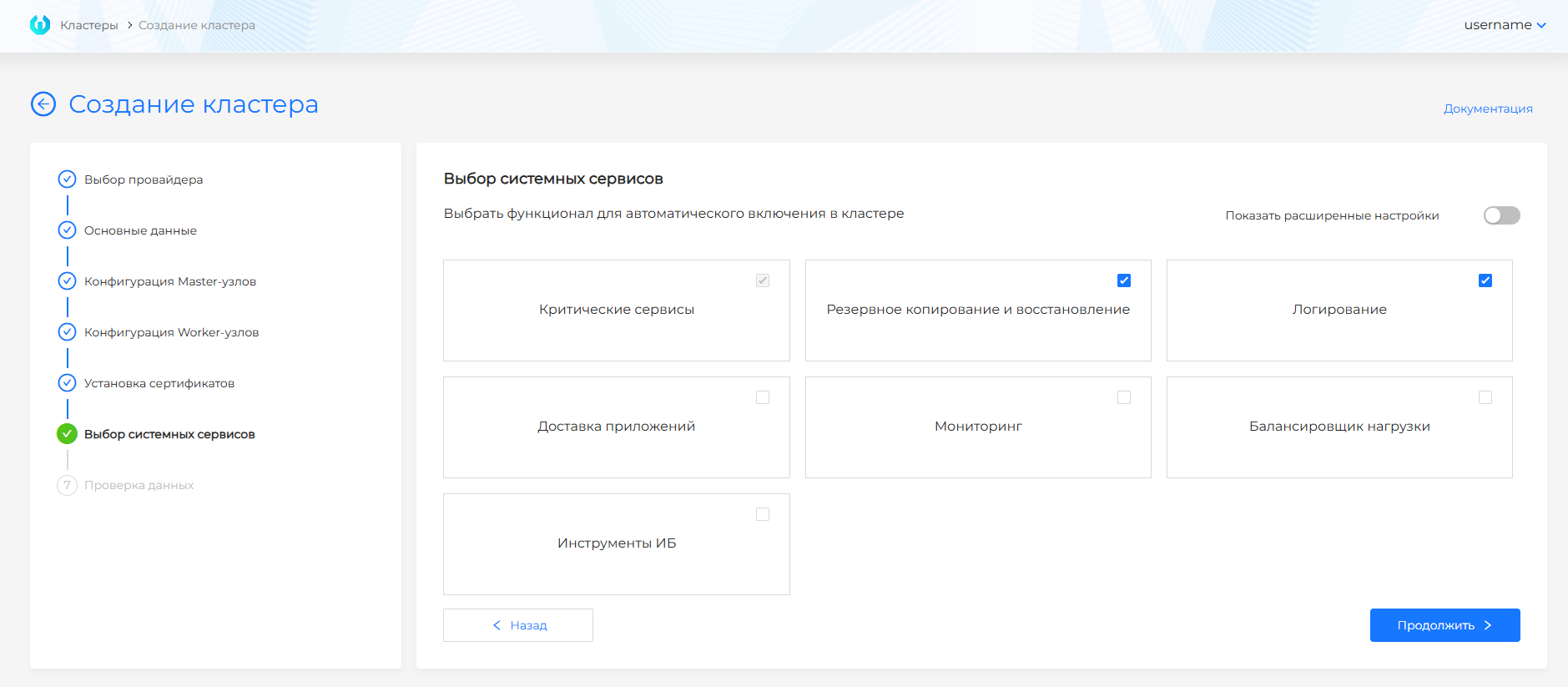
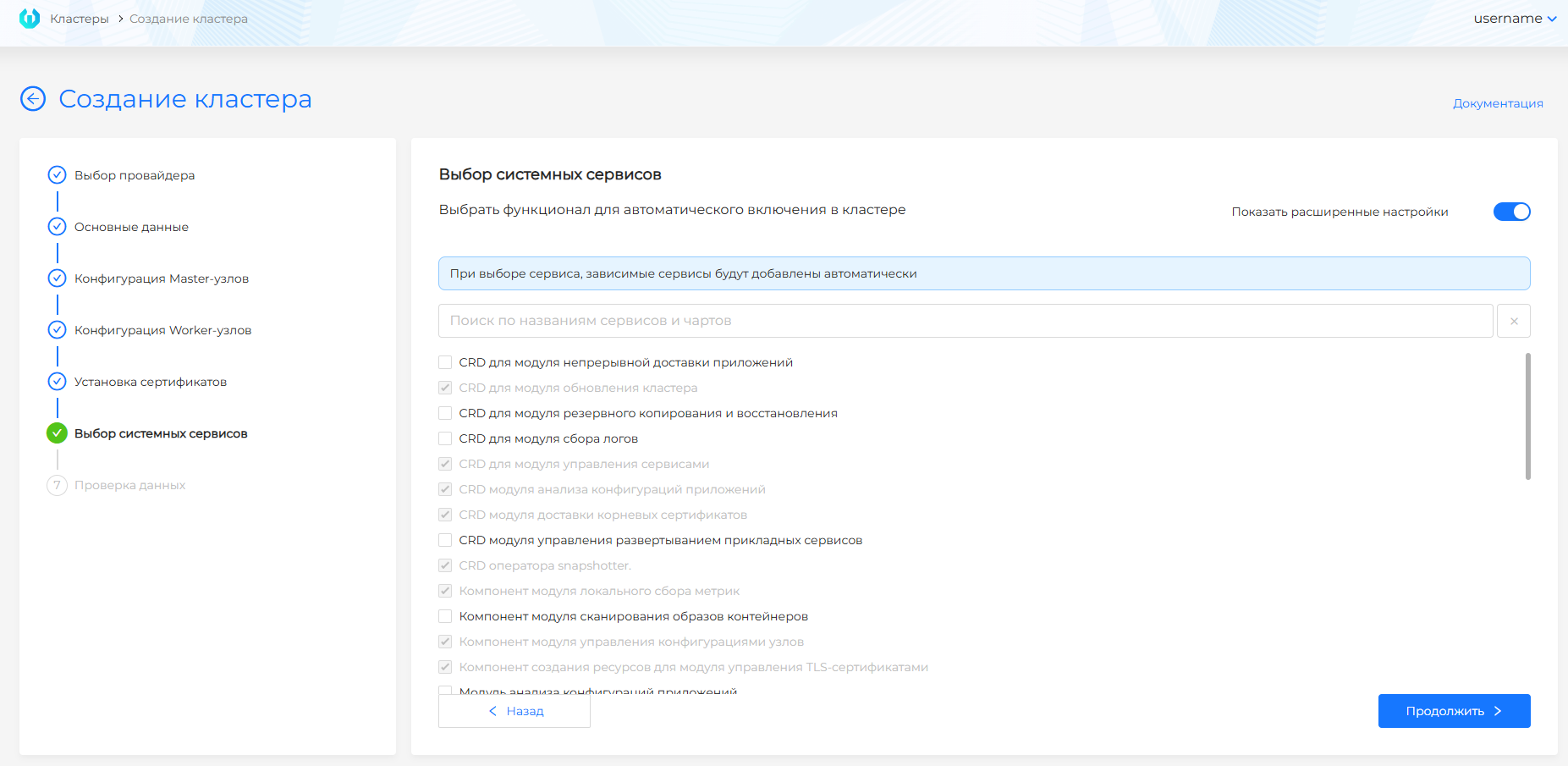
Note: if you enable a service with dependencies, the platform automatically marks the necessary dependent services.
For the full composition of groups and a list of charts, see the page “Shturval Repository Services” and the section “Installing services during cluster deployment”.
At the wizard step, it is recommended to enable Monitoring (Victoria Metrics, Grafana, dashboards) and Logging (Vector). If necessary, enable Backup and recovery (Velero), Application Delivery (Argo CD), Information Security Tools (Kyverno, Trivy), or Load balancer (Descheduler). Services from the Critical services group (networks, VIP, local storage, cert-manager, Gateway API CRDs, shturval-services, and others) are always enabled and cannot be disabled.
Data verification and cluster creation
The last step displays a summary of all parameters in reading mode, including the answer to What to use for HTTP traffic management? and the selected VM template name if that field was on the Basic data step. The answer cannot be changed on this step: go back to service selection to pick the other option. To correct the values, go to the step name in the left panel or click Back. You can check the cluster configuration before creation - start cluster deployment in dry_run mode. After successful verification, click Create Cluster to start the deployment.
When checking the configuration, a namespace with the name of the cluster is created. Once the scan is completed, it is deleted automatically. Removal may take several minutes; in this case, a warning will appear in the GUI when starting cluster creation. Wait until the namespace is completely removed and restart the cluster deployment.
Screenshots: launch and results of checking parameters before creating a cluster
How and where to run the check, see the illustration below.

Trying to initiate a cluster without checking, see the illustration below.
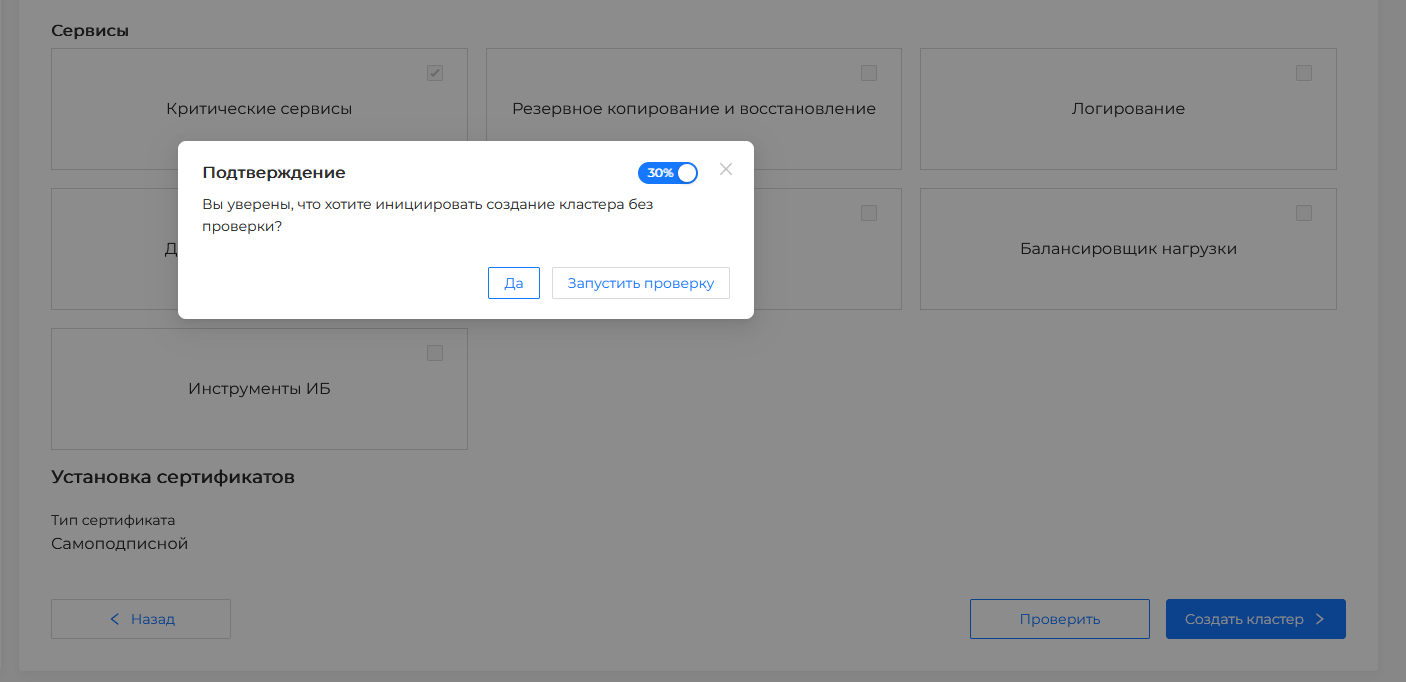
Waiting for verification, see the illustration below.

If the test results in an error, you will see it in the upper right corner of the screen, see the illustration below.
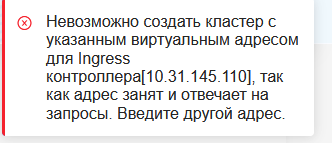
If the check is successful, see the illustration below.

Track deployment status
For a detailed description of the status block, stages, node and service tables, see Cluster deployment status.
- Cluster creation takes up to 60 minutes.
- Open Cluster → Client Clusters, select the name of the cluster to be created; before deployment is completed, the status is also on the Administration page → Dashboard (see Dashboard before deployment is completed).
- The cluster dashboard shows the Cluster deployment status block, with the overall progress and the stages of creating VMs or preparing hosts, bootstrap, Kubernetes installation, NCI, and service installation.
- Completed stages are grouped in the Ready block. Expand a stage that is in progress or has failed to see the nodes, related objects, and their conditions. Show stage details dynamically expands stages that are in progress.
- Status will change to Ready when the infrastructure is ready and all Control Plane and Worker nodes are up. NCI and service installation steps do not affect the final status; when moving to Ready early, check the NCI and services separately (see the Client Cluster section in the status reference).
- How the platform receives nodes (templates, images or Shturval v2 hosts), how this relates to Cluster API and VIP pools, see Creating nodes when deploying a client cluster and What happens under the hood.
What to expect by time:
- VM creation: 5–15 min
- Installation of Kubernetes: 10–20 min
- Installation of services: 5–15 min
For more information about the stages of installing services, see Installing services during the deployment process (including the section on tracking installation).
What to do if there is an error
- View the error message on the cluster dashboard (condition, events).
- Check troubleshooting - typical causes and solutions.
- Check subnet intersection when creating a cluster - if the error is related to the network.
After successful creation
- Download kubeconfig - arrow next to the nameuser → Download Kubeconfig (select the created cluster).
- Check access:
kubectl --kubeconfig=dev-cluster.conf get nodes - Set up monitoring and alerting - see Cluster status monitoring.
- Assign access rights to users - Assign access rights.
Help information
| Topic | Page |
|---|---|
| Deployment Status | Cluster deployment status |
| Creating nodes (templates, images, hosts, CAPI) | Creating nodes when deploying a client cluster |
| Installing services in the wizard | Installing services during cluster deployment |
| Cluster API | API for cluster management |
| IP Pools | IP Pools |
| FQDN and VIP | FQDN or VIP Features for KubeAPI and Ingress |
| Deployment Pipeline | What happens under the hood when deploying a cluster |
| Deployment without GUI | How to deploy a cluster without GUI |
| External etcd | Create a cluster with external ETCD |
| Cluster Profiles | What are cluster profiles and how to work with them |