Cluster recovery
Recovering the management cluster and client cluster.
If a management cluster or client cluster is lost, recovery is possible from Velero backups in S3. This page provides step-by-step procedures for both scenarios.
Recommended backups
Before restoring, make sure that regular backups are configured. For detailed recommendations on setting up backup, see the Backup Recommendations page.
A short list of necessary backups:
| Object | Description |
|---|---|
| Namespaces of client clusters | All namespace resources of namespaces of client clusters |
| Infrastructure Providers | Providers in shturval-capsm, capov-system, capv-system, capos-system, capbd-system, capvcd-system, capy-system (see provider table) |
| ClusterRoles | Roles in the management cluster |
| Client clusters | Full data set (with defaultVolumesToFsBackup disabled) |
Note: To backup a client cluster with a full set of data, disable defaultVolumesToFsBackup for all volumes.
Restoring the management cluster (all Control Planes are unavailable)
When all Control Plane nodes of the management cluster do not respond, but in S3 there are backup copies of namespaces of client clusters, providers and ClusterRoles.
Prepare the backup manifest in advance, while the management cluster is still running, in the YAML backup manifest constructor. Download the YAML and import it through manifest import.
If you have an ETCD backup, you can restore ETCD by following the instructions.
Step 1: Install a new management cluster
Install the platform according to installation instructions:
- Use the IP address of the non-responding management cluster as the IP API server;
- The number and characteristics of nodes are the same as for a non-responsive cluster;
- Install the backup and recovery module (Velero).
Step 2: Setting up access to S3
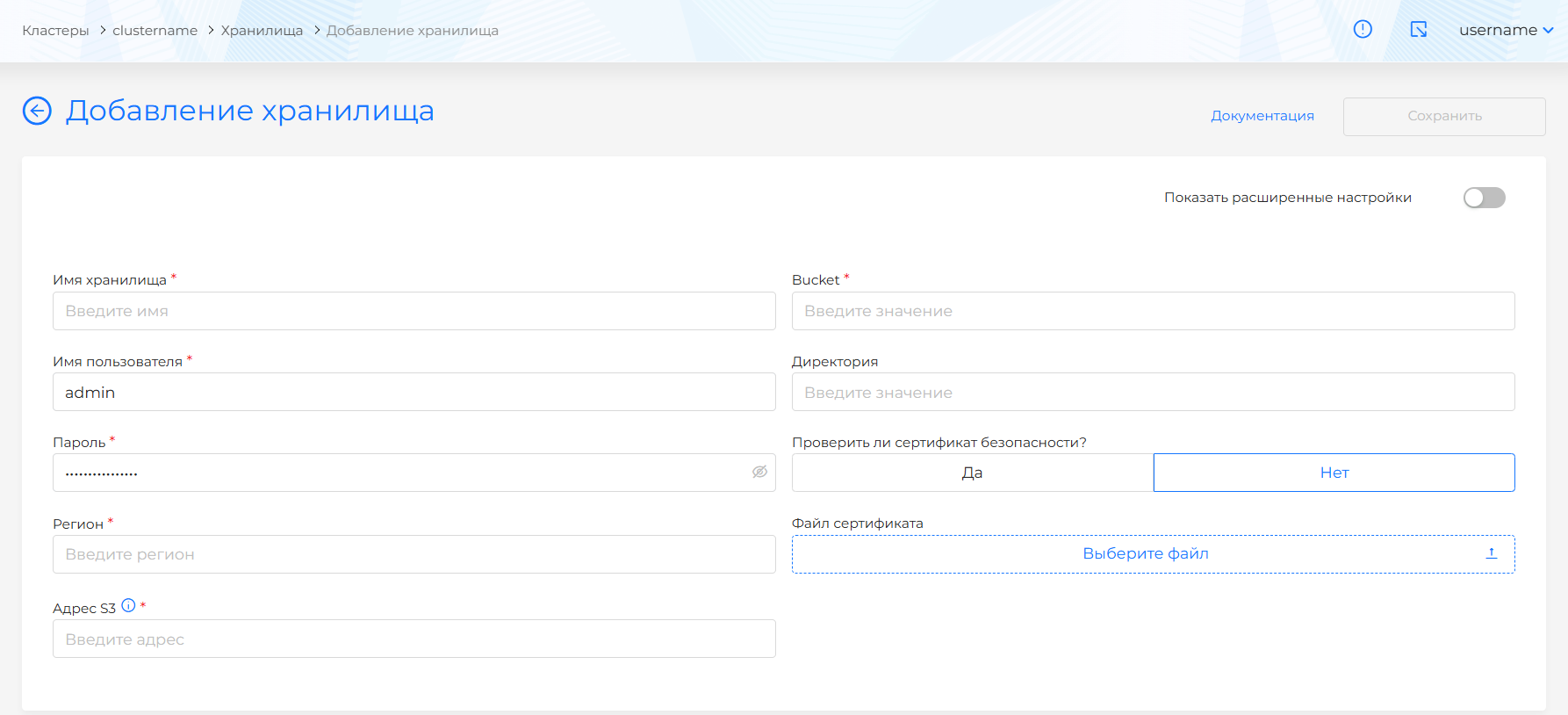
Set up a connection to the same S3 storage where the backups are located: Backup and recovery → Storages → Add storage.
Adding storage
Step 3: Restoring Backups
Restore a backup containing:
- namespaces of client clusters;
- infrastructure providers;
- ClusterRoles (UserRoles, GroupRoles).
Backup and Restore → Restored Copies → Restore from Backup.
Restoring from a backup
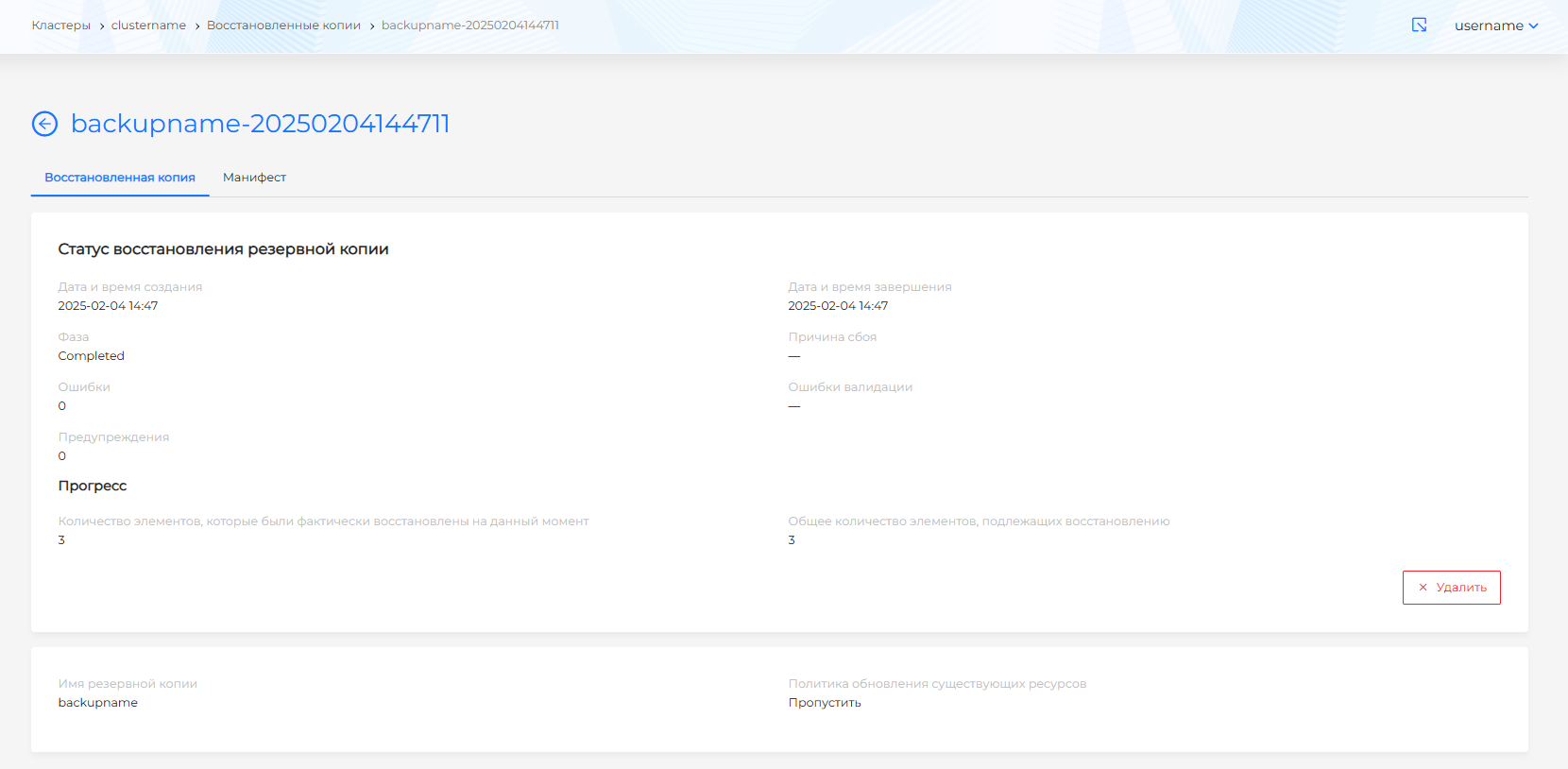
Access to managing client clusters should be restored.
Restoring client codestera (all Control Planes are not available)
When the IPs of all Control Planes of the client cluster are unavailable, but the configuration data is saved in the management cluster and there is a backup copy of the client cluster in S3.
Step 1: Create a new cluster with the same parameters
Create a new client cluster with the characteristics of the broken one:
- the same IP addresses of the API server and Ingress;
- the same provider and configuration.
Step 2: Install Velero on a cluster
Install the backup and recovery module (Velero) in the new cluster in auto mode.
Step 3: Connect S3
Connect S3 storage, which contains a backup copy of the broken cluster.
Step 4: Restoring from a backup
Restore the client cluster backup via Backup and Restore → Restored Copies.
Update on recovery policy
When restoring, a policy for updating existing resources is available:
- Skip (default) - do not overwrite existing resources;
- Update — update existing resources with data from the backup.
Note: PVs used by running loads (Deployment, StatefulSet, Pod) are not restored so as not to interrupt the operation of applications.
Restoring a deleted client cluster
If the IP addresses of all Control Plane nodes of the client cluster are unavailable, the configuration data of the client cluster is lost (the cluster is deleted from the platform), but there is a backup copy of the client cluster, it is possible to restore access to the cluster.
Recommendations for creating backup copies to restore access are on the Backup Recommendations page.
To restore access, follow these steps:
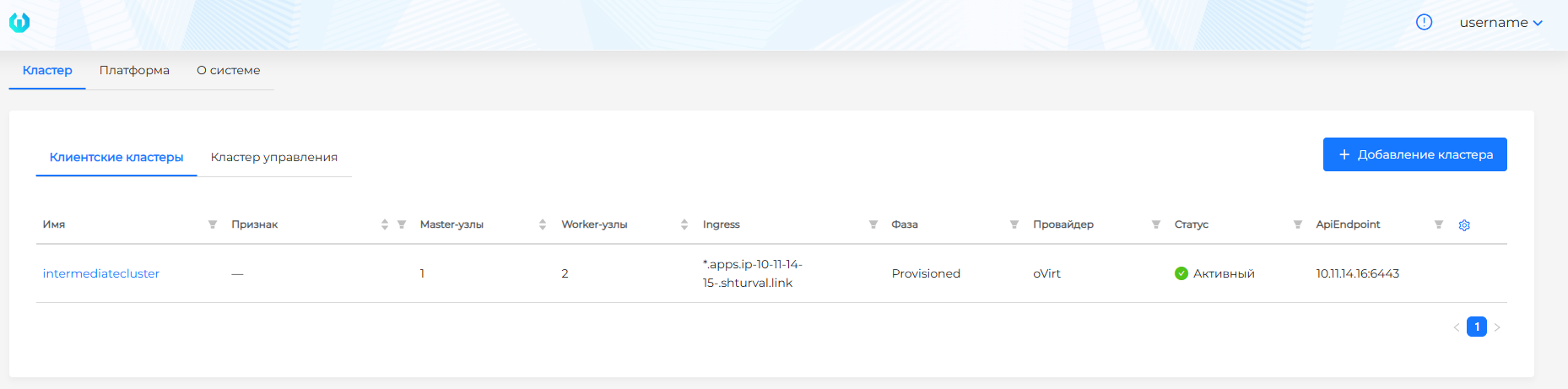
- Raise a temporary client cluster with the same parameters (IP, provider) as the remote cluster.
Screenshot
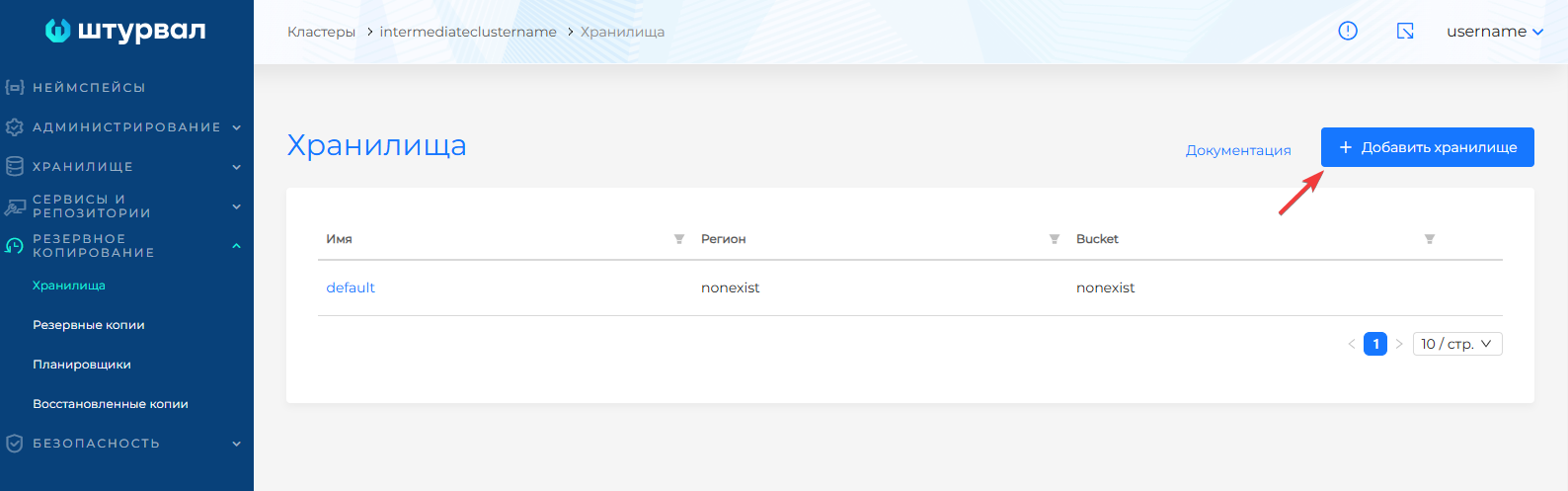
- Connect S3 storage, which contains a backup copy of the namespaces of client clusters, infrastructure providers and ClusterRoles from the management cluster.
Screenshot
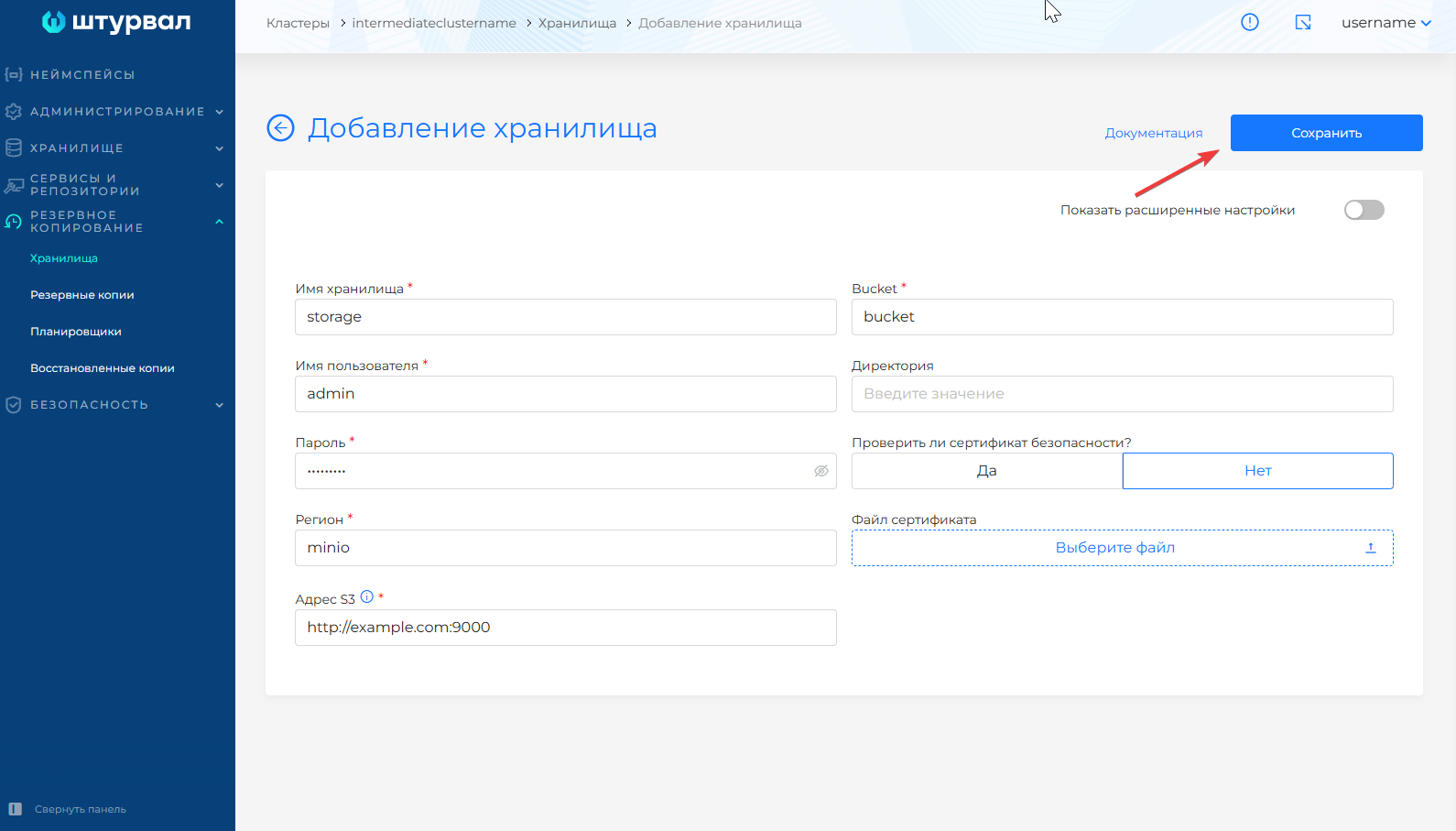
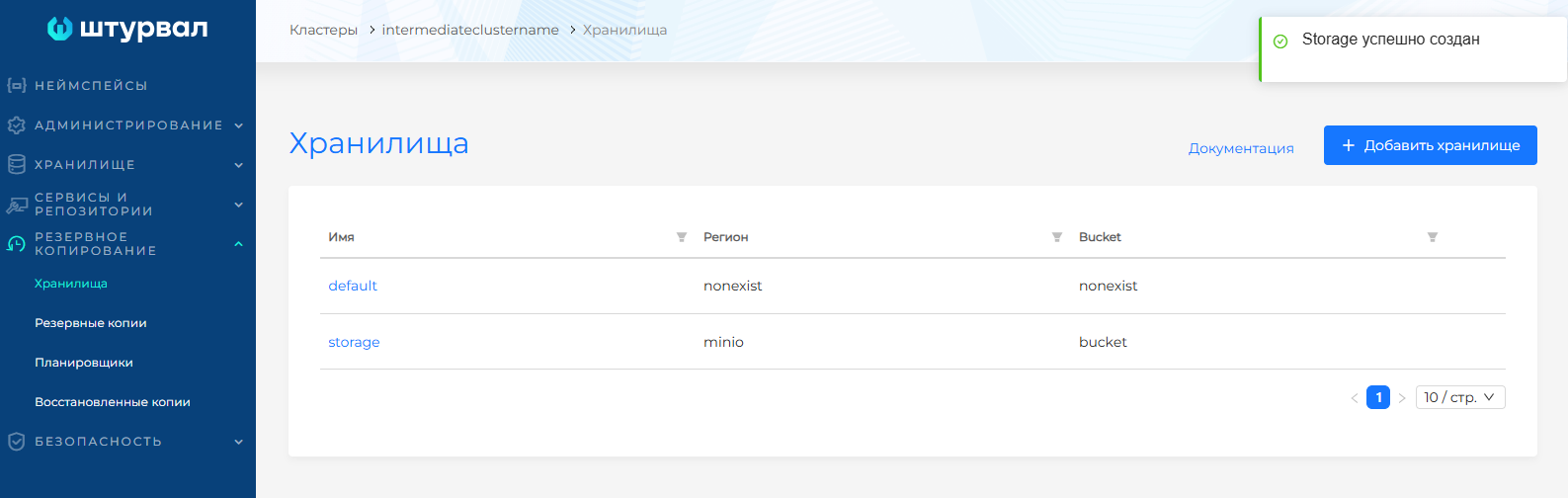
- Restore the client backupth cluster.
Screenshot

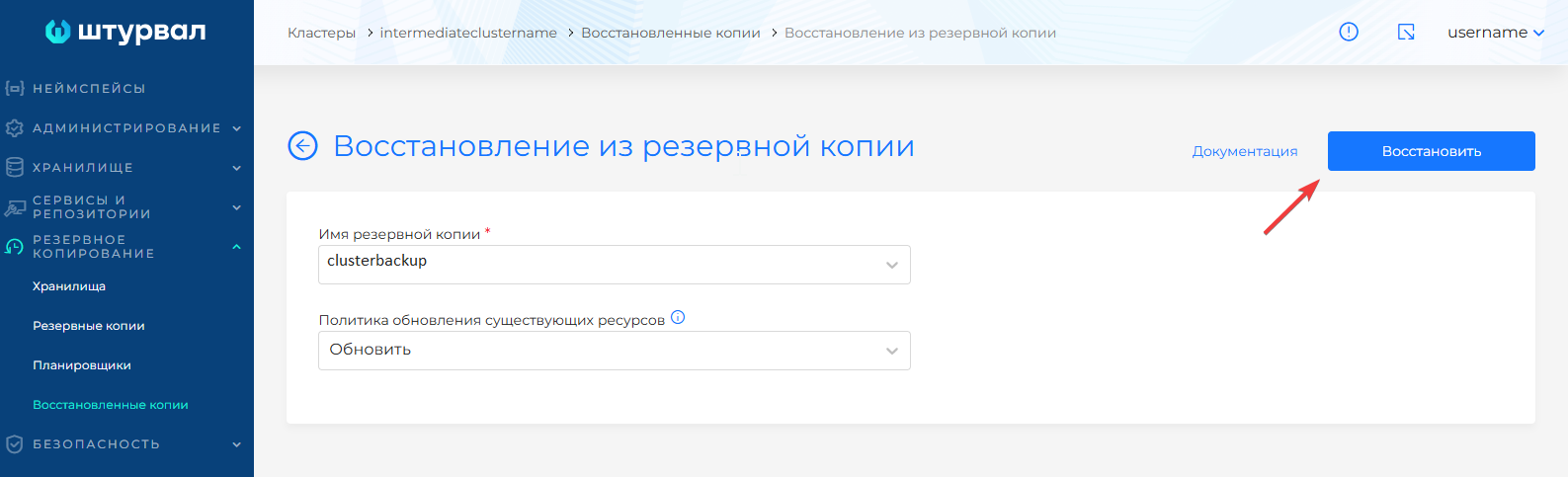
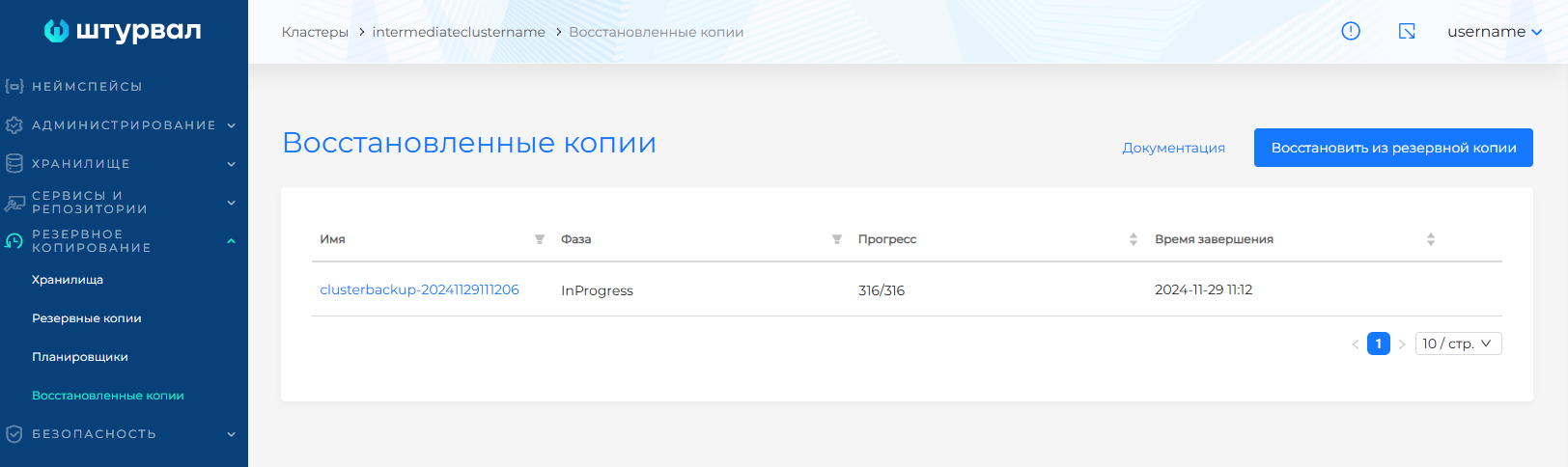
- Write down the client cluster configuration:
- the cluster server API address and security configuration information are available in Configmap
kubeadm-confignamespacekube-system;
- the cluster server API address and security configuration information are available in Configmap
Screenshot
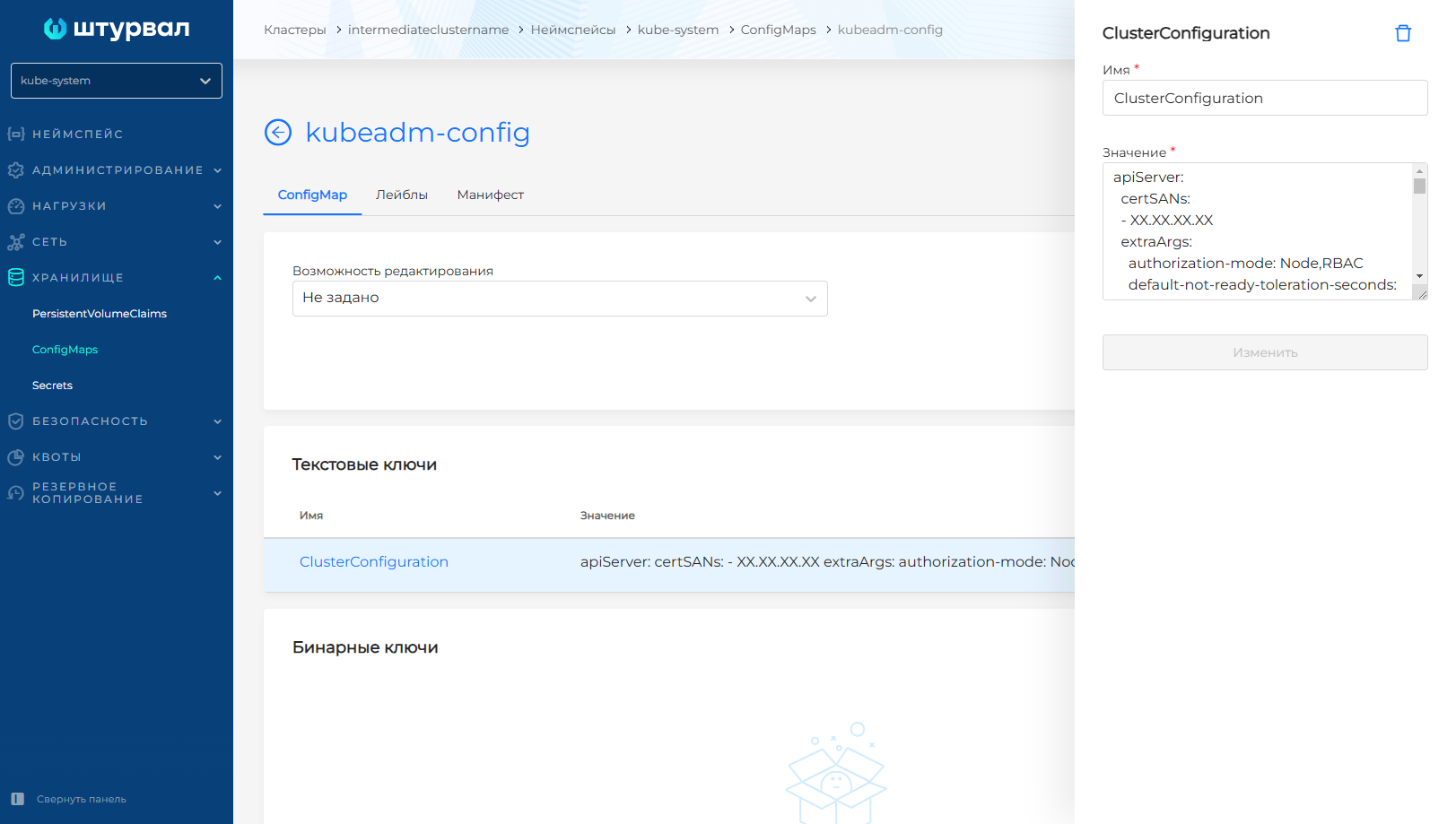
- Ingress address is available in ssc of the External Connection Control Module (
shturval-ingress-controller).
Screenshot
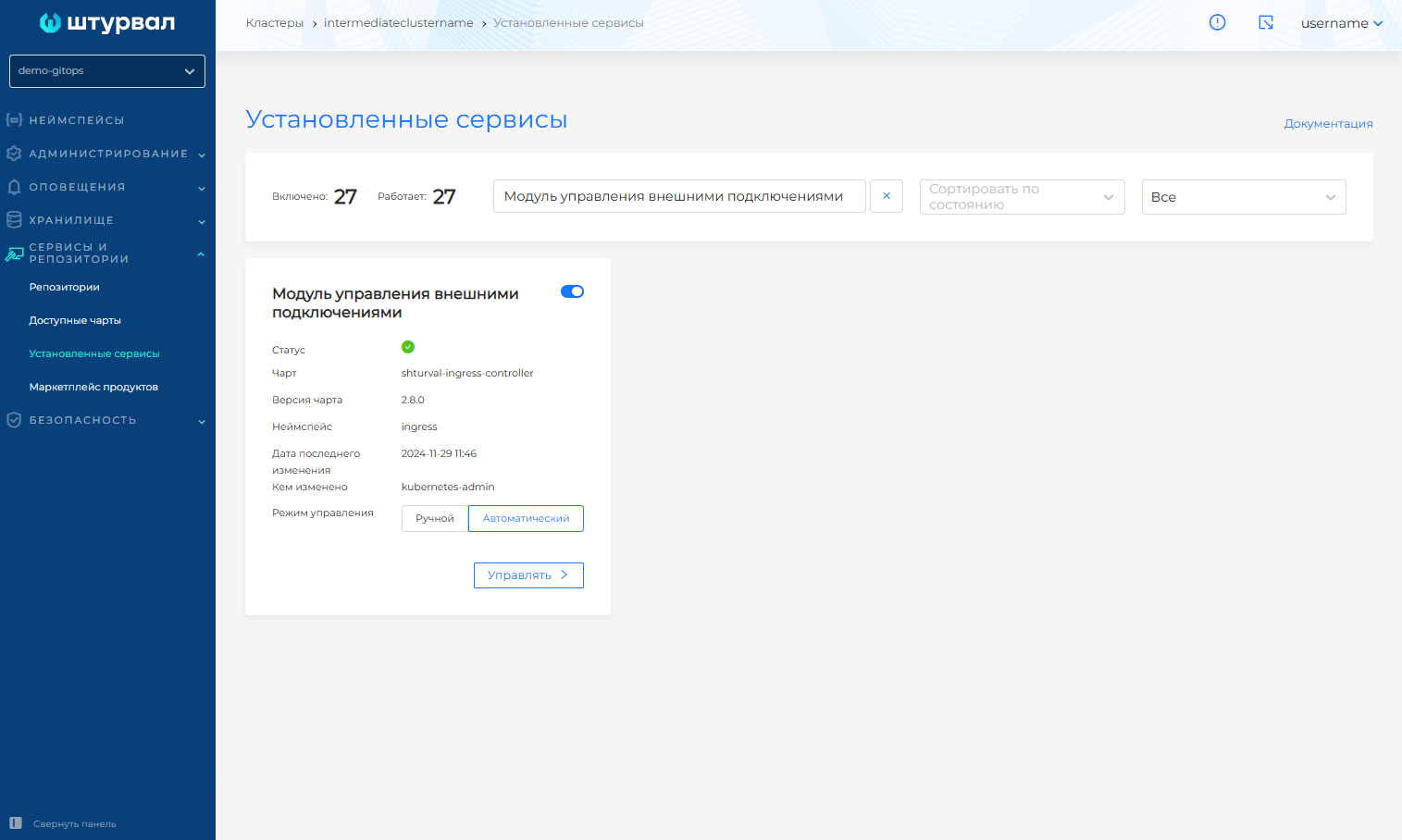
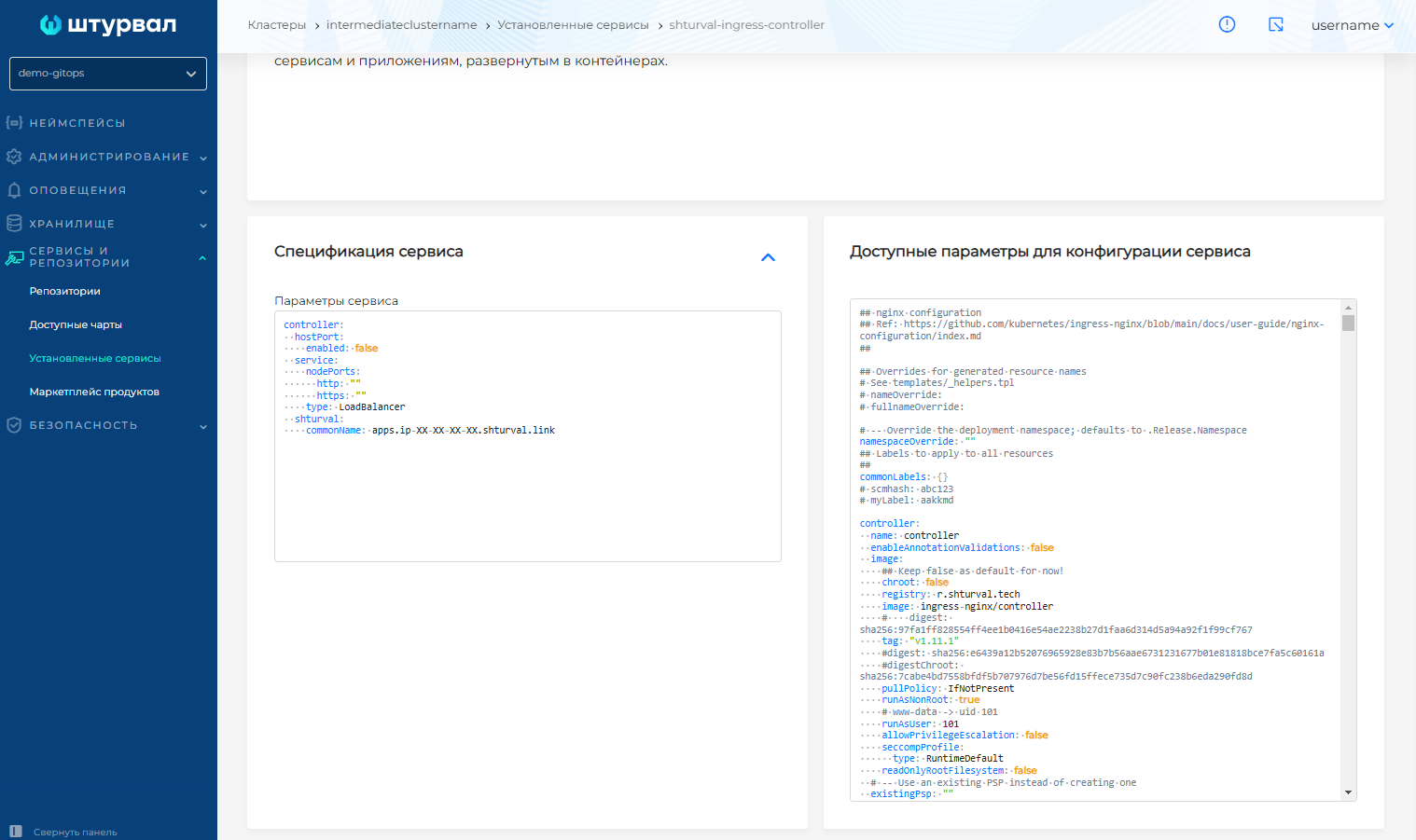
After which the test cluster can be deleted.
Screenshot
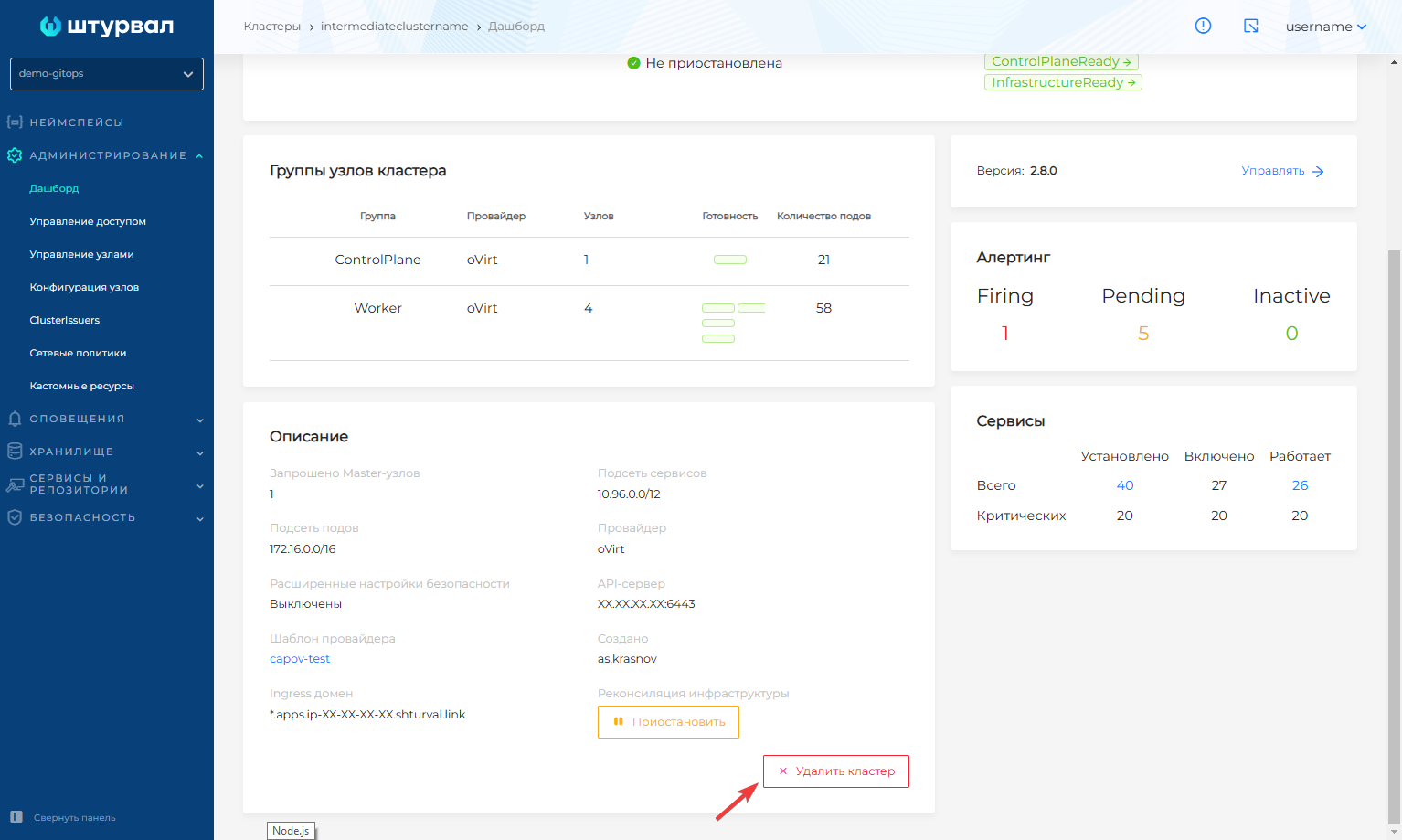
- Next steps correspond to the recovery instructions if the client cluster is lost.
Objects for backup
Objects for backup: providers (namespaces shturval-capsm, capov-system, capv-system, capos-system, capbd-system, capvcd-system, capy-system), namespaces of client clusters, UserRoles and GroupRoles in shturval-backend.
Configuring Velero via ShturvalServicePatch
Period for deleting backups
Backups are deleted within 1 hour after the expiration of the storage period. To change the period, apply Patch:
apiVersion: ops.shturval.tech/v1beta2
kind: ShturvalServicePatch
metadata:
  name: <resource name>
spec:
  shturvalServiceConfigName: shturval-backup
  custom values:
    configuration:
       defaultRepoMaintainFrequency: "<your parameter value>"
| Parameter | Description | Data type | Example |
|---|---|---|---|
metadata.name | Name of the created ShturvalServicePatch | string | shturval-backup-delete |
defaultRepoMaintainFrequency | The period of time after which backups will be deleted. Default 1 hour | string | 3h |
Solving common Velero errors
“Error checking repository for stale locks”
Occurs if data is manually deleted from S3 (restic directory), but the corresponding BackupRepository is not deleted. It is recommended to delete the repositories along with the data or not to manually delete the data from S3.
“error checking if volume is a hostPath volume”
Velero cannot write backups from hostPath. The error does not interrupt the operation of the module. To exclude pods with hostPath from the backup, add an annotation to the pod template (Deployment/DaemonSet):
backup.velero.io/backup-volumes-excludes: name1,name2,name3
Where name1, name2, name3 are the names of volumes referencing hostPath.