Installation process
Installation of a management cluster via an installation wizard or console, closed loop parameters, first steps and diagnostics.
In a closed loop, installation is performed from the local administrator’s workstation with the shtil utility. Cluster nodes and the shtil machine must have access to a pre-prepared mirror of images.
Before installation, check the Closed Loop Requirements, the Installation Preparations (Mirror, shtil Machine, Hosts, SSH), and the applicable scenarios in the Internetworking Diagrams. The list of repository services can be found on the repository services page.
The shtil executable of the current version is supplied by the vendor’s manager together with the platform bundle and artifacts for the corporate mirror. After unpacking the bundle, copy the utility to shtil machine, make the file executable (chmod +x ./shtil or the current binary name). For the procedure for working with the bundle and mirror, see the page preparing for installation in a closed loop. The shtil version must match the version of your bundle.
Available installation scripts:
- with GUI —
install-gui, then the installation wizard in the browser; - with flags —
install-cliand the provider subcommand; - with YAML -
install-cli … --yaml-path/-f.
Installation from GUI
GUI installation consists of two stages: first shtil creates a local installation cluster, then the administrator configures the management cluster in the browser-based installation wizard.
The install-gui command is also available through the create-cluster and create synonyms.
Step 1: Start a local installation cluster
For a closed loop, be sure to indicate the license and mirror address:
./shtil install-gui \
  --bootstrap-license="YOUR-LICENSE" \
  --bootstrap-registry="MIRROR ADDRESS"
If the mirror has a self-signed certificate, use one of the options.
Skip TLS mirror check:
./shtil install-gui \
  --bootstrap-license="YOUR-LICENSE" \
  --bootstrap-registry="MIRROR-ADDRESS" \
  --bootstrap-insecure
Pass the directory with trusted mirror certificates:
./shtil install-gui \
  --bootstrap-license="YOUR-LICENSE" \
  --bootstrap-registry="MIRROR-ADDRESS" \
  --bootstrap-registry-certs-dir="/path/to/certs"
Note: Important for Docker: if Docker is used on the shtil machine, the --bootstrap-insecure flag does not disable TLS checking at the primary stage docker pull: this check is performed by the Docker daemon before the bootstrap cluster is launched. Before running shtil configure mirror trust: add CA to /etc/docker/certs.d/<registry-host:port>/ca.crt or configure insecure-registries to /etc/docker/daemon.json, then restart Docker.
To immediately set the platform administrator password, add --password. The password must be at least 8 characters and contain a lowercase letter, an uppercase letter and a number.
./shtil install-gui \
  --bootstrap-license="YOUR-LICENSE" \
  --bootstrap-registry="MIRROR-ADDRESS" \
  --password="PASSWORD-ADMIN"
Basic launch parameters:
| Parameter | Description |
|---|---|
--bootstrap-license | Platform license. Required for local installation script |
--bootstrap-registry | Image mirror address. Mandatory in a closed loop |
--bootstrap-insecure | Disables TLS checking when accessing a mirror. If you use Docker additionally configure trust in the mirror |
--bootstrap-registry-certs-dir | Directory with trusted mirror certificates; does not replace the /etc/docker/certs.d/ or insecure-registries setting for Docker |
--bootstrap-kubeconfig-path | Local installation cluster kubeconfig path |
--password | Platform administrator password |
--name, -n | The name of the local installation cluster. The default is shturval-installer |
--wait | Waiting for the Control Plane of the local cluster node to be ready |
--retry | Number of retries for installation errors. Values that are too low are automatically increased to 10 |
--debug | Saves the container upon unsuccessful installation for diagnostic purposes |
After a successful launch, the command displays a message about the start of the installer, the administrator account and the URL of the GUI.
Browser for the GUI - see browser requirements.
If shtil install-gui is launched on a remote Linux machine, open the installation wizard in a browser using the IP address or hostname of this machine, without first forwarding ports, for example, http://10.11.12.13:30080/.
Going by hostname is only possible if the DNS is configured to resolve the domain name to an IP address.
Life cycle of a local installer: the “Cancel installation” button in the installation wizard resets the completed cluster creation form and returns to the initialization screen; refreshing a page without canceling field data usually doesn’t reset. After successful installation of a permanent cluster, the temporary (bootstrap) cluster is not deleted automatically - if necessary, clean it according to the instructions Uninstalling a temporary cluster. If there is an error without --debug, the local installer container may be deleted; for diagnostics use ./shtil install-gui ... --debug.
Step 2: Open the installation wizard and fill out the parameters
- Open the GUI URL from the output of
shtil. - Log in as an administrator.
- Click Create Management Cluster.
- Complete the installation wizard and click Create cluster at the data verification step.
- Wait for the deployment to complete. Installation usually takes 20-60 minutes. You can close the tab earlier: the installer address brings you back to the status page. What is kept is described in Management cluster installation status.
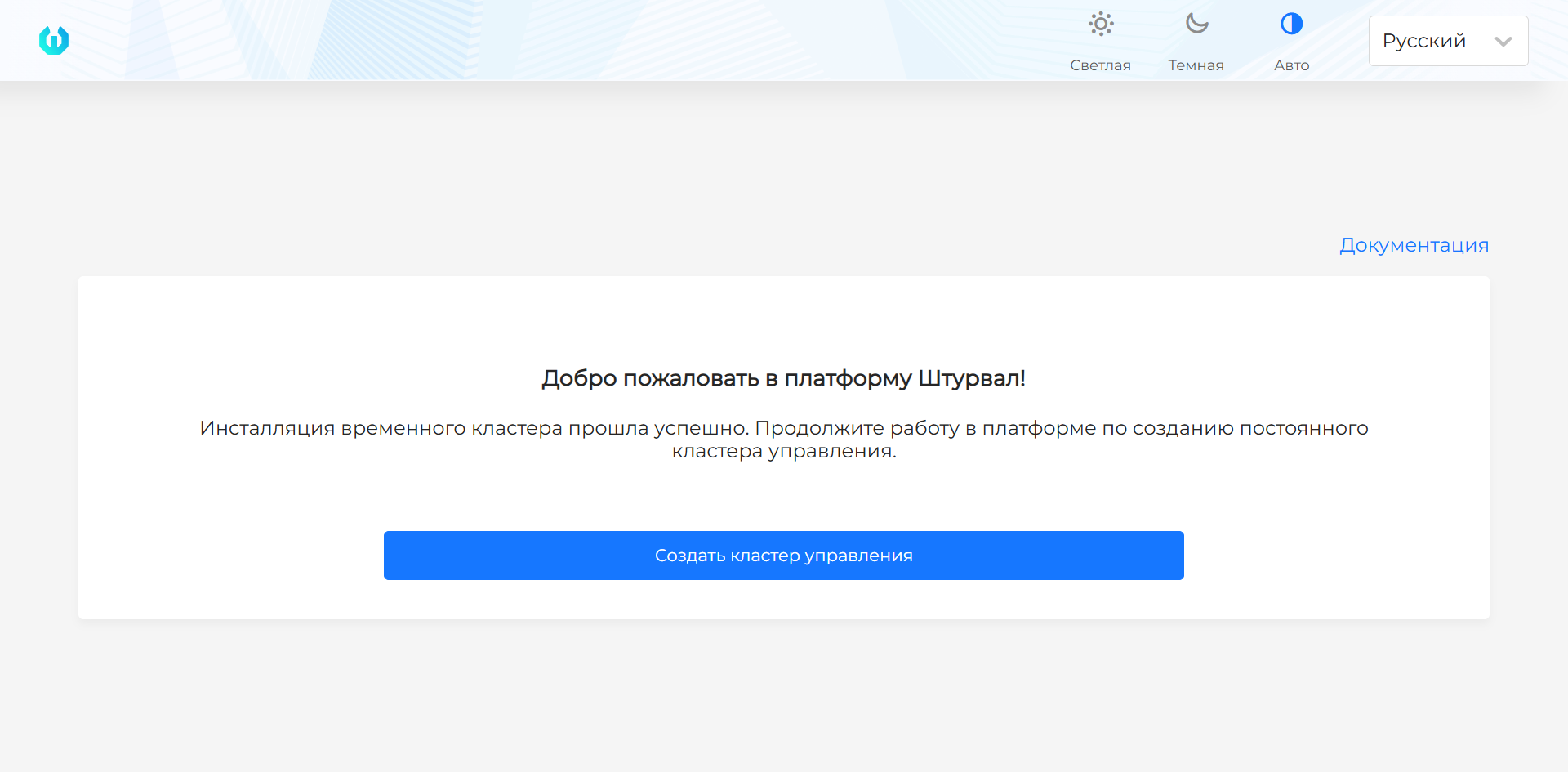
Screenshot of the local installer start screen
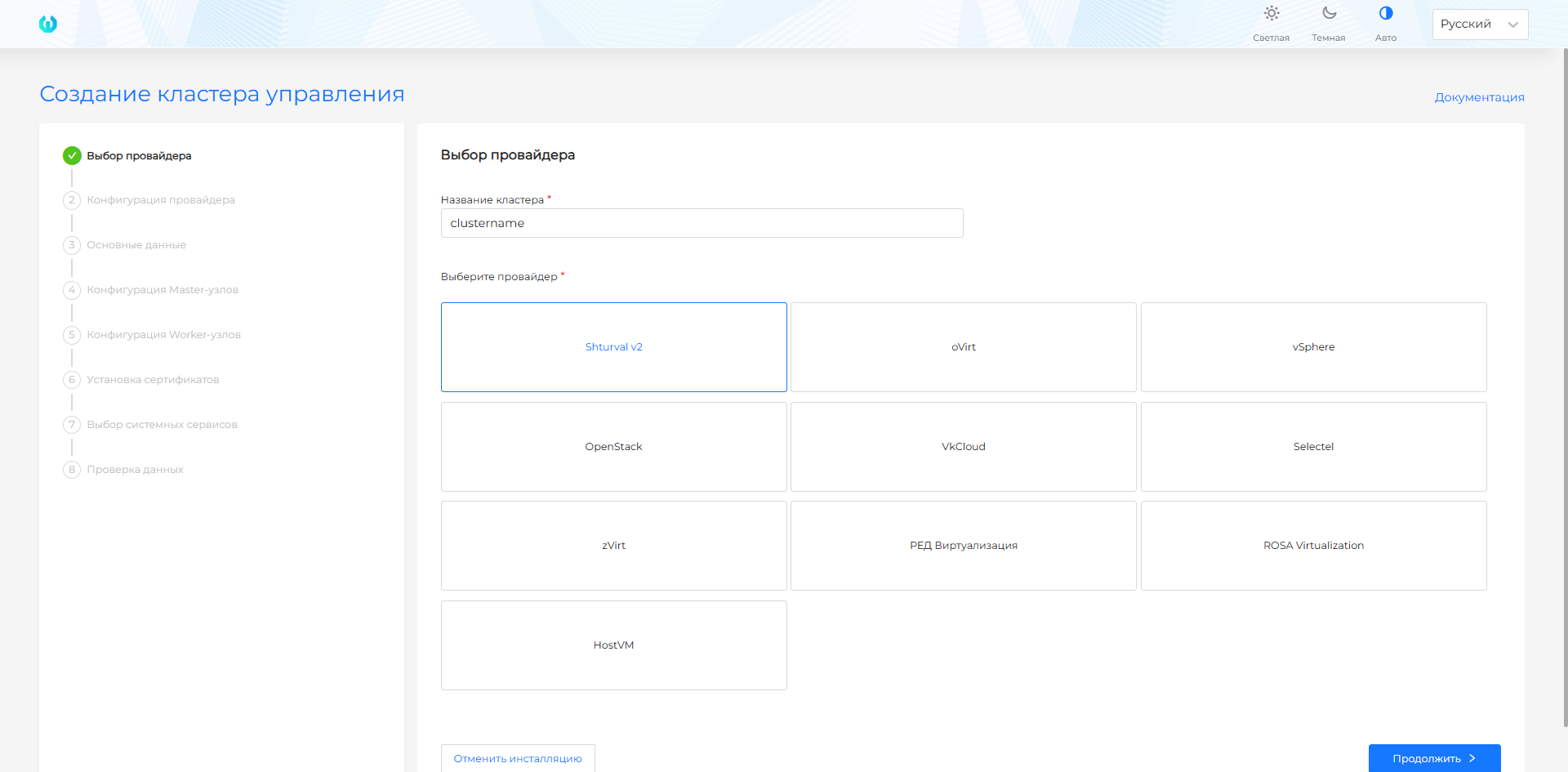
Step 1. Selecting a provider
Screenshot and step fields
| Field | Description |
|---|---|
| Cluster name | The unique name of the management cluster. Used in service objects and FQDN. Indicate the Latin alphabet, numbers and hyphens. |
| Select provider | Select the infrastructure provider prepared before installation: Shturval v2, VMware vSphere, oVirt and similar, or Yandex Cloud. |
Note: the provider with which the platform is deployed will be installed in the platform as a critical service - it cannot be disabled. The remaining infrastructure providers in the platform will be disabled.
Before filling out the form, check the requirements of the selected provider: Shturval v2, VMware vSphere, oVirt and similar providers, Yandex Cloud.
Step 2. Provider configuration
Shturval v2
The Shturval v2 provider uses pre-prepared physical or virtual hosts. A VM template is not needed for this provider: the installation wizard connects to hosts via SSH and installs components on the selected hosts.
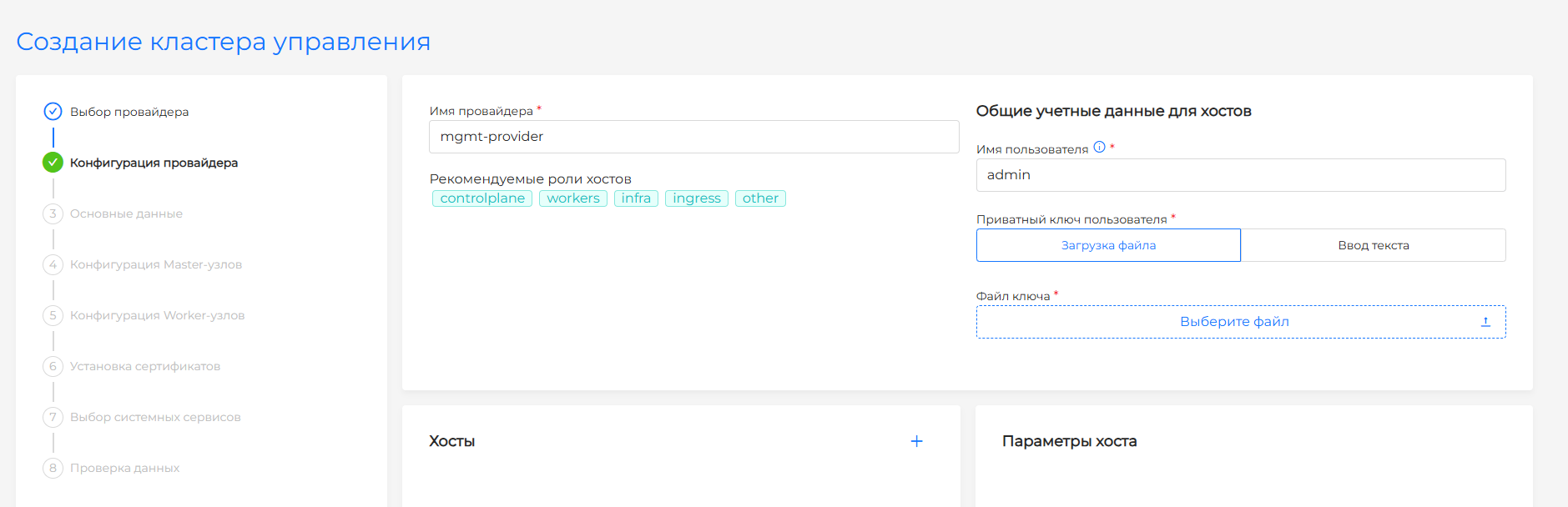
Screenshot and step fields
| Field | Description |
|---|---|
| Provider name | Provider instance name. |
| Username | In Common credentials for hosts. User for connecting to hosts over SSH. |
| User password | Optional. In the same block. SSH user password for sudo commands on the nodes. If the field is empty, sudo runs without a password. |
| User’s private key | Private key for connecting to hosts. Upload a file or enter the text. The public part of the key must be on all target hosts. |
| Hosts | IP addresses or FQDN of hosts, roles (controlplane, workers, infra and others) and, if necessary, labels. In Host parameters, User password is available if Use common credentials is not selected. |
After the hosts are loaded, the provider prepares each of them to join the cluster. Over SSH it checks access and sudo rights, deploys the node components, and checks whether the host is free and whether /etc/machine-id is unique. The next configuration step is available only when every added host has passed the checks and is ready to be bound to a ShturvalMachine: status.readyformachine: true.
A free host may still be going through preparation. If a host is not ready, check its conditions and resolve the reported cause if necessary.
By default, the provider uses common credentials for all hosts, including User password. For a single host, set the password in Host parameters. From the console, pass the same password with --ssh-user-password or credentials.SSH.sshUserPassword — see SSH user password for sudo.
Credentials are saved in the Secret of the management cluster in the namespace shturval-capsm. The Secret name is formed from the name of the provider instance with the suffix capsm-v2-provider-secret. An example of Secret is given on the page Provider Shturval v2 (shturval-capsm).
VMware vSphere
For the VMware vSphere provider, use vCenter and the settings prepared before installation. Management cluster nodes will be created from VM template; if the template was not created in advance, prepare it according to the instructions and return to installation.
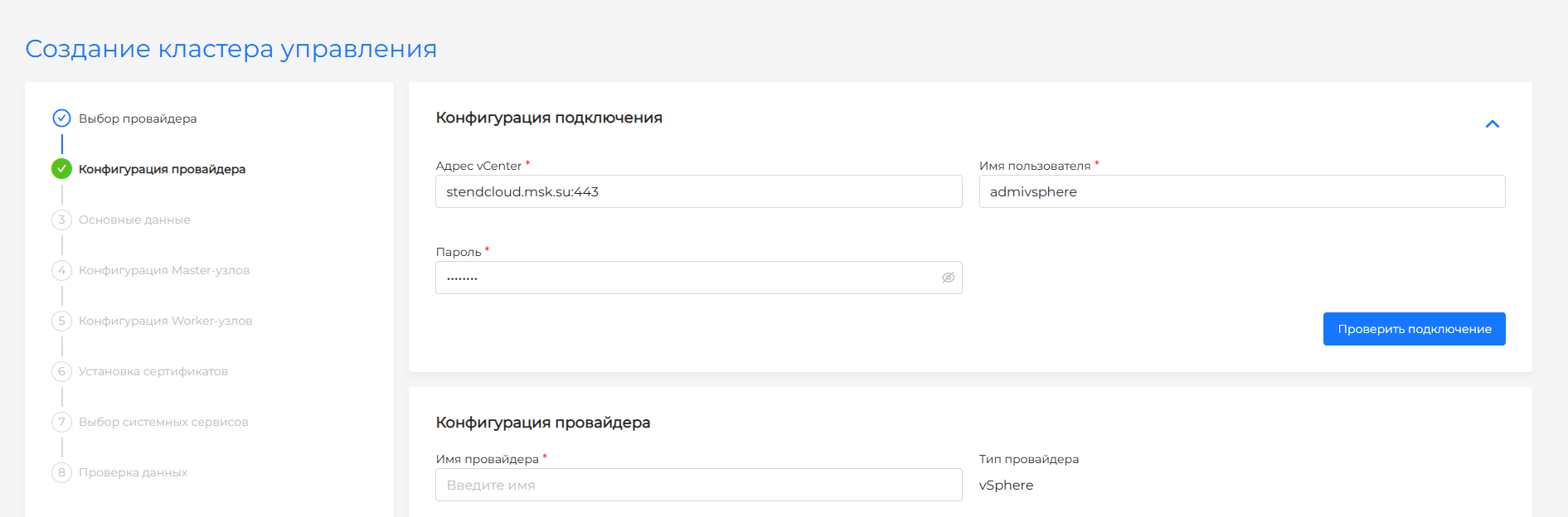
Screenshot and step fields
| Field | Description |
|---|---|
| Instance name | The name of the vSphere configuration in the installation wizard. |
| IP Pool | Pool for API server and VIP Ingress. Without a pool, addresses are entered manually. |
| vCenter Address | IP address or FQDN of the vCenter server. |
| Username | vCenter account in username@domain format. |
| Password | vCenter account password. |
| Datacenter | Virtual data center, available after checking the connection. |
| Resource Pool | Resource pool in which management cluster VMs will be created. |
| Network | Network for VM. DHCP must be enabled on the network. |
| Datastore | Storage for VM disks. |
| VM storage path | Folder or path to Datastore for VM files. |
oVirt, zVirt, HostVM, ED Virtualization, ROSA Virtualization
For oVirt and similar providers, use the Engine, network, and virtualization settings prepared before installation. Management cluster nodes will be created from VM template; if the template was not created in advance, prepare it according to the instructions and return to installation.
Screenshot and step fields
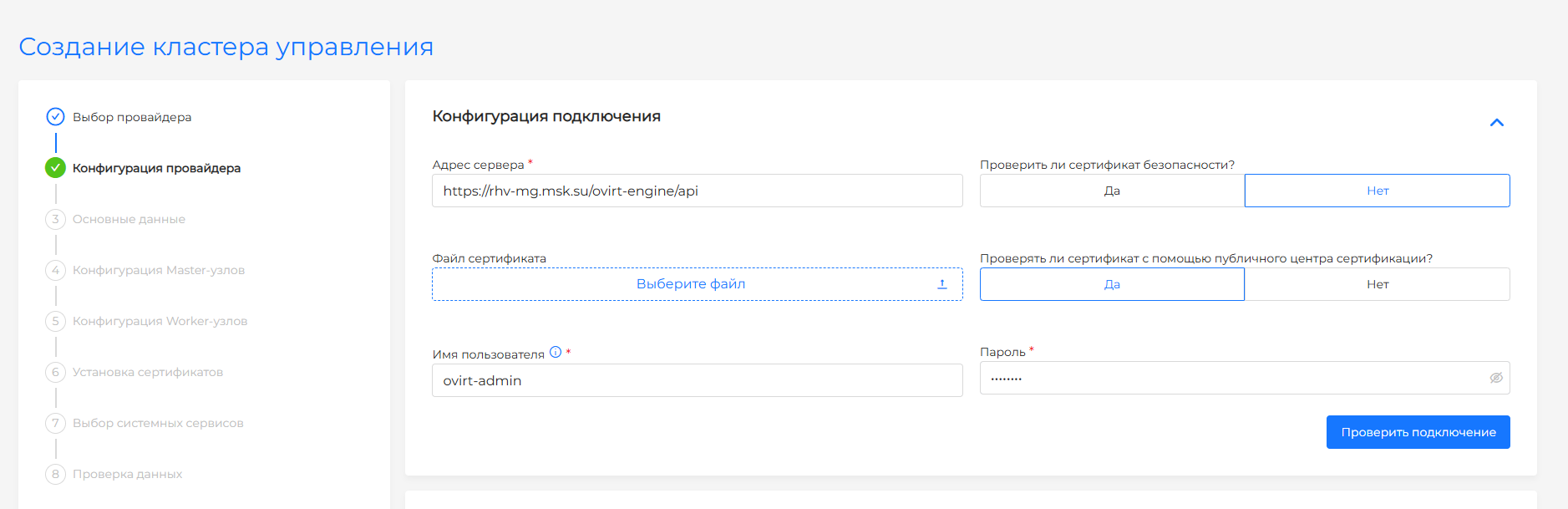
| Field | Description |
|---|---|
| Instance name | The name of the provider configuration in the installation wizard. |
| URL Engine | Full API Engine address, for example https://ovirt.example.com/ovirt-engine/api. |
| Username | An Engine account with a domain such as admin@internal. |
| Password | Engine account password. |
| Certificate Verification | Engine TLS certificate verification. Disable only if trust in an enterprise or self-signed CA is not configured. |
| Datacenter | Virtual data center from the list after successful connection verification. |
| Clusters | Virtualization cluster where VMs will be created. |
| VNIC Profile | Network profile for VM interfaces. DHCP must be enabled on the network. |
| Allow CSI | Allows you to enable CSI integration for Persistent Volumes in the basic data step. |
| IP Pool | Pool for API server and VIP Ingress. Without a pool, addresses are entered manually. |
Yandex Cloud
The instance and VM template are set on this step. The fields match the Yandex Cloud provider instance. CSI needs the k8s.clusters.agent role on the service account. Allow CSI defaults to No.
On the basic-data step for Yandex Cloud, turn on the external Ingress load balancer and, if needed, CSI integration. Later wizard steps — nodes, certificate, services, and review — match installation in an open environment. Only the way platform images are obtained changes (the closed-environment mirror).
Step 3. Basic data
Shturval v2
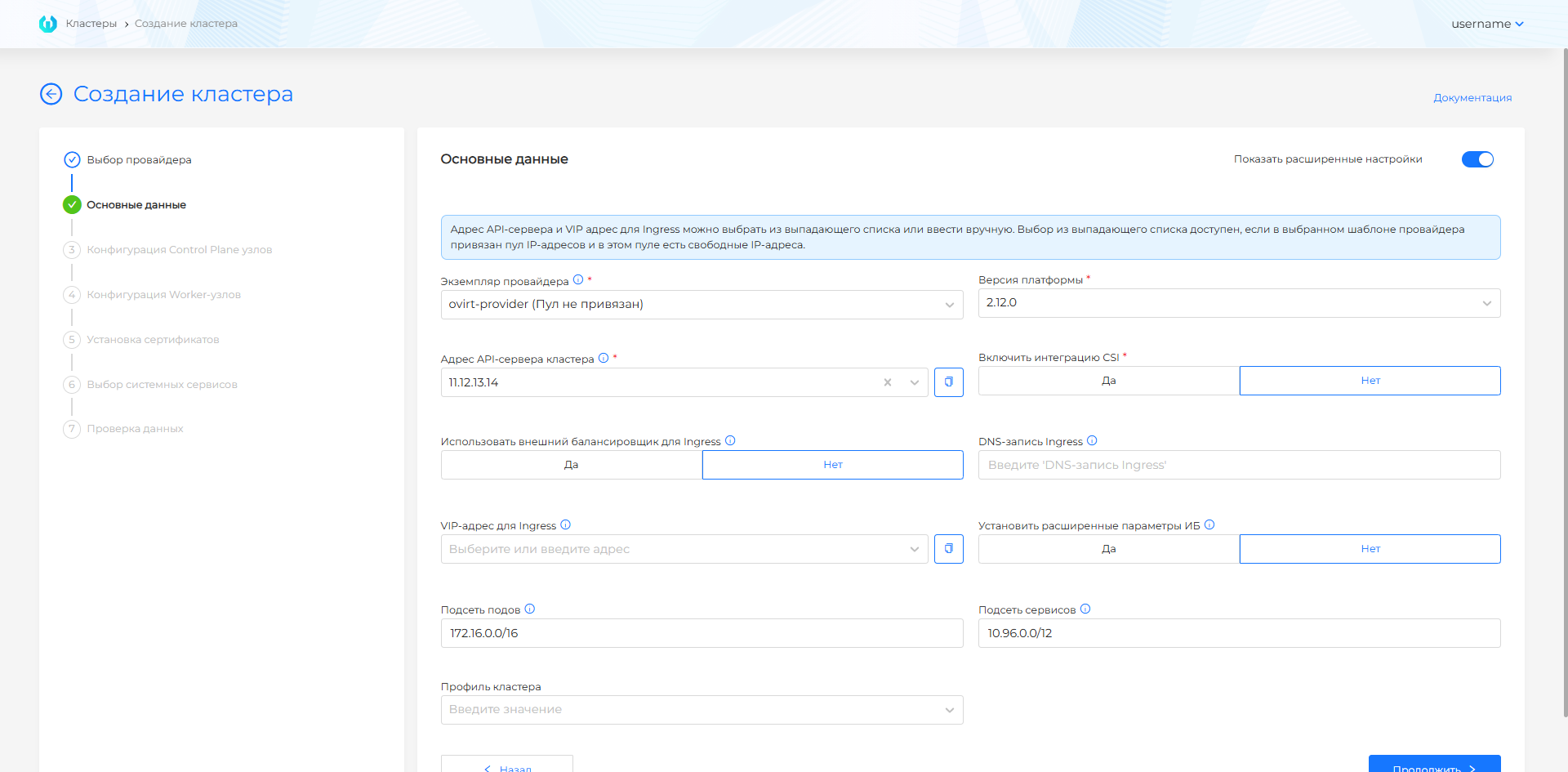
Screenshots and step fields
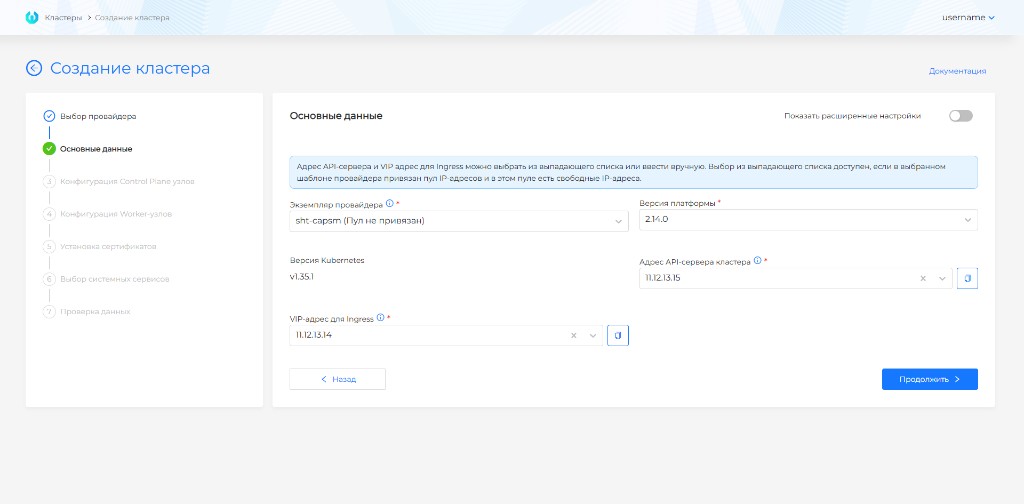
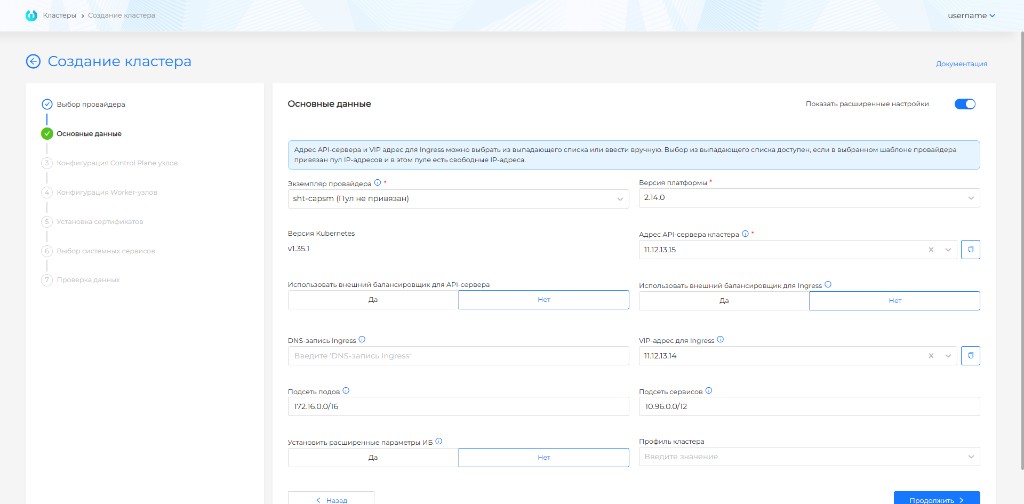
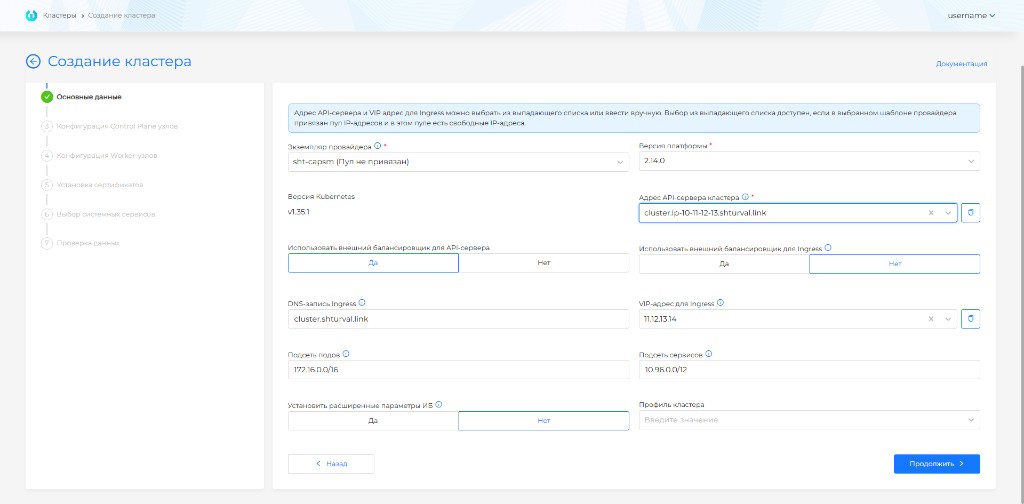
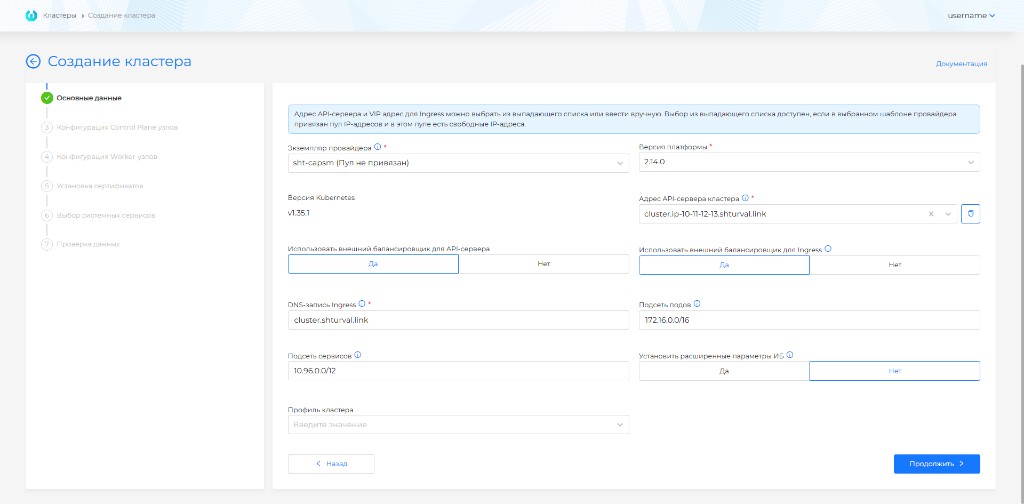
| Field | Description |
|---|---|
| Kubernetes version / platform version | Compatible version of Kubernetes and platform for the management cluster. |
| cluster API server address | IP or FQDN for KubeAPI. You can select a free address from the pool or enter it manually. |
| VIP address for Ingress | IPv4 address for system Ingress if an external Ingress balancer is not used. |
| DNS record Ingress | Wildcard FQDN for Ingress when using DNS instead of VIP. |
| Use external balancer for Ingress | Leaves the DNS record field for Ingress. The external load balancer must be provisioned before the deployment starts. |
| Use an external balancer for the API server | For the API server, the FQDN of the external balancer is specified. The balancer must be ready before installation. |
| Set advanced information security settings | Includes Secret Encryption for etcd, TLS connection to Kubelet and pre-configured audit policy. |
| PodSubnet | CIDR for Pod network. Should not intersect with the network of nodes and services. |
| Service Subnet | CIDR for Service ClusterIP. Should not interfere with the network of nodes and pods. |
| Cluster Profile | A set of policies and settings that apply to a cluster. |
VIPs are needed if external balancers for KubeAPI and Ingress are not used. Both addresses must be free. The API address must be on the Control Plane subnet, and VIP Ingress must be accessible from the administrator workstation.
VMware vSphere
Screenshots and step fields
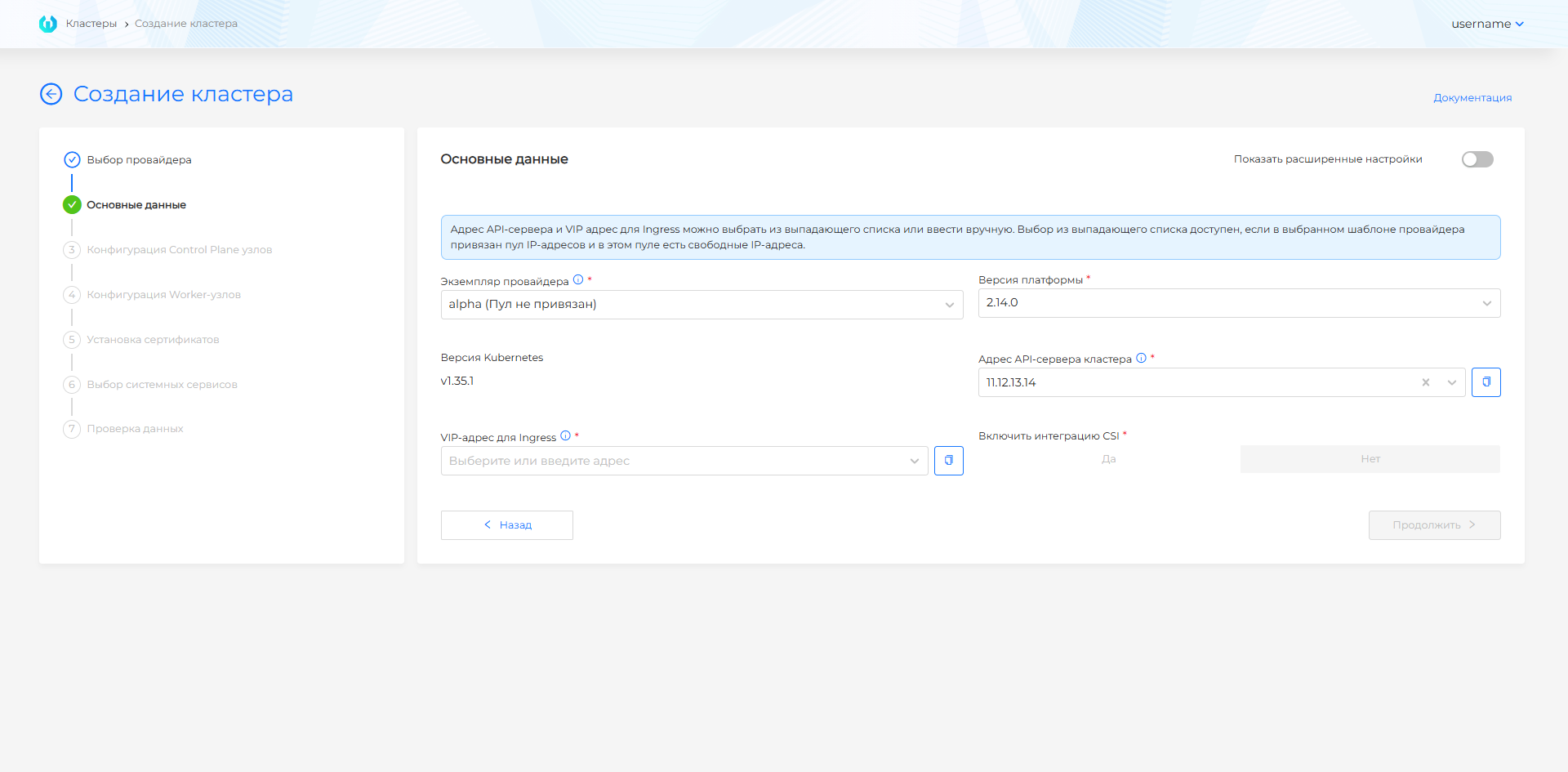
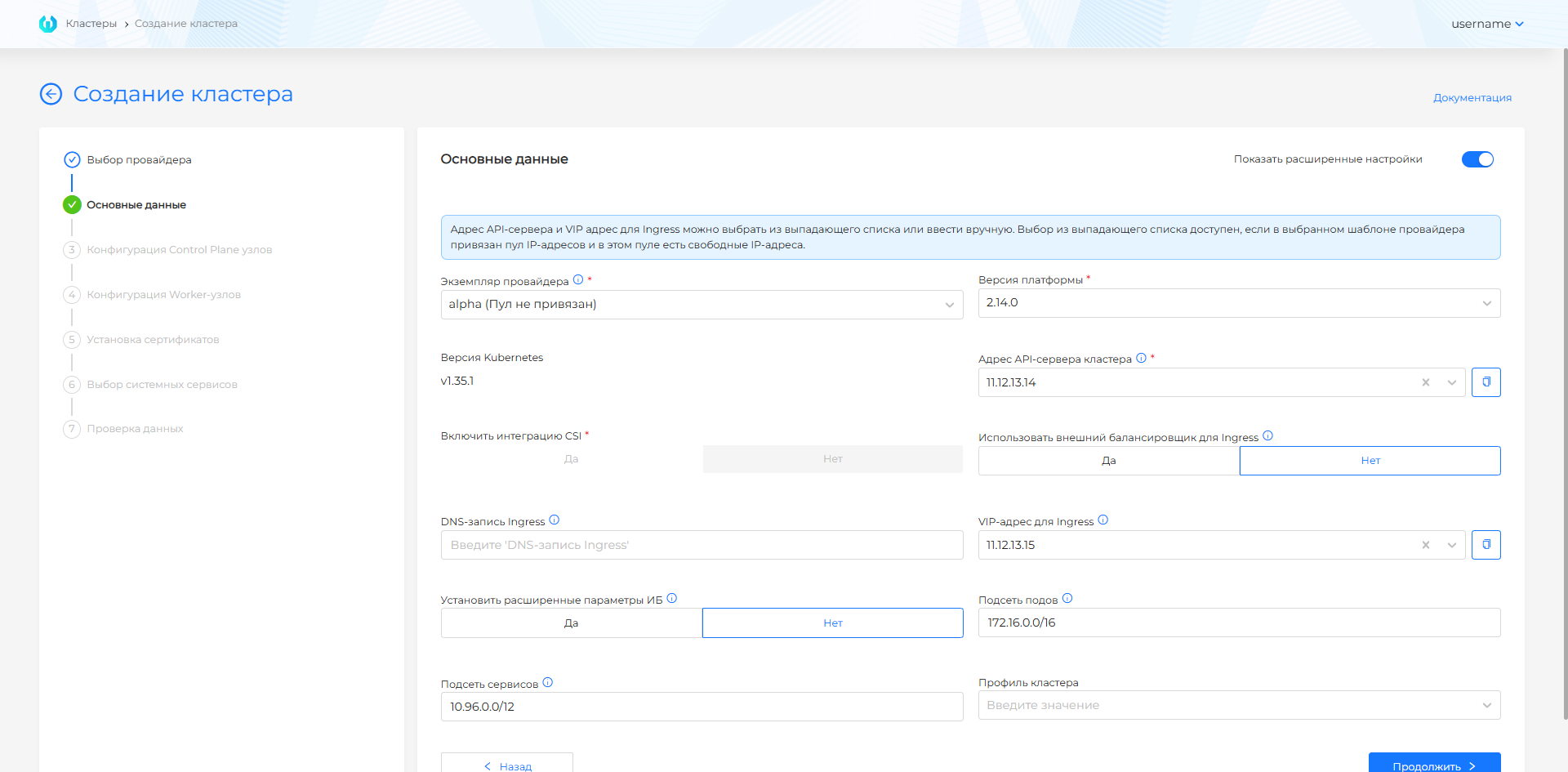
| Field | Description |
|---|---|
| Provider Template | A VM template for the required version of Kubernetes, prepared before installation according to instructions. If there is only one template, it is selected automatically. If the instance has several templates for one Kubernetes version, a required VM template field appears after you select the platform version. |
| cluster API server address | VIP or FQDN for KubeAPI. Select an address from the pool or enter it manually. |
| VIP address for Ingress | IPv4 address for system Ingress in basic mode. |
| VIP address for Ingress or DNS record for Ingress | In advanced mode, you can specify an IPv4 address or Wildcard FQDN. |
| Platform Version | Compatible platform version for the selected template. |
| Enable CSI Integration | Enables vSphere CSI for Persistent Volumes if allowed by the template and vCenter permissions. |
| Delete PVs when deleting a cluster with CSI integration enabled | Yes / No. Default No. Details: Deleting PVs when deleting a cluster. |
| Use external balancer | Transfers Ingress traffic to an external balancer; for Ingress, a DNS record is specified. |
| Set advanced information security settings | Includes Secret Encryption for etcd, TLS connection to Kubelet and pre-configured audit policy. |
| PodSubnet | CIDR for Pod network. |
| Service Subnet | CIDR for Service ClusterIP. |
| Cluster Profile | A set of policies and settings that apply to a cluster. |
VIPs are needed if external balancers for KubeAPI and Ingress are not used. Both addresses must be free. The API address must be on the Control Plane subnet, and VIP Ingress must be accessible from the administrator workstation.
oVirt, zVirt, HostVM, ED Virtualization, ROSA Virtualization
Screenshots and step fields
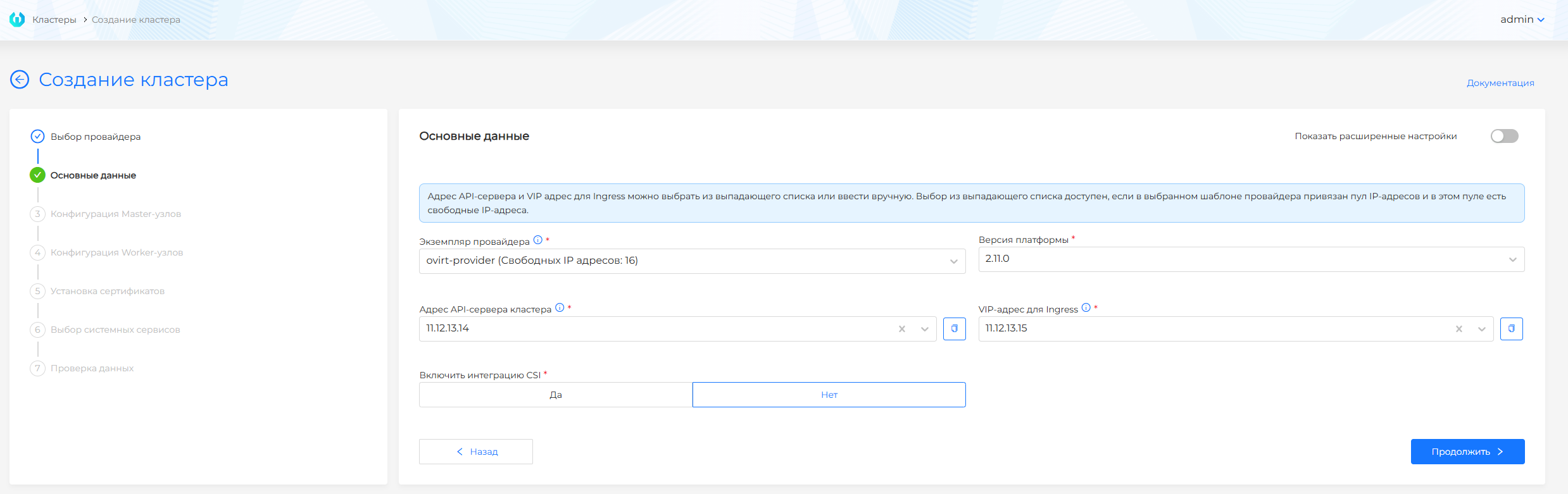
Screenshot: PV deletion field
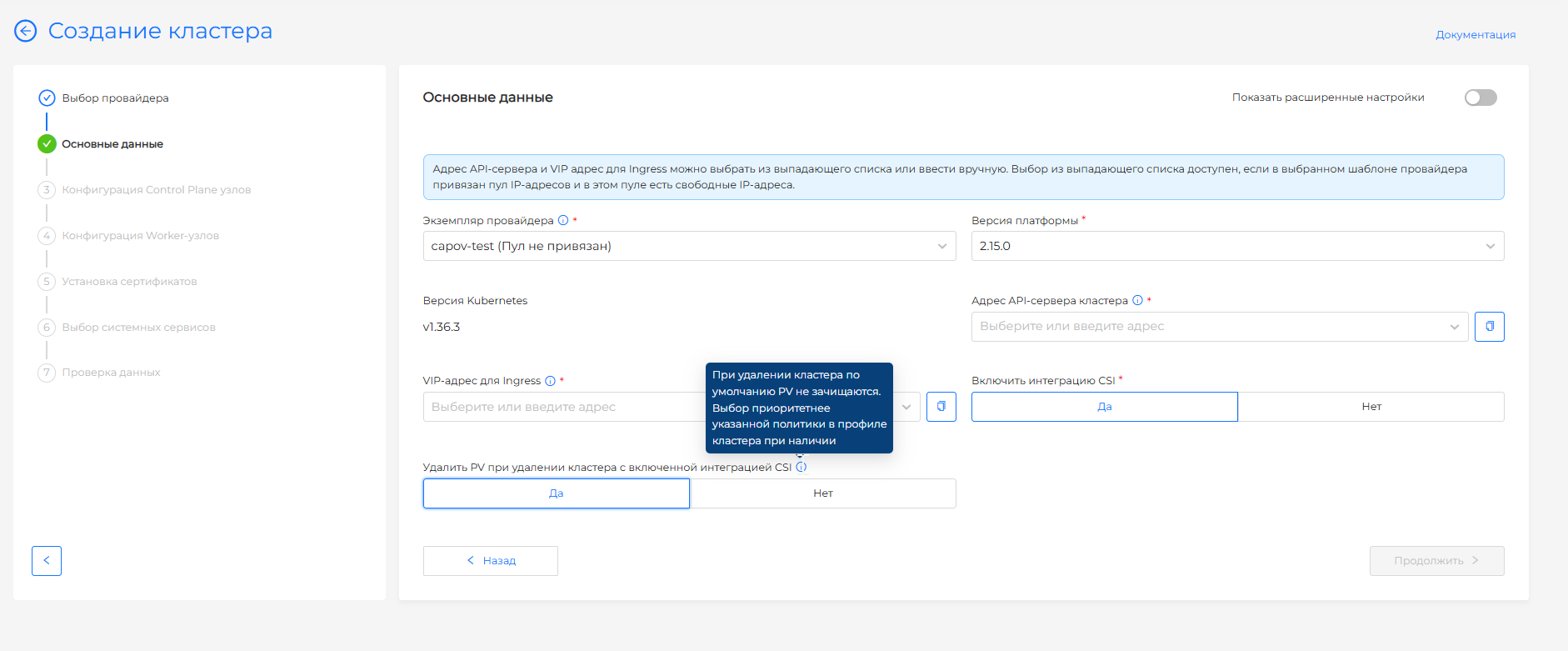
| Field | Description |
|---|---|
| Provider Template | A VM template for the required version of Kubernetes, prepared before installation according to instructions. |
| Platform Version | Compatible platform version for the selected template. |
| cluster API server address | VIP or FQDN for KubeAPI. Select an address from the pool or enter it manually. |
| VIP address for Ingress | IPv4 address for system Ingress in basic mode. |
| VIP address for Ingress or DNS record for Ingress | In advanced mode, you can specify an IPv4 address or Wildcard FQDN. |
| Enable CSI Integration | Enables CSI integration if it is enabled on the provider instance. |
| Delete PVs when deleting a cluster with CSI integration enabled | Yes / No. Default No. Details: Deleting PVs when deleting a cluster. |
| Usecall external balancer | Transfers Ingress traffic to an external balancer; for Ingress, a DNS record is specified. |
| Set advanced information security settings | Includes Secret Encryption for etcd, TLS connection to Kubelet and pre-configured audit policy. |
| PodSubnet | CIDR for Pod network. |
| Service Subnet | CIDR for Service ClusterIP. |
| Cluster Profile | A set of policies and settings that apply to a cluster. |
VIPs are needed if external balancers for KubeAPI and Ingress are not used. Both addresses must be free. The API address must be on the Control Plane subnet, and VIP Ingress must be accessible from the administrator workstation.
Step 4. Configuring Control Plane nodes
Shturval v2
Screenshots and step fields
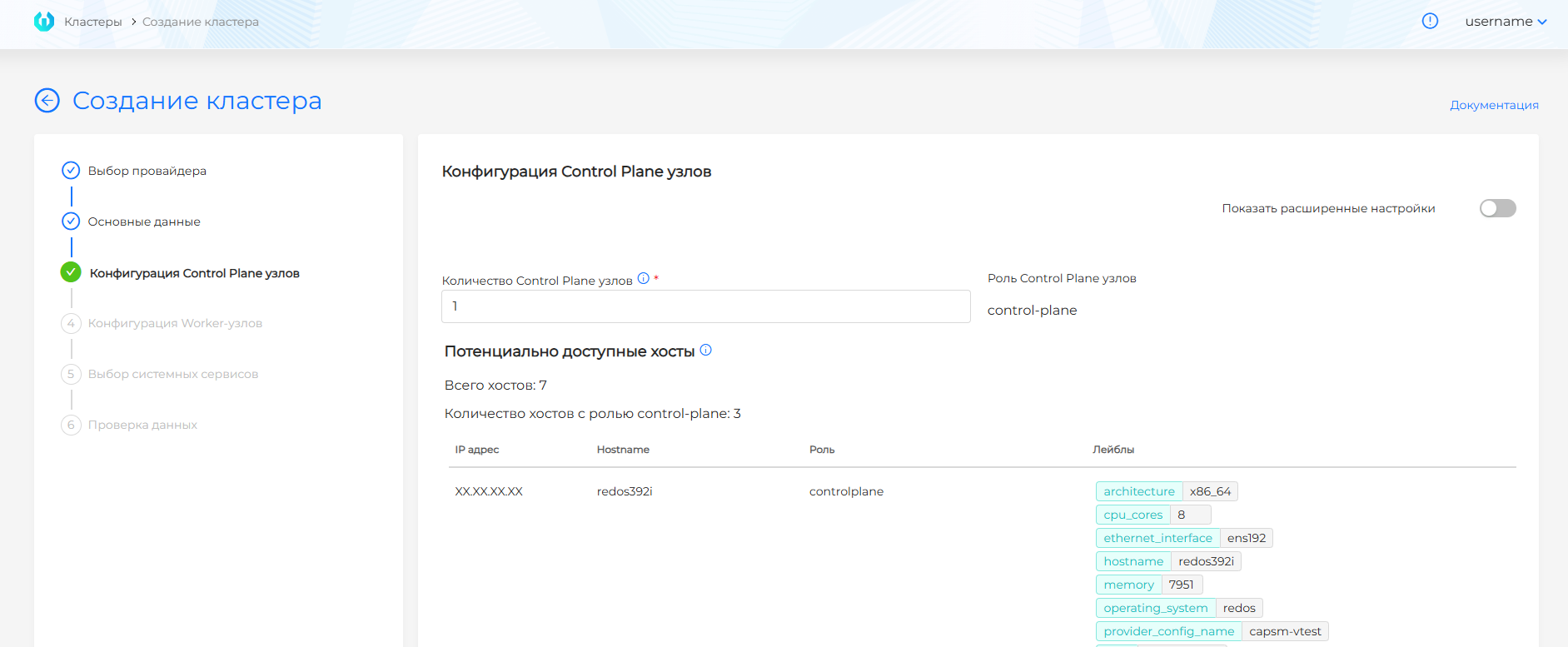
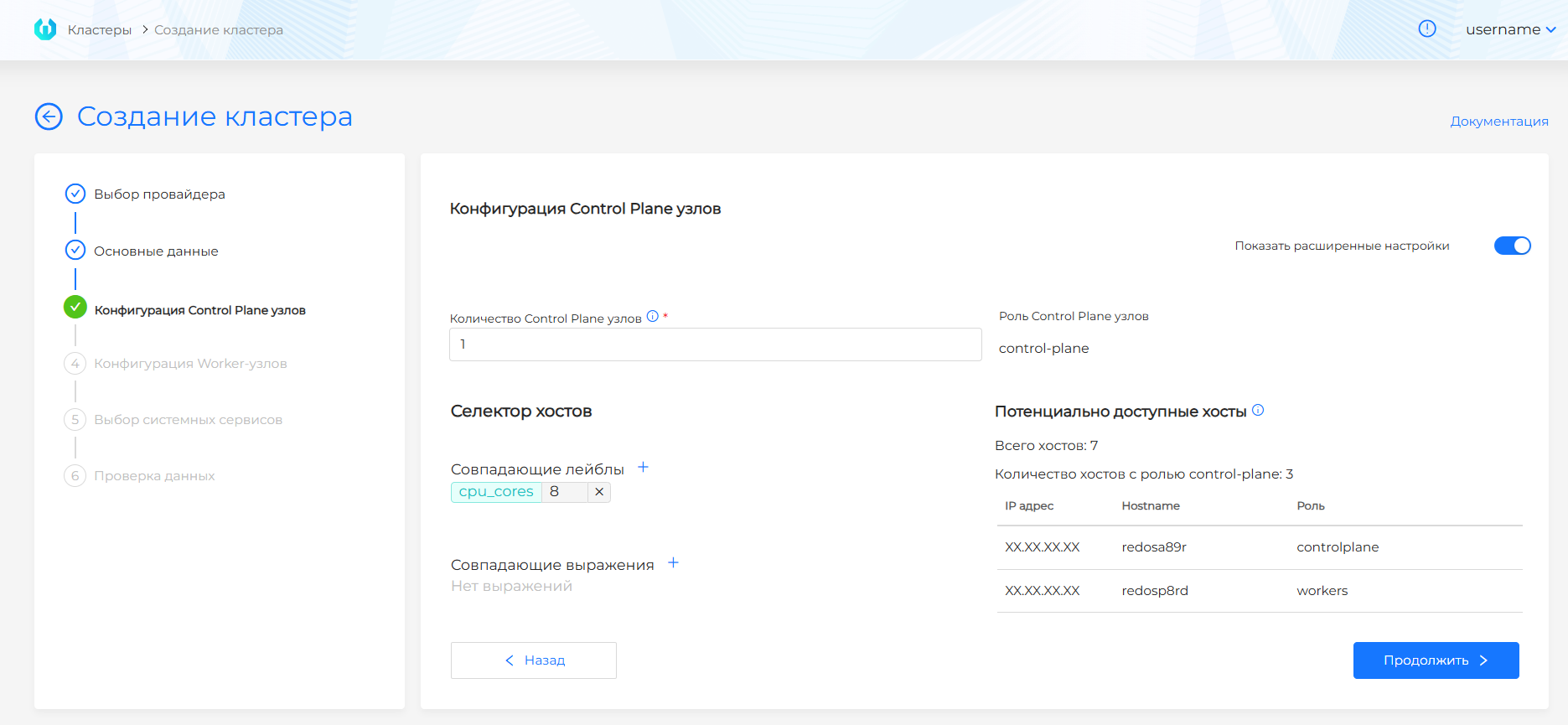
| Field | Description |
|---|---|
| Number of Control Plane nodes | Odd value, no more than 5. |
| Potentially available hosts | Hosts with role controlplane or suitable labels. |
| Host Selector | Expanded selection of hosts by labels and expressions. |
VMware vSphere
Screenshot and step fields
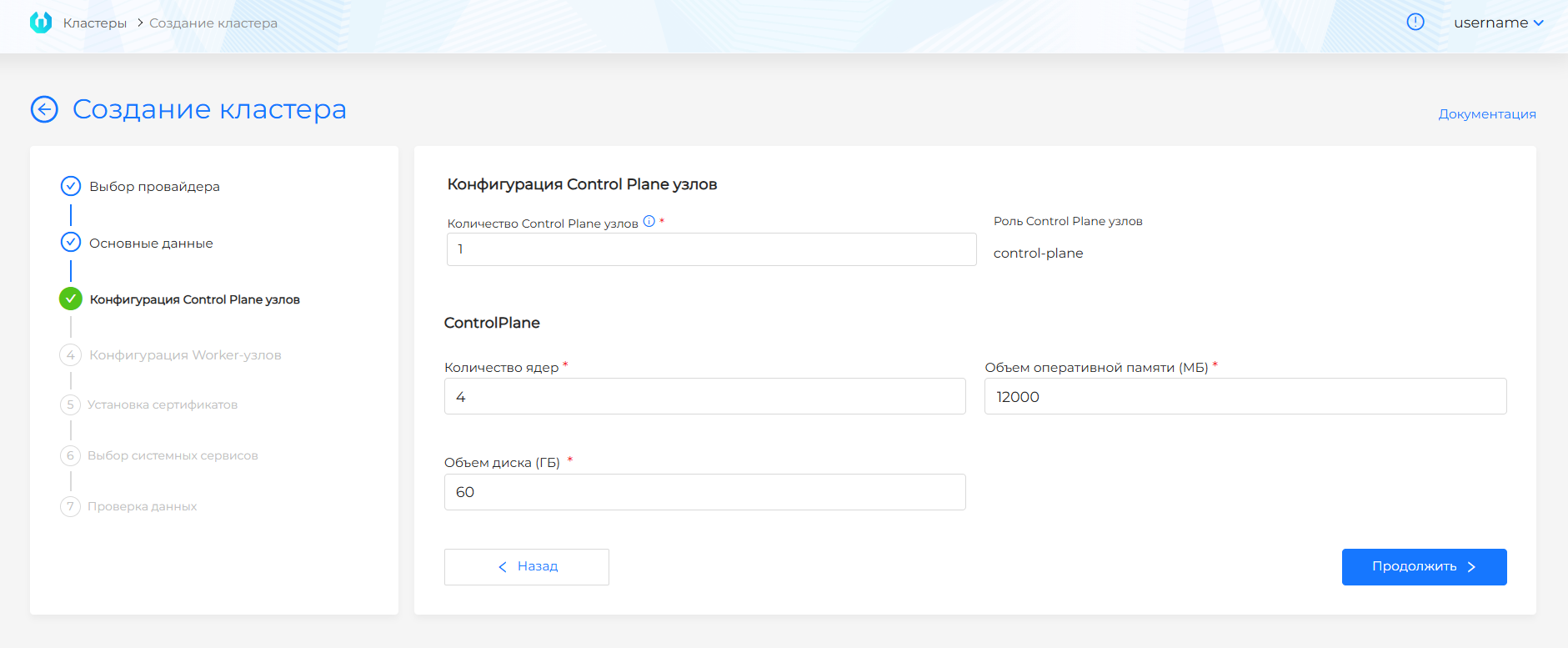
| Field | Description |
|---|---|
| Number of Control Plane nodes | An odd value, typically 1 for test or 3 for failover cluster. |
| CPU/memory/disk | Control Plane VM resources. The values must not be below the GUI minimum limits. |
oVirt, zVirt, HostVM, ED Virtualization, ROSA Virtualization
Screenshot and step fields
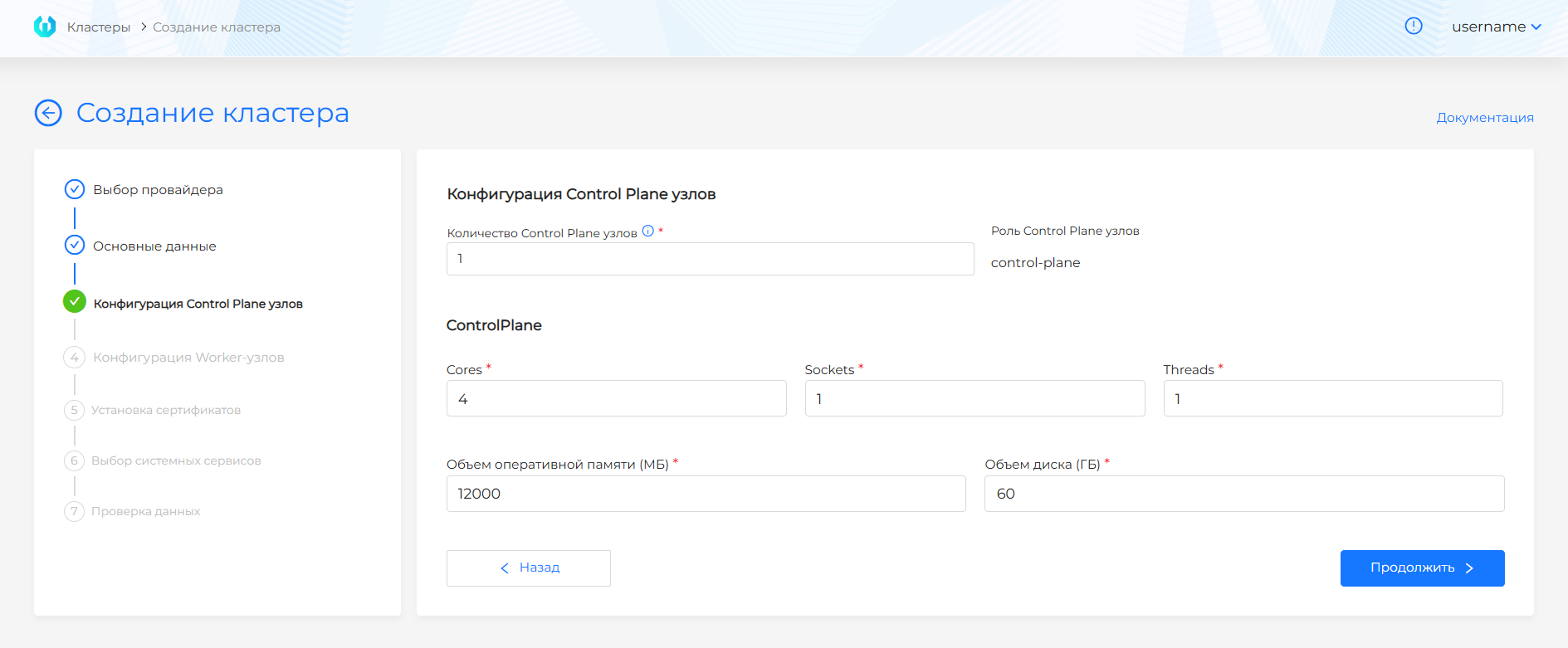
| Field | Description |
|---|---|
| Number of Control Plane nodes | Odd value, no more than 5. |
| Cores/Sockets/Threads | Computing resources of the Control Plane VM. |
| Memory | The amount of RAM of the VM. |
| Disk | VM disk capacity; for local storage, not less than the minimum GUI value. |
| Clone disk when creating a VM | Yes clones disks of nodes in this group, No creates them without cloning. Default uses the provider instance value, or the disk-clone feature gate if the instance is also Default. Details: disk cloning. |
Step 5. Configuration of Worker nodes
Shturval v2
Screenshots and step fields
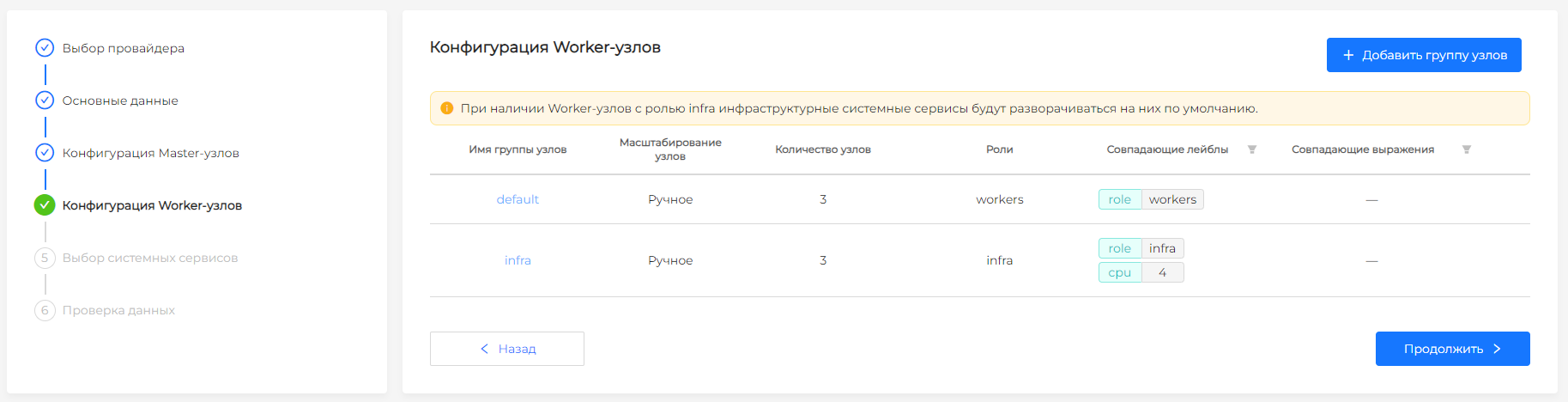
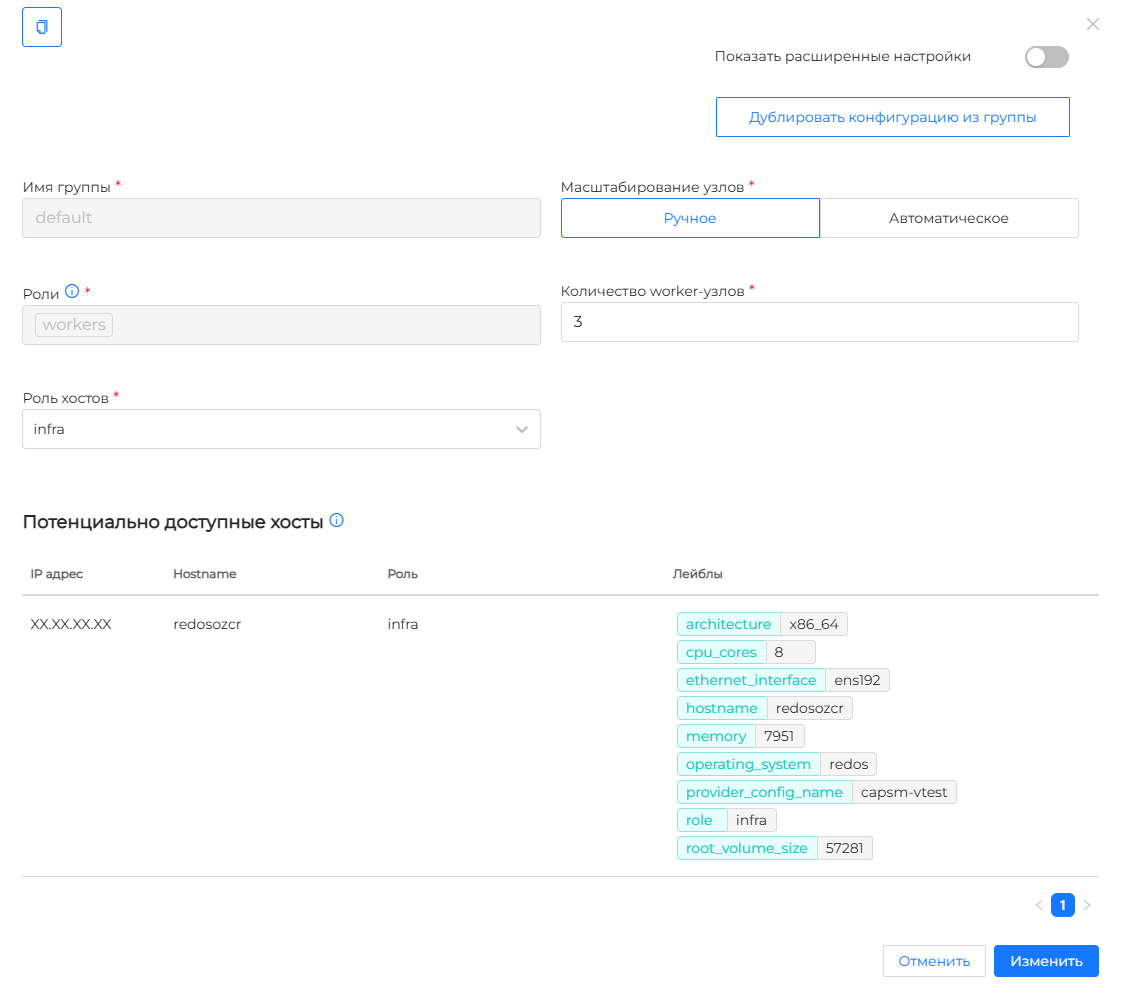
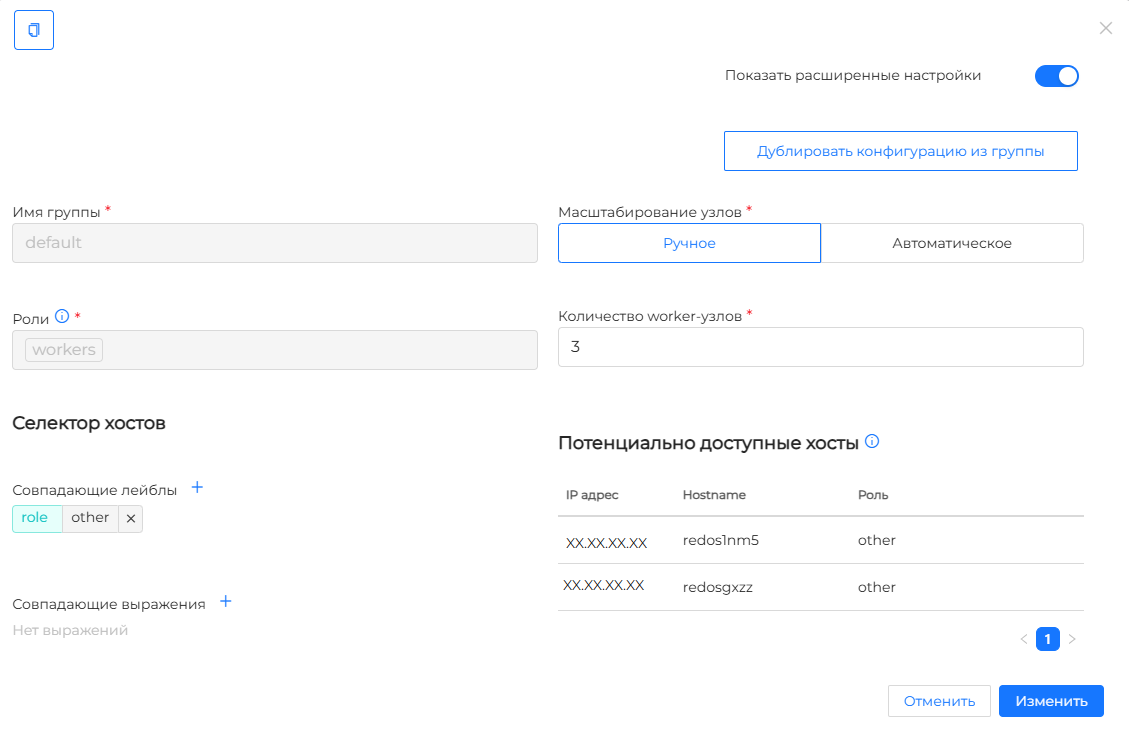
| Field | Description |
|---|---|
| Worker node group | A group of hosts, such as default or infra. |
| Zoom | Manual number of nodes or automatic range. |
| Host Role | Role for selecting hosts in basic mode, such as workers or infra. |
| Host Selector | Expanded selection of Worker hosts by label. |
VMware vSphere
Screenshots and step fields
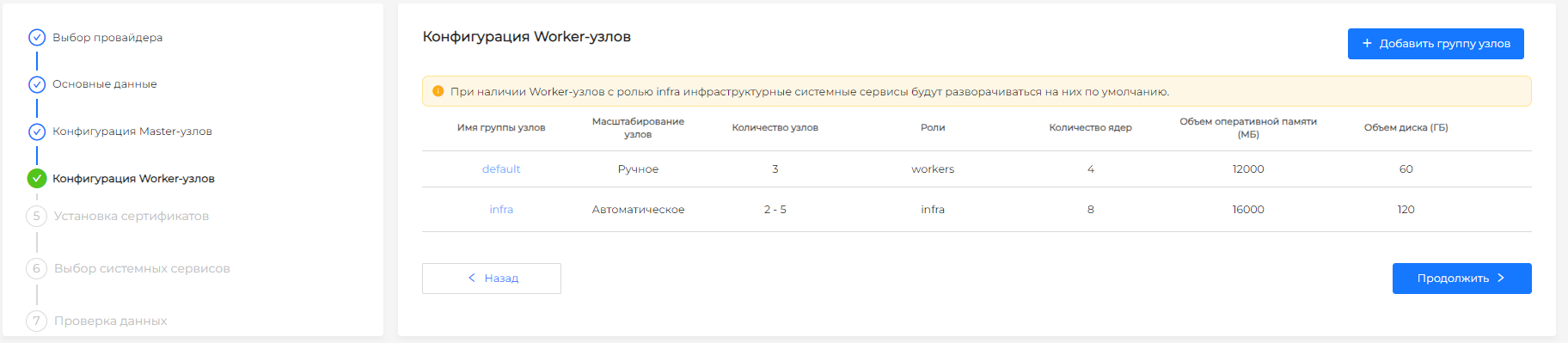
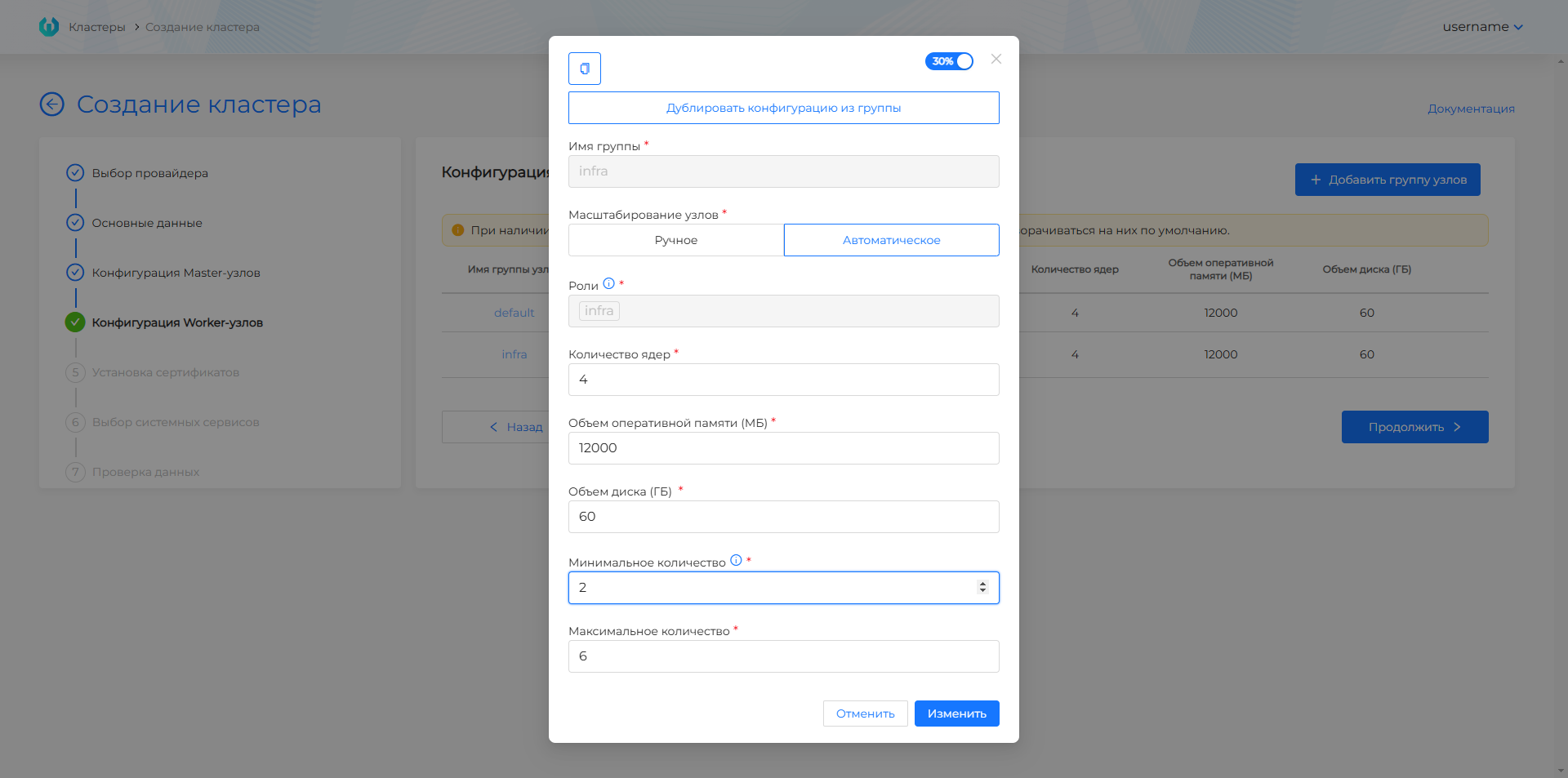
| Field | Description |
|---|---|
| Worker node group | VM group, for example default or infra. |
| Zoom | Manual number of nodes or automatic range. |
| CPU/memory/disk | Resources of VM Worker nodes. |
| Roles | Roles of nodes separated by commas; they will be added to the node labels. |
oVirt, zVirt, HostVM, ED Virtualization, ROSA Virtualization
Screenshots and step fields
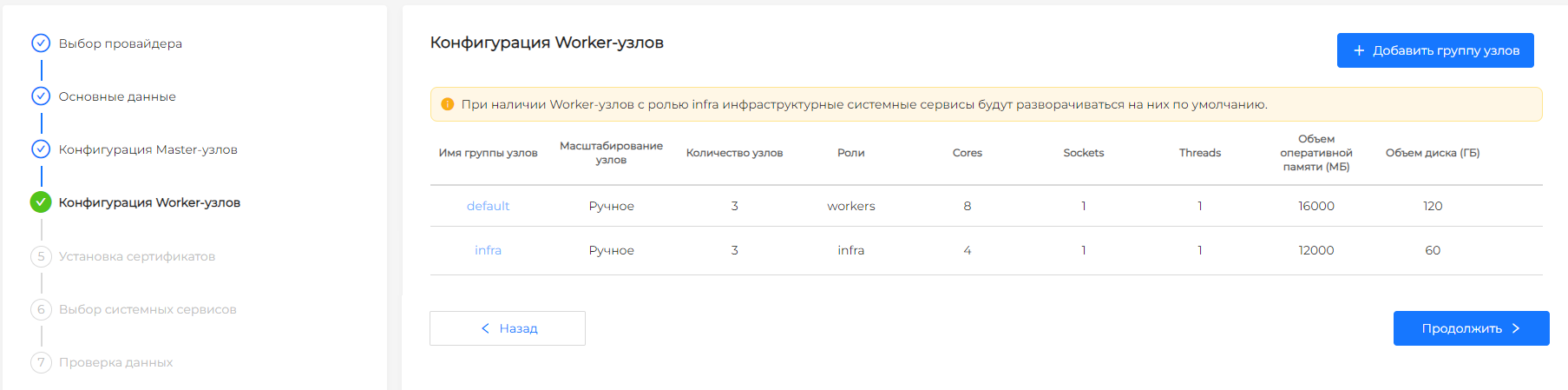
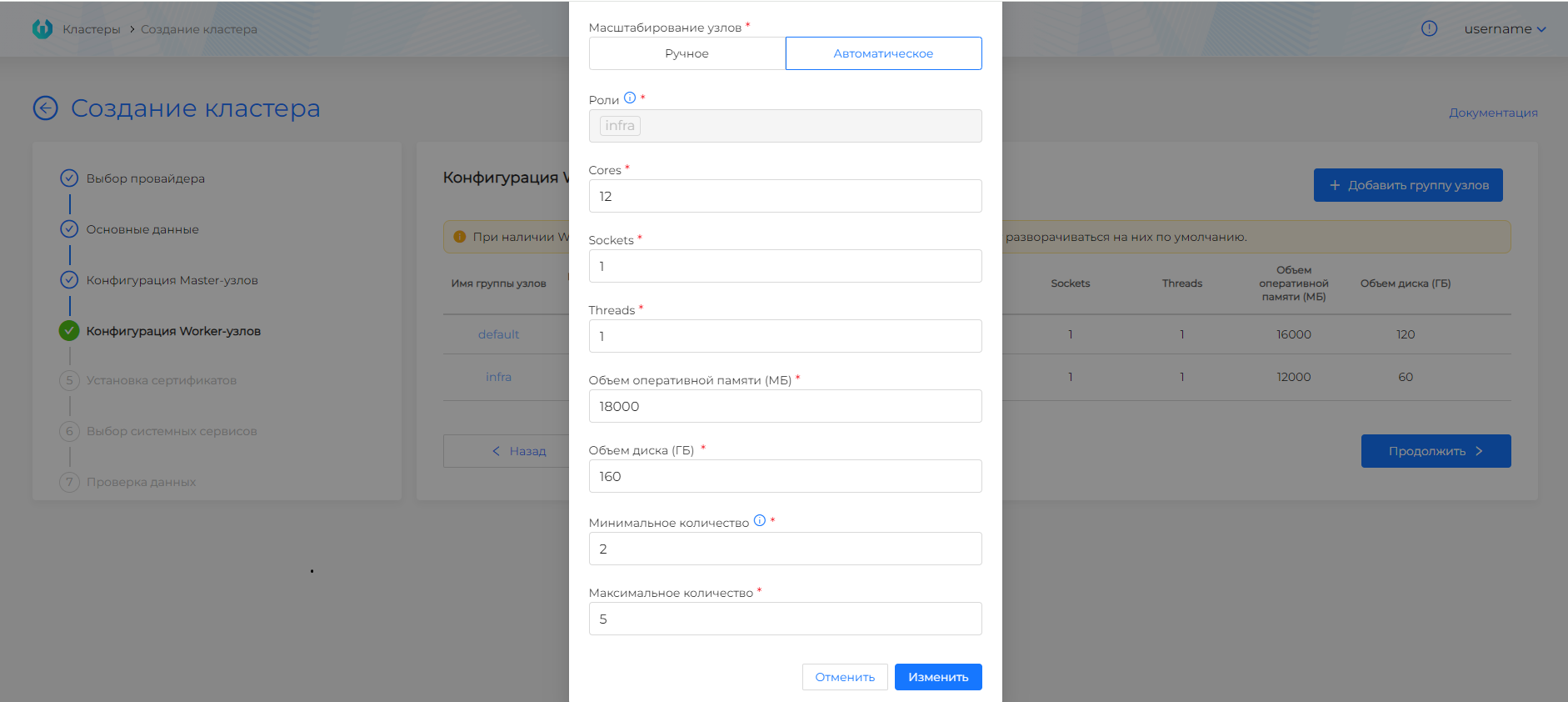
| Field | Description |
|---|---|
| Worker node group | VM group, for example default or infra. |
| Zoom | Manual number of nodes or automatic range. |
| Cores/Sockets/Threads | Computing resources of VM Worker nodes. |
| Memory | The amount of RAM of Worker nodes. |
| Disk | Disk capacity of Worker nodes. |
| Clone disk when creating a VM | Yes clones disks of nodes in this group, No creates them without cloning. Default uses the provider instance value, or the disk-clone feature gate if the instance is also Default. Details: disk cloning. |
| Roles | Roles of nodes separated by commas; they will be added to the node labels. |
Step 6. Install the certificate
Shturval v2
Screenshot and step fields
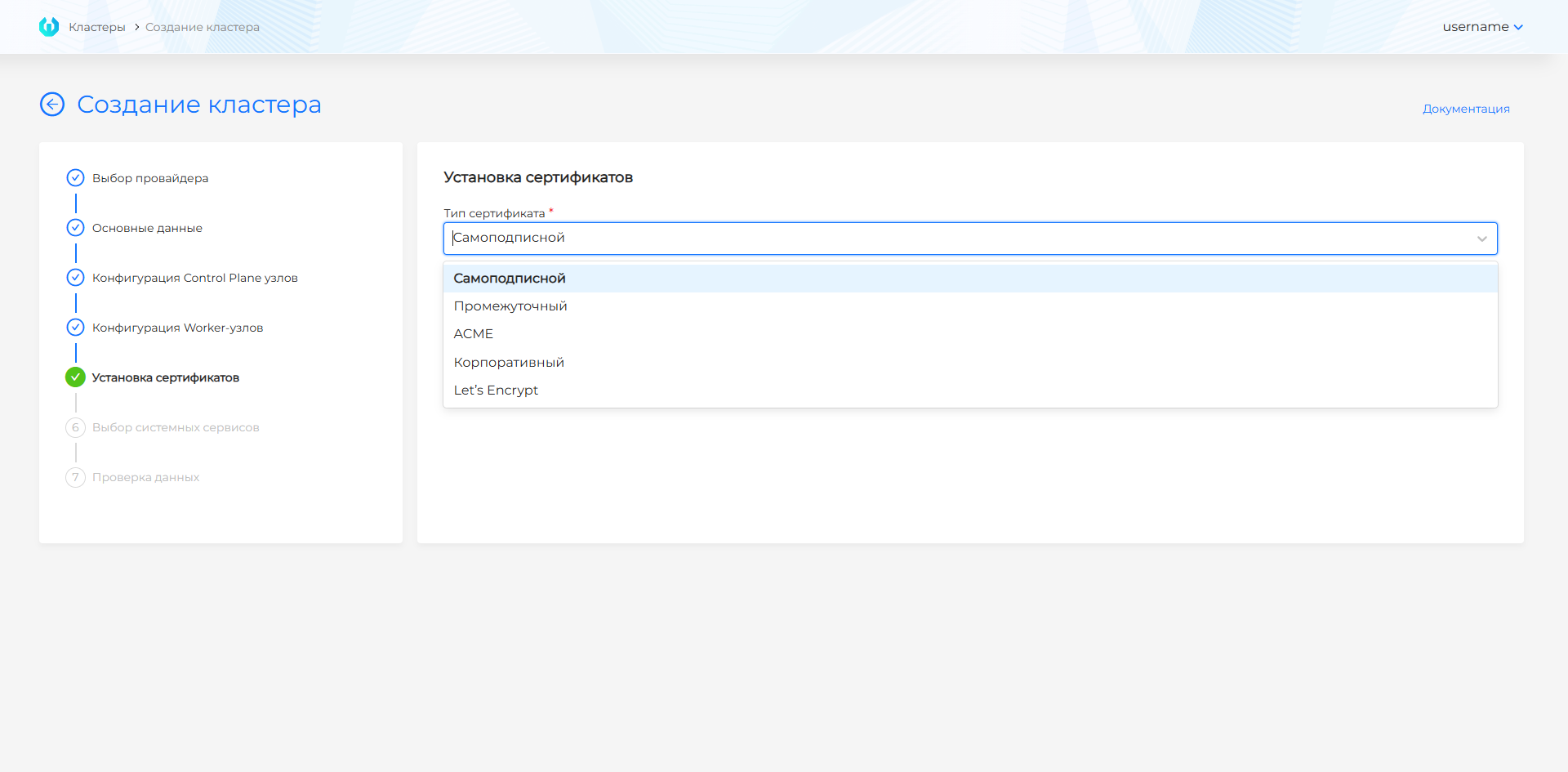
| Option | Description |
|---|---|
| Self-Subscribed | The certificate is issued by the platform. Suitable for test and indoor benches. |
| Intermediate | An intermediate CA is used; download the certificate chain and private key. |
| ACME | ACME server is used; specify the root CA and server URL. |
| Corporate | Uses a ready-made Ingress certificate and private key issued by your CA. |
| Let’s Encrypt | Uses Let’s Encrypt; enter your account email. |
VMware vSphere
Screenshot and step fields
| Option | Description |
|---|---|
| Self-Subscribed | The certificate is issued by the platform. Suitable for test and indoor benches. |
| Intermediate | An intermediate CA is used; download the certificate chain and private key. |
| ACME | ACME server is used; specify the root CA and server URL. |
| Corporate | Uses a ready-made Ingress certificate and private key issued by your CA. |
| Let’s Encrypt | Uses Let’s Encrypt; enter your account email. |
oVirt, zVirt, HostVM, ED Virtualization, ROSA Virtualization
Screenshot and step fields
| Option | Description |
|---|---|
| Self-Subscribed | The certificate is issued by the platform. Suitable for test and indoor benches. |
| Intermediate | An intermediate CA is used; download the certificate chain and private key. |
| ACME | ACME server is used; specify the root CA and server URL. |
| Corporate | Uses a ready-made Ingress certificate and private key issued by your CA. |
| Let’s Encrypt | Uses Let’s Encrypt; enter your account email. |
Step 7. Selecting services
The management cluster is deployed with Gateway API by default. This step does not offer a choice of how to manage HTTP traffic: external HTTP traffic is served by Gateway API on Cilium. The Cilium Gateway API controller and cert-manager issuance for Gateway API certificates are already enabled. The external connections module (shturval-ingress-controller) is installed in absent mode. Gateway API CRDs are a critical service and are installed with the other critical services.
Shturval v2
Screenshots and step fields
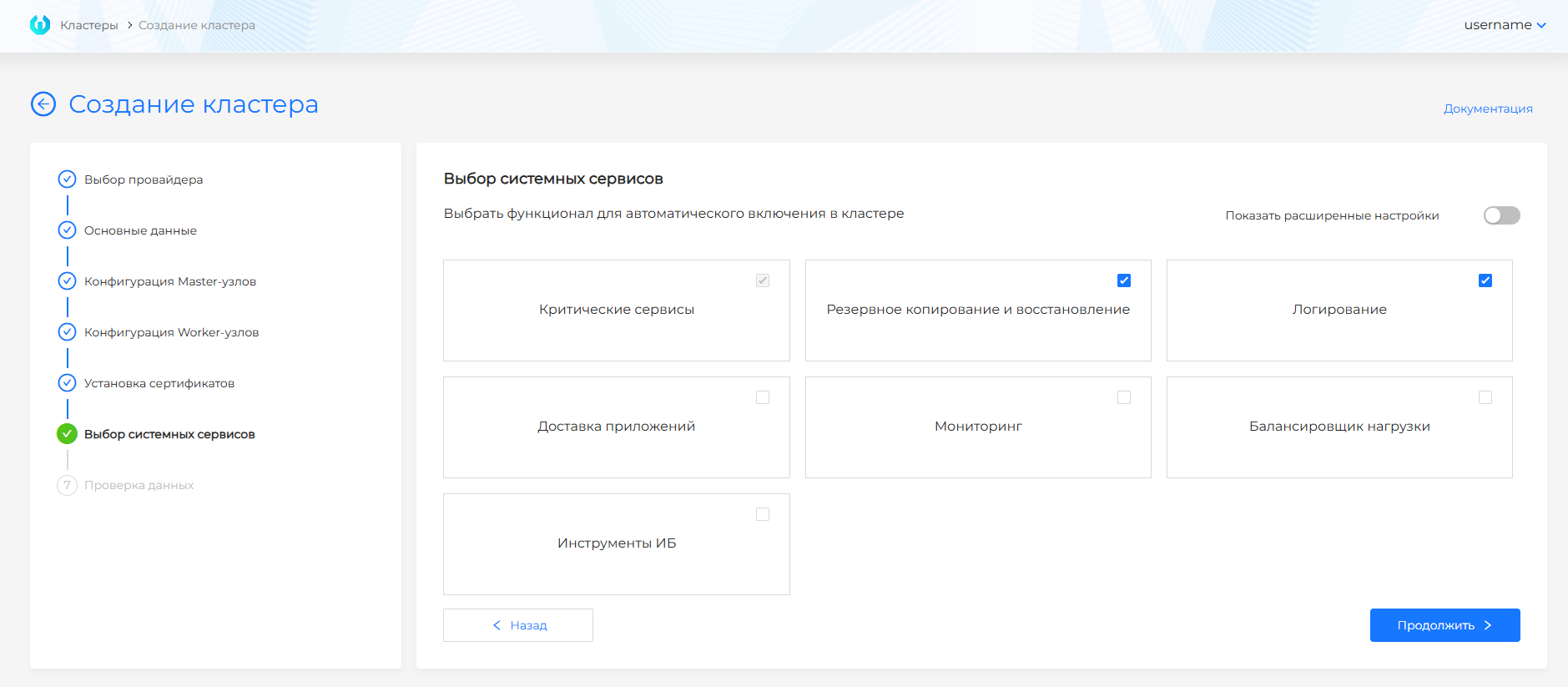
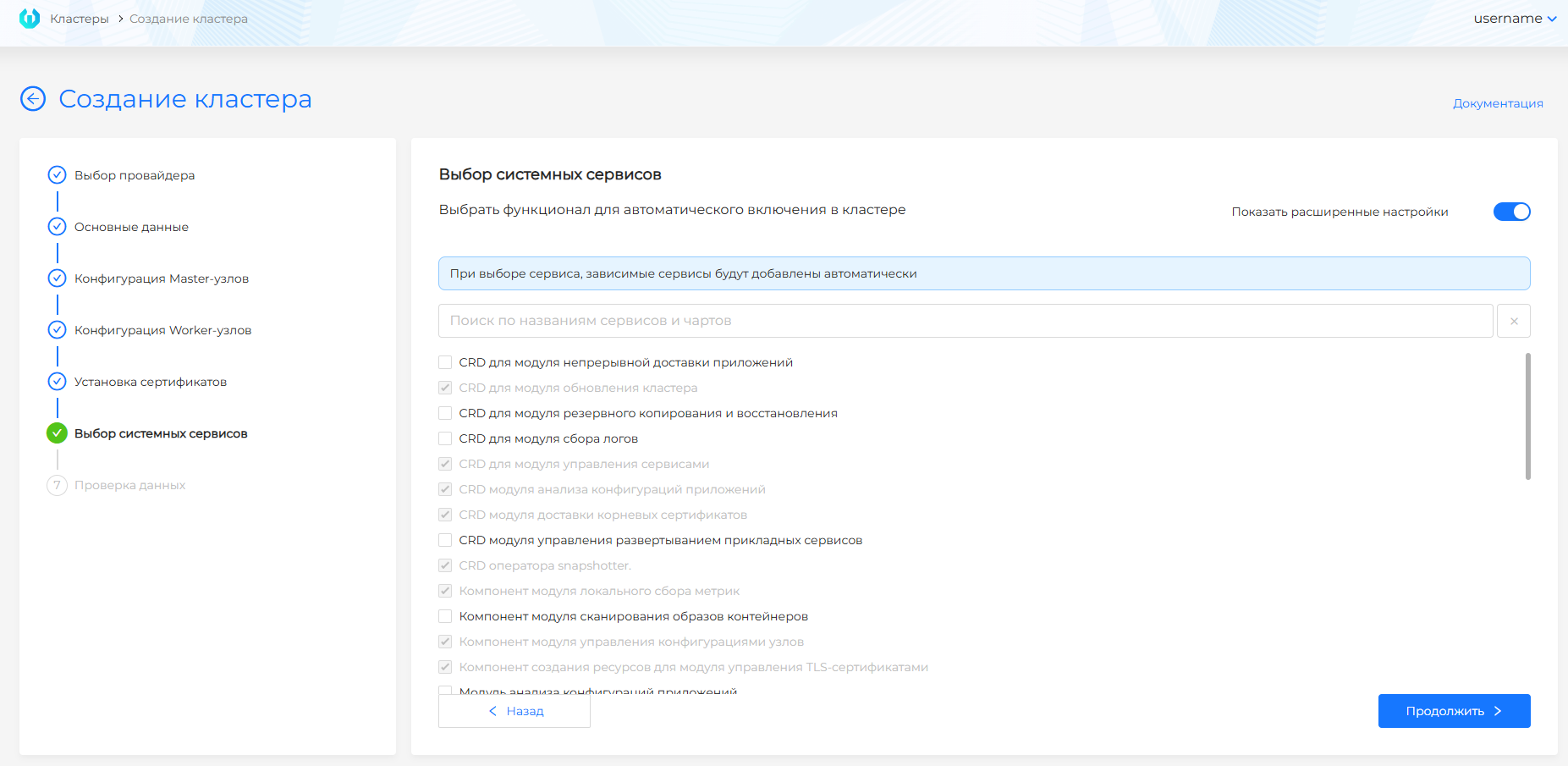
| Field | Description |
|---|---|
| Critical Services | Required platform components, including Gateway API CRDs. Always enabled and cannot be disabled. |
| Monitoring | Metrics, dashboards and metrics export. |
| Logging | Collection and processing of logs. |
| Backup and Restore | Backup and snapshot services. |
| Application Delivery | Components of continuous delivery and deployment strategies. |
| Load Balancer | Load balancing and traffic management components. |
| Information Security Tools | Configuration analysis and image scanning. |
| Show advanced settings | Switches the selection from groups of services to individual services and charts. |
VMware vSphere
Screenshots and step fields
| Field | Description |
|---|---|
| Critical Services | Required platform components, including Gateway API CRDs. Always enabled and cannot be disabled. |
| Monitoring | Metrics, dashboards and metrics export. |
| Logging | Collection and processing of logs. |
| Backup and Restore | Backup and snapshot services. |
| Application Delivery | Components of continuous delivery and deployment strategies. |
| Load Balancer | Load balancing and traffic management components. |
| Information Security Tools | Configuration analysis and image scanning. |
| Show advanced settings | Switches the selection from groups of services to individual services and charts. |
oVirt, zVirt, HostVM, ED Virtualization, ROSA Virtualization
Screenshots and step fields
| Field | Description |
|---|---|
| Critical Services | Required platform components, including Gateway API CRDs. Always enabled and cannot be disabled. |
| Monitoring | Metrics, dashboards and metrics export. |
| Logging | Collection and processing of logs. |
| Backup and Restore | Backup and snapshot services. |
| Application Delivery | Components of continuous delivery and deployment strategies. |
| Load Balancer | Load balancing and traffic management components. |
| Information Security Tools | Configuration analysis and image scanning. |
| Show advanced settings | Switches the selection from groups of services to individual services and charts. |
Step 8. Data verification
Shturval v2
Step description
Check the summary of parameters: cluster name, provider, API and Ingress addresses, network CIDRs, Control Plane configuration, Worker groups, certificate, and the selected services. The management cluster is deployed with Gateway API. To correct a parameter, return to the desired step through the left panel or the Back button. After verification, click Create Cluster.
VMware vSphere
Step description
Check the summary of parameters: cluster name, provider, API and Ingress addresses, network CIDRs, Control Plane configuration, Worker groups, certificate, and the selected services. The management cluster is deployed with Gateway API. To correct a parameter, return to the desired step through the left panel or the Back button. After verification, click Create Cluster.
oVirt, zVirt, HostVM, ED Virtualization, ROSA Virtualization
Step description
Check the summary of parameters: cluster name, provider, API and Ingress addresses, network CIDRs, Control Plane configuration, Worker groups, certificate, and the selected services. The management cluster is deployed with Gateway API. To correct a parameter, return to the desired step through the left panel or the Back button. After verification, click Create Cluster.
Management cluster installation status
For a detailed description of status stages, color indication, node and service tables, see Cluster Deployment Status.
After the deployment starts, the management cluster installation status and stages are displayed on the screen.
Installation takes a long time, so you can close or reload the browser tab before it finishes. In this browser the installer address remembers an unfinished installation: open it again and you land on the status page, where the stages keep updating. The page says so: “Installation has started. If you reload the page, installation progress will be restored automatically. Once the installation is complete, you will receive login information for the platform.”
When the cluster is already deployed, the same address opens the installation wizard again, not the page of the previous installation. If the temporary cluster has been removed and shtil install-gui is started again, the previous installation is not picked up either.
Upon completion of the installation, you will automatically move to the “Cluster ready” stage. At this stage the following are available:
- static kubeconfig of the persistent management cluster - download and save it;
- link to switch to the permanent management cluster. To log in, use the platform administrator login and password received when you started the installation.
The management cluster installation is considered complete when the minimum requirements are met:
- infrastructure is ready;
- at least 1 Control Plane node is ready;
- services
shturval-backend,shturval-auth,shturval-frontend, andshturval-gateway-api-crdswere successfully installed. Theshturval-ingress-controllermodule is installed inabsentmode.
When kubeconfig and the link to the persistent cluster interface are already available, certain steps may still be in progress: for example, not all services may be installed or not all NCIs may be applied. You can wait for all stages to complete in the temporary cluster interface or check the status in the permanent cluster: NCI - on the Node Configuration page, if necessary, edit nodes through creating and working with NCI; services - on the Installed services page.
Installation of Shturval repository services is carried out in two stages: first, critical services are installed, then the services selected in the “Selecting services” step. The installation of Shturval repository services stage is considered completed only after installation of all services: critical and user-selected (for the composition and updating of registry artifacts, see repository services). For the management cluster, the status also displays the “Replication” stage with a list of replication conditions.
Installation with flags
Installation with flags is performed with the install-cli command without the installation wizard. The command is also available through the install synonym.
Providers
In a closed loop, on-premise providers and Yandex Cloud are available:
| Provaider | Subcommand |
|---|---|
| Shturval v2 | shturvalv2 |
| oVirt, zVirt, HostVM, ED Virtualization, ROSA Virtualization | ovirt |
| VMware vSphere | vsphere |
| Yandex Cloud | yandex |
Scenarios and environment settings are also described in the documentation of Shturval v2, oVirt and VMware vSphere.
General parameters
For a closed loop, enter --bootstrap-registry. If the mirror has a self-signed certificate, add --bootstrap-insecure or pass certificates through --bootstrap-registry-certs-dir. If the shtil machine is running Docker, also configure mirror trust in advance: --bootstrap-insecure does not affect the primary docker pull. Network Context - Internetworking Patterns and Closed Loop Requirements.
| Group | Options | Purpose |
|---|---|---|
| Basic | --api-endpoint, -a, --use-external-kubeapi-lb, --provider-name, --cluster-name | Management API Address, KubeAPI External Balancer, Provider Instance Name, and Cluster Name |
| Network | --pod-subnet, --service-subnet | Pod and Service subnets by CIDR; for errors, see address space (subnet) conflict |
| Ingress | --ingress-vip, --ingress-default-fqdn, --use-external-ingress-lb | External access options for Ingress |
| Security and certificates | --secure, PEM, ACME and TLS options | Cluster creation request policies and Ingress certificates |
| System Services | --enabled-system-services, --minimal | List of included components and minimum configuration; see installing services |
| Bootstrap | --existing-bootstrap-kubeconfig, --bootstrap-kubeconfig-path, --bootstrap-license, --bootstrap-registry, --bootstrap-insecure, --bootstrap-registry-certs-dir | Using an existing bootstrap cluster or creating a local one, license and mirror settings |
| Other | --yaml-path, -f, --platform-version, --overwrite (instead of overwrite you can write the command -y), --cluster-kubeconfig-path | Settings file, platform version, overwriting conflicting resources and final kubeconfig path |
Note: --existing-bootstrap-kubeconfig and --bootstrap-kubeconfig-path cannot be used together. --bootstrap-license is not required if the kubeconfig of a valid bootstrap cluster is passed.
Shturval v2
./shtil install-cli shturvalv2 \
  --bootstrap-registry="MIRROR-ADDRESS" \
  --bootstrap-license="YOUR-LICENSE" \
  --ssh-user="USERNAME" \
  --path-ssh-private-key="/path/to/private-key" \
  --controlplane-nodes="IP-CP1,IP-CP2,IP-CP3" \
  --worker-nodes="IP-W1,IP-W2,IP-W3" \
  --api-endpoint="IP-API" \
  --ingress-vip="IP-INGRESS" \
  --cluster-name="CLUSTER-NAME"
Required parameters for Shturval v2:
| Parameter | Description |
|---|---|
--api-endpoint, -a | API server address |
--path-ssh-private-key | Path to the private SSH key file |
--ssh-user | SSH username |
--controlplane-nodes,-c | IP or FQDN of Control Plane hosts separated by commas |
--worker-nodes, -w | IP or FQDN of Worker hosts, separated by commas. With --minimal you can omit it. Without Worker nodes and without --minimal the installation does not start |
SSH user password for sudo
If commands on the hosts run through sudo with a password, pass the SSH user password. The parameter is optional. Without it, installation works as before: the user runs sudo without a password.
| Parameter | Description |
|---|---|
--ssh-user-password | SSH user password for sudo commands. In YAML — credentials.SSH.sshUserPassword. For a host with its own credentials — hosts[].credentials.SSH.sshUserPassword |
How to set the password in the interface of an existing provider is described in How to add a password for sudo commands. The full YAML field reference is in the open-loop installation process.
A Shturval v2 cluster without Worker nodes is installed only in minimal mode: pass --minimal. That is how a microcluster on a single Control Plane node is built. If --worker-nodes is empty and --minimal is omitted, shtil does not start the installation and prints at least one worker node is required; installation without worker nodes is only possible with --minimal. The same hint is in ./shtil install-cli shturvalv2 --help: the command description and the --worker-nodes flag say Installation without worker nodes is only possible with --minimal. When you install from YAML, --minimal on the command line turns minimal mode on even if the file does not set it.
An example of a minimal configuration on one Control Plane node:
./shtil install-cli shturvalv2 \
  --bootstrap-registry="mirror.corp.local" \
  --bootstrap-license="YOUR-LICENSE" \
  --ssh-user="shturval" \
  --path-ssh-private-key="/home/admin/.ssh/id_ed25519" \
  --controlplane-nodes="10.11.12.1" \
  --api-endpoint="10.11.12.100" \
  --ingress-vip="10.11.12.101" \
  --cluster-name="mgmt-cluster" \
  --minimal=true
An example of a rerun with overwriting conflicting resources on an existing bootstrap cluster:
bin/shtil install-cli shturvalv2 \
  --overwrite\
  --ssh-user="shturval" \
  --path-ssh-private-key="/home/username/sh/kubeconfigs/certs/id_ed25519" \
  --api-endpoint="10.XX.XXX.246" \
  --ingress-vip="10.XX.XXX.252" \
  --controlplane-nodes="10.XX.XXX.145" \
  --worker-nodes="10.XX.XXX.69" \
  --bootstrap-kubeconfig-path="/home/username/sh/kubeconfigs/01bt" \
  -v=10\
  --cluster-name="mgmt617c1" \
  --provider-name="sht617p1"
oVirt / zVirt / HostVM / ED Virtualization / ROSA
./shtil install-cli ovirt \
  --bootstrap-registry="MIRROR-ADDRESS" \
  --bootstrap-license="YOUR-LICENSE" \
  --url-provider="https://OVIRT-FQDN/ovirt-engine/api" \
  --user-provider="USER" \
  --password-provider="PASSWORD" \
  --datacenter-provider="DATA CENTER" \
  --datacenter-cluster-provider="CLUSTER" \
  --vnic-profile-provider="VNIC-PROFILE" \
  --template="TEMPLATE-VM" \
  --provider-csi-storage="STORAGE-DOMAIN" \
  --api-endpoint="IP-API" \
  --ingress-vip="IP-INGRESS" \
  --cluster-name="CLUSTER-NAME"
Basic provider parameters:
| Parameter | Description |
|---|---|
--url-provider | oVirt API URL with /ovirt-engine/api suffix |
--user-provider, --password-provider | oVirt credentials |
--datacenter-provider, --datacenter-cluster-provider | Data center and cluster |
--vnic-profile-provider | VNIC profile |
--template, -t | VM template name |
--provider-csi-storage | Storage Domain for CSI |
--delete-persistent-volumes | Delete PVs when the cluster is deleted (true / false). If omitted, the cluster profile policy is used |
--sub-type-provider | Compatible virtualization type: zvirt, hostvm, redvirt, rosavirt |
--control-plane, --workers | Number of nodes |
--cores-*, --memory-*, --disk-* | VM Resources |
--disk-clone, --disk-clone-control-plane, --disk-clone-workers | Clone the VM disk for the provider instance, Control Plane, and the default Worker group. If a flag is omitted, that field is not sent |
VMware vSphere
./shtil install-cli vsphere \
  --bootstrap-registry="MIRROR-ADDRESS" \
  --bootstrap-license="YOUR-LICENSE" \
  --address-vcenter="VCENTER-FQDN" \
  --user-vcenter="USER" \
  --password-vcenter="PASSWORD" \
  --provider-datacenter="DATA CENTER" \
  --provider-datastore="DATASTORE" \
  --provider-resource-pool="RESOURCE-POOL" \
  --provider-network="NETWORK" \
  --provider-folder="FOLDER" \
  --template="TEMPLATE-VM" \
  --api-endpoint="IP-API" \
  --ingress-vip="IP-INGRESS" \
  --cluster-name="CLUSTER-NAME"
Basic provider parameters:
| Parameter | Description |
|---|---|
--address-vcenter, --user-vcenter, --password-vcenter | Connecting to vCenter |
--provider-datacenter, --provider-datastore | Data center and storage |
--provider-resource-pool, --provider-network, --provider-folder | Resource pool, network and VM folder |
--template, -t | VM template name |
--control-plane, --workers | Number of nodes |
--cpu-*, --memory-*, --disk-* | VM Resources |
--enable-csi, --delete-persistent-volumes, --provider-clone-mode, --provider-storage-policy | Additional options |
Yandex Cloud
Subcommand yandex. Add --bootstrap-registry to the closed-environment flags. Required cloud parameters and defaults are in the [open-environment flag reference](/2.15/en/platform-admin/installation/open-circuit/process/#install-cli-flags directory). yandex has no --delete-persistent-volumes flag.
./shtil install-cli yandex \
  --bootstrap-license="YOUR-LICENSE" \
  --bootstrap-registry="MIRROR-ADDRESS" \
  --yandex-key-path="/home/admin/yandex-sa-key.json" \
  --folder-id="b1g-folder-id" \
  --network-id="enp-network-id" \
  --subnet-id="e9b-subnet-id" \
  --zone-id="ru-central1-a" \
  --allowed-platform-ids="standard-v3" \
  --allowed-volume-types="network-ssd,network-hdd" \
  --template="fd8-image-id" \
  --enable-csi=true
Installation with YAML
Installation with YAML is performed with the install-cli command without the installation wizard. The command is also available through the install synonym.
Parameters are passed through the YAML manifest using --yaml-path or -f.
When using YAML, the parameters from the file are first applied, then only those command line flags that are explicitly specified at startup are applied on top of them.
Providers
In a closed loop, on-premise providers and Yandex Cloud are available:
| Provider | Subcommand |
|---|---|
| Shturval v2 | shturvalv2 |
| oVirt, zVirt, HostVM, ED Virtualization, ROSA Virtualization | ovirt |
| VMware vSphere | vsphere |
| Yandex Cloud | yandex |
Scenarios and environment settings are also described in the documentation of Shturval v2, oVirt and VMware vSphere.
General parameters
For a closed loop, specify --bootstrap-registry. If the mirror has a self-signed certificate, add --bootstrap-insecure or pass the certificates through --bootstrap-registry-certs-dir. If the shtil machine is running Docker, also configure mirror trust in advance: --bootstrap-insecure does not affect the primary docker pull. Network Context - Internetworking Patterns and Closed Loop Requirements.
| Group | Options | Purpose |
|---|---|---|
| Basic | --api-endpoint, -a, --use-external-kubeapi-lb, --provider-name, --cluster-name | Management API Address, KubeAPI External Balancer, Provider Instance Name, and Cluster Name |
| Network | --pod-subnet, --service-subnet | Pod and Service subnets by CIDR; for errors, see address space (subnet) conflict |
| Ingress | --ingress-vip, --ingress-default-fqdn, --use-external-ingress-lb | External access options for Ingress |
| Security and certificates | --secure, PEM, ACME and TLS options | Cluster creation request policies and Ingress certificates |
| System Services | --enabled-system-services, --minimal | List of included components and minimum configuration; see installing services |
| Bootstrap | --existing-bootstrap-kubeconfig, --bootstrap-kubeconfig-path, --bootstrap-license, --bootstrap-registry, --bootstrap-insecure, --bootstrap-registry-certs-dir | Using an existing bootstrap cluster or creating a local one, license and mirror settings |
| Other | --yaml-path, -f, --platform-version, --overwrite (instead of overwrite you can write the command -y), --cluster-kubeconfig-path | Settings file, platform version, overwriting conflicting resources and final kubeconfig path |
Note: --existing-bootstrap-kubeconfig and --bootstrap-kubeconfig-path cannot be used together. --bootstrap-license is not required if the kubeconfig of a valid bootstrap cluster is passed.
YAML constructors
Interactive forms to prepare manifests (two files: provider and cluster):
Installation using YAML manifest
Get a template for the desired provider:
Shturval v2:
./shtil install-cli shturvalv2 example > install.yamloVirt (and compatible virtualizations):
./shtil install-cli ovirt example > install.yamlVMware vSphere:
./shtil install-cli vsphere example > install.yamlYandex Cloud (
CapycProviderConfigandCapycClusterConfig):./shtil install-cli yandex example > install.yamlFill out the template: provider, cluster, nodes, VIP, subnets and, if necessary, certificates. Check network values and VIPs against Closed Loop Requirements and Interconnection Schemes. Eliminate CIDR intersections, see the section on address space conflict. Frequent provider fields are also described in the documentation Shturval v2, oVirt, VMware vSphere, Yandex Cloud. Yandex Cloud YAML fields are in open-environment installation.
Run the installation:
./shtil install-cli PROVIDER-TYPE \
  --yaml-path="PATH/TO/FILE.yaml" \
  --bootstrap-registry="MIRROR-ADDRESS" \
  --bootstrap-license="YOUR-LICENSE"
For a self-signed mirror certificate, add
--bootstrap-insecureor--bootstrap-registry-certs-dir. When using Docker on the shtil machine, additionally configure trust in the mirror before running the command.
Configuration in YAML - two documents (separated by ---): provider configuration and cluster configuration.
| Provider | Provider Configuration | Cluster configuration |
|---|---|---|
| Shturval v2 | CapsmProviderConfig | CapsmClusterConfig |
| oVirt | CapovProviderConfig | CapovClusterConfig |
| VMware vSphere | CapvsProviderConfig | CapvsClusterConfig |
Example for Shturval v2: in the first document - type: CapsmProviderConfig, credentials.SSH (privateKey, userName, and sshUserPassword when needed), hosts (address, labelsSelector.role, and credentials.SSH.sshUserPassword for host-specific credentials). In the second - type: CapsmClusterConfig, in cluster: apiEndpoint, clusterName, ingressvip, podSubnet, serviceSubnet, minimal, controlPlaneNodesCount; if necessary - provider.controlPlaneNodeConfig, provider.workerNodeConfigs.
The first document is the provider (CapsmProviderConfig):
---
type: CapsmProviderConfig
name: myprovidername
credentials:
  SSH:
    privateKey: /home/username/.ssh/id_ed25519
    userName: shturval
    # sshUserPassword: user-password
hosts:
  - address: 10.11.11.11
    labelsSelector: { role: controlplane}
    credentials: null
    # Host-specific credentials instead of null:
    # credentials:
    #   SSH:
    #     privateKey: /home/username/.ssh/id_ed25519
    #     userName: shturval
    #     sshUserPassword: user-password
  - address: 10.11.12.12
    labelsSelector: { role: workers }
    credentials: null
The second document is a cluster (CapsmClusterConfig). In the working install.yaml place it after the provider with a --- delimiter between the documents:
---
type: CapsmClusterConfig
cluster:
  apiEndpoint: 10.11.12.13
  clusterName: myclustername
  controlPlaneNodesCount: 1
  ingressvip: 10.11.12.14
  podSubnet: 172.16.0.0/16
  serviceSubnet: 10.96.0.0/12
  minimal: true
provider:
  controlPlaneNodeConfig:
    controlPlaneSelector: { matchLabels: { role: controlplane } }
    nodeConfig: { groupName: control-plane, roles: [{ name: node-role.kubernetes.io/control-plane }] }
  workerNodeConfigs:
    - nodeConfig: { groupName: default, roles: [{ name: node-role.kubernetes.io/workers }] }
      workersCount: 1
      workerSelector: { matchLabels: { role: workers } }
Example for oVirt with multiple groups of Worker nodes: in provider.workerNodeConfigs, set a separate element for each group, for example default and infra.
---
type: CapovProviderConfig
name: sht-capov-mgmt-prov
credentials:
  oVirt:
    url: https://ovirt.example.com/ovirt-engine/api
    username: ENTER-USER
    password: ENTER-PASSWORD
connection:
  tlsInsecure: true
providerConfig:
  datacenter:DCname
  datacenterCluster: RHVLab
  vnicProfile: CHLab_LAN_3260
  template: template-name-in-ovirt-infrastructure
  csiStorage: CHLab_Pure_VM_Store
ingressCerts:
  ##ca:
    ##crtPath:
    ##keyPath:
  ##tls:
    ##crtPath:
    ##keyPath:

---
type: CapovClusterConfig
cluster:
  apiEndpoint: 10.XX.XXX.236
  clusterName: sht-capov-mgmt7
  controlPlaneNodesCount: 1
  ingressvip: 10.XX.XXX.237
  minimal: true
provider:
  name: sht-capov-mgmt-prov
  controlPlaneNodeConfig:
    nodeConfig:
      groupName: control-plane
    roles:
      - name: node-role.kubernetes.io/control-plane
    capovNodeConfig:
      CPU:
        cores: 8
        sockets: 1
        threads: 1
      memory:
        sizeMB: 9000
        guaranteedMB: 9000
      osDiskSizeGB: 60
  workerNodeConfigs:
    - nodeConfig:
        groupName: default
        roles:
          - name: node-role.kubernetes.io/workers
      workersCount: 1
      capovNodeConfig:
        CPU:
          cores: 8
          sockets: 1
          threads: 1
        memory:
          sizeMB: 12000
          guaranteedMB: 12000
        osDiskSizeGB: 60
    - nodeConfig:
        groupName:infra
        roles:
          - name: node-role.kubernetes.io/workers
      workersCount: 1
      capovNodeConfig:
        CPU:
          cores: 8
          sockets: 1
          threads: 1
        memory:
          sizeMB: 9000
          guaranteedMB: 9000
        osDiskSizeGB: 60
For oVirt and VMware vSphere, use the current command template install-cli ovirt example and install-cli vsphere example; see pages deployment via oVirt and deployment via VMware vSphere.
Minimal example of launching Shturval v2 using YAML:
./shtil install-cli shturvalv2 \
  --yaml-path="install.yaml" \
  --bootstrap-registry="mirror.corp.local" \
  --bootstrap-license="YOUR-LICENSE"
First steps after installation
| Action | Description |
|---|---|
| Check access | Open the GUI URL. Login: admin, password - from user.conf in the installer data directory or the value specified in --password. Ensure that the management cluster status is Ready |
| Save your credentials | Save your administrator password and kubeconfig. In the GUI, download kubeconfig from the user menu → Download Kubeconfig |
| Set up base entities | Configure user delivery, IP pool, provider and VM template. For additional components and installation scripts, see the service installation page; platform registry and artifactsrms - repository services; permanent configuration of nodes - via node configuration (NCI) |
The default installer data directory is ~/.shturval/installer. If the user’s home directory is not accessible, /tmp/shturval/installer is used. The administrator credentials file is user.conf inside the data directory.
Before removing the local installation cluster or management cluster, save user.conf if you need it for further access to the management GUI.
Diagnostics
Useful commands
./shtil --help
./shtil install-gui --help
./shtil install-cli --help
./shtil install-cli shturvalv2 --help
./shtil version
For more verbose output, use the global flag --verbosity or -v.
Errors connecting tothe mirror
| Symptom | Possible reason | Solution |
|---|---|---|
| Registry unreachable error | No TCP access to mirror host or port | Check DNS, routing, firewall and --bootstrap-registry value |
| TLS errors when accessing a mirror | Untrusted or self-signed certificate | Use --bootstrap-insecure or pass trusted certificates via --bootstrap-registry-certs-dir |
TLS Docker error on primary docker pull | The Docker daemon does not trust the mirror certificate; shtil flags are not yet applied at this stage | Set up Docker on the shtil machine: put the CA in /etc/docker/certs.d/<registry-host>/ca.crt or add a mirror in insecure-registries, then restart Docker and run again. See configuring Docker mirror trust |
401 Unauthorized | License or mirror settings error | Check the license and mirror settings |
Checking mirror availability:
curl -v https://mirror.corp.local
Workstation errors
| Symptom | Solution |
|---|---|
There is no container runtime in PATH | Check for the presence of docker from the bundle. It is needed for install-gui and local installation cluster operations |
| Need to diagnose an unsuccessful GUI installation | Rerun install-gui with --debug to save the container |
SSH errors with Shturval v2
| Symptom | Solution |
|---|---|
Permission denied | Check SSH key, user and access to each host |
sudo: no tty present | If sudo requires a password, pass --ssh-user-password or credentials.SSH.sshUserPassword — see SSH user password for sudo. For passwordless sudo, add the user to sudoers, for example shturval ALL=(ALL) NOPASSWD: ALL |
| SELinux blocking | Set SELinux to permissive mode or disable it according to your organization’s requirements |
Errors when creating a persistent cluster
| Symptom | Solution |
|---|---|
| VIP is already in use | Use free non-pinging addresses |
| Subnets do not match / CIDR conflict | Check that the API address is in the Control Plane subnet and that podSubnet and serviceSubnet do not overlap with the cluster network; see address space conflict |
| Error loading images | Check node access to the mirror (repository services) |
Additional diagnostics
- Time discrepancy - check NTP or Chrony on all nodes and the mirror host.
- Not enough space - check that node resources meet requirements.
- CLI check - the
versioncommand displays theshturval-installerversion; the output mode depends on the--verbositylevel.