Basis Dynamix
Integration with the Basis Dynamix platform.
Purpose
The Basis Dynamix provider allows you to deploy Kubernetes clusters on infrastructure managed by the Basis Dynamix platform.
To configure the provider, it is necessary that the corresponding service in the management cluster is enabled and in the Auto management mode. More details: Basis Dynamix Provider (shturval-capbd).
Summary table of Basis Dynamix infrastructure CRs (Basis*): section Custom node lifecycle resources - Basis Dynamix.
If this is your first provider in the Shturval platform, before setting it up, it makes sense to read How to work with providers in the platform.
Preparation in the Basis Dynamix virtualization platform
To connect the Basis Dynamix provider in the Shturval platform on the side of the Basis Dynamix virtualization platform:
1. An account and service role must be created.
- In the Spaces section, create an account and resource group.
- Add a user to your account, on whose behalf you will have access to configure the provider in the Shturval platform.
The account must have the admin access level to manage objects in the Network and Resource Group sections in the virtualization platform.
Configure for the resource group:
- virtual machine parameters and standard image in the Cloud section;
- External Networks and ViNs in the Network section — the selected network must have DHCP enabled: cluster nodes obtain IP addresses via DHCP.
2. A virtual machine template must be created so that it can be added to the provider instance. The procedure for preparing a VM template is described on the Virtual machine template page.
The nuances of the interface and entity names may depend on the version of Basis Dynamix; in case of discrepancies, refer to the supplier’s documentation.
Creating a provider instance
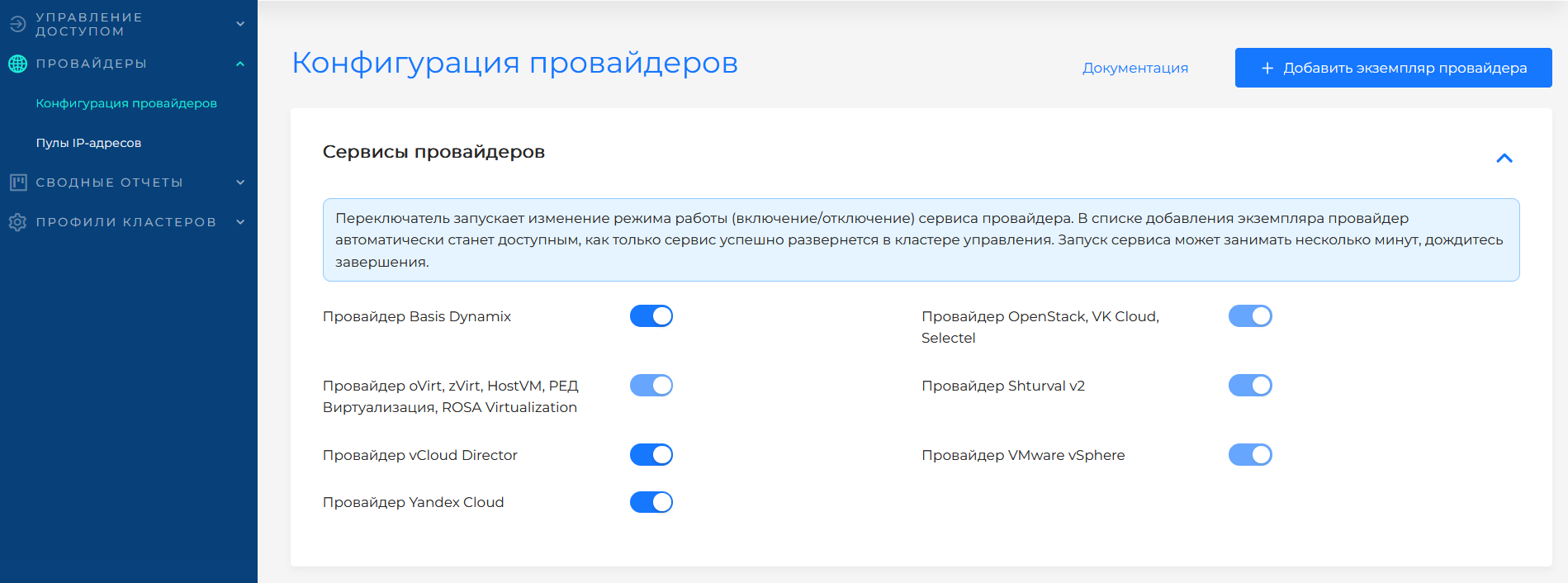
Go to Providers → Providers Configuration. In the Provider Services block, check whether Provider Basis Dynamix is enabled. If the service is disabled, click on the switch and wait for it to start. Then click Add Provider Instance → “+ Basis Dynamix”.
The service switch puts the associated provider SSCs into auto mode: first the CRD chart, then the main provider chart. Wait until the service enters the ready state.
Illustration: Creating a provider instance
Connection configuration
In the “Connection configuration” block, set the parameters for accessing the Basis Dynamix API:
| Field | Required | Description |
|---|---|---|
| Instance name | Yes | A unique name to identify the provider instance. |
| Server address | Yes | Server address (in API terms - DecordAddress). |
| SSO servers | Yes | SSO address (in API terms - DecordSSO). |
| Application ID | Yes | Application ID for accessing the API. |
| API key | Yes | API access key. |
| Check certificate | No | TLS certificate verification; often disabled by default. |
Basis Dynamix connection configuration
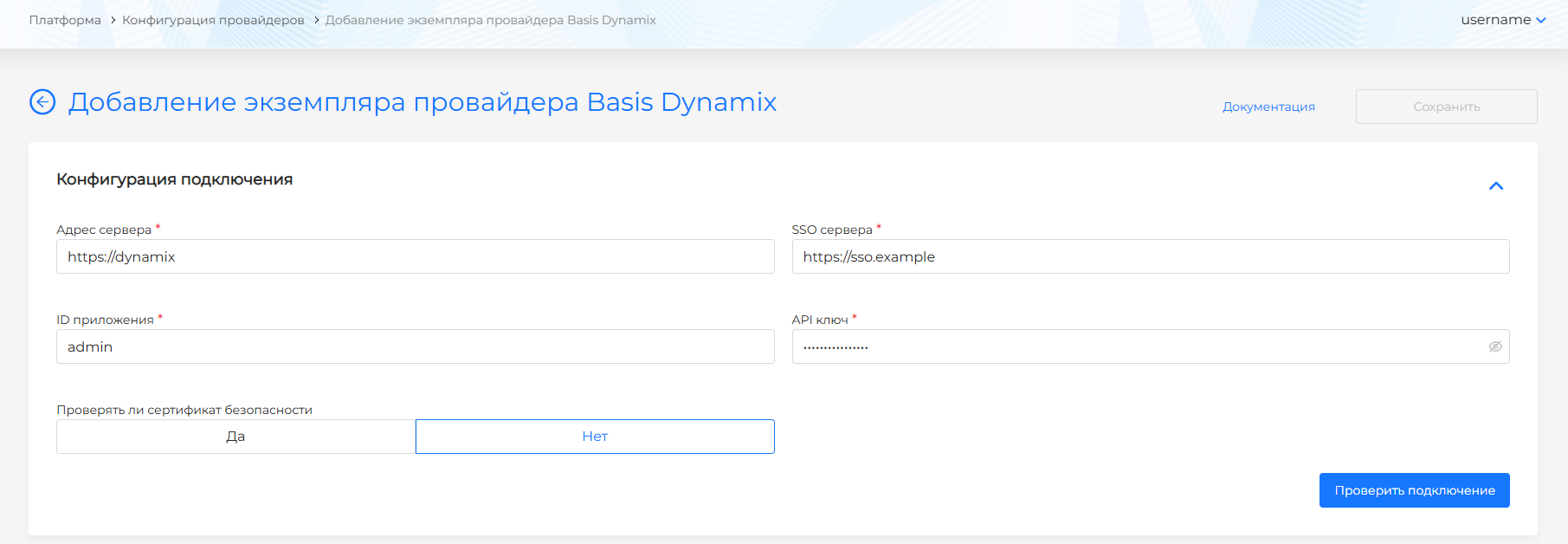
After filling in the fields, check the connection using the Test connection button.
Provider configuration (after successful connection check)
After a successful connection check, the following fields become available in the “Provider Configuration” block:
| Field | Required | Description |
|---|---|---|
| Provider Name | Yes | Used when selecting a template when creating a cluster. |
| Account name | Yes | Account in Basis Dynamix. |
| Resource Group | Yes | Corresponds to the ResourceGroup name. |
| VINSName | Script | Internal network: the name must match name in ViNS of the selected resource group and account. Nodes obtain IP addresses via DHCP — DHCP must be enabled on this network. |
| ExtNetName | Script | External network: name in External Networks; specify if needed. Nodes obtain IP addresses via DHCP — DHCP must be enabled on this network. |
The network interface in the VM template eth0 is set by default and does not change. The IP address on eth0 is assigned via DHCP from the selected network (VINS or ExtNet).
Both fields can be filled in at the same time - VINS Name and ExtNet Name.
Basis Dynamix provider configuration
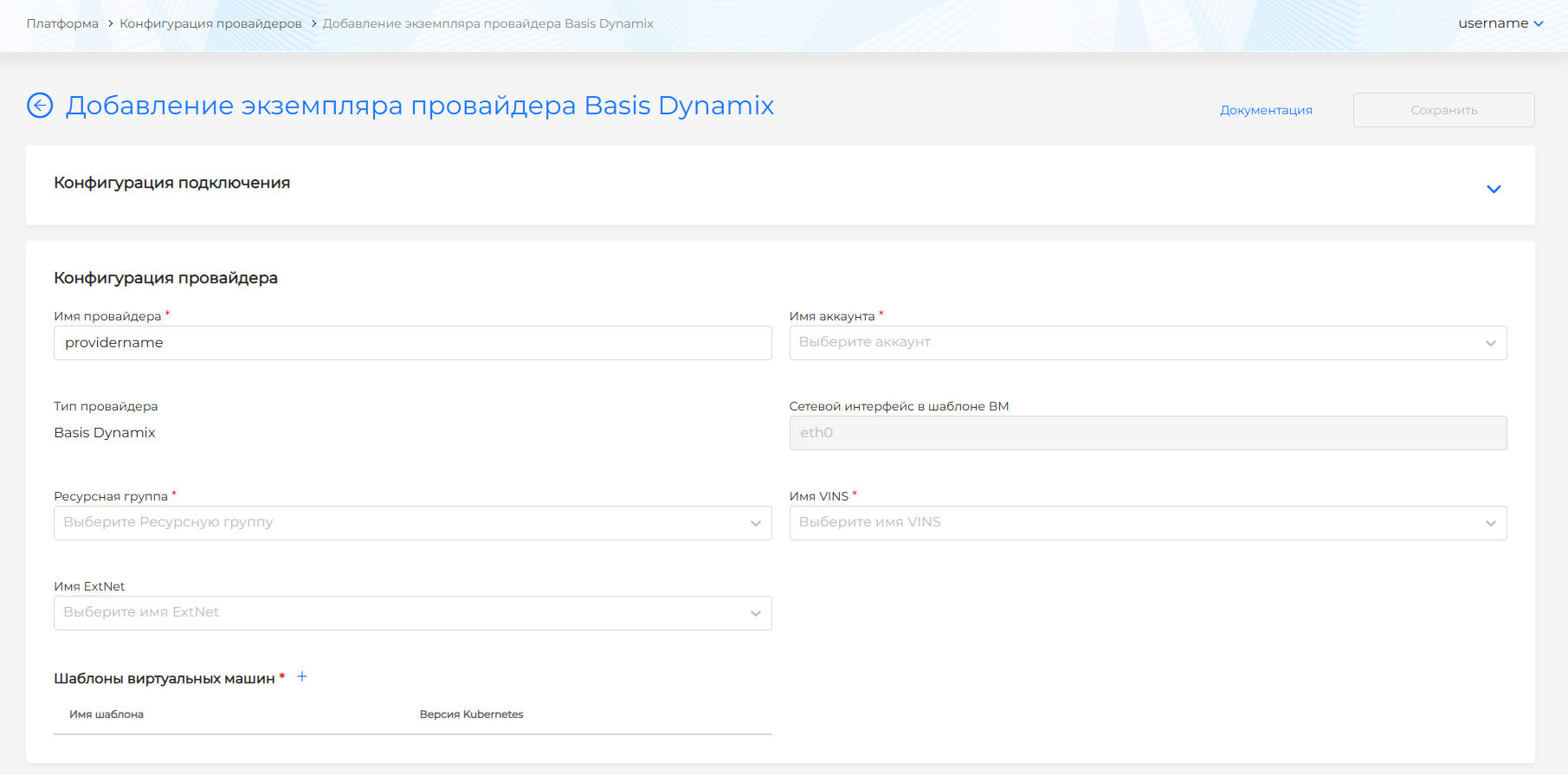
Virtual Machine Templates
Add templates prepared in the Basis Dynamix virtualization platform. You can add multiple templates with the same Kubernetes version. Templates are created according to single instruction.
In the Virtual machine templates block, click + to add a template. In the side window, select name (as in virtualization) and Kubernetes version. Shturval platform version will be filled in automatically and will be available for viewing only.
Loading and binding a template to a provider instance and selecting the Kubernetes version are described in Virtual Machine Template.
After creating a template in the provider card, changing data (including connection-dependent parameters) is available only after successful completionI’m checking the connection.
Updating the version of Kubernetes on nodes
To update the Kubernetes version on cluster nodes, follow the instructions VM nodes and templates.