OpenStack, VK Cloud, Selectel
Integration with OpenStack API.
Purpose
The OpenStack provider allows you to deploy Kubernetes clusters on virtual machines in the OpenStack environment (or compatible clouds).
To configure the provider, it is necessary that the corresponding service in the management cluster is enabled and in the Auto management mode. More details: OpenStack Provider (shturval-capos).
Summary table of OpenStack infrastructure CRs in terms of Cluster API: section Custom Node Lifecycle Resources - OpenStack.
Prerequisites
Before setting up your provider, make sure that:
- your infrastructure has a virtualization platform based on OpenStack or a compatible public cloud: VK Cloud, Selectel;
- a service account has been created with rights not lower than Administrator Kubernetes/Project Administrator;
- in the virtualization platform, images are prepared in advance for the required versions of Kubernetes. For VK Cloud, check the access type to the image: the platform can only use images with the access type public -
public. Images with access type private -privatewill not be available for selection when adding a VM template.
Supported platforms
- OpenStack
- VK Cloud
- Selectel
The provider configuration settings (after checking the connection) are identical for all platforms. Connection settings vary.
Field mapping in virtualization platforms
The fields on the provider configuration form correspond to platform entities. Where to look:
| Field in the Shturval platform | OpenStack | VK Cloud | Selectel |
|---|---|---|---|
| Auth URL | URL Keystone (port 5000). Panel: API Access | Panel: Project Settings → API Access | Default https://cloud.api.selcloud.ru/identity/v3 |
| Project ID | Identification → Projects → ID copy icon | Project Settings | Cloud platform → project menu → copy ID icon in the project line |
| Selectel Account Number | — | — | Account number in the upper right corner of the Selectel panel |
| Project Domain ID | In the identification section | In the project settings | — |
| Region name | For example, RegionOne | Region name | Pool/zone name (e.g. ru-9) |
| Account | Service User or Token. Token: App Access | Access management - login and password. Keystone token is not suitable for long-term use | Service user onlyspruce (see note below) |
| Service User | Identification → user with roles heat_stack_owner, admin | Access Control | Access Control → User Management → Service Users tab. Roles: Account Administrator, User Administrator |
| RC.sh | API access → download openrc.sh | Access control → RC.sh v3 | Access control → RC.sh v3 |
Note: Important for Selectel: Do not use token authentication - the token in Selectel is short-lived (no more than 1 hour) and is not suitable for working with Cluster API. You must create a service account with the roles Account Administrator and User Administrator. For more information about creating a service account, see Selectel documentation, Terraform settings section.
Do not use passwords with repeated special characters for the service account, for example &&: this may lead to an error connecting to the virtualization provider.
Instance creation
Go to Providers → Providers Configuration. In the Provider Services block, check whether Provider OpenStack, VK Cloud, Selectel is enabled. If the service is disabled, click on the switch and wait for it to start. Then click Add provider instance → “+ OpenStack” (or “VK Cloud”, “Selectel”).
The service switch puts the associated provider SSCs into auto mode: first the CRD chart, then the main provider chart. Wait until the service enters the ready state.
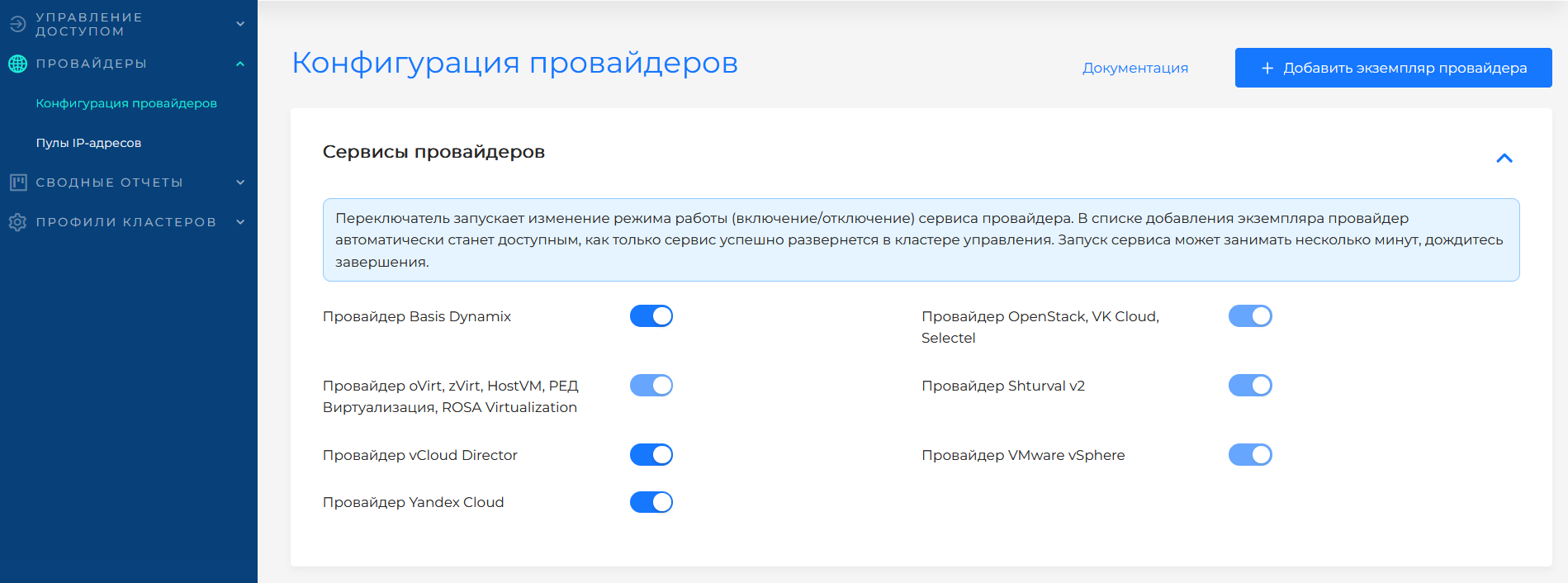
Data can be entered manually or loaded with the RC.sh file.
After entering the data, click Test connection. Once a provider instance has been created, connection details can only be changed after the connection has been successfully verified.
Connection configuration (manual)
OpenStack connection form
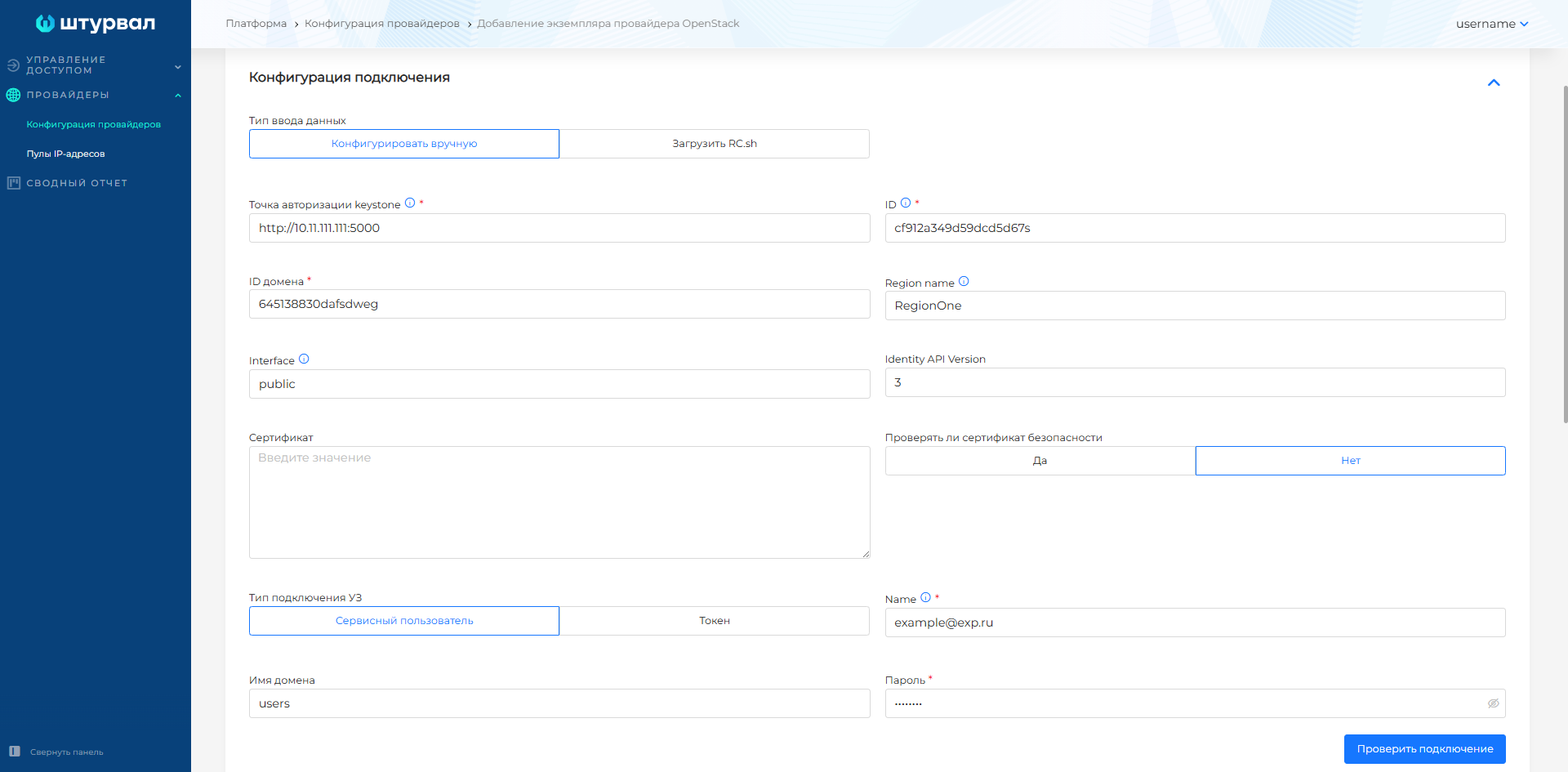
| Field | Required | Description |
|---|---|---|
| Auth URL (Identity endpoint) | Yes | Keystone Authorization Service URL. Example: http://10.11.111.111:5000/v3. |
| Project ID | Yes | Project ID. In the OpenStack panel: Identity → Projects. |
| Selectel Account Number | For Selectel | Selectel account number. In the panel it is available in the upper right corner. |
| Project Domain ID | Yes | Project domain ID. |
| Region name | Yes | Region name (for example, RegionOne). |
| Interface | Yes | Access interface (usually public). |
| Identity API Version | No | API version (default 3). |
| Certificate (cacert) | No | Root certificate when using a self-signed CA. |
| Check certificate | No | Enable TLS checking (default: no). |
| Account Type | Yes | Service user — login and password; Token - token only (in the panel: Access for applications). For Selectel, use only the service user - the token is short-lived and not suitable for Cluster API. |
| Name (username) | With service user | Username with roles heat_stack_owner, admin. |
| Password | With service user | Account password. |
| User Domain Name | No | User domain name. |
| Token | When selecting “Token” | Token from the OpenStack panel. |
Connection configuration (RC.sh)
Loading RC.sh
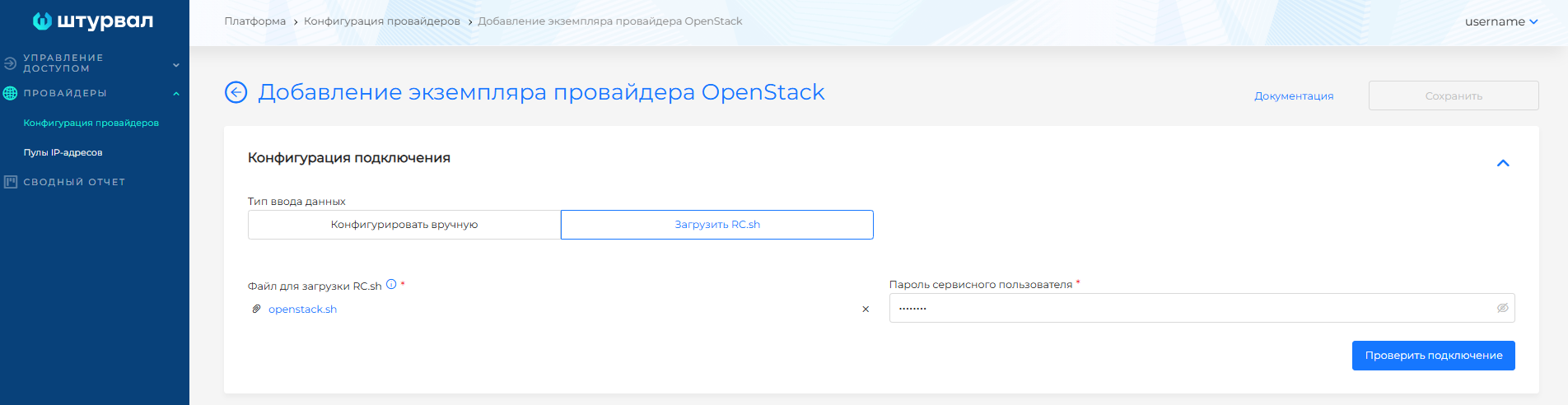
Load the RC.sh file from the OpenStack panel (section API Access) and specify the service user password.
Provider configuration (after checking the connection)
| Field | Required | Description |
|---|---|---|
| Provider Name | Yes | The unique name of the instance. |
| CloudName | Yes | Cloud name (for example, vk, selectel). |
| VM network interface | Yes | Interface name on the VM (for example, eth0). |
| sshKeyName | Yes | SSH key for accessing the VM. Select from the list of OpenStack keys. |
| Host Subnet | Yes | Subnet for cluster nodes. Must not overlap with pod and service subnets. Created by the platform. Nodes obtain IP addresses from this subnet via DHCP. |
| externalNetworkID | Yes | External network ID. |
| VM types (flavors) | Yes | Types of virtual machines for nodes. |
| Disk types (volume types) | Yes | Types of volumes for VM disks. |
| Accessibility zones | No | Availability zones if necessary. |
| Security Groups Management | No | Enable security group management (default - Yes). |
| Allow CSI | No | Enable to use OpenStack Cinder CSI. If CSI is enabled on a provider instance, CSI integration will be available when creating a cluster with that instance. |
Image templates
Add images for the required versions of Kubernetes. The images must be prepared in advance in the virtualization platform according to single instruction.
In the Virtual machine templates block, click + to add a template. In the side window, select name (as in virtualization) and Kubernetes version. Shturval platform version will be filled in automatically and will be available for viewing only. You can add multiple templates with the same Kubernetes version.
After creating a provider, only the selected VM types, disk types, and availability zones are displayed in the settings.
To update the Kubernetes version on cluster nodes, use the VM nodes and templates instruction.
If an image has been created in VK Cloud and it is not listed in the list of virtual machine templates on the configuration page of the VK Cloud provider instance, check the access type of the image in the virtualization platform. It must be public - public, see section Change image access type in VK Cloud.
Features
- We use images prepared according to single instructions for all providers;
- Nodes obtain IP addresses from the node subnet via DHCP;
- Network configuration and security groups are required to access KubeAPI and Ingress.
Change image access type
If the image in VK Cloud with the access type is private - private, change it. In the Administrator Portal VK Cloud interface:
- In the VK Cloud panel, open the project menu and select Project Settings.
- On the API Access tab, copy the Project ID value.
- Go to the Images section.
- In the line of the desired image, click … and select Share image.
- In the Access Control window, select the Other Projects tab.
- In the Project ID in OpenStack field, paste the copied Project ID and click Allow access.
After granting access, the image will be available in the list of VM templates in the VK Cloud provider instance.