VMware vSphere
Integration with vCenter.
Purpose
The VMware vSphere provider allows you to deploy Kubernetes clusters on virtual machines in the VMware vSphere environment (vCenter, ESXi).
Requirements
To configure the provider, it is necessary that the corresponding service in the management cluster is enabled and in the Auto management mode. More details: vSphere Provider (shturval-capvs).
Summary table of VMware vSphere infrastructure CRs (VSphere*): section Custom Node Lifecycle Resources - VMware vSphere.
Network and DHCP. Cluster nodes are created as virtual machines and obtain IP addresses via DHCP. The network (Distributed Port Group) that you specify in the Network field when configuring the instance must assign IP addresses via DHCP — without it, the created VMs will not receive addresses.
Instance creation
Go to Providers → Providers Configuration. In the Provider Services block, check whether vSphere Provider is enabled. If the service is disabled, click on the switch and wait for it to start. Then click Add Provider Instance → select “+ VMware vSphere”.
The service switch puts the associated provider SSCs into auto mode: first the CRD chart, then the main provider chart. Wait until the service enters the ready state.
Illustration: Instance creation
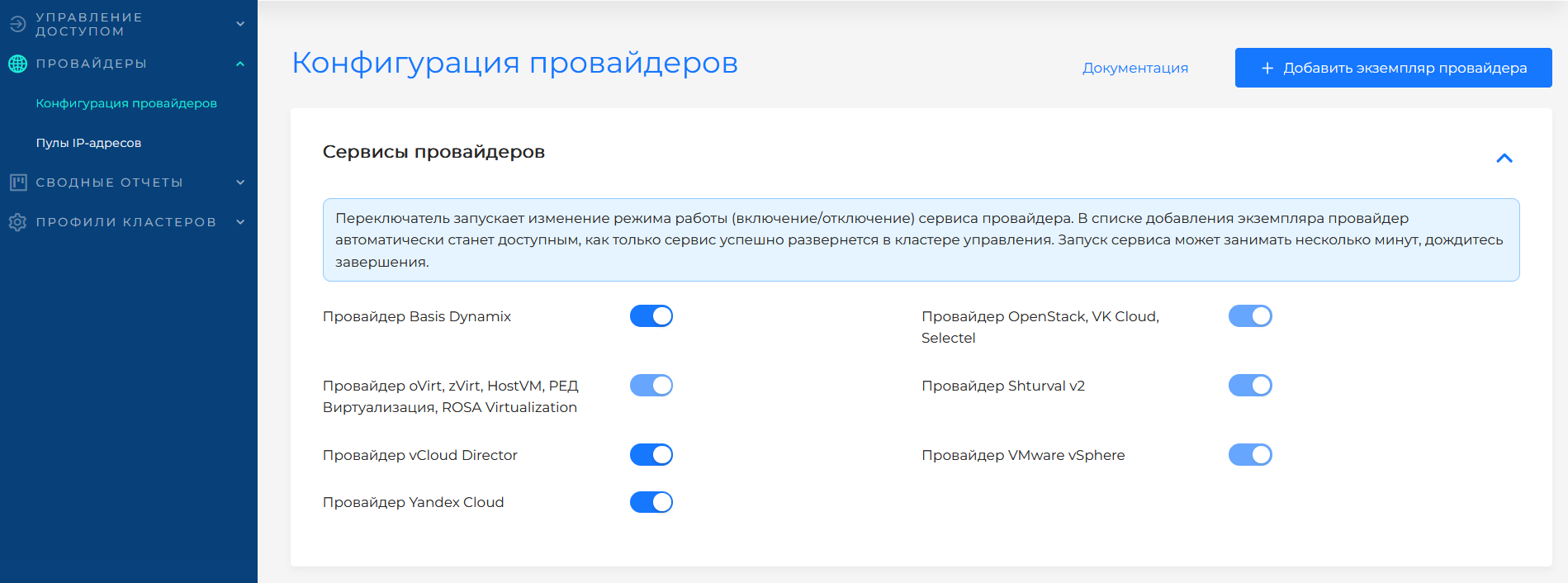
Illustration: Instance creation
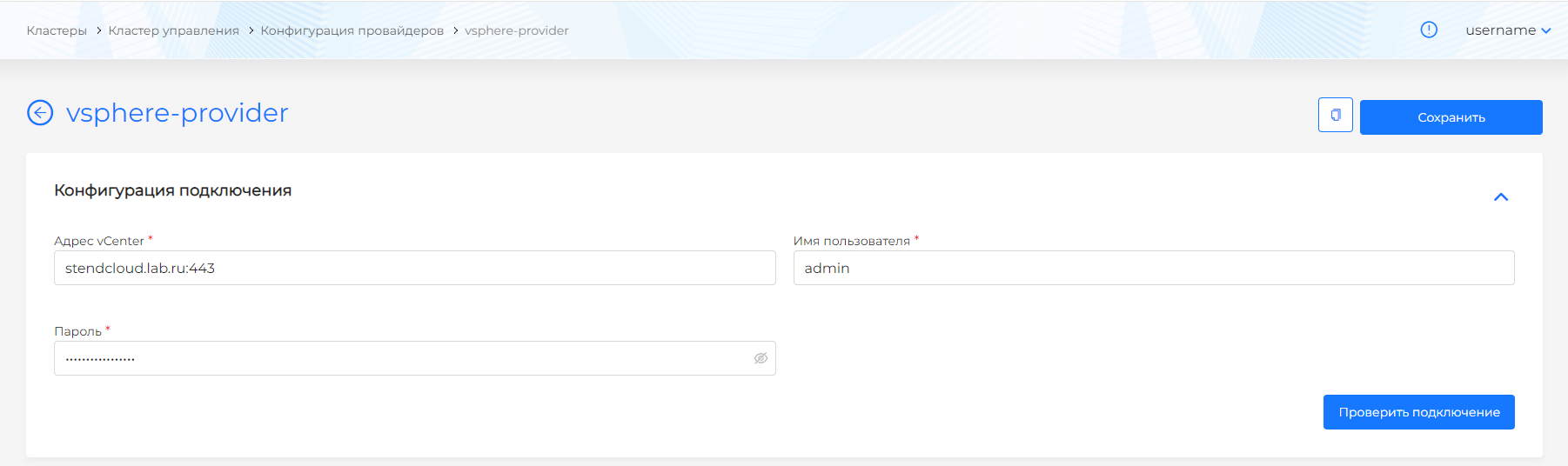
Configuration fields
| Field | Required | Description |
|---|---|---|
| Instance name | Yes | A unique name to identify the instance in the platform (for example, vcenter-prod). |
| IP Pool | No | Select a pool from the list. Addresses from the pool are assigned to the cluster API server and VIP Ingress when the cluster is created. Without a pool, addresses are entered manually. Adding and configuring pools in the platform - on the IP address pools page |
| vCenter Address | Yes | IP address or FQDN of the vCenter server. Example: vcenter.company.local or 10.11.12.100. |
| Username | Yes | Account in the format username@domain (for example, administrator@vsphere.local). Domain required. |
| Password | Yes | Account password for connecting to vCenter. |
VMware vSphere account requirements
Note: The account is specified in the format username@domain (for example, admin@vsphere.local).
The provider requires VMware vSphere 6.7 update 3 or 7.0 and higher. Create a resource pool and prepare an account with assigned roles:
- Custom role with permissions to service role No. 1 - for creating and managing VMs;
- System role Read only - for reading the configuration;
- When using CSI - additionally a custom role with permissions of service role No. 2 (CNS, Profile-driven storage, Sessions). Role No. 2 is auxiliary; without Role No. 1 it will not provide all the required permissions.
Rights assignment scheme
| Object | Role | Propagation (inheritance) | Comment |
|---|---|---|---|
| vCenter | Service Role #2 | No | Required for CSI |
| Datacenter | Read only | No | Data center for VM client clusters |
| Cluster | Service Role #1 | No | Cluster for VM client clusters |
| Host | Read only | No | Hosts in a cluster. Required for CSI |
| resource pool | Service Role #1 | Yes (optional) | Resource pool for VMs |
| Folder | Service Role #1 | Yes | Folder for VM and template |
| Datastore | Service Role #1 | Yes | Storage for VM disks |
| Distributed Switch | Read only | No | Switch for VM network interfaces |
| Distributed Port Group | Service Role #1 | Yes | A group of ports for VM network interfaces. Rights must also be for the port group to which the VM template is connected |
Permissions for service role #1
| Section | Resolution |
|---|---|
| Datastore | Allocate space |
| Browse datastore | |
| Low level file operations | |
| Remove file | |
| Update virtual machine files | |
| Update virtual machine metadata | |
| Folder | Create folder |
| Delete folder | |
| Move folder | |
| Rename folder | |
| Global | Cancel task |
| Log event | |
| Set custom attribute | |
| Host.Local operations |
|
| Network | Assign network |
| Resource | Apply recommendation |
| Assign vApp to resource pool | |
| Assign virtual machine to resource pool | |
| Create resource pool | |
| Migrate powered off virtual machine | |
| Migrate powered on virtual machine | |
| Move resource pool | |
| Query vMotion | |
| Remove resource pool | |
| Scheduled task | Create tasks |
| Modify task | |
| Remove task | |
| Run task | |
| Profile-driven storage | Profile-driven storage view |
| Tasks | Create task |
| Update task | |
| vApp Actions | Add virtual machine |
| Assign resource pool | |
| Assign vApp | |
| Clone | |
| Create | |
| Delete | |
| Export | |
| Import | |
| Move | |
| Power off | |
| Power on | |
| Pull from URL | |
| Rename | |
| Suspend | |
| Unregister | |
| View OVF environment | |
| vApp application configuration | |
| vApp instance configuration | |
| vApp managedBy configuration | |
| vApp resource configuration | |
| Virtual machine | Change Configuration:
|
Edit Inventory:
| |
Guest operations:
| |
Interaction:
| |
Provisioning:
| |
Snapshot management:
|
Permissions for service role #2
| Section | Resolution |
|---|---|
| CNS | Searchable |
| Profile-driven storage | Profile-driven storage update |
| Profile-driven storage view | |
| Sessions | View and stop sessions |
| Validate session |
After entering your credentials, click Test connection. If successful, drop-down lists will be available to select vSphere objects.
| Field | Required | Description |
|---|---|---|
| Datacenter | Yes | A virtual data center in which cluster VMs will be created. Select from the list after checking the connection. |
| Resource Pool | Yes | Resource pool for hosting VMs. Defines CPU and memory limits. Select from the list. |
| Network | Yes | Network for VM network interfaces. DHCP must be running on the network to automatically assign IP to created VMs. |
| Datastore | Yes | Data storage for VM disks. Select from the list. If Datastore has multiple Storage Policies, specify the required policy. |
| VM storage path | Yes | Path to the Datastore for placing VM files (for example, a folder in the storage). |
VM templates
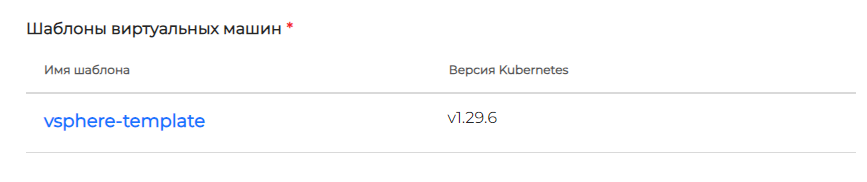
Add VM templates for the required Kubernetes versions. You can add multiple templates with the same Kubernetes version. Templates are created according to single instruction.
In the Virtual machine templates block, click + to add a template. In the side window, select name (as in virtualization) and Kubernetes version. Shturval platform version will be filled in automatically and will be available for viewing only.
Illustration: VM templates
Features
- Use VM templates prepared according to single instruction;
- Nodes obtain IP addresses via DHCP — DHCP is required on the network selected in the Network field;
- Ensure that VMware vSphere resources (CPU, RAM, storage) are sufficient to deploy cluster nodes.