How updating occurs in open and closed loops
Shturval Updater module, update channels, cluster GUI and deployment loops.
Before update
- Consider release policy: cluster update order, types of versions and support.
- Check on the version map that the transition from the current version to the target version is acceptable (if necessary, through an intermediate one).
- For minor updates, check Shturval and Kubernetes version compatibility.
- If after preparation the version does not appear in the GUI or the process proceeds with errors, see Troubleshooting update.
Update module (Shturval Updater)
The Shturval Updater module provides:
- updating system components and cluster services;
- cluster version management;
- consistency between versions of the Shturval platform and Kubernetes.
The module is critical for the operation of the platform and is installed by default in the management cluster and client clusters.
Custom update resources
- ShturvalUpdate — sets the update version, displays the status;
- ShturvalUpdateChannel — update channel (only a stable channel is available in the platform);
- ShturvalUpdateSchedule — deferred update parameters.
Open loop
The update is available directly from the repository. After a new version is released, it appears in the GUI. Start the update through the “Clusters” → “Update” section or through the corresponding custom resources.
Closed loop
- Upload the new version bundle to each registry used in the closed loop or run
stm bundle load/stm download. More details: Working with the mirror after installation. - Restart the custom resource ShturvalUpdateChannel (
shturval-update) in each cluster that you plan to update. - After 5–10 minutes, the new version will become available for updating in the GUI. If this does not happen, see Troubleshooting update.
Restart ShturvalUpdateChannel
Without restarting the ShturvalUpdateChannel named shturval-update, reconciliation will occur automatically, but may take up to 6 hours.
After a restart, the new version usually appears in the GUI within 5–10 minutes.
- In the cluster GUI, go to the Administration → Custom Resources section.
- Expand the
update.shturval.techAPI group and open the ShturvalUpdateChannel resource. - Open the resource manifest
shturval-update. - Without changing anything in the manifest, check and click Save.
Screenshots
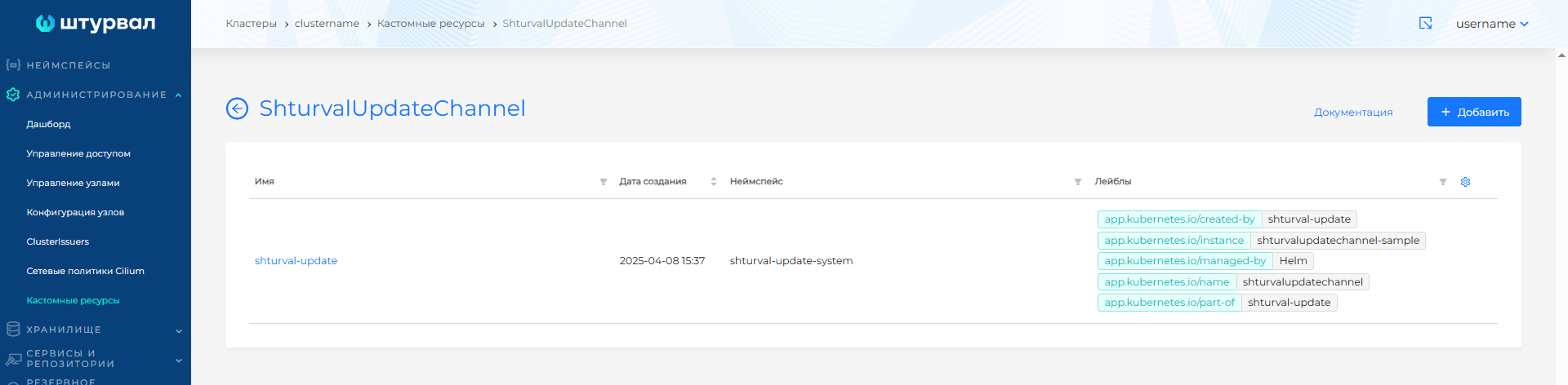
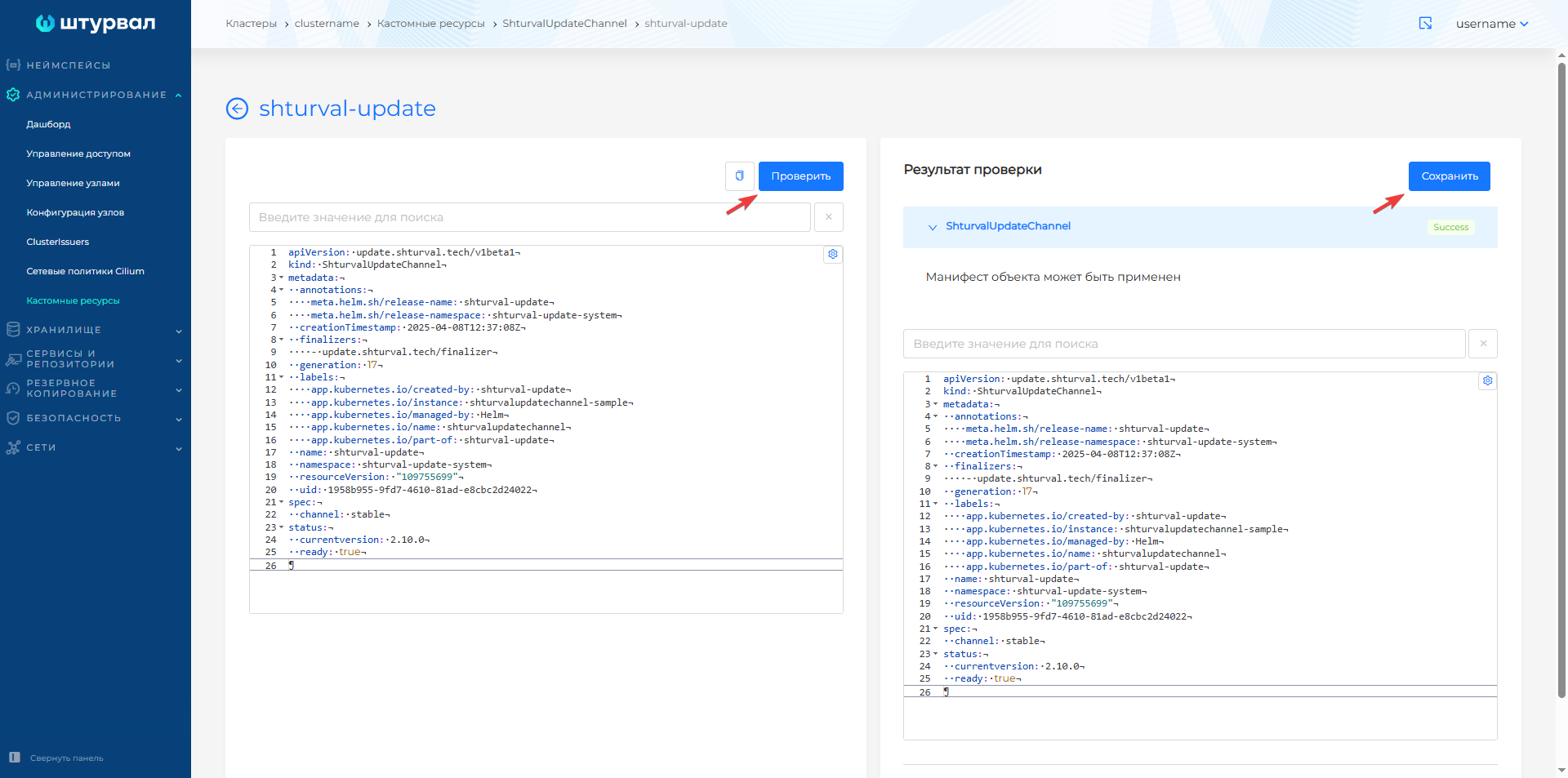
Add a custom label to the shturval-update resource in the shturval-update-system namespace:
kubectl label ShturvalUpdateChannel shturval-update --namespace shturval-update-system example=
Replace example with any new label (see the screenshot below).

Update in GUI
The platform is released in minor and patch versions; Patch releases are released as needed. The release schedule and support policy are described in release policy. Valid transitions between version numbers are on the version map.
On the management or client cluster dashboard, click Manage next to the cluster version and Kubernetes. In the update modal window, you can manually start the update or set up an automatic launch on a schedule; the process status is displayed in the update block. If it shows “No Updates”, you have the latest version available (for the current channel).
Screenshots
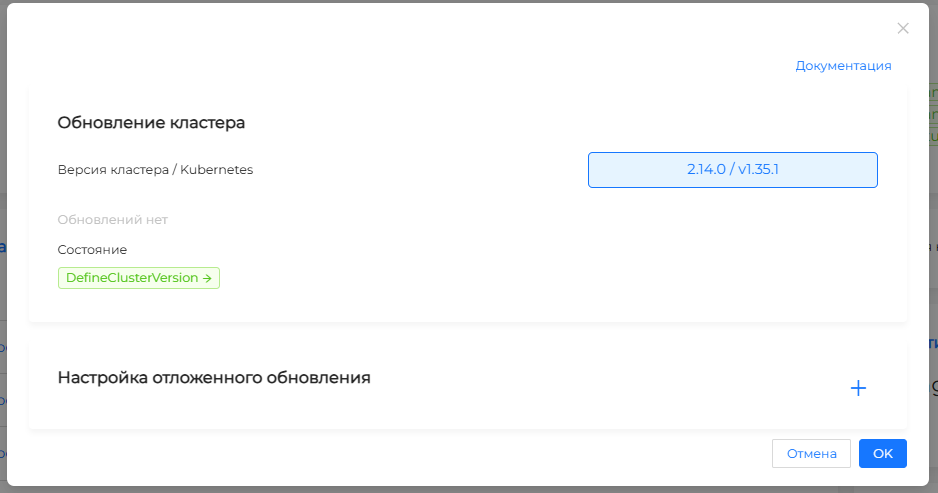
Manual start
If there is a target version in the list, select it and click Update.
Delayed scheduled update
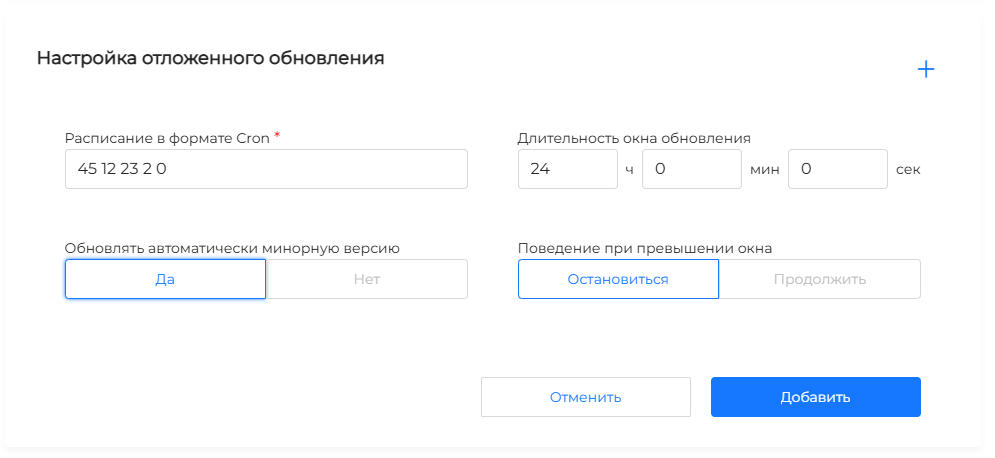
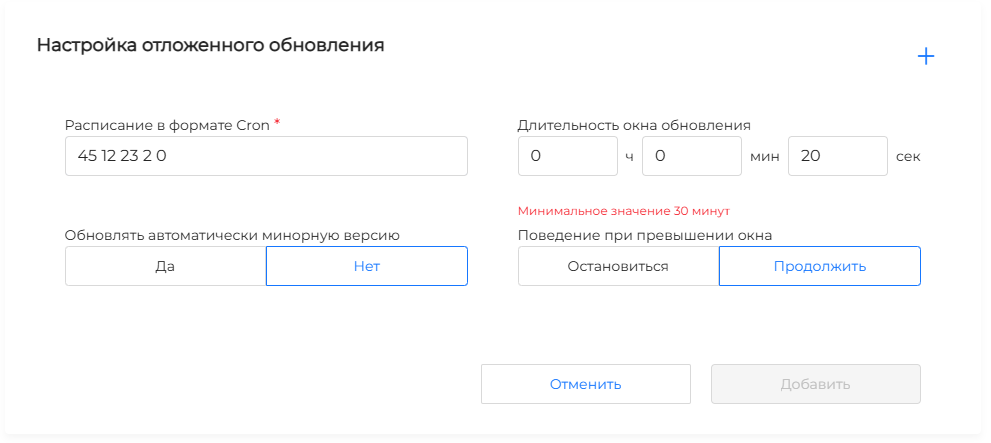
Deferred update sets a schedule in which the system can automatically start an update when a suitable version becomes available. You can create several configurations for different scenarios (for example, for minor and patch versions); viewing all schedules - in the same modal window, the name of the schedule is created automatically.
To set up a schedule, in the update window, click + next to “Set up deferred update” and specify:
- Schedule in cron format (spaces between values); the schedule is interpreted in the time zone of the controller process, usually UTC;
- Update window duration (default 24 hours)—how much time can be used for updating if a suitable version is available at the time of the scheduled scan; in the GUI, the minimum value is 30 minutes (a shorter interval may not be sufficient for correct updating);
- Behavior when the window is exceeded: the parameter does not affect the initial launch of a scheduled update, but applies to an already running update; stop - Prios update processesare activated, the window displays the UpdatePaused status, to resume, click Continue unscheduled; continue - the update continues until completion;
- is it allowed to automatically update to minor versions; if not, automatic update only to patch versions.
Note: Please note: the schedule specifies the start of the update window, and the window duration specifies the period during which the update can be run. When checking the schedule, the controller first calculates the window from the nearest previous cron run. If the current time falls within this window, the update will start immediately, without waiting for the next scheduled launch. For example, with a schedule of 0 20 * * * and a window duration of 24 hours, the update will begin immediately. With the same schedule at 18:00 UTC, if you set the window duration to 4 hours, the update will start at 20:00 UTC.
Complete the settings with the Add button. The schedule configuration can be changed at any time; if edits are made during an update already in progress, the new script is then applied. A schedule can be deleted if updating for it has not started yet.
Update steps and color indication
After launch, the stages are displayed on the dashboard:
- updating the cluster update module (shturval-update);
- forced removal of outdated services (this stage can be skipped if they are absent);
- updating the node configuration management module (shturval-node-config); the stage can be skipped, the update will complete without initializing the stage;
- update version of Kubernetes;
- updating versions of platform system services.
Stage status indication:
- green — the stage has been successfully completed;
- yellow — the stage is being executed;
- gray — the stage is not initialized.
After the cluster upgrade is complete
After an update up to and including version 2.15, and with the InPlace strategy, update the VM templates in InfraMachineTemplate so that new nodes are created with the current Kubernetes version. Starting with version 2.15, the RollingUpdate strategy takes the template from InfrastructureProvider. Step by step — VM nodes and templates. For clusters with the Shturval v2 provider, a separate replacement of templates is not required.
Contact support
If you have difficulties during the update process, first see Troubleshooting update. If necessary, contact the development team via service desk: the “About the system” tab of the platform’s GUI.
Features of the update process
Upgrade without downtime
Update occurs in backgroundmode without downtime. The cluster continues to operate during the upgrade and applications remain available.
Node update process
The update is rolled out to nodes sequentially according to the following algorithm:
- Cordon - the node is marked as unavailable for new pods (new pods will not be placed on this node).
- Drain - existing pods are gracefully terminated or moved to other nodes (graceful shutdown).
- Update - platform components and Kubernetes are updated on the node.
- Uncordon - the node again becomes available for hosting pods.
This process is repeated for each node in the cluster, ensuring continuous application operation.
Limitations
Note: Rolling back to a previous version or downgrading the version is impossible. After updating, you cannot return to the previous version of the platform. Before updating it is recommended:
- create a backup copy of the cluster (if the backup module is enabled);
- read the release notes of the target version for breaking changes.